
Data Recovery Laptop Hard Drive Guide for Sheffield

The laptop is on the kitchen table in Sheffield, but Windows isn't. You hear a faint click, the machine freezes at the manufacturer logo, or a folder that held years of work suddenly appears empty. The first instinct is usually to restart, run a repair utility, or search for free recovery software. With a failing hard drive, those actions can turn a difficult recovery into a much worse one.
Laptop drives work in a harsher environment than many desktop drives. They're exposed to movement, drops, heat, cramped airflow and repeated sleep-wake cycles. A fault may be logical, caused by deleted files or a damaged file system, or it may involve firmware, electronics or the drive's moving parts. The correct response depends on identifying that difference before stressing the disk further.
Safe data recovery from a laptop hard drive means preserving the original device, making a controlled sector-level image, and carrying out analysis on that copy. It doesn't mean repeatedly booting the laptop until it starts, opening the drive in a room, or allowing Windows to “fix” errors before the important data has been protected. For a wider view of the human and business consequences, navigating data loss with Nutmeg Technologies is useful background.
If the drive is clicking, grinding, disappearing from the BIOS, or becoming progressively slower, stop reading troubleshooting forums and power it down. If the drive is detected normally and the problem followed an accidental deletion, you may have a limited, image-based software recovery job. The distinction matters more than the brand of laptop or the version of Windows installed.
Table of Contents
Introduction to Laptop Hard Drive Data Recovery - What recovery is trying to protect
How to Diagnose Logical Versus Physical Failure - Start with sound and detection - Use three fault classes
Safe First Response and Image First Workflow - Protect the original - What imaging should look like
Attempting Logical Recovery With Recommended Tools - Select the tool for the failure - Use Windows repair cautiously
When to Stop and What Professional Recovery Costs in the UK - UK recovery tiers
Preventing Future Loss and Getting Help in Sheffield - A practical Sheffield plan
Introduction to Laptop Hard Drive Data Recovery
A Sheffield sole trader might open a laptop before a client meeting and find that an accounting folder has vanished. A home user may see “no boot device” after a harmless-looking restart. In both situations, the visible symptom tells you very little about the condition of the disk underneath. A missing partition and a damaged read head can produce equally unhelpful messages, but they require completely different handling.
The first hour is a preservation window, not a repair opportunity. Every boot causes the drive to read system files, load background services and potentially write logs or updates. If the heads are struggling over damaged sectors, further reading can increase wear. If the file system is corrupt, automatic repair may alter structures that a recovery technician would first want to capture unchanged.
What recovery is trying to protect
A hard drive stores data in sectors, while the file system records how those sectors belong to folders and files. Logical recovery reconstructs that organisation when the hardware can still read consistently. Physical recovery deals with unreliable mechanics, damaged surfaces, electronics or firmware, and normally needs specialist equipment and controlled handling.
Professional providers in the UK describe a high-volume, established market. Secure Data Recovery says it has handled over 100,000 cases, reports a 96% success rate, and has retrieved billions of files, while another UK provider reports more than 120 successful recoveries per day. Those figures are provider-reported benchmarks, not a promise for an individual Sheffield drive, but they show why controlled recovery is an engineering process rather than a single software download. Secure Data Recovery's UK service information provides that market context.
The practical rule: the more valuable the files, the less you should test the original drive.
This guide focuses on laptop HDD failures, image-first handling, cautious logical recovery, professional hand-off points and the often-overlooked situation where both the laptop and its backup have problems. Steel City IT's local context is relevant for Sheffield customers who need an assessment, drive handling or migration to replacement storage, but no workshop can promise recovery where the media itself has been destroyed.
How to Diagnose Logical Versus Physical Failure
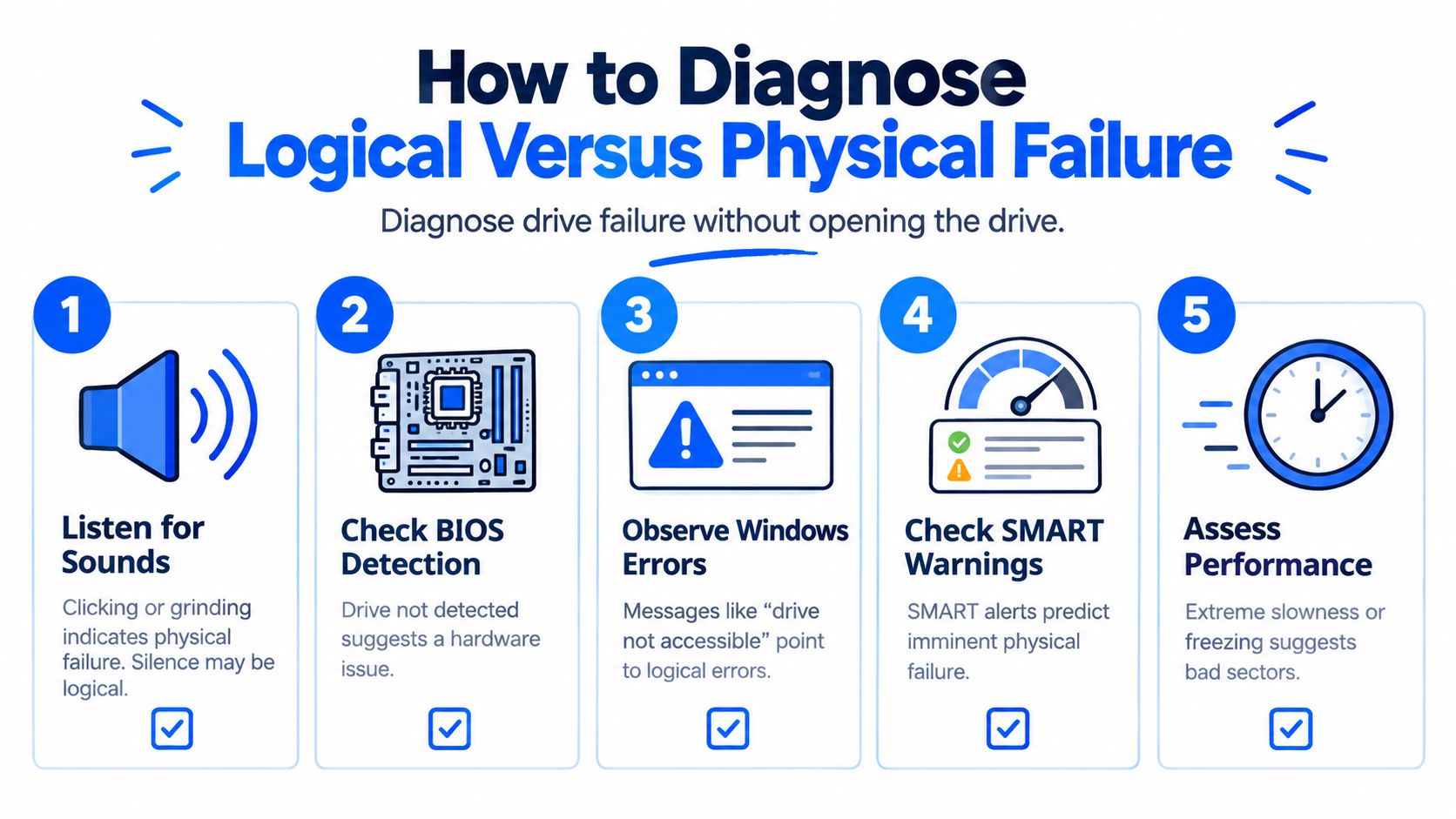
Diagnosis should be observational. Don't open the drive, initialise it, format it or run repair commands while you're still deciding what has failed. Listen, check whether the firmware can see the device, and record exactly what the operating system reports.
Start with sound and detection
A repeated rhythmic click, a scrape, or a grinding sound is a physical warning. Silence isn't proof of safety, because a drive with failed electronics or firmware may never spin or initialise, but abnormal sound should end DIY testing immediately.
Enter the laptop's BIOS or UEFI setup without repeatedly rebooting. If the drive is absent there, Windows recovery software won't solve the underlying detection problem. A drive that appears intermittently is also risky. It may work long enough to expose a directory, then stop responding when the heads encounter unreadable sectors.
Windows messages help classify the symptom, not prove the cause. “Drive not accessible”, a request to initialise the disk, a missing volume or a RAW file system can indicate logical damage, but the same messages may occur when hardware is deteriorating. SMART warnings, where available, can indicate that the drive is reporting health problems. Extreme slowness, freezing during file browsing and long pauses are particularly concerning because they often accompany bad sectors.
The hard drive failure signs guide from Steel City IT is a useful checklist to consult before choosing a recovery method.
Use three fault classes
Logical failure usually means the drive is detected, spins normally and remains responsive, but files, partitions or the file system are damaged. Accidental deletion, corruption and an interrupted operation can fall into this category. A stable device may be suitable for imaging with careful software.
Firmware failure sits below normal file access. The laptop may detect a model name but fail to read capacity correctly, report an incorrect size or hang during startup. Firmware faults need specialist diagnosis because ordinary file tools operate above the layer that is malfunctioning.
Physical failure includes clicking, grinding, repeated spin-up attempts, disappearing detection and severe read instability. A physically failing HDD needs limited power-on time. Continued booting can worsen head or platter damage, especially if the drive keeps retrying the same bad area.
A simple decision flow is enough:
Detected and stable, with no unusual sound: preserve it and create an image before scanning.
Detected but painfully slow or intermittently missing: stop and seek controlled imaging or lab assessment.
Clicking, grinding, not detected, water-damaged or electrically dead: don't run recovery software. Power down and arrange professional handling.
The key error is treating a mechanical failure as corrupted software. UK recovery benchmarks report about 96% success for functional mechanical HDDs, falling to around 88% where physical damage is present, while other reported benchmarks place logical faults around 97%, firmware issues around 94%, and single-head replacements around 89%. These are source-reported outcomes, not guarantees, and they reinforce the value of diagnosing the fault class first. The UK recovery benchmark and failure-type guidance explains that distinction.
Safe First Response and Image First Workflow
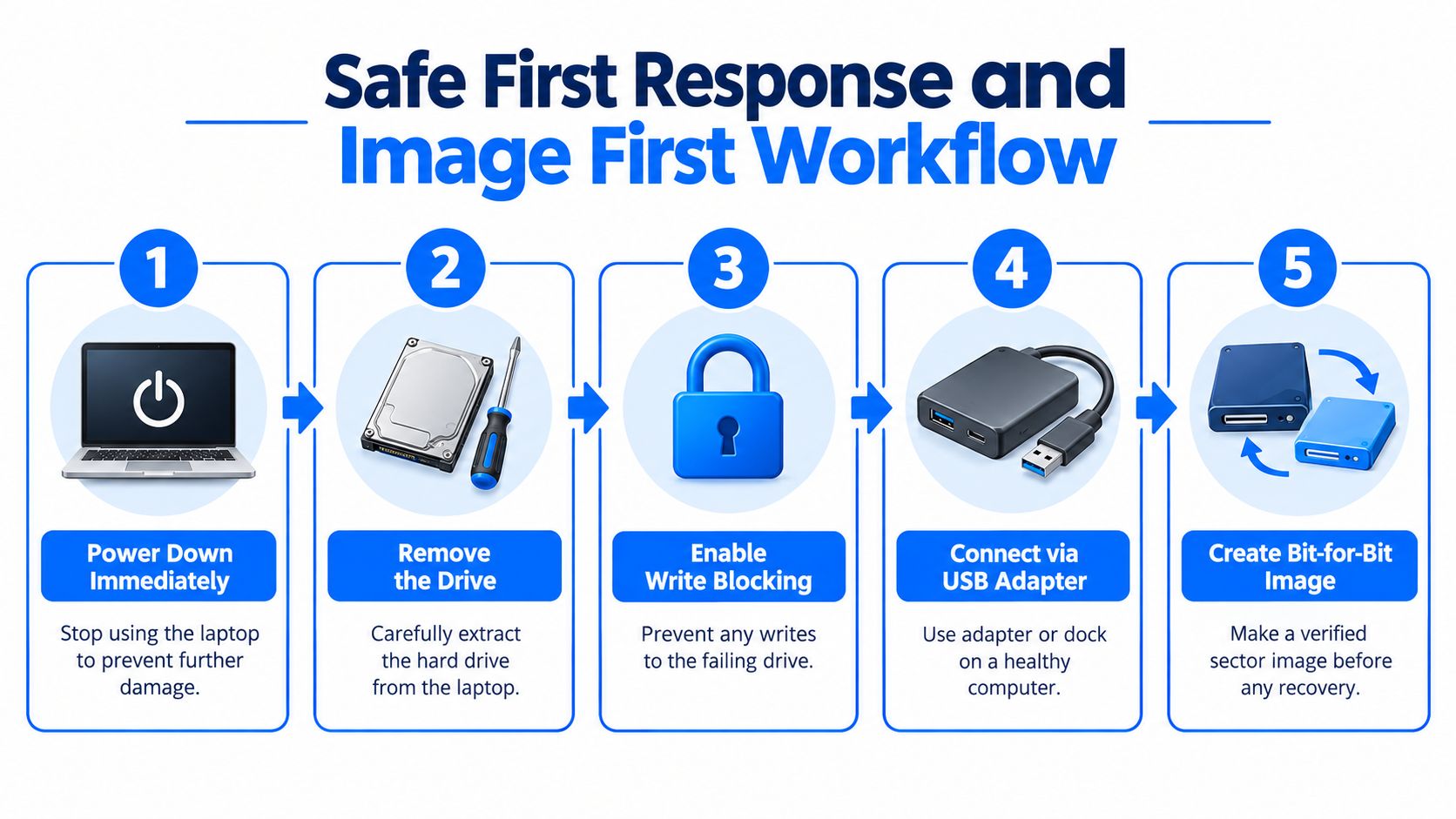
Once important files are at risk, stop trying to make the laptop usable. Recovery and repair are different objectives. Repair changes the device or its file system so it can operate again, while recovery first tries to preserve readable data before the condition changes.
Protect the original
Use the following order:
Power down normally if possible. If the system is frozen and the drive is clicking, hold the power button rather than allowing repeated restart cycles.
Remove the drive only if you're confident doing so. Photograph cable positions and mounting brackets, and keep screws and adapters with the device.
Prevent writes. A hardware write blocker is the safest professional approach. A USB adapter or dock connected to a healthy computer can be suitable for a stable drive, but software settings alone aren't the same as physical write protection.
Prepare destination storage. The destination must have enough capacity for a sector-level image and should be healthy. Don't use the same disk, a nearly full system drive or a drive containing the only copy of another important dataset.
Image before file scanning. Clone sectors in sequence, record read errors and use controlled retries. Work from the image, never from the unstable original.
The reason is mechanical as much as logical. A damaged drive may require repeated reads to retrieve a sector. Each retry adds stress, and a head crash or expanding media damage can remove sectors that were previously accessible. The image-first approach moves that risk to a controlled capture stage and gives later scans a repeatable source.
What imaging should look like
A good image isn't merely a drag-and-drop copy of visible folders. It is a sector-by-sector representation that includes areas the operating system can't mount. Tools such as GNU ddrescue and HDDSuperClone can be used by experienced operators to prioritise readable regions, log failures and return to difficult areas without starting again.
Don't judge success by whether Windows shows a drive letter. A clone may contain the data while still appearing unmountable because its partition or file system is damaged. Verification means checking the imaging log, confirming the destination is readable and preserving the original error record for later analysis.
Stop point: if imaging produces increasing errors, long timeouts, repeated disconnects or new clicking, disconnect the source. More retries aren't automatically better.
A Sheffield user who lacks a write blocker, a suitable destination disk or experience with failing sectors should hand over the drive before experimenting. The UK image-first recovery guidance describes the controlled workflow and reports about 94% recovery across roughly 1,000 cases under that methodology, with logical failures often around 85% to 90% and physical damage around 75%. Those figures demonstrate the value of process, but they don't convert a damaged drive into a guaranteed recovery.
For a visual explanation of the workflow, this video shows the general recovery sequence:
Attempting Logical Recovery With Recommended Tools
Software recovery belongs on a verified image. If you haven't made that image, stop here and return to the previous workflow. A program that finds files on the original may still be causing reads, creating logs or writing recovered output to the wrong place.
Select the tool for the failure
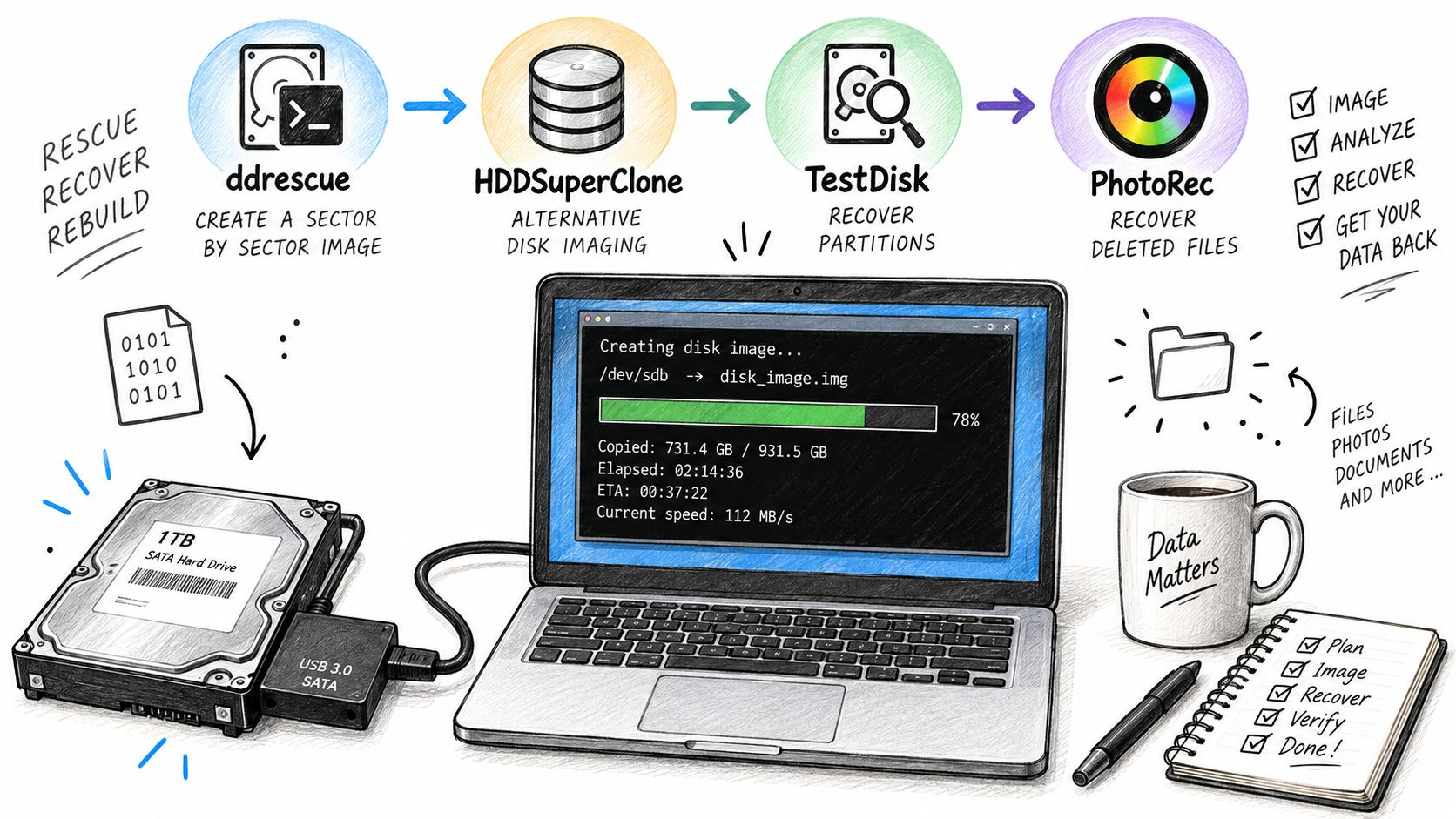
For unstable media, ddrescue and HDDSuperClone are imaging tools, not file-recovery browsers. They create a sector image and maintain progress information, which lets an operator pause and resume without losing the map of unreadable areas. Use them only when you understand source and destination selection, because reversing those roles can overwrite the wrong device.
On the image, TestDisk can help rebuild or locate partitions where the underlying file system remains recognisable. DMDE gives more detailed access to partitions, file systems and directory structures, and can be useful when automatic tools need manual interpretation. PhotoRec searches for file signatures rather than relying on the original folder structure. It can recover content when the directory is badly damaged, but filenames and folder organisation may not survive.
Recover recovered files to a separate healthy disk. Never save them back to the image if that image is your only working copy. Keep a written log of the image filename, tool settings, partitions examined and files exported. Recovery work becomes much easier to audit when you know which result came from which scan.
Use Windows repair cautiously
Commands such as are designed to repair a file system, not to preserve a failing source. Running them on the original can change directory entries and allocation records before you have captured them. If you must test the command, use a disposable working copy of the image, not the source and not your sole master image.
A sensible order is to inspect the image first, export the highest-value folders, then try broader scans or signature-based recovery. Open several recovered files from different folders. A result that lists filenames isn't enough. Photos should display, documents should open, and business files should pass whatever application-level checks are appropriate.
Hard stops matter:
Read errors increase: stop the software and reassess the image.
The source starts clicking: disconnect it immediately.
The adapter repeatedly disconnects: don't keep reconnecting in a loop.
The image won't mount: try analysis tools on a copy of the image, or send it to a specialist.
Recovered files are corrupt: don't overwrite them with repeated repair attempts. Preserve the original image and try a separate working copy.
The best outcome isn't a repaired-looking drive. It's a verified set of usable files stored on healthy media, with the failing disk preserved in case further professional work is needed.
When to Stop and What Professional Recovery Costs in the UK
Professional recovery makes sense when the drive clicks, disappears from BIOS, reports the wrong capacity, suffers liquid damage or fails during imaging. A lab can separate diagnosis from recovery, use controlled hardware for unstable sectors and replace failed components where appropriate. A normal computer repair bench may be able to remove the drive and protect it, but opening a sealed HDD or attempting firmware work isn't a casual extension of laptop repair.
UK services commonly use staged pricing. A logical recovery can involve analysis of partitions and file systems, while a clicking drive may need parts, clean handling and repeated imaging. Water damage can add corrosion and electronic complications. That's why a low advertised starting price doesn't describe every case.
UK listings show laptop recovery starting around £109 to £159, while other providers cite hard-drive averages around £475, with typical ranges of £350 to £600 or £350 to £750, depending on complexity. These are advertised or provider-reported market figures, not a quote for your device. The UK pricing discussion for laptop data recovery explains why fault type changes the final price.
UK recovery tiers
Service Tier | Typical Turnaround | Fault Type and Price Signal |
|---|---|---|
Diagnostics | 1–3 working days | Fault identification before a recovery quote. Usually the least costly stage. |
Standard recovery | 14–21 working days | Suitable for planned work where the drive needs staged imaging and logical analysis. |
Priority recovery | 5–14 days | Faster handling, normally with a higher price signal. |
Emergency recovery | 1–4 days | Immediate attention for urgent business or personal requirements, with the strongest premium signal. |
The service windows above come from UK workshop listings, which also describe most recoveries being completed within 48 hours at another specialist and advertise a 98% hard-drive and RAID success rate. These providers use different definitions and case mixes, so compare the scope of the assessment rather than treating percentages as interchangeable. The UK service-tier and turnaround information sets out those published options.
Ask whether the quote is fixed, whether diagnostics are chargeable, what “no data, no fee” covers, and whether parts or return media cost extra. For a Sheffield decision, Steel City IT's data recovery cost guidance can help frame the questions before you authorise work. A clear provider should tell you what they found, what they expect to recover and what happens if the first method fails.
Preventing Future Loss and Getting Help in Sheffield
Recovery closes one failure, but it doesn't repair the backup chain. A laptop can fail, a backup can be incomplete, cloud sync can propagate a deletion, or an external disk can remain permanently disconnected. The 3-2-1 approach keeps three copies, across two media types, with one copy off-site. The figures and rule are included in the prevention guidance visual below.
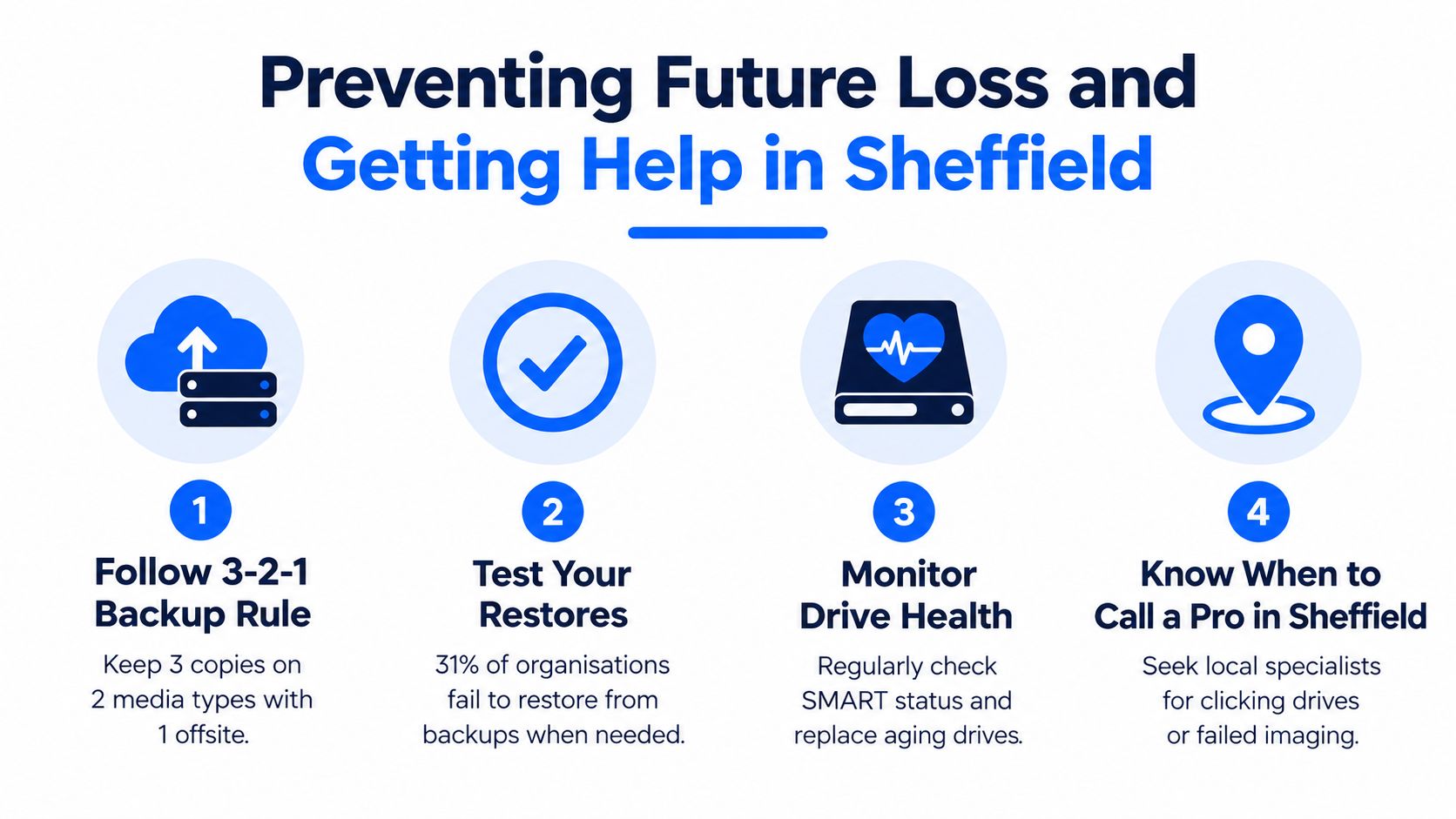
A backup isn't proven until you restore from it. A 2025 UK survey found that 31% of organisations relying on backups still couldn't fully recover all data, while 85% used some form of automated backup and 44% backed up to both central and personal repositories. The figures show a chain problem, not a lack of backup. Test selected files, check that cloud sync hasn't mirrored unwanted deletions, and keep a separate history where the service supports it. The UK backup recovery survey provides that context.
A practical Sheffield plan
Check health: Review SMART status and unusual slowness on ageing HDDs.
Separate copies: Keep working files, local backup media and an off-site or cloud copy independent enough to survive one mistake.
Set a stop point: Clicking, grinding, intermittent detection and failed imaging mean power down, not another scan.
Plan replacement: An SSD upgrade with migration can remove an ageing laptop HDD from daily service while preserving the existing data where possible.
Steel City IT operates from Frecheville and serves Sheffield, including Birley, Hackenthorpe and Woodhouse. Its service scope includes diagnostics, sector-level handling for damaged or corrupted drives, SSD upgrades with data migration and typical turnaround within a few days, depending on complexity. For local options, see hard drive recovery near Sheffield. For wider maintenance guidance, this 2026 guide to home computer repair offers useful preparation advice.
If your Sheffield laptop is clicking, undetected or holding files that exist nowhere else, stop powering it on and arrange a diagnostic assessment before using recovery software. Steel City IT can assess failed laptop hard drives, handle recovery-oriented imaging and migrate usable data to replacement SSD storage. Visit Steel City IT to discuss the symptoms and choose a safe next step.