
External Hard Drive Not Showing Up? Fix It Safely

A 2 TB drive that holds eight years of photographs sits next to a laptop that no longer lists it. The light on the enclosure is on. Windows made the connection sound twice and then showed the same C: and D: as always. Nothing else appeared.
By the time a drive like that reaches a bench, it has typically been tested in three USB ports, with a cable borrowed from a phone charger and a reboot, and the owner is hovering over Format because a dialog insists the disk must be formatted before it can be used. That dialog is the most expensive prompt in Windows, and clicking it is the moment a recoverable job becomes a quote for clean-room work.
What follows is the order that finds faults. At each decision point it names the moment to stop, because half of this job is knowing when to put the drive down rather than which button to press next.
Table of Contents
What the Symptoms Tell You Before You Change Anything
Nearly every undetected external drive comes down to one of three faults. First, the connection and power path: cable, port, adapter, enclosure board. Second, the way Windows presents the disk: partition table, drive letter, file system. Third, the disk and its bridge electronics: the USB-to-SATA converter, the firmware or the mechanism itself. The wording on your screen tells you which of the three you have, and it tells you before you open a single menu.
Windows uses a small vocabulary of status labels that many users never learn. Below is an explanation of each one.
What you see | What it usually means | Safe next step | Data at risk? |
|---|---|---|---|
Nothing in File Explorer, no light, no sound | No power reaching the drive: cable, port, adapter or enclosure board | Try a rear motherboard USB port, a known-good cable and the mains adapter, then a second computer | Not yet, but stop repeating once it clicks |
Listed in Device Manager with a yellow warning triangle | Driver or USB enumeration fault | Uninstall the entry, rescan, try another port and another PC | Low |
In Disk Management as Online but with no drive letter | Partition is healthy, Windows is not presenting it | Assign an unused letter through Change Drive Letter and Paths | Low |
Disk Management says Not Initialized or Unknown | Partition table or bridge electronics problem | Do not initialise; confirm on a second PC, then stop | High |
Shows as Unallocated space | Volume or partition entry lost | Do not create a new volume; image the disk first | High |
Asks you to format the disk, or shows RAW | File system damage; files are often still there | Do not format and do not run CHKDSK; copy or image first | High |
Reports 0 bytes, No Media or an impossible capacity | USB-to-SATA bridge, firmware or platter-level failure | Stop; do not keep power-cycling it | High |
Clicks, beeps or spins up and down in a loop | Mechanical failure of the head or motor | Power down and stop; controlled assessment only | Very high |
Works on another computer but not on this one | Port, hub, driver or power delivery on your machine | Use a motherboard port and avoid unpowered hubs | Low |
Asks for a BitLocker recovery key | Encryption, not failure | Find the key in your Microsoft account or backup before anything else | Low if the key is found |
Disappears mid-copy or under sustained load | Cable, power sag, overheating bridge or a failing disk | Copy in small batches to a known-good destination, then retire it | Medium to high |
Read the table by finding the wording closest to your screen and following only that row. Ignore the rest, however tempting the other fixes look. A High or Very high entry is a stop sign rather than a step, so the drive stays unplugged and you stop swapping ports to see whether it returns. Repeating the connection test is the most common route from a recoverable disk to an expensive recovery case.
The part that surprises people is that a disk showing RAW or demanding a format has usually kept its contents. Microsoft's community answers on a drive that appears to wipe itself note that an external disk can become unrecognised or trigger a format prompt while the underlying data still exists, particularly after communication loss, unexpected removal, power failure or BitLocker-related file-system damage. "Windows sees nothing" describes the file system, not the platters.
The stakes are documented. UK evidence cited in that same Microsoft thread puts HDD failure as the leading reported cause of data-loss incidents at more than 67%, against 14% attributed to human error and 10% to software failure. That gap alone justifies treating a sick drive as a data problem rather than a Windows annoyance.
One more check belongs here. If files vanish from a drive that stays visible, or the odd behaviour appears on one machine only, ten minutes on malware is time well spent. Reading antivirus scan results properly means looking past the "no threats found" message at what was quarantined and when, which is often the detail that explains a disappearance no hardware fault accounts for.
Write down the exact status Windows gives you, in its own word: RAW, Not Initialized, Unallocated, No Media, Offline. That word decides which of the next three paths you're on.
Test the Path, Then Make Windows See the Drive
Hardware first, Windows second, never the reverse. Adjusting settings while a cable is failing burns the five minutes that would have found the fault, and a 2.5-inch portable drawing power from an unpowered hub presents exactly like a dead disk.
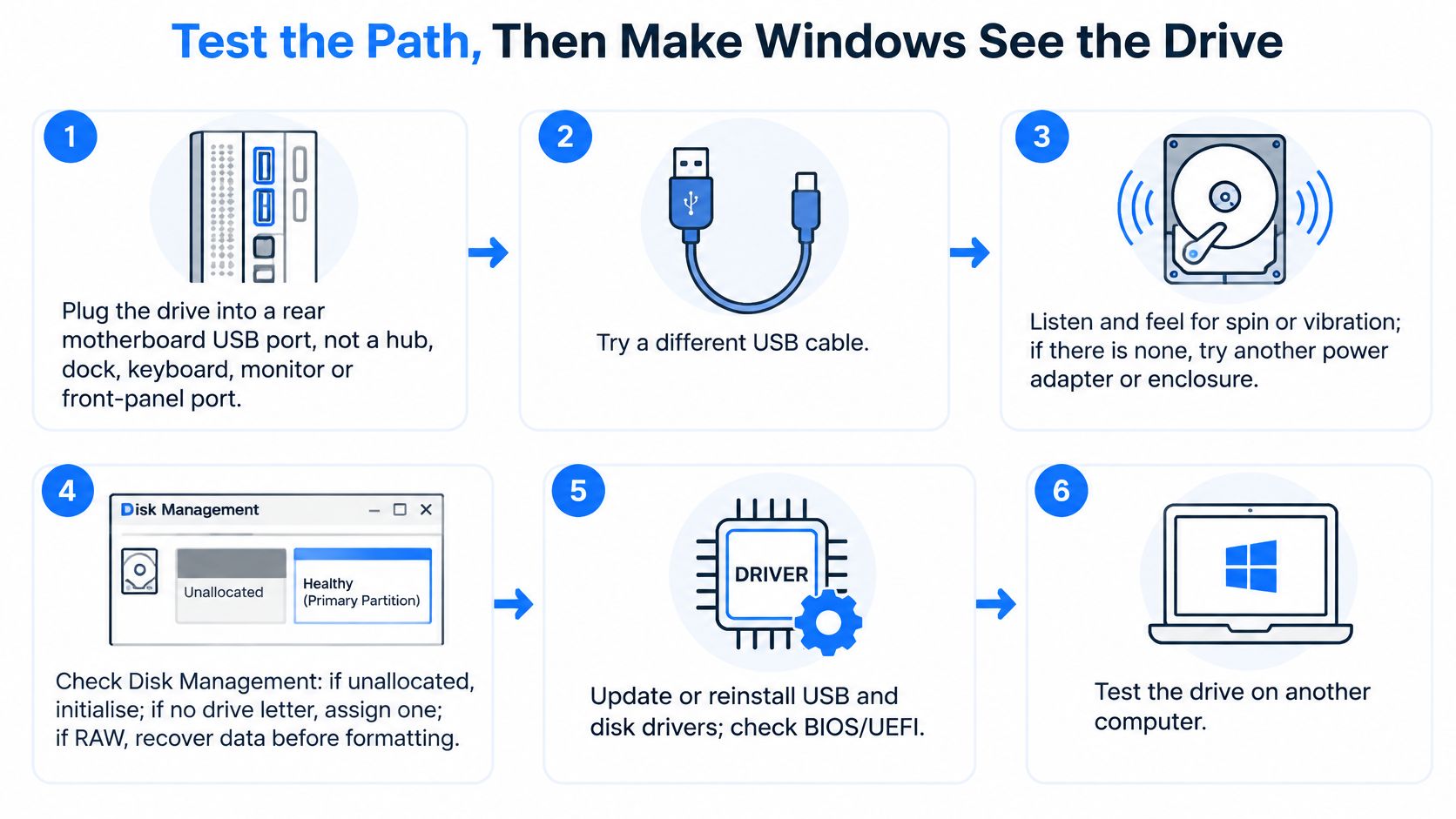
Here's the same sequence in visual form, with the decision points marked.
Start at the wall and work inwards
Use a rear motherboard port. Monitor USB pass-through, keyboard hubs, front-panel headers and cheap docks each add a power stage and a data stage that fail independently. A rear port on the board is the shortest route between the drive and the controller.
Swap the cable for one you know carries data. Charge-only USB-C cables ship with accessories and carry power but no data, which produces a drive that lights up and never appears. Micro-B 3.0 plugs are deeper and bend when the enclosure is pushed against a wall.
Follow the power. 3.5-inch desktop drives need their own 12V brick, so check its LED, feel the enclosure for spin-up and try a different socket. 2.5-inch portables run on bus power, where a long thin cable drops enough voltage under load to make the drive re-enumerate mid-copy. Short and thick wins.
Take it to a second computer. If the fault follows the drive, everything on the Windows side is now irrelevant. If the drive behaves perfectly elsewhere, the problem is in the first machine's port, hub or driver stack.
Listen before you click anything. One spin-up followed by a steady hum points to electronics or a partition problem. Clicking, beeping or repeated spin-up and spin-down cycles point to the mechanism, and every extra minute of power is a minute off the recovery odds.
Receiving power proves a supply, not a working data path. Microsoft's troubleshooting steps for an external drive that does not appear in Windows split the electrical checks from the software ones for precisely that reason: a failed cable, damaged connector, bad USB-to-SATA bridge, insufficient bus power or dying drive electronics all leave Windows unable to enumerate a device that lights up beautifully.
Then let Windows show you what it can see
Press Win+X and open Disk Management, then choose Action > Rescan Disks and let the list settle. Identify your drive by capacity, never by letter and never as "Disk 0", because the system disk is a plausible-looking target and confirming the wrong one destroys data in a way nobody can undo.
If the disk appears with a healthy partition but never reaches File Explorer, right-click that partition, choose Change Drive Letter and Paths > Add and give it an unused letter, leaving A and B alone. If it shows Not Initialized, Unknown, Unallocated or No Media, close the window without touching Initialize, New Simple Volume or Format.
Microsoft's first-line sequence for connected USB storage that Windows cannot see runs in the same order: direct connection rather than a hub or dock, a different port and compatible cable, verification of any separate adapter, then Disk Management and Rescan Disks. The same guidance warns against initialising, formatting, creating a new volume or running repair utilities while the existing data matters, because each of those writes over the metadata recovery depends on.
Device Manager is the next stop. Enable View > Show Hidden Devices, open Disk drives and Universal Serial Bus controllers, and look for warning triangles. Right-click the flagged entry, uninstall it, then run Action > Scan for hardware changes. If the drive shows in BIOS or UEFI but nowhere in Disk Management, the hardware is alive and the fault sits in Windows or the partition table.
If you'd rather watch the sequence than read it, this walkthrough covers the same ground in order.
The Mac side, briefly
Open Disk Utility and switch on View > Show All Devices first, because without it you see volumes rather than the physical disk and you'll misread the diagnosis. A greyed volume under a visible drive needs Mount. A drive with no volume at all needs data recovery, not Erase. First Aid repairs directory and file-system faults and earns one run on a volume, but it isn't a first move on a disk that clicks or drops out. Mac owners hit the same wall from the port side, and a USB-C port that has stopped carrying data behaves exactly like a dead enclosure, so this walkthrough of MacBook USB-C ports not working covers what to rule out before blaming the drive.
If the drive is absent from Disk Management on two machines after direct-port, cable and power checks, ordinary troubleshooting is finished. Stop there instead of reconnecting it in the hope of a different result.
Spot a Failing Drive and Stop in Time
A drive that never appears is usually the easier job. The dangerous one is the drive that half-works: it mounts, copies a folder, drops out, returns, and teaches you to keep trying. Every cycle of that runs a damaged mechanism a little longer.
What the signals physically mean:
Clicking, ticking or beeping. The head is stuck, hunting for a servo track or being driven into the platters. No software on earth fixes that.
Repeated spin-up and spin-down. The drive can't reliably read its own service area, so it resets and tries again. This is the symptom most often made worse by power cycling.
0 bytes, No Media or an absurd capacity, such as a 32 KB volume on a 2 TB drive. The bridge or firmware is reporting nonsense, so the number Windows prints describes the enclosure, not the disk.
Disk Management hanging until it times out. The controller answers, then fails partway through identification.
Every intuitive fix makes this worse. CHKDSK writes to the volume while it repairs. Formatting rebuilds a fresh file system over the old index. Initialise writes a new partition table and declares the old one empty. None of them read your files first.
Stop rule. If the drive clicks, reports 0 bytes or No Media, or drops out mid-copy, unplug it and don't power it again. That is the entire instruction, and it's the one most people skip.
The exposure is real. A 2012 survey of the UK working population, reported by the Society for Computers and Law, found that 12% had unintentionally lost work data from a work device in the previous 12 months because of malfunction or corruption, while 21% stored work information on removable media including external hard drives, rising to 27% among 25 to 34-year-olds. Removable storage is normal, and its failure mode is a locked door.
BitLocker adds a wrinkle. An interrupted write on an encrypted drive can stop it mounting altogether, and force-mounting or reformatting in frustration turns a key problem into a data problem. Sealed enclosures add another: most are glued, the bridge is often paired to the drive, and opening one at home ends the warranty and frequently the recovery.
Learn the early cues before a drive stops being detected at all. This guide to hard drive failure signs covers the audible and behavioural warnings worth acting on.
Recover the Files Without Making It Worse
Before installing anything, answer one question: does a copy of this data exist anywhere else? A drive that isn't showing up may be the only copy of invoices, wedding photographs or a save file, and the answer changes the job from "repair it" to "protect it first".
The British backup record explains why that question so often gets the bad answer. The Office for National Statistics reported in 2015 that 52% of UK internet users had backed up files to an external storage device or internet storage space, while a separate 2020 UK survey found that 42% of Britons did not back up at all and that, among those who did, 59% used an external hard drive. The most popular backup method in the country is also the device most likely to be the only copy.
If the disk is readable and stable, work in this order:
Copy the irreplaceable folders first. Not the largest ones, the ones with no other source. The destination must be a different physical disk, never another partition on the same drive.
Stop at the first error. A copy that hangs and resumes has usually produced a truncated file. Note where it failed and treat everything after that point as suspect.
Image the drive if it won't stay mounted. ddrescue on Linux, or a workshop imager, reads around bad sectors and hands you a file to work from instead of a disk that keeps vanishing.
Run recovery software against the image, read-only. Install it on the PC, never on the failing drive, and never write recovered files back to the source.
The home-opening trap deserves its own warning. Swapping a bridge board from an identical enclosure sometimes works, because some manufacturers pair the bridge to the drive and some don't. A head or platter swap on a kitchen table never does.
Here's where the line sits. A healthy disk with a presentation fault, no letter, wrong format, a partition table Windows dislikes, is genuine DIY territory. A clicking, 0-byte or vanishing drive is not, and the honest answer there is sector-level work. How data recovery services actually work explains what happens inside that process, including imaging, firmware work and the parts that can only be done in a controlled environment.
Set Up Backups That Survive the Next Failure
A February 2025 survey of 562 UK respondents by Western Digital and Researchscape, discussed in Microsoft's community answers on a USB drive that won't mount, found that 79% reported actively backing up. The methods behind that headline: 81% used cloud services, 37% used external HDDs and only 8% used NAS.
Here's the split at a glance.
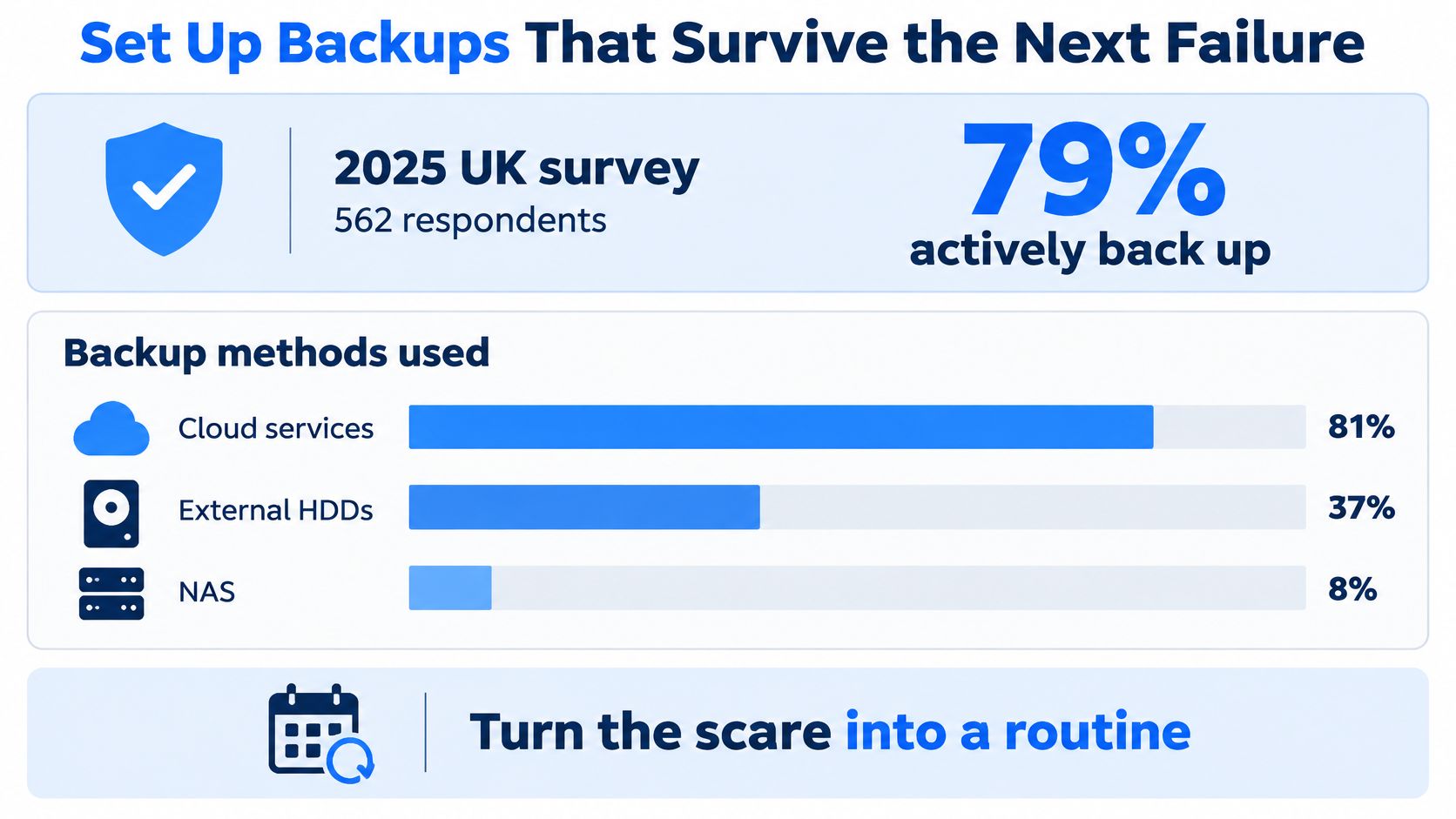
Seventy-nine per cent sounds reassuring until you ask what people are counting. A synced folder is a mirror, not a backup. Delete a file, save a bad edit or let ransomware encrypt a directory and the cloud copy follows within seconds. That's not a backup failing, it's a backup working exactly as configured, which is why a synced folder is the wrong tool for the job.
Backup method | What it protects against | Where it fails | Reported UK use |
|---|---|---|---|
Second external drive kept offline | Drive failure, ransomware, accidental deletion, bad edits | Stored beside the PC, so fire, theft or a mains surge takes both | 37% of UK respondents (2025 survey) |
Cloud sync folder such as OneDrive, iCloud Drive or Google Drive | Device loss, working across devices, single-file mistakes | Replicates deletion, corruption and encryption within seconds | 81% of UK respondents (2025 survey) |
Cloud backup service with file versioning | Ransomware, mass deletion, device failure, off-site requirement | Slow restores on large volumes and dependence on the account and key | Counted within the 81% cloud figure, not separated in the 2025 survey |
NAS on the home or office network | Several devices, fast local restores, scheduled copies | Same building, and mapped drives can be encrypted along with the PC | 8% of UK respondents (2025 survey) |
Second internal drive or partition | Quick local copy before editing or a reinstall | Same machine, no protection from theft, surge, malware or fire | Not covered by the 2025 survey categories |
Three copies, two media, one off-site
That's the whole rule. Three copies of anything you'd mourn, on two different types of media, with one copy off-site and offline. In practice: the working copy on the PC, a copy on an external drive that stays disconnected except during the transfer, and a versioned cloud copy for the off-site leg.
The habits that make it hold are unglamorous. Switch versioning on before you need it. Store the BitLocker recovery key somewhere other than the encrypted drive, because a key held on the disk that won't mount is no key at all. Run one test restore every six months, restoring a single folder rather than a whole drive, and check the file opens. An untested backup is a hypothesis.
For a broader framework to build on, Cloudvara's backup and recovery strategies covers retention, versioning and recovery testing in more depth than a single page allows.
One caution on the numbers. UK backup survey results swing widely between years and samples, so treat any single percentage as a direction rather than a fact. The 42% who told one survey they didn't back up at all and the 79% who told another they did are not describing the same behaviour.
Prepare the Drive for a Workshop Assessment
Before booking anything, gather what the workshop needs, because missing details cost days. Bring the drive, its cable and its power adapter, since a fault that lives in the adapter is the cheapest possible outcome. Bring the exact status Windows showed, in its own words: RAW, Not Initialized, Unallocated, No Media or Offline.
Write down what's already been run and when: any CHKDSK, Format, Initialise or New Simple Volume attempt, even one that failed. That record changes the assessment plan. Note whether the drive is BitLocker-protected and where the recovery key is stored, but don't type the key into any tool or paste it into a message. Say whether the files exist anywhere else, because a drive that is a second copy is a different job from a drive that is the only one.
Steel City IT specialises in data recovery, including from damaged or corrupted hard drives, with sector-level analysis and controlled handling from a workshop in Frecheville.
The next step is one action, not five. Stop testing, power the drive down, put it in a padded bag and book the assessment. Don't try one more port first.
Steel City IT works on exactly this problem from a workshop in Frecheville, carrying out diagnostics and data recovery on external drives that have stopped appearing, including drives with logical, electronic, firmware and mechanical faults. If your drive is clicking, showing RAW or refusing to appear on two machines, bring it in rather than reinstalling Windows one more time. You can see the repair, recovery and upgrade services on offer at Steel City IT.