
Disk Cleanup for Windows: A Practical 2026 Guide

A Sheffield laptop can look perfectly healthy right up until Windows refuses an update. The owner closes a few browser tabs, empties the Recycle Bin and runs a cleaner, only to find that OneDrive still won't sync and the system drive is effectively full. That's a common pattern on ageing laptops, especially when applications, game libraries, cached files and Windows leftovers all compete for the same internal SSD.
The sensible approach to disk cleanup for Windows in 2026 isn't to download the loudest “PC booster” on the internet. Start with Windows' own storage tools, inspect what they want to remove, then use the older utilities when they expose system files the newer interface doesn't. The difference between a safe cleanup and a troublesome one is usually not the tool itself. It's whether you know what each category contains.
Table of Contents
Using Storage Cleanup Recommendations the Right Way - Start with temporary files - Examine large and unused files - Treat cloud files as a decision
Disk Cleanup, cleanmgr, and Storage Sense for Older Habits - When cleanmgr still matters - Where Storage Sense fits
Removing Apps and Hunting Down Large Files - Follow the storage categories - Use a visual scanner when Windows stays vague
Safe Cleanup Habits That Protect SSDs and Your Data - Keep maintenance boring
Troubleshooting After a Cleanup When Things Still Feel Off - The low-space warning returns - Updates fail even after cleanup - An app crashes after removal work
Why Your Windows PC Is Crying Out for Disk Space in 2026
Low storage creates a frustrating chain of symptoms. Windows needs working room for updates, temporary installation files, paging and application operations. When that room disappears, an update may fail, programs may become unstable and cloud-sync clients may stop processing files properly.
I've seen this on customer machines where the owner believed the problem was “too many photos”. A check often shows a mixture of forgotten installers, game data, browser caches, old update files and applications that haven't been opened in years. The user sees a nearly full drive, but Windows' broad category labels don't always make the biggest offenders obvious.
Microsoft's current guidance reflects that reality. Rather than treating Disk Cleanup as the only answer, Windows directs users to Start > Settings > System > Storage > Cleanup recommendations, where the system previews reclaimable space and separates Temporary files, Large or unused files, Files synced to the cloud and Unused apps. Microsoft's Windows storage guidance describes this as a reviewable workflow, so you can see what Windows proposes before deletion.
Practical rule: Never start by deleting folders you don't recognise. Start with a category that gives you a clear description, a file list and an expected amount of recovered space.
A full SSD also changes how you troubleshoot the machine. If an update fails because the system partition lacks room, removing a few harmless temporary files may help, but deleting personal data at random can create a second problem. The right sequence is inspection, targeted removal, reboot, then a fresh storage check.
For a useful real-world benchmark, PCMag UK recovered 9.1GB and removed 2,915 usage traces during testing of Microsoft PC Manager's recommended optimisations. The PCMag UK test doesn't mean every PC will produce the same result, but it demonstrates why a measured cleanup can reclaim more than a few trivial browser files.
Using Storage Cleanup Recommendations the Right Way
Open Start, select Settings, choose System, open Storage, then select Cleanup recommendations. Let Windows finish assessing the drive before you tick anything. The important part is the preview. Windows tells you which categories contain reclaimable material and shows the expected saving before you confirm.
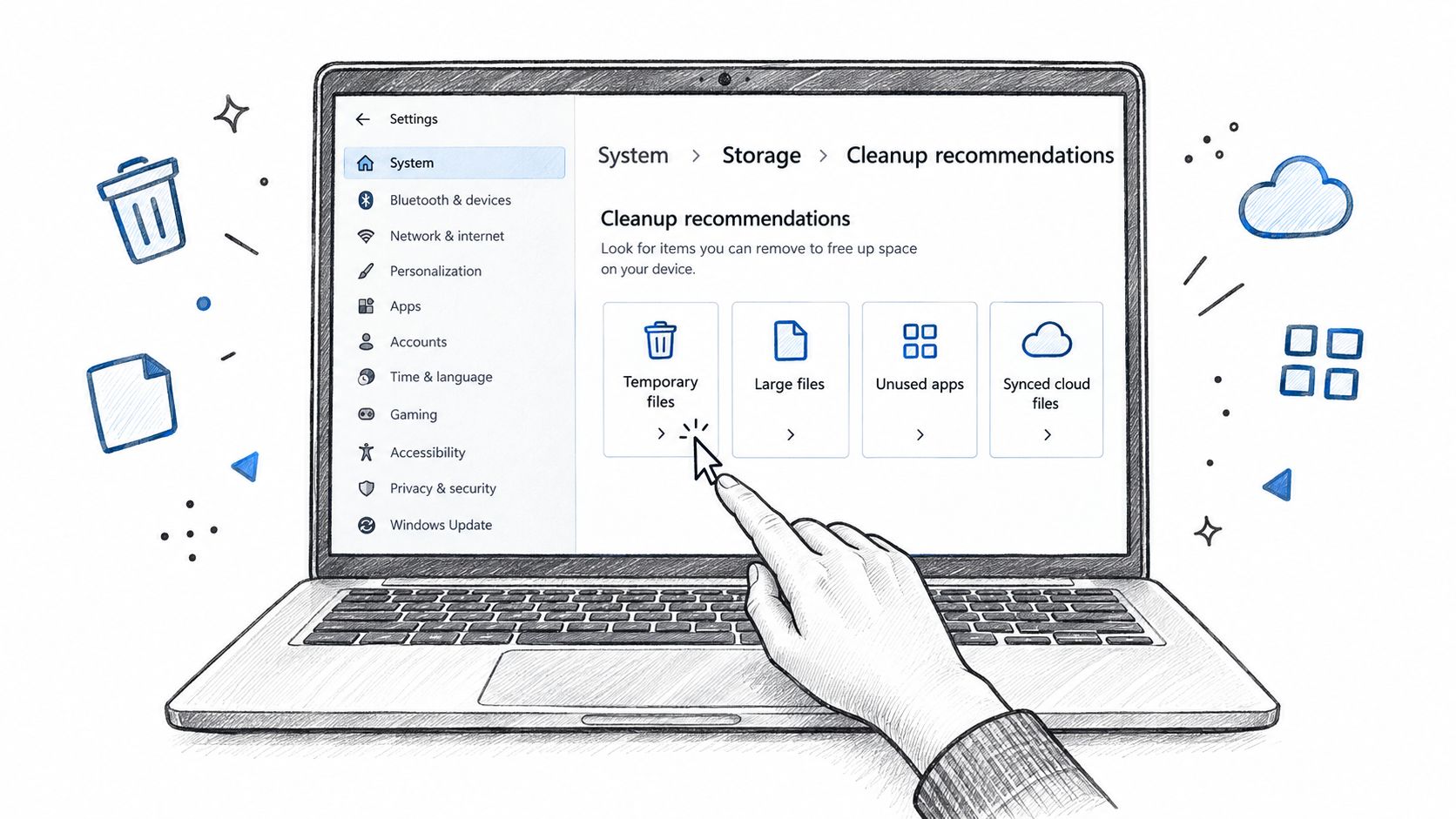
Start with temporary files
Temporary files are usually the least controversial group, but don't select everything without reading the labels. Windows may show update leftovers, Delivery Optimisation files, the Recycle Bin, thumbnails and shader caches.
I'm generally comfortable reviewing Windows Update Cleanup, Delivery Optimisation files, Recycle Bin contents and Thumbnails. Check the Recycle Bin first if the computer belongs to someone else. A deleted document may still be recoverable there, and emptying it removes that simple safety net.
Gaming PCs need a little more care around DirectX Shader Cache. Clearing it isn't normally a data-loss event, but games can need to rebuild shaders afterwards, which may create longer first launches or temporary stutter. On a customer's gaming machine, I leave it alone unless storage pressure justifies the trade-off.
Examine large and unused files
The large-file category is where Windows can expose forgotten downloads and bulky personal data. Use the available size filters to identify the biggest items, then open their locations before deciding what to do. Don't treat the category as permission to remove everything outside the Windows folder.
Look particularly closely at old installers, ISO images, exported videos and duplicate archives. If a file sits in Documents or a work folder, copy it to a verified backup or external drive before removing it. The aim is to eliminate disposable copies, not to turn a storage problem into data recovery work.
Treat cloud files as a decision
Files synced to the cloud need a different judgement. A OneDrive file may be available locally, online-only or actively syncing. Windows separates this group from temporary junk for a reason. Confirm the cloud status and make sure the file remains accessible through OneDrive before choosing a space-saving action.
Microsoft's UK instructions emphasise reviewing each category and checking the displayed saving before deletion. The UK storage-management guidance is a useful reference when a family PC mixes personal files with application caches.
Finally, inspect Unused apps and sort by size where Windows allows it. Old launchers and applications can occupy substantial space, but remove them through Windows' installed-app controls rather than deleting their folders manually.
The video below shows the Storage workflow in practice. Watch it after reviewing the categories, not as a substitute for checking the file list.
Disk Cleanup, cleanmgr, and Storage Sense for Older Habits
The modern Storage page should be your first stop, but the legacy cleanmgr utility still earns its place on a technician's bench. Search for Disk Cleanup from Start, choose the Windows system drive and select Clean up system files. After Windows rescans the drive with administrator permissions, it may reveal system-level entries that aren't as prominent in Cleanup recommendations.
When cleanmgr still matters
Review Windows Update Cleanup, Previous Windows installations and unused language resources when they appear. Previous installations can provide rollback material, so don't remove them until you're satisfied the current Windows installation is stable and you won't need to return to the earlier version.
Microsoft's newer workflow is better for visibility across mixed storage categories. cleanmgr is more useful when the problem is specifically old Windows installation data or administrator-level system residue. A UK technical guide from Serverman also documents the classic route in Windows 11, showing that the command remains available alongside Settings. The Serverman Windows 11 guide provides useful UK-focused context for that overlap.
Where Storage Sense fits
Storage Sense lives under Settings > System > Storage. It's the background helper, not the complete repair strategy. Depending on its configuration, it can clear temporary material, manage Recycle Bin retention and help handle locally stored cloud content.
Use Storage Sense when you want routine housekeeping without repeatedly opening Disk Cleanup. Use Cleanup recommendations for a deliberate review, and keep cleanmgr available for deeper system-file checks.
Tool | Best for | Schedule | Covers system files | Automation |
|---|---|---|---|---|
Cleanup recommendations | One-off review of mixed storage | Manual | Some categories | No |
cleanmgr | Legacy system-file cleanup | Manual or scripted | Yes, when elevated | Limited |
Storage Sense | Routine background housekeeping | Configurable | Selected categories | Yes |
Technicians can also use to choose cleanup categories and to apply that saved selection. Test the choices on one machine first. Automation is helpful only when the selected categories are understood.
For broader Windows maintenance reading, the CloudOrbis Inc. Windows blog is a useful companion resource, particularly when storage problems overlap with updates, system configuration and general Windows support.
Removing Apps and Hunting Down Large Files
Apps are often easier to remove safely than personal files. Open Settings > Apps > Installed apps, change the sort order to size and inspect the list. Trial antivirus products, abandoned launchers and duplicate utilities are common candidates, but Windows components and hardware software should stay unless you know exactly what they do.
Uninstall an application from its own Windows entry. Don't delete its installation folder, because that can leave services, uninstall records and user data behind. After uninstalling a large program, restart the computer and check Storage again. Some launchers retain libraries or caches even after the main application has gone.

Follow the storage categories
From Settings > System > Storage, choose Show more categories or open the relevant category. Check Documents, Videos, Pictures and Downloads separately. Downloads deserves special attention because it often becomes a holding area for files that were useful once but never deleted.
Sort Downloads by size and look for old installation packages, ISO files, compressed archives and duplicate copies. A game installer can be large enough to matter, but it may also be the only offline copy available, so move it to external storage if you're unsure.
Use a visual scanner when Windows stays vague
If the category view doesn't explain the missing space, use TreeSize Free or WinDirStat to map folder sizes. Run the tool with appropriate permissions, then expand the largest paths rather than deleting from the top-level view.
Pay attention to and , where browsers, chat clients, launchers and creative applications keep caches. Clear a cache through the application's own settings whenever possible. A cache that rebuilds is a reasonable target. A profile folder containing saved settings, messages or locally stored work is not.
A large folder is a clue, not a deletion instruction. Identify the application that owns it before touching the contents.
Safe Cleanup Habits That Protect SSDs and Your Data
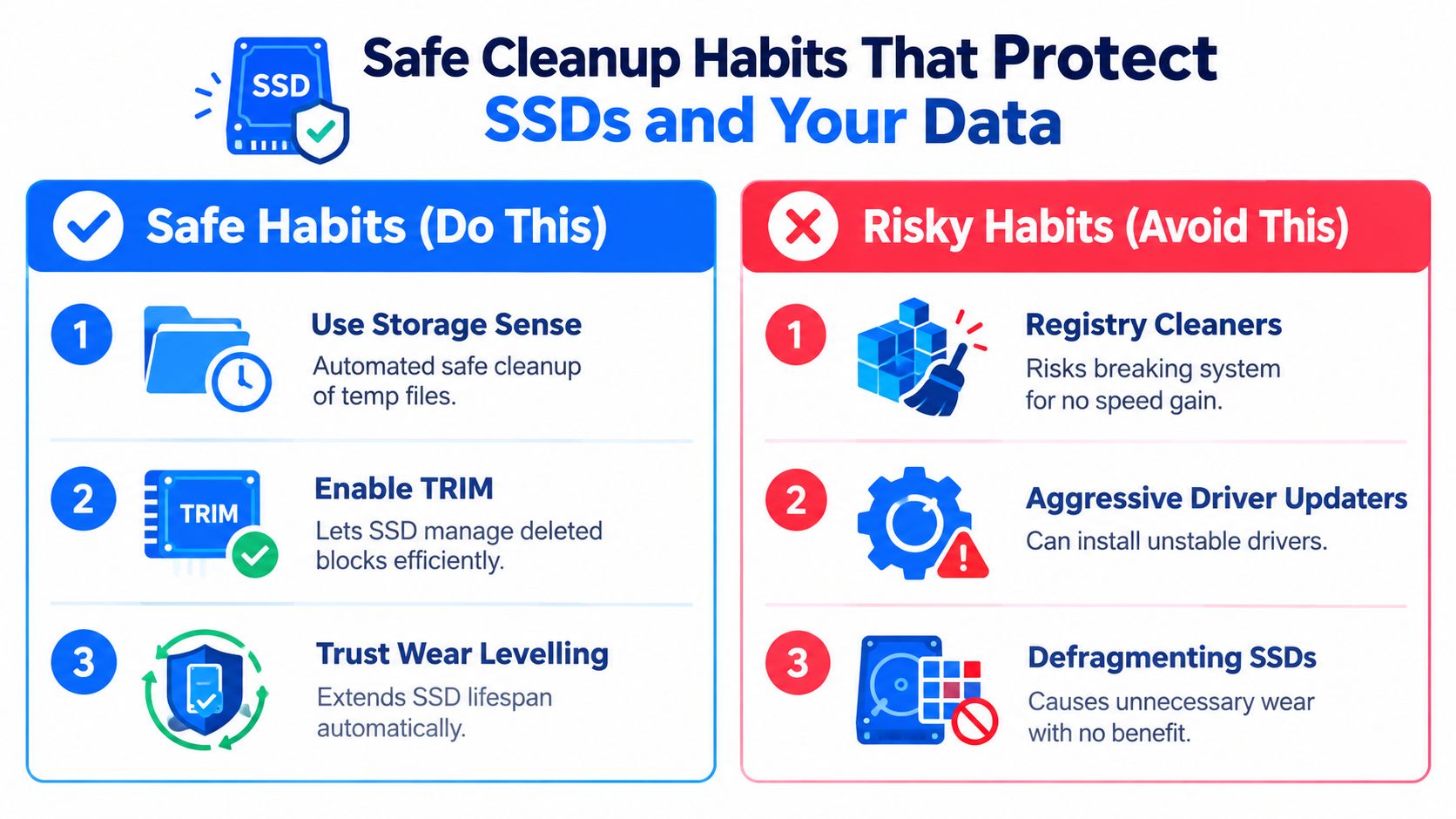
Aggressive cleaners cause more trouble than they solve. Registry cleaners promise a tidier Windows installation but rarely provide a defensible performance benefit, while an incorrect registry deletion can damage application associations or startup behaviour. Driver-updater tools create a different risk by installing packages that aren't appropriate for the exact hardware and Windows build.
SSD maintenance needs restraint. Modern drives use TRIM to tell the storage controller which blocks are no longer needed, and wear levelling distributes writes across available flash cells. Windows handles routine optimisation for supported drives, so manually defragmenting an SSD or running repeated “deep optimisation” passes is the wrong instinct.
Keep maintenance boring
The safe habits are straightforward:
Use Windows tools first: Storage Sense and Cleanup recommendations provide categories and previews instead of unexplained mass deletion.
Leave SSD housekeeping to Windows: TRIM and wear levelling are drive-management functions, not jobs for a registry utility.
Protect the data before freeing space: Back up Documents, project folders, saved games and browser exports before a substantial cleanup.
Review security separately: Windows Defender should remain active and updated. A storage cleaner isn't a malware-removal tool.
Move persistent bulk data: Put game libraries, video archives and less frequently used Documents on a secondary internal drive or external storage when practical.
I also avoid changing pagefile settings to make a storage graph look better. The pagefile supports memory management, and disabling or forcing an arbitrary size can create instability. Hibernation is a separate choice. If you never use hibernation, discuss its removal carefully because it changes how Windows handles that feature.
System file repair commands such as SFC and DISM are useful when Windows is damaged, but they aren't monthly cleaning rituals. Run them when symptoms justify them, and read the output. If a drive is failing, repeated writes from optimisers are not a repair.
For readers investigating a storage device that may already be unhealthy, Steel City IT's SSD data recovery guidance covers why continued use can complicate recovery. A drive showing read errors, disappearing files or repeated freezes needs backup and diagnosis before cleanup.
Troubleshooting After a Cleanup When Things Still Feel Off
A cleanup that completes successfully doesn't guarantee the underlying issue has gone. If the same warning returns quickly, stop deleting random folders and identify which subsystem is consuming the space.
The low-space warning returns
Start by reopening Settings > System > Storage and note which category has grown. If temporary data is expanding again, a stuck update process or a program repeatedly generating files may be responsible. Check and the application-specific cache only after closing the associated programs.
For Windows update residue, run Disk Cleanup as administrator and select Clean up system files. If the update cache appears stuck, a technician may reset the SoftwareDistribution folder, but that process involves stopping Windows Update services and should be handled carefully. System Protection can also retain restore-point data, so review its allocated space rather than deleting shadow-copy folders manually.
Updates fail even after cleanup
Error 0x80070070 points to insufficient storage during installation, while 0x800f0922 can also arise when the system or recovery layout can't provide the required room. Those codes need diagnosis, not a promise that one cleaner will fix everything.
Check the size and arrangement of the Windows and recovery partitions in Disk Management. If the recovery partition is too small or badly placed, expanding it may require a partition tool such as MiniTool or GParted. Back up first, because partition changes carry more risk than deleting temporary files.
Don't resize partitions on a machine that hasn't been backed up. A power interruption or incorrect selection can turn a storage shortage into a boot problem.
An app crashes after removal work
If one application now refuses to start, reinstall it before manually clearing its profile. User-specific remnants under and may contain corrupt caches, but they can also hold settings and saved data. Rename the relevant folder first, launch the application and only delete the old copy after confirming that the program works.
Use Event Viewer or the application's own logs to identify the failing component. If the drive shows errors, don't keep testing with destructive cleanup. Steel City IT's guide to recovering deleted files explains why stopping early matters when files have been removed accidentally.
A Practical Cleanup Checklist and When to Call the Experts
A repeatable routine beats a dramatic purge. Before every cleanup, copy important files to a backup you can open, record the available space and note which category appears to be growing. That gives you a baseline and makes it easier to distinguish normal temporary activity from runaway storage use.
Run a Storage Sense review. Let Windows handle routine temporary files and configured Recycle Bin content, but check the settings rather than enabling every option blindly.
Audit installed applications. Sort Installed apps by size, remove software nobody uses and check that game libraries and work tools are still needed.
Inspect large personal files. Review Downloads, Videos, archives and old backups. Move valuable material before deleting it.
Use cleanmgr for system leftovers. Run the system-file scan when Windows installation files or update residue remain.
Recheck after restarting. Confirm that Windows Update, OneDrive, games and essential applications still work.
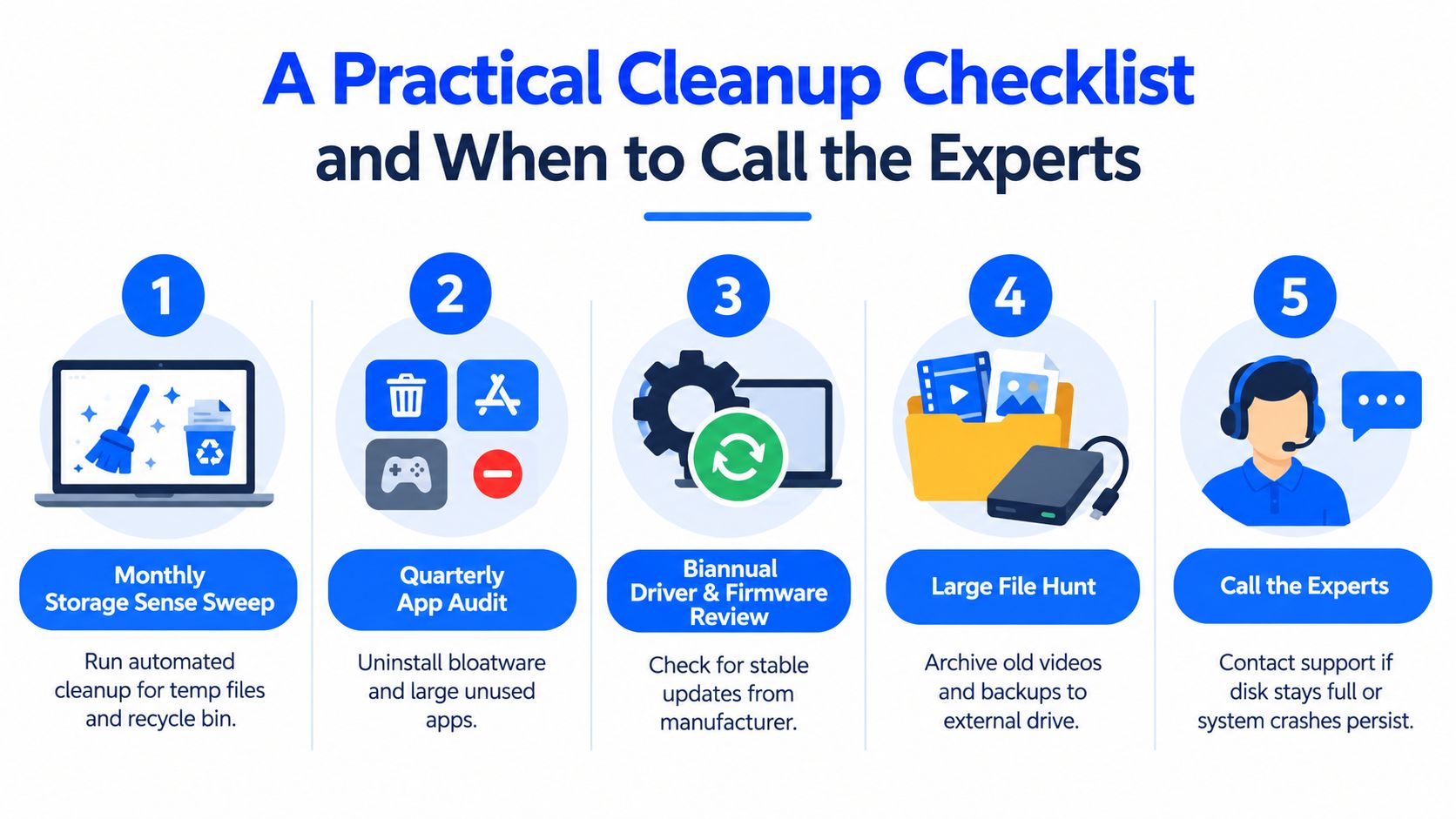
Keep an eye on the trend, not just the result of one pass. If free space keeps falling, a large folder scan with TreeSize Free or WinDirStat can identify the owner. If Windows reports drive-health warnings, files vanish, the system freezes or the machine enters boot loops, further tweaking is more likely to increase risk than solve the fault.
A failed update, damaged file system or suspected SSD problem deserves a proper backup and diagnostic process. System Restore can help with some configuration failures, but it isn't a substitute for a file backup. This guide to Windows system restore points explains the role and limitations of restore points.
For Sheffield households, a local repair workshop can test the storage hardware, migrate data to a larger SSD, repair Windows, remove malware or investigate board-level faults. Microsoft Store diagnostics and authorised service centres are also reasonable options, particularly when a device remains under warranty. The key decision is knowing when storage management has ended and fault diagnosis has begun.
Steel City IT provides Windows cleanup, troubleshooting, SSD upgrades with data migration and data recovery for PCs and laptops in Sheffield. If your drive stays full, Windows updates keep failing or the computer is becoming unstable, visit Steel City IT to arrange practical diagnostics rather than risking further file deletion.
