
PC Upgrade Guide That Saves Money and Boosts Speed

That old PC usually doesn't fail all at once. It starts with little things. You press the power button and go make a tea while Windows wakes up. Chrome opens, then hangs. A game that used to feel smooth starts stuttering when Discord is open. File Explorer pauses for no obvious reason. You end up asking the same question you ask in the workshop: is this worth upgrading, or is it time to replace it?
That's a sensible question now because a lot of home users are caught between three pressures at once. Their machine feels slow, Windows 10 support ended in October 2025 according to UK refurb-market guidance discussed by Techyest's UK laptop buying guide, and parts pricing has become awkward, especially for memory and SSDs. So the old advice of “just add more RAM” or “buy a new PC” often misses the issue.
A good pc upgrade starts with the bottleneck, not the shopping basket. If the machine still uses a hard drive, storage is often the culprit. If memory is full and Windows keeps swapping data back and forth, RAM may be the missing piece. If the PC can't run the operating system you need safely and sensibly, replacement may be the better call.
Table of Contents
Introduction Is Your PC Due for an Upgrade - Signs your PC needs attention - Why this decision needs a bit more care now
How PC Performance Works and Where Bottlenecks Happen - The plain-English version of each part - What a bottleneck really feels like - A balanced PC feels faster than a mismatched one - The habit that saves money
Core PC Upgrade Options and What Each One Improves - SSD upgrades - RAM upgrades - CPU and GPU upgrades - Cooling and power supply upgrades
Compatibility Power and Physical Checks Before You Buy - Start with the platform - Then check the physical side - Check current behaviour before buying parts
Recommended PC Upgrade Paths for Gaming Productivity and Budget - For gamers - For home work, study, and family use - For budget life extension
Professional Installation and Support Options in Sheffield - When DIY makes sense - When workshop help is the safer choice - What good support should look like
Conclusion Your Next Steps to a Faster More Reliable PC - A simple decision checklist
Introduction Is Your PC Due for an Upgrade
You sit down to pay a bill, answer a few emails, or load a game for half an hour, and the PC turns a simple job into a wait. It boots slowly, clicks and whirs, then hesitates again once a few everyday programs are open. At that point, the question is not “what part can I buy?” It is “what is slowing this machine down, and is it still worth saving?”
That distinction matters more than it used to. With tighter household budgets in the UK, throwing parts at a problem can cost more than solving it properly. A sensible pc upgrade starts with the slowest part in the chain. Quite often that means an SSD before extra RAM. In other cases, the machine is too old, too limited, or too awkward to update safely, so repair or replacement makes more sense.
Signs your PC needs attention
A slow PC does not always point to the same fault. Two machines can feel “old” for completely different reasons.
You are usually due for some kind of action if you notice any of these:
Long boot times: You switch it on and wait far too long before it is ready to use.
Everyday tasks feel sticky: Programs open slowly, updates take ages, and simple clicks have a pause before anything happens.
Too many open apps cause stutter: A browser, music, Teams, and a spreadsheet together make the whole system drag.
Games feel uneven: Frame pacing dips, loading takes longer, or background apps cause sudden slowdowns.
Support and security concerns: The PC still turns on and works, but you are no longer sure it is sensible to keep running it as it stands.
There is also a practical ownership point here. Home computers are ordinary household kit now, not specialist hobby machines. Older UK government research on device ownership, set out in the UK domestic appliances report, helps show how normal that shift became over time. So for many homes, upgrading a PC is closer to maintaining an appliance than building a custom project.
A simple rule helps. If the computer still suits your day-to-day jobs and the main complaint is speed, it is often worth checking for an upgrade or repair before replacing the whole thing.
Why this decision needs a bit more care now
Price matters. So does timing.
Windows 10 support ending has pushed many people into the same decision at once, and that changes the maths. Some PCs only need a modest refresh to stay useful. Others can run, but not safely or sensibly for much longer, especially if they cannot support the operating system you need next.
The cheapest fix is not always the smallest part, either. If a PC still uses an old hard drive, swapping that for an SSD often gives the biggest day-to-day improvement for the money. If the storage is already decent and the system slows down only when several programs are open, RAM may be the better spend. If the machine fails compatibility checks, has poor battery health, weak cooling, or very old internals, replacement can be the more honest answer.
The goal is not to buy more parts. The goal is to spend once, on the fix that removes the bottleneck.
How PC Performance Works and Where Bottlenecks Happen
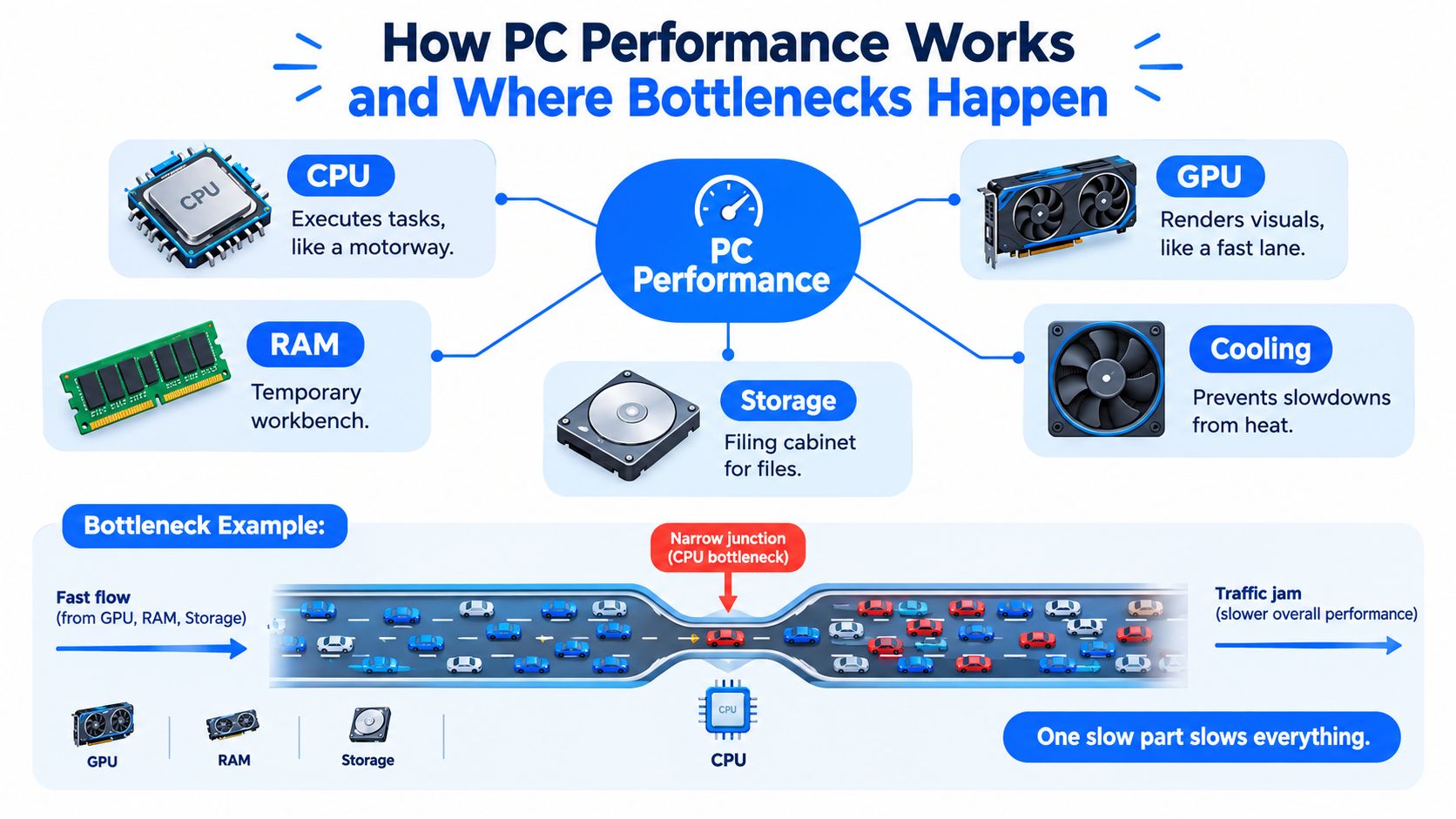
A PC is like a small workshop. Each part has a job, and the whole system only feels quick when those jobs stay balanced. If one part lags behind, the rest spend time waiting.
The plain-English version of each part
Think of the CPU as the person doing the instructions. It handles general computing tasks, keeps jobs moving, and decides what gets processed next.
The GPU is a specialist. It focuses on graphics work, games, visual effects, and some creative tasks that can use that type of processing.
RAM is the workbench. Files and active programs sit there while you use them. A bigger workbench helps only if the current one is too cramped.
Storage is the filing cabinet. If it's an old hard drive, every request takes longer because the system has to wait on slower access. If it's an SSD, files arrive much faster.
Cooling keeps everything stable. A hot PC can slow itself down to protect the hardware, which means poor airflow or dried-out thermal paste can feel like a mystery performance issue.
What a bottleneck really feels like
Users often assume a slow PC needs a faster processor. Sometimes it does. Often it doesn't.
A machine with a decent CPU and an old hard drive can still feel dreadful because the processor keeps waiting for files. Another machine may have enough storage speed but too little available memory for the way it's used. Then Windows starts leaning on the drive as overflow space, and everything drags.
One slow part slows everything, even if the other parts are still perfectly serviceable.
That's why it helps to check compatibility before buying and, more, check the current weak point before choosing parts.
A balanced PC feels faster than a mismatched one
Three quick examples show how this works:
Older family desktop It boots from a mechanical hard drive, takes ages to update, and freezes opening apps. Storage is probably the bottleneck.
Student laptop It runs a browser, streaming music, office apps, and video calls all at once. If it stutters only when lots of things are open, memory pressure may be the issue.
Gaming tower It loads Windows quickly but struggles in newer games at the settings you want. That points more toward graphics performance, power limits, or cooling.
The habit that saves money
Before buying anything, look for what triggers the slowdown.
At boot: Storage often matters most.
With many tabs and apps open: RAM may be full.
Only in games: GPU, CPU, cooling, or power can be at fault.
Under long heavy loads: Heat can reduce performance.
A smart pc upgrade is less about buying “better parts” and more about removing the queue that's holding everything up.
Core PC Upgrade Options and What Each One Improves
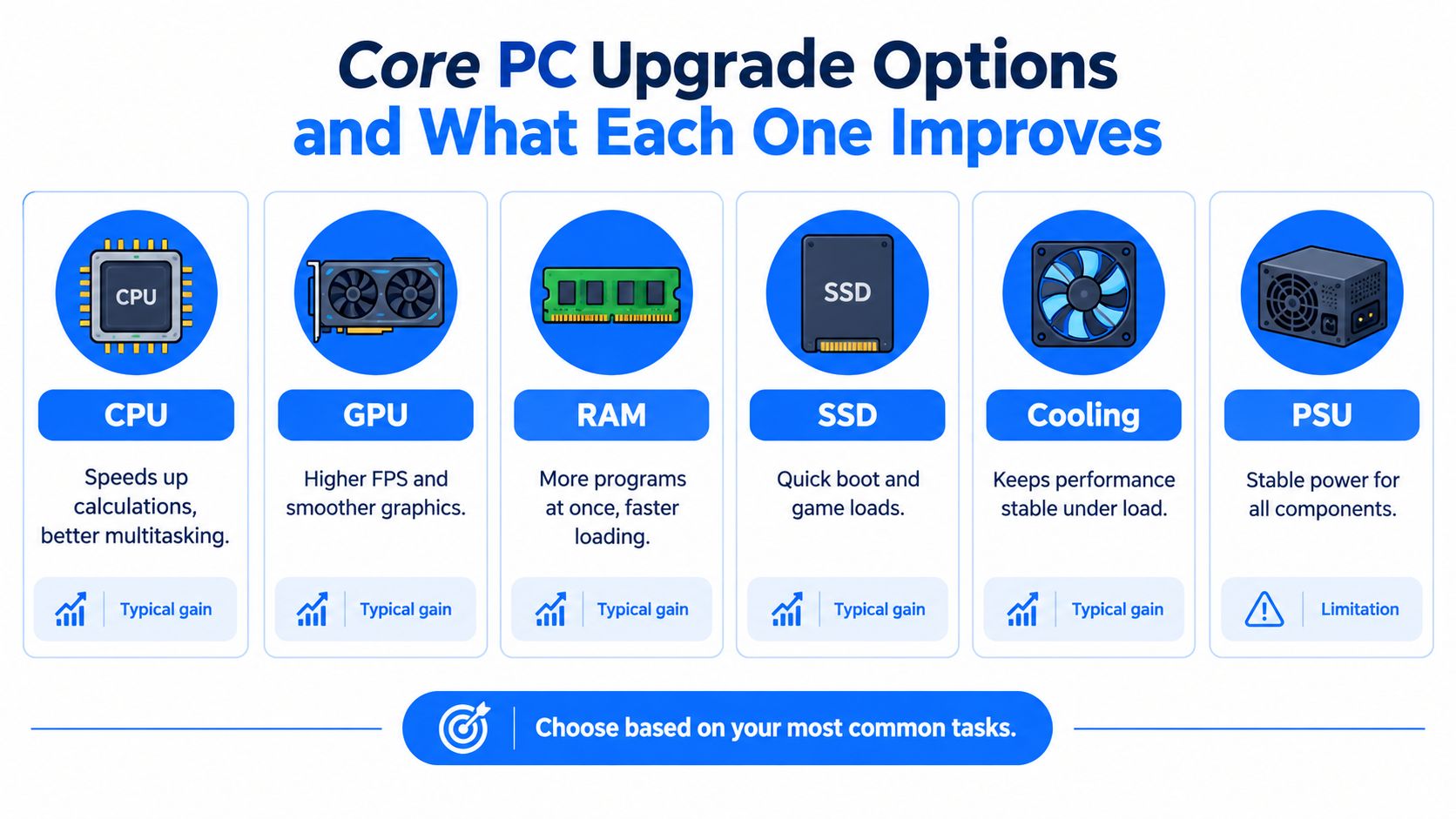
Once you know where the slowdown is happening, the upgrade choices become much easier. Each part fixes a different type of problem. The mistake is expecting them all to do the same job.
SSD upgrades
If your PC still uses a mechanical hard drive for Windows, an SSD is usually the first upgrade worth looking at. UK technical coverage says SSDs are the best performance upgrade for the money, with one test showing a Kingston SSD improving overall PC performance by more than 82% and making boot times about 2.5 times faster than a standard hard drive, according to Hexus.
That doesn't mean every SSD gives identical results. It means old spinning storage is often the thing making a computer feel tired.
Best for: Slow booting, sluggish program launches, long update times
Less useful for: A PC that already has a decent SSD and is slow only in games or heavy graphics work
Real-world effect: The machine feels more responsive, not just better on paper
If a computer still runs Windows from a hard drive, storage is usually the first suspect.
A local workshop can also clone the old drive or reinstall Windows cleanly during the swap. That matters because a messy software setup can hide the benefit of new hardware.
RAM upgrades
RAM gets recommended constantly, but it isn't a magic speed booster. UK benchmark guidance from Expert Reviews found that adding extra memory made little difference in benchmark scores, with even an extra 2GB doing little to improve results in its comparison.
That sounds disappointing until you apply it properly. RAM helps when the machine is short of memory for the workload.
Best for: Browsers with lots of tabs, office multitasking, light creative work, systems that stutter when several apps stay open
Less useful for: Machines that already have enough available memory during normal use
Real-world effect: Less stutter and fewer slowdowns caused by swapping to storage
If you mainly game, you might also use tools beyond hardware. If you're trying to get more from competitive titles, things like a competitive FPS teammate finder can improve the overall experience in a different way than hardware alone.
CPU and GPU upgrades
A CPU upgrade helps when the processor itself is the limiting factor. That's more common in older desktop platforms, productivity workloads, strategy games, simulation games, and some esports titles that lean heavily on processor speed. If you're weighing that route, this guide on how to upgrade a PC processor is useful because CPU upgrades often ripple into motherboard and BIOS checks too.
A GPU upgrade mainly targets visual performance.
CPU best for: General responsiveness under processor-heavy tasks, some gaming bottlenecks, certain creative workloads
GPU best for: Higher frame rates, better graphics settings, smoother performance in graphically demanding games
Watch for: Power supply limits, case space, and heat output
Here's a video walkthrough if you want a visual explanation of common hardware upgrade choices:
Cooling and power supply upgrades
These two don't always make a PC “faster” directly, but they can stop hidden problems.
Bad cooling can cause throttling. A weak or ageing power supply can limit safe GPU upgrades or cause instability under load. If the PC becomes noisy, hot, or crashes under gaming or rendering, these parts deserve attention.
Upgrade | What it mainly fixes | Limitation |
|---|---|---|
SSD | Slow boot, laggy file access, slow app launches | Won't raise game frame rates by itself |
RAM | Stutter from memory pressure | Won't help much if memory isn't full |
CPU | Processor-heavy slowdowns | Often limited by motherboard support |
GPU | Gaming and graphics performance | Needs enough power and space |
Cooling | Heat-related slowdowns | Doesn't solve weak core hardware |
PSU | Stability and upgrade support | Doesn't improve speed on its own |
Compatibility Power and Physical Checks Before You Buy
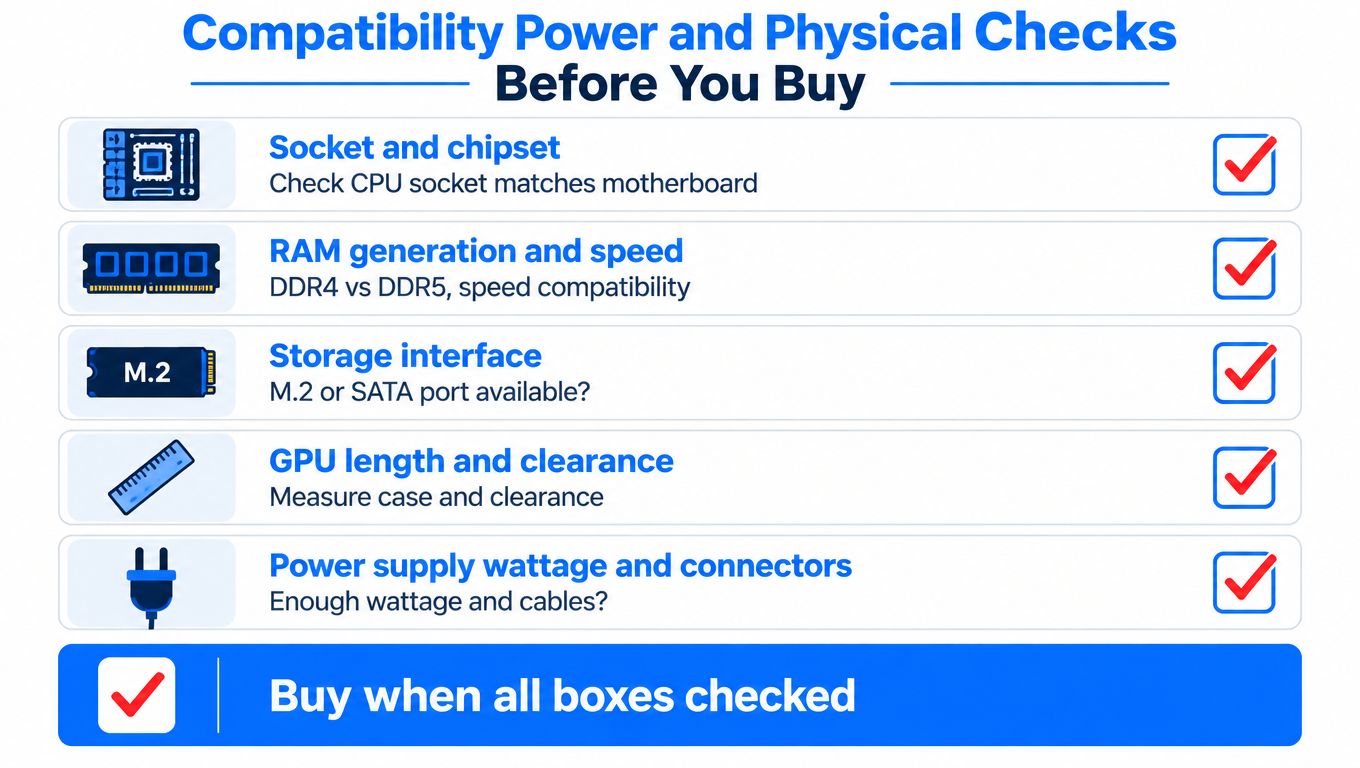
The easiest way to waste money on a pc upgrade is buying a part that doesn't fit, doesn't power on, or won't run properly with the rest of the system. This happens more often than people think, especially with CPUs, RAM generations, and graphics cards.
Start with the platform
The motherboard decides a lot more than people expect.
A processor has to match the right socket and the right chipset support. Even when the socket seems correct, the board may need a BIOS update before it will recognise the chip. RAM also has to match the board generation, such as DDR4 or DDR5. They are not interchangeable.
If you're checking parts yourself, a tool like this PC component compatibility checker helps organise the process before you order.
Then check the physical side
A part can be electrically compatible and still be a bad fit.
Graphics card length: Some modern cards are bulky and can foul drive cages or front fans.
Cooler height: Tower coolers may be too tall for narrower cases.
Drive format: M.2 and SATA drives aren't the same thing, even when both are sold as SSDs.
Power connectors: A new GPU might need connectors your current PSU doesn't have.
Airflow path: Faster parts create more heat. A cramped case can turn a good upgrade into a noisy one.
Measure first. A tape measure and a torch can save more money than guesswork.
Check current behaviour before buying parts
Compatibility isn't only about slots and cables. It's also about whether the upgrade fits the fault.
Look at a few basics before you spend:
Memory use during normal work If RAM use sits near full during the tasks you do, a memory upgrade has a stronger case.
Drive health and drive type If Windows is still on a hard drive, or the drive shows signs of trouble, storage should move up the list.
Temperatures under load If the machine gets hot and loud, cooling or dust build-up may be contributing to the slowdown.
Operating system support If the machine can't sensibly move forward for secure day-to-day use, that changes the repair versus replace decision.
A tidy diagnosis usually beats an impulse buy. It also avoids the common trap of fitting a faster part into a platform that can't really take advantage of it.
Recommended PC Upgrade Paths for Gaming Productivity and Budget
You sit down to use the PC after tea. It still turns on, but it takes an age to get going, games stutter at the wrong moments, and opening a few work tabs makes everything feel heavy. At that point, the right upgrade is the one that removes the delay you keep noticing, not the one with the flashiest spec sheet.
As noted earlier, current UK pricing makes that choice more important. If parts cost more, guessing gets expensive. Start with the bottleneck you can actually feel.
For gamers
Gaming problems usually show up in two different ways.
If games run at low frame rates, struggle at higher settings, or look fine in menus but fall apart once the action starts, the graphics card is often the limiting part. A GPU upgrade helps most when the rest of the system is still reasonably balanced.
If the complaint is long loading times, slow patching, texture pop-in on an older setup, or a machine that still feels sluggish outside games, storage can be the better first spend. An SSD often improves the whole experience, not just one title. It is the difference between waiting for the machine and getting on with using it.
RAM sits in the middle. It helps when memory is tight, especially with newer games, launchers, voice chat, and a browser open at the same time. If you are not sure whether memory is the problem, this guide on how much RAM you need for gaming will help you judge it properly.
A simple rule works well here. Slow to load usually points to storage. Low frame rates usually point to graphics. Stutter while multitasking often points to memory.
For home work, study, and family use
For everyday use, SSD upgrades often give the clearest improvement per pound.
A family PC does not need to chase benchmark numbers. It needs to start promptly, open documents without a pause, cope with video calls, and stay responsive with the usual pile of browser tabs. If Windows is still running from a hard drive, moving to an SSD is often more noticeable than adding extra RAM.
RAM becomes the better choice when the PC already has an SSD but starts to bog down with several apps open at once. A student switching between Teams, Word, browser research, and a PDF reader can hit that limit quickly. In that case, more memory gives the machine a bigger workbench, so it stops shuffling tools on and off the table.
Sometimes the best value upgrade is not a part at all.
If the hardware is broadly suitable and the slowdown has built up over years of updates, trial software, and general clutter, a clean Windows reinstall can make an older machine feel much less tired.
For budget life extension
Careful spending matters most. Plenty of home users do not want a rebuild. They want another year or two of reliable use without pouring money into a platform that is already near the end of the road.
Windows 10 end of support changes that calculation. Some older systems are still worth repairing. Others are like putting new tyres on a car with a failing gearbox. You spend money, but the bigger limitation stays put.
A useful way to decide is to sort the machine into one of three paths:
Upgrade and keep it if one clear bottleneck is holding back an otherwise decent PC
Refresh the software if the hardware is acceptable but Windows has become bloated or unstable
Replace it if the PC is too old for sensible Windows 11 support, too limited to upgrade cleanly, or would need several parts at once to become merely adequate
Upgrade Option | Best For | Value When Budget Is Tight |
|---|---|---|
SSD swap | PCs with hard drives, slow boot times, and sluggish app launches | Often the strongest first upgrade if the machine is otherwise serviceable |
RAM upgrade | PCs that slow down during multitasking and show clear memory pressure | Good value only when RAM is the actual bottleneck |
Clean Windows reinstall | Systems dragged down by software clutter rather than failing hardware | Often worth trying before buying several parts |
GPU upgrade | Gaming PCs limited by frame rate or graphics settings | Better value for gamers than for general home use |
Refurbished replacement | Older systems with poor upgrade prospects or Windows 11 problems | Often cheaper than stacking upgrades onto a weak platform |
Buy the part that fixes the daily annoyance you notice first. In many homes, that means an SSD before RAM. If the machine is already too old to support securely and sensibly after Windows 10, replacement can be the cheaper decision in the long run.
Professional Installation and Support Options in Sheffield
Some upgrades are easy enough for careful DIY. Others look simple until you're halfway through a stripped screw, a missing power connector, or a drive migration you really can't afford to get wrong.

When DIY makes sense
If you're adding RAM to a known-compatible system, cleaning dust filters, or swapping a straightforward SATA SSD into a desktop, DIY can be perfectly reasonable. The key is slowing down, checking compatibility first, and backing up important files before touching anything.
You also need to be honest about your comfort level. Installing a part is one job. Diagnosing why the PC still behaves badly afterwards is another.
When workshop help is the safer choice
Professional help makes more sense when the upgrade includes data risk, power changes, or uncertainty about the actual fault.
That includes jobs like:
SSD migration: Moving Windows, programs, and personal files cleanly from an old drive
CPU upgrades: Where motherboard support, BIOS updates, and cooling all matter
GPU upgrades: Where space, power delivery, and thermals have to be checked properly
Windows rebuilds: When the machine needs a clean reinstall and driver setup rather than just hardware
Fault diagnosis: When slowness may be mixed with failing storage, overheating, or motherboard issues
For Sheffield users, Steel City IT handles diagnostics, component replacement, high-speed SSD upgrades with data migration, RAM and graphics upgrades, cooling work, and clean Windows reinstalls from its Frecheville workshop. That sort of service is useful when you need the machine assessed first rather than guessed at.
What good support should look like
You shouldn't need a lecture in acronyms to understand what's happening to your own computer.
Look for clear communication on three things:
What's wrong now The diagnosis should name the bottleneck or fault in plain language.
What the upgrade will and won't improve A storage upgrade should be sold as a responsiveness fix, not a miracle cure for every performance complaint.
Whether replacement is smarter Sometimes the honest answer is that an old platform isn't worth sinking more money into.
Board-level faults, intermittent power issues, and damaged GPUs sit in a different category again. Those aren't ordinary consumer upgrade jobs. They need electronics diagnosis, and that's where a repair workshop earns its keep.
Conclusion Your Next Steps to a Faster More Reliable PC
A sensible pc upgrade isn't about chasing the most expensive part. It's about removing the bottleneck you feel.
If the machine still runs from a hard drive, storage is often the first thing to question. If the system only slows down when lots of apps are open, check whether memory is under pressure before buying RAM. If games struggle but the rest of the PC feels snappy, look harder at graphics, cooling, and power. And if the platform is too old to move forward cleanly after Windows 10 support ended, replacement may be the more sensible spend.
A simple decision checklist
Use this quick test before you buy anything:
Identify the slowdown: Booting, multitasking, gaming, heat, or general instability
Check the current hardware: HDD or SSD, memory use, temperatures, and age of platform
Confirm compatibility: Socket, RAM generation, storage interface, case space, and PSU support
Match spend to benefit: Buy the part that fixes the worst daily annoyance first
Verify after the work: Test boot speed, app launch, stability, noise, and temperatures
You don't need to become a full-time PC builder to make a good decision. You just need to stop treating every slow computer as the same problem.
If you approach it methodically, you'll usually land in one of three places. Upgrade a single part. Refresh the software and keep going. Replace the machine because the platform no longer makes sense. Any of those can be the right answer if the diagnosis is honest.
If your computer feels slow and you want a clear answer before spending money, Steel City IT can check the bottleneck, confirm compatibility, and carry out upgrades such as SSD fitting, RAM installation, graphics changes, and clean Windows rebuilds. If the better option is repair or replacement instead, they can tell you that in plain English and handle the work locally from Sheffield.
