
Back Shortcut Key Guide for Windows, Mac and Mobile

Alt + Left Arrow goes back on Windows, Chromebook and Linux, Command + [ goes back on Mac, and an edge swipe or Back button works on phones. Backspace is a deletion key first, so teaching it as the universal back shortcut is poor advice.
The shortest shortcut isn't necessarily the safest. A useful back shortcut key should express navigation intent, not leave you wondering whether the next press will remove text from a form.
Start with the normal shortcut for your app, then check focus and keyboard input before changing browser settings. A missing response doesn't automatically mean the browser needs reinstalling.
Table of Contents
Back Shortcut Keys for Every Major Platform - Back shortcut by device and app - Choose the matching forward command
Why Backspace Sometimes Goes Back and Sometimes Deletes - Different jobs under the same keycap - UK keyboard shape matters during repairs
How Alt and Left Arrow Take You Back on Windows - Run a controlled navigation check - What a window-level accelerator actually means
Mobile Gestures and Hardware Back Buttons Explained - Mobile and tablet back methods - When swiping is the wrong tool
Software Causes When Back Stops Working - Back shortcut symptoms, causes and first fixes - Isolate extensions without resetting everything - Accessibility and Mac shortcut conflicts
How to Test Your Keyboard Step by Step - Check individual keys before combinations - Read the results without overdiagnosing
Pick the Safest Back Shortcut for Your Setup - Match the next action to the symptom - Bring evidence rather than a guessed diagnosis
Back Shortcut Keys for Every Major Platform
The shortest shortcut is not always the safest. Backspace is a deletion key first, so use Alt + Left Arrow as the default back command on Windows, Chromebook and supported Linux browsers. On Mac, use Command + [ in supported apps.
Google's UK keyboard-shortcut guidance lists Alt + Left Arrow for going back in Chrome on Windows and Linux. The same combination is the practical default for Chrome on Chromebook. Check the app as well as the device: a shortcut that works in a browser may do nothing in a text editor.
Back shortcut by device and app
Device or app | Primary back shortcut | What Backspace does | Notes |
|---|---|---|---|
Windows: Chrome, Edge, Firefox | Alt + Left Arrow | Deletes text in fields; supported Edge configurations may also use it for back | Use Alt + Left as the safer default |
Windows: File Explorer | Alt + Left Arrow | Can move up a folder level in older folder views; behaviour depends on the version | Alt + Left follows history; Alt + Up opens the parent folder |
Mac: Safari, Chrome, Finder | Command + [ | Deletes text in fields, usually labelled Delete on Mac keyboards | Command + Left Arrow works in some browser contexts, but is not universal |
Chromebook: Chrome | Alt + Left Arrow | Deletes text in fields | Same navigation shortcut as Chrome on Windows |
Linux: Chrome, Firefox | Alt + Left Arrow | Deletes text in fields | A desktop environment or custom binding may intercept the shortcut |
Any browser, tab with no history | Alt + Left Arrow on supported non-Mac platforms; Command + [ on Mac | No useful back action to expect | The tab needs an earlier history entry |
Use the row for the app in front of you, not just the operating system. Pressing Alt + Left Arrow in a Windows text editor does not turn it into a browser command. In a file manager, history and moving to the parent folder are separate actions.
For example, open Downloads, then Documents. Going back returns to Downloads because it follows the route between those locations. To open the folder containing Documents, use the parent-folder command instead.
Choose the matching forward command
The forward partners are Alt + Right Arrow on Windows, Chromebook and supported Linux browsers, and Command + ] on Mac. They work only after you have moved back along an existing route.
Command + Left Arrow is not a universal Mac back command. In an editor, it can move the insertion point to the start of a line. Check which app has focus before treating a key press as a navigation failure.
Browser behaviour can vary between releases, so note your installed browser version if a shortcut behaves differently from the table. For a quick check, open a disposable page, click a blank area and press the matching shortcut. If the previous page appears, leave the settings alone.
Why Backspace Sometimes Goes Back and Sometimes Deletes
Backspace is a deletion key first. Its behaviour as a navigation command depends on the app and context, which makes it a less safe choice for going back than a dedicated navigation shortcut.
The Backspace reference describes the key's typewriter role: moving the carriage back one position so a typist could correct or overstrike a character. In computer text fields, Backspace instead removes the character to the left of the cursor, or selected text. The label stayed; the action changed.
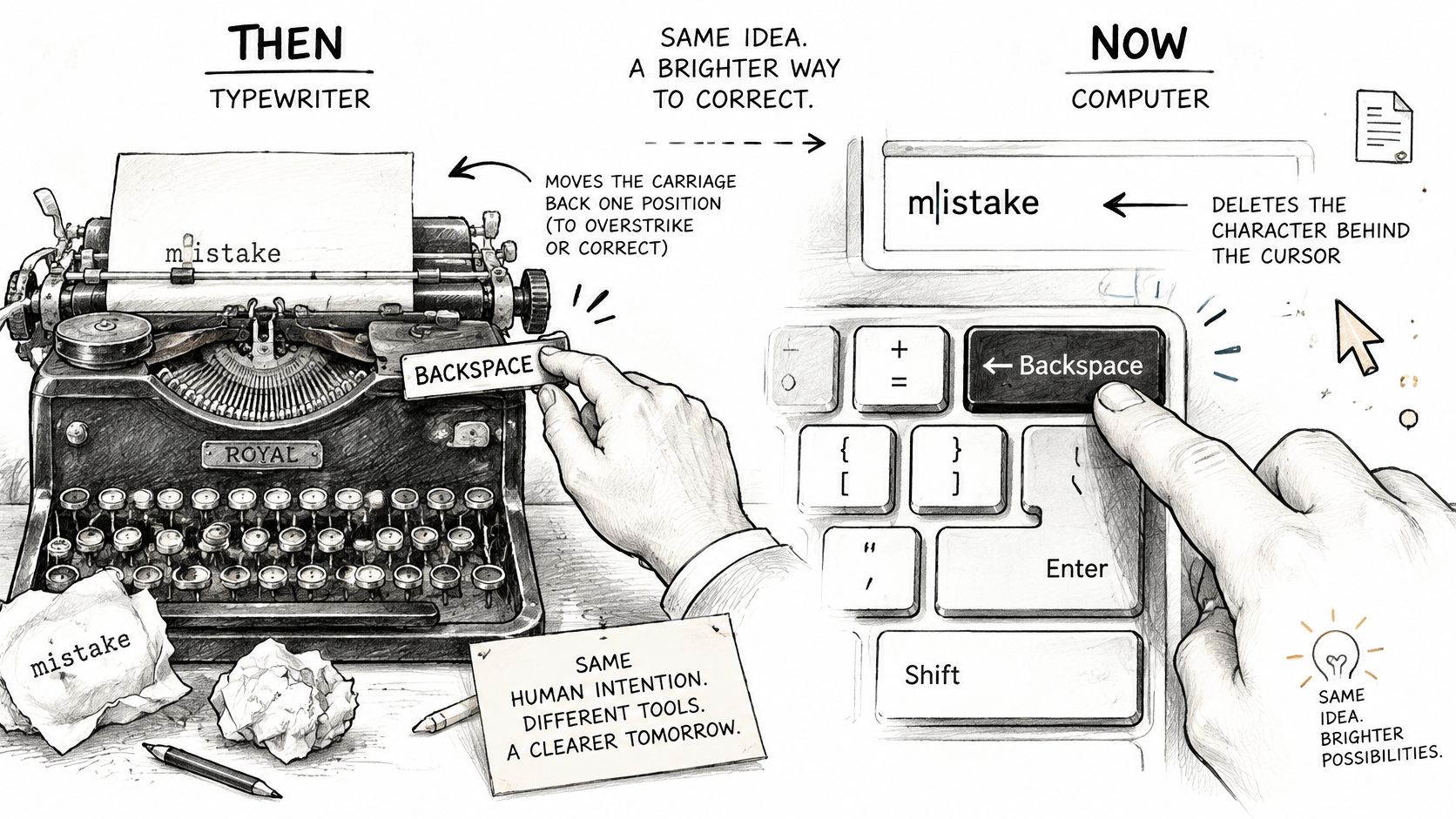
Different jobs under the same keycap
On UK desktops, the same key can have different effects depending on the focused app or field:
Text editing: Backspace deletes the preceding character, or selected text.
Older folder navigation: Some Windows folder views use Backspace to open the parent folder.
Word deletion: Ctrl + Backspace deletes the preceding word in most text fields.
These actions can collide. If you're entering delivery instructions in an online checkout, clicking the address field and pressing Backspace to return to the basket may erase text instead. Use a navigation command for navigation. For browser history, Alt + Left Arrow is the safer default to teach because Backspace's primary job is deletion and its navigation behaviour varies by context.
UK keyboard shape matters during repairs
A typical UK ISO-style keyboard has a tall, inverted-L-shaped Enter key, with Backspace above it. A US ANSI replacement has a different physical arrangement, despite both using QWERTY.
When ordering a laptop keyboard, check the layout, model and mounting arrangement, not just the Backspace label. If the key feels uneven, catches at an edge or needs extra pressure, inspect the keyboard hardware before changing browser settings. A shortcut cannot compensate for a key that does not register reliably.
How Alt and Left Arrow Take You Back on Windows
Press Alt + Left Arrow to go back and Alt + Right Arrow to go forward in a Windows app that supports those commands. Microsoft's Windows keyboard-shortcut guide documents the navigation combinations, making them the starting point for checking browser and folder behaviour.
The navigation flow is straightforward, but application support still matters.
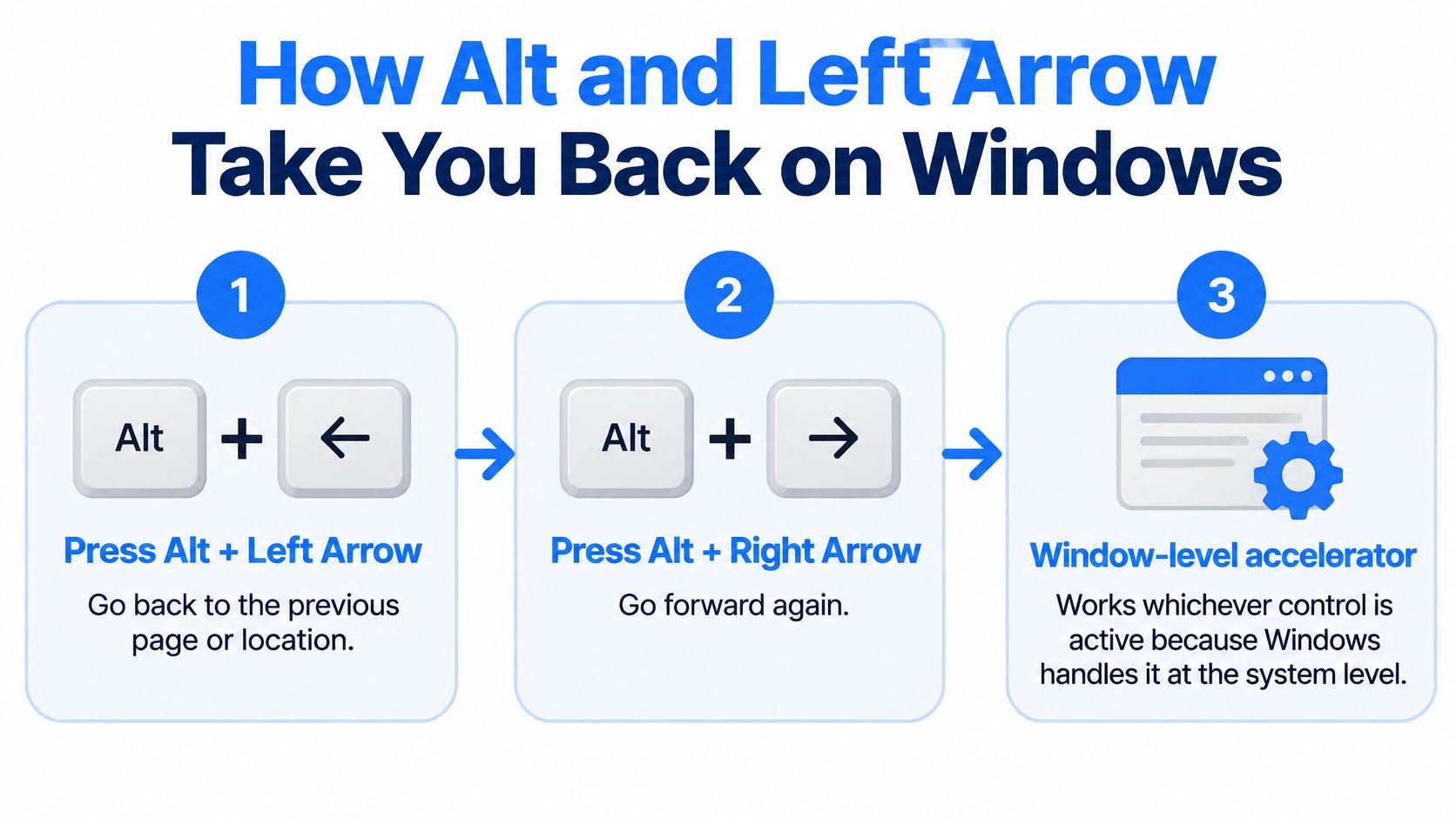
Run a controlled navigation check
Open Edge and build a route. Load a page, then follow a link to another page in the same tab. Use disposable pages rather than an unfinished payment or application form.
Click a blank area of the page. This removes the obvious complication of an active text box, although an embedded editor or website can still handle keyboard input.
Hold Alt, tap Left Arrow, then release both. Confirm that the earlier page loads. Try the forward partner to check the return journey.
In File Explorer, open a folder and then another location within the same window. Press Alt + Left Arrow and confirm that you return to the previous location rather than merely moving to its parent.
Compare the results. If navigation works in File Explorer but not Edge, record that difference. It narrows the investigation to the browser, the page or software handling its input.
What a window-level accelerator actually means
A window-level accelerator is a shortcut an application handles across its window rather than attaching it only to a particular button. Proper implementation lets users go back without first selecting the visible Back control.
That isn't a guarantee that Windows forces every program to obey. An app must implement the command, and an editor, extension or other input handler may intercept it.
Backspace support is less dependable. Edge can support it for backward navigation in applicable configurations, but editable fields use it for deletion, and an app or browser configuration can disable or reassign its navigation role.
A working shortcut in another application is useful evidence. It isn't proof that the troublesome application is broken, but it shows the keyboard can send the combination.
Test the keyboard command before concluding that navigation requires a mouse. Then compare it with the visible Back button: a working button and failing shortcut give you a specific input problem to investigate.
This video provides a separate demonstration of the navigation action.
Mobile Gestures and Hardware Back Buttons Explained
Phones and tablets usually move through touch controls rather than a keyboard back shortcut. Android offers a system Back action, while iPhone apps typically provide their own back controls and supported gestures.
On Android with gesture navigation, swipe inward from a screen side to request Back. With button navigation, tap the on-screen Back button; older devices may have a dedicated hardware control instead.
Mobile and tablet back methods
Device or context | Back method | Keyboard equivalent |
|---|---|---|
Android with gesture navigation | Edge swipe from the screen side | None by default |
Android with three buttons | On-screen Back button, or hardware Back on older devices | None by default |
Chrome on Android | Back gesture follows the active tab's history while earlier entries remain | None by default |
iPhone Safari | Swipe in from the left edge or tap the back arrow | None by default |
iPad with keyboard attached | Tap the back arrow in Safari | Command + [ in Safari |
In Chrome on Android, Back can return to an earlier page, but when the tab has no earlier page the system may leave that browser context. It isn't a promise to reopen whichever website you used elsewhere.
In iPhone Safari, start the supported back swipe at the left edge, not in the middle of the page. On an iPad, an attached keyboard makes Command + [ useful in Safari, but that doesn't make it a system-wide command for every app.
When swiping is the wrong tool
Edge gestures can conflict with opening an app drawer, panning a map or browsing photographs. If accidental navigation keeps interrupting you, review the Android gesture sensitivity or switch to button navigation where available.
Hardware and controller controls also need application support. Microsoft's back-navigation guidance describes hardware back buttons and the gamepad B button as possible back requests in supported Windows applications; that doesn't make B a universal command across games.
If a swipe fails, check the system navigation settings and the app's visible back control before assuming a touchscreen fault. Wipe the screen edge with a clean microfibre cloth and check whether a raised case lip or poorly fitted protector prevents your finger from reaching the gesture area.
Software Causes When Back Stops Working
Start by checking focus, especially if you've been using Backspace: an active text box explains deletion instead of navigation. Alt + Left Arrow shouldn't normally delete text, so deletion with that combination suggests a remapping, an intercepted command or an incorrectly registered modifier.
Next, check whether the active tab has somewhere to return to. Browser history belongs to that tab, not to your overall browsing session, so a newly opened tab can legitimately ignore Back.
Back shortcut symptoms, causes and first fixes
Symptom | Likely cause | First fix |
|---|---|---|
Alt + Left Arrow deletes text in a form | Editable-field handler or remapped command; not normal browser behaviour | Click a blank area, retry, then check shortcut mappings |
Back does nothing on a new tab | No earlier history in that tab | Right-click or press and hold the Back button to inspect available history |
Works in Edge but not Chrome | Chrome extension, setting or page handling the command | Test the same route in an incognito window, then isolate extensions |
Works in browser but not in an app | App doesn't implement the back accelerator | Use the app's own back control |
Stops after a screen reader starts | Screen reader reserves or changes the command | Check its keyboard command settings |
Goes back too far or leaves the site early | Single-page app manages its own history | Use the in-site back control where available |
Works with mouse but not with keys | Keyboard input problem, shortcut conflict or stuck Alt key | Compare another app, then test the keyboard |
Isolate extensions without resetting everything
Repeat the same navigation route in a private or incognito window. An improvement points towards a profile-specific difference, often an extension, but isn't conclusive because cookies, sign-in state and site behaviour also change.
Check which extensions are permitted in private browsing. Disable suspected shortcut managers, accessibility add-ons or navigation extensions individually, retrying after each change rather than removing everything at once.
Clicking outside a field is quick; isolating extensions can take longer. Update the browser through its built-in update controls before attempting a profile reset, and preserve bookmarks and saved credentials before making disruptive changes.
Accessibility and Mac shortcut conflicts
Screen-reader users shouldn't disable their normal tools to make a browser behave like someone else's setup. The Department for Education accessibility guidance notes that installed screen-reader software can change browser shortcuts, so consult the reader's command settings and navigation mode.
On Mac, if Command + [ fails in Safari or Finder, open System Settings → Keyboard → Keyboard Shortcuts and inspect custom App Shortcuts for a conflicting assignment. Test in a fresh Finder window after creating a navigation route.
Failure across unrelated applications justifies investigating system input and hardware. It doesn't, by itself, prove that the keyboard needs replacement.
How to Test Your Keyboard Step by Step
Use a controlled test rather than repeatedly pressing keys on a valuable document. Save your work first, then open Notepad and a browser route you can safely move backwards and forwards through.
The visual below outlines the shortcut test; interpret Alt's behaviour according to the application, because opening or highlighting a menu can be normal.
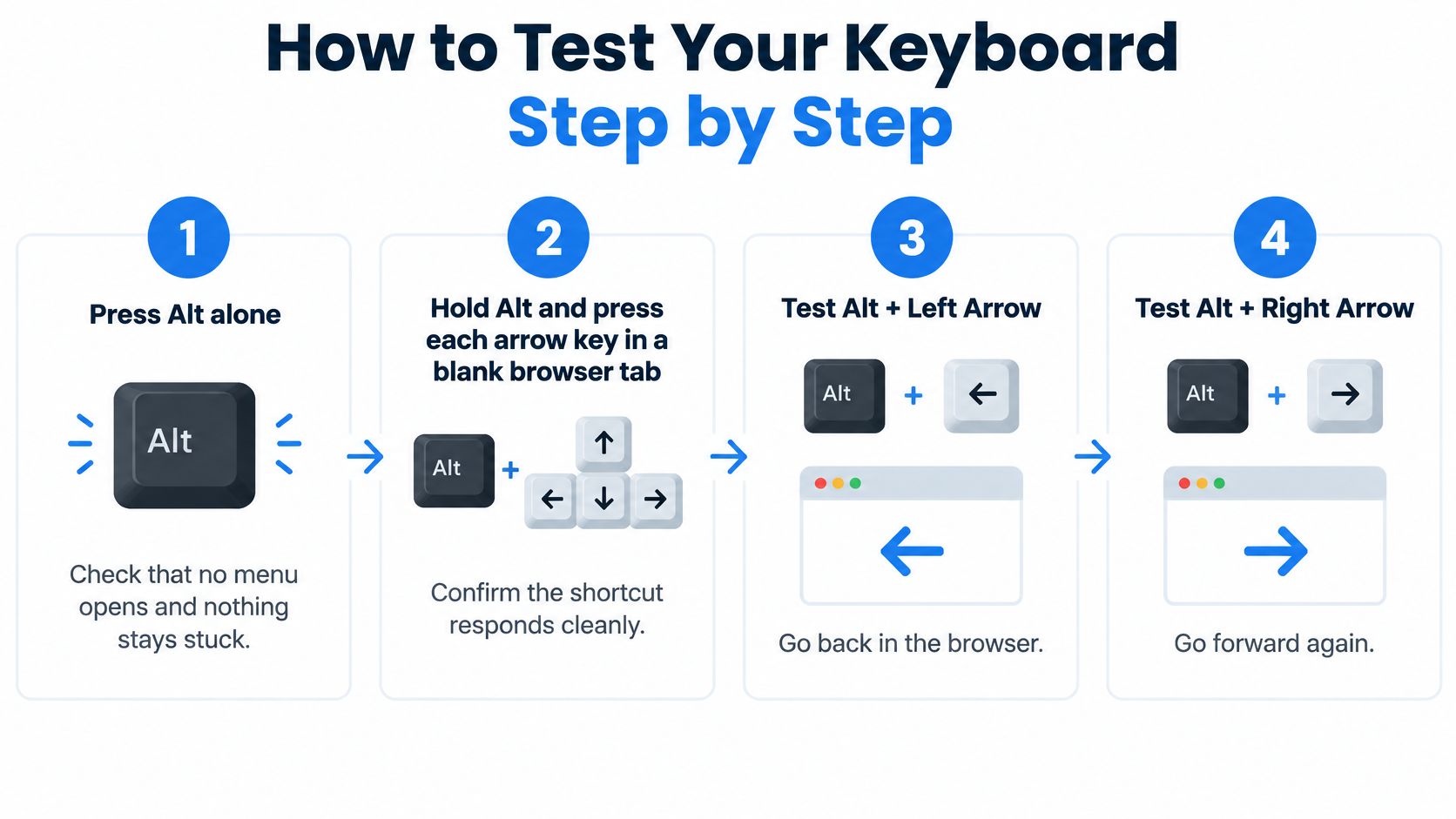
Check individual keys before combinations
Press and release Alt alone. Some Windows applications highlight their menu or move focus to it. That's normal; the concern is Alt appearing to remain held after release, or subsequent keys unexpectedly activating menu commands.
Test the arrow keys independently in Notepad with some text entered. Then hold Alt and try Left and Right in a browser tab with a navigation route. A blank tab without history can't demonstrate whether the back command works.
Check Backspace in Notepad. Type disposable text, leave nothing selected and tap Backspace. The preceding character should disappear without further deletion after you release the key.
Connect another keyboard, preferably a wired USB model, and repeat the same tests in the same applications. If available, compare the left and right Alt keys too, remembering that right Alt on a UK keyboard may act as AltGr.
Inspect laptop-specific controls. Check Num Lock, an embedded keypad and any manufacturer-specific Fn functions if the keys carry secondary labels. Don't change Fn settings blindly when the arrow keys already work normally.
If both keyboards fail, test from another Windows user account or use Safe Mode where appropriate. Improvement there suggests software, drivers or user settings, although differences in the test environment mean it isn't an absolute hardware verdict.
Read the results without overdiagnosing
A Backspace key that repeats after release may have a sticking mechanism, contamination or an electrical fault. Liquid exposure is relevant, but that symptom alone doesn't establish liquid damage.
Check Sticky Keys and Filter Keys under Windows accessibility settings. Sticky Keys changes how modifier combinations are entered, while Filter Keys can ignore brief or repeated presses; either can make an otherwise functioning keyboard feel unreliable.
Repair judgement: An external keyboard that works under the same conditions is a stronger reason to inspect the built-in keyboard than a shortcut failing on a single website.
Use this laptop keyboard troubleshooting guide if the fault extends beyond navigation. Note whether the problem follows a particular key, the built-in keyboard or the Windows session.
Don't pry off a laptop keycap as an exploratory fix. The clips and scissor mechanism are easy to damage, and a connector or keyboard circuit fault won't be resolved by removing the cap.
Pick the Safest Back Shortcut for Your Setup
Choose Alt + Left Arrow for supported Windows, Chromebook and Linux applications, Command + [ for Mac navigation, and the appropriate edge swipe or Back button on a phone. Keep Backspace for editing rather than teaching it as the default way to return.
The useful decision isn't which instruction uses the fewest keys. It's which command behaves predictably in the application you need.
Match the next action to the symptom
Windows desktop: Use the navigation combination and compare the browser with File Explorer before changing system settings.
Mac: Prefer Command + [ and inspect custom bindings if the app's visible back control works but the shortcut doesn't.
Laptop with a stiff Alt key: Compare an external keyboard instead of compensating with harder presses.
Phone or tablet: Use the app's back control when a gesture conflicts with the task on screen.
Screen-reader setup: Choose a command compatible with the reader's navigation mode and reserved shortcuts.
If the individual keys pass their checks but navigation still fails across applications, arrange a diagnostic rather than reinstalling software speculatively. A technician can examine shortcut conflicts, accessibility settings, drivers and keyboard input before deciding whether parts are needed.
Bring evidence rather than a guessed diagnosis
Record the device model, operating system, app and browser version, plus whether the mouse Back button works. Add the result from another keyboard and mention any recent spill, impact or software change.
For a suspected built-in keyboard fault, review the laptop keyboard repair options before booking. Ask whether assessment covers the keyboard assembly, connector and related board circuitry, particularly after liquid exposure.
Clear test results help a technician reproduce the failure and separate software work from hardware repair. They also reduce the chance of replacing a keyboard when the actual cause is an application-specific command.
Steel City IT in Frecheville, Sheffield, offers laptop and MacBook diagnostics, Windows troubleshooting and hardware assessment, including liquid-damage investigation. If back shortcuts still fail after these checks, visit Steel City IT and bring your device details and test results so the workshop can assess the cause before recommending a repair.