
Malware Removal PC: How to Clean and Recover Windows

You've opened your browser and it's not your homepage any more. A warning says your PC is infected and wants you to pay, the fan is loud while nothing's open, and Windows Security won't turn on. Don't click the warning. Don't sign in to your bank to check. Close the browser, leave the PC on, and work through this in order.
Malware removal on a PC isn't one scan. It's two jobs. First you clean the device. Then you recover the accounts that device could reach. A clean scan doesn't prove the second job is done, and treating it as if it does is where people get caught out.
Table of Contents
Confirm the Infection and Read Its Symptoms - Match What You're Seeing
How to Remove Malware from Windows Step by Step - Contain It First - Scan and Look Around - Remove the Ways It Comes Back
Offline Scans and Tools for Stubborn Infections - Run Microsoft Defender Offline - Use Safe Mode and a Second Opinion
Recovering Accounts, Backups and Files After Cleanup - Secure Accounts in This Order - Handle Backups Carefully
Confirm the Infection and Read Its Symptoms
A PC that slows down after an update may have a Windows problem, not malware. An ageing drive or too many startup programs can cause the same symptoms. Look for several changes you did not make, especially if they persist after a restart.
Malware often first appears as slowness, browser changes, crashes, unusual network activity or disabled security tools. A clear warning may never appear. Check whether the changes began together and whether they affect more than one part of the PC.
Match What You're Seeing
Symptom | Possible cause | First check |
|---|---|---|
Pop-ups or toolbars return after a browser reset | Adware or a browser hijacker | Check for unfamiliar browser extensions |
An unknown process uses high CPU or disk while the PC is slow | A trojan or cryptominer | Check the process's file location |
Windows Security turns off without your input | Malware may be disabling protection | Note the change and include it in your scan checks |
Unfamiliar programs or startup entries appear | An unwanted program may be set to restart with Windows | Check Installed apps and Task Manager's Startup apps |
Crashes occur alongside unexplained network activity | Spyware or another unwanted program may be running | Record what changed and when |
Files are renamed or locked, or a ransom note appears | Possible ransomware | Stop using the PC and seek professional help |
Bank or password alerts arrive for actions you did not take | Your credentials may have been stolen | Treat account recovery as a separate job |
A single pop-up may come from a website. A pop-up, unfamiliar toolbar and disabled protection appearing together point to a more serious problem. Note which symptoms persist after a restart, and whether they return after you remove an unfamiliar browser extension.
Decision rule: If the signs are mild, continue with the removal checks. A ransom note, locked files or unexpected bank alerts calls for immediate caution and professional help.
Write down the symptoms, when they started and what changed. That record helps you judge whether the PC's behaviour has returned to normal. A clean scan alone cannot confirm that accounts accessed from the PC are safe.
How to Remove Malware from Windows Step by Step
The overview below shows the shape of the job before you start clicking.
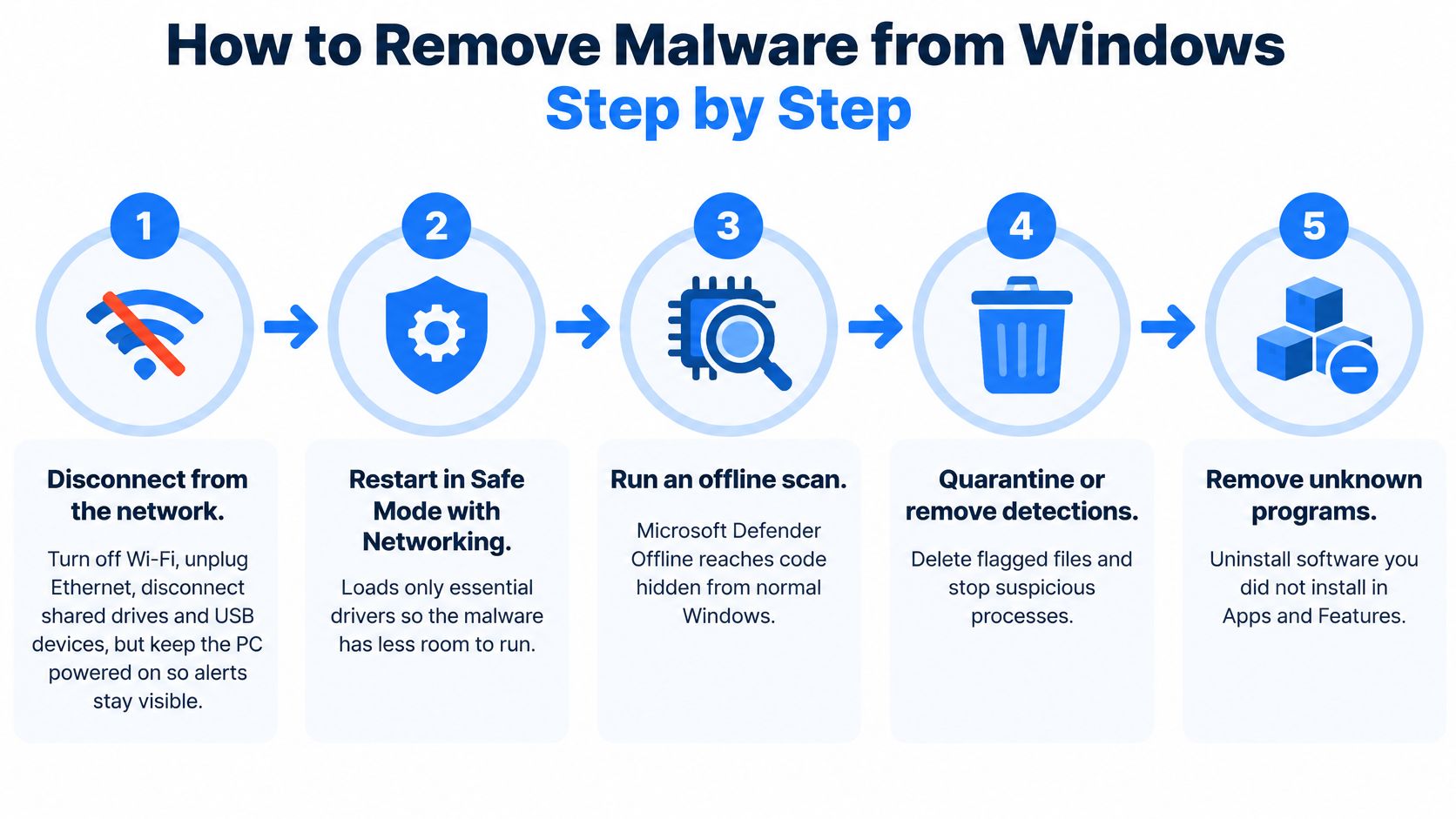
Work in order. Each step either limits damage or gives you information the next step needs.
Contain It First
Disconnect, but don't switch off. Turn off Wi-Fi and unplug Ethernet. Disconnect shared drives and USB devices. Leave the PC powered on so alerts stay visible. This limits spreading to other devices and stops data leaving while you're working.
Record what you can see. Photograph any alert with your phone, note the time, and copy suspicious filenames exactly. A technician or your bank may ask for these later, and you'll lose them if you restart first.
Scan and Look Around
Run a full scan in Windows Security. Open Windows Security, choose Virus and threat protection, then Scan options, then Full scan. If the scan refuses to run, or protection switches itself off again, write that down. A scan that won't run is a finding, not a dead end.
Check what's running. Press Ctrl+Shift+Esc to open Task Manager. Sort by CPU and then by Disk. Right-click any process you don't recognise and choose Open file location. A process running from a temporary folder or from inside your user profile's AppData folder deserves suspicion. One running from System32 is usually Windows itself.
Remove programs you didn't install. Go to Settings, then Apps, then Installed apps. Sort by installed date. Bundled software often arrives in the same week the symptoms started, so that date column does most of the work. Uninstall anything you don't recognise and can't account for.
The short video below walks through the same removal sequence on screen, which helps if you're unsure where a menu sits.
Remove the Ways It Comes Back
Clear startup entries and browser add-ons. In Task Manager, open the Startup tab and disable entries you didn't choose. Then open your browser's extensions page, remove anything unknown, and reset the browser settings. This matters because malware often survives by relaunching at login rather than by hiding well.
Quarantine the detections and restart. Back in Windows Security, open Protection history and quarantine or remove each flagged item. Then restart properly. Don't just close the lid.
Scan again after the restart. Run a second full scan once Windows is back up. You're checking whether anything reinstalled itself during boot. If detections return, or the scan still can't run, stop repeating this loop and move to an offline scan.
Don't install three antivirus tools at once. They conflict with each other, slow the PC further, and make every result harder to trust.
That last point causes more trouble than the original infection in some cases. People panic, install whatever a pop-up offers, and end up with two fake optimisers fighting each other. One reputable tool, run properly, tells you more than four running together.
Offline Scans and Tools for Stubborn Infections
A normal scan has a blind spot. It runs inside Windows, so anything that hides from Windows, or that has already disabled your protection, can hide from the scan too. That's why some infections reinstall themselves at every restart no matter how many times you delete them.
Work down this list from quickest to most drastic. Stop when one method works and the checks that follow it pass.
Method | Runs in | Best for | Cost |
|---|---|---|---|
Windows Security quick scan | Normal Windows | First check after disconnecting | Free |
Windows Security full scan | Normal Windows | Deeper scan of every file | Free |
Microsoft Defender Offline scan | Before Windows loads | Rootkits and infections that block removal | Free |
Safe Mode with Networking | Minimal Windows drivers | Installing a second-opinion scanner | Free |
Second-opinion scanner such as Malwarebytes | Normal Windows or Safe Mode | Cross-checking what Defender missed | Free scan; paid real-time protection |
Clean Windows reinstall | Full wipe and reinstall | Integrity cannot be established | Free media; labour varies |
Run Microsoft Defender Offline
Open Windows Security, then Virus and threat protection, then Scan options. Choose Microsoft Defender Offline scan, then Scan now. Windows restarts, scans before it fully loads, and then boots normally. It takes around fifteen minutes, so plug in a laptop and save any work first. Anything found appears afterwards under Protection history.
Because the scan runs before Windows starts, malware doesn't get its usual head start. A typical pattern is a fake driver updater that switches Defender off at every login. Inside Windows you can't remove it because it's already running. The offline scan reaches it first.
Use Safe Mode and a Second Opinion
Go to Settings, then System, then Recovery, then Advanced startup and choose Restart now. From the blue menu pick Troubleshoot, then Advanced options, then Startup Settings, then Restart. Press 5 for Safe Mode with Networking. Windows loads only essential drivers, which gives most malware less room to run.
Download a second-opinion scanner only from the vendor's own website, with the address typed in by hand. Never take one from a pop-up, an advert, or a search result on the infected PC. Run one extra scanner at a time, let it finish, and record what it finds before trying anything else.
If none of these methods restores trust in the machine, the fallback is a clean Windows reinstall. It's not a failure. For some infections it's the only honest answer.
Checking the PC Is Really Clean
A scan that says clean isn't proof. It means that tool didn't find anything it recognised, in the places it looked, at that moment. You need a proper acceptance test before you sign in to anything important again.
Use the checklist below as a tick list. Every item needs to pass.
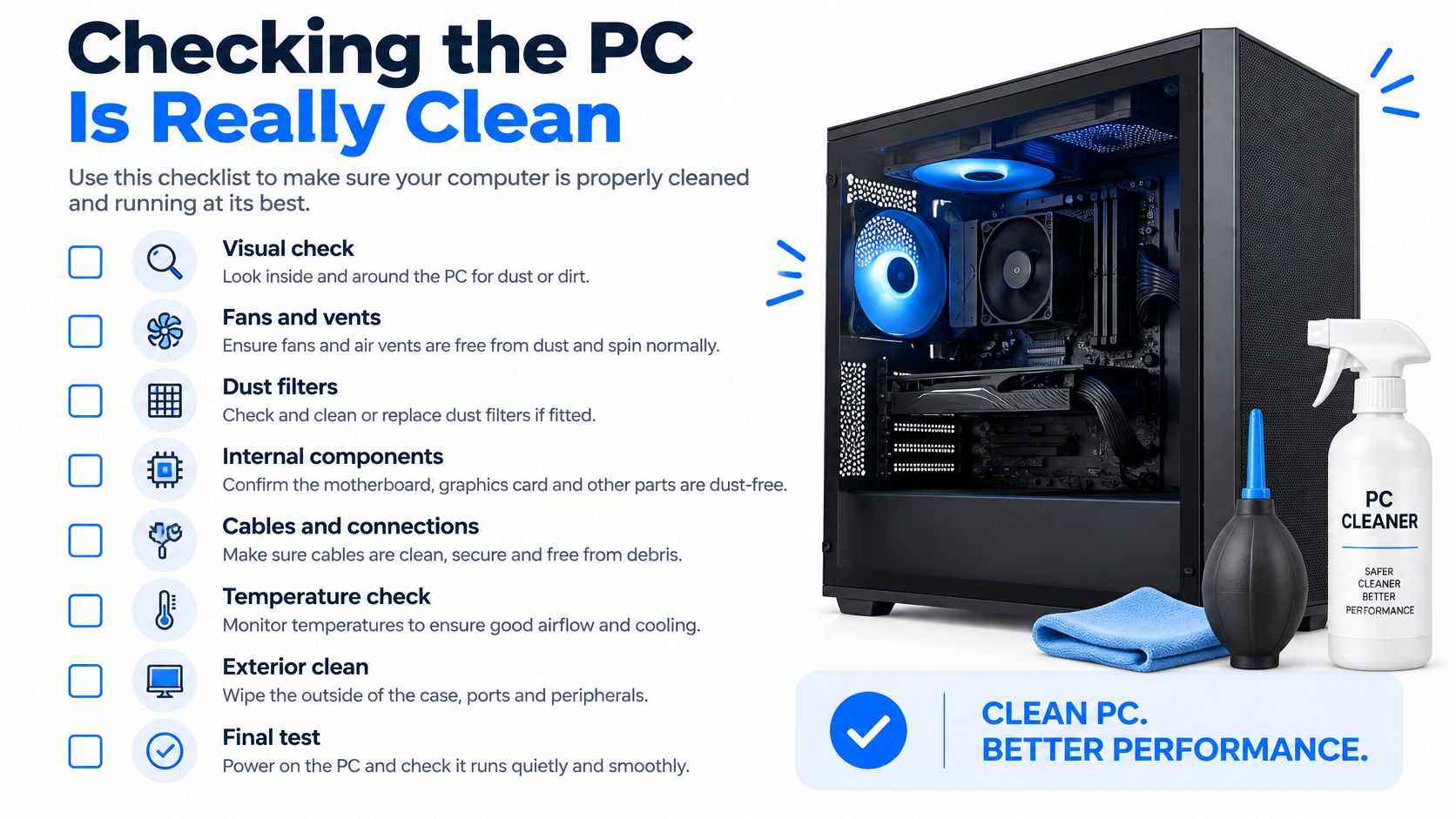
The Five Checks
Offline scan is clear: An offline or boot-time scan returns no detections.
No unexplained startup routes: The Startup tab in Task Manager, Task Scheduler, and services.msc show nothing you can't name. Browser extensions match only the ones you chose.
No mystery network traffic: Open Resource Monitor and look at the Network tab while the PC sits idle. There should be no outbound connections from processes you can't identify.
Updates are current: Windows Update reports that all current security updates are installed.
Normal use works: The PC restarts cleanly, you sign in normally, key applications open, and a sample of documents and photos opens without errors.
Run through these after at least two restarts over a day or two. Some infections wait before reactivating, so a PC that's clean ten minutes after removal hasn't proved much yet.
If you can't explain a startup entry, don't assume it's harmless. Unexplained persistence is a reason to reinstall, not a reason to scan again.
The decision rule is straightforward. If you can't establish system integrity, if you suspect administrator credentials were stolen, or if a persistence mechanism remains unexplained, plan a clean Windows reinstall with drivers and updates rather than another scan. Repeating a test that can't answer your question doesn't make the answer safer.
Recovering Accounts, Backups and Files After Cleanup
A cleaned PC does not secure accounts that malware may have exposed. Stolen passwords and active browser sessions can remain usable after the infection is removed, so treat device cleanup and account recovery as separate jobs.
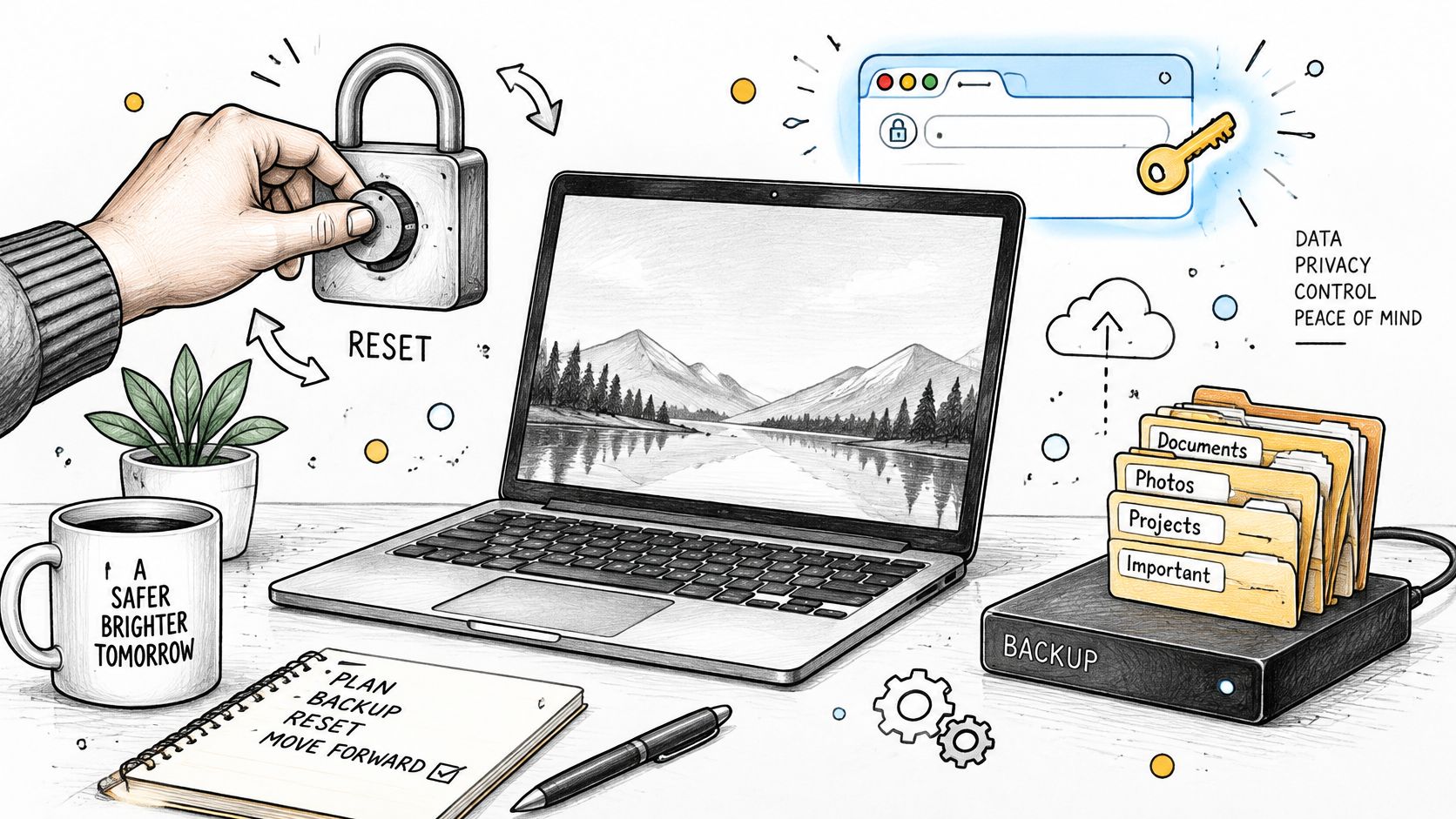
Secure Accounts in This Order
Use a separate, trusted phone or computer. Avoid signing in to sensitive accounts on the PC you just cleaned until you have confidence it is safe.
Secure email first. Change its password. Email can be used to reset passwords for many other accounts.
Protect financial accounts. Change passwords for banking and payment services, then handle social media and shopping accounts.
End existing sessions. In your Microsoft, Google, and Apple account security settings, sign out of other sessions and remove devices you do not recognise. A password change may not end a session that is already signed in.
Enable multi-factor authentication on email and banking accounts.
Review saved browser data. Check saved passwords, payment details, and extensions. Remove anything you did not add.
Contact your bank promptly if you entered card details on the affected PC. Report suspected fraud to Action Fraud.
Handle Backups Carefully
A connected backup drive may have been exposed to the same malware. Scan it before reconnecting it, and check cloud storage version history before restoring files. If ransomware encrypted a file and sync copied that version to the cloud, pause syncing and look for an earlier version.
Restore one test file first and open it before copying back the rest. Keep suspected infected files separate while you assess them. If files are missing or deleted, follow this guide to recover deleted files safely to avoid overwriting data that may still be recoverable.
Stopping Malware From Coming Back
Prevention is mostly unglamorous habits done consistently. These are ordered by impact, not by how technical they sound.
Updates come first. Turn on automatic Windows updates. Update browsers and PDF readers monthly. Most infections exploit software that was patched months ago. Keep Windows Security on and switch on Tamper Protection under Virus and threat protection settings, so malware can't secretly switch your protection off.
Use a standard account day to day. Keep a separate administrator account for installs only. If something malicious runs under a standard account, it has far less access. You'll be asked for the admin password when you genuinely install something, and that prompt becomes a useful warning when you didn't ask for it.
Treat attachments and links with suspicion. Invoices, parcel notices, and password reset messages are the usual disguises, because phishing is the most common way in. If a message pushes you to act quickly, go to the company's website yourself instead of using its link. Our longer guide on how to prevent computer viruses covers the email checks in more detail.
Avoid cracked software, fake driver updaters, and extension stores you don't trust. Use a password manager with a unique password per account, and turn on multi-factor authentication wherever it's offered.
Keep one backup on an external drive that stays disconnected except while backing up, and test a restore every few months. An untested backup is a hope, not a plan.
A twenty-minute monthly routine covers most of this. Check updates, run a quick scan, look through installed programs and extensions, and test one backup file.
When to Hand the Job to Steel City IT
Some infections are a Saturday afternoon job. Others aren't, and carrying on alone mostly costs you evidence and options. This table is the deciding line.
Situation | Handle it yourself | Call Steel City IT |
|---|---|---|
Single pop-up or adware cleared by one scan | Follow the steps and checklist | Not needed |
Infection returns after two clean passes | Try one offline scan | Book a diagnostic |
Ransom note or encrypted files | Disconnect only; do not pay or scan | Contact a technician the same day |
Clicking or failing drive with files you need | Stop using the drive | Data recovery from the failing drive |
Work PC holding client data | Only if you can verify every checklist item | Clean reinstall and integrity check |
Malware alongside liquid damage or no power | Not advised | Hardware diagnostics first |
A workshop visit covers malware removal with security remediation, a clean Windows reinstall with drivers and updates configured, and data recovery using sector-level analysis when a drive is failing. Details of what's included are on the malware removal service page. The workshop operates from Frecheville and serves Sheffield, including Birley, Hackenthorpe, and Woodhouse. Turnaround is typically a few days depending on complexity.
What to Bring
The PC and its power cable, plus the charger for a laptop.
Photos of any alerts and a list of programs installed recently.
Which accounts were used on it, including email and banking.
Whether backups exist, and whether they were plugged in.
Whether a bank card was used on that machine.
One warning that matters. If a drive clicks or makes grinding noises, don't run repair tools on it. Further activity can damage the surface and reduce recovery chances. Switch it off and bring it in.
If the PC shows ransomware signs, holds client data, or the infection returns after two clean passes, disconnect it and get in touch before trying anything else.
If your PC is showing ransomware signs, won't stay clean, or holds files and accounts you can't afford to lose, disconnect it and bring it in rather than running another scan. Steel City IT offers malware removal with security remediation, clean Windows reinstalls with drivers and updates configured, and data recovery from failing drives at its Frecheville workshop in Sheffield. Visit Steel City IT to book a diagnostic and tell us what the machine is doing.