
Computer Assisted Diagnosis for PCs: How It Works

Your laptop cuts out halfway through a game, a spreadsheet, or a video call. It restarts, seems fine, then does it again. That uncertainty is exactly where computer assisted diagnosis helps, because it replaces hunches about faulty parts with measurements you can check.
Table of Contents
What Computer Assisted Diagnosis Means for Your Machine - Three Kinds of Evidence
Diagnostic Tools That Read a Computer's Own Evidence - Free Checks You Can Run at Home - Workshop-Only Equipment
Where Computer Assisted Diagnosis Falls Short - Misconceptions Worth Dropping
Book a Diagnosis Before Buying Replacement Parts - What to Bring
What Computer Assisted Diagnosis Means for Your Machine
Say your laptop shuts down randomly, with no warning and no error message. The battery looks charged, the charger works, and the machine sometimes runs for hours. From the outside, overheating, failing memory, a weak power supply, and a corrupt driver can all produce that same shutdown.
Computer assisted diagnosis is a method where software tools gather measurements from a faulty PC, laptop, or console, and a technician interprets those measurements to find the failing part.

It works much like a sat nav. The software shows readings, history, and a likely route, but it doesn't drive the car. You're still the one who decides which turn to take, because a reading only makes sense alongside the symptoms and the machine's history.
Three Kinds of Evidence
Logs the machine writes itself: Windows records errors, crash dumps, and unexpected shutdowns with timestamps.
Live sensor readings: Tools report temperature, fan speed, voltage, and clock behaviour while the machine works.
Deliberate stress tests: A test loads one component at a time, such as memory or graphics, to see whether the fault appears under that specific pressure.
The term comes from medical imaging, where software highlights patterns for a specialist to confirm or reject. A repair bench works the same way. The software gathers evidence, and the technician makes the call.
Diagnostic Tools That Read a Computer's Own Evidence
The table below matches each tool to what it reads, the fault it points toward, and where it fits in a repair.
Tool | What It Reads | Fault It Points To | Typical Use |
|---|---|---|---|
HWiNFO | Temperatures, voltages, fan speeds, clock behaviour | Overheating, throttling, failing fans or PSU rails | Live logging during a game or stress test |
CrystalDiskInfo | SMART attributes such as reallocated and pending sectors, CRC errors | Failing hard drives and SSDs | Storage check before cloning or upgrading |
FurMark or OCCT | GPU load, temperatures, error counts | GPU artefacts, VRAM errors, cooling failure | Short stress run while watching for crashes |
BlueScreenView or WinDbg | Crash dump stop codes and the faulting driver | Bad drivers, kernel faults, failing RAM | Reviewing recent blue-screen history |
Windows Event Viewer | Timestamped errors and warnings | Disk, driver, update or service failures | Matching errors to the exact time of a crash |
MemTest86 | Memory errors across repeated test patterns | Faulty RAM sticks or unstable memory settings | Bootable test run outside Windows |
Multimeter (rail readings) | Voltage on board power rails | Dead rails, shorts, charging faults | Board-level work on laptops and MacBooks |
Thermal camera | Surface heat map of the board | Shorted components, hot voltage regulators or chips | Locating a short after liquid damage or no power |
Bench PSU with current limit | Current draw during power-on | Shorted parts pulling excess current | Safe power-up of a board under test |
Free Checks You Can Run at Home
HWiNFO shows temperatures, voltages, and fan speeds in one window, so you can log what happens right before a shutdown. CrystalDiskInfo reads drive health data, while BlueScreenView turns crash dumps into readable stop codes and driver names. Windows Event Viewer is already on your machine, and MemTest86 has a free version you boot from USB to test memory outside Windows. FurMark and OCCT also offer free versions that stress the graphics card while you watch temperatures.
Keep those runs short at first. If a temperature climbs fast or the screen fills with artefacts, stop the test and note the time and reading. If your machine beeps at startup instead of booting, the guide to what startup beep codes mean explains how those patterns narrow the search before any software loads.
Workshop-Only Equipment
A multimeter measures voltage on board power rails, which tells a technician whether power reaches each section of a dead laptop board. A thermal camera shows hot spots across that board, so a shorted chip stands out against cooler parts around it. A bench power supply with a current limit feeds the board safely and exposes shorts through excess current draw, without risking further damage from a full-power start.
Reading rule: One unusual value is a lead. Two or three results pointing at the same component are evidence.
How a Fault Is Narrowed Down, Step by Step
Order matters because cheap checks rule out whole layers at once. You don't open a laptop before you've ruled out a bad driver, and you don't order a graphics card before you've checked whether the existing one is merely overheating. The diagram summarises that sequence.
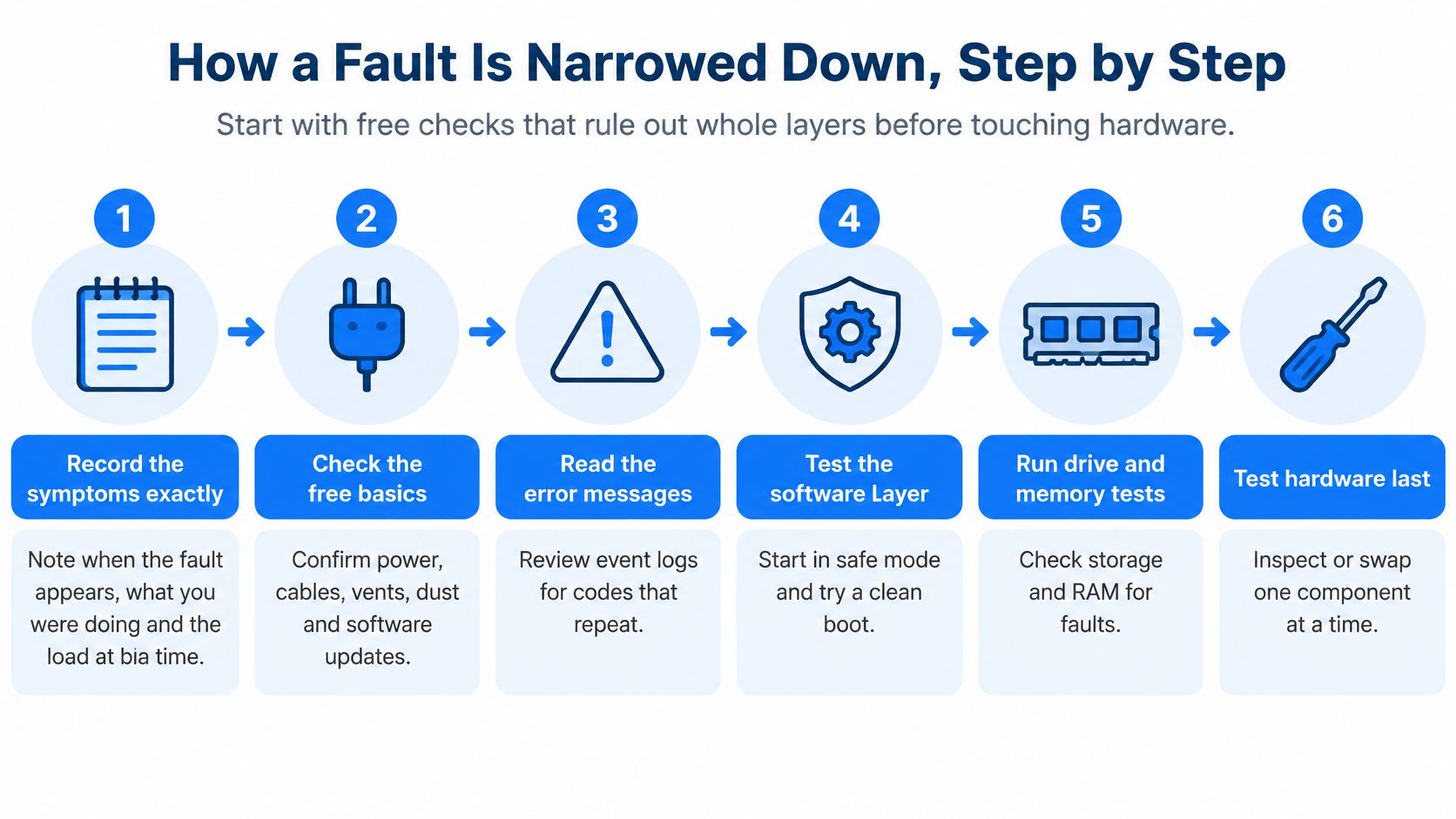
Record the symptoms exactly. Note when the fault happens, what was running, and any error text on screen. Timing separates heat faults, which build under load, from software faults, which often strike at startup or after an update.
Rule out software first. Try a clean boot or safe mode, then read Event Viewer around the crash times. If the fault vanishes with startup items disabled, you've found a software cause without touching hardware. A device error such as Windows problem code 43 also belongs here, since drivers cause many of those reports.
Check storage health. Read the SMART data in CrystalDiskInfo and look for read errors, reallocated sectors, and pending sectors. A failing drive can freeze Windows, corrupt files, and mimic a software fault, so this check protects your data early.
Test memory properly. Run MemTest86 for several passes, not a single quick sweep. One bad stick can cause random crashes that look different every time, and longer runs catch errors that only appear once the chips warm up.
Stress the graphics while logging temperatures. Run FurMark or OCCT briefly while HWiNFO records readings. If artefacts appear only as temperature peaks, cooling is suspect, while instant errors at low temperature point toward the GPU or its memory.
Check power and cooling under load. Confirm fan speeds respond as heat rises and watch voltages for drops during stress. A power supply that sags under load can crash an otherwise healthy system.
Move to board-level checks for no-power faults. If the device won't switch on, a technician measures board rails and current draw, then isolates the fault by component. This step comes last because it needs the machine opened and workshop equipment.
Confirm before you conclude. Repeat the fault on demand, or swap in a known-good part and show the fault disappears. A verdict you can reproduce is the difference between a diagnosis and an opinion.
The video below walks through the same narrowing process on a real machine, so you can see how each result decides the next test.
Why Diagnosis Beats Guesswork When Replacing Parts
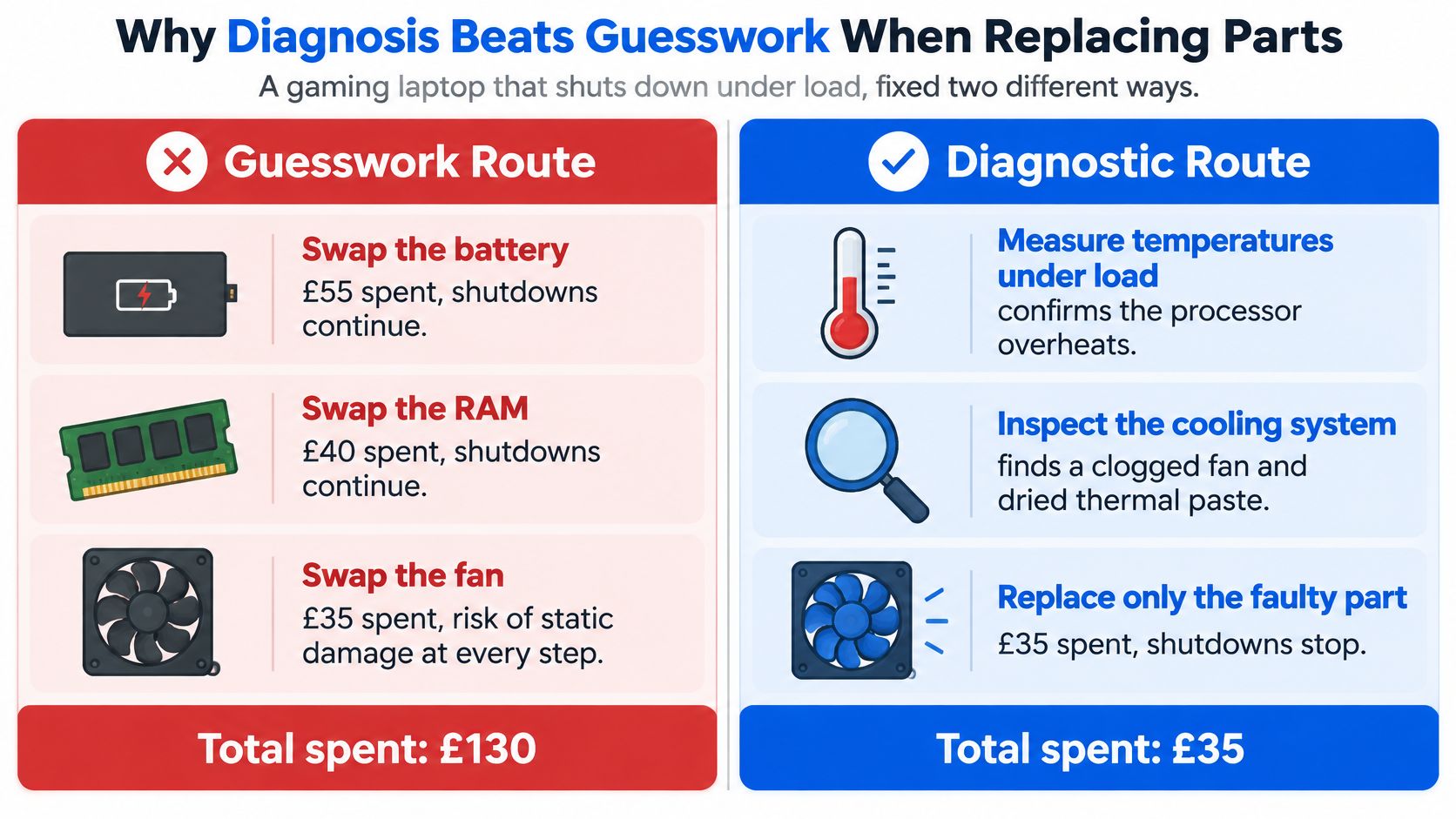
Say a gaming laptop shuts down under load. The guesswork route swaps the battery because shutdowns feel like a power problem, then the RAM because crashes feel like memory, then the fan because the case feels hot. Each swap costs money, adds handling risk, and teaches you nothing if the shutdowns continue.
The diagnostic route logs temperatures in HWiNFO during a game. The core temperature climbs past its safe limit within minutes, the fan speed reading stays flat, and inspection finds the heatsink fan seized. The fault is confirmed before any part is bought, so one replacement fixes it. The infographic sets those two routes side by side.
Criterion | Replacing Parts by Guesswork | Diagnosis-First Repair |
|---|---|---|
Parts replaced before the fault is found | Often two or three | Usually one, confirmed first |
Money spent on parts that did not fix it | Frequent | Rare |
Evidence given to the customer | Little beyond a promise it should work | Logs, readings and test results |
Time to a verdict | Set by trial and error | Set by the test stage that confirms the fault |
Risk of new damage from handling | Higher, because of repeated removals | Lower, because fewer parts are removed |
Repeat failure after repair | Higher when the cause was never confirmed | Lower when the fault is reproduced and verified |
That table describes typical outcomes, not guaranteed ones. Diagnosis costs time up front, and a thorough memory or storage test can run for hours. It usually shortens the total repair because nobody waits for parts that were never needed. Power faults reward this patience most, since power supply failures can imitate motherboard, drive, and graphics faults at once.
Judge the value yourself with the table. Set the cost of a diagnosis against the parts the guesswork route would have bought along the way. A diagnosis that confirms a single cheap fix can cost less overall than two or three speculative swaps, and you keep the readings as proof.
Where Computer Assisted Diagnosis Falls Short
The most common misreading is treating a passed test as proof of health. A clean stress run only shows the fault didn't appear during that test, under that load, on that day. Intermittent faults are famous for hiding on the bench and returning at home.
A SMART status of passed can sit alongside a drive that is failing without any visible warning. Read the individual attribute values, such as reallocated and pending sectors, instead of trusting the one-word summary. A rising count matters more than a green label.
The same gap affects graphics cards. A GPU can pass a synthetic stress test and still artefact in a particular game, because real workloads mix loads differently. The test has to reflect how you use the machine in practice, or the result proves very little.
Software sensors can also be wrong. A motherboard sensor may misreport, a tool may read the wrong chip, and a single temperature spike may be a glitch. Cross-check a suspicious reading with a second tool before you act on it.
Misconceptions Worth Dropping
A percentage score is a precise diagnosis: A health percentage is a summary estimate, not a measurement of exactly what will fail or when.
More tools mean a better diagnosis: Ten shallow scans add noise. Two well-chosen tests that agree are worth more.
Computer assisted means computer decided: The technician still interprets the readings, weighs them against the symptoms, and decides what they mean.
False positives cut the other way, too. An automated flag for a temperature spike or a failing sector can be wrong, so confirm it with a second reading before ordering any part. Acting on an unconfirmed flag recreates the same unnecessary swaps that diagnosis exists to prevent.
A test result is evidence about one moment, not a promise about next month.
Sometimes an honest diagnosis ends in replacement rather than repair. A board section with widespread shorts, or a drive with growing bad sectors, won't become reliable again. In those cases the readings still earn their keep, because they stop you spending repair money on a machine that needs a new part or a new home for its data.
How Steel City IT Runs Its Diagnostic Process
Steel City IT is a Sheffield workshop based in Frecheville, serving Sheffield, Birley, Hackenthorpe, and Woodhouse. The team covers PCs, laptops, and MacBooks, plus consoles including Xbox, PlayStation, and Nintendo Switch. The walk through below shows what happens to your machine at each stage.

Intake. The team records your symptoms, the device type, and whether your data needs backing up first. Your description of when the fault happens shapes the first tests.
Software and log review. Windows errors, driver faults, and malware are ruled out before hardware is suspected. Many crashes end here, with no parts involved.
Hardware tests. Storage, memory, and graphics are tested with the tools described earlier in this guide. Each result either clears a component or points the next test at it.
Board-level assessment where needed. Laptops and MacBooks with liquid damage, no power, or charging faults get rail measurement and thermal imaging. This finds shorted components that software can't see on a machine that won't start.
Written findings before repair. You receive the fault and your options in plain language before any repair work starts. Nothing is ordered on a hunch.
Repair with genuine parts. The workshop avoids counterfeit components and uses dedicated micro-soldering where a board-level fault needs it. That means a failed chip can be replaced without replacing the whole board.
Final testing and handover. The repaired machine is tested again before you collect it, so the fix is verified rather than assumed.
Typical turnaround is a few days, depending on complexity and parts. A board-level liquid damage case takes longer than a failing drive swap, and the team will explain the findings before any repair begins so you can decide with the evidence in front of you.
Book a Diagnosis Before Buying Replacement Parts
Book a diagnosis when any of these fit your situation:
No obvious single cause: The symptoms could plausibly come from two or three different parts.
Crashes survive a reinstall: Repeated crashes continue after a clean Windows reinstall, which points below the software layer.
No power or charging faults: A laptop that won't start or charge needs board-level checks, not a guessed battery.
Liquid damage: Spills corrode and short components in ways only rail readings and thermal imaging reveal.
Graphics artefacts: Distorted visuals need GPU and VRAM testing before an expensive card is condemned.
You can still run simple checks at home first. Reading Event Viewer and running CrystalDiskInfo costs nothing, and sharing those results makes a workshop diagnosis faster.
What to Bring
Charger and accessories: The original charger, plus docks or adapters you normally use.
Exact error messages: Photos of blue screens or crash details help more than paraphrases.
Fault history: When it started and what changed just before, such as an update, drop, or spill.
Backup status: Say clearly whether your files are backed up elsewhere.
Previous repair receipts: Past work explains non-original parts and earlier fault patterns.
Contact Steel City IT through steelcityit.co.uk or visit the Frecheville workshop, describe the symptoms, and ask for the findings in writing before any parts are ordered.
If your PC, laptop, or console keeps crashing, overheating, or refusing to power on, Steel City IT will run a full computer assisted diagnosis, show you the readings, and explain the fault before any repair begins. Visit Steel City IT to book your machine in at the Frecheville workshop and get evidence first, parts second.