
RAM Upgrades for PC: How to Choose, Fit and Verify Memory

Your PC feels fine until you put it to work. You open a game with a browser, Discord and a few tabs still running, then Alt and Tab takes seconds, frames hitch, and Windows sounds like it's thinking hard about everything. It's tempting to order the biggest kit you can afford that night. Don't. RAM upgrades for PC systems pay off when memory is the measured limit, and disappoint when the underlying fault is heat, storage, a pinned processor or unwanted software. I would start with a five minute bottleneck test, then check the motherboard, and only then choose capacity, speed and a fitting plan. That order prevents most wasted purchases.
Table of Contents
Confirm RAM Is the Bottleneck Before Spending - Check for Paging in Resource Monitor
Check Your Motherboard Before Buying RAM - Match Generation and Form Factor
How Much RAM and Which Speed You Need - Why Two Sticks Beat One - Speed, Timings and Price Timing
Verify Speed, Dual-Channel and Stability - Confirm Capacity and Profile in Firmware - Check Channel Mode in Windows - Test Stability Properly
Confirm RAM Is the Bottleneck Before Spending
Run the exact thing that makes the machine slow down. Load the game, photo library, video timeline or set of browser tabs you'd normally use, then open Task Manager, select Performance, and watch Memory while the problem is happening. Checking an idle desktop tells you very little, because Windows uses spare memory for caching and releases it when an application needs it.
The signal you want is memory staying near full during the slowdown, not a brief spike as a program opens. Leave the workload running for a few minutes so background loading settles. Note the memory total, the amount in use, and whether the system has one stick or two under Slots used.
Check for Paging in Resource Monitor
From Task Manager, open Resource Monitor and look at the Memory section while you switch between applications. Rising hard faults per second alongside a busy disk points to paging, where Windows moves data between RAM and storage because it has run short of physical memory. That's the pattern a capacity upgrade can fix, because storage, even a fast SSD, is much slower than RAM for this job.
If memory has clear headroom while the processor sits at its limit, more RAM won't create processing power. If temperatures climb and clock speeds fall, clean the cooling first. If the disk is busy without memory pressure, investigate drive health, free space and whatever process is keeping it active.
Slowdown symptoms and what they usually mean
Observation | Usually means | Next action |
|---|---|---|
Memory near full, hard faults rising, disk busy when switching apps | RAM pressure | Adding matched RAM is likely to help |
Temperatures climbing and clock speeds dropping | Thermal throttling | Clean the cooling and check fans |
One unexplained process using large memory | Background software or malware | Close, update or scan before upgrading |
Sort Task Manager's Processes list by Memory before you conclude anything. A stuck updater, a browser extension gone wrong, or malware can consume memory and look exactly like a shortage. Close or update what you recognise, run a security scan, then repeat the test with only the workload you care about.
Practical rule: Buy RAM when memory pressure and paging show up during your normal workload. Fix the processor, cooling, storage or software limit first when the test points elsewhere.
That single distinction is the difference between a machine that feels transformed and one that feels identical with a lighter wallet. Record the figures on your phone, because you'll want the same workload and settings for a fair before and after comparison later.
Check Your Motherboard Before Buying RAM
The most common buying mistake is matching the headline capacity and nothing else. A kit can be the right size, from a good brand, at a good price, and still not fit your slot. Generation, form factor, voltage and board limits all have to line up at once.
Start by identifying the system properly. Press the Windows key and R, type msinfo32, and note the system model and baseboard details. Then open CPU-Z and read the Memory and SPD tabs, which show your current module size, speed, timings and which slots are occupied. For background reading on matching parts to a home machine, RAM upgrade advice for home users from Computer Daddy is a useful plain language companion to those checks.
Match Generation and Form Factor
The Kingston Memory Shop laptop memory guidance shows UK listed DDR5 SO-DIMMs commonly specifying 1.1 V operation and 262 pins, while desktop systems generally require 288 pin DIMMs. DDR4 and DDR5 are electrically incompatible, so a DDR5 stick isn't a faster option for a DDR4 board, it's just the wrong part. The notch position stops you fitting it, and that's by design.
Memory types by system
Memory type | Module form | Pins | Voltage | Typical systems |
|---|---|---|---|---|
Desktop DDR4 | DIMM | 288 | 1.2 V | Older and mid-range desktop boards with DDR4 slots |
Desktop DDR5 | DIMM | 288 | 1.1 V | Current desktop boards with DDR5 slots |
Laptop DDR4 | SO-DIMM | 260 | 1.2 V | Older laptops and some small-form-factor systems |
Laptop DDR5 | SO-DIMM | 262 | 1.1 V | Recent laptops, mini PCs and all-in-one systems |
Soldered memory | None | None | Board supplied | Many thin-and-light laptops; confirm in the service manual whether an upgrade is possible |
For a laptop, search the exact model number from the underside label or msinfo32, not the product family name. One family name often covers several boards with different slot counts, and some thin and light models have memory soldered down with no slot at all. A PC component compatibility checker helps you cross check the board against the kit before money changes hands.
Don't mix ECC Registered, ECC Unbuffered and standard non-ECC modules. They're platform specific classes aimed at different systems, and a mismatch usually means no boot rather than slower running.
Tick these four off before ordering.
Memory generation confirmed: DDR4 or DDR5 from the board specification, not the processor name alone.
Form factor confirmed: DIMM for desktops, SO-DIMM for most laptops and mini PCs.
Capacity headroom confirmed: Total slot count and maximum supported capacity from the manual or support list.
Upgrade path confirmed: Free slots present, and memory not soldered to the board.
How Much RAM and Which Speed You Need
Decide in this order. Capacity first, configuration second, speed last. Reversing that order is how people end up with a fast kit that's still too small.
For comfortable Windows 11 use, 16GB is the practical baseline for office work, browsing and mainstream gaming. 32GB suits heavier multitasking, larger photo libraries, video timelines and games running alongside streaming or voice software. Go beyond that when your own workload fills 32GB, not because a product page calls it future proof. If you're weighing gaming needs specifically, guidance on how much RAM you need for gaming sets out the capacity question by game type.
Capacity and configuration by use case
Use case | Suggested capacity | Configuration | Speed priority |
|---|---|---|---|
Office work, browsing and streaming | 16GB | 2 x 8GB dual-channel | Low: any rated speed the board supports |
1080p gaming | 16GB, or 32GB if paging occurs | 2 x 16GB dual-channel | Medium: keep dual-channel first |
1440p or 4K gaming with heavy background apps | 32GB | 2 x 16GB dual-channel | Medium |
Photo editing and 1080p video | 32GB | 2 x 16GB dual-channel | Medium |
4K video timelines, 3D rendering and large virtual machines | 64GB | 2 x 32GB dual-channel | High: capacity first, then speed |
Workstation or ECC platforms | Platform limit | Match the board's ECC type | Follow the memory support list |
Why Two Sticks Beat One
Two identical modules in the board's recommended paired slots run in dual-channel, which gives the processor a wider path to memory than a single module. A 32GB target is better served by 2 x 16GB than by one 32GB stick, unless you're deliberately leaving a slot free for a later matched addition. One stick also leaves you no fallback if it fails.
Buy a matched kit where you can. Modules sold together are tested to run at the same speed, timings and voltage, which removes a whole category of no boot and random crash problems that mixed sticks create.
Speed, Timings and Price Timing
Once capacity is sufficient, a higher frequency profile usually adds small gains rather than a step change, and an unstable profile costs you troubleshooting time. I'd take a stable dual-channel kit at a sensible rated speed over an aggressive kit that needs manual tuning. Keep an eye on timings too, since a lower CAS latency at the same speed responds a little quicker, but don't pay a large premium for it before capacity and channel mode are sorted.
Check a live listing on the day you buy, because memory prices move fast. A UK price tracking report on the chip memory shortage recorded one 32GB DDR5 kit at roughly £79 in September 2025 and approximately £351 by January 2026, which is one retail example rather than a market average. If your test shows no paging, that price movement is a good reason to wait.
How to Fit New RAM Step by Step
Fitting memory is one of the easiest upgrades in a desktop, and one of the easiest to spoil by rushing. Work on a clear table, keep screws in a tray, and handle modules by their edges so you don't touch the gold contacts or the chips.
The opening stages, powering down safely and getting the case open, are summarised in this flow.
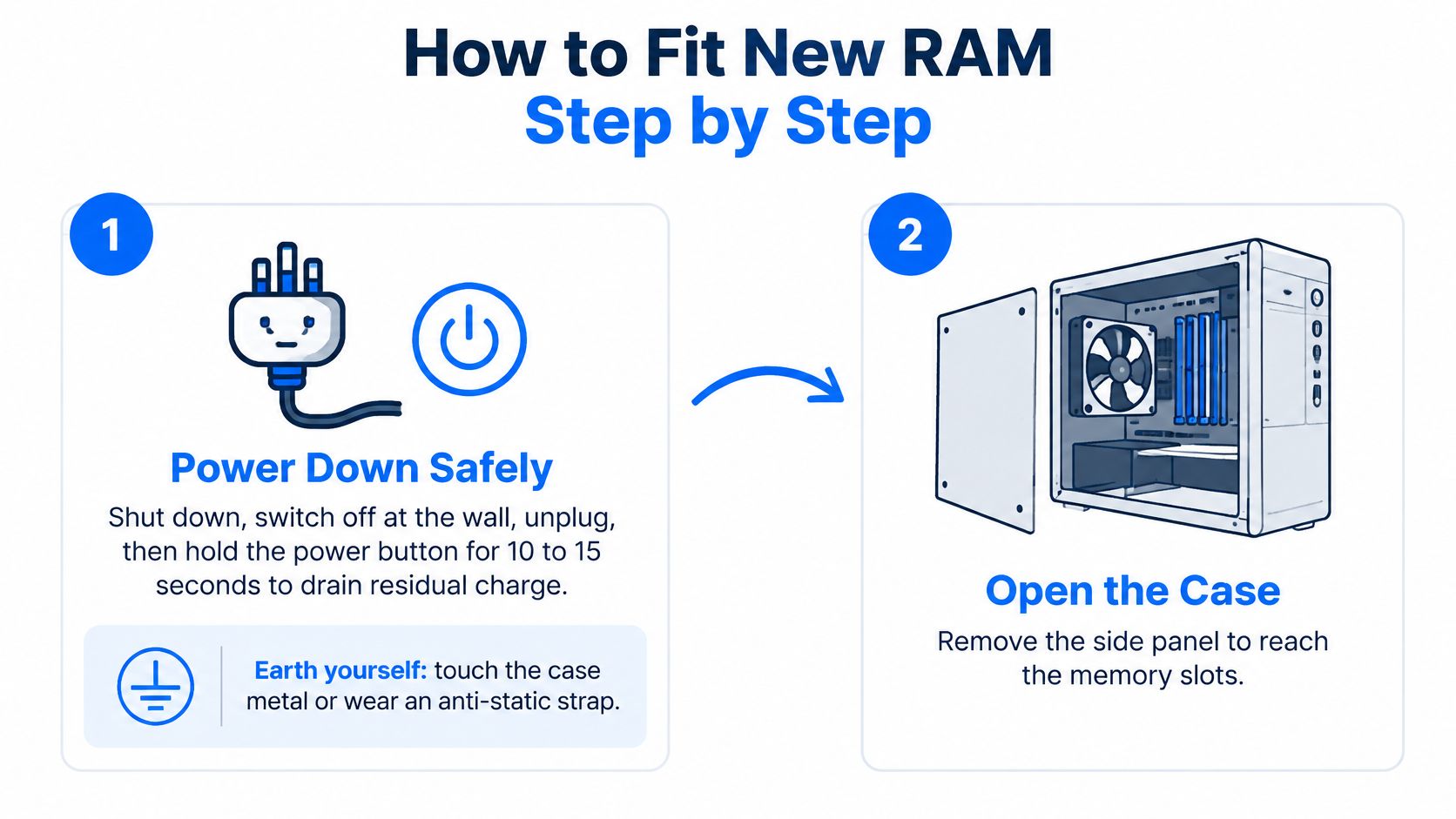
Power down completely: Shut down, switch off at the wall, unplug the cable, then hold the power button for 10 to 15 seconds to drain residual charge. Earth yourself by touching bare case metal or wearing an anti-static strap, because a static discharge can damage a module without any obvious sign.
Open the machine: Remove the side panel on a desktop. On a laptop, remove the bottom cover and disconnect the battery if the service manual allows it, checking first because some models use hidden screws or clips that break if forced.
Give the slots a visual check before you touch anything. Dust in a slot or a bent clip will cause a fault that looks like bad memory.
Photograph the existing layout: Note which slots the current modules occupy and which way the labels face. If the new kit misbehaves, you can return to a known working layout in minutes.
Release the old modules: Press the clips at each end of the slot outward and the module will lift slightly. Pull it out evenly, or at a shallow angle for a laptop SO-DIMM, and set it on an anti-static surface.
Seat the new module: Line up the notch on the module with the key in the slot. On a desktop DIMM, press down evenly with both thumbs until both clips click into the side notches. A laptop SO-DIMM goes in at roughly 45 degrees, then presses down flat until the side clips hold it.
If one side won't lock, the module isn't fully seated. Take it out and reseat it rather than pressing harder.
Use the paired slots: Fit two modules in the slots the manual recommends for dual-channel, which often means slots 2 and 4 on a four slot desktop board. Follow your board's own diagram over any general rule, since the preferred order differs between manufacturers.
Refit and power on: Reconnect the laptop battery, refit the cover loosely, then power on before you replace every screw. If the first boot takes longer than usual, leave it, because many boards train new memory on the first start.
Watching the physical seating motion once helps if you've never opened a case, since the click and the clip movement are easier to recognise than to describe.
Never force a module. Resistance means the notch is misaligned or you've got the wrong generation, and pushing DDR5 toward a DDR4 slot will damage one or both. If the machine beeps, shows a memory debug light, or cycles on and off, power down and reseat each stick before suspecting a faulty kit.
Verify Speed, Dual-Channel and Stability
An upgrade isn't finished when Windows loads. It's finished when the firmware reports the right capacity, the kit runs at its rated profile, channel mode is correct, and a memory test passes cleanly.
This checklist covers the first three checks in the order you'd do them.
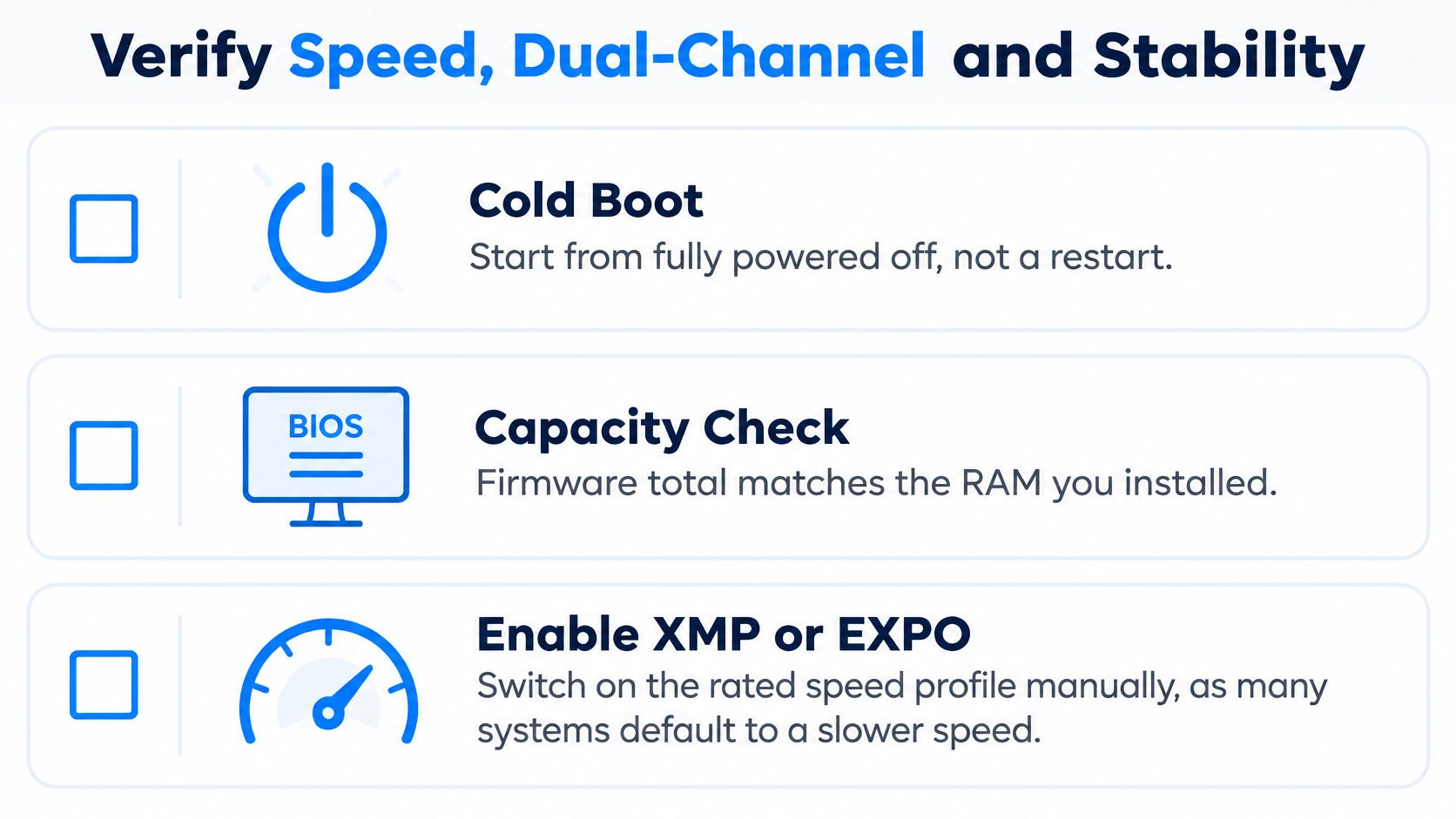
Confirm Capacity and Profile in Firmware
Start from a cold boot, fully powered off, and enter the BIOS or UEFI setup. The total shown should match what you installed. If it's short by exactly one module, that stick isn't seated or isn't recognised.
Most kits run at a conservative default speed until you enable XMP on Intel boards or EXPO on AMD boards. Switch the profile on, save, and reboot. The Kingston Memory Shop gaming PC memory listings show current UK market DDR5 desktop examples spanning approximately 5,200 to 6,400 MT/s, while DDR4 gaming modules commonly operate around 3,200 MT/s. Those numbers describe transfer rate, not a guaranteed performance gain, and your achievable speed is limited by the processor, board and BIOS.
Check Channel Mode in Windows
Open Task Manager's Memory page to confirm the reported speed and slots used. Then check CPU-Z on the Memory tab, where Channel should read dual for a two stick kit. If it reads single, you've populated neighbouring slots instead of the paired ones, so move a module and test again.
Don't combine unrelated kits to reach a bigger number. Mixed chips, ranks, timings and voltage requirements can force a lower speed or stop the machine booting at all.
Test Stability Properly
Run a bootable memory test such as MemTest86 for several passes. If you can't boot a test tool from USB, use Windows Memory Diagnostic as a fallback, then stress the machine with your normal workload for an hour or more. Repeat the same game or application test you recorded earlier, with identical settings, so the comparison means something.
Write down capacity, MT/s, timings, benchmark result, test duration and any errors. A failed memory test is a fault in seating, compatibility or the module itself, never normal behaviour to accept. If the system won't boot after enabling a profile, clear the CMOS or set the base speed manually, confirm stability there, and only then step the profile up.
RAM Versus Other Upgrades and When to Rebuild
Should a DDR4 owner move to DDR5, or just add more DDR4? The motherboard decides, not the processor alone and not the marketing. Because the generations don't interchange, moving to DDR5 means a new board, usually a new processor, and new memory in one purchase.
For an otherwise capable DDR4 gaming system, going from 16GB to 32GB on the existing board is often the better value move, especially when your test showed paging rather than a processor limit. You keep a working platform, spend on the part that's actually short, and avoid rebuilding a machine that wasn't broken. Generation matters less in daily use than having enough capacity, running dual-channel, and staying stable.
A platform change earns its cost in narrower circumstances. You're already replacing the processor, your workload genuinely needs 64GB or more beyond what the current board supports well, or you're building new and there's no existing board to preserve. Outside those cases, treat DDR5 as part of a planned rebuild rather than a memory upgrade.
RAM upgrade against other options
Upgrade | Helps most when | Relative cost | Check first |
|---|---|---|---|
Add a matched second kit | Memory pressure with a free slot and single-channel operation | Low to moderate | Free slots and maximum supported capacity |
Replace the kit with a larger one | Capacity target exceeds what the slots can hold alongside current modules | Moderate | Largest supported module size per slot |
SSD upgrade | Slow loading and a busy disk during the slowdown | Low to moderate | Drive health and free space |
Graphics card upgrade | GPU load is maxed out while memory and CPU have headroom | High | Current GPU load in the slowdown test |
Platform change (motherboard, CPU and RAM) | DDR4 board at the end of its life, or a need for 64GB or more | High | Whether the CPU or board is the planned replacement |
Clean Windows reinstall | Software bloat or malware, with memory used by unknown processes | Low | Start-up apps and security scan results |
Read the table through your own test result. If the disk was busy with memory headroom to spare, an SSD or a software cleanup is the correct spend and RAM is a detour. If the graphics card was flat out at your target resolution, memory won't lift frame rates that the GPU can't produce.
The cheapest correct fix is the one the diagnostic points to, and it isn't always a part. Removing start-up bloat, fixing a cooling problem, or replacing a tired drive can restore responsiveness that no memory kit would have delivered.
Rebuild rule: Fill the free slots first, replace the kit only when the slots can't reach your target, and rebuild only when the platform itself is the limit.
That sequence keeps you from buying a board and processor to solve a problem that a matched second stick would have settled.
Choose DIY Fitting or a Sheffield Upgrade Service
Fit it yourself when you've got a desktop with free slots, a confirmed memory type, and you're comfortable with static precautions and reseating a module if the first boot fails. That covers most tower PCs, and the job is genuinely quick once compatibility is settled.
Book a service instead when the laptop has soldered memory or a case that's difficult to open, when compatibility is unclear after checking the model number, when the machine crashes or won't boot after an install, or when the upgrade sits inside a wider custom build. Those cases need diagnosis rather than another part swap.

Steel City IT, based in Frecheville and serving Sheffield including Birley, Hackenthorpe and Woodhouse, carries out component upgrades including RAM, alongside diagnostics, performance optimisation and a clean Windows reinstall with drivers and updates configured. Typical turnaround is within a few days depending on complexity, with a focus on genuine parts. You can read more about local help through IT support in Sheffield before you book.
Bring the exact model number, your current module details from CPU-Z, what you use the PC for, and your slowdown test results. With those four things, the decision on whether RAM is the right purchase at all takes minutes rather than guesswork.
If your test shows memory pressure and you'd rather not open the case yourself, Steel City IT can confirm compatibility for your exact model, fit a matched kit, set the correct profile and stability test the result before handing the machine back. Bring your model number and CPU-Z details, and you'll leave knowing whether RAM, storage or another fix is the right spend for your PC.