
Computer Slow to Boot? How to Find and Fix the Cause

A stock Windows 10 system on a mechanical hard drive needed about 112 seconds to reach a usable desktop in controlled boot benchmarks, while the same system on an SSD got there in about 24 seconds. Same software, same startup list, different drive. That gap is why I don't start a slow-boot job by uninstalling apps or resetting Windows. I start with a stopwatch, because a computer slow to boot is usually waiting for one specific thing, and the timing tells you which.
Most guides hand you a cleanup checklist before you know where the delay lives. If the machine sits on the manufacturer logo for a minute, no amount of startup tidying will touch it. Work out the stage first, then pick the fix.
Table of Contents
Is Your Computer Actually Slow to Boot?
Before you change a setting, you need a yardstick. Many users have no idea what a normal boot looks like on their class of machine, so "slow" becomes a feeling rather than a measurement. These reference points place your machine on a scale.
Setup | Time to usable desktop | What it suggests |
|---|---|---|
Stock Windows 10, HDD | about 112 seconds | Storage is the likely bottleneck |
Stock Windows 10, SSD | about 24 seconds | Healthy baseline for a stock system |
Same SSD after startup cleanup | about 19 seconds | Software trimmed only a few seconds |
Acer Aspire 1 A114, Which? UK test (2022) | 28 seconds to start up | Reference point only; test method not stated |
The last row needs a caveat. Which? measured a 28-second startup time for the Acer Aspire 1 A114 in UK laptop testing published in 2022, which is one budget machine under one publisher's method, not a target every laptop should hit. Treat it as a sanity check, not a pass mark.
The question that decides everything else
Is Windows slow, or is the computer waiting for hardware? Those are different faults with different price tags. A machine that pauses before the Windows logo is stuck in firmware or storage, and reinstalling Windows won't shorten that pause by a second.
The benchmark rows come from Windows 10 tests, and most UK desktops now run Windows 11, so don't treat those seconds as a personal target. Compare against your own machine's earlier boots using the same method. Mac and Chromebook owners can run the identical timing exercise, just with different logs afterwards.
Practical rule: a boot is slow when it's clearly longer than the baseline for the same kind of machine, not when it's longer than a friend's new laptop.
Write down a rough time from the power button to a desktop you can click on. If that number sits well above the SSD row and your machine has a mechanical drive, you already know where to look.
How to Time the Delay Before You Change Anything
Separate firmware delay from Windows delay before touching anything, because the repairs are nothing alike. Firmware delay is hardware, settings or storage. Windows delay is services, drivers, updates or background work.
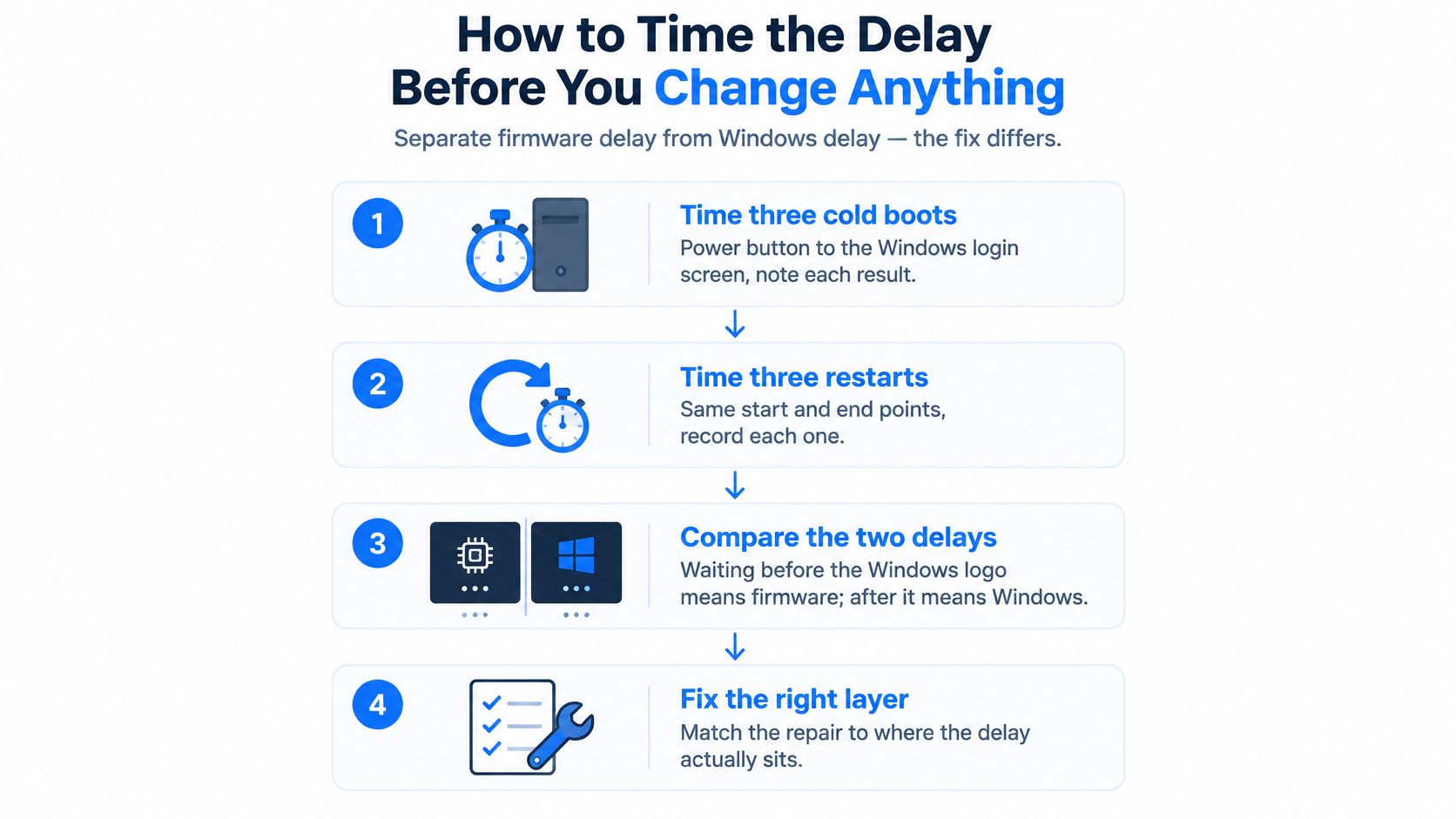
The five steps I run first
Time three cold boots. Shut down fully, wait a few seconds, then start the stopwatch at the power button and stop it at the Windows login screen. One run proves nothing, since an update, a disk check or a memory-training cycle can distort a single result.
Time three restarts. Use Restart from the power menu with the same start and end points. A cold boot that's much slower than a restart points at firmware initialisation or drive spin-up rather than Windows itself.
Note where the pause occurs. Waiting before the manufacturer logo or on the BIOS/UEFI screen points to firmware or storage. A gap between the login screen and the password prompt points to sign-in services. A desktop that appears quickly then stays unusable with the disk light hammering points to background work.
Read the boot log. Open Event Viewer, then Applications and Services Logs, Microsoft, Windows, Diagnostics-Performance, Operational. Look for boot-duration warnings and note the timestamps and any named application or driver, because Windows will often tell you exactly what held things up.
List startup entries without changing them. In Task Manager, open Startup apps, sort by startup impact, and write down the high-impact names. Then create a restore point before your first change.
Keep the measurement honest
Start the stopwatch at the same point every time and stop it at the same point. Confusing login time with firmware time is the mistake that sends people down the wrong repair path, and deleting startup programs without recording their names leaves you unable to undo anything.
Keep infection on the list while you measure rather than bolting it on at the end. The UK Government's Cyber Security Breaches Survey 2023 recorded viruses, spyware or malware among 12% of UK businesses reporting breaches or attacks, so a security check earns its place in the sequence.
If the pause sits in firmware, stop. Don't start disabling apps. Match the symptom to the layer below instead.
Match Each Symptom to a First Fix
Use this as a lookup. Find the row that matches when your delay happens, run the first fix in that row, and give it a fair test before moving on.
Symptom | Likely cause | First fix |
|---|---|---|
Long pause before the Windows logo | Failing drive, firmware setting or USB device | Unplug USB devices, check drive health, then consider SSD migration |
Slow sign-in after the logo | Too many startup apps or sign-in services | Disable entries in batches and time each boot |
Fast login, slow desktop for 1-2 hours | Background updates or search indexing | Let them finish, then recheck the timing |
Slow boot right after a major update | Failed update or driver conflict | Roll back the driver and run system file checks |
Slow boot returns on a fresh install | RAM, thermals or motherboard fault | Run hardware diagnostics before reinstalling again |
The pre-logo row catches people out most often. A dying hard drive can hold the firmware while it retries reads, and an external USB hub, card reader or ageing external disk can do the same while the machine tries to enumerate it. Pull every USB device except keyboard and mouse, boot again, and only then start suspecting Windows.
The update row is the one where patience beats surgery. If a feature update landed recently, give the machine a couple of sessions to finish servicing and indexing before you judge it, and check Windows Update history for a failed entry that keeps retrying. For a driver conflict, roll back through Device Manager, then run from an administrator Command Prompt.
After startup changes, reboot three times before you decide whether the fix worked. After indexing or update activity, wait until the disk light settles at idle.
The last row is the expensive one. If a fresh Windows installation boots just as slowly, the software explanation is dead, and reinstalling a second time wastes a day and risks your files. Test memory with Windows Memory Diagnostic, check temperatures and fan behaviour, and look at storage and firmware before anything else.
Which Startup Apps Are Safe to Disable
Work in batches, not in one big purge. Disable five or six non-essential entries, reboot three times, record the new login time, then repeat with the next batch. Stop when the timings stop improving, because past that point you're removing convenience for no gain.
Start with the high-impact names you wrote down, and treat Task Manager's impact rating as an estimate rather than a verdict. A cloud sync client or chat launcher often adds a few seconds at login. A vendor utility suite on a budget laptop can add far more, and the rating doesn't always reflect it. Your timed boots settle the argument.
Startup entry | Safe to disable? | Reason |
|---|---|---|
Chat, music or game launchers | Yes | Open them only when you need them |
Cloud sync clients such as OneDrive or Dropbox | Usually | Sync still works when opened manually, so check whether you need them at login |
Vendor utilities and printer helpers | Usually | Rarely needed at boot and often the biggest add-on on budget laptops |
Graphics control panels from NVIDIA, AMD or Intel | Keep | Controls display settings and driver services |
Security software | Keep | Disabling it leaves the PC unprotected |
Chipset, storage and touchpad drivers | Keep | The boot depends on them, and disabling them can stop the PC working |
Disabling a startup entry doesn't uninstall the program. It stops it launching at sign-in, and you can switch it back on from the same Startup apps tab in seconds. That's why the batch method is safe: nothing is deleted, and every change is reversible. For a fuller walkthrough of the tab itself and the entries Windows hides elsewhere, our guide on how to disable startup items covers the practical clicks.
Keep a plain log as you go: entry name, date disabled, login time before, login time after. Three columns in a notebook is enough. If your printer stops announcing itself or a laptop's function keys behave oddly, that log tells you which change to undo in under a minute instead of guessing.
One caution on cloud sync. If you rely on OneDrive to keep a work folder current across machines, leaving it disabled means files won't update until you open it manually. That's a fair trade for a faster sign-in on a home PC, and a poor one on a machine two people share.
When the Drive Is the Real Bottleneck
Once startup changes haven't shifted the timing, storage becomes the prime suspect. Back up before you test, not after. Copy your documents, photos and anything irreplaceable to an external drive or a cloud account first, because a failing disk can deteriorate during a long scan and turn a repair into a recovery job.
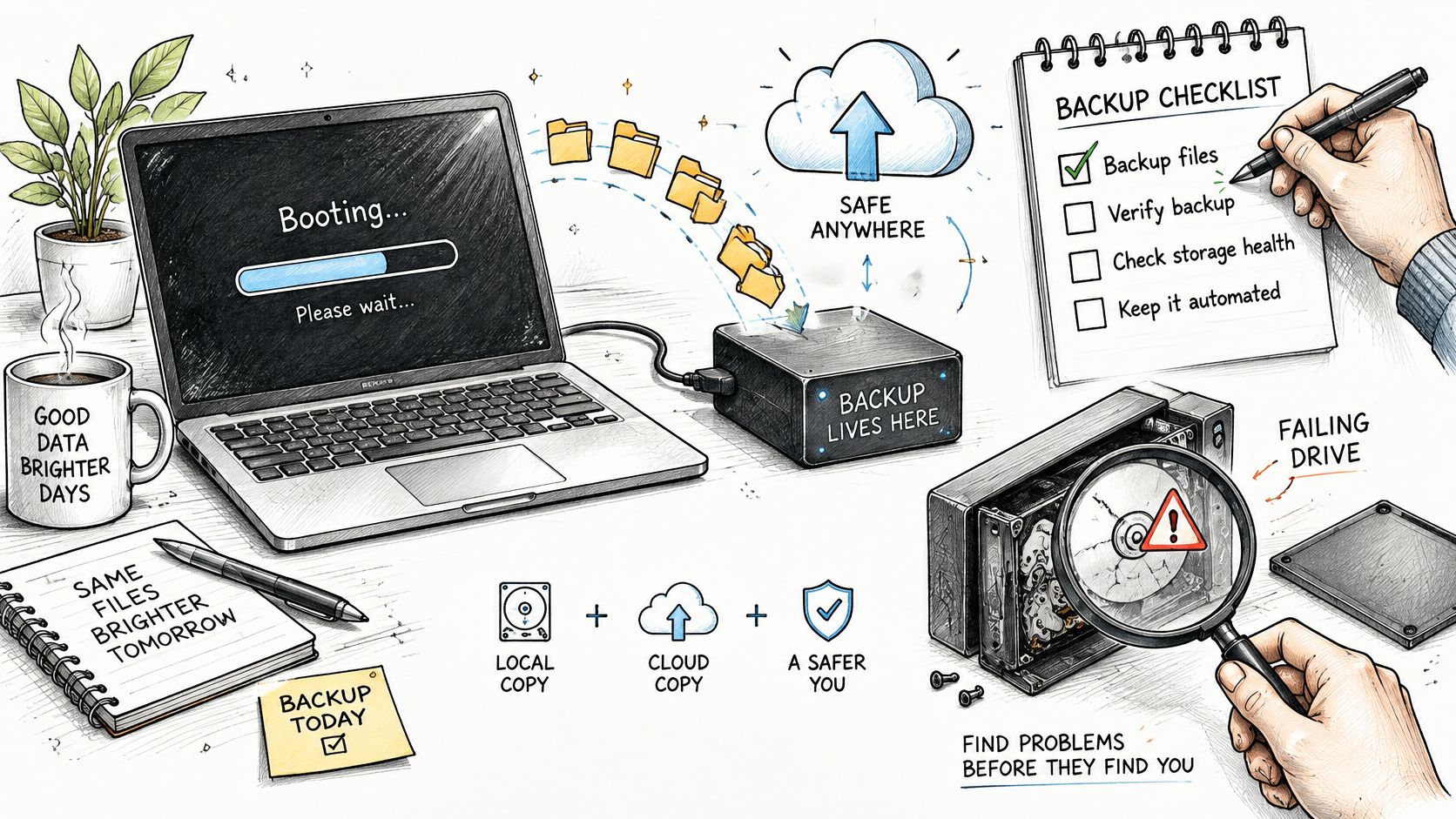
What to read from the drive
Pull the SMART data on a SATA drive or the NVMe health data on an SSD with a tool such as CrystalDiskInfo. Note reallocated sector counts, read and write error counts, and the interface link mode, which will show a drive negotiating a slower connection than it should. Check free space on the system drive too, since a nearly full disk has little room for the temporary files Windows writes during startup.
Then run the integrity tools in order: first, then DISM with the RestoreHealth option. Run them once, maybe twice. Repeating repair passes on a mechanically failing hard drive burns hours of read time on a device that's already struggling, and data recovery should come first in that case.
Corruption and infection deserve a check rather than an assumption that the machine is old. The Cyber Security Breaches Survey 2024 reported that 83% of businesses used up-to-date malware protection, up from 76% in 2023, which is a reminder to confirm protection is running rather than trusting that it is.
Here's the decision in plain terms. A mechanical drive that's slow but reports clean health data is a strong candidate for an SSD upgrade with data migration. A drive showing warnings or climbing error counts comes first, and the priority is getting your files off it, not making it boot faster.
Accept the repair only when three cold boots after the work show a stable improvement, no critical Diagnostics-Performance warnings and normal idle disk activity. Record the before and after timings and exactly what you changed. And don't treat a clean reinstall as proof the hardware is healthy: cloning a failing source drive without a verified backup, or fitting a fast SSD behind a damaged Windows image, both leave the original fault in place.
When Malware Could Explain a Slow Boot
A slow boot on its own is weak evidence of infection. Plenty of speed guides imply malware is the default explanation, and the numbers don't support that. The Cyber Security Breaches Survey 2025/2026 found 43% of businesses reported some form of cyber-security breach or attack over the relevant 12-month period, while virus, spyware or malware incidents accounted for only 2% of businesses that experienced cyber crime and less than 0.5% of all businesses.
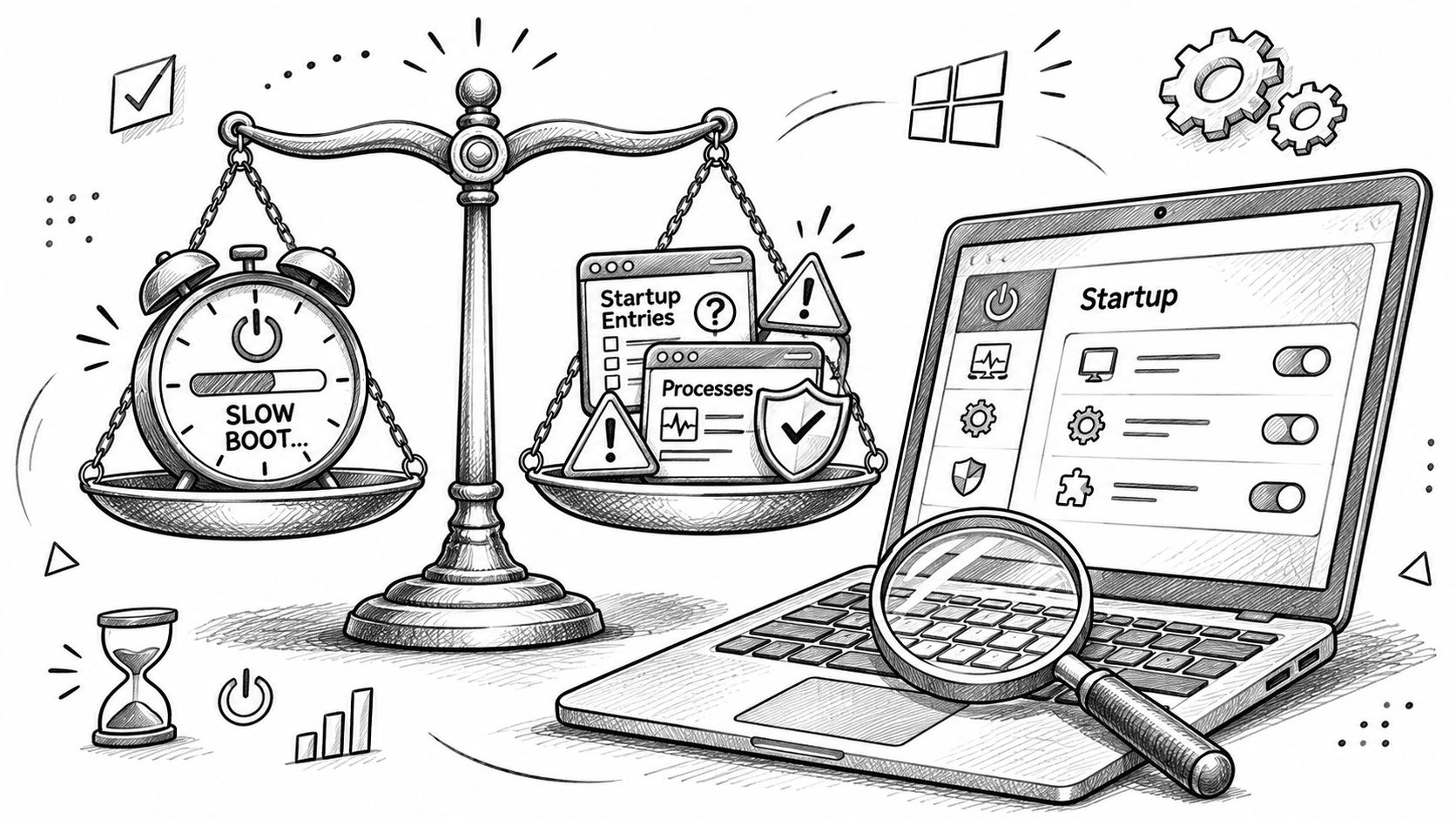
So don't reach for a scanner every time a PC takes a minute to start. Reach for one when the slow boot travels with company:
Unknown startup items: entries in Task Manager with no publisher, a random-looking name, or a file path in a temporary folder.
Protection switched off: Windows Security showing real-time protection disabled, or definition updates that keep failing.
Browser changes: a homepage or search engine you didn't set, pop-ups on clean sites, or extensions you don't remember installing.
Odd network or file behaviour: heavy traffic at idle, or files that won't open and carry unfamiliar extensions.
Check Windows Security's protection status and update history first, then review recent installs and changes, then run a full scan. If the result is inconclusive and the machine still behaves oddly, run Microsoft Defender Offline from Windows Security, which reboots and scans before Windows fully loads and can catch things that hide once the desktop is running. Record any suspicious entry before removing it. Our malware removal walkthrough covers the cleanup order in detail.
If business accounts, client records or sensitive files are involved, stop running cleanup tools and treat it as a potential incident.
That's not caution for its own sake. Cleanup utilities delete the artefacts someone would need to work out what happened and how far it spread, and a machine that looks tidy afterwards can still have compromised credentials. Back up user data before any reinstall, and get the incident assessed rather than guessing at a fix.
Decide Between a Repair and an SSD Upgrade
One rule routes almost every case: fix the layer the timing points at, and don't pay for a different layer.
Stay with the DIY route when the timing shows a software cause, the drive reports clean health data, and the improvement holds across three cold boots. You've spent nothing but an evening, and the log you kept means you can undo any of it.
Choose an SSD upgrade with data migration for a mechanical drive that's slow but healthy. This is the single change that moves the needle most on an older laptop or home PC, and a clean reinstall cannot deliver it, because reinstalling Windows onto a worn mechanical drive leaves you with the same physical limitation. If you want the reasoning behind that gap, we've laid it out in how much faster an SSD is than an HDD.
Choose a clean reinstall only for a software problem that survives startup cleanup and a security check, and only after your files are backed up somewhere you've verified. It's a reasonable fix for years of accumulated driver and service damage. It's a waste of a weekend on a machine with a hardware fault.
Book a diagnosis when the drive shows error counts or SMART warnings, when the delay returns on a fresh installation, or when there are signs of a security incident involving business or sensitive files. Those cases need test equipment and controlled handling, not another attempt at the same software fix.
We run drive diagnostics, data-preserving SSD migration and Windows repair from our workshop in Frecheville, serving Sheffield and the surrounding areas. Bring your timing log with you: knowing whether the pause sits before the logo or after the desktop saves a chunk of diagnostic time. Minor repairs such as software updates or virus removal can typically be completed within 2-3 days, and most repairs finish within a few days depending on the complexity of the issue.
If your PC still takes minutes to reach a usable desktop, bring it to Steel City IT with your boot timings and we'll test the drive, isolate the startup load and tell you whether you need a cleanup, a Windows repair or an SSD upgrade with your files moved across intact. We'll quote for the fix that matches the fault, not a blanket reinstall, and we'll show you the before and after timings so you can see what changed.