
How Much Faster Is SSD Than HDD? 2026 Data

A computer that takes ages to reach the Windows desktop often gets blamed on an ageing processor, too little memory, or a pile of unwanted software. Sometimes those are genuine problems. Quite often, though, the mechanical hard drive is the part holding everything back. You click an application, hear the drive spin and seek, and then wait while the system fetches thousands of small files.
Replacing that drive with an SSD can make the same computer feel substantially newer without changing the processor. The answer to how much faster an SSD is than an HDD depends on the task, the interface, and the rest of the system, but the practical difference is clear: SSDs respond far more quickly, while HDDs still offer useful capacity at a lower cost.
Table of Contents
How Storage Speed Affects Daily Computing - Where users notice the difference
Sequential Throughput Versus Access Latency - Storage Performance Benchmarks - Why the smaller number matters more
Comparing SATA, NVMe, and Mechanical Interfaces - Choosing the interface your computer supports
Matching Storage Types to Specific Workloads - A practical workload guide
Evaluating Cost Per Gigabyte and Capacity Trade-offs - Capacity is part of performance
Planning a Professional Storage Upgrade and Migration - The migration decisions that matter
How Storage Speed Affects Daily Computing
A customer arrives with a familiar complaint: the PC reaches the Windows desktop, yet remains sluggish for several minutes. The processor may be adequate, and memory may not be the immediate problem. The mechanical hard drive is often still reading services, drivers, security software, updates, and startup applications after the desktop appears.
Replacing that drive with an SSD changes the computer's response to small, scattered requests. The solid-state drive does not wait for a platter to rotate or a read head to move into position, so Windows and applications can retrieve files with far less delay. The result is a system that feels ready sooner, even though the processor, memory, and graphics hardware remain unchanged.
The important improvement is access latency, not just the headline transfer rate. A typical SSD can cut storage access latency by roughly 50 times, while sequential throughput may increase by about 6 times. That larger latency reduction matters during everyday work because booting, opening software, browsing folders, and applying updates involve many separate requests rather than one continuous file transfer.
At the repair bench, this is why an SSD upgrade often feels more significant than a modest processor replacement. A faster CPU helps when the processor is fully occupied. More RAM helps when the system is repeatedly moving data between memory and storage. Neither removes the delay caused by a mechanical drive searching for small files during ordinary Windows activity.
Where users notice the difference
The change appears through repeated short actions:
Starting Windows: The system reaches a usable desktop sooner, with less waiting for background services to settle.
Opening applications: Office software, browsers, creative tools, and games launch with less hesitation because scattered files are retrieved quickly.
Searching folders: Directory browsing and file searches feel more responsive when there is no mechanical head repeatedly repositioning.
Handling updates: Background installations are less likely to make the entire machine appear frozen.
Switching between tasks: The computer recovers faster when several applications request storage access at once.
A gaming device shows the same practical effect. Storage does not improve graphics quality by itself, but quicker access can reduce waiting around menus, installations, and game loading. The PS5 Slim Digital Console with 825GB SSD storage is a useful example of solid-state storage becoming part of the expected responsive experience in current gaming hardware.
Practical rule: If the system feels slow before an application has properly started, check the storage drive before buying a faster processor.
Storage is not always the cause. Malware, failing components, a damaged Windows installation, and a drive that is nearly full can produce similar symptoms. Diagnosis still matters, because an SSD will not repair a faulty power supply, cure overheating, or remove corrupted software. When the old drive is healthy and general sluggishness is the complaint, an SSD remains one of the most dependable upgrades for day-to-day responsiveness.
Sequential Throughput Versus Access Latency
Storage benchmarks often focus on sequential throughput, measured in megabytes per second. That figure describes how quickly a drive can move a large, continuous block of data. It's useful when copying a film archive, transferring a disk image, or moving large video files, but Windows rarely performs every task as one clean, uninterrupted transfer.
Booting an operating system or launching an application involves reading many files from different locations. The drive must locate each item, respond to the request, and pass the data to the system. That is where access latency becomes important.
Storage Performance Benchmarks
Drive Type | Sequential Read | Access Latency |
|---|---|---|
External HDD in UK testing | 189 MB/sec | 5–8 ms typical HDD access time |
SSD in comparable UK testing | 1,091 MB/sec | 0.1 ms typical SSD access time |
The external-drive figures above come from Which? testing of external hard drives and USB sticks, while the access-time figures come from Scan's UK storage interface guide. In those Which? tests, the SSD delivered roughly 5.8 times the read speed of the tested HDD and about 6.7 times its write speed, based on the reported read and write results.
The latency comparison is even more important for normal computing. An HDD access time of 5 to 8 milliseconds compared with 0.1 milliseconds for an SSD means SSD latency is roughly 50 to 80 times lower, according to Scan's figures. A single request may only save a small amount of time, but an operating system can make a large number of storage requests during boot, application startup, updates, and multitasking.
Why the smaller number matters more
Sequential throughput is easy to advertise because it produces an impressive headline. Access latency is harder to notice in a specification sheet, yet it often determines whether a PC feels snappy or reluctant. A SATA SSD with a throughput ceiling below a modern NVMe drive can still feel dramatically faster than a high-speed HDD because the solid-state drive doesn't have to wait for moving parts.
That distinction explains why a person who mostly browses the web may still benefit from an SSD. The browser itself may not be transferring huge files, but the system is loading executable files, libraries, profiles, caches, extensions, and temporary data. The work is fragmented, so low access latency matters more than a maximum sequential figure.
Large-file transfers remain a different story. A well-configured SSD can move a substantial file much faster, but the result can be limited by the USB connection, the source drive, the destination drive, network storage, or file encryption. If a portable SSD is connected through a slow interface, buying a faster internal model won't remove that external bottleneck.
The practical answer is therefore not merely “an SSD is six times faster”. In sequential testing, the advantage may sit around that range for particular drives. In interactive use, the reduction in access delay is the reason the computer feels more responsive from the first click.
Comparing SATA, NVMe, and Mechanical Interfaces
Not all SSDs deliver the same headline performance. A SATA SSD, an NVMe SSD, and a mechanical HDD use different technologies and interfaces, so the right purchase depends on the connections inside the computer as well as the workload.
A mechanical HDD stores data on spinning platters and uses moving heads to read and write it. That design remains useful for capacity, backups, media libraries, and less frequently accessed files, but the mechanical movement creates latency. The drive can also become less convenient when it has to serve many small requests at the same time.
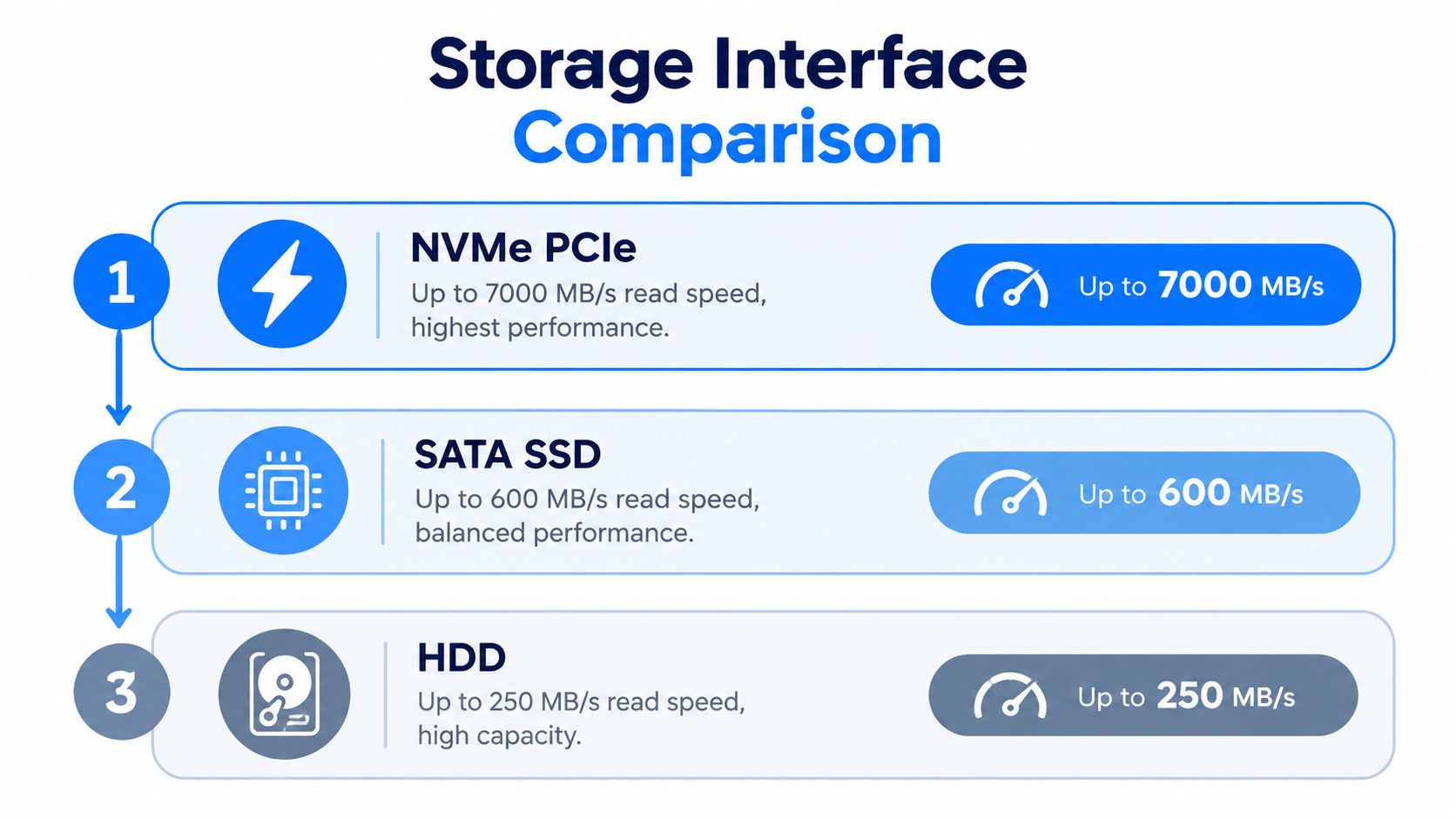
A SATA SSD has no moving parts and commonly reaches about 550 to 600 MB/sec, according to HP's UK comparison of SSD and HDD performance. Its performance is constrained by the SATA interface, but it still offers the responsive behaviour that makes it a strong replacement for an old HDD.
NVMe SSDs communicate over PCIe rather than the older SATA storage channel. HP reports that NVMe SSDs can exceed 7,000 MB/sec in ideal conditions, while Scan describes PCIe 5.0 NVMe storage reaching up to 15.8 GB/sec. Those are very different ceilings from a SATA SSD, although everyday applications won't always scale in proportion to the benchmark.
Choosing the interface your computer supports
Before ordering an NVMe drive, check the machine rather than assuming a faster specification will fit. Desktop motherboards may include an M.2 slot that supports NVMe, SATA, or both. A laptop may have an M.2 socket with a particular keying arrangement, or it may only accept a 2.5-inch SATA drive. Some older systems have no M.2 slot at all.
The useful checks include:
Inspect the existing drive: A 2.5-inch drive connected by a SATA cable points towards a SATA replacement, although an adapter or mounting bracket may also be needed.
Check the motherboard or laptop manual: Look for the exact M.2 support, PCIe generation, and supported drive lengths.
Confirm the operating system path: Some machines require a firmware setting such as UEFI boot support before Windows can start from a new NVMe drive.
Check the physical space: Thin laptops may use a short drive, a single-sided module, or a proprietary storage format.
A PCIe 5.0 NVMe drive in a computer designed for SATA won't reach its advertised speed. It may not fit, may not be recognised, or may operate through a slower supported path. In that situation, a compatible SATA SSD is the sensible upgrade, because the responsiveness benefit comes from moving away from mechanical storage, not from paying for an interface the machine can't use.
NVMe makes more sense for demanding transfers, workstation workloads, large project files, and new custom PCs with suitable cooling and PCIe support. SATA remains a practical choice for many laptops and older desktops. HDDs still have a place where capacity matters more than rapid access, provided the drive isn't being used as the primary system disk.
Matching Storage Types to Specific Workloads
Storage choice should follow the work the computer performs. A browser-and-email laptop, a gaming desktop, and a video-editing workstation place very different demands on a drive. The key question is not which drive has the highest advertised transfer rate. It is how often the system must retrieve many small files while you open programs, start Windows, load a game, or switch between active documents.
For a home or office computer still using an HDD, moving Windows and everyday applications to an SSD usually produces the clearest improvement. Which? reports that SSD laptops can boot in about 5 to 10 seconds, which reflects the responsive experience users notice at the keyboard. Startup software, firmware, the Windows installation, memory, and processor performance still affect the result.
Access latency explains much of that improvement. A roughly 50x reduction in latency can matter more during normal desktop use than a 6x increase in sequential throughput, because opening an application involves many small reads rather than one large, uninterrupted transfer. Sequential speed matters when copying large files. Latency affects nearly every interaction.
A practical workload guide
For everyday home use, use a SATA SSD or compatible NVMe SSD for Windows, applications, and active documents. The highest sequential specification is unnecessary for a slow HDD-based laptop to feel more responsive. A SATA SSD is often a sensible fit for an older system, while a compatible NVMe drive suits a newer machine that can use its interface.
For gaming, install the operating system and frequently played games on an SSD. It reduces launch and level-loading waits, but it does not raise frame rates like a graphics card upgrade. HP reports that loading times can fall by 50 to 80%, with some games dropping from 30 to 45 seconds on an HDD to under 10 seconds on an SSD. See HP's UK SSD versus HDD comparison for those figures. Actual results depend on the game, platform, asset streaming, processor, and whether the game repeatedly loads data during play.
For photography and video, keep the editing application, cache, and current project files on an SSD. An HDD can store a large source library more economically, but editing directly from mechanical storage may cause pauses as the software loads footage, previews, and project assets. The best arrangement depends on whether capacity or repeated access is the bigger constraint.
For small businesses, faster storage improves workstation response but does not replace backups. Keep separate copies of important files and verify that restoration works. An SSD can still fail, and it cannot prevent deletion, ransomware, or physical damage.
For high-end custom PCs, NVMe suits large file operations and demanding content creation when the system can cool and support it. For office work, a good SATA SSD often feels similar once the HDD has been removed.
A balanced laptop illustrates the point. A Lenovo Yoga 2-in-1 with 16GB RAM and a 512GB SSD pairs responsive storage with adequate memory and processing capability. That balance usually matters more than buying an extreme drive while leaving the old HDD as the system bottleneck.
Evaluating Cost Per Gigabyte and Capacity Trade-offs
HDDs continue to make sense when the priority is storing a large amount of data cheaply. A desktop used for archived photographs, films, installation files, surveillance footage, or infrequently opened documents may not need every file on flash storage. The slower access is less disruptive when the data is read occasionally rather than serving as the Windows system volume.
SSD pricing has changed the upgrade calculation. Entry-level 1TB SSDs cost roughly £55 to £75 in 2026, according to UK SSD pricing coverage from eTechieZone. That doesn't make SSD capacity irrelevant, but it means buyers can consider responsiveness and usable space together instead of treating solid-state storage as suitable only for a small boot drive.
Capacity is part of performance
A drive that's nearly full can become inconvenient regardless of its interface. Windows needs working space for updates, temporary files, caches, and application data. A capacity decision should therefore account for the operating system, installed software, current projects, and likely growth rather than choosing the smallest option that fits today's files.
A sensible arrangement for many desktops is:
Fast system storage: Use an SSD for Windows, applications, active games, and frequently edited projects.
Bulk storage: Use an HDD for archives, media collections, old project folders, and files that don't need rapid access.
Separate protection: Keep backups on another device or location rather than treating the second internal drive as a complete backup strategy.
Portable working data: Use an external SSD for projects that move between computers, provided the computer and cable support the intended transfer speed.
A hybrid arrangement works because it gives each drive a clear job. The SSD handles the frequent small requests that shape responsiveness. The HDD supplies economical capacity for data that doesn't need to open immediately.
Paying for an extreme NVMe specification can be wasteful if the computer is limited by its interface or the workload is mostly web browsing and documents. Conversely, buying only a small SSD and leaving no room for applications or working files can lead to a cramped system and repeated storage management. The best upgrade is usually the one that removes the existing bottleneck while leaving enough practical capacity for the way the computer is used.
Planning a Professional Storage Upgrade and Migration
An SSD upgrade isn't just a matter of fitting a new component. The important question is what happens to the existing Windows installation, user profiles, application settings, recovery partitions, and personal files. A clean installation can produce a tidy result, but cloning is often preferable when the current system is stable and the new drive has enough usable capacity.
Before any work begins, the old drive should be checked for health and readable data. If it is failing, repeatedly cloning it can worsen the situation or produce an incomplete copy. A technician may need to create a controlled sector-level image first, recover important files, and only then decide whether a full migration is safe.
The migration decisions that matter
A reliable upgrade normally includes these checks:
Identify the storage format and interface. Confirm whether the replacement needs to be 2.5-inch SATA, M.2 SATA, or M.2 NVMe, and check physical clearance.
Assess the source drive. Look for warning signs, corrupted files, unusual noises, and read errors before copying anything.
Choose cloning or reinstalling. Cloning preserves the existing environment when the installation is healthy. A clean Windows installation is preferable when software corruption, malware, or years of accumulated problems are part of the slowdown.
Protect the original data. Keep the old drive untouched until the new system boots correctly and the important files have been checked.
Verify the result. Test Windows activation, drivers, applications, user folders, sleep and restart behaviour, and any software that relies on a specific licence or path.
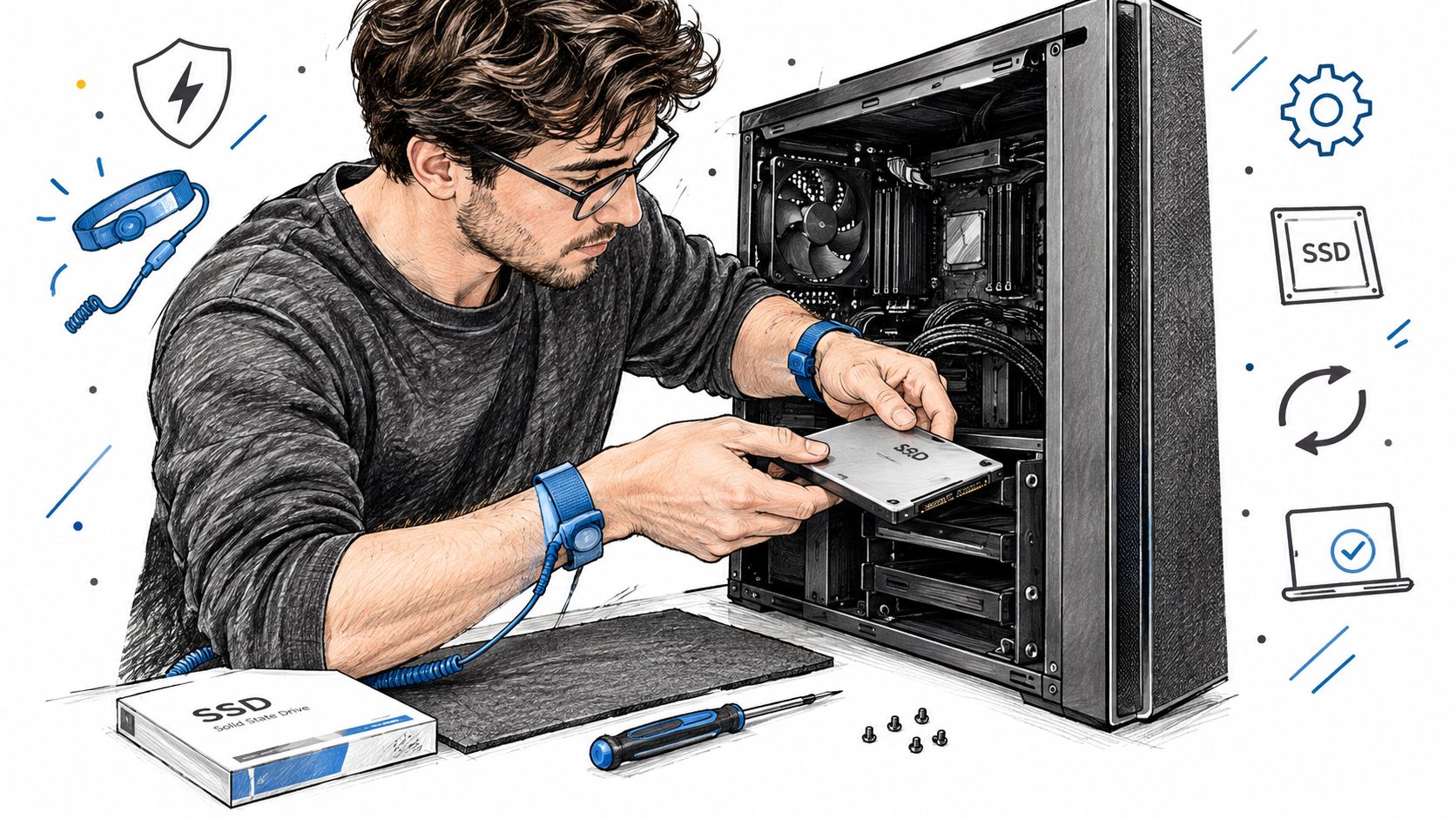
Laptop work requires extra care because the drive may be beneath a sealed base, connected by a delicate ribbon cable, or located beside components with little clearance. Some machines also need a thermal pad or a specific mounting screw for an M.2 module. A desktop is usually more accessible, but incorrect mounting, loose cables, or poor airflow can still create avoidable faults.
For customers who need diagnosis, data transfer, storage replacement, or a clean Windows setup, computer repair in Sheffield is one route to having the compatibility and migration work assessed before parts are ordered.
A short visual guide can help explain the physical process, but it can't replace checking the exact computer model and the condition of its existing data.
The practical conclusion is straightforward. If a healthy computer still uses an HDD as its primary system drive, an SSD is likely to deliver the most noticeable responsiveness improvement available without replacing the whole machine. If the drive is failing or the system is unstable, migration should start with data protection and diagnosis rather than speed testing.
Steel City IT offers SSD upgrades, data migration, fault diagnosis, Windows support, and performance improvements for PCs and laptops in Sheffield. Visit Steel City IT to discuss the right drive, check compatibility, and arrange an upgrade that protects your existing data.