
Data Recovery Windows: When to Call a Pro

The legal reporting window for a qualifying UK personal-data breach is 72 hours from the moment the organisation becomes aware of it, not necessarily from when the incident happened. For a deleted file on a Windows SSD, there's no dependable number of hours or days, so the safest recovery window starts immediately, before further use triggers TRIM or overwrites recoverable data.
The most common mistake is continuing to use the failing drive, then installing recovery software onto that same disk. A missing folder can turn into a permanent loss while Windows writes temporary files, performs updates, or clears SSD blocks in the background. If your laptop has restarted to a missing drive, your hard disk is clicking, or an important folder has vanished, stop clicking before you start searching for a tool.
Table of Contents
What a Recovery Window Actually Means on Windows - HDD, SSD and flash storage behave differently
DIY Software Methods and Their Realistic Success Rates - Match the tool to the failure
Why Trying Every Free Tool Often Makes Things Worse - The installation mistake
When to Stop Using the Drive and Escalate - Use this one-minute check
What Professional Sector-Level Recovery Looks Like - Imaging comes before file browsing - SSD work is not just a deeper scan
UK Pricing for Professional Data Recovery - What a credible quote should explain
Choosing the Right Next Step and Preparing for the Worst - Two questions customers still ask
When the Recovery Window Closes Before You Notice
A customer often notices the problem in an ordinary moment. Windows opens, the desktop appears, and a folder containing family photos is empty. Another person hears a hard drive click, waits for it to settle, then tries another restart. A small business sees a shared accounting folder disappear after an update and assumes the files are still somewhere in the system.
The dangerous response is almost always the same: keep using the drive and try software immediately. People install one recovery application, scan, uninstall it, install another, run Windows Update, copy replacement files to the same disk, and restart repeatedly. On a traditional hard disk, that activity can overwrite deleted sectors. On an SSD, the controller may already be preparing deleted blocks for reuse through TRIM and garbage collection.
Practical rule: If the missing files matter, stop using the device before you diagnose it.
A clicking or beeping mechanical drive needs different handling from an SSD that vanished after a restart. The symptoms described in these hard drive failure signs should be treated as a reason to preserve the original device, not as an invitation to run repair utilities. A failing head can scrape or misread the platter, while repeated power cycles can turn a readable drive into a much harder recovery.
Shutting down usually prevents further normal Windows activity, but it doesn't reverse damage that has already occurred. It also doesn't guarantee that an SSD will retain deleted data, because internal housekeeping can continue according to the controller's own behaviour. The sensible first move is to disconnect the affected storage, note what happened and when, and decide whether the files justify a controlled assessment.
What a Recovery Window Actually Means on Windows
A recovery window is the period during which the information needed to reconstruct a file remains available and readable. It isn't a timer displayed by Windows. It depends on what happened to the file record, what happened to the underlying storage, and what the device does after the loss.
At the simplest level, deleting a file may remove its entry from the filesystem while leaving the underlying blocks untouched. Think of a library catalogue being torn up while the books remain on the shelves. Recovery software can sometimes scan those unallocated blocks, identify familiar file structures, and rebuild files, although filenames and folders may not survive.
Physical recovery is different. If sectors are unreadable, a controller has failed, a platter has been damaged, or flash translation information is inaccessible, the problem isn't merely a missing catalogue entry. The recovery process needs to read unstable media or interpret storage that Windows can't mount.
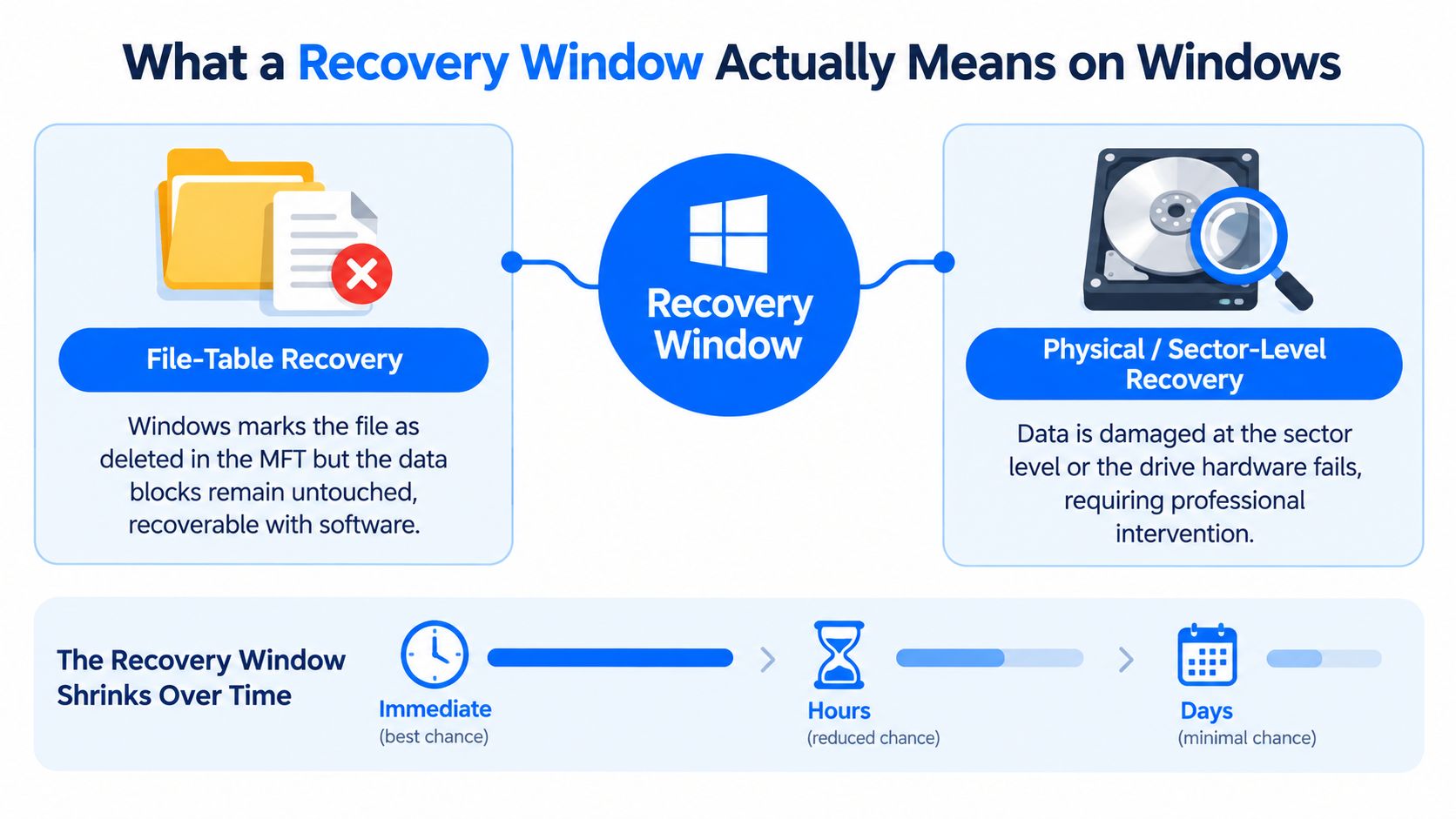
HDD, SSD and flash storage behave differently
On an HDD, a deleted sector may remain readable until new data occupies it. That doesn't make the situation safe. Windows continues writing logs, caches, updates and user files, so the old content can be replaced without warning.
On a modern Windows SSD, deletion can be less forgiving. Windows may issue TRIM, telling the controller that particular blocks are no longer needed. The SSD can then use garbage collection to clear or reorganise NAND internally. A deeper scan may find nothing useful even if the deletion was recent and the computer hasn't saved a replacement document.
USB flash drives sit between these simple descriptions. Their controllers, wear levelling and firmware determine what remains accessible, and ordinary file recovery software can't promise a result merely because the drive still appears in File Explorer. If you're researching the opposite problem, such as making information deliberately unrecoverable, how to destroy digital data provides useful context about why deletion and physical erasure aren't the same thing.
DIY Software Methods and Their Realistic Success Rates
Recovery software has a proper place. It's useful when the storage device is stable, the computer detects it consistently, and the problem is logical rather than physical. Accidental deletion, a damaged directory structure, or a lost partition on a healthy HDD can sometimes be handled without laboratory work.
The first safety condition is more important than the brand of software: never install the recovery program or save recovered files to the affected drive. Use another computer or a separate healthy disk. If the source drive is unstable, create a sector-level image first and work from that copy.
Match the tool to the failure
Windows features such as File History, Previous Versions and Recycle Bin are the least invasive options when they were configured before the loss. They may restore an earlier copy without scanning the damaged source, but they can't recreate files that were never included in the relevant history.
TestDisk can help with partition structures and some filesystem problems. Recuva is more approachable for straightforward deletion on a readable disk. R-Studio and Disk Drill provide broader scanning and reconstruction features, but a larger feature set doesn't overcome a failed controller, unreadable heads, encrypted data after a destructive reinstall, or SSD blocks that have already been cleared.
Tool | Best for | Weakness |
|---|---|---|
Windows File History and Previous Versions | Restoring an existing earlier copy | Useless if no usable history or restore point exists |
Recuva | Simple deletion on a stable, readable drive | Limited when the filesystem or hardware is failing |
TestDisk | Lost partitions and selected filesystem damage | Requires careful choices and can confuse inexperienced users |
R-Studio | Advanced logical scans and file reconstruction | Doesn't repair failed hardware or undo SSD housekeeping |
Disk Drill | Guided scans for common deletion scenarios | A successful scan isn't proof that every file is intact |
The results depend on the storage type, post-deletion activity and condition of the filesystem, not on a software badge. A scan that lists filenames can still produce files that are incomplete, overwritten or corrupted. Before choosing a utility, the practical steps in this guide to recovering deleted files can help you distinguish a safe logical attempt from a situation that needs controlled handling.
Software also isn't a repair tool. It can't make a clicking drive mechanically sound, restore a failed SSD controller, or safely interpret every encrypted volume after Windows has been reinstalled. If the device drops out during a scan, stop the process rather than treating repeated crashes as a challenge to overcome.
Why Trying Every Free Tool Often Makes Things Worse
“Try another free program” sounds harmless because scanning appears to be read-only. The trouble starts before the scan. Installing that program writes its files to the system disk, and Windows itself continues to create pagefile activity, event logs, temporary files, updates and other background data.
On an HDD, those writes can occupy sectors that once contained deleted information. On an SSD, they're only part of the risk. TRIM and garbage collection can make previously deleted blocks unavailable without a new document being saved over them. Continued use also changes the evidence a technician needs to understand the failure.
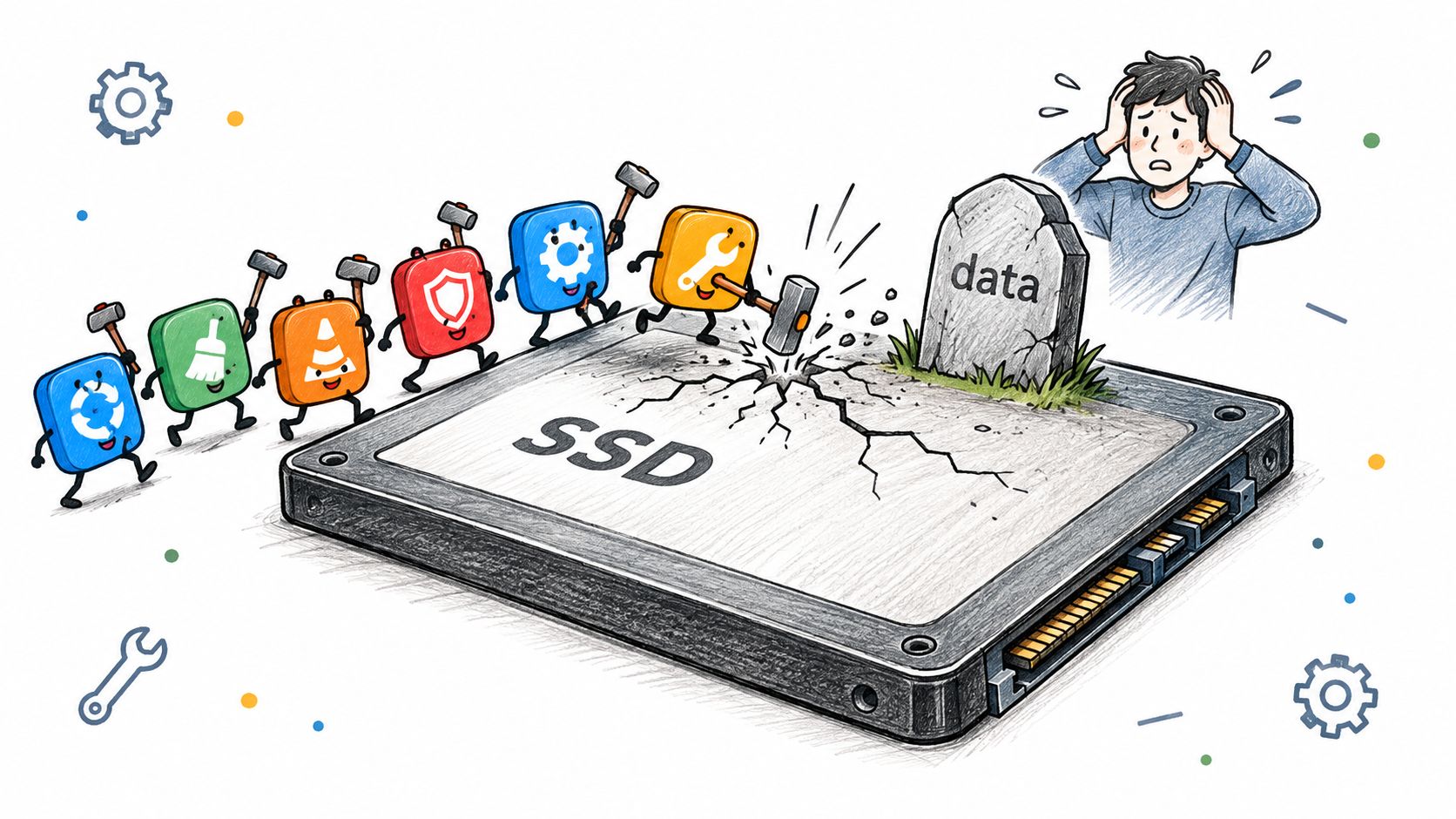
The installation mistake
Suppose the missing files are on the Windows system SSD. Downloading a recovery tool through that installation, accepting its default path, and scanning from the same operating system may write to the very storage you're trying to preserve. Saving recovered files there is worse, because reconstructed output can overwrite other unrecovered content.
A second mistake is running repair commands before securing a copy. Filesystem repair may make the volume appear usable, but it can also alter metadata and remove structures that would have helped a specialist reconstruct the original layout. The same applies to reinstalling Windows, formatting a partition, or accepting a prompt to initialise an unfamiliar disk.
A scan is not automatically safe just because the software calls it “read-only”. The computer still has to run that software somewhere.
For a stable HDD with unimportant files, a carefully planned DIY attempt can be reasonable. For a Windows SSD, a disappearing drive, or irreplaceable photos, the sensible choice is to stop, disconnect the device where practical, and obtain an assessment before the next write closes the remaining window.
When to Stop Using the Drive and Escalate
The dividing line between software recovery and professional work is the condition of the storage, not the value of the recovery application. Software is suitable for a stable device with a logical problem. Sector-level work becomes appropriate when the device can't read consistently, won't identify correctly, or contains information you can't replace.
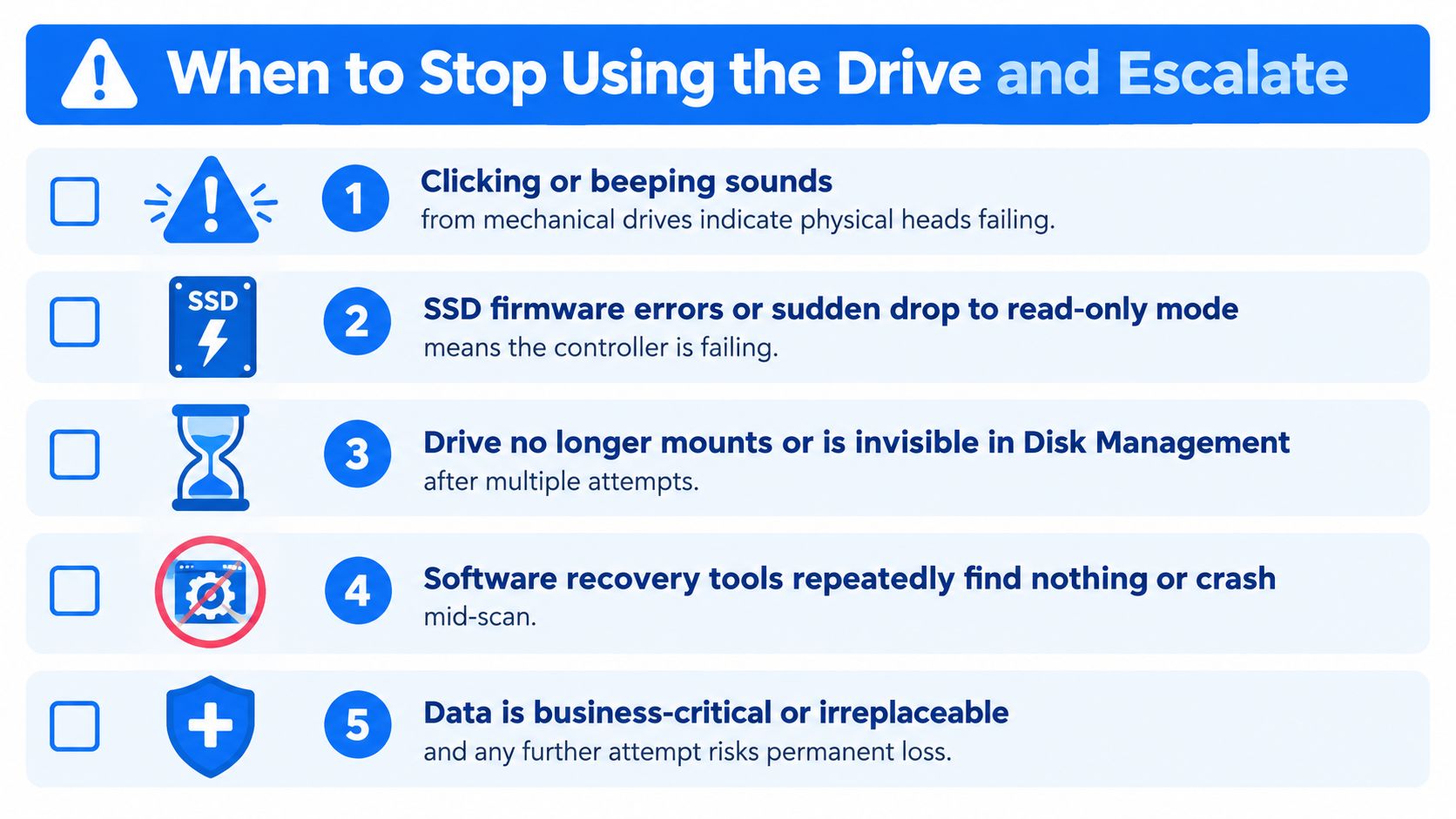
Use this one-minute check
Stop experimenting and escalate if any of these apply:
Clicking or beeping: A mechanical drive is making repeated abnormal sounds, suggesting a head, platter or motor problem.
Firmware trouble: An SSD shows controller errors, becomes read-only, or vanishes after a power event.
No mount: The drive is absent from BIOS or remains invisible in Disk Management after sensible checks.
Unstable scans: Recovery tools crash, freeze, or repeatedly lose the device midway through reading.
High-value data: The files are business-critical, legally important or irreplaceable.
The trade-off is straightforward. DIY software is cheaper and can work quickly when the media is healthy, but it puts decision-making and handling on the user. Professional recovery costs more and still can't guarantee every file, yet controlled imaging reduces unnecessary reads from a failing source and preserves the original for further work.
Situation | Sensible first action | Main risk |
|---|---|---|
Stable drive, accidental deletion | Work from another disk with recovery software | Overwriting the source |
Lost partition on a healthy HDD | Clone or image before logical reconstruction | Choosing the wrong repair option |
Clicking or unstable HDD | Power down and seek specialist assessment | Further head or platter damage |
Missing or failing SSD | Stop use and request a controller-aware assessment | TRIM, garbage collection and firmware failure |
RAID or NAS degradation | Preserve member order and configuration details | Rebuilding or replacing members incorrectly |
For a business, a suspected personal-data breach adds a separate governance track. The ICO says a qualifying breach must be reported without undue delay and, where feasible, within 72 hours of awareness, with high-risk individuals informed without undue delay where required. That deadline is not a promise that files remain recoverable for 72 hours, so isolation and evidence preservation should begin immediately. See the ICO's personal-data breach guidance for the reporting test.
What Professional Sector-Level Recovery Looks Like
A professional recovery normally starts with triage, not a scan. The technician records the symptoms, identifies the device and interface, checks whether it remains stable, and decides whether powering it further could worsen the condition. The objective is to protect the original while obtaining the safest readable copy.
Imaging comes before file browsing
For a healthy but logically damaged device, the lab may create a sector-level image to a known-good destination. The technician then analyses the image instead of repeatedly interrogating the original. If the source contains unreadable areas, specialised imaging can control read order, handle weak sectors and record what was successfully captured.
Mechanical failures require a different route. A lab may work with compatible donor parts, repair or replace damaged components, and operate in controlled clean-room conditions when the drive must be opened. Donor matching matters because similar-looking parts aren't necessarily compatible with the exact firmware and head configuration.
SSD work is not just a deeper scan
SSDs translate logical addresses into NAND locations through controller firmware and mapping information. When the controller fails, the memory chips may still contain data, but extracting it can require specialist hardware and interpretation. PC-3000-style platforms or equivalent tools can communicate with some firmware-locked or partially failed devices, but the outcome depends heavily on the controller, NAND layout, encryption and the condition of the translation data.
A Sheffield workshop can realistically diagnose drives, handle controlled imaging, address some board-level faults and identify cases that need a specialist lab. Steel City IT offers data recovery for computers and laptops, including damaged drives and corrupted filesystems, while severe mechanical, controller or NAND-level cases may need referral to a lab with the required equipment and environment. The SSD data recovery guidance explains why SSD cases need different expectations from ordinary deleted-file scans.
A good provider should tell you what was detected, what will be attempted, where the recovered data will be written, and what happens if the result is partial. Be cautious if someone promises a complete recovery before examining the device.
UK Pricing for Professional Data Recovery
Pricing reflects the failure, the handling risk and the amount of specialist work required. A logical recovery from a stable drive is a different service from opening a damaged HDD or extracting data from a failed SSD controller. A quote that treats every case alike is not useful.
The supplied UK price graphic presents broad consumer-facing bands, but those figures should be treated as an illustrative guide rather than a universal tariff. A low quote may cover a simple scan, while a higher quote may be justified by donor parts, clean-room handling or difficult flash translation work. Ask what the fee includes before comparing the headline amount.
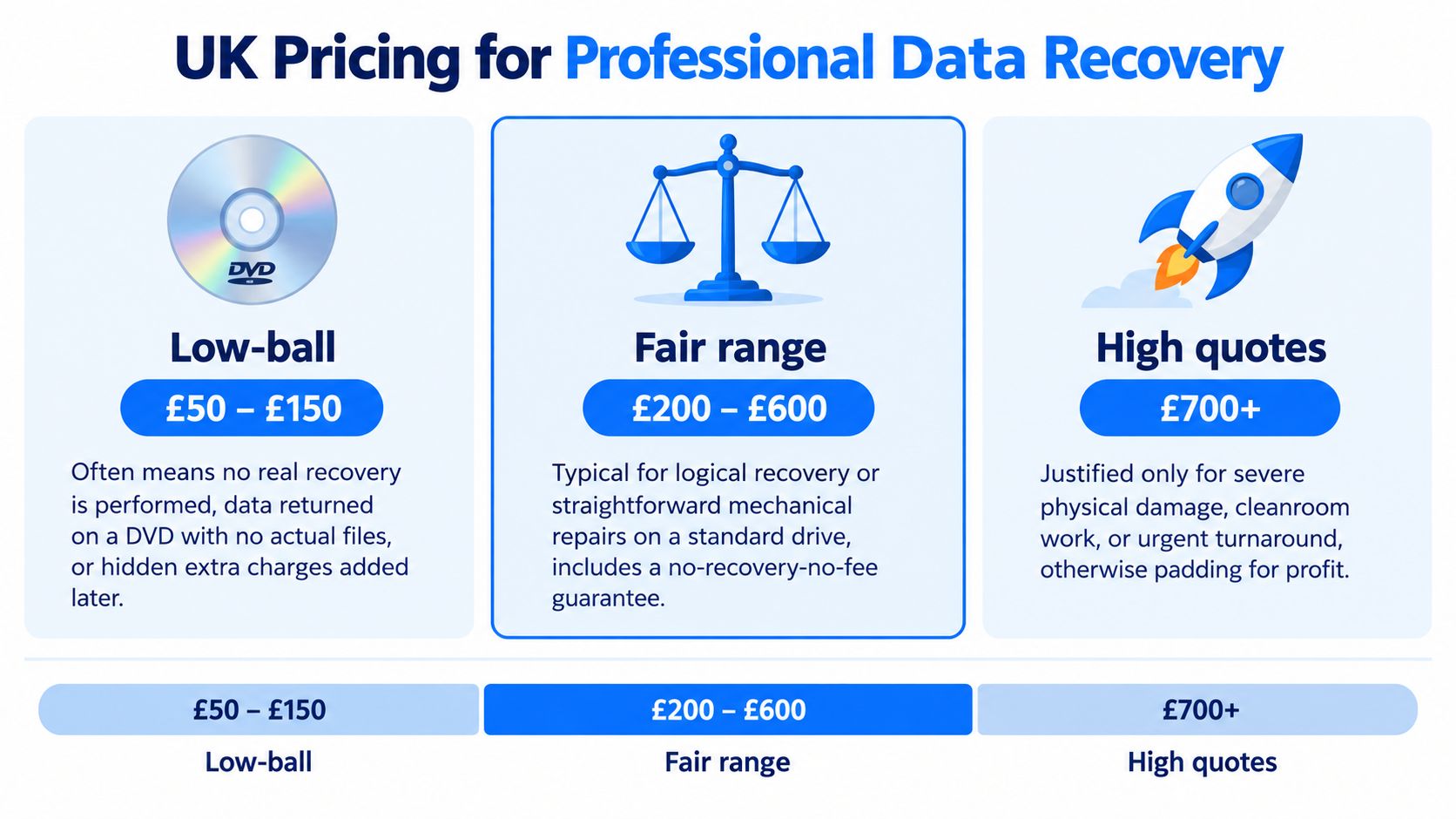
What a credible quote should explain
Logical recovery: The drive is detected and stable, and the work centres on filesystem analysis, imaging and file reconstruction.
Mechanical recovery: The provider may need compatible donor components and controlled handling before imaging can proceed.
SSD recovery: Controller, firmware or NAND-level work needs different equipment and may produce a partial result.
Clean-room work: Opening a drive and dealing with internal mechanical damage requires a suitable controlled environment, not a kitchen-table repair.
Commercial terms: Confirm whether assessment, parts, imaging, storage media and unsuccessful attempts are charged separately.
A no-recovery, no-fee arrangement can reduce the risk for straightforward cases, but it doesn't mean every diagnostic or approved part is free. Read the terms carefully. A low-ball promise that returns a disc with no verified files is not a bargain, while a high quote without a clear physical reason deserves challenge.
Ask for a file-list verification before approving the final recovery. You should be able to confirm that the folders and documents you need are present and usable, rather than accepting a vague statement that “the data was found”.
Choosing the Right Next Step and Preparing for the Worst
Choose the least disruptive action that fits the symptoms:
Recently deleted files on a stable disk: Stop using it, work from another drive and try a logical recovery.
Clicking, beeping or unstable detection: Power down and seek controlled sector-level assessment.
SSD disappearance or read-only behaviour: Avoid repeated restarts and software installation, then request specialist diagnosis.
Ransomware or suspected breach: Isolate affected systems, protect backup access, preserve evidence and assess the ICO reporting requirement separately.
Required records: Follow the organisation's retention schedule, not an invented universal recovery period. The ICO's storage limitation guidance says UK GDPR doesn't prescribe fixed minimum or maximum retention periods, so each organisation must justify, review and manage its own schedule.
Two questions customers still ask
Does shutting down preserve a failing laptop? It stops normal Windows writes, which is usually safer than continuing to browse or install software. It doesn't repair the device or guarantee that an SSD's deleted blocks remain available, so disconnecting it and seeking advice is safer than repeated testing.
Is professional recovery worthwhile for one lost folder? It depends on the folder's value and the drive's symptoms. A single folder of irreplaceable photos can justify assessment, while replaceable downloads may not. If you're also evaluating broader infrastructure resilience, a careful process for comparing data centre vendors can help separate backup design from emergency recovery.
The preventive habit is simple but often neglected: maintain backups that are offline or isolated, versioned and tested by restoring files. The UK National Cyber Security Centre recommends separate offline backups, previous versions and restoration checks because ransomware can reach permanently connected backup media. A backup job that reports success is not enough until you've proved that a clean copy can be restored.
Steel City IT provides diagnostics and data recovery for Sheffield computers and laptops, including failing drives and corrupted filesystems, with controlled handling and sector-level assessment where appropriate. If your drive is clicking, missing, encrypted, or holding files you can't replace, stop using it and contact Steel City IT before another scan or Windows repair changes the recovery window.