
Malware Removal Service: What Experts Really Fix in 2026

You notice the laptop is slow before anything else. Pages take ages to open, adverts appear where they shouldn't, and the browser keeps sending you to a search site you've never chosen. By the time a Sheffield household or small business brings the machine to a workshop, the obvious symptoms are often only the surface of the problem.
A proper malware removal service isn't a button marked “clean”. It's a controlled repair job that starts with questions, isolation and evidence, then moves through removal, recovery and verification. The aim isn't just to make Windows look normal again. It's to establish what happened, remove anything that can bring the infection back, protect accounts and files, and explain clearly what can and can't be confirmed.
Table of Contents
What a Malware Removal Service Does on the Bench - The counter conversation changes the repair - The service is a workflow, not a product
How Technicians Diagnose an Infected Windows PC - What gets checked before cleanup - How the red flags change the response
The Removal and Remediation Process Step by Step - What the technician changes - Common Symptoms and Matching Remediation Actions
Cleanup, Hardening and Post-Removal Recovery - Hardening belongs in the same job
Turnaround Times and What a Typical Job Looks Like - What affects the collection date - What handover should include
DIY Clean vs Online Scanner vs Professional Service - Comparing Malware Removal Options - When a DIY attempt is reasonable
Why Choose Steel City IT for Malware Removal - Why hands-on handling can matter
What a Malware Removal Service Does on the Bench
A Sheffield customer may arrive with a laptop showing pop-ups, browser redirects and a fan running constantly. They might know which download caused the trouble, or only remember that “it was fine yesterday”. Both accounts help. The technician records when the symptoms began, which Windows account was active, whether the laptop connected to work systems, and whether banking, email or business passwords were entered afterwards.
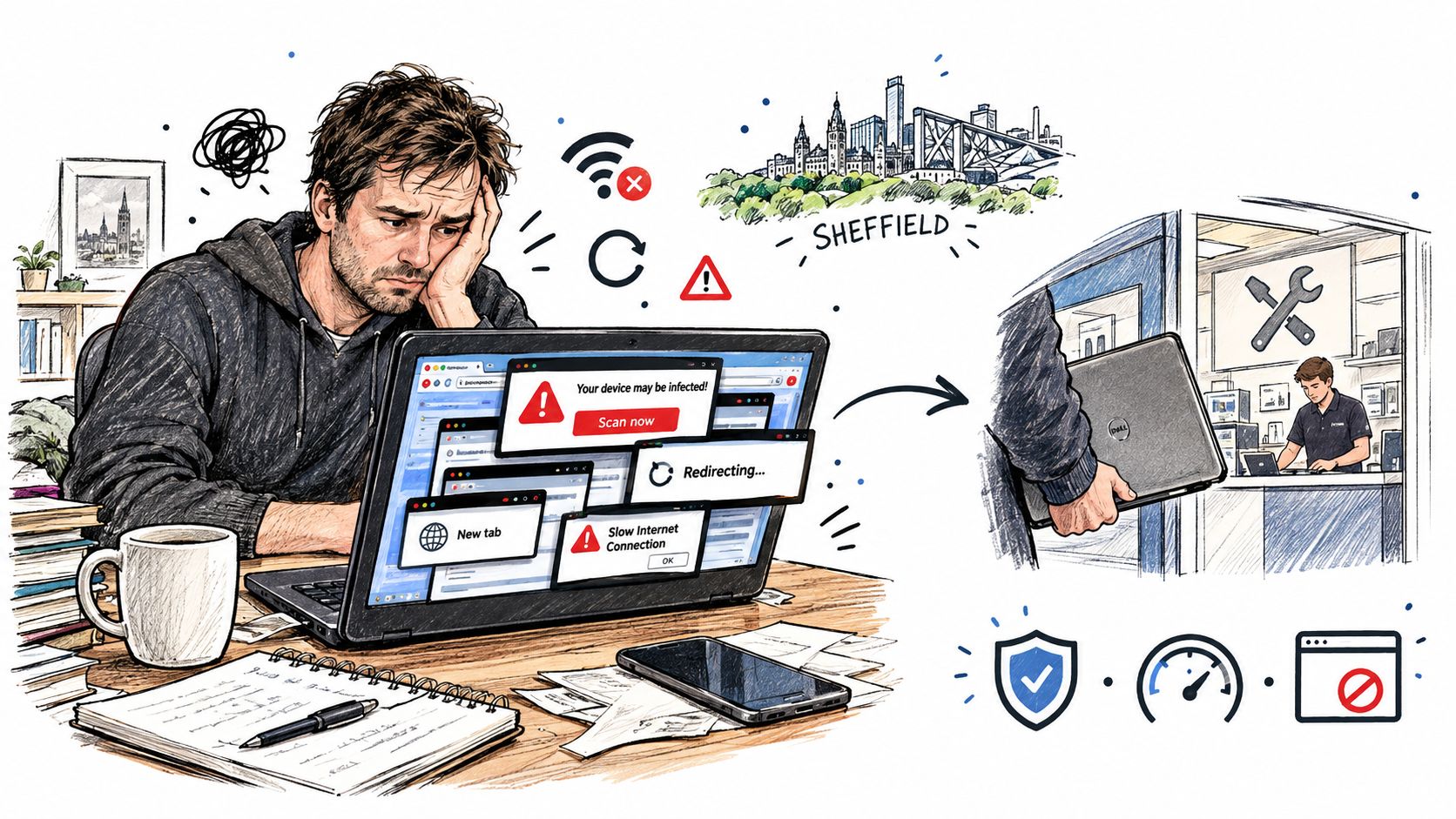
The laptop stays off the workshop network while its condition is recorded. The technician labels the device, notes the Windows account and connected storage, and captures visible warnings or unusual behaviour. This information helps distinguish a failing drive or unwanted browser extension from a compromise involving credentials, remote access or encrypted files.
The counter conversation changes the repair
A scanner can report suspicious files, but it cannot know that a new administrator account appeared or that a shared company folder became inaccessible at the same time. Those details shape the investigation. A recent installation, suspicious email attachment, disabled security control or unexplained reboot may indicate a different persistence route.
The UK Government's Cyber Security Breaches Survey 2025/2026 found that 43% of UK businesses, approximately 612,000 organisations, experienced a cyber-security breach or attack in the previous 12 months. This is national context, not a Sheffield infection rate. It does show why a business may need diagnosis, account checks, patching and recovery rather than a downloaded scanner alone.
The service is a workflow, not a product
A documented bench job follows a clear sequence:
Containment: Keep the device away from networks until its behaviour is understood.
Triage: Record symptoms, users, recent changes, alerts and affected files.
Investigation: Identify the mechanisms that could restart malware after reboot.
Remediation: Remove malicious components, close the entry route and restore security controls.
Validation: Test the repaired installation and provide a written handover.
The record matters as much as the cleanup. Deleting the visible programme may leave a scheduled task, altered service or compromised password problem behind. A technician therefore preserves relevant findings, explains what was confirmed, and separates completed repairs from risks that require account changes or wider investigation.
How Technicians Diagnose an Infected Windows PC
Diagnosis begins with containment. The technician disconnects Wi-Fi or Ethernet and avoids browsing from the affected installation. This limits contact with command-and-control infrastructure and reduces the chance of spreading the problem to shared devices or storage.
The next step is to reproduce the reported symptoms safely. Does the redirect happen in one browser or all browsers? Does the slowdown appear before login, after login or only when a particular programme opens? Is Windows Defender disabled, or is the machine struggling with an ageing drive? These distinctions prevent a technician from treating a hardware fault as malware.
What gets checked before cleanup
A practical first pass includes:
Account and device details: Record the affected Windows user, administrator memberships, mapped drives and connected USB storage.
Recent changes: Review installed applications, browser extensions, downloads, updates and the time the symptoms began.
Startup and persistence: Examine startup entries, scheduled tasks, services, Run keys, browser policies and suspicious shortcuts.
Security settings: Check Defender policies, firewall status, proxy configuration and exclusions that shouldn't exist.
System evidence: Review relevant Windows Event Logs, security alerts, crash reports and unusual login activity.
The Windows security fix guide is useful background for understanding why security settings and Windows configuration deserve attention alongside the malicious file itself.
How the red flags change the response
Unwanted adverts and a changed homepage may indicate junk software or a browser hijacker. Repeated reinfection after reboot suggests persistence. Disabled security tools, unknown administrator accounts, browser-session theft, mass file changes, suspicious outbound connections or several affected machines raise the urgency and may require incident-response advice rather than routine cleanup.
The Government's 2025 Cyber Security Breaches Survey found that 45% of businesses said they would attempt to identify an incident's source, while 56% would assess its scale and impact and 58% would keep an internal incident record. Those figures support a simple lesson for small firms: documenting the incident before deleting evidence is a technical safeguard, not unnecessary paperwork.
Practical rule: Deleting one suspicious file without checking how it starts again is a common route to reinfection. Find the persistence mechanism before you declare the machine clean.
The Removal and Remediation Process Step by Step
Once the technician understands the symptoms and likely entry point, removal can begin. For a routine case, that may involve scanning the drive offline or from trusted media so active malware can't interfere with the scan. The technician then removes malicious tasks, services, startup entries, browser extensions and altered policies, rather than relying on a single detection result.
Manual review matters because malware often changes the environment around the executable. A browser shortcut can point to an unwanted page, Defender exclusions can hide a working folder, and a scheduled task can recreate a deleted file. The remediation is complete only when those reinfection paths have been checked and the device can operate with its protections restored.
What the technician changes
The middle stage commonly includes:
Offline scanning: Inspect the Windows installation while the suspected malware isn't running.
Persistence removal: Disable and remove malicious scheduled tasks, services, startup items and policy changes.
Browser repair: Delete unsafe extensions, restore trusted settings and check shortcuts and proxy configuration.
Patch work: Update Windows, browsers, drivers and applications that may have enabled the infection.
Credential protection: Reset exposed passwords from a known-clean device, prioritising email, Microsoft accounts, banking and business services.
The distinction between visible cleanup and proper remediation is important. A quiet browser doesn't prove that a credential stealer is gone, and a successful desktop boot doesn't prove that all affected files are safe. For related practical guidance, see this virus removal service explanation.
Common Symptoms and Matching Remediation Actions
Reported Symptom | Likely Cause | Remediation Action |
|---|---|---|
Browser redirects or unfamiliar adverts | Malicious extension, altered shortcut or unwanted software | Remove extensions, repair shortcuts, reset browser settings and scan persistence locations |
Security software won't start | Policy tampering, exclusion or service interference | Restore Defender and firewall settings, remove hostile policies and retest protection |
Sluggish startup after a recent download | Startup malware, scheduled task or bundled junk | Review recent installations, startup entries and tasks, then scan offline |
Files renamed, encrypted or suddenly unavailable | Possible ransomware activity | Isolate the device, preserve useful evidence, assess backups and escalate rather than performing casual cleanup |
Several devices show similar symptoms | Shared account, network or removable-media exposure | Isolate affected systems, review common access routes and coordinate a wider response |
A clean result should include a second scan, normal-use testing and a review of security controls. If the symptoms indicate ransomware, credential theft or data exfiltration, the technician should explain that file deletion alone isn't an adequate response.
Cleanup, Hardening and Post-Removal Recovery
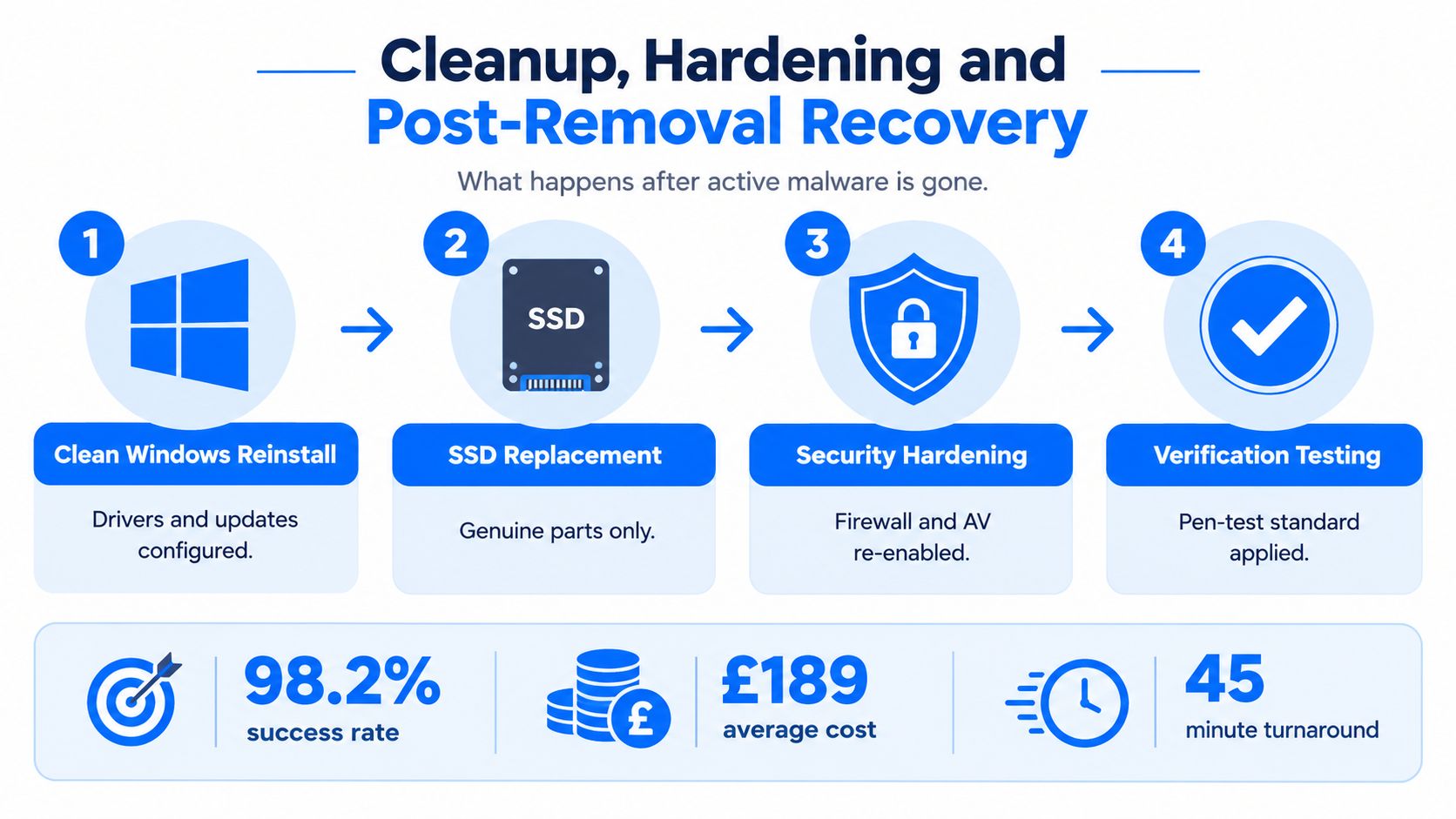
Removing active malware is only the midpoint. The workshop still has to return the computer to a state the customer can use confidently, and that may mean more than deleting files. If Windows has been heavily altered, a clean reinstall can be safer than trying to preserve a damaged installation. The technician installs appropriate drivers, applies updates, checks device functionality and restores the customer's data carefully.
Storage health changes the decision. A failing hard drive can cause corruption that looks like an infection, while a badly compromised or unreliable drive may not be suitable for continued use. In that situation, replacing the storage with a genuine SSD and migrating clean, necessary data can be more sensible than repeatedly repairing the same installation.
Hardening belongs in the same job
After the operating system is stable, the technician re-enables firewall and antivirus protection, removes unnecessary software, applies firmware and operating-system updates, and checks that normal users don't have excessive administrator rights. Passwords entered on the infected machine should be changed from a clean device, particularly where email, cloud storage or business accounts are involved.
Backups need testing, not blind trust. A backup that has never been opened may be incomplete, corrupted or connected to the infected machine during the incident. Recovery work should confirm that important files can be restored and that the backup isn't just another copy of the damaged environment.
The final record should state what was found, what was quarantined or removed, which files were restored, what couldn't be proven, and what the customer must change. That handover gives the next technician, manager or insurer a useful starting point if symptoms return.
Turnaround Times and What a Typical Job Looks Like
A typical Sheffield workshop job starts with a short conversation at drop-off. The customer explains what changed, hands over any charger or recovery media, and identifies files or applications that must remain available. The technician then records the device condition and confirms whether the machine can be worked on without immediately connecting it to the internet.
The first practical output is a diagnostic report, even if it's brief. It should identify the symptoms, the suspected category of problem, whether storage health is a concern, and whether the technician recommends routine cleanup, a reinstall, data recovery or escalation.
What affects the collection date
A straightforward case may be completed quickly when the storage is healthy, the infection is contained and the customer doesn't need extensive data migration. A deeper infection takes longer when the technician has to investigate persistence, preserve files, rebuild Windows or configure drivers and updates.
Delays usually come from the machine rather than the scan itself:
Deep-rooted compromise: Several persistence locations or multiple user accounts need review.
Failing storage: The drive may need careful cloning or recovery before repair work begins.
Clean reinstall: Windows, drivers, updates, applications and customer data must be configured and tested.
Customer decisions: The workshop may need approval before replacing storage or deleting questionable files.
What handover should include
Collection shouldn't be limited to “it boots now”. The customer should receive the repaired device, a plain explanation of the work, advice about changed passwords and a note of any remaining uncertainty. If a backup wasn't usable, a file couldn't be recovered or an account may have been exposed, that should be said directly.
A few days is a realistic expectation for many workshop repairs, but no responsible technician should promise a fixed turnaround before checking the machine. The useful question isn't “Can it be scanned today?” It's “What has to be proven before this computer is safe to reconnect and use?”
DIY Clean vs Online Scanner vs Professional Service
The right choice depends on the seriousness of the symptoms, the value of the data and your confidence with Windows internals. An online scanner can be a useful second opinion for mild, visible adware. It can't physically inspect a machine that won't boot, preserve evidence or guarantee that an altered scheduled task has been removed.
Consumer antivirus is more capable than it used to be, but automation has limits. A tool may quarantine a known file while leaving a changed account, browser policy or exposed password for the owner to deal with. A careful DIY user can go further, but manual cleanup becomes risky when the infection is persistent or the affected computer holds business data.
Comparing Malware Removal Options
Option | What It Covers | Where It Falls Short | Best For |
|---|---|---|---|
Online scanner | Quick checks for recognisable threats and unwanted software | Limited access, limited context and no hands-on recovery | Mild symptoms on a functioning, low-risk computer |
DIY antivirus cleanup | Local scanning, quarantine and some automated repair | Can miss persistence, altered settings, evidence and account exposure | Confident users with safe backups and a contained problem |
Professional workshop service | Bench diagnosis, isolation, manual investigation, remediation and handover | Requires a service appointment and may lead to extra repair decisions | Persistent infection, valuable data, business devices or uncertainty |
When a DIY attempt is reasonable
DIY is most defensible when the computer is low risk, the symptoms are limited, a known-good backup exists and the user can identify what changed. The attempt should be time-limited. If the infection returns after a reboot, security controls remain disabled or the user can't explain the entry point, continuing to delete files can make the situation less clear.
A Windows reinstall can be effective, but it isn't automatically safe if important files are copied back without inspection or credentials remain compromised. This guide to whether reinstalling Windows removes viruses explains why rebuilding the operating system and securing accounts are separate parts of recovery.
For a business laptop, payment device or computer containing customer information, professional handling reduces the chance of turning a confusing incident into data loss. The value lies in the investigation and documented decisions, not merely in running a larger scanner.
Why Choose Steel City IT for Malware Removal
When a customer brings an infected laptop to a local workshop, they can show the warning, redirect or failed login directly to the technician. They can also explain which documents must remain untouched. That face-to-face discussion matters when the symptoms may involve more than software, including failing storage, data recovery or a board-level fault.
Steel City IT operates from Frecheville and handles computer and laptop diagnostics, Windows troubleshooting, malware removal, data recovery, upgrades and custom PC work. Its repair capability includes genuine replacement parts, micro-soldering, component-level graphics card repair and sector-level work on failing or corrupted drives. These options do not make every infection severe, but they help when malware symptoms overlap with hardware problems.
Why hands-on handling can matter
Remote advice suits straightforward configuration faults. A bench repair is more appropriate when the device needs isolation, files require controlled migration, drive health is uncertain or Windows will not start reliably. A technician can boot from trusted media, inspect the physical storage, test replacement hardware and keep the investigation and repair record together.
That approach also gives small firms a clear person to contact instead of a generic ticket closure. The workshop can explain what was found, which files were preserved and which decisions still need customer approval. It can also separate an infection from a failing drive or damaged Windows installation before recommending a repair.
Hands-on service still has limits. Malware removal addresses the identified device and risks found during the job. It cannot prevent another attack if exposed accounts, unsupported software or unsafe habits remain unchanged. A trustworthy workshop should state those limits plainly and explain what the customer must secure after collection.
What to Do Next and What to Expect at Handover
A quality handover is a test you can apply to any malware removal service. The laptop should be more than symptom-free. The technician should be able to explain the diagnosis, the cleanup, the security changes and the checks performed before reconnecting it.
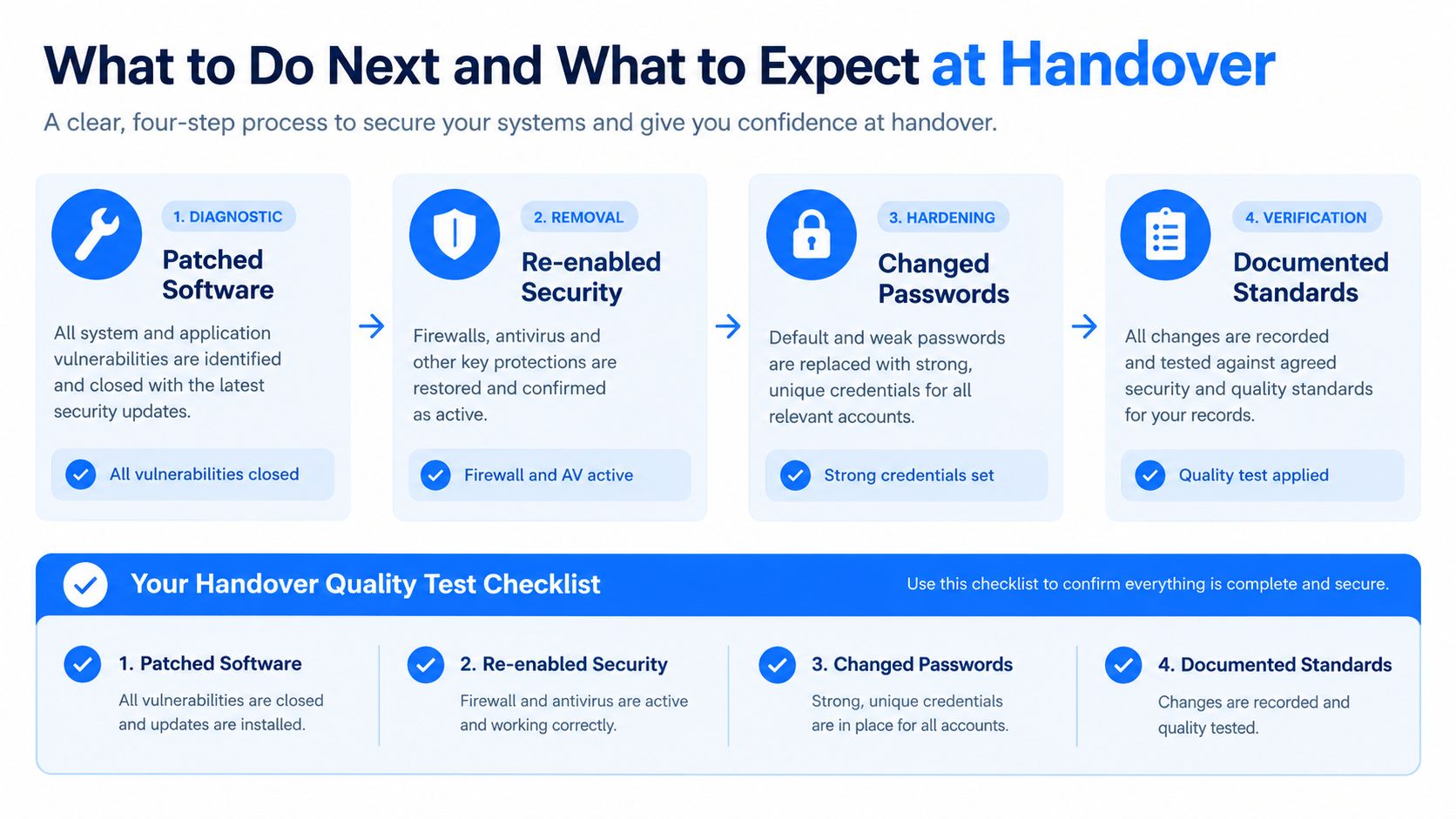
Use this checklist when collecting the device:
Patched software: Windows, browsers and important applications have been updated.
Re-enabled security: Firewall, antivirus and relevant protection features are active.
Changed passwords: Exposed credentials have been reset from a clean device.
Validated backups: Important files can be restored, and the backup is separated from the repaired system.
Documented findings: The handover says what was found, removed, quarantined and left uncertain.
Recovery tested: The computer has been restarted, scanned again and checked under normal use.
The NCSC recorded 1,957 cyber-attack reports between September 2023 and August 2024, triaged 430 for its support and recorded 317 reports of ransomware activity, as described in its incident-management review. Those figures cover reported cyber incidents broadly, not ordinary household infections, but they reinforce why recovery should include verified backups and restored controls rather than deleted files alone.
If the machine is showing redirects, repeated pop-ups, disabled security, suspicious accounts, encrypted files or unexplained access, stop using it for sensitive logins and keep it disconnected where practical. Bring the laptop, charger, relevant passwords only when requested through a safe process, and any backup drive to the workshop, then ask for a written explanation of what was checked.
Steel City IT provides hands-on malware removal, Windows repair, clean reinstalls, storage upgrades and data recovery for Sheffield computers and laptops. Visit Steel City IT to arrange a diagnostic and discuss the safest route for your infected or unstable device.