
Windows Won T Boot Black Screen

You press the power button, the fans spin, and the monitor stays black. There's no Windows login screen, no useful error message, and perhaps not even a manufacturer logo. After trying another cable and holding the power button, the situation usually becomes less clear, not more.
A Sheffield customer once carried a desktop tower into the workshop under one arm and opened with, “Windows won't boot, it's just a black screen.” Before touching the case, the useful question was simpler: what appears on the screen before it goes black, if anything? That answer places the fault at a particular stage and prevents a needless reinstall, GPU replacement, or round of risky power-cycling.
Table of Contents
Why a Windows PC Shows a Black Screen on Boot
A black screen describes a symptom, not a diagnosis. The monitor may be switched off, set to the wrong input, receiving no signal, showing a blank image from a failed graphics path, or displaying a Windows session whose desktop never rendered. Those causes require different tests.
A PC normally passes through several stages:
Power-on self-test, where the motherboard checks essential hardware.
BIOS or UEFI, where firmware identifies hardware and selects a boot device.
The Windows loader, which starts the operating system and its drivers.
The desktop, where , the user profile, graphics driver and startup software take over.
A failure at the first stage can leave you with fans and no picture. A failure at the Windows loader may show the manufacturer logo before the screen goes dark. A shell or graphics problem can leave a movable cursor on an otherwise empty desktop.
The first question is not “which Windows fix should I try?” It is “how far does this machine get before the display disappears?”
That distinction matters in real repair work. A display-path fault can look exactly like a dead Windows installation, while a failed SSD can look like a graphics problem. Microsoft's blank-screen troubleshooting guidance covers several useful Windows checks, but a machine that never reaches a logo needs a different line of investigation.
People who spend their working week running a computer repair business learn quickly that a single universal checklist wastes time. The sensible order is display and power first, then firmware and hardware response, then Windows recovery. A useful related explanation of graphics symptoms is available in this guide to a graphics card that isn't working.
The promise is straightforward: identify the boot stage, use the least destructive test available, and stop when the evidence points to failing hardware. Software repair is appropriate only when the machine can reliably reach the software tools.
First Checks Before You Touch Windows
Start outside Windows. These checks are low-risk and often expose a simple display or peripheral fault before recovery tools complicate the picture.
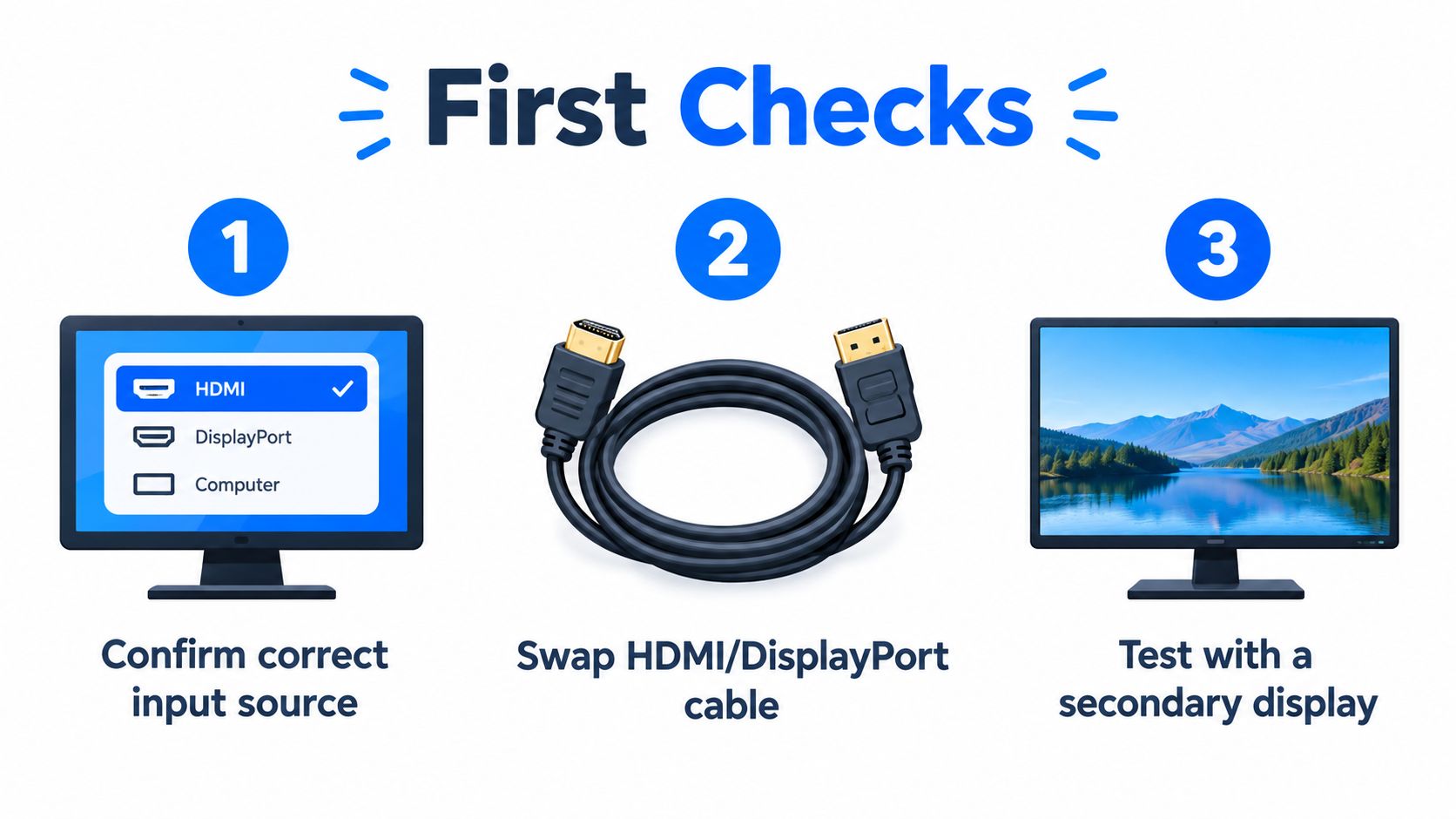
Confirm the display path
Check that the monitor has power and is set to the input used by the PC. A monitor left on HDMI 2 while the computer is connected to DisplayPort can produce a convincing black screen without any computer fault at all.
Swap the cable, then try another input on the monitor. If possible, connect the computer to a television or a second monitor. On a desktop with a separate graphics card, test the card's outputs, then test the motherboard video output only if the processor supports integrated graphics.
Remove docks, USB hubs, external drives, printers and memory-card readers. A damaged USB device or a bootable external drive can interfere with startup, and removing everything leaves the internal hardware as the only variable.
Read the machine's response
Press NumLock several times. If the keyboard indicator changes, the computer may have reached a responsive state even though video output is missing. If the indicator never responds and the storage-activity light remains inactive, Microsoft's Windows boot troubleshooting process treats that combination as evidence that the machine may be stuck before Windows loads, potentially at BIOS or firmware level.
Listen and look without repeatedly restarting:
Fans spin but there is no logo: suspect display output, memory, graphics hardware, firmware or the motherboard.
A disk-activity light flickers: the system may be reading the drive, so the display path deserves attention.
Beep codes or diagnostic LEDs appear: record the exact pattern and consult the motherboard manual.
Nothing happens: check the desktop PSU switch, mains lead and wall socket. For a laptop, check the charger indicator, DC jack and any signs of a swollen battery.
A laptop that smells hot, has liquid around the keyboard or ports, or has a battery that is lifting the case should be switched off. Don't keep testing it.
If you can't establish power, keyboard response or a firmware logo, Windows is not yet the right target.
Only proceed to recovery when the machine gives consistent signs of reaching the operating system. Otherwise, changing Windows settings cannot repair a failed power rail, damaged cable, absent memory module or defective GPU.
Reaching Safe Mode and Running Startup Repair
If the monitor works, peripherals are disconnected and the PC reaches a logo, Windows Recovery Environment is the next controlled step. Microsoft says you can trigger it by interrupting startup two or three times. Turn the computer on, interrupt loading when Windows begins, and repeat until recovery appears. Don't continue doing this indefinitely.
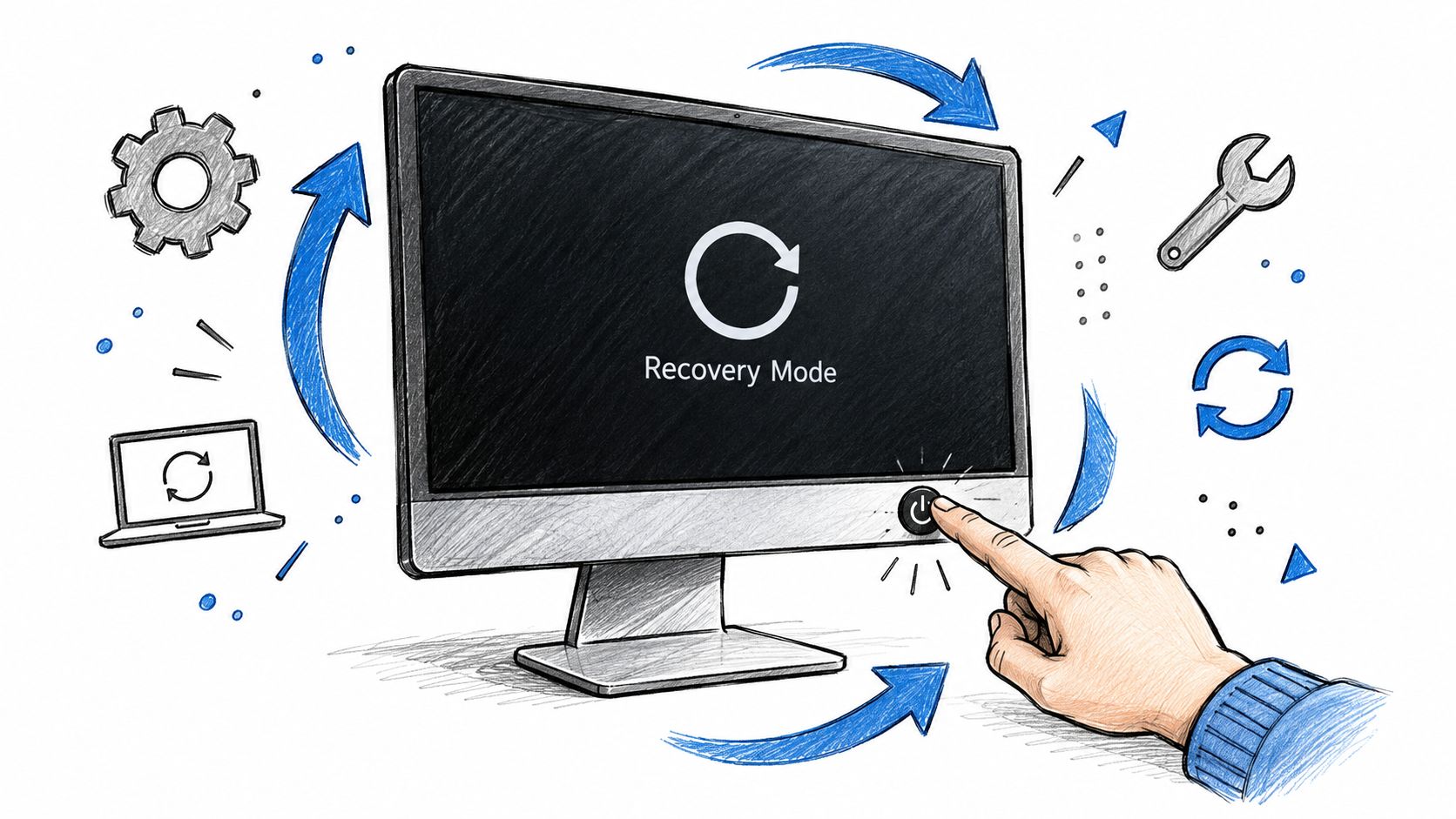
Choose Troubleshoot, then Advanced options. Startup Repair can address certain boot configuration problems, but it won't fix a failing SSD, defective graphics card or motherboard fault. System Restore is preferable when the black screen began after a driver, application or update change and a restore point exists.
Startup Settings gives access to Safe Mode. Use ordinary Safe Mode when you need to test Windows with minimal drivers. Safe Mode with Networking adds network support, but avoid it if you're investigating malware or don't need internet access.
Once Windows appears in Safe Mode, begin with recent changes:
Reset the graphics driver: press Windows + Ctrl + Shift + B. The screen may flicker and Windows may play a short alert sound.
Cycle display output: press Windows + P, then use the arrow keys and Enter to select a different display mode.
Roll back the display driver: open Device Manager, expand Display adapters, open the graphics device properties and use the rollback option when available.
Check system events: Event Viewer can show Application Event ID 1000 and entries involving or , which can point towards a shell or application failure rather than a dead panel.
A focused guide to Windows repair during startup can help when the recovery menu loads but normal startup does not.
The following video shows the recovery process visually. Use it as a reference, not as a reason to keep forcing a machine through repeated failed boots.
If Recovery Environment itself won't load, or the storage makes unusual noises, stop before attempting more repairs. Repeated power cuts can worsen file-system damage and reduce the chance of a clean data copy.
Matching the Black Screen to the Cause
The screen's last visible state is often more useful than the fact that it is black. Place the machine into the closest pattern below before choosing a fix.
Symptom | Most likely cause | First thing to try |
|---|---|---|
No manufacturer logo at all | Power delivery, RAM, motherboard, GPU output or monitor path | Confirm display input, test another cable and display, then inspect diagnostic lights |
Manufacturer logo, then black | Graphics output, bootloader damage, storage fault or firmware setting | Remove peripherals, try another display output and enter Recovery Environment |
Windows logo and spinning dots, then black | Display driver, update failure, damaged system files or failing storage | Use Safe Mode, roll back the recent driver or update, then try System Restore |
Cursor on a black screen | , , profile corruption or graphics-driver failure | Reset the graphics driver, test Safe Mode and inspect Event Viewer |
Desktop appears, then display disappears after login | Display driver, GPU instability, startup software or monitor handoff | Use Windows + Ctrl + Shift + B, Safe Mode and driver rollback |
A machine that shows no logo is not a normal Windows desktop problem. Test memory modules, graphics output and power only if you're comfortable working safely inside a desktop. A laptop with no logo should generally move to controlled diagnostics rather than repeated disassembly.
When the logo appears and then vanishes, the distinction becomes less clean. A bootloader problem and a graphics-output problem can produce the same result, so an alternate screen and Recovery Environment are more valuable than immediately reinstalling Windows.
Age also changes the odds. Microsoft reported that the average UK home computer in its research was 3.4 years old, and owners spent an average of 23.5 hours each year waiting for computers to boot. The research also reported that this wait was 65% longer than for people who had bought a device within the previous six months, and that two-thirds of people using computers aged five to ten years admitted becoming frustrated enough to hit or shout at the machine. These findings don't establish a black-screen rate, but they do describe the slow storage, ageing components and outdated drivers often found behind startup complaints. See the Microsoft UK report on ageing computers for the original figures.
A cursor proves very little by itself. It proves that some video output exists, not that the drive, profile or Windows shell is healthy.
Data-Preserving Fixes and Clean Reinstalls
Protect files before choosing a reset. If the computer reaches Safe Mode or Recovery Environment, copy important documents to an external drive before experimenting with drivers, updates or system repair. If Windows won't stay running, remove the storage drive and connect it to another working computer with a suitable USB enclosure or adapter.
A drive that appears consistently can often be copied using File Explorer or a bootable environment. A Windows installation USB may provide repair and copy tools, while a Linux live USB can sometimes access a readable Windows volume without loading the damaged installation. Copy irreplaceable files first, starting with documents, photos, project folders and browser exports.
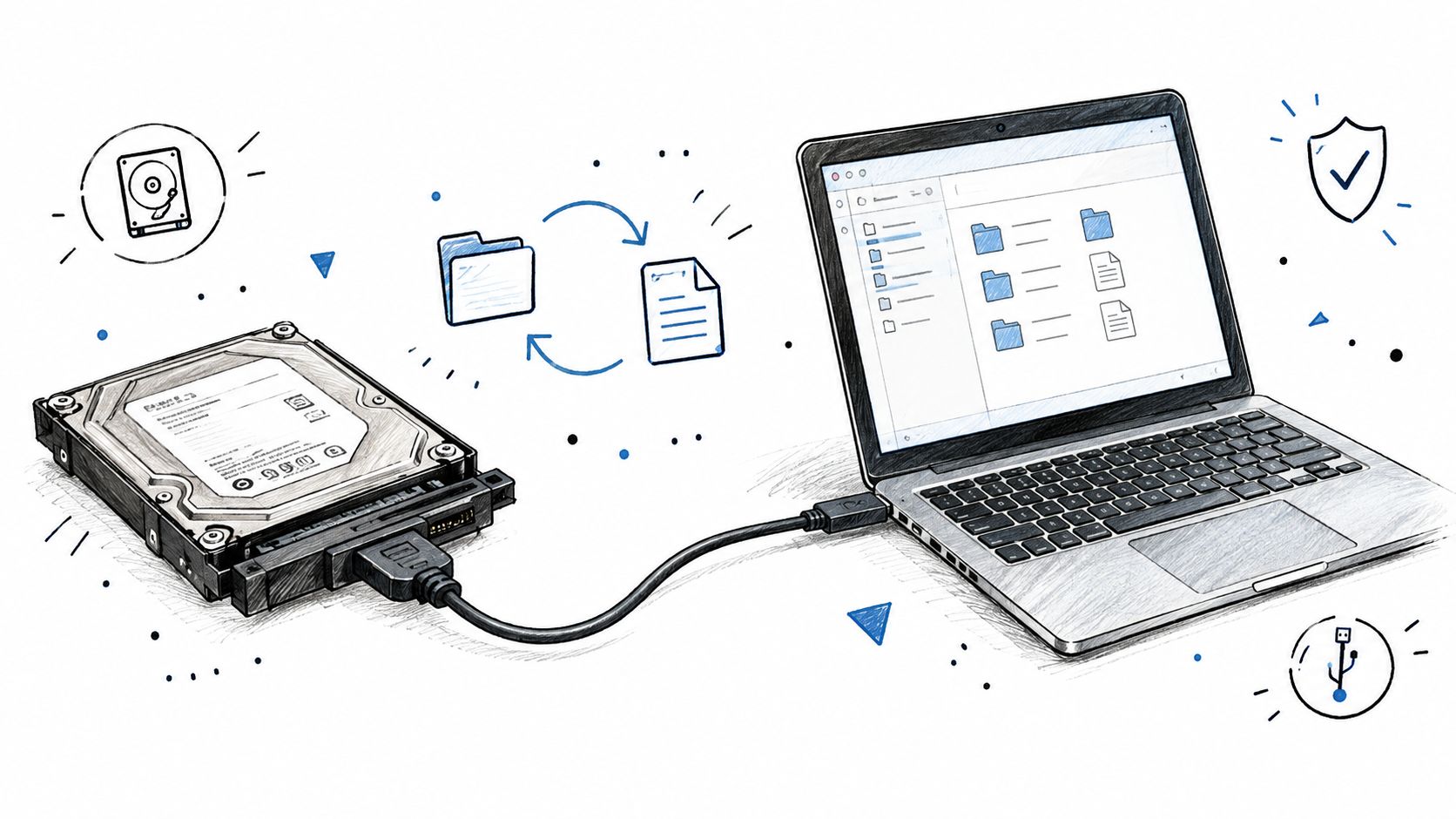
Stop and seek specialist data handling if the drive clicks, disappears, repeatedly disconnects, becomes unusually hot or shows severe read errors. Don't run repair utilities against the only copy of valuable data just because Windows recommends them. A failing drive needs controlled imaging and sector-level work, not endless restarts.
Choose the least destructive repair
Once the files are safe, match the remedy to the cause:
Recent driver or update: use System Restore or remove the recent change from Recovery Environment.
Damaged Windows components: use supported repair tools from installation media, provided the drive is stable.
Windows starts but remains unreliable: consider an in-place repair install where the edition and installation media are compatible.
Persistent software corruption: Reset this PC may preserve personal files, but applications and settings can still be removed.
No trustworthy software path: a clean Windows installation is often clearer than chasing multiple interacting failures.
The DWP incident in November 2004 remains a useful warning about update management. An upgrade intended for a small trial group at the Department for Work and Pensions reportedly spread across much of its Windows 2000 desktop estate, affecting approximately 75% to 80% of 80,000 PCs, or roughly 60,000 to 64,000 machines. Staff reportedly lost access to email, benefits-processing systems and internet and intranet connectivity for about four days, while blue-screen failures prevented many desktops from booting far enough to receive corrective patches. The contemporary account is available in The Register's report on the DWP Windows upgrade failure.
That was a large deployment failure, not a typical home repair, but the lesson applies: an update or driver can make a healthy machine unbootable, while a failed drive can make a clean installation impossible. If the hardware is stable, software recovery may solve the problem. If the drive is unstable, reinstalling Windows risks both data and time.
When the Fault Is on the Motherboard or GPU
Some black screens are board-level faults wearing a Windows costume. Burning odours, liquid residue, bulging capacitors, recurring shutdowns under load and intermittent graphics output should move the diagnosis away from reinstalling Windows.
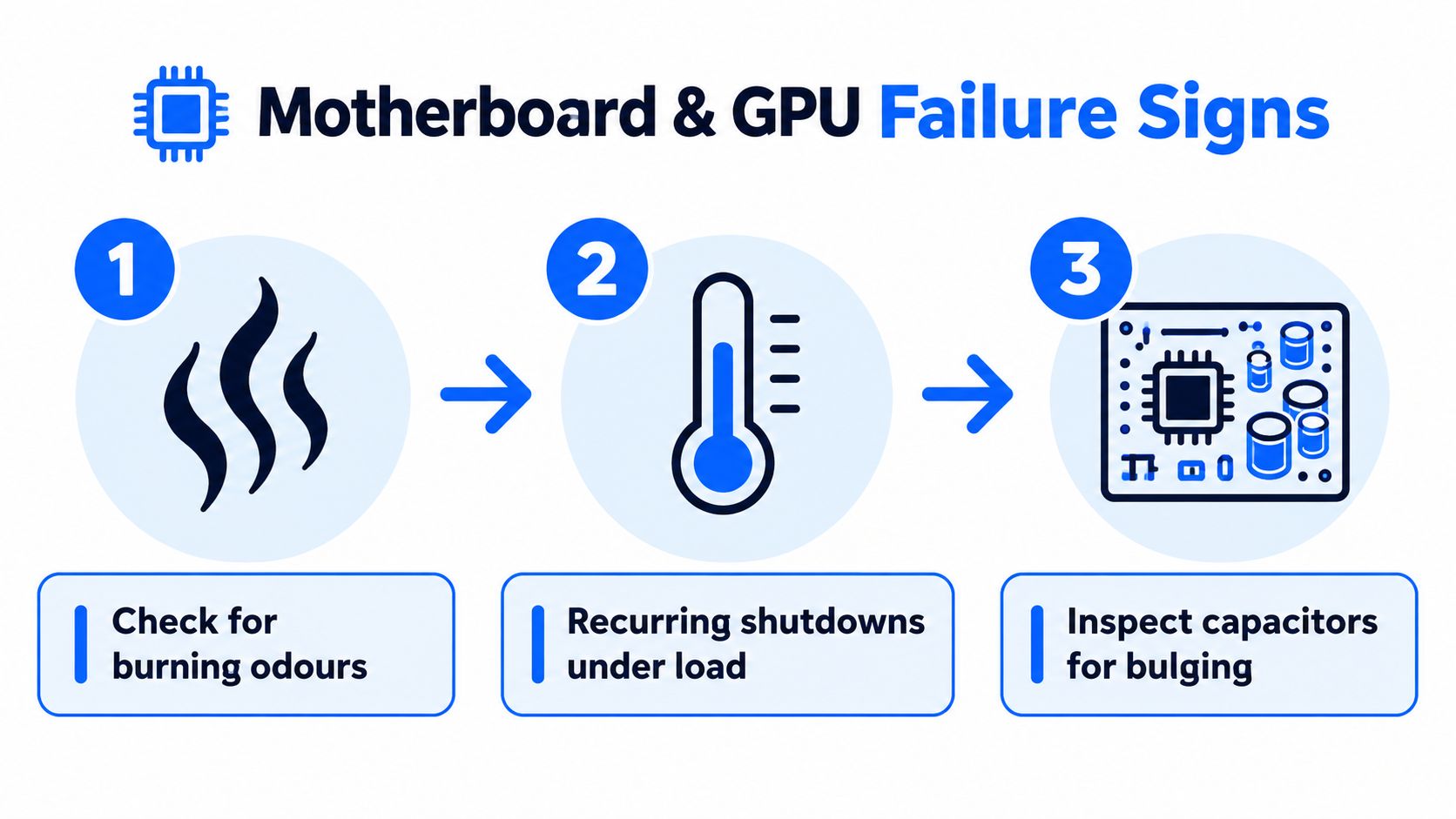
A GPU may fail only after warming up, produce a signal in one output but not another, or crash when a game loads. A motherboard may power the fans while failing memory training, PCIe initialisation or stable voltage delivery. An SSD can disappear intermittently and mimic a corrupt Windows installation. Reinstalling the operating system won't correct any of those faults.
Stop testing immediately if you notice:
Burning odours: unplug the computer and don't power it again.
Liquid damage: avoid “drying it out” with repeated boot attempts.
Repeated shutdowns under load: suspect power delivery, cooling, GPU or board faults.
Clicking or disappearing storage: prioritise data recovery.
Visible board damage: don't probe live circuits unless you have the equipment and experience.
A basic parts-swapping shop may replace the GPU, SSD or motherboard and hope the symptom disappears. Component-level diagnosis is different. It can include testing power rails, checking for shorted components, comparing known-good parts, inspecting PCIe behaviour and, where appropriate, micro-soldering around charging, power or liquid-damaged circuits.
For Sheffield owners, a workshop with board-level capability is the sensible route when the machine fails before Windows or shows physical warning signs. A specialist explanation of GPU repair near Sheffield is relevant when a graphics card is the suspected source.
If the fault happens before the Windows logo, more Windows repair usually adds risk rather than information.
Bring the computer, charger or power cable, and any unusual error pattern to a diagnostic appointment. If files matter, say so before authorising a reinstall or drive test. The right outcome may be a repair, a data recovery job, a replacement part or a decision that further spending isn't sensible.
Quick Decision Checklist and When to Book a Repair
Save this order of operations:
Confirm power, monitor input, cable and display.
Disconnect USB devices, docks and external drives.
Test NumLock, storage activity, fans and diagnostic indicators.
Note whether you see no logo, a logo, Windows spinning dots, a cursor or the desktop.
Try Recovery Environment, Safe Mode and driver rollback only if the machine reaches Windows loading.
Back up files before resets, repair installs or repeated testing.
Book diagnostics when the machine fails before the logo, storage is unstable, or there are smells, liquid signs or shutdowns.
A black screen doesn't automatically mean the drive is dead, and it doesn't automatically mean Windows is damaged. A laptop can sometimes be recovered when its internal display fails by using an external screen, but that depends on the machine's output and hardware condition. Repair timing depends on whether the fault is a driver, storage device, GPU or board-level problem, and a second-hand PC is worth repairing only after its condition and replacement cost are clear.
Steel City IT provides Sheffield diagnostics for Windows startup failures, hardware faults, data recovery, GPU problems and clean Windows reinstalls. If your PC shows a black screen and you've reached the point where further power-cycling could risk the drive or board, visit Steel City IT with the machine and explain exactly what appears before the screen goes dark.