
GPU Overheating Fix: A Practical Repair Guide

Your GPU fans are screaming, the game starts stuttering, and the monitoring overlay shows a temperature that looks alarming. You may already be pricing a replacement graphics card, but high temperature alone doesn't prove the card is failing. A GPU overheating fix should start with measurement, then move from low-risk airflow and software checks to cleaning, thermal-interface work, fan replacement, and finally component-level repair.
The order matters. Cleaning a dusty heatsink is sensible before dismantling a cooler, while replacing a graphics card before checking its fan curve, case ventilation, and thermal contact can waste money. The practical question isn't “How hot is it?” It's what happens under a repeatable load, which sensor is reporting the heat, and how much risk is justified by the fault?
Table of Contents
When a Hot GPU Is Actually Overheating
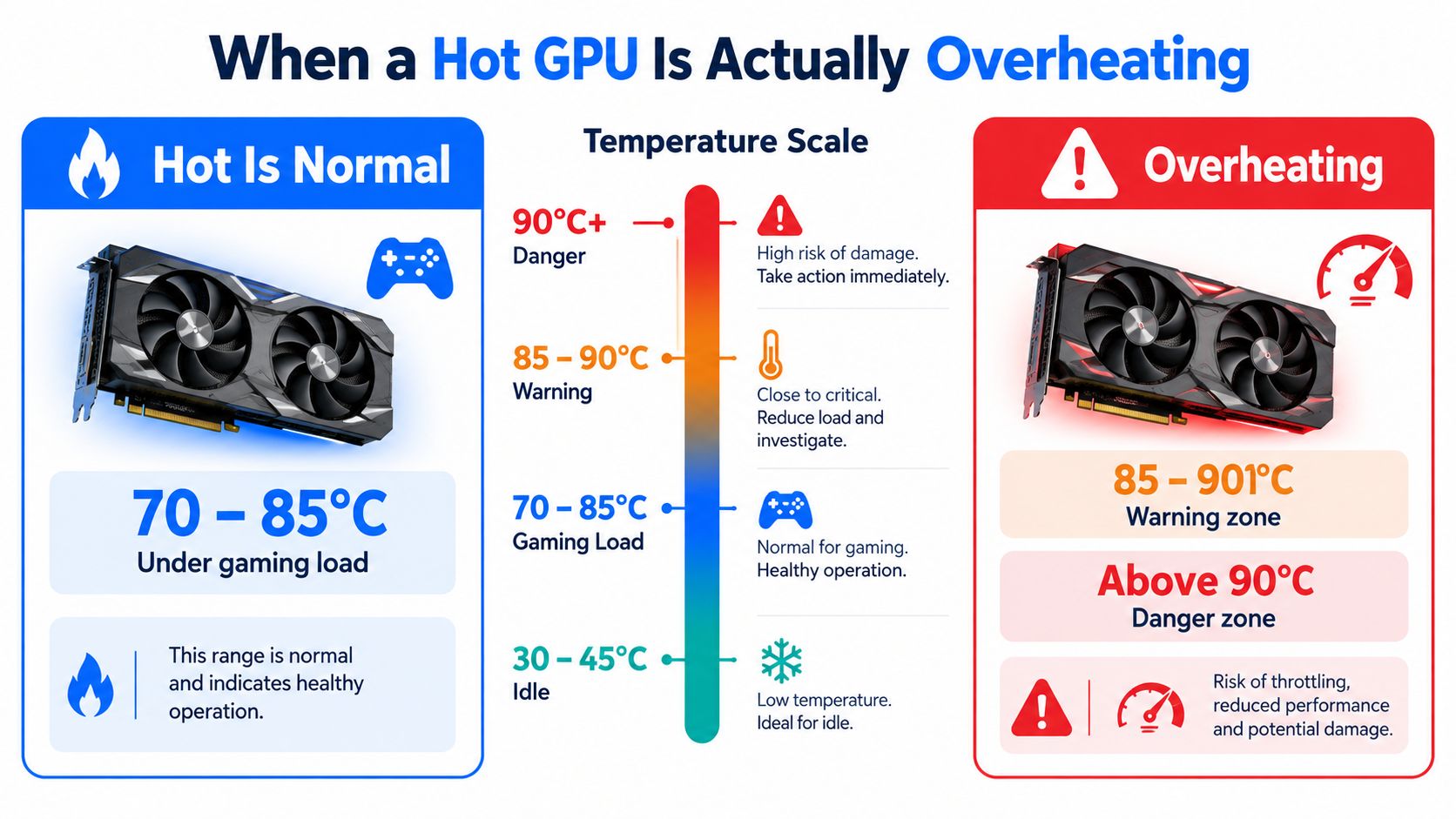
A card arrives at the workshop showing 90°C during a game. That reading gets attention, but it doesn't immediately tell me whether the card needs a repair. I first want to know whether the figure is the GPU edge temperature, the junction temperature, or a hotspot reading, and whether the card is holding its clocks or throttling to protect itself.
Modern graphics cards can run hot under gaming load. UK graphics-card cooling guidance places many modern GPUs around 60–85°C during gaming, with throttling often beginning around 90–100°C, while some cards may shut down around 105–110°C depending on the model. Those figures come from UK GPU temperature guidance from Corsair, so they should be treated as practical reference points rather than a universal specification for every NVIDIA, AMD, or Intel Arc card.
Look for behaviour, not just a number
A card operating in the upper part of its expected range may be perfectly healthy if it maintains stable clock speeds and produces no visual errors. A card that repeatedly reaches the throttling range, stretches its clocks, ramps its fans aggressively, or causes driver timeouts needs investigation even if it doesn't shut down.
Pay attention to:
Fan behaviour: Fans that jump from quiet to maximum speed, stop unexpectedly, or produce bearing noise point towards a mechanical or control problem.
Performance changes: Sudden frame-rate drops, clock fluctuations, or stuttering can indicate sustained thermal throttling.
Display faults: Persistent artefacts, driver resets, and black screens are more serious than ordinary fan noise.
Shutdowns: A system that powers off during a game may be protecting itself from excessive heat or another power-related fault.
Workshop rule: Confirm the symptom under a repeatable load before opening the card. A single peak reading isn't a diagnosis.
The first decision is therefore simple. If the GPU stays within its expected operating range and behaves normally, improve airflow only if necessary and leave the cooler alone. If it repeatedly crosses the throttling range or shows instability, begin with the lowest-cost fix and increase the level of intervention only when the evidence points there.
Reading Temperatures the Right Way
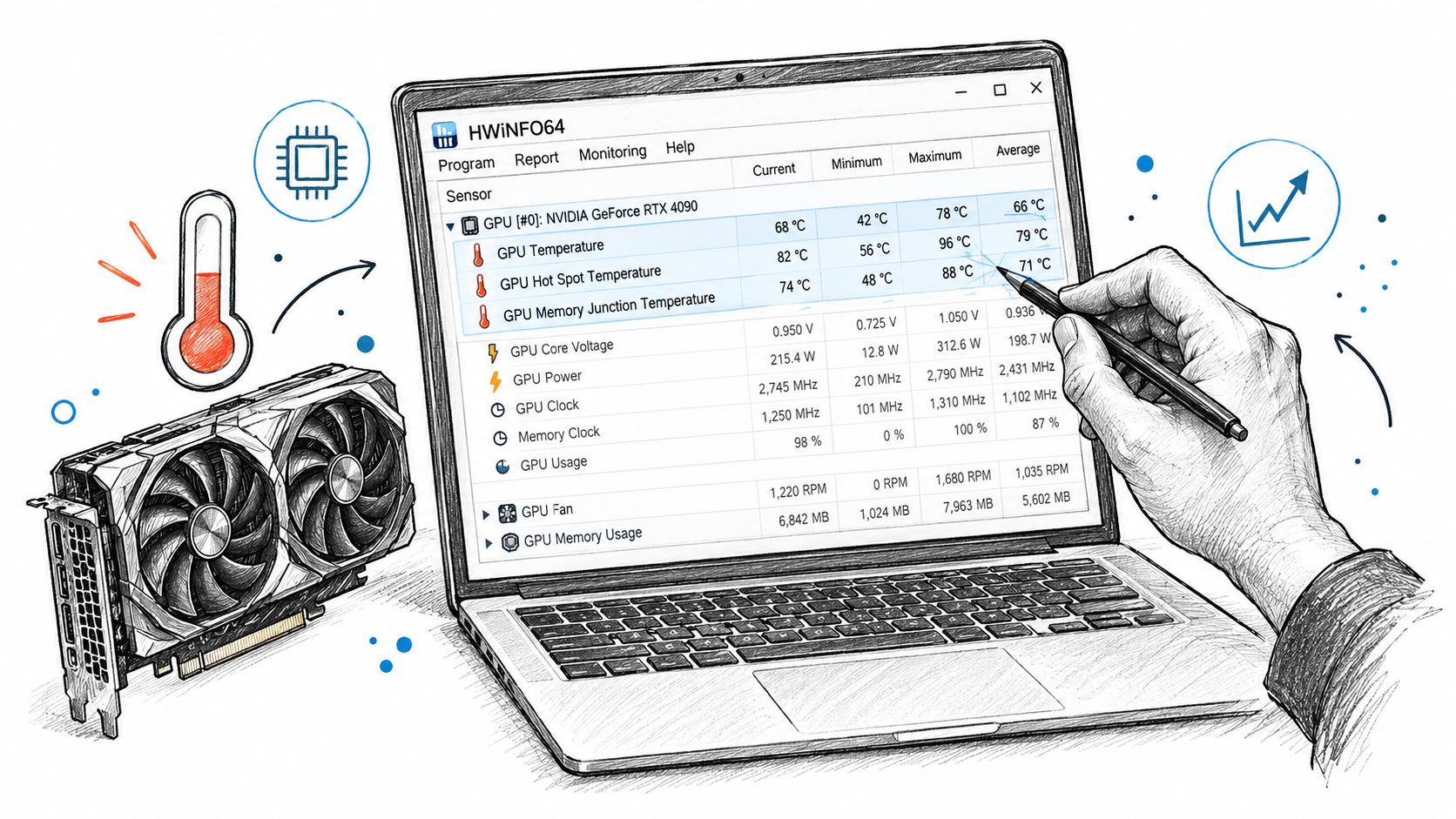
Don't start by removing the side panel and blowing compressed air everywhere. Start by collecting useful readings. HWiNFO64 can expose detailed GPU sensors, MSI Afterburner with RivaTuner Statistics Server can put readings over an actual game, and GPU-Z is useful for a quick cross-check.
Open your monitoring tool and pin the sensors that matter. Record the GPU temperature, hotspot or junction temperature when available, fan speed, core clock, memory clock, and power draw. The names differ by manufacturer, and not every card exposes the same set of sensors, so compare like with like rather than assuming the hottest figure is the edge temperature.
Build a useful test
Let the computer sit at the desktop until the temperature settles, then note the room conditions and the idle reading. Run a game that normally causes the fault, not just a synthetic benchmark, and log the temperature while playing. A short, repeatable session is more useful than a single screenshot because it shows whether the temperature rises steadily, spikes immediately, or stabilises at a predictable level.
Compare the readings with the load ranges described in Overclockers UK GPU repair guidance. That guidance identifies 60–85°C as a typical load range, treats 85–90°C as risky, and notes that throttling commonly begins above 90°C. It also warns that idle readings above 55°C or sustained load temperatures above 90°C deserve investigation, while blocked intakes, cable clutter, and restricted airflow can create the fault without a failed GPU.
A card that is relatively cool at idle but climbs steadily during gameplay often has a cooling bottleneck. A sudden jump during light use deserves closer attention to the fan, sensor reporting, or a software power-state issue. Don't diagnose from idle temperature alone.
For a deeper, repeatable test process, use this GPU stress-testing guide. Stop the test if the display begins to artefact, the system loses video output, or the GPU reaches a level associated with throttling and instability for that model.
Quick Fixes Worth Trying First
The cheapest successful repair is the one that doesn't require opening the graphics card. Work through the following sequence and stop as soon as temperatures and behaviour return to normal.
Reset the driver installation. A clean reinstall with Display Driver Uninstaller, normally called DDU, can remove corrupted driver components and old profiles. Run DDU in Windows Safe Mode, install the current driver from the GPU manufacturer, and avoid restoring an aggressive overclock until the card has been tested again.
Check BIOS and firmware changes. Confirm that the motherboard BIOS and graphics-card firmware are appropriate for the hardware. A BIOS revision can alter power management or fan behaviour, so check the manufacturer's release notes and restore sensible default settings before applying custom profiles.
Reduce power as a diagnostic. A temporary power-limit reduction in MSI Afterburner can show whether excess power and heat are driving the fault. This isn't a substitute for repair, but if the card becomes stable when power is reduced, the result points towards a cooling capacity problem, an overclock, or degraded thermal contact.
Inspect the case airflow. Make sure front or bottom intake fans can draw air through clean filters and that rear or top exhaust fans aren't obstructed. Remove cable bundles from the GPU intake path, and check small-form-factor cases carefully because a card can be starved of cool air even when its own fans work correctly.
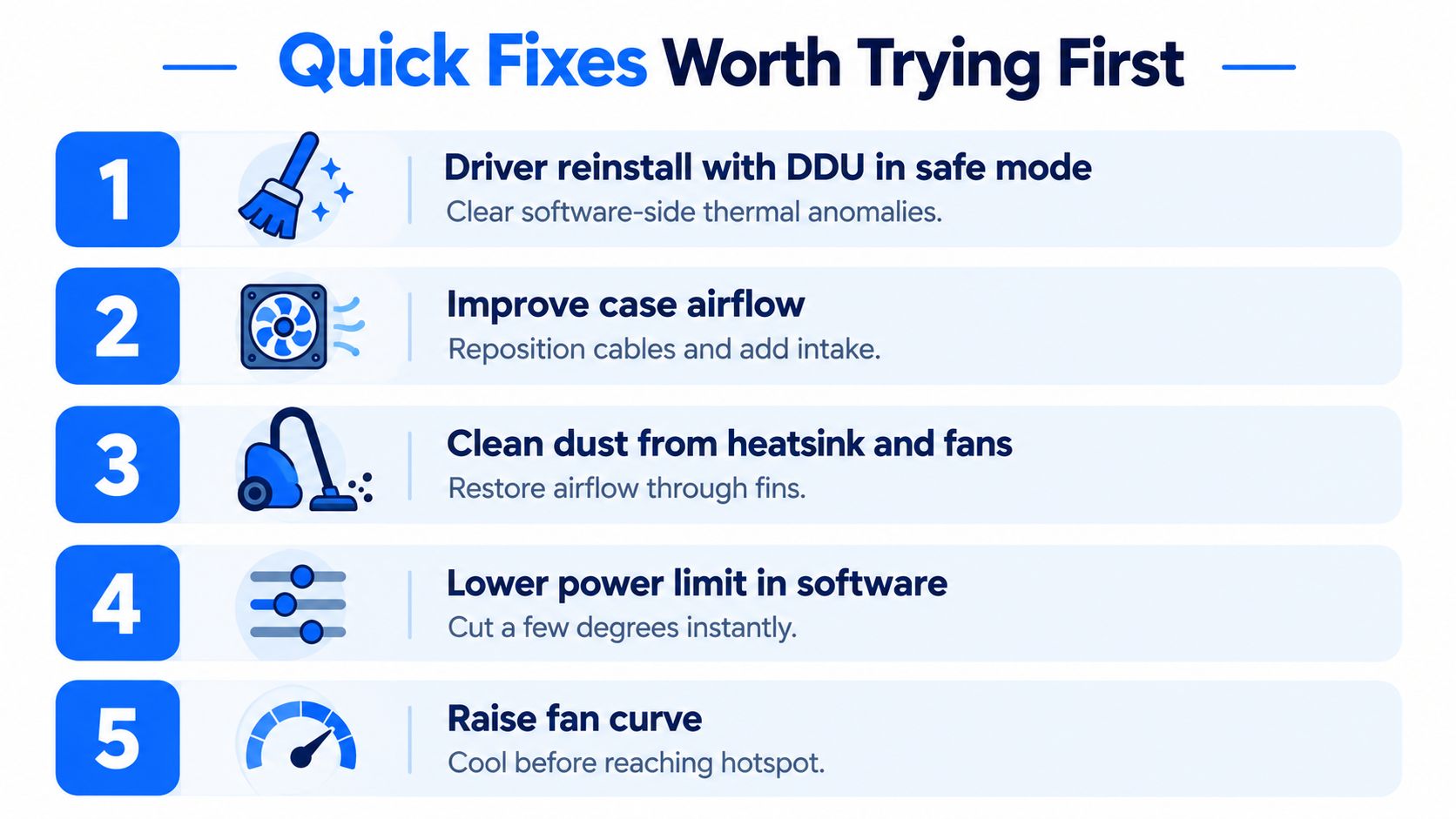
Clean the cooling path properly. Shut down, disconnect power, and hold the GPU fans still while using compressed air. Clear the case filters, fan blades, heatsink fins visible through the card's openings, and the area around the rear bracket. Don't force dust deeper into the cooler or let a loose fan spin at excessive speed from the air blast.
Check power and heat sources. Reseat the PCIe power connectors and inspect them for scorching, looseness, or damaged pins. Confirm the power supply isn't running unusually hot and exhausting warm air directly towards the graphics card.
Use an on-screen overlay while repeating the same game sequence. If the card now remains below its previous throttling point and the fans behave normally, don't dismantle it just because a deeper repair was available.
Thermal Paste and Pads the Hidden Cause
Dust is easy to see, which makes it an obvious suspect. Thermal-interface failure is often harder to spot and can matter more, especially on an older or heavily used graphics card. The fans may spin at the expected speed while dried paste or compressed pads stop the cooler from maintaining even contact with the GPU die.
The pcmacgicians UK overheating and throttling case study reports that laptop overheating often appears after 3 to 5 years as thermal paste dries out, and that a blocked fan combined with dried paste can make a machine 20–30°C hotter than its design temperature, enough to cause sustained thermal throttling. The same cooling failure can affect a graphics card.
Recognising interface failure
A card with degraded paste may idle at a reasonable temperature, then climb rapidly during sustained load. A wide, persistent gap between the edge temperature and hotspot reading also deserves attention when the fans are responding normally. Sensor placement and cooler design vary, so the difference alone does not prove a fault. Look for a sudden change from the card's previous behaviour, repeated throttling, or temperatures that rise unusually fast.
Repasting costs less than replacing a card, but it carries more risk than external cleaning. Remove the card, disconnect the cooler fan cables, and separate the heatsink without twisting the PCB. Clean old compound with high-purity isopropyl alcohol and lint-free materials. Before reassembly, inspect the memory and VRM pads for tearing, hardening, or visible compression.
Important: Thermal pads are not interchangeable by appearance. Their thickness controls cooler pressure and component contact. Measure the originals or obtain the exact specification for the card.
Apply a suitable GPU paste, such as Thermal Grizzly Kryonaut or Noctua NT-H2, in a controlled amount so the die is fully covered when the cooler is remounted. Return every screw to its original location and tighten them gradually in a cross pattern. Torque requirements differ by card and manufacturer, so follow the board's service guidance where available rather than guessing. Stop if the PCB flexes or the heatsink does not sit flat.
A pad replacement makes sense when the existing material is damaged, crushed, leaking, or visibly failing to contact the component. Replacing pads solely because the card runs hot can create a worse fault if the new material is too thick. For the same maintenance principle in portable systems, consult this guide to laptop thermal paste replacement.
If correct paste and pad work does not change temperatures, stop repeating the repair. A warped cooler, damaged mounting point, failing heatpipe, or board-level fault may require workshop testing rather than another pad kit.
Fan and Heatsink Replacement Done Safely
Replace a fan only after proving the fan is the problem. With the card powered off, spin the blades gently by hand and listen for scraping, rumbling, or resistance. During a monitored load, check whether the tachometer reports fan speed and whether one fan remains at zero while the others respond.
A fan that stops below the temperature at which the card's fan curve should activate may be normal on a semi-passive design. A fan that sticks, hunts between speeds, or fails to start when the other fan operates is not. Compare the behaviour with the exact card model rather than assuming every cooler uses the same control logic.
Before ordering a replacement, record:
The exact model: Cooler assemblies and fan shapes can differ between apparently similar cards.
The electrical rating: Match the replacement's voltage and current requirements.
The connector: Check whether the card uses a three-pin or four-pin fan connector and confirm the pin arrangement.
The physical fit: Measure the fan frame, screw spacing, cable route, and clearance around the shroud.
The heatsink condition: Bent fins, blocked channels, or a loose heatpipe can make a new fan ineffective.
Use isopropyl alcohol to loosen a stuck fan connector or adhesive residue. Don't pull hard on a tiny PCB header. If an old fan cable is damaged and the assembly must be removed, snip the cable close to the fan only when the card is fully disconnected and the replacement wiring is understood.
A new fan won't compensate for dried paste or poor heatsink contact. Address the thermal interface at the same time when the evidence points to both faults, then run a repeatable test such as FurMark or 3DMark Time Spy and compare temperature, fan speed, clock stability, and noise. If the replacement fan spins but the temperature remains high, return to the heatsink contact rather than buying another fan.
Knowing When to Call a Workshop
Home repair has a hard limit. Cleaning, airflow checks, driver resets, and careful monitoring are reasonable first steps, but a graphics card showing electrical or board-level symptoms can become more expensive to repair after an avoidable mistake.
Stop experimenting when you find any of the following:
Persistent artefacts: Coloured blocks, lines, corrupted textures, or driver crashes that remain after cleaning, sensible power reduction, and thermal work.
PCB damage: Discolouration, lifted components, damaged connectors, or a burnt smell.
Power-stage faults: A card that loses a VRM phase, repeatedly trips protection, or shows unstable power delivery.
BGA suspicion: A GPU or memory fault that changes with heat, pressure, or board flex can point towards solder-joint or package-level trouble.
Those faults aren't solved by a steeper fan curve. A component-level technician may inspect the board under magnification, test power rails, check memory, and determine whether rework, reballing, or chip replacement is technically appropriate. The correct repair depends on the failed component and the board's condition. Reflow is not a magic cure, and a workshop should explain the proposed method, the likely limitations, and the warranty before taking the job.
Stop rule: If the card is producing black screens or artefacts, don't keep running stress tests to “see whether it settles”. Every additional test adds heat while the underlying fault remains unconfirmed.
The financial decision is just as important as the technical one. Add the cost of a compatible cooler, thermal materials, shipping, labour, and the risk of damaging a working board during disassembly. A repair makes sense when the card has useful performance, the fault is localised, and the repair cost is clearly below a suitable replacement. If the board has extensive corrosion, multiple failed memory devices, or uncertain core damage, selling it for parts and replacing it may be the rational choice.
For a local assessment of a graphics card that has passed the home-fix stage, use Steel City IT's GPU repair service. A proper diagnosis should distinguish cooling maintenance from VRAM, power, and board-level faults before recommending replacement.
Your GPU Overheating Decision Guide
A card that runs hot at the desktop needs a different response from one that overheats only during gaming. Tie the next check to the symptom, then choose the least risky intervention that can confirm or correct it. High idle temperatures usually point towards dust, poor case airflow, background GPU activity, or fan-control settings. A sudden spike with erratic fan behaviour puts the fan, driver, and sensor readings higher on the list. Excessive temperatures under sustained load suggest restricted cooling, failed thermal material, excess power, or poor cooler contact with the die.
What you observe | First suspicion | Lowest-risk response |
|---|---|---|
High temperature at the desktop | Airflow, dust, or software activity | Check case ventilation, filters, background processes, and fan control |
Rapid spike with erratic fan behaviour | Fan or control fault | Watch fan RPM, inspect the fan, and test the driver installation |
Stable but excessive load temperature | Cooling bottleneck or thermal interface | Clean the cooler, improve airflow, then assess paste and pad condition |
Heat remains high after thermal work | Heatsink, power, or board fault | Stop repeated stress testing and seek component-level diagnostics |
Artefacts or black screens | Memory, GPU, power, or board fault | Preserve the card and arrange a repair assessment |
Three stop points protect the hardware and control repair costs. Stop stress testing when throttling is accompanied by black screens, crashes, or artefacts. Check warranty terms before opening a relatively new card, since removing the cooler can affect eligibility. Before approving component repair, ask the workshop to compare its quotation with the cost of a suitable replacement.
Short answers to common questions
Is undervolting worth trying? Yes, as a controlled diagnostic and efficiency measure. If a modest power reduction improves stability, that supports further cooling investigation. It does not repair a failing fan, damaged VRM, or poor heatsink contact.
How long does repasting last? There is no useful fixed interval. Paste quality, mounting pressure, operating conditions, and workload all affect the result. Judge the job by temperature trends and hotspot behaviour after installation, rather than by an assumed service life.
Do laptop GPUs follow the same rules? The principles are similar, but laptop coolers, shared heatpipes, firmware fan control, and access procedures require more caution. Keep the device on a hard, flat surface, clear the vents, and seek service when fans run at maximum during ordinary tasks.
The right endpoint depends on evidence. A card that is stable after cooling maintenance needs no board-level work. A card that still throttles or produces artefacts after sensible checks needs component-level diagnosis or replacement, with the repair estimate and board condition deciding between them.
If your graphics card still overheats after airflow checks, cleaning, and controlled testing, Steel City IT can diagnose cooling, VRAM, power, and component-level GPU faults in its Sheffield workshop. Arrange an assessment before buying a replacement, especially if the card shows artefacts, black screens, or persistent thermal throttling.