
Desktop PC Repair in Sheffield: A Practical Guide

A desktop in a Sheffield living room can go from dependable to maddening by degrees: Windows takes ages to load, the case fan sounds like a hairdryer, and the family photos are saved on a drive nobody wants to risk. It's tempting to keep restarting it, or to assume the whole computer has had its day. But a slow start, loud fan and worrying files may point to separate problems, each with a different remedy.
Table of Contents
What Desktop PC Repair Actually Covers - From replaceable parts to specialist work
The Faults We See Most Often on Sheffield Desktops - Software, storage and memory - Heat, power and graphics
How a Workshop Actually Diagnoses Your Machine - Check the data before stressing a drive - Include security in the diagnosis
Real Cases From a Sheffield Workshop Bench - Four problems, four different answers
Choosing a Sheffield Repair Service and Preparing Your PC - Common questions
When Your Desktop PC Starts Letting You Down
Many put off desktop PC repair until the machine stops being usable. That is understandable, especially when it holds work, family photos or software that would be a nuisance to set up again. But waiting can make diagnosis harder if a failing drive deteriorates or an overheating computer keeps shutting itself down.
A repair isn't one fixed procedure. It might mean resolving a Windows problem, replacing a power supply or storage drive, cleaning and servicing the cooling system, recovering data, or carrying out specialist board-level work. The sensible first step is to establish what's wrong, what can be saved and what a repair would involve. An assessment doesn't commit you to going ahead.
For someone in Frecheville, Birley, Hackenthorpe, Woodhouse or elsewhere in Sheffield, that means asking for a diagnosis before agreeing to parts or a reinstall. A repair that looks obvious from the symptom alone can be misleading: a PC that won't start might have a power fault, while a machine that feels slow could be struggling with ageing storage, Windows configuration or heat.
A local workshop can also help you weigh up the next step rather than treat every fault as a parts sale. Typical turnaround is measured in days, depending on the fault and whether parts need to be ordered. Bring the computer in for an assessment first, then decide once you know the cause, likely cost and options.
What Desktop PC Repair Actually Covers
Desktop PC repair covers more than swapping a visibly broken part. A tower is better understood as a set of connected modules: Windows and applications run on storage and memory, while the power supply, motherboard, processor, graphics card and cooling system keep the machine operating. A fault in one part doesn't automatically make the rest unusable.
At the everyday end, a technician may troubleshoot Windows errors, investigate slow performance, remove malware, clean a dusty case or resolve a loose connection. If Windows is badly corrupted, a clean reinstall may be appropriate, but only after discussing what will happen to the user's files and applications.
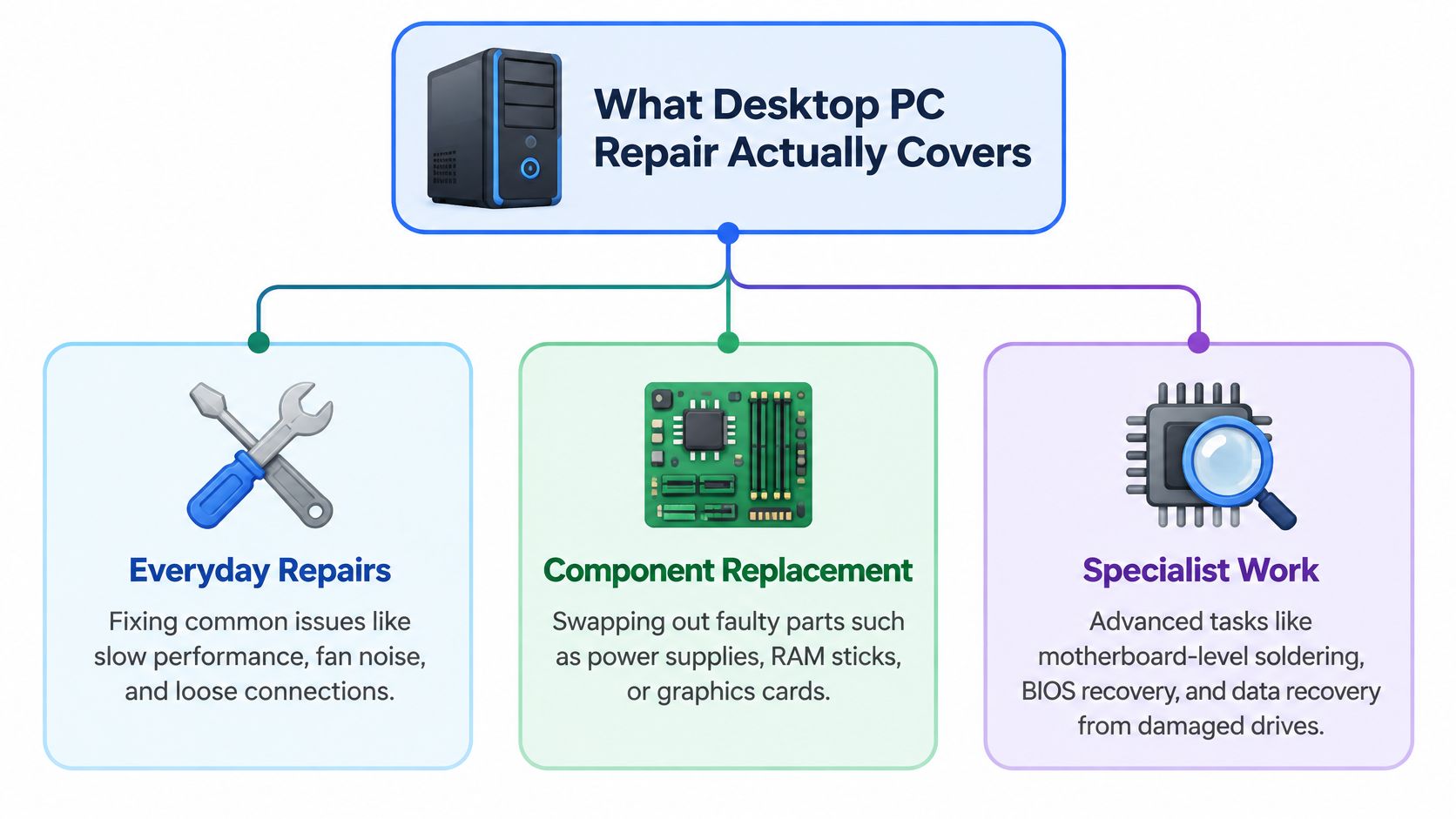
From replaceable parts to specialist work
Component-level repair means identifying and replacing a failed or unsuitable part, such as a power supply, SSD, RAM module, fan or graphics card. Matching the replacement matters. A new GPU, for example, needs to work with the case, power supply and rest of the system, not just fit in the slot.
Board-level work goes beyond replacing complete modules. With suitable equipment and expertise, a technician can diagnose faults on a circuit board and carry out precision soldering. This can be relevant to power faults, damaged connections or liquid damage, although the repair's practicality depends on the board and the extent of the damage.
A workshop specialising in computers, laptops and consoles is better placed to handle this kind of PC work than a general device counter focused on phones or tablets. If you're also planning how to set up a replacement or retire an old machine, PC installation and retirement tips offer useful context on those tasks.
The Faults We See Most Often on Sheffield Desktops
A desktop's symptoms are clues, not a diagnosis. A reboot during a game could come from heat, unstable power, memory or a graphics fault. The trick is to notice when the problem happens and what else changes at the same time.
Software, storage and memory
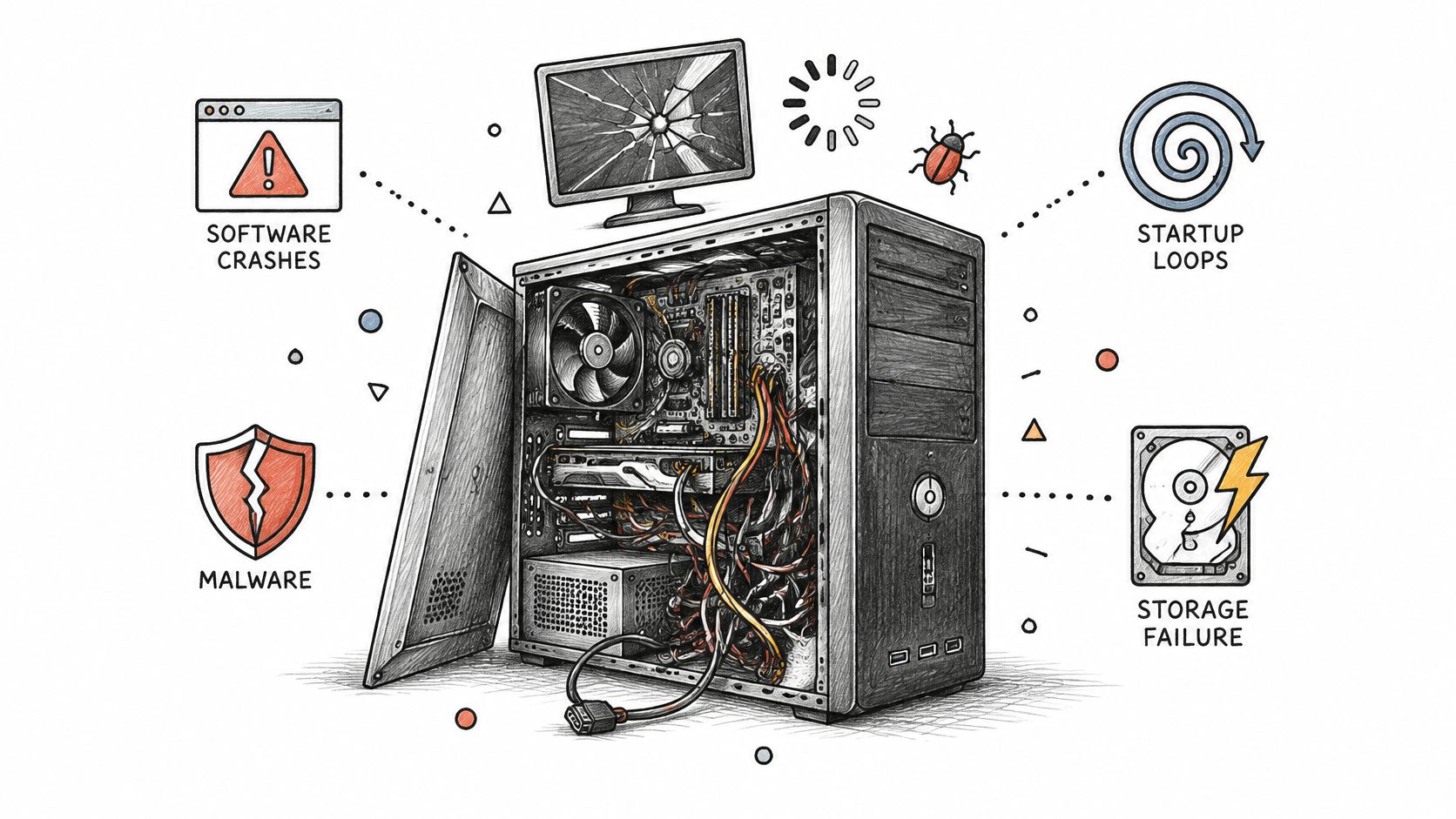
Windows crashes, startup loops and repeated error messages can come from damaged system files, troublesome drivers or malware. Pop-ups and browser redirects deserve particular attention: deleting the most visible suspicious file might not remove other ways malicious software starts again.
Storage faults can look like general slowness, freezing, missing files or failed updates. A desktop still using an older hard drive may take a long time to start, but sudden changes, file errors or repeated hangs warrant a health check rather than an automatic upgrade. RAM problems can cause instability too, including crashes that seem random or appear only when several demanding applications are open.
Heat, power and graphics
Dust can clog filters and heatsinks, stopping fans from moving heat away effectively. On a gaming PC, overheating may show up as loud fans, falling performance or shutdowns when a game puts the system under load. A weakening power supply can produce similar shutdowns, so replacing a cooler without checking power delivery may miss the cause.
Graphics trouble tends to be more visible: a black screen, flickering, coloured blocks or artifacts in games can point to a cable or driver issue, but they can also indicate a fault with the GPU itself. NVIDIA RTX and AMD cards need proper testing before anyone concludes that the whole card must be replaced.
Ageing drives, dust and gaming systems pushed hard are familiar reasons to investigate these categories on home PCs. None proves a particular part has failed. The useful thing you can tell a technician is the pattern: whether the fault appears at startup, during everyday work or only under gaming load.
How a Workshop Actually Diagnoses Your Machine
A good diagnosis starts by reproducing the complaint and checking the machine before ordering parts. Replacing an SSD or reinstalling Windows without checking memory, temperatures and power can make a computer seem better temporarily while leaving the underlying fault in place.
Check the data before stressing a drive
First, record what happens and when: does the PC fail before Windows loads, freeze during use, or shut down under a particular workload? If storage may be failing, check its SMART or NVMe health information and consider data protection before intensive testing. A verified backup or sector-level clone is important where the files matter, because repeated reads can add stress to a failing drive.
Next, test memory in a controlled way, then monitor processor and graphics temperatures, fan behaviour and clock speeds under load. If those checks don't explain the symptom, investigate power delivery and test suspect components individually. That sequence helps distinguish a bad part from heat, a driver conflict or a Windows problem.
Include security in the diagnosis
A computer that behaves oddly might have a security problem as well as, or instead of, a hardware fault. The UK Government's Cyber Security Breaches Survey 2024 found that 50% of UK businesses had identified a breach or attack in the previous 12 months; among reported incident types, phishing accounted for 84% and viruses or other malware for 17%. Those figures make a security check particularly relevant when a small-business PC shows pop-ups, unexpected redirects or suspicious account activity.
Deleting a visible malicious file isn't always enough. A proper malware response can include isolating the computer, checking common startup and persistence locations, scanning from a trusted environment, updating software and changing potentially exposed passwords from a clean device. Only once the machine and data have been assessed should a technician recommend a Windows reinstall.
A diagnostic fee pays for finding the cause, not guessing which part to swap. Ask what was tested, what the results mean, whether your files are at risk and whether the proposed work includes post-repair checks. Steel City IT's professional diagnostics guidance describes the sort of assessment to discuss with a workshop.
A video can also help explain how diagnostic work is approached:
Repair, Upgrade, or Replace, A Realistic Decision
A desktop's age alone doesn't settle whether it's worth repairing. Compare the options by the value and reliability you need over the coming years, not just the first part price. A targeted SSD upgrade can make a computer feel more responsive if slow storage is the bottleneck; extra RAM helps only if the system is running short of memory. Neither fixes an overheating GPU or a failing motherboard.
For a gaming PC, consider whether a repair will restore the performance you want, and whether the power supply and processor can support any planned graphics upgrade. For a home or office machine, weigh everyday responsiveness, likely failure points, electricity use and how much work it would take to move software and data to a replacement. A board-level repair can still be sensible if a system depends on licensed applications, specialist peripherals or files that are difficult to migrate.
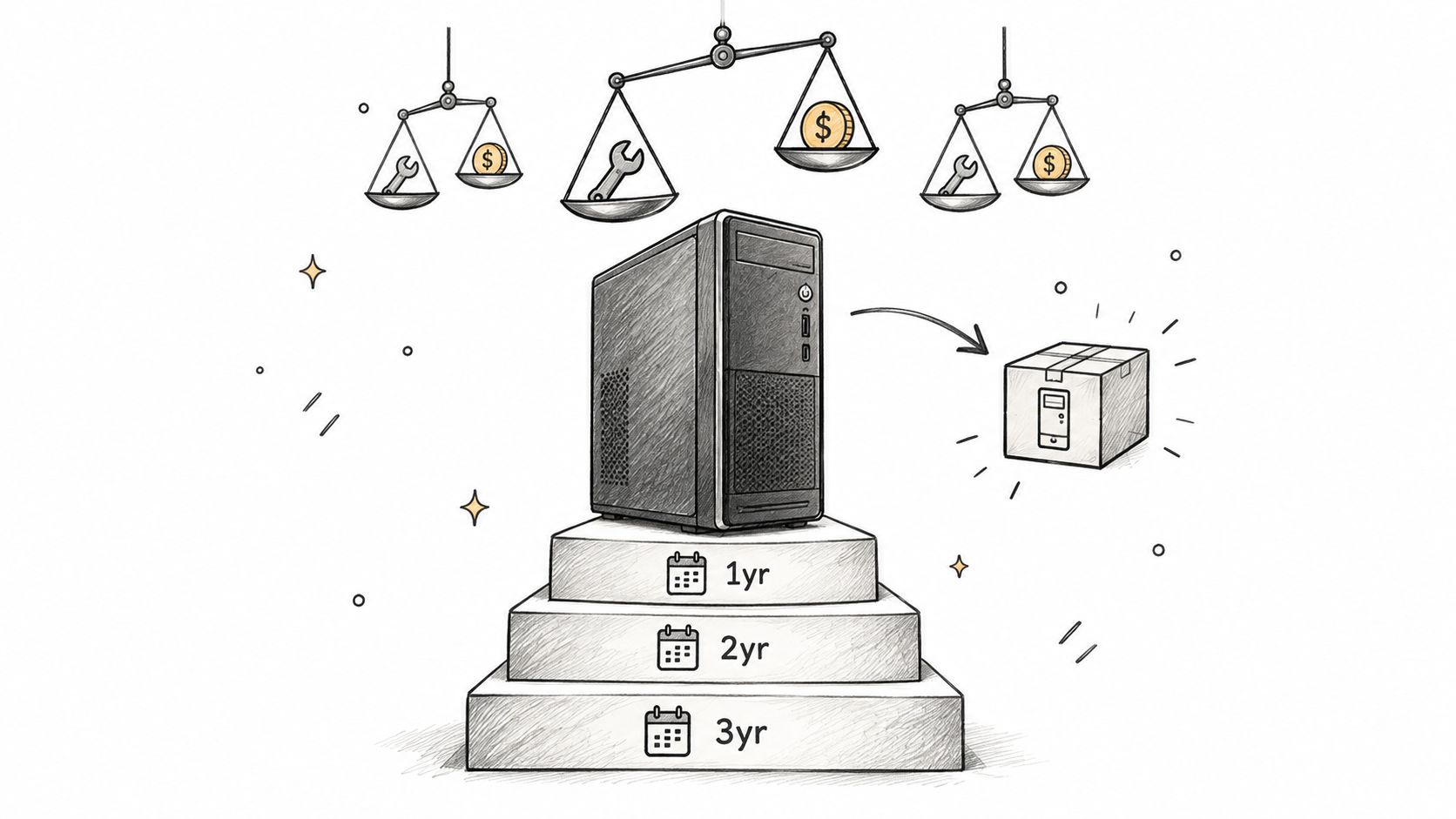
UK consumer attitudes don't make repair an automatic answer either. A BearingPoint UK consumer survey found that 63% of consumers said they repair items instead of buying new ones, but that figure had fallen by 10 percentage points over the previous year. That's a reason to make a considered choice, not to repair every machine regardless of condition.
Ask for a comparison that covers the diagnosis, parts quality, labour, data migration and expected reliability. If several major parts are failing, the platform can't support your workload, or a repair approaches the cost of a suitable replacement without restoring useful performance, replacement may be the better decision. A candid workshop should say so. For practical upgrade options, see this guide to desktop PC upgrades.
What Desktop PC Repair Costs and How Long It Takes
A reliable quote depends on knowing what has failed. A slow PC might need software work, a storage upgrade or attention to heat; those aren't interchangeable jobs. For that reason, a workshop may assess the computer before giving a firm repair price. A diagnostic charge isn't evasive if it's explained clearly and you're told whether it will be included in the repair.
The table below avoids made-up price bands. Treat it as a guide to the scope of common jobs and why turnaround varies, not as a quote. Parts availability, the computer's configuration, data requirements and the time needed to confirm a fault all affect the final estimate.
Job | Indicative cost | Typical turnaround |
|---|---|---|
Initial diagnosis | Confirm with the workshop | Assessment first; timing depends on the fault |
Windows troubleshooting or clean reinstall | Confirm after assessment | May be quicker than hardware or data work |
SSD or RAM upgrade | Depends on parts and migration needs | Allow for installation and testing |
Power supply or cooling replacement | Depends on the component and diagnosis | Allow for fitting and stability checks |
Malware remediation | Depends on the infection and data safeguards required | Can take longer if persistence or account exposure needs investigation |
GPU or board-level repair | Quote after testing; parts and fault complexity matter | May require specialist work or ordered parts |
Data recovery | Depends on drive condition and recovery requirements | Timing depends on the condition of the media |
Ask whether the quote includes parts, labour, data migration, Windows configuration and testing. A low parts figure may not include the work needed to make the system stable and usable, while a reinstall that doesn't preserve files or software may create a costly second job.
Turnaround can range from a relatively straightforward software task to extended fault-finding or specialist repair. If the PC is needed for work, say so when arranging the assessment and ask what can be done to protect or recover the data first. The computer repair pricing guide is a useful starting point for discussing how repair costs are assessed.
Real Cases From a Sheffield Workshop Bench
A label like “dead PC” tells you what the owner sees, not what has failed. The following are illustrative examples of the kinds of faults a Sheffield repair bench may need to separate. They show why a diagnosis matters more than buying the first part that seems plausible.
Four problems, four different answers
A home user reports that the tower does nothing when switched on. Inspection points to a failed power supply, while dust packed around the heatsink needs attention too. Replacing the confirmed faulty component and cleaning the cooling path is a more targeted response than assuming the whole computer is finished.
A small-business desktop opens unwanted pages and keeps showing pop-ups. A malware check finds persistence beyond the visible file, including a scheduled task and a startup entry. Removing those mechanisms, checking the system and securing the user's accounts addresses more than the initial symptom.
A gaming PC shows artifacts during play. Testing traces the problem to a graphics-memory fault on an NVIDIA RTX card. Component-level repair may be an option where the fault and card condition justify it; replacing the entire graphics card without diagnosis could mean spending more than necessary.
Then there's the desktop whose ageing SSD holds the only copy of family photos. The priority is to limit unnecessary drive activity, assess the media and attempt controlled recovery before migrating anything to a replacement drive. Recovery isn't guaranteed, which is why a backup matters, but a failing drive doesn't always mean the files are immediately beyond reach.
The shared lesson is simple: symptoms can point in several directions. Confirm the fault, protect important data and compare the proposed repair with the value of keeping the machine in service.
Choosing a Sheffield Repair Service and Preparing Your PC
Choose a workshop that can explain its diagnosis in plain English and tell you what it will test before ordering parts. For a desktop problem, ask whether it handles hardware diagnosis, Windows troubleshooting, genuine replacement components, data recovery and board-level work when appropriate. If your issue is a graphics fault or damaged data, check that the workshop has experience with that specific work rather than assuming every general repair service offers it.
Before dropping the computer off:
Back up what you can: Copy important files if the PC still works reliably. Don't keep stressing a drive that may be failing just to make one more backup attempt.
Write down the symptoms: Note when the problem started, what you were doing and whether anything changed beforehand.
Prepare account details safely: Ask what access the technician needs, and don't send passwords in an unsecured message.
Bring the relevant equipment: Include the monitor, power cable or other peripheral if the fault might involve it.
Agree the next step: Ask when you'll hear back, whether there's a diagnostic charge and whether work will wait for your approval.
Common questions
Does software-only work count as a real repair? Yes. Resolving a damaged Windows installation, driver conflict or persistent malware can restore a computer without replacing a component. The important point is to identify the cause and check that the fix holds.
Can a failed SSD be recovered? Sometimes, depending on the fault and the condition of the drive. Stop unnecessary use and ask for an assessment before trying repeated scans or recovery tools, which may put extra strain on failing storage.
Is a custom-built PC worth it for a Sheffield gamer? It can be, especially when the parts are selected to suit the games, display and budget, and the system is assembled and tested as a whole. A big-brand PC may suit someone who prefers a ready-made configuration and its support arrangements; compare the actual components, upgrade options and warranty terms before deciding.
If your desktop is slow, unstable, noisy or failing to start, arrange an assessment before buying parts or writing it off. Steel City IT provides desktop diagnostics, repairs, upgrades and data services from its Frecheville workshop, serving Sheffield users who want a clear diagnosis before choosing what happens next. Visit Steel City IT to discuss your PC and arrange an assessment.