
How to Fix Windows Update Errors Without Losing Your Files

Most advice on How to Fix Windows Update Errors tells you to clear the cache, restart the services, or reset Windows straight away. That's backwards. Those steps can work, but if you start there you may erase the error code that explained the failure, repeat a download that was never the problem, or wipe a machine whose drive is already failing. A calmer order works better. Record what failed, repair the update mechanism in stages, protect your files before any reset, and check whether the PC is even eligible for the update it's being offered.
Table of Contents
Read the Error Code Before Changing Anything - Build a Short Diagnostic Record
Run the Troubleshooter and Servicing Stack Update First - Why the Servicing Stack Comes Next
Repair Corrupt System Files with DISM and SFC - Run DISM Before SFC - Read the Result Properly
Reset Update Components in Safe Mode or Offline - Rename Rather Than Delete - When Normal Windows Gets in the Way
Protect Your Files Before Any Reset - Complete the Pre-Reset Checks
When an Update Error Means Your PC Cannot Upgrade - Choose the Route That Fits the Machine
Read the Error Code Before Changing Anything
Don't touch the services yet. Open Settings, go to Windows Update, then Update History, and find the failed entry. Write down the update name, the date, and the exact error code shown beside it.
Next, press Windows key and R together, type winver, and note your Windows edition, version, and build. Add one more detail that many people forget. Did the failure happen during download, during installation, or after the restart?
Build a Short Diagnostic Record
That record takes minutes, but it stops you applying the same generic fix repeatedly. It also helps a repair technician see what you've already tried and whether the code changed after each attempt.
Failed update: Copy the name exactly as Windows shows it.
Error code: Record every character, including the leading zero and x.
Windows details: Note edition, version, build, and architecture.
Failure stage: State whether it stopped downloading, installing, or restarting.
Microsoft's guidance sets out four Windows Update error codes that point to different causes, which is why guessing is a poor substitute for reading them. 0x80070002 means the system cannot find a specified file. 0x800f0831 indicates CBS store corruption. 0x8007000D means downloaded or stored data is invalid. 0x800F081F means the required package source is missing.
Those meanings lead to different decisions. Invalid stored data may justify clearing and redownloading update files later. CBS corruption or a missing source points you towards component store repair with DISM and a look at setup logs instead.
Error code | What it usually means | Where to go next |
|---|---|---|
0x80070002 | A specified file cannot be found | Check the failed package and setup logs |
0x800f0831 | CBS store corruption | Run DISM, then SFC |
0x8007000D | Downloaded or stored data is invalid | Consider clearing update files later |
0x800F081F | Required package source is missing | Supply a matching repair source |
Practical rule: If you can't state the code, build, and failure stage, you're not ready to change system folders yet.
Run the Troubleshooter and Servicing Stack Update First
A failed update does not always call for a component reset. Start with the built-in troubleshooter and servicing stack update, the least disruptive checks that can resolve update problems before you change system files.
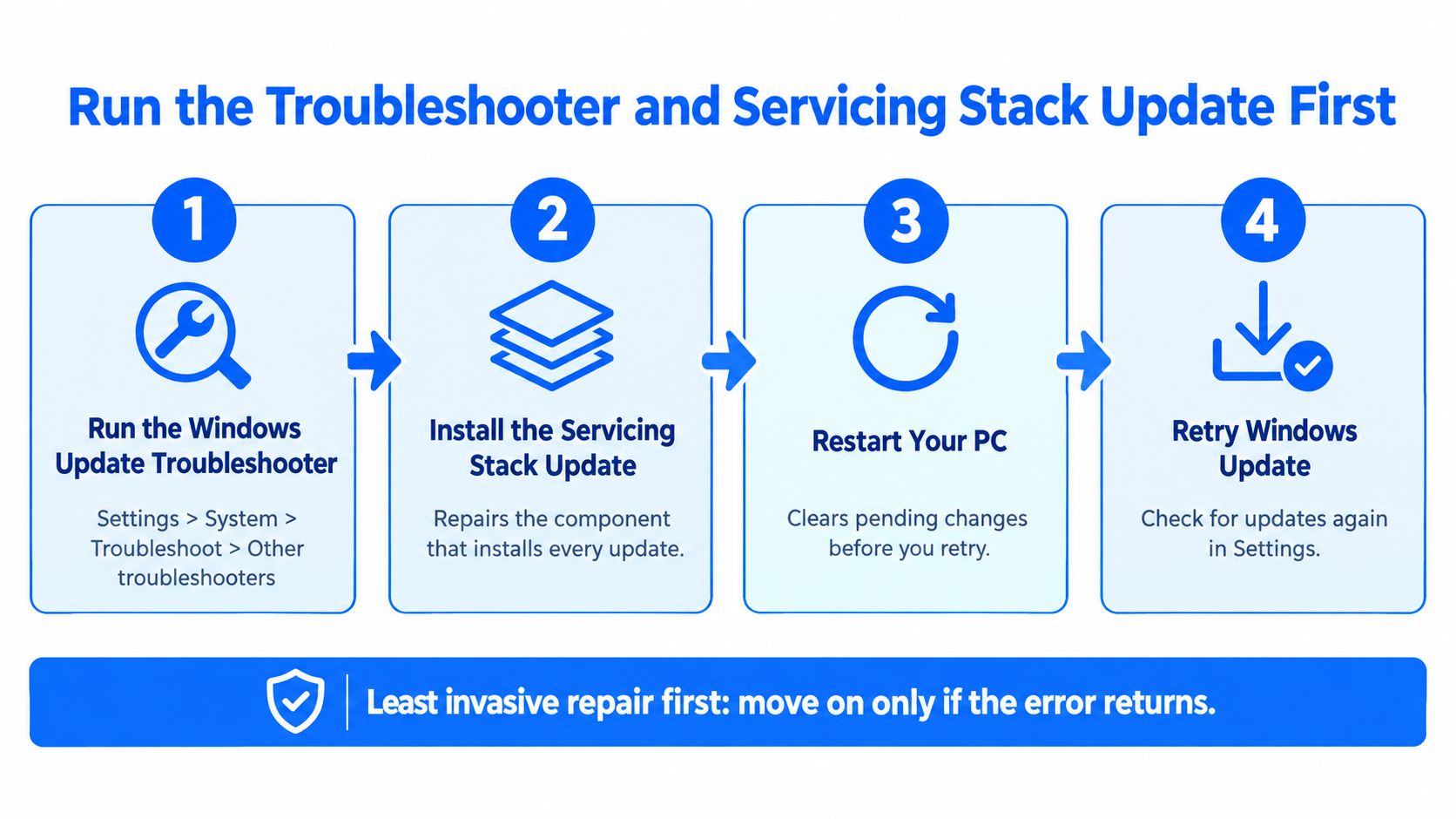
Choose the path for your Windows version: on Windows 11, open Settings > System > Troubleshoot > Other troubleshooters > Windows Update. On Windows 10, open Settings > Update & Security > Troubleshoot > Additional troubleshooters > Windows Update. Run the troubleshooter and record its result, including a message that it could not identify a problem. That result helps establish whether the built-in repair found anything to address.
Why the Servicing Stack Comes Next
The servicing stack installs Windows updates. If it is out of date or damaged, repeating the same cumulative update may fail again because the installer itself needs attention.
Microsoft recommends you run the troubleshooter, install the latest Servicing Stack Update for your Windows version, then install the current cumulative update. Servicing Stack Updates improve the reliability of the update process, rather than just adding another patch.
Use this order:
Run the troubleshooter: Let it finish and note the result.
Restart the PC: Give Windows a clean start before servicing.
Install the matching Servicing Stack Update: Check that it matches your installed Windows version.
Restart again if prompted: Complete the update before adding another.
Check for updates: Install the current cumulative update and record what happens.
The video below shows the menu path if you want to check it before making changes.
If the same error code returns, stop repeating these steps. The built-in repair and servicing stack have not resolved it, so keep your recorded results and move to the next checks. The computer repair blog offers local guidance on other Windows problems Sheffield users bring in.
Repair Corrupt System Files with DISM and SFC
A laptop that fails every cumulative update with the same code usually isn't suffering from a bad download. Retrying gives you the same result because Windows is servicing updates from a damaged component image underneath.
That's where DISM and SFC earn their keep. DISM repairs the Windows component image that servicing depends on. SFC then validates protected system files and replaces damaged copies.
Run DISM Before SFC
Right click Start, open Terminal or Command Prompt as administrator, and run this command exactly:
Wait for successful completion. Don't close the window because progress appears to pause, and don't restart halfway through to see if it's worked. An interrupted scan can leave you diagnosing the original fault plus an incomplete repair.
When DISM finishes, run:
Record the completion message from each tool in your diagnostic notes. Microsoft guidance also supports using DISM to repair corruption before checking system files with SFC, then rebooting before you retest Windows Update.
Read the Result Properly
DISM completed successfully: Run SFC, reboot, then check for updates once.
SFC repaired files: Reboot even if Windows doesn't insist, then retest.
SFC found no integrity violations: The protected files may be sound, so look next at update metadata.
DISM couldn't find source files: You may need a matching Windows installation image as the repair source.
That last case matters with codes that point to a missing package source. Using an image for the wrong edition or build can waste an afternoon, so match it against the details you captured with winver.
Don't interrupt DISM or SFC to save time. A cancelled repair rarely saves any.
If both tools complete cleanly and the identical error returns after a reboot, you've narrowed the field. The component image and protected files have had their repair pass. The update cache and catalogues are the next sensible target.
Reset Update Components in Safe Mode or Offline
Only reset update components after the earlier stages have failed. This step forces Windows to rebuild its update metadata, which helps when downloaded files or catalogues are corrupt. It won't fix failing storage or an ineligible processor.
Open a Command Prompt as administrator and stop the Background Intelligent Transfer Service, usually called BITS, and the Windows Update service. In plain terms, you're pausing the machinery before you move its filing cabinets.
Rename Rather Than Delete
With those services stopped, rename these folders:
SoftwareDistribution: Rename by adding .old to its name.
catroot2: Rename in the same way.
Renaming preserves a rollback path. Deleting removes evidence and leaves you nothing to restore if Windows behaves worse afterwards. Restart both services, reboot the PC, then check for updates again.
Never rename or delete servicing folders while update services are running. Locked files and incomplete transactions can create a second servicing error on top of the first, and then your notes stop matching the machine in front of you.
When Normal Windows Gets in the Way
Some machines loop because a driver, security tool, or background programme interferes during installation. Safe Mode loads a reduced set of drivers and services, so it's useful for stopping services cleanly or removing a conflicting programme. It isn't a magic repair by itself. Use it to create a quieter environment, then return to normal Windows and retest.
Other PCs can't download reliably at all. For those, use a working computer to obtain the standalone package for the exact update from Microsoft, copy it across, and install it offline. Match the package to your Windows version and architecture. Installing a near enough update is how a straightforward job becomes messy.
If the reset produces a new code, write it down rather than assuming nothing changed. A changed code can mean the corrupt metadata has gone and revealed the next fault underneath.
Protect Your Files Before Any Reset
A reset can leave Windows cleaner and your files gone. If updates keep failing, check the storage and protect your data before reinstalling: a damaged file system, failing drive, or malware may be behind the problem, and reinstalling onto a deteriorating SSD will not fix the hardware.
Stop retrying updates if the drive clicks or grinds, files will not open, File Explorer stops showing the drive, the PC becomes unusually slow, or Event Viewer reports file system errors. These signs call for a data check before a Windows repair.
Complete the Pre-Reset Checks
Verify an offline backup: Copy personal and business files to external storage, then open a sample to confirm the copies work.
Record BitLocker information: Save the recovery key somewhere separate from the PC before making major changes.
Check disk health: Use the drive manufacturer's tool or Windows tools to look for signs of deterioration.
Read event logs: Check whether the warnings point to storage or Windows servicing before choosing a fix.
The order matters. A clean reinstall can overwrite files and put extra strain on a weak drive. If the drive is deteriorating, recover the data first; repair Windows only after the files are safe.
Older Windows 10 PCs make this decision especially relevant. Which? estimated 26% of UK Windows 10 users planned to continue after support ended, equivalent to about 5.4 million people, while 62% of Windows 10 users in Great Britain had no plan to change. A computer might contain the only copy of a household's photos or a small business's invoices. Check for another copy before resetting.
Back up first, then repair. Software can be reinstalled. Overwritten files often can't be recovered.
For Sheffield home users and small businesses, this check can prevent an update fault becoming a data loss job. If the drive looks unhealthy, preserve the files and assess the hardware before deciding whether to repair Windows, replace the drive and migrate data, or install Windows cleanly.
When an Update Error Means Your PC Cannot Upgrade
An update error does not always mean Windows is broken. Sometimes the PC cannot run the version being offered, and resetting the update cache cannot change an unsupported processor or missing security feature.
The error code helps separate a repairable update fault from a hardware limit. Before considering registry workarounds, check TPM 2.0, Secure Boot, processor eligibility, free space, and whether the drive is healthy. The drive and backup check should happen before repairs that risk your files.
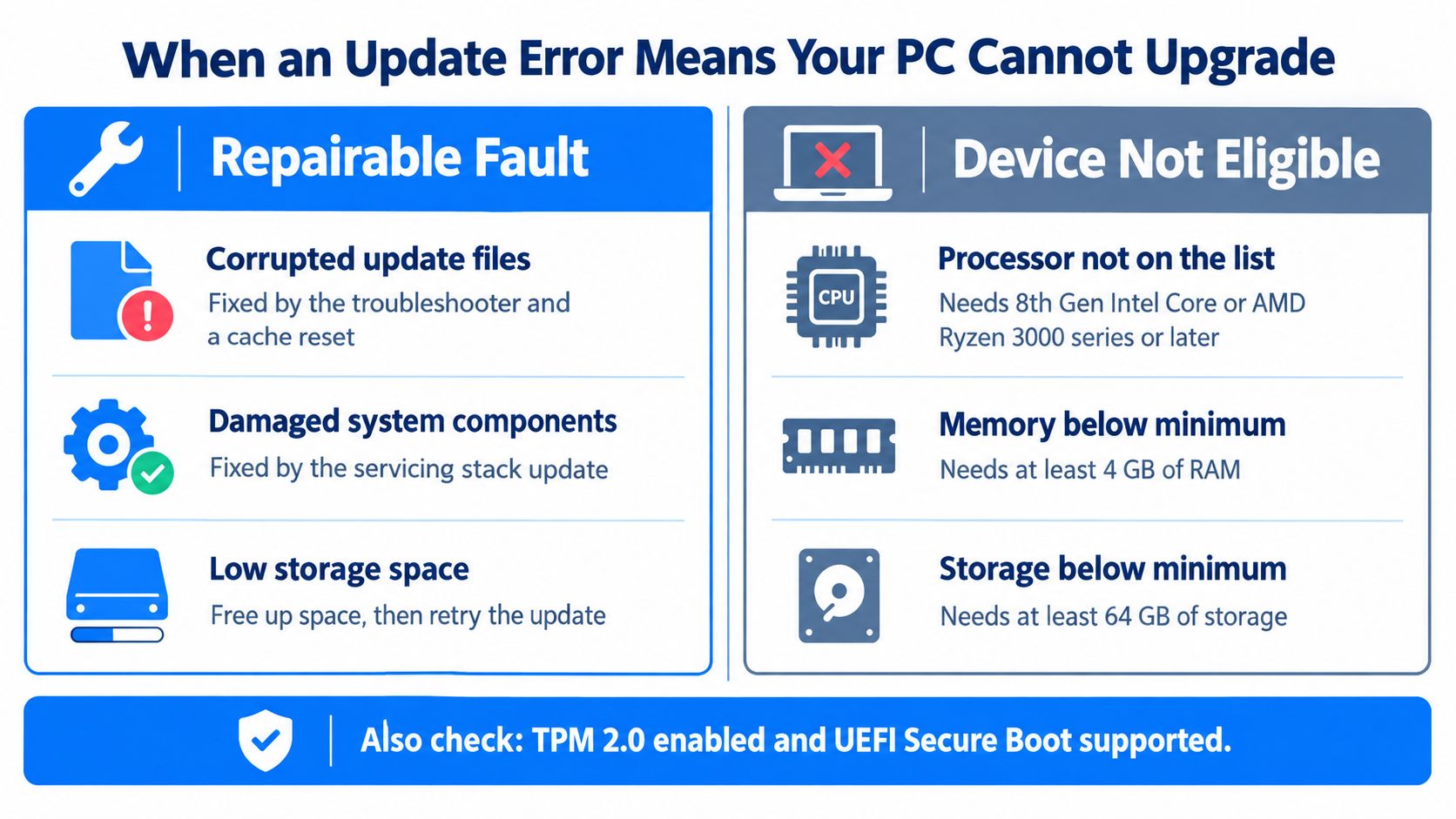
Use Microsoft's PC Health Check app, or check Windows Update for an eligibility message explaining why the device cannot upgrade. For the security features, run to see whether the TPM is present and ready, then run and check the Secure Boot State entry. If either feature is available but disabled, look in the PC's UEFI or firmware settings. The setting may be labelled TPM, Intel PTT, AMD fTPM, or Secure Boot. Change firmware settings only if you understand the effect, and note the original setting before altering it.
Choose the Route That Fits the Machine
Eligible but failing: Use the earlier repair steps to address the update error.
Eligible but slow or full: Consider a memory or storage upgrade if capacity is the actual constraint.
Not eligible: Read the eligibility message to identify the failed requirement. If the device does not meet it, compare a supported security extension option, where available, with planned replacement.
Replacing the PC: Plan file migration and application access before moving to a new device.
A requirements bypass may leave the PC unsupported, with uncertainty about future updates. Replacing a healthy computer without checking eligibility adds cost and e-waste. Check first, then decide.
Microsoft ended Windows 10 support on 14 October 2025. Which? estimated around 21 million people in the UK still used Windows 10 devices, with 39% planning to upgrade, 14% planning to replace, and 26% intending to continue. That makes support planning part of deciding whether an update failure is repairable.
When eligibility, hardware condition, and migration overlap, a local laptop repair service in Sheffield can assess the options. An eligible laptop with a servicing fault needs a repair, not a replacement pitch.
Your Next Steps for Getting Updates Working Again
More resets do not mean faster repairs. Work through the checks in order, and stop when the error code or evidence points to a different cause.
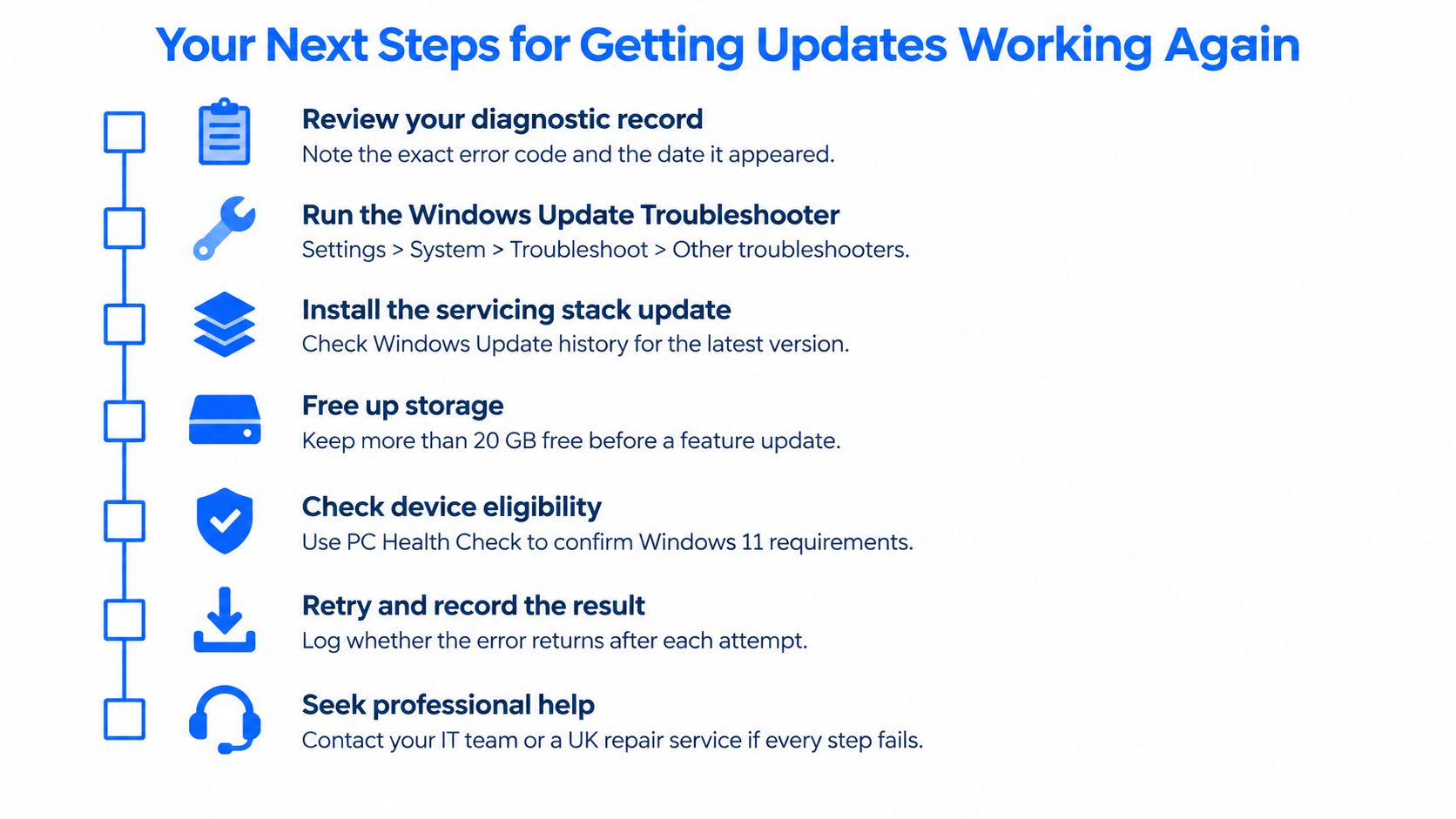
Record the failure: Note the error code, failed update, Windows build, and stage where installation stops.
Start with built-in repairs: Run the troubleshooter, install the Servicing Stack Update and cumulative update, and restart when prompted.
Check system files: Run DISM, then SFC. Reboot and test the update once.
Reset update components: Stop the services, rename the update folders, restart services, then reboot.
Protect your data: Check the backup and confirm you have BitLocker recovery details before resetting anything.
Check eligibility and hardware: Confirm TPM 2.0, Secure Boot, processor support, free space, and drive health.
A repeat failure after a full repair pass, signs of drive deterioration, or an unsupported PC are reasons to stop and get a diagnosis before attempting another reset. Steel City IT in Frecheville offers diagnostics, Windows troubleshooting, recovery from failing drives, and clean Windows reinstalls with drivers and updates configured. Bring your error code and diagnostic notes to computer repair in Sheffield to help the technician assess the fault.
If a reset could put files at risk, ask about data-preserving troubleshooting first. You can contact Steel City IT to arrange an assessment in Frecheville and discuss the repair options.