
Clean Reinstall Windows 10 Without Losing Your Data

Your Windows 10 PC takes ages to start, updates fail, and programs you uninstalled months ago still leave error messages behind. A Clean Reinstall Windows 10 job sounds like a fresh start, and it can be, but only if you treat it as a recovery project with a tested backup, a licence record, and a proper handover check. Done casually, it's the fastest way to delete the files you meant to save.
Table of Contents
Decide Whether a Clean Reinstall Is Appropriate - A Practical Go or No Go Test
Prepare a Verifiable Backup and Recovery Plan - Record the Machine Before You Touch It - Copy What People Usually Forget - Prove the Backup Works
Create Installation Media and Prepare the PC - Download Drivers Before You Need Them - Disconnect Extra Drives
Install Windows 10 From the USB Drive - Choose Custom Installation Carefully - Complete First Boot Setup
Restore Drivers, Apps, Activation, and Security - Install Drivers in a Sensible Order - Verify Activation Before Restoring Apps - Configure Security Without False Confidence
Troubleshoot Common Clean Install Problems - Clean Install Troubleshooting Matrix
Finalise the PC and Record Its New State - Test the Hardware You Actually Use
Decide Whether a Clean Reinstall Is Appropriate
A common assumption is that wiping Windows makes an old PC safe again. It doesn't. A reinstall can restore a damaged installation and remove accumulated software conflicts, but Microsoft's UK guidance on the end of Windows 10 support on 14 October 2025 confirms that free security fixes, feature updates, and technical assistance have ended for Home, Pro, Enterprise, Education, and IoT Enterprise editions.

That distinction drives the whole decision. If your problem is corruption, malware remnants, or years of conflicting software, a clean install gives you a controlled starting point for drivers, applications, and security settings. If the drive is failing, the machine has liquid damage, or files have already been deleted, reinstalling can make recovery harder and won't repair hardware.
A Practical Go or No Go Test
Proceed only when you can answer yes to each point below.
Software fault identified: Symptoms point to Windows or applications, not clicking storage, overheating, power loss, or physical damage.
Verified backup exists: You can open copied files elsewhere, not just see folder names on a USB drive.
Licence recorded: You know the installed edition, such as Windows 10 Home or Pro, and its activation status.
Drivers available: The manufacturer's support page still lists drivers for your exact model.
Support risk accepted: You understand the PC won't regain normal Microsoft security coverage after the wipe.
Each Windows 10 version had an 18 month servicing period, and Microsoft's Windows release information identifies version 22H2 as the final broadly supported release, with its last monthly security update on 14 October 2025. Reinstalling that release improves tidiness. It doesn't create a new lifecycle.
A reinstall is maintenance and recovery, not a substitute for operating system support.
If the hardware supports Windows 11, evaluate that first. Guidance on hardware choices in PC upgrade steps for 2026 is useful when a processor, storage, or memory limit is the blocker. Startup faults should also be separated from general slowness, which is why diagnosing Windows repair problems on startup is worth checking before you commit to a wipe.
Prepare a Verifiable Backup and Recovery Plan
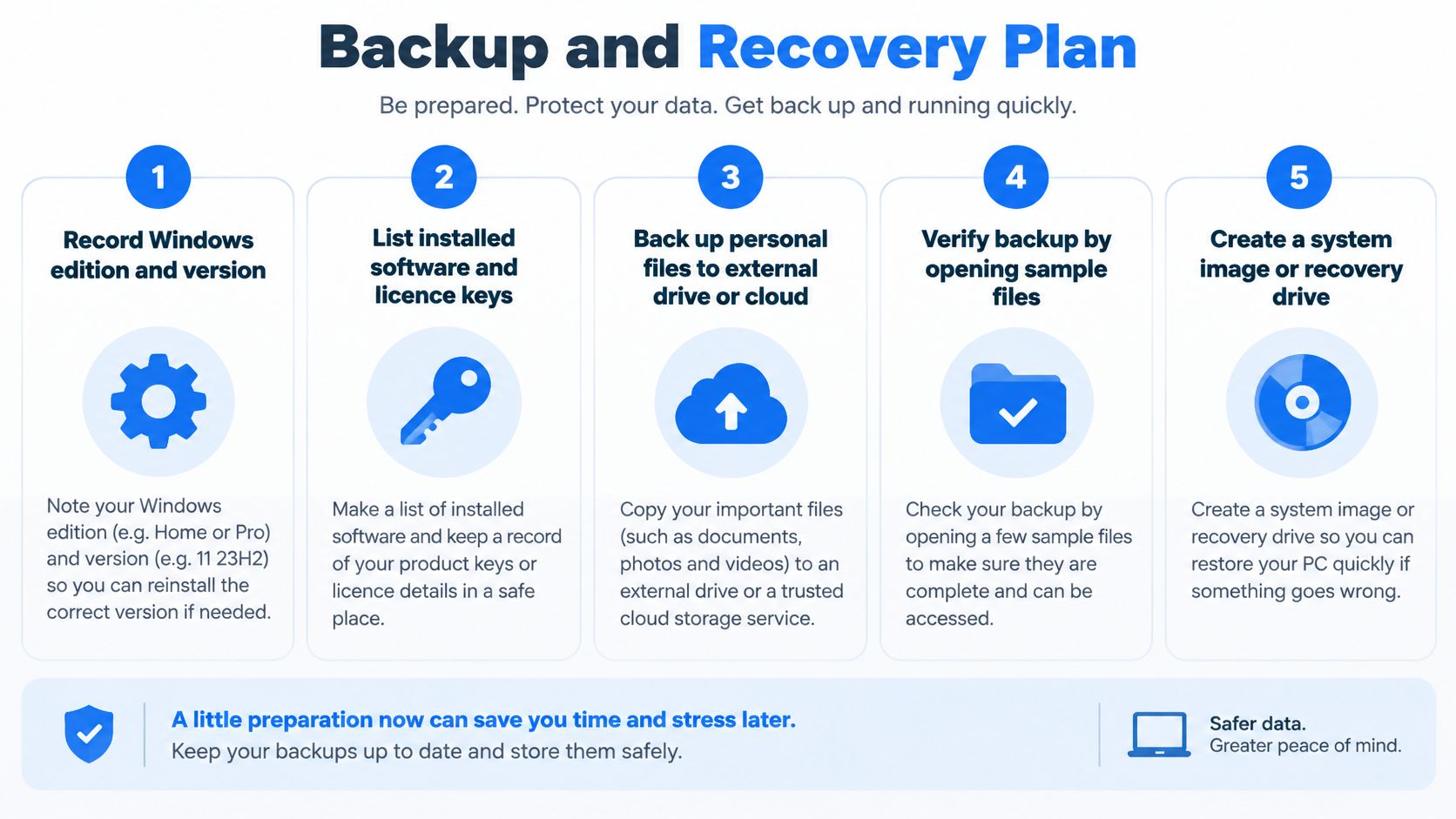
Most reinstall disasters happen before setup starts. Someone copies Documents, assumes everything important lives there, then discovers browser passwords, BitLocker recovery keys, email archives, and game saves were never included. Build a migration checklist, not a quick folder copy.
Record the Machine Before You Touch It
Open Settings and note the Windows edition, version, build, and activation status. Photograph those screens if the machine is unstable. List installed applications, where you obtained them, and any licence keys or account sign ins needed to restore them.
Check storage health in the manufacturer's diagnostic tool or another trusted utility before you proceed. Reinstalling onto a failing SSD or hard drive stresses the drive and can turn a software job into data recovery. If health warnings appear, stop and prioritise copying data, ideally by imaging the drive or keeping the original drive untouched and installing onto a replacement.
Copy What People Usually Forget
Browser profiles: Export passwords and confirm you can sign in to the browser account on another device.
Application data: Check Desktop, Downloads, email archives, accounting files, photo libraries, and game saves that live outside Documents.
Credentials: Save Wi-Fi details, VPN settings, and any two factor recovery codes you'll need after setup.
Encryption keys: Record BitLocker recovery keys for every encrypted drive before partitions change.
Licences: Note Microsoft and third party software activations, especially older purchased programs.
Prove the Backup Works
Verification means opening sample documents, photos, and archives from the backup on another PC. Check that filenames, dates, and contents look right, and confirm large folders finished copying. The principles in Edmonton backup best practices around testing restores apply just as well in Sheffield, because an untested backup is only a hope.
Keep a rollback path when the data matters. Retain a full drive image or the untouched source drive until the rebuilt machine has passed its final checks. That caution aligns with the warning in whether reinstalling Windows deletes your files, because deleting partitions destroys locally stored profiles, settings, and encryption material unless you've copied or exported them separately.
Finish this stage with a written handover note for yourself. Record what was copied, what was verified, where keys are stored, and how you'd recover if setup fails halfway. That document is more valuable than any installation shortcut.
Create Installation Media and Prepare the PC
Start with official media. Use a blank USB drive you're prepared to erase, then follow Microsoft's UK Windows 10 download and installation guidance to create installation media. Don't use a random ISO from a file sharing site, because you can't trust its contents or edition.
The visual sequence below covers the media creation workflow from download to USB preparation.
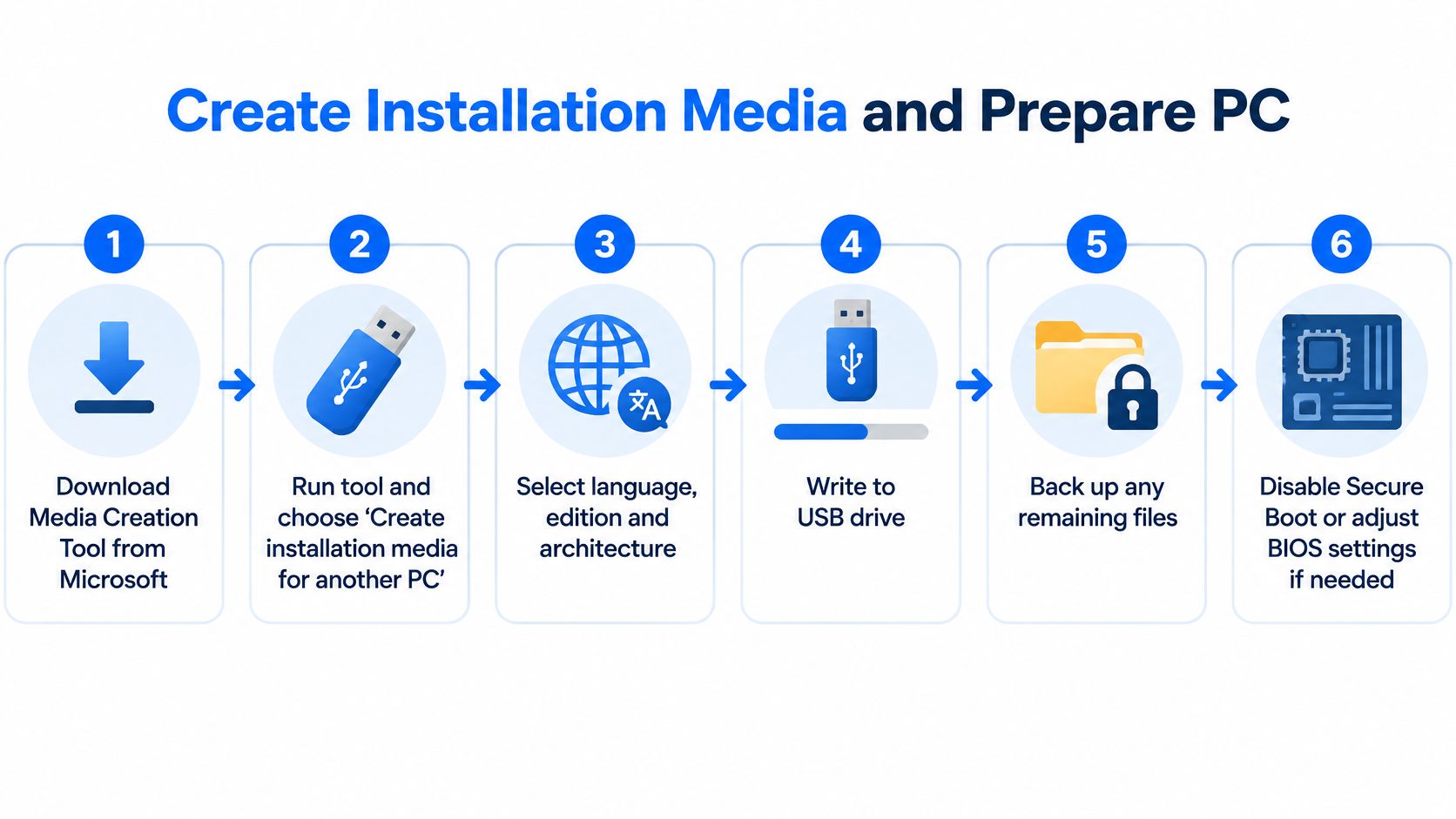
Confirm the target PC's edition and licence status before you boot from USB. If Windows 10 was previously activated on the same hardware, you normally won't need to enter a product key because activation can use the device's digital licence. That only works cleanly when you reinstall the same edition, so Home must stay Home and Pro must stay Pro.
Download Drivers Before You Need Them
Visit the PC or motherboard manufacturer's support page while you still have a working connection. Download chipset, storage, network, graphics, audio, and firmware drivers for the exact model and save them to a separate USB drive. Network drivers matter most, because a fresh install with no Wi-Fi or Ethernet can't fetch anything else.
A desktop with common components may cope with drivers supplied through Windows Update. A business laptop is different. It may need vendor software for function keys, fingerprint sign in, storage controllers, or a managed VPN, and generic drivers can leave those features missing or unreliable.
This short walkthrough shows the boot media process in action before you change any settings on the target machine.
Disconnect Extra Drives
Shut down and disconnect secondary SSDs, hard drives, and external storage, leaving only the target drive and installation USB connected. That single step prevents the worst partition mistake, deleting a data drive that looked similar in setup. Don't force open a sealed laptop just to remove an internal drive if that risks damage. In that case, identify every volume by size and label with extra care.
Charge a laptop and connect mains power. Keep your backup drive disconnected during installation so it can't be selected by accident. For the boot side of the process, installing Windows from a USB drive covers the practical media and boot menu steps you'll use next.
Install Windows 10 From the USB Drive
Restart the PC and open its one time boot menu or UEFI settings. The key varies by manufacturer, so use the prompt shown at power on or the manual for your model. Select the USB device in UEFI mode where offered, then confirm language, time format, and keyboard layout.
The hierarchy below maps the installation sequence from boot selection through account setup.
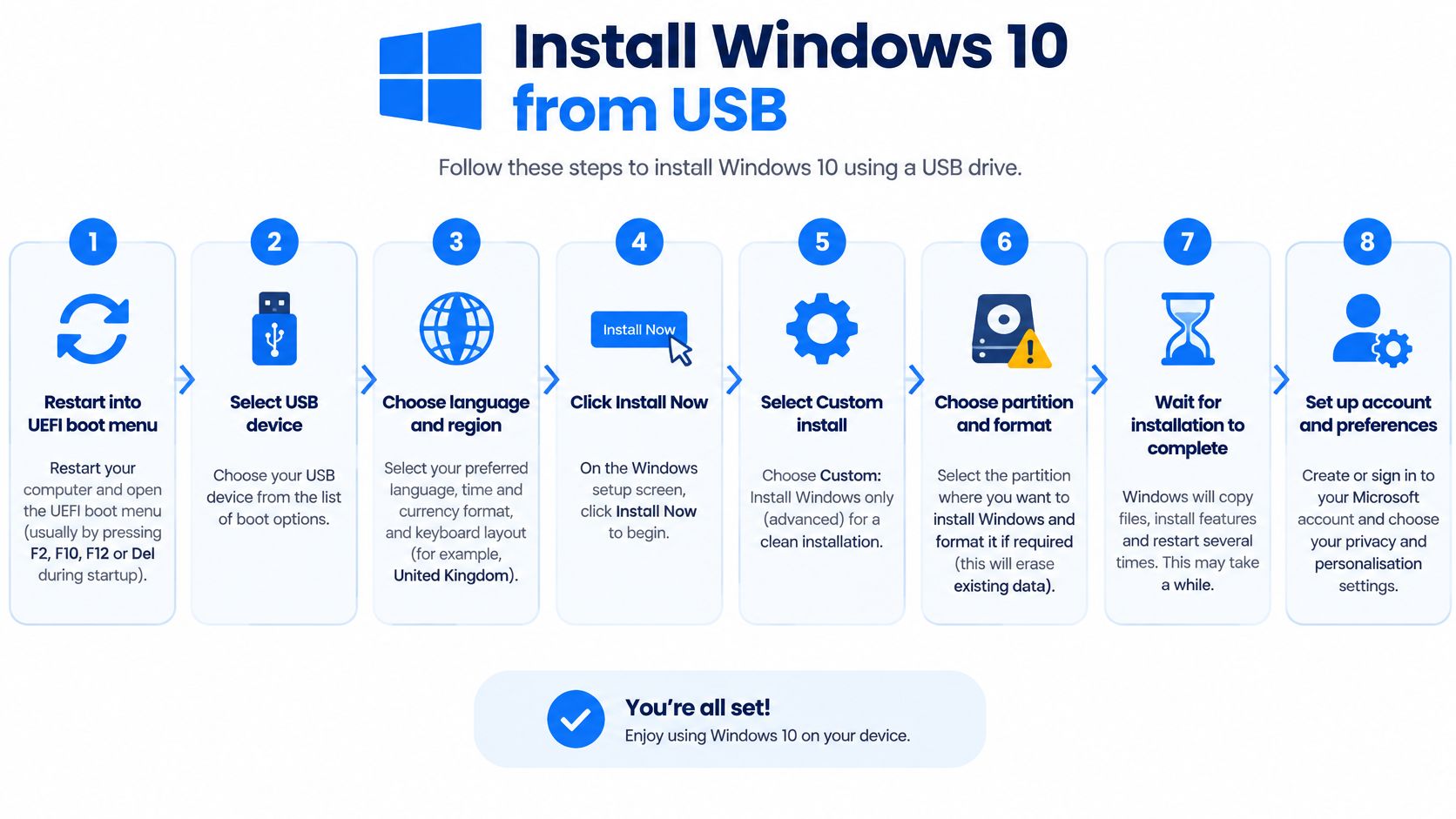
Choose Install now. If setup asks for a product key and the machine was previously activated with a digital licence, choose the option saying you don't have a product key, then select the exact edition that was licensed before. Selecting the wrong edition creates an activation problem you'll have to fix by reinstalling again.
Choose Custom Installation Carefully
Select Custom installation, because an upgrade option keeps the damaged system you're trying to replace. Setup then lists drives and partitions. Pause here. This screen causes irreversible data loss when people rush.
Identify the target disk by capacity, not by its position in the list. On a laptop where Windows lives on a 256 GB SSD and files live on a separate 1 TB drive, the 256 GB device is your target only after you've confirmed that layout from your earlier inventory. Disconnecting the 1 TB drive earlier removes that ambiguity entirely.
Delete only target system partitions: Remove the previous Windows, recovery, and system partitions on the target disk when you want a fully clean layout and don't need the manufacturer's recovery environment.
Preserve manufacturer recovery deliberately: Keep a vendor recovery partition if you rely on it for model specific restore tools, and understand that this isn't a totally blank disk.
Never guess between similar drives: Stop, exit setup, and disconnect or identify storage properly if sizes and labels don't match your notes.
Practical rule: If you can't name every partition on the screen, you aren't ready to delete any of them.
Select the unallocated space on the target disk and let setup create the partitions it needs. Files copy, the PC restarts, and you should remove or deprioritise the USB when prompted so setup doesn't loop back to the beginning. If it does loop, restart and boot from the internal drive instead.
Complete First Boot Setup
Work through region, keyboard, network, and account choices. A local account can be appropriate for an offline machine, a test system, or a device prepared for someone else, while a Microsoft account may suit a personal PC that needs synced settings and Store apps. Don't restore personal data yet. Drivers, activation, and basic hardware tests come first, so you aren't troubleshooting on top of copied profiles and applications.
Restore Drivers, Apps, Activation, and Security
Treat the first desktop as a workshop bench, not a finished PC. Connect to your network, open Windows Update, install everything offered, restart, and check again. Repeat until no further updates appear, remembering that ordinary security coverage has ended and update results won't change that underlying position.
Install Drivers in a Sensible Order
Install the manufacturer's chipset and storage drivers first, because they underpin device detection and disk performance. Follow with network, graphics, audio, and device specific packages for touchpads, card readers, fingerprint readers, and function keys. Restart when installers ask, even if the device appears to work already.
Open Device Manager after each round. Your target is no unknown devices and no warning symbols. A basic display driver may produce a picture, but it won't provide proper display acceleration, sleep behaviour, or game performance, so don't mistake a usable screen for a finished graphics setup.
On a gaming PC, install the current graphics package from NVIDIA or AMD for the exact card, then test a game or benchmark you already use. On a business laptop, install vendor security and connectivity software before you rejoin a VPN or re-enable BitLocker, because drivers and firmware tools often support those features.
Verify Activation Before Restoring Apps
Open Settings and confirm the displayed edition matches your licence and that Windows reports itself activated. A digital licence tied to the same hardware should activate automatically once the PC is online. If it doesn't, resolve the edition mismatch or account link now, before hours of application setup make another reinstall painful.
Restore applications from their original installers or accounts, then apply their updates. Reinstall your browser, sign in, and confirm saved passwords and bookmarks have returned before you copy old profile folders over the top. Copying a profile blindly can reintroduce the corruption you wiped Windows to escape.
Configure Security Without False Confidence
Turn on the built in firewall and antivirus protection, set a strong sign in password or PIN, and reapply encryption where appropriate. Reconnect cloud storage and check that new files sync in both directions. Restore user data in stages, opening samples as you go, rather than copying everything and testing nothing.
A stable desktop still isn't a supported desktop. Record that limitation in your handover note, especially for a family member or small business user who may assume a fresh install means fresh protection. That honesty lets the owner make a clear decision about Windows 11, replacement hardware, or an eligible Extended Security Updates route.
Troubleshoot Common Clean Install Problems
Don't wipe the machine again at the first fault. Most post install problems fall into a small set of causes, and each has a different response. Work by symptom, change one thing at a time, and write down what you tried.
Clean Install Troubleshooting Matrix
Symptom | First check | Sensible response |
|---|---|---|
No Wi-Fi networks shown | Device Manager for a missing network adapter | Install the manufacturer's network driver from your prepared USB |
Unknown devices remain | Hardware IDs and model support page | Install chipset first, then the specific device driver |
Windows not activated | Installed edition against your licence record | Correct an edition mismatch or link the digital licence account |
BitLocker asks for a key | Your recorded recovery key for that drive | Enter the correct key, don't reformat in hope |
Setup can't see the SSD | Storage mode and manufacturer storage driver | Load the correct storage driver or use vendor guidance |
Repeated crashes after setup | Storage health and memory diagnostics | Stop reinstalling and test the suspected hardware |
No sound or low resolution | Whether only generic drivers are installed | Replace them with manufacturer audio and graphics packages |
A generic driver from Windows Update is often enough to make hardware visible. It may not deliver full power management, audio enhancements, touchpad gestures, or stable graphics. When a feature worked before the wipe and doesn't now, compare the installed driver provider and date against the manufacturer's package before you suspect a hardware failure.
Storage faults need different handling. Installation freezes, disappearing drives, file errors during copying, and crashes that survive a clean install all point away from Windows settings. Check storage health, cables on a desktop, and temperatures, then protect the data. Repeatedly reinstalling onto a failing drive wastes your remaining chance to copy files cleanly.
A missing BitLocker recovery key is also a hard stop, not a setup inconvenience. Without the key, encrypted data is designed to stay inaccessible. Check the Microsoft account, business records, printed copies, and your pre wipe notes before anyone suggests another format.
Board level faults, liquid damage, and recovery from a failing drive are separate jobs from a Clean Reinstall Windows 10 service. Recognising that boundary early saves time and prevents a second wipe from destroying evidence a technician could have used.
Finalise the PC and Record Its New State
Run an acceptance test before you call the job finished. Confirm edition, build, activation, and Windows Update status, then check Device Manager has no unknown devices. A machine that boots once hasn't yet proved it's ready to hand back.
Test the Hardware You Actually Use
Connectivity: Test Wi-Fi, Ethernet, Bluetooth, and every USB port with a real device.
Display and sound: Play audio, check volume controls, confirm the correct resolution, and test sleep and wake.
Peripherals: Print a test page, check the webcam and microphone, and try any scanner or game controller.
Storage: Recheck drive health and free space after updates and application installs.
Restore the remaining user data and spot check documents, photos, browser sign ins, and application files with the owner present where possible. Remove installation media only after several reliable restarts. Keep the backup and original drive image until the machine has been used normally and nothing is missing.
Update your handover record with the installed edition and build, licence status, driver sources, applications restored, and any faults left unresolved. Microsoft's UK end of support guidance confirms PCs keep running after the deadline without ordinary security updates, fixes, or technical assistance, so record that risk plainly rather than burying it in setup notes.
Where the hardware supports Windows 11, treat migration as the longer term plan. Where legacy software forces you to keep Windows 10, check whether an applicable Extended Security Updates arrangement exists for that device and document the expiry position. Consumer coverage was described as potentially extending to 12 October 2027, while earlier UK guidance also described a one year period through October 2026, so eligibility must be checked for the specific programme rather than assumed.
If your backup won't verify, your drivers are missing, or you aren't confident identifying the right partitions, Steel City IT in Frecheville can run pre wipe diagnostics and a clean Windows reinstall with drivers and updates configured for Sheffield home and small business users. Visit Steel City IT to discuss your PC before you delete anything you can't replace.