
How Much to Build a Gaming PC in 2026: Costs by Tier

In the UK, how much to build a gaming PC is about £1,100 to £1,300 for a 1080p budget build, about £1,600 to £2,200 for a 1440p mid-range build and about £2,800 to £3,500 for a high-end 4K build. The first figure is a retail benchmark and the other two are estimates built from component prices.
Those gaps aren't driven by the case you pick or the colour of the lighting. They're driven by the graphics card, the monitor it has to serve, and the power it draws over years of use. Get those three decisions right and the rest of the budget falls into place. Get them wrong and you'll pay flagship money for an experience your display can't show.
Table of Contents
What a Gaming PC Costs in 2026 at a Glance - Typical Complete Gaming PC Price by Tier
Where the Money Goes in a Gaming PC Budget - Approximate Share of a Gaming PC Budget by Component
Sample Part Lists for Budget, Mid-Range and High-End Builds - Sample Part List by Gaming PC Tier - The Budget 1080p List - The Mid-Range 1440p List - The High-End 4K List
Performance Trade-Offs Between Tiers - What Changes at 1440p and 4K - The Two Ceilings Buyers Miss
Upgrade Paths That Stretch Your Budget - Upgrade Paths, Costs and Triggers
Real Setup and Running Costs Beyond the Tower - Share of a Gaming Setup by Budget Element
Which Tier Fits Your Play Style and Power Bill - What the Power Bill Actually Adds
What a Gaming PC Costs in 2026 at a Glance
Start with the only tier you can verify against a shelf price today. A realistic complete budget is approximately £1,100 to £1,300 including VAT, Windows, 16GB RAM and an RTX 5060-class GPU, with one listed system at £1,099.99 and another at £1,279.99 on that same retail page. That's your anchor. A DIY build chasing the same performance should be judged against it, not against a graphics card price on its own.
The mid-range and high-end figures work differently. They're estimates built up from component pricing, because at those tiers you're picking parts rather than accepting a fixed configuration. Once a stronger graphics card, a faster processor platform, more memory and a larger power supply go into the cart, the total moves quickly. Treat those ranges as planning bands you'll refine on purchase day, not as quotes.
Typical Complete Gaming PC Price by Tier
Tier | Target resolution | Typical complete price | Graphics card class |
|---|---|---|---|
Budget | 1080p high refresh | £1,100 to £1,300 | RTX 5060 class |
Mid-range | 1440p | £1,600 to £2,200 (estimate) | RTX 5070 12GB |
High-end | 4K, or max settings at 1440p | £2,800 to £3,500 (estimate) | RTX 5080 16GB or above |
Read the table column by column and one pattern stands out. The target resolution rises, the graphics card class rises with it, and the price follows. The supporting parts change too, but mostly because the card demands them, through higher power draw, more cooling and a processor that can keep up.
Practical rule: Pick your resolution first. It sets the graphics card, and the graphics card sets the price band you'll live in.
Two caveats apply to every figure here. UK prices include VAT, and prebuilt prices usually bundle Windows and a single warranty, which makes them a useful upper-bound benchmark for a DIY comparison. DIY totals move with component pricing and promotions, so a cart priced this week isn't a promise for next month. If a build looks far cheaper than its tier, something in the specification is probably carrying the saving for it.
Where the Money Goes in a Gaming PC Budget
A graphics card can take 30 to 40% of a gaming PC budget. The other parts share the remainder, with the processor usually the next-largest allocation. These percentages are an approximate rule of thumb from a retailer's guide, not a verified breakdown of a specific mid-range build: the GPU accounts for 30 to 40% of the total, while the CPU represents 15 to 20%, the motherboard 10 to 12%, RAM 8 to 10%, the SSD 8 to 10%, the power supply 7 to 8%, the case 5 to 7% and cooling 3 to 5%.
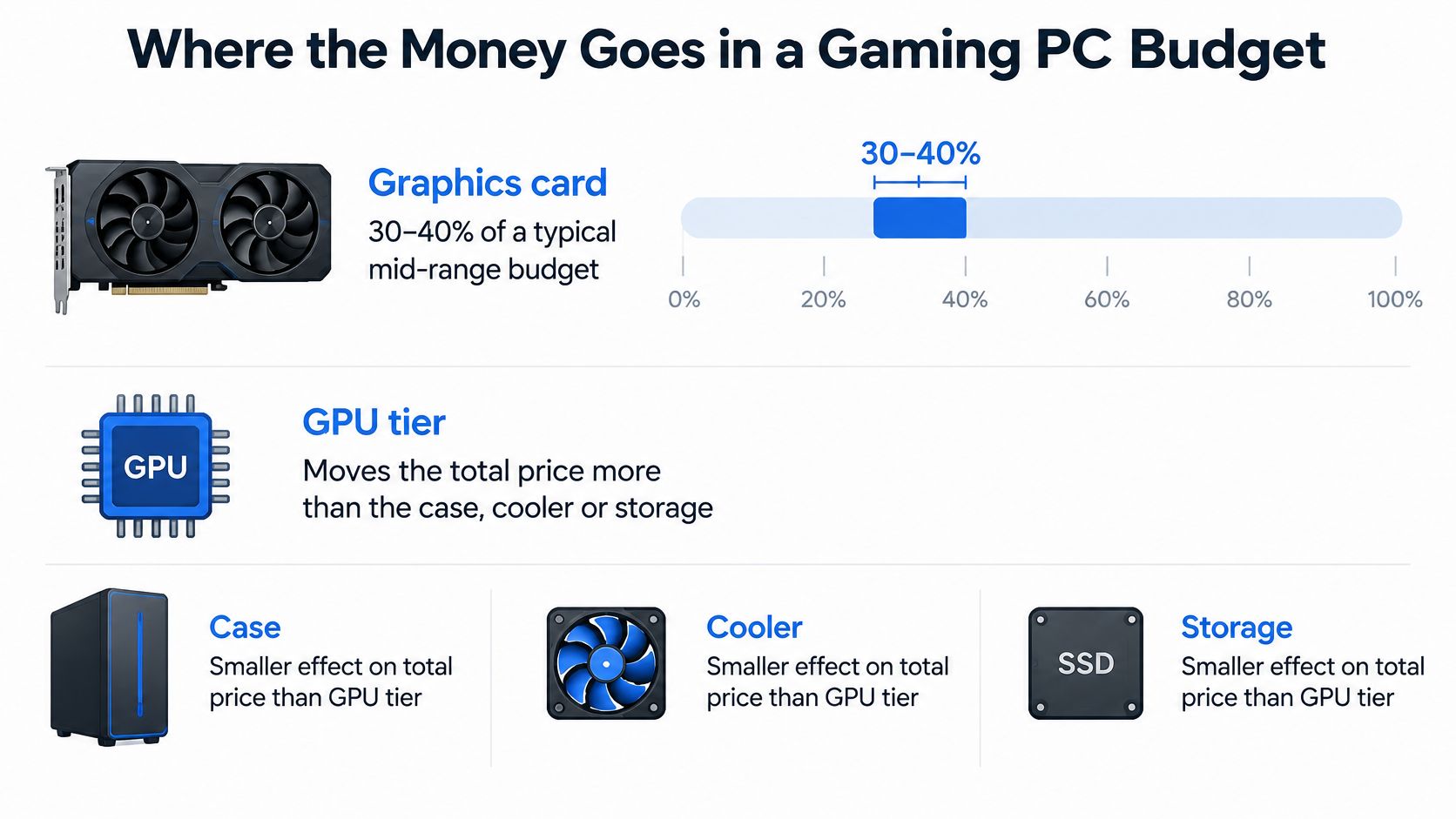
Approximate Share of a Gaming PC Budget by Component
Component | Approximate share |
|---|---|
Graphics card | 30 to 40% |
Processor | 15 to 20% |
Motherboard | 10 to 12% |
Memory | 8 to 10% |
Storage (SSD) | 8 to 10% |
Power supply | 7 to 8% |
Case | 5 to 7% |
Cooling | 3 to 5% |
The ranges are broad estimates, so their midpoints do not add up to exactly 100%. Use them to compare priorities, not as a precise shopping formula or a price quote for a particular build.
The graphics card sets the performance tier. The processor helps it deliver frames consistently, while the motherboard determines which processor and memory generation the system can support. Memory and storage are often easier to expand later, but a compatible motherboard and platform choice can shape the cost of those upgrades.
For budget planning, set aside money for the graphics card first, then allow for a quality power supply that suits the build. Cutting the power supply to afford cosmetic features can undermine the parts it is meant to support. The tower split also leaves out the monitor, electricity use and future upgrades, so it is not the full cost of owning a gaming PC.
Sample Part Lists for Budget, Mid-Range and High-End Builds
These example lists show how each tier fits together. They prioritise balanced performance over the lowest possible parts cost. Listed prices are examples, not live quotes, and the tower totals are estimates or retail benchmarks as labelled.
Sample Part List by Gaming PC Tier
Component | Budget 1080p | Mid-range 1440p | High-end 4K |
|---|---|---|---|
Graphics card | RTX 5060 class | RTX 5070 12GB (£637.49 listed) | RTX 5080 16GB (£1,249.99 listed) |
Processor | Ryzen 5 5600 | Ryzen 7 9850X3D (CPU and board bundle £425.82 listed) | Ryzen 9 or Core i9 class |
Motherboard | B550-class AM4 | B650 class | X870 or Z890 class |
Memory | 16GB DDR4, upgrade to 32GB DDR4 | 32GB DDR5 | 32GB or 64GB DDR5 |
Storage | 1TB NVMe SSD | 1TB or 2TB PCIe 4.0 NVMe | 2TB PCIe 4.0 or 5.0 NVMe |
Power supply | Quality 650W | 750W | 850W or higher |
Cooling | Tower air cooler | Air cooler or 240mm AIO | 360mm AIO or large air cooler |
Complete tower, VAT included | £1,100 to £1,300 (retail benchmark) | £1,600 to £2,200 (estimate) | £2,800 to £3,500 (estimate) |
The Budget 1080p List
The budget configuration pairs an RTX 5060-class graphics card with a Ryzen 5 5600 on an AM4 B550-class motherboard. That platform uses DDR4, so start with 16GB and add memory to reach 32GB when the budget allows. B650 boards use AM5 processors and DDR5, so they are not an upgrade option for this Ryzen 5 5600 build.
A 1TB NVMe SSD, quality 650W power supply and tower air cooler round out the system. The main compromise is upgrade headroom, not a deliberate cut to a core component. It targets 1080p gaming now, while the memory and storage can be expanded later without replacing the graphics card or processor.
The Mid-Range 1440p List
The graphics card takes a larger share of this build. Current listings include an RTX 5070 12GB at £637.49, an RTX 5080 16GB at £1,249.99 and a Ryzen 7 9850X3D CPU and motherboard bundle at £425.82. Those core-part examples alone take the tier well beyond the budget build, before adding a case or the remaining components. Prices can shift with stock and bundle offers.
Pair the card with 32GB of DDR5 as the starting configuration, plus a 1TB or 2TB PCIe 4.0 NVMe drive and a 750W power supply. Cooling can remain straightforward: a capable air cooler or a 240mm AIO is suitable, while good case airflow matters more than choosing a larger radiator by default.
The main compromise is VRAM. 12GB suits conventional 1440p rasterised gaming, but provides less room for high-resolution textures and newer releases that use more memory. Buyers who prioritise those settings may prefer a card with more VRAM, though that can raise the build cost.
The High-End 4K List
For a high-end build, pair an RTX 5080 16GB or above with a Ryzen 9 or Core i9-class processor and an X870 or Z890-class board. The configuration uses 32GB or 64GB of DDR5, a 2TB PCIe 4.0 or 5.0 SSD, an 850W or higher power supply, and either a 360mm AIO or a large air cooler. These supporting parts account for the graphics card's power draw and heat output; choosing them poorly can mean more noise, higher temperatures or a costly replacement.
A flagship graphics card can be held back by a weak platform. An entry-level processor or restricted airflow may reduce smoothness even when average frame rates look strong.
Treat all three totals as starting points. Graphics card prices move quickly, and bundle discounts can change which combination offers better value. Check the full cart before buying, including the monitor and any peripherals if they are not already owned. The tower price alone does not show the total cost of a setup, and a discount on a higher-tier card can change the value calculation.
Performance Trade-Offs Between Tiers
Price bands only matter if you know what they buy in frames. The budget tier's realistic target is stable 60 to 144 frames per second at 1080p, depending on the game and settings. That's a wide range because genre matters more than buyers expect. A competitive shooter and a cinematic open-world title stress completely different parts of the same machine.
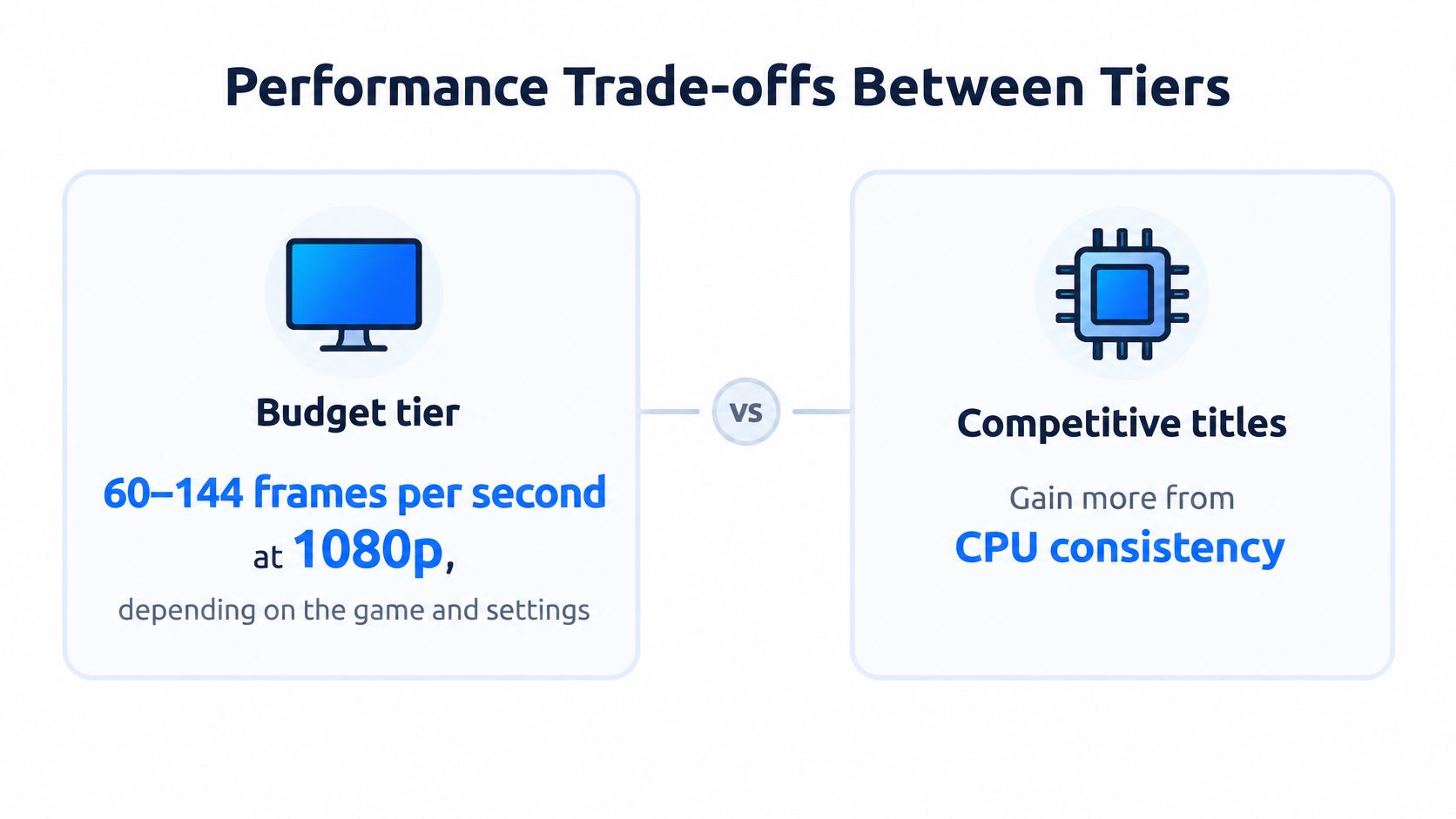
For competitive titles, the priority inverts. Those games gain more from CPU consistency and monitor refresh rate than from a costlier graphics card, because they're usually limited by how fast the processor can prepare frames rather than how fast the GPU can draw them. Spending up a GPU tier to chase frames your processor can't deliver is the classic budget-tier error.
What Changes at 1440p and 4K
At 1440p the workload shifts back to the graphics card. An RTX 5070-class card handles conventional rasterised gaming well, while the 16GB on the tier above gives more margin for high-resolution textures, ray tracing and newer releases. The difference isn't only average speed. It's how long the card stays comfortable as games grow heavier.
The high-end tier is the one that holds up at 4K, or at 1440p with maximum settings and heavy ray tracing switched on. Below that level you're making choices, turning down shadows here, reducing texture quality there. At the top tier you're paying specifically to stop making those choices.
The Two Ceilings Buyers Miss
Memory is the first. 16GB is workable for current games, but it's tight once a browser, voice chat and background applications are open alongside them. The result isn't a dramatic crash. It's hitching when the system runs out of room and starts leaning on storage, which feels like a graphics problem and sends people shopping for the wrong part.
1% lows are the second, and they're the more useful measure. Average FPS can look healthy while frame-time spikes from a CPU bottleneck or thermal throttling make the game stutter. Benchmark tools that report 1% lows reveal those dips, and they're what your hands feel. A balanced build with modest averages and strong 1% lows plays better than an unbalanced one with higher averages and poor lows.
Judge a build by its worst moments, not its average. Stutter lives in the 1% lows.
Diminishing returns arrive fast above the middle. The step from one graphics card tier to the next costs far more than the step from 1080p to 1440p in real enjoyment, and a weak processor wastes an expensive card entirely. Match the GPU to your monitor's resolution and refresh rate first. Only move up a tier when the display can show what you're paying for.
Upgrade Paths That Stretch Your Budget
A well-chosen budget build isn't a dead end. It's a starting point with a sensible order of improvements, and the order matters because some upgrades make others possible while some are blocked until you make room for them.
Start with memory. If you're on 16GB, moving to 32GB removes the multitasking ceiling for relatively little money. Next comes storage, when a growing library outgrows your first drive. Cooling follows if long sessions bring throttling and stutter. The graphics card comes last, deliberately, because it's the biggest spend and it depends on everything else being ready.
Upgrade Paths, Costs and Triggers
Upgrade | Approximate cost | What it changes | When it is worth it |
|---|---|---|---|
Memory to 32GB | About £60 to £100 (estimate) | More headroom for modern games and multitasking | Running 16GB with a browser and background apps |
Storage to 2TB NVMe | Varies by model (estimate) | Space for large game installs | Library has outgrown 1TB |
Cooler or AIO upgrade | About £30 to £150 (estimate) | Lower temperatures and less throttling | Stutter appears in long sessions |
Power supply replacement | Varies by wattage (estimate) | Headroom for a larger GPU | Planning a GPU upgrade on a 650W unit |
GPU replacement | Largest single spend; varies by model | Higher resolution and frame rate | CPU and monitor can keep up with the card |
All costs in that table are estimates to verify against current prices. Memory and storage pricing in particular shifts with supply, so treat the figures as a guide to relative scale rather than a quote.
The power supply is the gatekeeper. A budget build on a 650W unit can accept a later graphics card only if that unit has genuine headroom and the right connectors, so check wattage before you buy a larger card, not after it arrives. If you're planning ahead, a staged PC upgrade route lets you sequence those purchases instead of replacing the whole machine.
Processors carry their own trap. Confirm the motherboard socket and BIOS support before buying a newer CPU, because an incompatible choice can force a board upgrade and possibly new memory too. Cooling is the opposite, cheap relative to a graphics card and often the fix for performance that fades twenty minutes into a session.
Before any upgrade, run three checks:
Power supply wattage: Confirm headroom and connectors for the new part.
Case clearance: Measure graphics card length and cooler height against your case.
Socket and platform: Verify processor, board and memory generation all match.
Real Setup and Running Costs Beyond the Tower
A complete gaming setup costs more than its tower. The monitor, keyboard, mouse, headset, Windows licence, Wi-Fi equipment and surge-protected power lead all affect the amount you need to set aside.
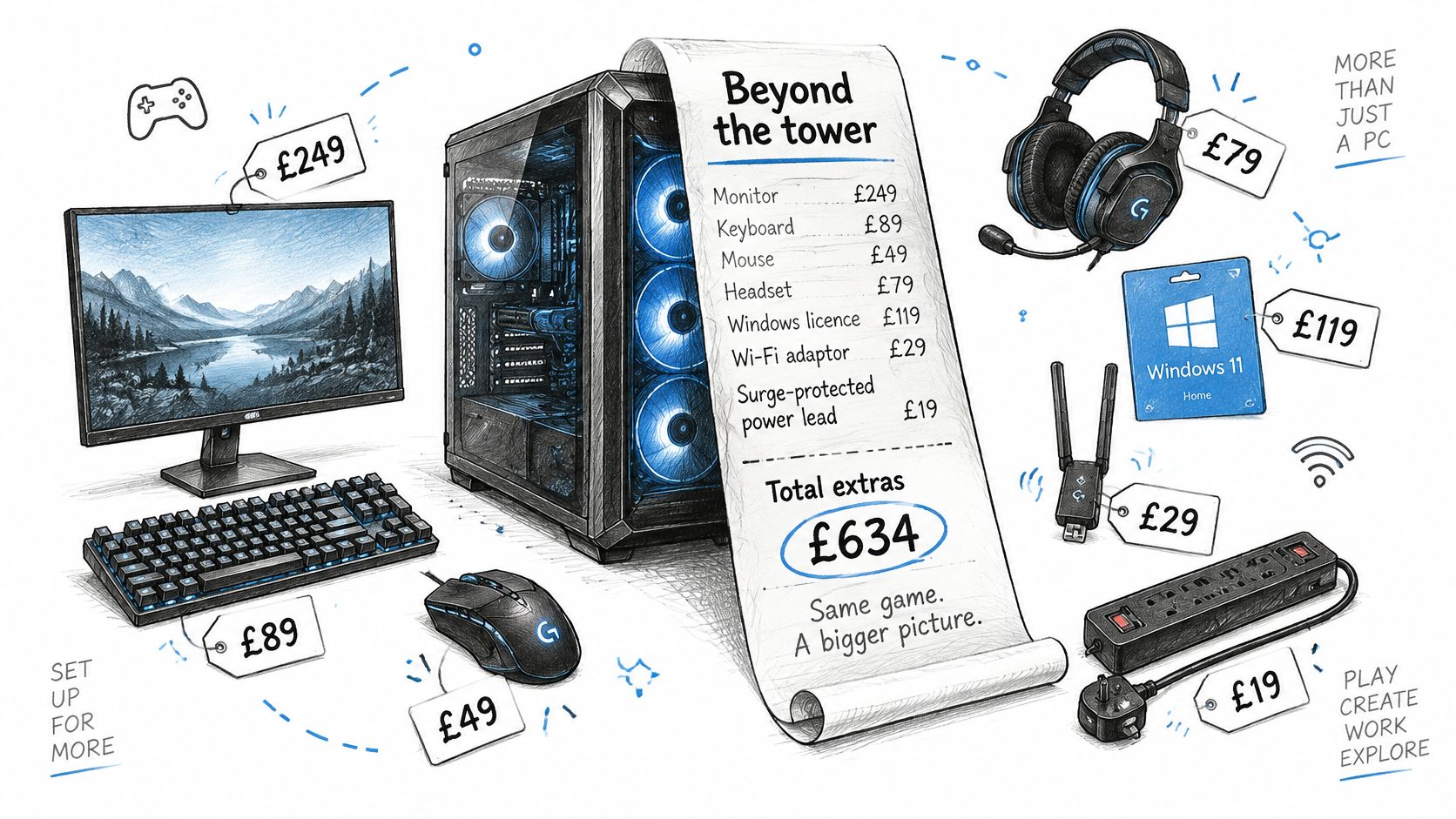
UK buyer guidance estimates that monitors, peripherals and accessories account for roughly 25.6% of a 1080p setup and 28.7% of a 1440p setup. Use those shares to plan the budget, rather than treating the source's complete-setup totals as targets: they do not align with the tower price bands used in this article.
Share of a Gaming Setup by Budget Element
Budget element | 1080p setup | 1440p setup |
|---|---|---|
Monitor, peripherals and accessories | 25.6% | 28.7% |
Tower and remaining budget | 74.4% | 71.3% |
For a £1,100 1080p tower, setting aside the 25.6% peripheral share means budgeting about £378 for the rest of the setup, or roughly £1,478 overall. For a £1,600 1440p tower, the 28.7% share works out at about £643, bringing the planned total to roughly £2,243. These are estimates based on the cited proportions, not current retail quotes. If your total budget is £800, it will not cover the article's entry-level tower tier plus a complete set of peripherals. Reuse equipment where possible or save until both the PC and display fit the budget.
The video below shows how the costs around a tower can add up.
The monitor also determines how much of the graphics card's performance you can see. A flagship tower paired with a basic 60Hz display cannot show the frame rate it was bought to deliver. Choose the display first, then select a graphics card suited to its resolution and refresh rate.
Electricity is another ongoing cost. Actual consumption depends on the components and how long the PC runs, so check your system's draw and consider ways to reduce a PC's power consumption. Before setting a final budget, check what you can reuse: an existing monitor, Windows licence, SSD or peripherals can lower the amount you need to spend.
Which Tier Fits Your Play Style and Power Bill
The right tier depends on the games you play, the display you own and the time the PC spends running. A higher purchase price buys capability you may not use, while a cheaper tower can limit performance on a demanding screen.
For a competitive shooter player using a 1080p high-refresh monitor, the budget tier can make sense, with spending directed toward the processor and display rather than a larger graphics card. A single-player gamer targeting ray tracing at 1440p is more likely to benefit from mid-range graphics, where extra memory and processing power support those effects. Streaming or editing video alongside gaming also calls for more memory and processor headroom, with the appropriate tier depending on the demands of the editing work.
A living-room player using a 4K TV should weigh the high-end tier against both the display and the total budget: rendering at 4K can make it the costliest option. A student or first-time buyer on a tight budget could start with a budget build and add 32GB of memory later, rather than stretch for mid-range parts by cutting corners on the power supply.
Match the build to the screen and games you use. Paying for specifications you do not need raises the cost without improving your experience.
What the Power Bill Actually Adds
The following are illustrative estimates, not measured results. At an electricity unit rate of 26.11p per kWh for the July to September 2026 price cap period, assume a 245W budget PC and a 675W high-end PC each run for four hours a day, every day. On those shared usage assumptions, estimated electricity costs are about £7.77 per month for the budget PC and £21.38 per month for the high-end PC. That is a difference of about £163 per year, attributable to the assumed wattage difference, not different play schedules.
These calculations use the stated wattages as inputs, rather than measured consumption for particular builds. They exclude idle use, sleep draw and the monitor, so an actual household bill will vary. Hours matter too: a high-end system used less often can cost less to run than a budget system used for longer.
Power limits, effective cooling and replacing an older, power-hungry graphics card can reduce consumption. A larger power supply does not automatically use more electricity; the PC draws power according to its needs.
Compare that annual running-cost difference with the purchase-price gap between tiers over the period you expect to keep the PC. If a used flagship costs less upfront but draws more power, the extra bill can narrow its price advantage, though the size of that effect depends on your usage and the price difference. Choose for your resolution and games, then include expected play hours and the monitor in the running-cost calculation.
Choose Your Tier and Build Route
Start with the resolution you want to play at, then set a total budget that includes the monitor. The tower is only part of the cost: display choice affects the performance you need, while power use and future upgrades shape the longer-term spend.
Building it yourself is usually the cheapest route and gives you control over each component. You provide the time and take responsibility for installing Windows and drivers, as well as handling separate warranty claims if a part fails. Buying a prebuilt is faster and usually gives you one warranty and point of contact. Check the component list against the tier you're paying for, rather than relying on the graphics card in the headline.
Compare systems on the same criteria:
Graphics performance and processor generation: These set the performance tier.
RAM and SSD capacity: Check that neither has been reduced to meet a headline price.
Power supply quality and cooling: These affect reliability and room for later upgrades.
Windows and support: Confirm whether a licence is included and who handles faults.
Local assembly is an option if you want a custom specification without assembling the PC yourself. Steel City IT, based in Frecheville, designs, assembles, configures and tests custom gaming PCs for customers across Sheffield, including Birley, Hackenthorpe and Woodhouse, using genuine parts. For an overview of the assembly process, read this walkthrough of building a custom gaming PC.
Before paying, check the graphics card's current price, as component prices can move. Match the monitor's refresh rate to your target frame rate, confirm whether Windows is included, and read the warranty terms. Include the display in your budget, and consider whether the chosen tier leaves room for the upgrades you may want later.
If you have a tier in mind but prefer not to manage compatibility or assembly, Steel City IT can design, build, configure and test a custom gaming PC around your budget and target resolution. The specification can balance the parts rather than prioritising a headline graphics card over the rest of the system. Visit Steel City IT to discuss your budget, tier and display.