
How to Improve Laptop Battery Life: A Practical 2026 Guide

You're halfway through a meeting when the battery warning appears. The charger is in another room, the laptop says it has plenty of charge left, and then the screen goes black before you can save your work. That situation often leads people to search for how to improve laptop battery life, but the useful answer isn't just “turn down the brightness”.
Some laptops lose runtime because software is working unnecessarily hard. Others have batteries that have aged and can't store the energy they once could. The difference matters. Settings can reduce drain from a healthy battery, but no power plan can restore capacity that a worn lithium-ion cell has lost.
Table of Contents
Why Laptop Batteries Wear Out and What That Means for You - The useful rule behind every battery tip
Managing Heat, Software, and Firmware for Long-Term Health - Find the processes creating the drain - Check firmware and power controls
Reading Your Windows Battery Report Step by Step - Read the report in the order Windows presents it
Warning Signs Your Battery Needs Replacing - Separate wear from a safety problem
Why Laptop Batteries Wear Out and What That Means for You
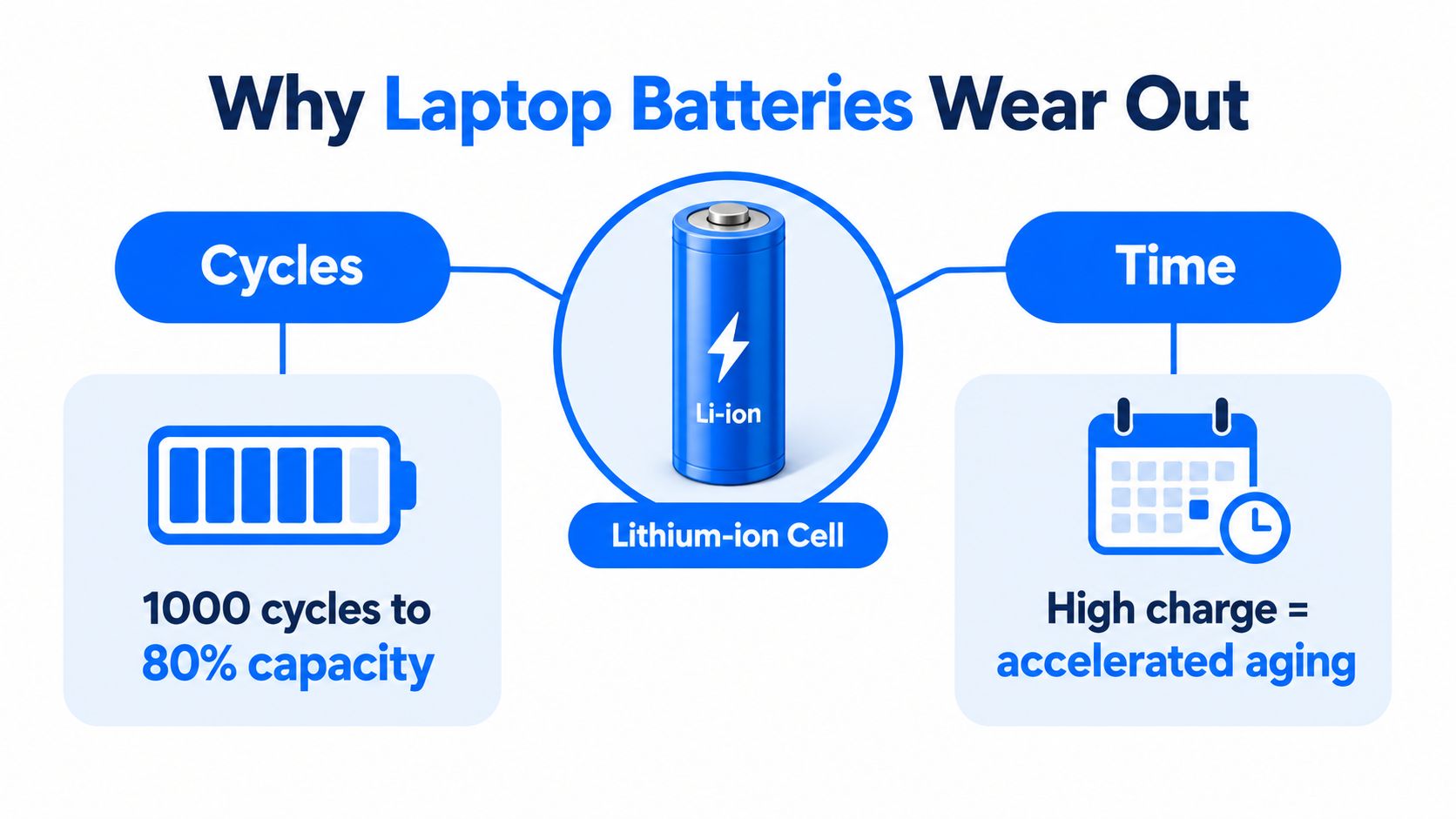
Laptop batteries use lithium-ion cells, and those cells age through two related processes. The first is cycling, which happens as the battery supplies energy and then receives it again. The second is calendar ageing, which continues even when the laptop isn't being used. Heat accelerates both forms of wear, while spending long periods at a high state of charge adds further stress.
A battery doesn't need to reach zero before a cycle has occurred. Several partial discharges can collectively represent a full cycle. That's why a laptop used on battery every day gradually accumulates wear even when you never deliberately run it flat.
UK-accessible guidance summarised by iFixit's laptop battery care guide reports that a battery cycled from empty to full may last about 300 to 500 cycles, while one kept around 80% charge may last about 850 to 1,500 cycles. These are useful service-life reference points, not a guarantee for every model, because cell quality, temperature, charging circuitry and workload all vary.
Older nickel-based batteries encouraged users to manage a so-called memory effect. That advice doesn't translate neatly to modern lithium-ion packs. Repeatedly draining a current laptop to empty isn't a health treatment. It adds avoidable stress and can leave the machine vulnerable to sudden shutdowns.
The useful rule behind every battery tip
Practical rule: Reduce unnecessary cycles, avoid prolonged high charge, and keep the laptop cool.
That rule explains why moderate charging, sensible power settings and good airflow work together. Lowering brightness reduces energy use during a session. A charge limit reduces time at high voltage. Keeping the laptop away from heat reduces thermal stress. The rest of this guide applies those three ideas to everyday Windows use and to the point where replacement becomes more sensible than optimisation.
Quick Settings Changes That Boost Runtime Immediately
Start with changes that reduce the laptop's workload rather than chasing obscure registry tweaks. Open Settings > System > Power & battery in Windows and choose a power mode that favours efficiency when the machine is unplugged. Turn on Battery Saver, then review which apps are permitted to run in the background.
Use this short checklist before travelling:
Reduce the display load: Lower brightness to a comfortable level. The screen is often one of the most visible drains, especially during video playback or document work.
Stop unnecessary startup activity: Disable programs that launch with Windows but aren't needed during a mobile session. This guide to disabling startup items shows where to find those controls.
Close active browser work: A tab playing video, maintaining a live connection or refreshing data can keep the processor and network active even when it looks idle.
Pause cloud synchronisation: Pause OneDrive or another sync client while you're travelling if you don't need files uploaded immediately. Resume it when the charger is available.
Use integrated graphics: On a hybrid-GPU laptop, select the integrated GPU for office work in Windows Graphics settings or the manufacturer's control panel. Reserve the dedicated GPU for applications that need it.
Switch off unused radios: Turn off Bluetooth when wireless peripherals are disconnected. Use Airplane mode for local documents, downloaded media or other work that doesn't need Wi-Fi.
Screen brightness and background applications are worthwhile adjustments, but they aren't magic. If a browser is streaming video, a cloud client is processing a large folder and a dedicated GPU is awake, changing one brightness slider won't solve the main drain.
Dark mode can reduce energy use on some OLED panels because individual pixels can use less power when showing darker content. That benefit doesn't apply in the same way to every LCD screen, so treat dark mode as a useful display choice rather than a universal battery fix. Keyboard backlighting is another small drain. Turn it off for long writing sessions if you can work comfortably without it.
Charging Habits That Make the Battery Last for Years
A laptop used at a desk rarely needs to sit at full charge all day. For routine work, keep the battery roughly between 20% and 80%, then charge fully when you need the longest possible unplugged session. This reduces time spent at a high state of charge and avoids repeatedly using the deepest part of the discharge range.
As the cycle figures discussed earlier show, partial charging reduces the stress associated with deep cycles. The iFixit explanation of partial charging and battery cycles provides the underlying chemistry and cycle-life context. Partial charging does not stop normal ageing, but it can slow wear when the laptop spends much of its life on a charger.
Daily Charging Pattern | Capacity at 500 Cycles | Best Use Case |
|---|---|---|
Repeated empty-to-full charging | Approaching the end of the 300–500 cycle range | Occasional situations where maximum runtime is needed |
Moderate charging around the everyday operating band | Useful capacity retained well past 500 cycles | Routine office, study and home use |
Charge limit while docked | Reduced exposure to full charge | Desks, docking stations and fixed workspaces |
Set the limit through the utility supplied with your laptop. Lenovo Vantage, MyASUS, Dell Command and HP Support Assistant may include battery-care or charge-limit controls, although the menu varies by model. If the machine stays on a desk, a limit around the everyday operating range is more sensible than leaving it full indefinitely.
Keeping a laptop plugged in is mainly a battery-health question, not an electricity-cost problem. The larger concern is prolonged exposure to a high state of charge.
A Which? test found that leaving a laptop charging all day cost about £6.83 per year, compared with about £6.03 when charging only as needed in a 30% to 80% range. The difference was roughly £0.80 annually. The Which? laptop charging test concluded that battery longevity, rather than bill savings, is the meaningful reason to change the habit.
Storage matters too. Do not leave a spare laptop battery in a hot car or exposed shed. Keep it in a cool, dry drawer, and avoid storing it fully charged for long periods. Heat combined with a high charge level accelerates stress on lithium-ion cells.
Managing Heat, Software, and Firmware for Long-Term Health
A laptop that runs hot can lose battery runtime before the battery itself has failed. Heat also raises fan activity and processor power draw, creating a feedback loop. Put the machine on a hard, flat surface instead of bedding or a soft sofa, and check that the intake and exhaust vents aren't blocked.
Dust clearance helps maintain airflow. Shut the laptop down, disconnect power, and use short bursts of compressed air as appropriate for the model. Don't force debris deeper into the chassis, and don't open a sealed machine unless you're comfortable disconnecting its battery safely. If an older laptop still runs hot after cleaning, degraded thermal paste or a failing fan may need attention.
Find the processes creating the drain
Press Ctrl + Shift + Esc to open Task Manager and sort the Processes view by CPU, Memory or Power usage. Look for browser tabs, indexing services, cloud-sync clients, launchers and update processes that remain active when you aren't using them.
Resource Monitor, opened from the Windows search box, gives a more detailed view of processor, disk and network activity. End only tasks you recognise. If a process repeatedly returns and consumes resources, investigate the application or its startup settings rather than killing it every few minutes.
For broader preventative care, this practical resource on how to keep your laptop running smoothly covers cleaning and airflow habits that complement battery-focused changes.
Check firmware and power controls
Look in the BIOS or UEFI for battery-care, thermal or charging-limit settings. Manufacturer utilities can expose controls that Windows doesn't show directly. Install suitable BIOS, chipset and driver updates when the manufacturer provides them, because power-management behaviour can depend on firmware and platform drivers.
Undervolting can lower processor voltage and heat on hardware that supports it, but modern firmware often blocks the feature. Don't force an unsupported tweak. Stability matters more than a small theoretical saving, and an undervolt that causes crashes can create data-loss problems.
If high temperatures persist, use a dedicated troubleshooting guide such as this laptop overheating repair advice before assuming the battery is at fault.

Reading Your Windows Battery Report Step by Step
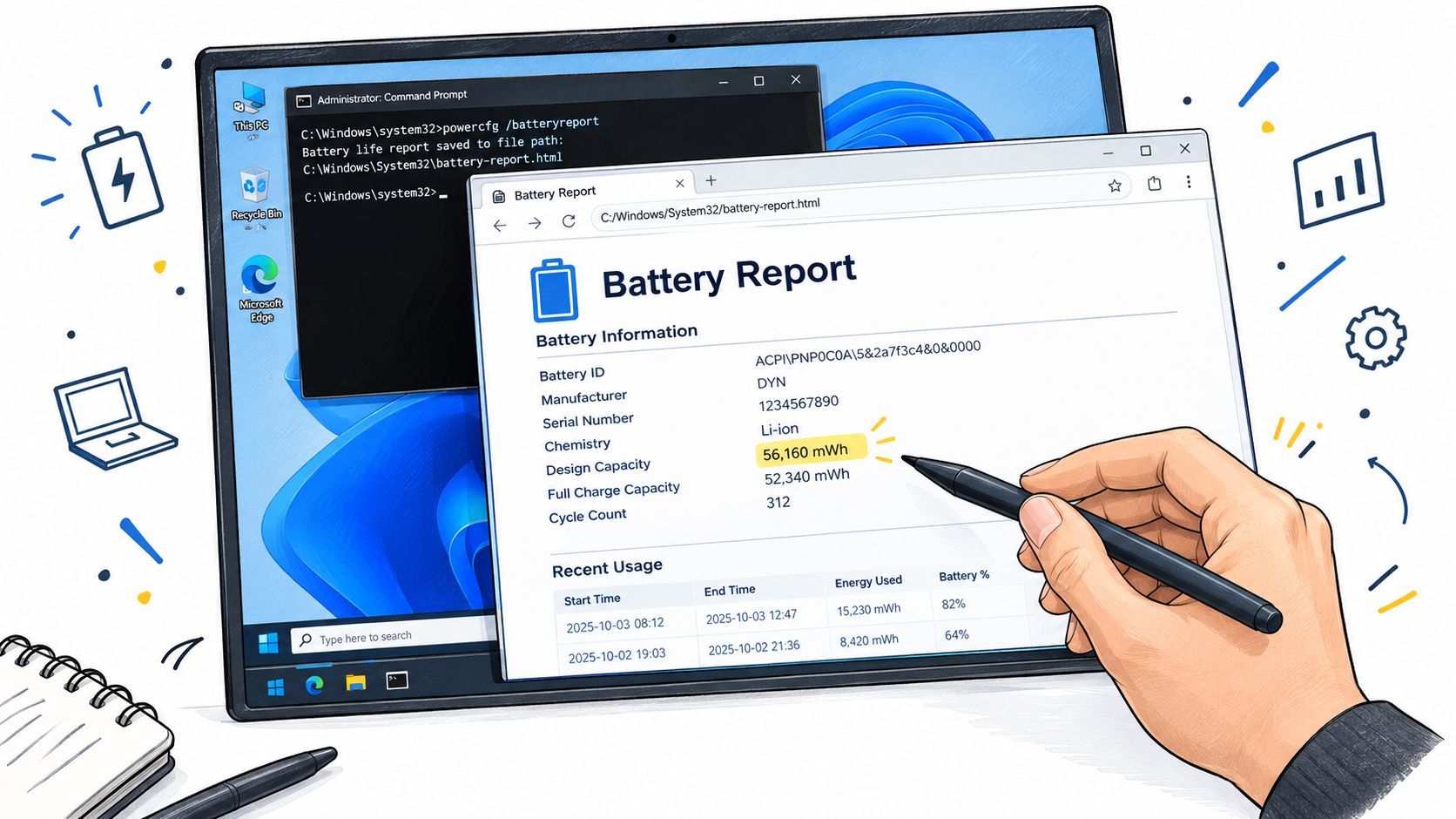
Windows can separate a configuration problem from a worn battery. Open Command Prompt or Windows Terminal as Administrator and run:
Open the generated HTML file in a browser. Start at Installed Batteries. Compare Design Capacity, which describes the intended storage capacity, with Full Charge Capacity, which shows what the battery can currently accept. Check the chemistry field as well, although the capacity comparison is the more useful first diagnostic.
Read the report in the order Windows presents it
Recent Usage shows when the laptop was active and whether it was running on battery or mains power. Look for sessions where the charge falls unusually quickly. A short session with heavy video, gaming or updates isn't automatically a fault, so match the drain to what you were doing.
Battery Usage helps identify demanding applications. A browser, video editor or game can account for high consumption during legitimate use. A background application that remains active while the laptop is idle deserves more investigation.
Usage History provides a longer view of battery and mains use. On supported systems, it may include cycle information. A high cycle count alongside a reduced full-charge capacity points towards ordinary cell wear, while normal capacity with rapid drain points more towards software, workload or thermal behaviour.
A simple way to interpret the capacity figures is to compare the current full-charge value with the design value. If the current figure is close to the original specification, start with settings, background processes and heat. If it has fallen materially below the design figure, habits may slow further wear but won't restore the missing capacity.
The equivalent information on macOS appears in System Information > Power. On Linux, can provide similar battery details, depending on the distribution and hardware.
Use the report as a decision tool, not as a single-number verdict. Capacity loss, unexpected shutdowns and abnormal heat together justify professional diagnosis. A healthy capacity reading with poor runtime usually calls for software and workload investigation first.
Warning Signs Your Battery Needs Replacing
The most important distinction in the report is between Design Capacity and Full Charge Capacity. Design Capacity is the baseline supplied by the manufacturer. Full Charge Capacity is the amount the ageing battery can currently store. Divide the current full-charge figure by the design figure to estimate the proportion of original capacity remaining, then subtract that result from the original capacity to understand wear.
UK repair guidance notes that laptop batteries commonly begin showing significant wear after about 300 to 500 charge cycles, and that users should expect noticeably shorter runtime below roughly 80% of original capacity. The UK battery-health guide on checking laptop condition provides that practical benchmark.
A battery below that level isn't automatically dangerous, and a battery above it can still have a fault. The pattern matters. Sudden shutdowns while Windows still reports meaningful charge, abnormal heat during light work, and a machine that performs normally only when connected to mains power all deserve attention.
Separate wear from a safety problem
Stop using the laptop and arrange an assessment if the bottom panel is swollen, warped or lifting. A visibly swollen lithium-ion cell isn't a settings issue. Don't press the casing flat, puncture the pack or continue charging it unattended.
Windows may also show a red battery warning or a message such as “consider replacing”. Treat that as evidence, not a complete diagnosis. A faulty charge controller, damaged sense line or incompatible charger can imitate battery failure, while a worn cell can coexist with a charging-circuit fault.
Battery Wear Level | Typical Runtime Impact | Action Recommended |
|---|---|---|
Below the practical wear threshold | Runtime may remain acceptable, especially with efficient settings | Keep the charge limit and thermal habits in place |
Around or beyond 20% wear | Shorter unplugged sessions become more noticeable, particularly under heavy workloads | Plan a replacement and confirm the report readings |
Swelling, heat or sudden shutdowns | Runtime is unpredictable and the condition may present a safety risk | Stop charging and seek professional diagnosis |
The 20% wear threshold follows from the roughly 80% remaining-capacity benchmark in the UK guidance cited above. It's a planning threshold, not a guarantee that every user needs an immediate replacement. If the laptop is used mainly at a desk, you may tolerate reduced capacity. If it supports travel, field work or safety-critical access, replacing it earlier is more sensible.
Soldered or glued-in batteries make DIY work riskier. The pack may sit beneath delicate cables, adhesive, speakers or a trackpad, and a damaged cell can be hazardous during removal. That's where a repair assessment can prevent you from buying a battery when the charging circuit is the actual problem.
When a Local Repair Shop Is the Smart Next Move
DIY settings are appropriate when the battery report shows healthy capacity and the laptop drains because of brightness, background tasks, wireless activity or heat. Replacement becomes a different job when the battery is swollen, permanently attached, difficult to access or associated with sudden power loss.
A proper diagnosis should test more than the battery. The technician should establish whether the fault lies with the pack, charger, DC jack, charging circuit or motherboard power stage. That prevents a common waste of money, replacing a battery when a failed charging component is preventing it from charging correctly.
Factor | DIY | Local Repair Shop |
|---|---|---|
Battery report and software checks | Suitable for Windows users comfortable with built-in tools | Useful when readings conflict with real-world behaviour |
Accessible removable battery | Reasonable if the correct part and safe procedure are available | Can verify the replacement and check charging afterwards |
Glued-in or soldered battery | Higher risk of damaged cables, casing or cells | Appropriate equipment and controlled disassembly |
Swelling or warped casing | Unsafe to handle casually | Safer isolation, removal and disposal process |
Charging fault | Difficult to distinguish from battery wear | Diagnostics can test the DC input and board-level charging path |
Replacement quality | Depends on identifying a compatible, reputable part | A technician can confirm cell compatibility and fitment |
Post-repair verification | Often limited to whether the laptop powers on | A new battery report can confirm capacity and charging behaviour |
Ask which battery model will be fitted, whether the existing charger is compatible, and whether the technician will provide a post-replacement battery report. The replacement should sit correctly, use appropriate adhesive and thermal-pad placement where required, and match the laptop's electrical specification.
Board-level repair can be worthwhile when a MOSFET, charging IC or battery-sense circuit has failed. Liquid damage complicates the diagnosis further, because corrosion can interrupt charging or reporting without leaving an obvious external sign. A workshop with electronics diagnostic and micro-soldering capability can investigate those faults instead of defaulting to a full motherboard replacement.
For Sheffield residents comparing options, local computer repair guidance can help you decide what information to provide before booking. Explain the shutdown symptoms, attach the battery report if available, and mention any swelling, liquid exposure or charger changes.
If your laptop still shuts down early, only works reliably on mains power or shows a swollen battery, Steel City IT can diagnose the battery, charging path and related hardware rather than relying on settings alone. Visit Steel City IT to arrange a laptop assessment in Sheffield and find out whether the sensible fix is a replacement battery, board repair or a straightforward software adjustment.