
Laptop Won't Charge: A Practical Troubleshooting Guide

You've plugged the charger in, pushed the connector firmly home, and still the battery icon sits at 0%. The charging light may be dark, amber, or blinking, while the laptop refuses to wake unless the adapter is connected. It's an unpleasant moment, particularly when there's work open and no obvious explanation.
A laptop that won't charge usually isn't suffering from one mysterious fault. The likely suspects are limited: the charger, cable, DC jack, battery, charging circuitry, or firmware. The trick is testing them in the right order instead of buying parts based on the first guess.
That matters beyond convenience. UK battery collection data shows portable batteries have been collected for recycling in substantial quantities, but collection and recycling have still fallen short of stated targets, with batteries continuing to enter landfill, as summarised in this UK battery waste overview. Modern laptops use sealed lithium-ion packs, so a charging fault can become a repair, replacement, safety, and disposal decision.
Table of Contents
That Sinking Moment When Your Laptop Won't Charge - The short list of suspects
Isolating the Charger, Battery, and Laptop - Start with the adapter specification - Use the battery report carefully
Software and Firmware Fixes Worth Trying - Reset the embedded controller - Repair the software reporting layer
Reading the Symptoms to Find the Real Fault - Common patterns on the bench
When It Becomes a Board-Level Repair Job - What the workshop process involves
That Sinking Moment When Your Laptop Won't Charge
On a repair bench, the first job is to remove the panic from the diagnosis. A dead battery icon doesn't tell you whether the battery has failed. It only tells you that the laptop isn't receiving, accepting, or correctly reporting charge.
I've seen machines arrive with a battery fault that looked like a dead motherboard, and others where the owner had already bought a replacement battery even though the core problem was a loose charging socket. A laptop may run perfectly from mains power while refusing to charge its battery, or it may fail to recognise the adapter at all. Those are different symptoms with different repair paths.
The short list of suspects
The charger brick converts mains electricity into the voltage the laptop needs. The cable carries that output, while the DC jack or USB-C port transfers it into the machine. Inside the laptop, input MOSFETs, charging ICs, firmware, and the embedded controller decide whether power reaches the battery.
A failure anywhere along that route can produce the same message, “plugged in, not charging”, or no message at all. That's why replacing the battery immediately often wastes money.
Bench rule: Don't buy a part until a test points to that part.
For example, a charger can look intact while its internal conductor has fractured near the strain relief. A battery can show a normal percentage while one cell group has lost capacity. A USB-C adapter can fit the port but fail to provide the power profile the laptop expects. Some laptops also stop at a chosen charge limit, such as 80%, as part of their battery-care settings, which isn't automatically a fault. UK repair guidance on battery and charger problems covers this distinction and the Windows reporting tools that help confirm it.
The sensible approach is calm and ordered. Start with the wall socket and external charger, then separate battery behaviour from laptop behaviour, check software settings, and only then consider the charging board. That sequence avoids unnecessary purchases and tells you when home troubleshooting has reached its limit.
Quick Checks You Can Do in Five Minutes
Begin with checks that cost nothing and don't involve opening the laptop. Follow them in order, because each result narrows the fault.
Test the wall outlet. Plug in a phone charger or another known-working device. If you're using an extension lead or power strip, check its switch and reset any protection mechanism. A dead socket makes a healthy laptop look faulty.
Inspect the charger brick. Look for a status LED, if the adapter has one. Feel it carefully for unusual heat, cracking, a burnt smell, or damage around the cable entry point. Don't continue using an adapter that shows heat damage or a damaged casing.
Run your fingers along the cable. Check the entire length for kinks, crushed sections, exposed insulation, and stiffness. Pay close attention to both strain reliefs and, on barrel chargers, the plug tip. Internal breaks often appear where the cable repeatedly bends.
Reseat every connection. Disconnect the charger from the wall and laptop, then reconnect both ends firmly. Remove USB-C hubs and docks during testing. A dock may negotiate a different power level from the laptop's own adapter.
Try a matching charger. If you have access to a known-good adapter, it must match the laptop's required voltage and provide suitable wattage. “It fits” isn't enough, particularly with USB-C Power Delivery.
Watch the laptop's response. Note whether the charging LED illuminates, changes colour, or flickers. If the light changes when the connector moves, stop flexing it repeatedly. You may be aggravating a worn socket or fractured cable.
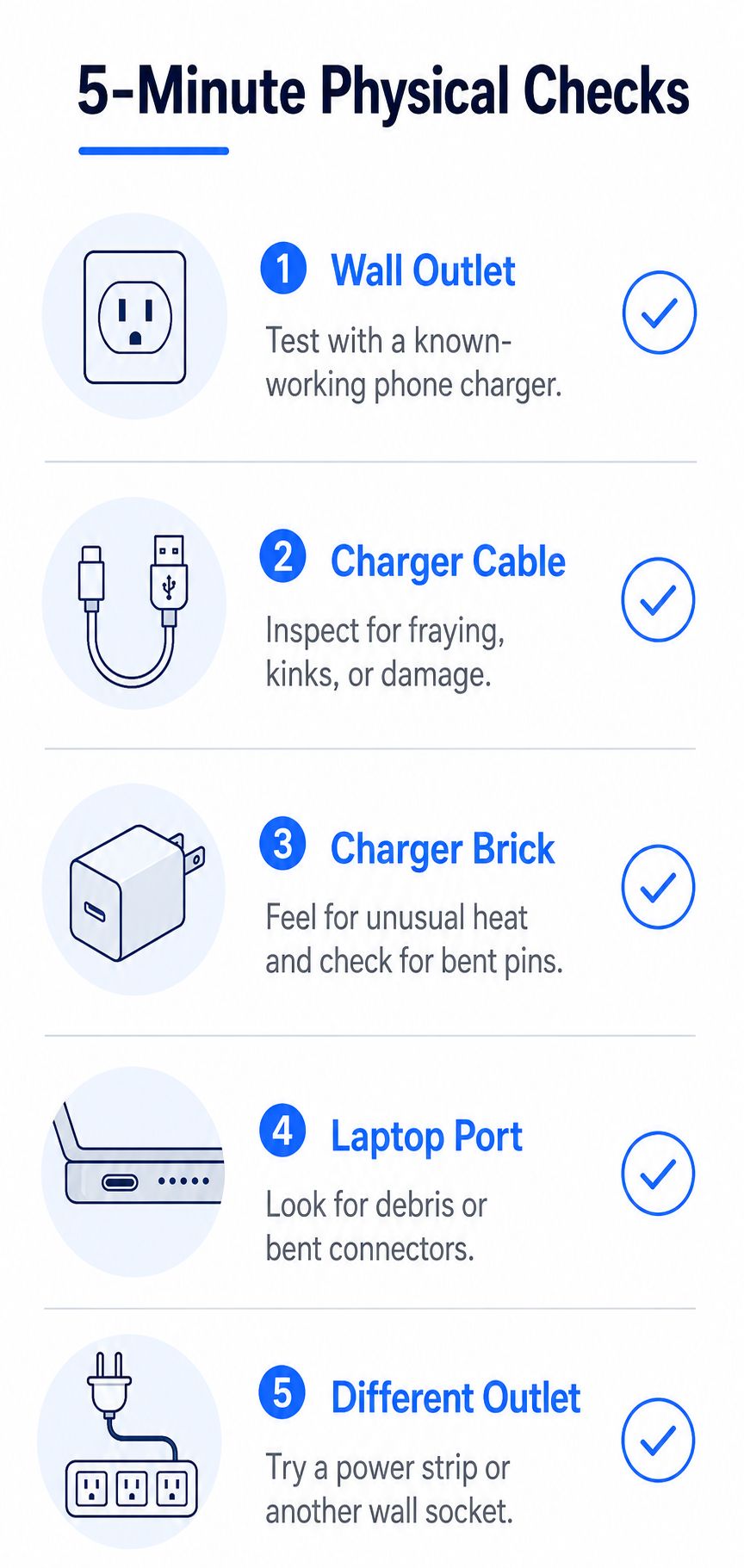
If the battery is removable, shut the laptop down, disconnect mains power, remove the battery, and connect the adapter. If the machine starts normally, the adapter is probably supplying power and the battery becomes the leading suspect. Don't remove an internal battery unless the manufacturer's service instructions make the procedure safe and practical.
For model-specific answers, the Steel City IT frequently asked questions can help you decide whether a charging fault is suitable for a basic check or needs workshop assessment.
Isolating the Charger, Battery, and Laptop
Once the basic physical checks are complete, stop guessing and compare evidence. A charger fault, battery fault, and laptop-side fault can overlap, but they don't behave identically.
Start with the adapter specification
Read the output label on the charger brick. Compare its voltage and wattage with the laptop's label, manual, or manufacturer support page. A USB-C charger can physically connect while being underpowered, causing slow charging, charging only while the laptop is off, or no charging under load.
For a barrel connector, a technician can use a multimeter to check the output voltage and polarity. The centre pin arrangement matters, and a no-load reading alone doesn't prove that the adapter can sustain its output under demand. USB-C systems need a different approach. A USB-C power tester can show whether the laptop and adapter negotiate the expected Power Delivery voltage and current.
The cleanest swap test is often more useful than a purchase. Try the suspect charger on a compatible known-good laptop, or try a correctly rated known-good charger on the suspect machine. Don't use a random adapter just because the plug fits.
Use the battery report carefully
On Windows, open Command Prompt as an administrator and run:
Windows saves a report showing Design Capacity and Full Charge Capacity, along with usage and charging history. A large gap between those values supports a worn-battery diagnosis, but the report doesn't prove that the charger or charging circuit is healthy. Run the laptop maker's own battery and AC-adapter diagnostics separately where available.
A swollen, hot, leaking, or damaged pack changes the process completely. Disconnect it and stop charging tests rather than repeatedly reconnecting it. The Knight Tek battery safety guide provides useful background on why damaged lithium-ion batteries need controlled handling.
Symptom | Likely cause | Confirming test |
|---|---|---|
No charging LED and no power | Outlet, charger, cable, or input stage | Test outlet, inspect adapter, then measure output |
Laptop runs on mains but battery percentage stays fixed | Battery or charging control | Battery report, OEM diagnostics, controlled battery test |
USB-C works for data but not charging | Power negotiation, port, cable, or charging circuit | Use a rated adapter and USB-C power tester |
Adapter works on another compatible laptop | Laptop-side fault | Test DC jack, input rails, and charging circuitry |
Laptop charges with a different correctly rated adapter | Original charger or cable | Replace with a compatible, properly rated unit |
Before spending money, you should be able to state which side of the system has failed. If the answer is still unclear after the swap test and battery report, a technician's diagnostic is more economical than buying several speculative parts.
Software and Firmware Fixes Worth Trying
Some laptops aren't trying to reach 100% because their battery-care software has deliberately set a limit. ASUS MyASUS, Lenovo Vantage, and HP Support Assistant can expose battery-health or conservation modes. Check the manufacturer utility and Windows power settings before treating a stopping point at 60% or 80% as evidence of a failed battery.
On a Mac, open Apple menu > About This Mac > More Info > System Report > Power. Review the battery condition and cycle information. The wording varies between macOS versions, but the important question is whether the system reports a service condition or recognises the battery at all.
Reset the embedded controller
A basic EC reset can clear a confused power state:
Shut the laptop down.
Disconnect the charger and all peripherals.
Hold the power button for 30 to 60 seconds.
Release it, reconnect the correct charger, and start the laptop.
This doesn't repair a failed cell or burnt component. It can, however, clear residual controller state after a flat battery, interrupted sleep state, or unusual adapter event.
Repair the software reporting layer
If the battery icon has disappeared in Windows, open Device Manager and expand Batteries. You can uninstall Microsoft ACPI-Compliant Control Method Battery, then restart Windows so it reinstalls the device. Don't rely on Driver Verifier as a first-line battery repair tool. It's intended for diagnosing troublesome drivers and can make a system harder to start if used carelessly.
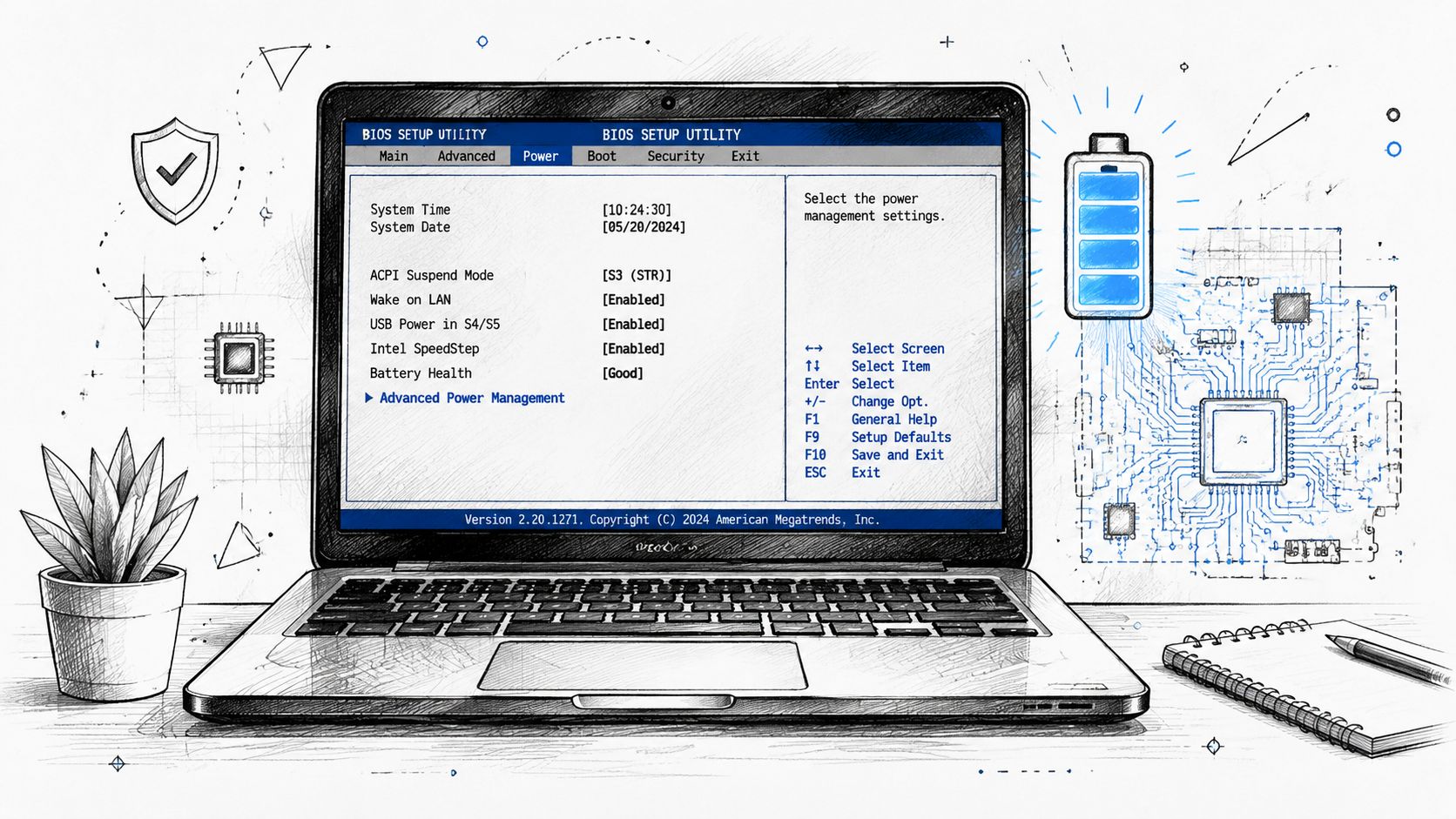
BIOS and EC firmware can also affect charger recognition. Download firmware only from the laptop manufacturer's support page, confirm the exact model, keep the adapter connected, and don't interrupt the flash. A failed firmware update can create a no-boot problem alongside the original charging fault.
If these steps change the reported percentage but not the actual battery behaviour, the software layer probably wasn't the root cause. Further Windows troubleshooting ideas are available in the Steel City IT computer repair blog, but a physically dead cell, damaged port, or failed charging IC needs hardware work.
Reading the Symptoms to Find the Real Fault
The most useful clue is often what the laptop does immediately before and after the connector moves. Charging behaviour gives you a rough fault map before anyone opens the case.
Common patterns on the bench
A connector that works only when lifted or held at an angle points towards a worn DC jack, broken centre contact, or damaged cable. If the adapter's own LED flickers as the cable bends near its strain relief, suspect the adapter rather than the laptop socket.
A battery percentage that rises in small jumps and then collapses suggests a failing cell group or battery management board. By contrast, a laptop that stops consistently at a configured threshold may be behaving normally. Charge-protection features are designed to reduce time spent at full charge, and they can be mistaken for battery failure.
If the machine runs from mains but dies instantly when the adapter is removed, the battery isn't providing usable power. That could mean a completely failed pack, a disconnected battery connector, or a board-side charging and battery-path fault.
Symptom | Likely cause | Typical UK repair cost |
|---|---|---|
Charges only when cable is held at an angle | Worn DC jack, centre pin, or cable | Qualitative quote required after inspection |
Adapter LED flickers when cable moves | Fractured cable near strain relief | Replacement charger may be appropriate |
Stops at 60% or 80% consistently | Battery-care limit or vendor setting | Usually no hardware repair if the setting is intentional |
Percentage jumps, then falls to zero | Failed cell group or battery board | Battery replacement assessment |
Runs on mains, dies when unplugged | Battery not accepting or supplying charge | Battery and connector testing |
No charge with a known-good adapter | DC jack, charging IC, MOSFET, or firmware | Board-level diagnosis may be needed |
Price depends heavily on model, part availability, and whether the component is replaceable without board work. A compatible charger or battery may be straightforward, while a USB-C charging fault can involve the port, negotiation circuitry, and motherboard input stage.
MacBooks deserve extra caution. The same symptom can involve the battery connector, charging path, power-management controller, or a logic-board fault. Once the machine requires board-level battery or power diagnosis, repeated resets and replacement parts won't substitute for microscope inspection and controlled electrical testing.
When It Becomes a Board-Level Repair Job
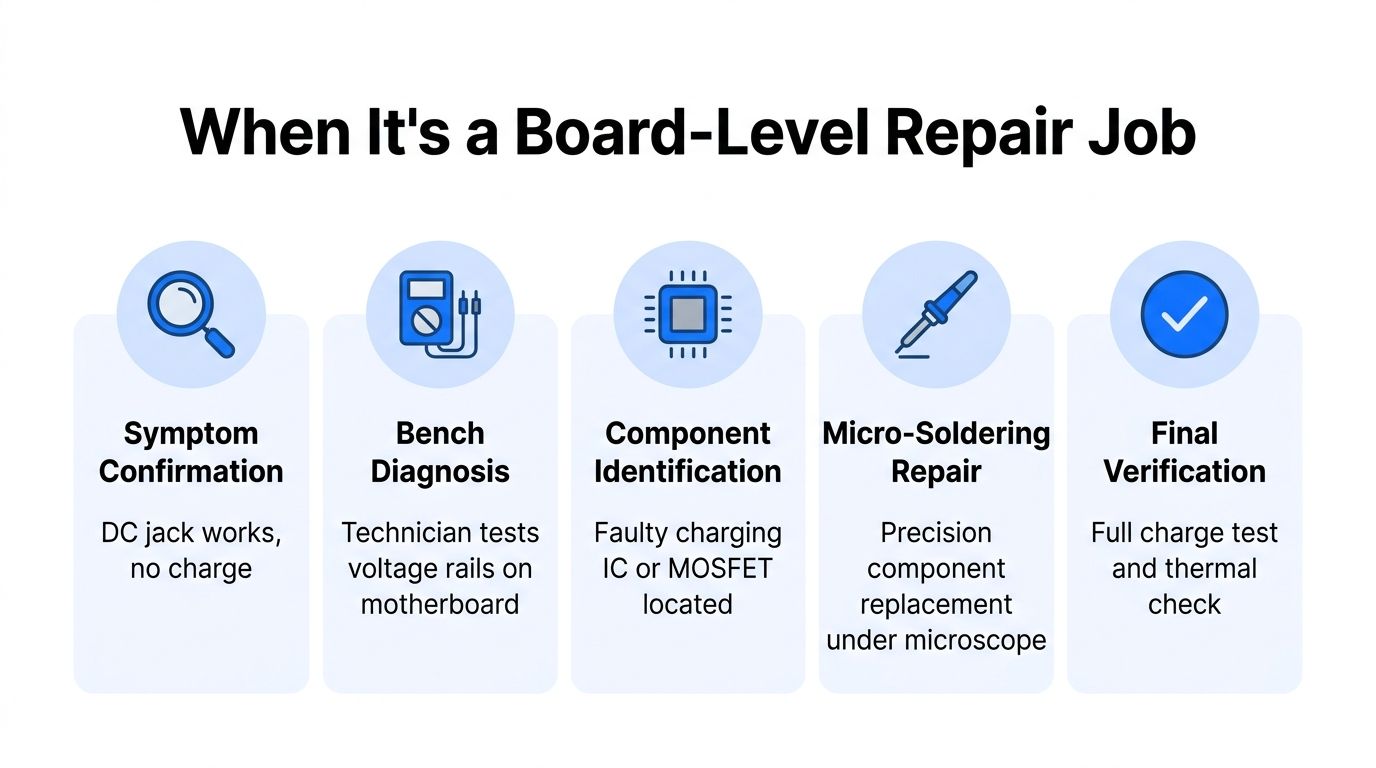
The fault has crossed into board-level territory when the external power path tests correctly but the motherboard still doesn't accept charge. Typical examples include a working DC jack with no charging voltage reaching the battery, an adapter that collapses under load, or a USB-C port that handles data but refuses power from a correctly rated charger.
The laptop's charging path contains more than one switch and controller. Input MOSFETs protect and route adapter power, the charging IC manages battery current, and the embedded controller communicates with the charger and battery. A shorted component, damaged pad, failed controller, or liquid-corroded track can interrupt charging without leaving an obvious mark.
What the workshop process involves
A competent technician doesn't begin by heating random chips. The board is isolated, the battery disconnected, and the power rails checked with a meter and current-limited supply. The technician identifies whether the fault is at the jack, input stage, charging controller, battery connector, or embedded-controller interface.
Depending on the board design, charging ICs may include families such as BQ24725, ISL6259, or SY8032. The exact component must be identified from the board marking and schematic or boardview information, not guessed from a similar-looking laptop.
Micro-soldering may involve removing the motherboard, working under a stereo microscope, and replacing a damaged IC or MOSFET with controlled hot-air rework. If connector pads or surrounding vias have lifted, the technician may need to reconstruct the connection with fine jumper wire. The repaired board then needs a controlled power-on, charging test, and thermal check.
This is why DIY soldering is rarely a sensible next move. An overheated board can lose pads, damage nearby components, or turn a contained charging fault into a motherboard replacement. It can also affect an OEM warranty. If a correctly rated charger and replacement cable haven't solved the problem, stop probing the board without the right equipment.
Stop point: A laptop that recognises a good charger but still won't charge needs diagnosis of the charging path, not another blind battery purchase.
The following video gives useful visual context for the kind of board-level process involved, although the exact layout varies by laptop model.
Safety also matters before any bench test. Electrical Safety First advises stopping use if a battery becomes too hot to handle, while battery-safety guidance treats swelling, leakage, puncture, and overheating as warning signs. A suspect lithium-ion pack shouldn't be repeatedly charged while someone waits to see whether the laptop recovers.
Getting It Fixed in Sheffield and What to Expect
By this point, the decision should be fairly direct.
Dead or damaged charger: Replace it with an adapter matching the laptop's voltage, connector, and required wattage.
Degraded battery: Fit a genuine or properly specified compatible pack, after checking for swelling or physical damage.
Loose or angle-sensitive charging: Arrange DC jack or port inspection rather than forcing the connector.
Good external power but no charging: Book a charging-path or board-level diagnostic.
No clear result: Pay for diagnosis before buying parts.
Local pricing depends on the model and the condition of the board, so a written quote is more useful than a generic online promise. A Sheffield workshop may offer a battery replacement, DC jack repair, charging IC work, or wider motherboard diagnosis, with turnaround determined by parts and fault complexity.
Fault | Repair type | Typical cost in Sheffield | Turnaround |
|---|---|---|---|
Worn battery | Battery replacement | £45 to £90 fitted | Usually same day |
Damaged DC jack | Jack replacement or repair | £70 to £120 | Usually 1 to 3 days |
Failed charging IC | Micro-soldering repair | £110 to £180 | Usually 1 to 3 days |
Wider motherboard fault | Board-level investigation and repair | From £150 | Depends on complexity |
Uncertain charging fault | Written diagnostic | £20 to £40, often waived on repair | Often assessed the same morning |
For Sheffield readers, laptop repair in Sheffield is an option for charging-port diagnosis, component replacement, and board-level power repairs. Steel City IT operates from Frecheville, serving nearby areas including Birley, Hackenthorpe, and Woodhouse. Customers can ask for a written diagnosis before authorising repair, which is useful when the choice is between a battery, port, or motherboard fault.
The same principle applies to any repair business or service provider: clear enquiries and accurate customer information help staff respond efficiently. For a separate look at how service businesses organise incoming enquiries, you can read about lead capture strategies for plumbers, though the underlying lesson is simple, give the technician the model, symptom, charger type, and any visible safety warning.
If your laptop won't charge, don't keep bending the cable or ordering parts at random. Disconnect any hot or swollen battery, bring the laptop and charger for testing, and ask for the charging path to be checked from the adapter through to the motherboard.
Steel City IT provides laptop diagnostics, charging-port repair, battery replacement assessment, and board-level micro-soldering for charging faults in Sheffield. Visit Steel City IT in Frecheville with the laptop and its charger, and ask for a written diagnosis before approving the repair.