
MacBook Charger Not Working: Fix It Step by Step

The charger is in the wall, the cable looks intact, and the MacBook still will not take a charge. You have already wiggled the connector, tried another socket on the extension lead, and started to assume the battery died overnight.
A MacBook charger not working is often a safety problem as well as a power problem. A cheap replacement can fail basic electrical checks, and the fault can sit in the plug, the adapter, the cable, or the port. Buying the next part before you know which one failed wastes money, and plugging a damaged adapter back in can make things worse.
I would start with the cheapest safe check. Match what you can see to one likely cause, then test one piece at a time. If the charger is hot, smells burnt, or sparks, unplug it and leave it unplugged. That is not a software glitch.
Table of Contents
Match Your Symptom to the Likely Fault
Match what you can see before you buy anything. Each row below is a starting point, and the later checks go into the detail. Stop at once on any row that is a safety risk.
Symptom | Likely cause | First check |
|---|---|---|
No light on the charging port at all | Wall socket, plug fuse or adapter | Test the socket with a known-working lamp, then try another compatible adapter |
Light on but battery stays flat | Cable, port debris or logic board | Swap in a known-good cable and clean the port |
Plugged in but says Not Charging | Charge limit, battery management or low wattage | Check battery settings and adapter wattage |
Slow Charger warning | Adapter below the recommended wattage or weak USB-C source | Use the adapter rated for your model |
Charges only at certain angles | Loose connector or port damage | Inspect the port and connector for bent pins or debris |
Hot charger, burnt smell or sparks | Counterfeit or damaged adapter or plug | Disconnect immediately and stop using it |
Stopped charging after liquid exposure | Corrosion or board damage | Disconnect, dry it, avoid repeat charging and seek diagnostics |
No light at all usually means the socket, the fuse in a UK plug, or the adapter has dropped out. A lamp in that same socket shows whether the mains side is alive. If the lamp works and the Mac stays dark, the adapter or its lead is the next suspect.
A light with a flat battery has already got past the socket. The cable, fluff in the port, or the logic board is more likely. Swap a cable you trust and clean the port before you write the Mac off.
"Not Charging" with the plug seated is easy to misread. A charge limit or battery-health management can pause charging on purpose, and an under-powered adapter can do the same. Open Battery settings before you spend anything. If the cells themselves are worn, a MacBook battery replacement is a different job from a charger fault.
Slow Charger means the source cannot feed that model properly. A phone brick or a busy USB-C hub is a common cause. Use the adapter rated for the Mac.
Charging only at one angle is mechanical. Bent pins, a loose plug, or a tired port pass current in one position and drop it in another.
Heat, a burnt smell, or sparks are a hard stop. Disconnect and treat that adapter as damaged. Do not plug it back in to see if it settles.
A charge that died after a spill needs the same stop. Corrosion can sit behind a case that looks dry. Leave it off.
Find your row, then run the checks that separate the socket, adapter, cable, and port.
Which Charger and Port Your MacBook Needs
Open the Apple menu and choose About This Mac. The year on that screen decides the connector. A charger that looks similar can still be the wrong generation, and that single mismatch explains a lot of "dead charger" calls.
Apple's UK support information states that MacBook models introduced in 2015 or later can charge through USB-C, while MacBook Pro models from 2016 onward and MacBook Air models from 2018 onward support USB-C charging. The 12-inch MacBook introduced USB-C charging in 2015. Charging then moved back toward MagSafe on later machines. A MacBook Air introduced in 2022 or later, and 14-inch and 16-inch MacBook Pro models introduced in 2021 or later, can reach up to 50% battery capacity in about 30 minutes when paired with the specified compatible fast-charging equipment.
MacBook model | Charging connector | Notes |
|---|---|---|
MacBook pre-2015 | MagSafe (original) | Original MagSafe connector |
MacBook 12-inch from 2015 | USB-C | First MacBook with USB-C charging |
MacBook Pro from 2016 to 2020 | USB-C | Charges through USB-C ports |
MacBook Air from 2018 to 2021 | USB-C | Requires a compatible USB-C power adapter and cable |
MacBook Air from 2022 | MagSafe 3 | Fast charging to 50% in about 30 minutes with compatible equipment |
MacBook Pro 14-inch and 16-inch from 2021 | MagSafe 3 and USB-C | Fast charging to 50% in about 30 minutes with compatible equipment |
Rules that decide the purchase
Match the year to the connector before you order a replacement. A MagSafe lead will not seat in a USB-C-only machine, and a USB-C lead will not replace an original MagSafe puck.
Meet the recommended minimum wattage for that model. Fast charging on the newer Air and Pro only happens with the equipment Apple specifies for it.
A cable that copies files can still refuse to charge. Some USB-C leads are data-only. If a lead works with a hard drive and fails on the Mac, treat the lead as the fault.
A tired port is not fixed by a new plug. If every compatible lead only works in one socket, or in none, the port itself needs attention. Our notes on a MacBook USB-C port that is not working cover that case.
Practical rule: Read the model year, then buy the connector that year actually uses. Guessing from the shape of a photo is how the wrong adapter ends up in the basket.
How to Isolate the Fault in Four Checks
If your MacBook stops charging, the fault may be in the socket, adapter, cable or Mac. Test those parts in order, changing one thing at a time. That helps you avoid replacing a working charger when only the cable or port has failed.
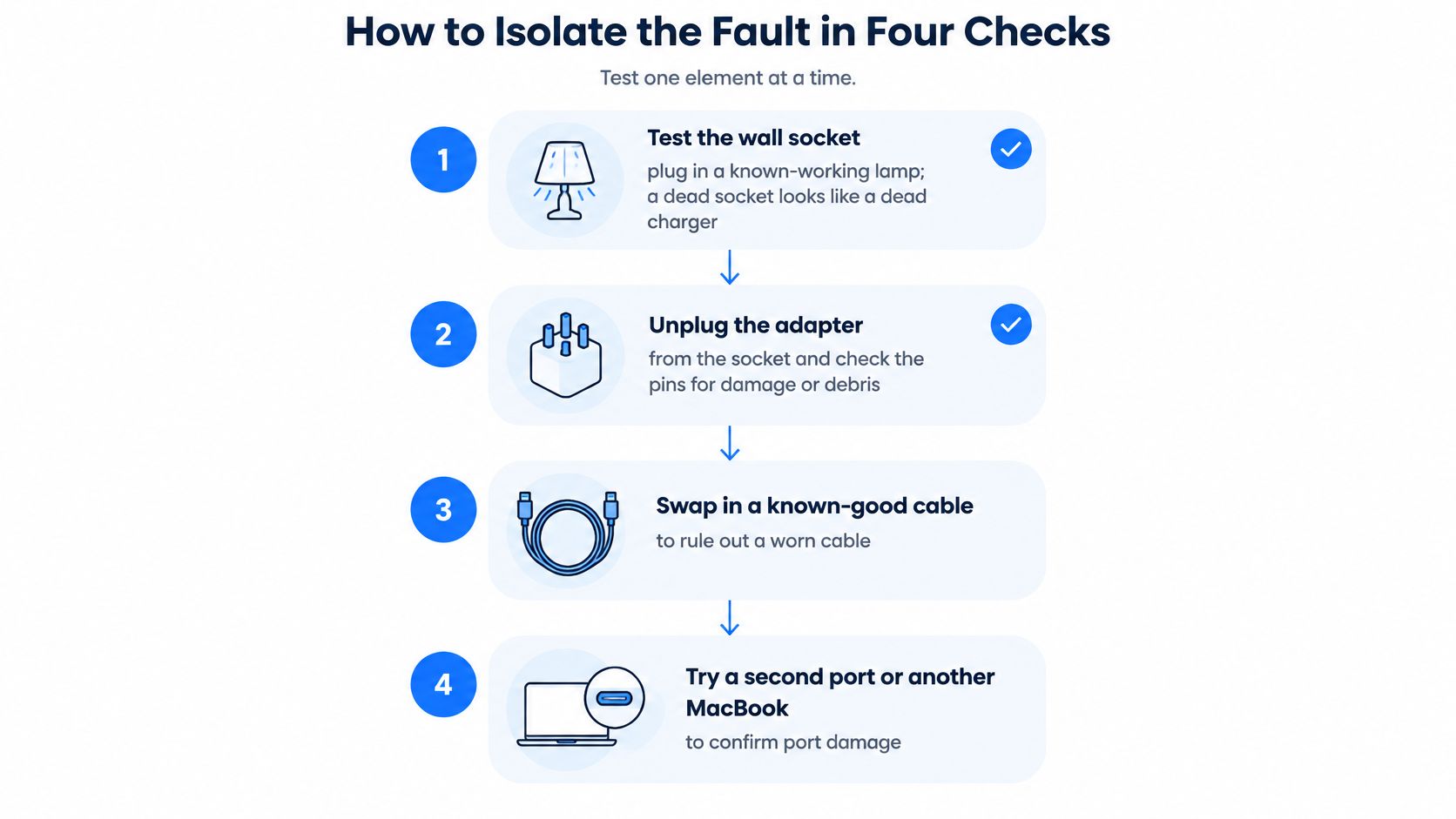
Check the wall socket with a lamp you know works. Plug it into the same outlet as the charger. A switched-off power strip, tripped breaker or dead socket can look like a failed adapter. If the lamp does not light, resolve the power supply problem before testing the Mac.
Unplug the adapter from the socket for at least 30 seconds, then reconnect it. This general reset step can clear a stuck protection state. While the adapter is unplugged, inspect its pins. Stop using it if they are loose, bent or blackened. Do not push a damaged plug back into the socket and try again.
Swap only the USB-C cable. Use a cable compatible with your Mac and adapter. Some USB-C cables transfer data but do not support laptop charging, so connecting a drive successfully does not prove that the cable can charge the Mac. If a known-good cable works and the original does not, replace the cable rather than the whole charger.
Test each USB-C port separately, keeping the same adapter and known-good cable. Restart the Mac after testing. Clean the connector and port with a dry, lint-free cloth. On MagSafe models, check that the connector and port are dry and free of debris. If charging works through one port but not another, the failing port needs attention. If the fault follows the adapter or cable to another Mac, replace that item. If several known-good setups fail, the Mac's charging circuit may be at fault.
Do not mistake “Not Charging” for proof that the adapter has failed. Battery-health management, a configured charge limit or an underpowered adapter can pause or limit charging. macOS may display “Slow Charger” when the power source cannot supply enough power. A Mac charges from only one source at a time, even with MagSafe and USB-C connected, so disconnect the spare lead while testing.
The check is complete when the battery icon shows charging within a few minutes and continues to show it after you let go of the cable. If it does not, avoid repeated cable adjustments, especially if the adapter or connector is damaged. A short walkthrough shows the cable and port checks:
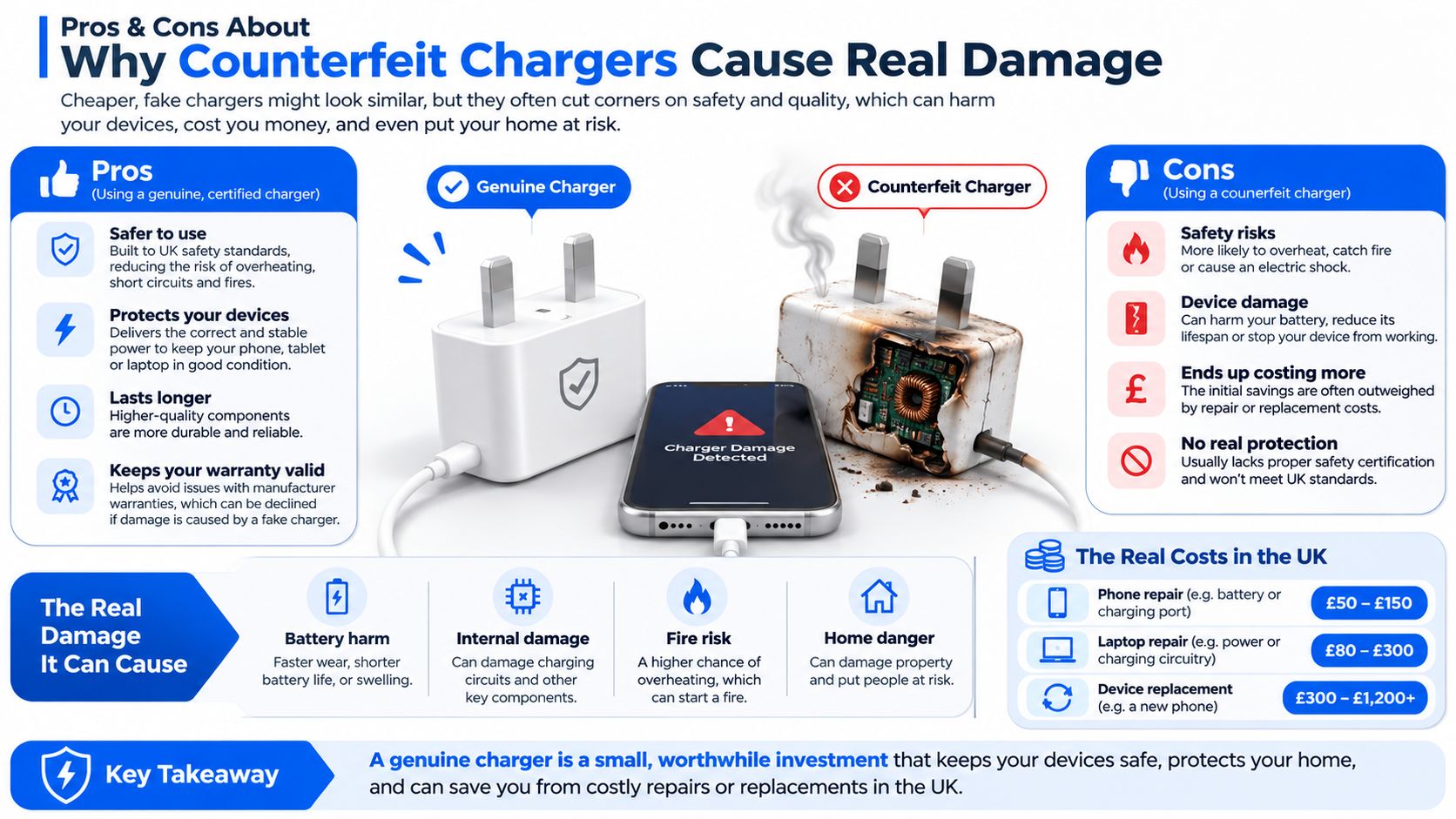
Why Counterfeit Chargers Cause Real Damage
A charger that "mostly works" is not a mild fault. In 2016, Electrical Safety First tested 64 counterfeit and imitation Apple chargers purchased through UK online marketplaces and smaller independent retailers. Sixty-three chargers, 98% of the sample, failed at least one safety test.
The failures were specific. 37 chargers, or 58%, failed the electric-strength test, which assesses whether insulation can withstand the voltage expected during normal use. 36 chargers, or 56%, failed plug-gauging requirements concerning the size and alignment of UK plug pins. Fifteen also failed mechanical-strength testing for plug pins, creating a risk that a pin could break inside a mains socket.
That is the pattern when a Mac stops charging just after a bargain replacement arrives. The adapter, the plug, or the cable can be the failed part. The Mac may be fine.
Four checks you can do in the hand
Is it hot, smelling burnt, or sparking? Unplug it. Do not give it another try.
Are the pins loose, bent, or cracked? A pin that snaps off in a UK socket is a mains fault, not a Mac fault.
Does it cut out, then come back? Intermittent power from a cheap adapter is a reason to retire it.
Does the plug sit snugly and square in the socket? A gauging failure means the pins are the wrong size or the wrong alignment.
Any yes means disconnect and stop. Buy the next adapter from Apple or an authorised reseller. Inspect leads for splits, avoid a tight bend right at the connector, and keep the brick off bedding so it can shed heat. Never keep reconnecting a charger that has already failed a check above. Move to a known-good adapter only after this safety check passes.
When a Good Charger Still Fails and When to Book a Repair
A MacBook that still will not charge with a known-good adapter and cable needs a closer look. Replacing another charger is unlikely to solve a fault in the port, battery or power circuitry.
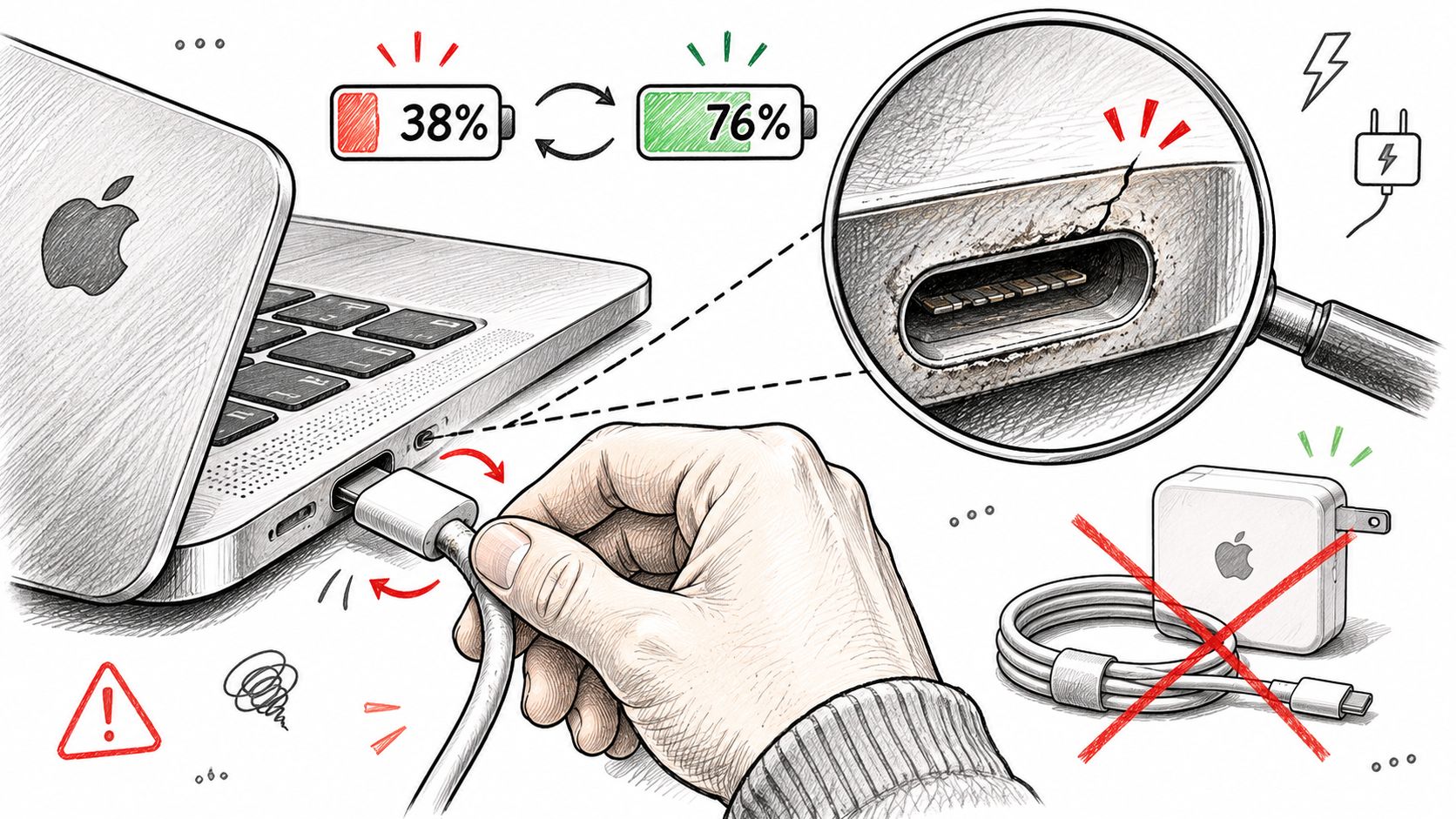
Charging that changes when you move the connector points to an unstable connection. Possible causes include a worn port, debris inside it, or broken strands in the cable near its strain relief. Check the cable and port separately. Cleaning the outside of a connector will not repair a damaged port or a cracked solder joint, and forcing the plug can make the damage worse.
The battery icon lies a little
A Mac can show that it is connected to power while its battery percentage continues to fall. Battery-health management may limit charging, while a fault in the power circuit may prevent the Mac from using the adapter's output properly. Before deciding that the battery has failed, check its cycle count. This guide explains how to find MacBook cycle count, so you can check the figure macOS reports and consider whether ordinary battery wear could be involved.
A high cycle count alone does not show that the charging circuit has failed. Normal capacity loss over time is expected, and batteries are consumable items.
Liquid and the wattage myth
A spill needs a different response from an ordinary charging fault. Apple's support guidance advises disconnecting power and checking that the MagSafe connector and port are dry and free of debris before reconnecting. It also warns against unsafe third-party adapters that may not meet applicable standards. Do not keep powering a wet MacBook: moisture can cause corrosion inside even when the outside looks dry.
A higher-wattage charger cannot repair a damaged connector, failed charging circuitry or a battery that no longer accepts charge. Use an adapter that meets at least the recommended minimum wattage, then separate adapter, cable and Mac faults through careful checks rather than buying parts at random.
Stop buying adapters once two known-good chargers fail in the same way. A third one will not repair a damaged port.
The decision
Continue home checks only if swapping the cable or adapter clears the problem and charging remains stable. If the fault returns, stop testing and arrange an inspection.
Book a repair if several known-good chargers fail, the port looks damaged, liquid was involved, or a charger overheated. Record the model and year shown in About This Mac, the charger and cable used, what happened, when it began, and whether the Mac got wet. If the Mac still starts, preserve important files before it stops powering on.
Steel City IT repairs Apple and Mac computers and works with both macOS and Windows systems. Its workshop in Frecheville serves Sheffield, including Birley, Hackenthorpe and Woodhouse. Charging faults that persist with a known-good adapter can need board-level diagnostics and micro-soldering. A MacBook logic board repair may be appropriate when the port or power circuitry is damaged. Repairs use compatible components, with the port and power circuit tested rather than parts replaced by guesswork.
The warranty covers charging port defects and power supply failures. It does not cover problems caused by malware, third-party software or operating system updates. If a repair costs more than the device is worth, Steel City IT tells the customer. Turnaround is typically a few days, depending on complexity.
Steel City IT diagnoses MacBook charging faults that persist with a known-good adapter, including damaged ports, liquid damage and power-circuit faults, and carries out board-level repairs where suitable. If your MacBook charger still does not work after these checks, bring the Mac and the charger you have been using. Visit Steel City IT to book a diagnosis.