
What Is CPU Bottleneck? Signs, Tests and Fixes for 2026

A new graphics card seems to transform your gaming PC, until a busy city centre in an open-world game sends the frame rate into the fifties. The fans barely spin, and an overlay shows the GPU at 60 to 70% while one CPU core is fully occupied. The processor is struggling to prepare the next frame quickly enough for the graphics card to draw it.
A CPU bottleneck occurs when the processor limits how quickly frames or other tasks can be delivered, leaving other components waiting. A UK study illustrates the same principle: relieving a saturated processor raised its event-processing throughput, while the storage nodes it depended on remained lightly loaded.
The hardware is still working. The processor has become the limiting component, so the graphics card cannot reach its full potential. That does not automatically mean you need a new CPU: the pattern needs checking against frame-time data, temperatures and memory settings before you spend money.
Table of Contents
What Is a CPU Bottleneck? - Why the Graphics Card Looks Underworked - A Measured Example from UK Research
Spotting a CPU Bottleneck in Play - Why a Good Average Hides a Bad Experience - Symptoms and What They Mean - Where a CPU Limit Bites Hardest
How to Measure a CPU Bottleneck Step by Step - The Memory-Bound Trap - Free Tools for the Job
Matching Your CPU to Your GPU and Resolution - The Decision Rule That Replaces Guesswork - Keep Headroom for the Busy Moments
How to Fix a CPU Bottleneck the Smart Way - Free Fixes Worth Trying First - When Heat Is the Real Culprit - What an Upgrade Should Actually Buy
What Is a CPU Bottleneck?
A CPU bottleneck happens when the processor cannot prepare, calculate or coordinate work fast enough for the rest of the system, especially the graphics card, to run at its full potential.
Frames are built in two stages. The processor works out what each frame contains: game logic, physics, AI behaviour, collision, and the list of draw calls the graphics card will be asked to render. The graphics card then shades every pixel on that list. A frame reaches your monitor only when both stages finish, so the slower stage sets the pace for everything.
The kitchen analogy holds up well. A restaurant kitchen that can cook 200 plates an hour is not slow. But if the pass where plates are finished and handed to waiting staff can only manage 120 orders an hour, the kitchen spends half its time idle while orders queue. Throughput caps at 120 plates, and buying a second oven changes nothing. The narrow point is the limit, and in a PC the narrow point moves depending on the game, the resolution and the settings you choose.
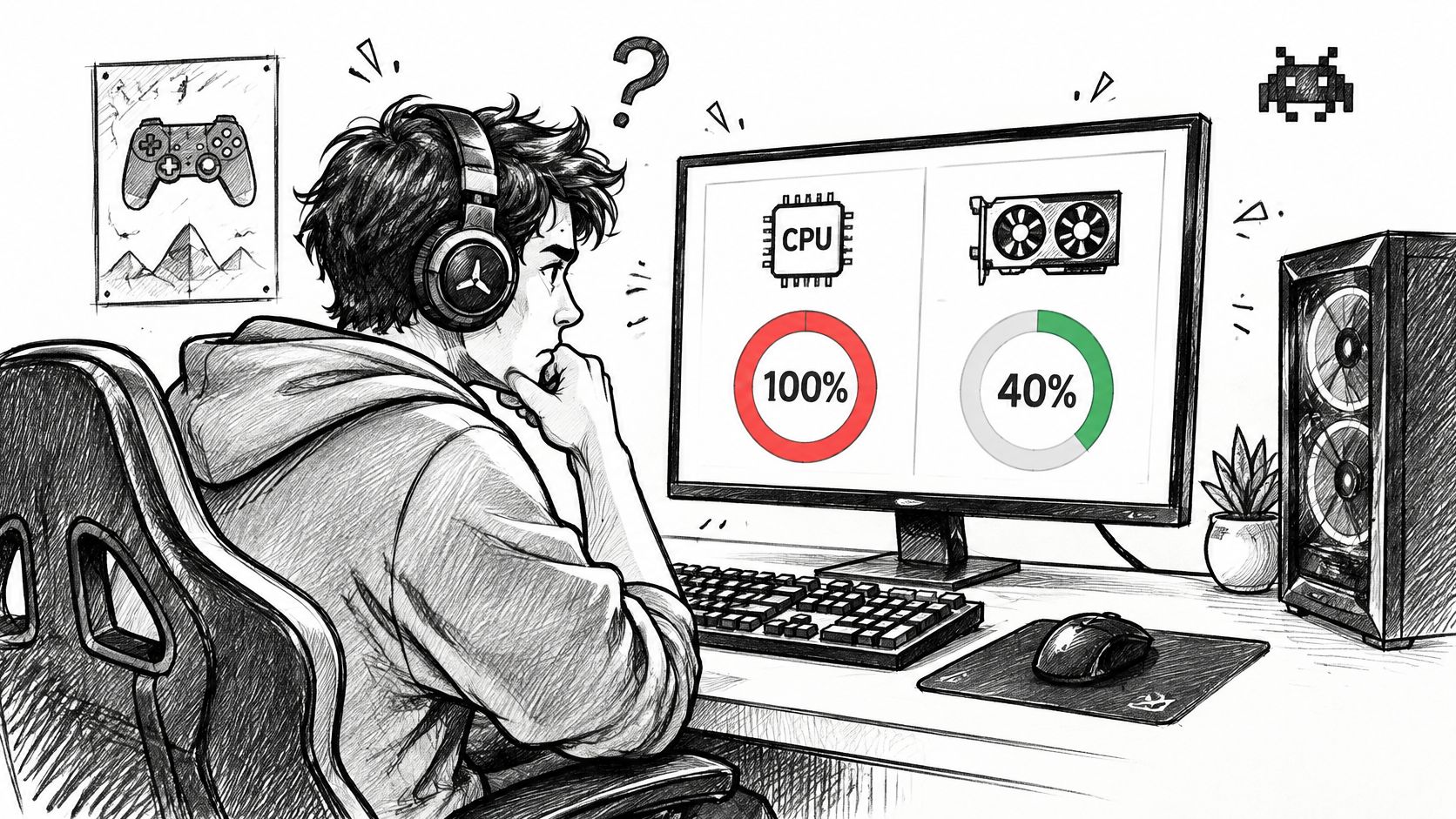
Why the Graphics Card Looks Underworked
A graphics card can only render the frames it's given. When the processor takes 25 milliseconds to assemble a frame, the card finishes each one in 12 milliseconds and then waits 13 milliseconds doing nothing. Its utilisation falls to around 50%, its clock may drop because the workload looks light, and its fans stay quiet. That's not a fault, it's spare capacity.
People often misread their own hardware. A GPU sitting at 65% looks like a weak graphics card, so the instinct is to replace it. The number is telling you the opposite: the card has headroom the processor can't feed.
A Measured Example from UK Research
The principle shows up at data-centre scale too. A University of Glasgow study of the UK-linked gLite Distributed Production Manager found CPU load on a data-management head node approaching 100% while the disk-pool nodes were barely loaded, which identified the processor, not the storage, as the effective limit. After the services moved to newer hardware and the available compute was quadrupled, the event-processing rate rose by 40%, from almost 10 Hz to approximately 14 Hz, as the Glasgow eprints study records.
That's high-performance computing, not a gaming benchmark, so don't read it as a frame-rate claim. Read it as the diagnostic rule it proves: upgrading a component that isn't limiting you buys almost nothing, while relieving the saturated one can move throughput substantially.
Every PC has a limiting component at any given moment. The skill isn't eliminating that; it's knowing which part is holding the line before you spend anything.
Spotting a CPU Bottleneck in Play
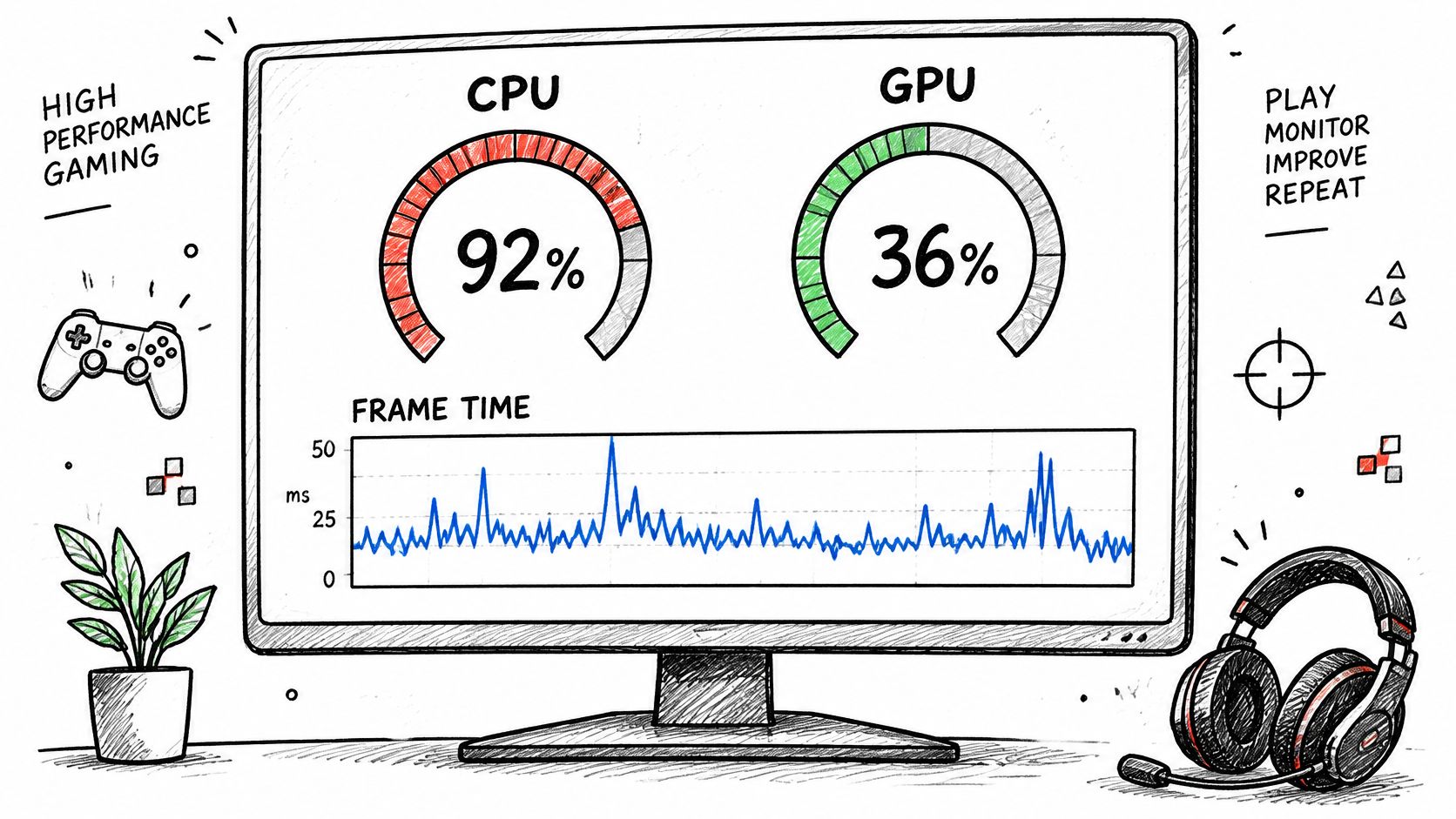
The signature is easy to read once you know which pairing to look for. Watch the graphics card first. Sitting at 95 to 100% means the GPU is the limit, which is normal and healthy, and a faster processor will do very little for you. Now watch the processor. A total load near 100%, or one thread pegged while the rest idle, combined with a GPU under about 90%, is the classic CPU-bound reading.
Why a Good Average Hides a Bad Experience
Average frame rate is the least useful number on your screen. A game running at 90 fps average with 1% lows of 35 fps feels considerably worse than one running at 75 fps average with 1% lows of 60, because the lows are what you feel as stutter, hitching and sluggish aiming. Percentage lows describe the worst frames in a run, and they're exactly where a processor limit shows up. Guidance that only chases headline averages sends people shopping for the wrong part.
Symptoms and What They Mean
Symptom | What you see | What it suggests |
|---|---|---|
High CPU with idle GPU | CPU near 100% overall or on one core while the GPU sits at 60-80% | classic CPU bottleneck |
Good average, bad lows | Average FPS looks fine but 1% lows crater and play stutters | processor cannot keep frame times consistent |
Crowd stutter | Frame rate drops in cities, big fights or when many units are active | game logic, physics and AI exceed CPU headroom |
Resolution changes nothing | Frame rate barely moves when resolution is lowered | the GPU has spare capacity; the CPU is the limit |
Settings change nothing | Low and high presets deliver almost identical FPS | the workload is CPU-side, not rendering |
Spiky frame-time graph | Occasional long frames despite a smooth average | intermittent CPU-side stalls |
Where a CPU Limit Bites Hardest
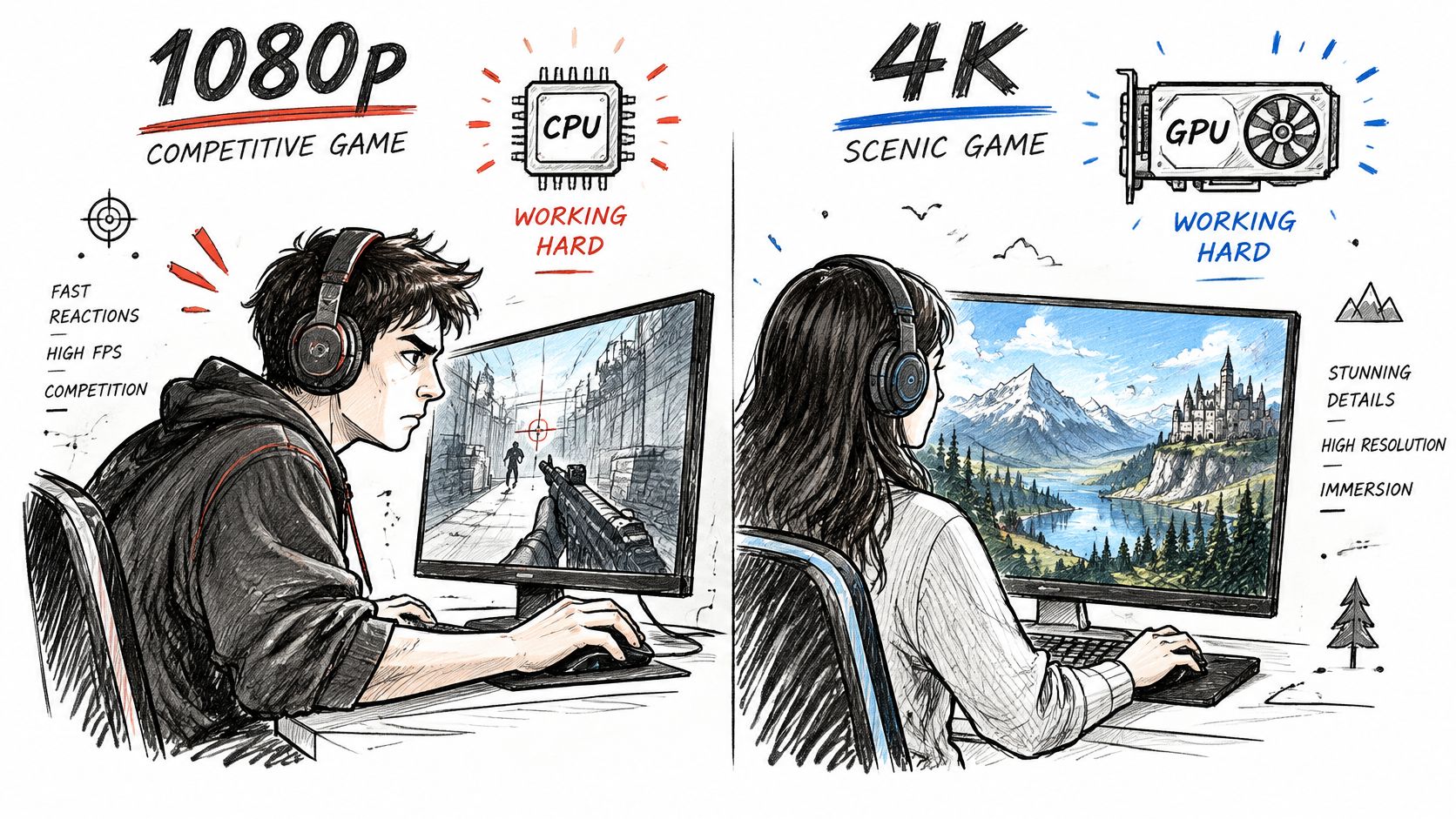
Competitive shooters at 1080p on a high-refresh monitor. The GPU finishes frames quickly at that resolution, so the processor sets the ceiling. Targets of 144 Hz, 240 Hz and 360 Hz all require the CPU to prepare frames rapidly, which means a system can be CPU-limited even when the average FPS looks impressive, as PCMag UK's gaming CPU guide points out.
Simulation and strategy titles. Thousands of agents, pathfinding and physics run on the processor, so dropping shadows and textures barely moves the frame rate.
Dense crowds, big fights and large multiplayer maps. These are the moments when game logic spikes and the frame-time graph goes ragged.
Cinematic 4K single-player games. Here the GPU generally does the heavy lifting and the same processor that struggles at low resolution may stop being the limiting part at all.
Workstation tasks. Video export, compilation and large game-world streaming often hit a memory-bandwidth wall rather than a core-count wall.
An older CPU paired with a brand-new GPU. The most common mismatch in a home upgrade, and the one that produces the widest GPU idle percentages.
Background load. A browser with 40 tabs, a launcher indexing files or malware can eat the headroom a game needs, and the symptom looks identical to weak hardware.
"CPU at 60%" does not prove there's no bottleneck. One heavily loaded game thread can limit frame delivery while total utilisation stays moderate, which is why per-core readings matter more than the summary figure.
How to Measure a CPU Bottleneck Step by Step
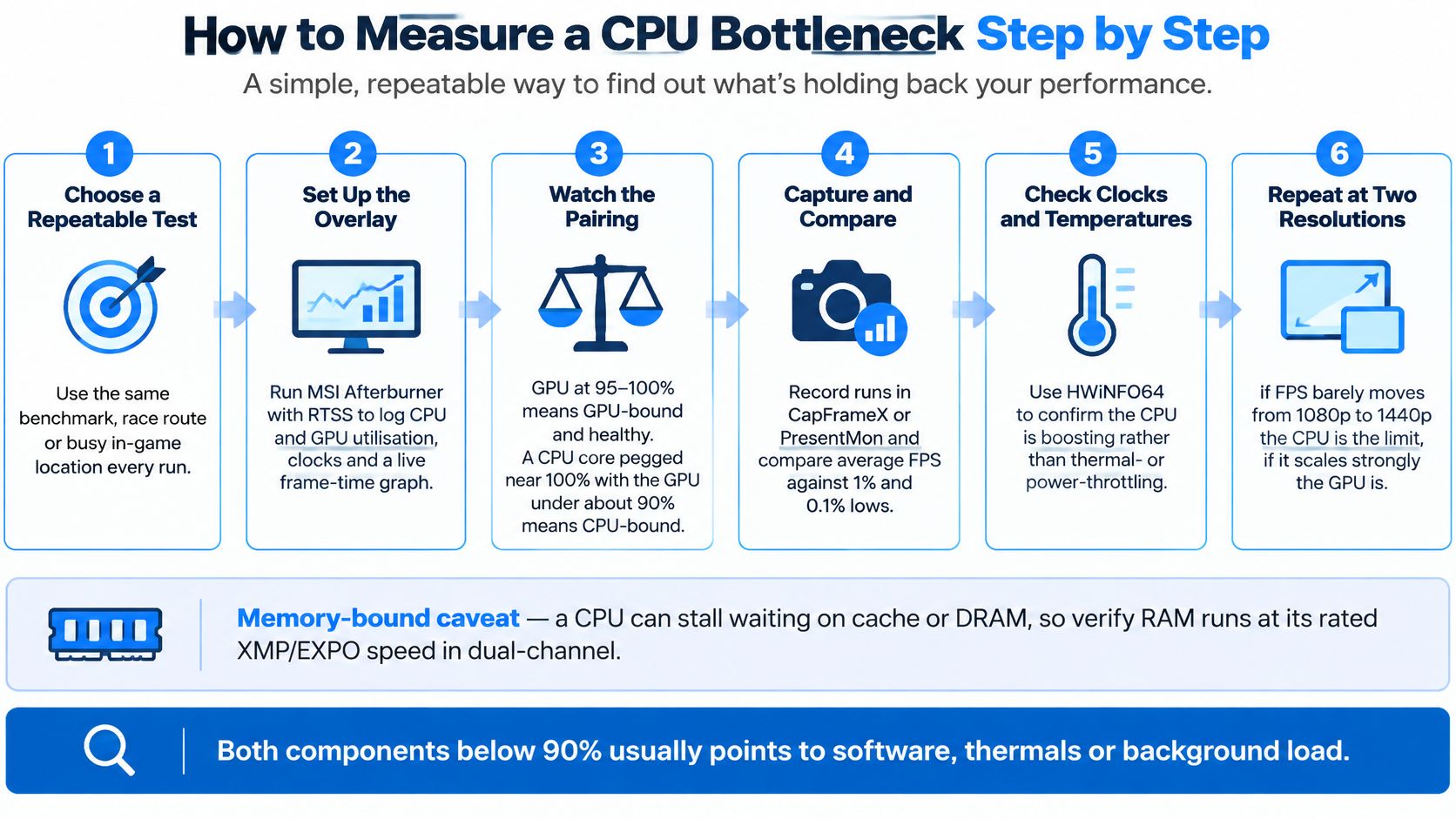
A repeatable test turns a hunch into a comparison. Pick the same game scene, settings and route for each run, then change only one thing at a time.
Choose a repeatable test. Use a built-in benchmark, saved race route or in-game location you can revisit. Record the resolution and graphics settings.
Set up monitoring. Use MSI Afterburner with RTSS to display CPU and GPU utilisation, clock speeds and frame times. Keep the overlay consistent between runs.
Check the readings together. A GPU near full utilisation usually points to a graphics limit. A heavily loaded CPU core paired with a GPU below about 90% can indicate a CPU limit. Check several moments in the test rather than relying on one snapshot.
Capture frame times. Record runs with CapFrameX or PresentMon, then compare average FPS with the 1% and 0.1% lows. Those lows help show whether slow frames are disrupting play, even if the average looks good.
Rule out temperature and clock problems. In HWiNFO64, check per-core load, temperatures and clock behaviour. If the CPU is running hot or its clocks fall under load, investigate cooling or power settings before judging its performance.
Compare resolutions. Run the same scene at two resolutions. If the frame rate stays similar, the GPU may have headroom because another part of the system is limiting it. If the frame rate drops as resolution rises, the GPU is likely doing more of the limiting.
The Memory-Bound Trap
A CPU can have spare compute capacity yet still wait for data from cache or RAM. That is a memory-bound limit, and adding more cores may not help if threads are competing for memory bandwidth or shared cache. The ARCHER2 single-node benchmarking reports describe cases where cache bandwidth, rather than DRAM bandwidth, becomes the constraint.
For a gaming PC, check that RAM is running at its rated XMP or EXPO speed and installed in the recommended dual-channel slots. If performance still plateaus as more threads are used, extra cores may bring little benefit. Better memory settings or thread scheduling can help when the workload is held back by data access or poorly balanced threads.
Free Tools for the Job
Tool | Cost | What it shows | Best for |
|---|---|---|---|
MSI Afterburner + RTSS | Free | Live CPU and GPU utilisation, clocks and a frame-time overlay | Watching CPU-GPU balance during play |
HWiNFO64 | Free | Per-core utilisation, temperatures, power draw and clock behaviour | Finding core saturation or thermal throttling |
CapFrameX | Free | Frame-time captures, average FPS and 1% and 0.1% lows | Comparing runs before and after a change |
Task Manager | Built into Windows | Overall CPU load and the heaviest processes | Checking for background activity |
If both CPU and GPU utilisation remain below 90% while frame rate is poor, check for background processes, software issues or thermal limits before buying new hardware. Compare several runs: utilisation can vary from moment to moment, while a consistent pattern across the same scene is stronger evidence.
Matching Your CPU to Your GPU and Resolution
A crowded 1080p match can push a processor harder than a scenic 4K game. That is why a fixed CPU-to-GPU pairing chart can mislead: the balance depends on the game, scene, resolution, refresh target and frame-time consistency you want.
The Decision Rule That Replaces Guesswork
Use your own performance logs to judge the pairing. If the frame-time graph is smooth and GPU utilisation stays near 95% or higher, a CPU upgrade is unlikely to change much. If a core is saturated while the GPU sits below 90% at your target resolution and refresh rate, the processor may be limiting performance.
Check the busiest scenes, not just an average across a whole session. Overall CPU utilisation can hide a saturated core, while a short frame-time spike can reveal a limit that an average FPS figure misses.
Keep Headroom for the Busy Moments
A quiet corridor and a crowded scene place different demands on a processor. Leave enough capacity for the moments when the game has more work to handle, rather than choosing a CPU based on a synthetic average alone.
Match an upgrade to your target. At a high refresh rate, stronger CPU performance may help maintain high frame rates and improve 1% lows. At higher resolutions, the graphics card often has more work to do, so a faster CPU may bring little benefit if GPU utilisation is already high.
Before ordering parts, use a PC component compatibility checker to review whether the socket, chipset, memory and cooler fit your upgrade plan. If you're comparing a new system with an upgrade for editing, this build or buy for 2026 editing comparison offers another perspective on where the money goes.
How to Fix a CPU Bottleneck the Smart Way
Work through fixes by cost and certainty, not by excitement. The free options recover more performance than many expect, and they also tell you whether hardware is the answer.
Free Fixes Worth Trying First
Cap the frame rate at a level the processor holds in the busiest scene. Locking to a number it can sustain smooths frame times and often feels better than a higher, erratic average.
Raise resolution or quality settings when the GPU has headroom. Shifting work onto the idle component costs nothing and improves image quality at the same time.
Trim crowd density, view distance and simulation settings in CPU-heavy titles. These are the settings that move processor load, unlike shadow quality.
Close background apps, update chipset and GPU drivers, and set the Windows power plan to High Performance so the chip isn't parking cores mid-game.
Enable XMP or EXPO so memory runs at its rated speed in dual-channel. This is the most commonly missed free gain on a home-built PC.
When Heat Is the Real Culprit
A machine that appears CPU-limited may be dropping clocks because of thermal throttling, tired thermal paste, restrictive fan curves, motherboard power limits or background software. Check clocks under load first, then clean the cooler, renew the paste and fix the fan curves.
The running cost angle is worth taking seriously. One UK estimate puts a gaming setup at roughly 450 W for three hours a day and about £130 a year at 26.32p/kWh, while another puts a mid-range gaming PC at approximately £111.57 a year on similar three-hour daily use, according to Bluetti UK's electricity guide. Neither figure is your bill, since the monitor, the game, component efficiency and your tariff all shift it, and Ofgem publishes region-wide energy price cap unit rates and standing charges so you can work from the actual rate.
The point is simpler than the arithmetic: a processor upgrade that adds heat and watts without fixing frame-time spikes is money spent in the wrong direction. If the machine is sluggish everywhere rather than just in games, work through a general guide to speeding up a slow work computer before assuming the processor is at fault.
What an Upgrade Should Actually Buy
When you do buy, prioritise strong single-core performance and enough cores for your titles, plus faster low-latency memory. Never pair a flagship graphics card with an entry-level processor for competitive 1080p play, and don't assume a 16-core chip will beat an 8-core chip in a game that only uses six threads.
Fix | Typical cost | Works best when | Watch out for |
|---|---|---|---|
Cap the frame rate | Free | the CPU cannot hold a high target in busy scenes | pick a rate it sustains, not a peak number |
Raise resolution or quality settings | Free | GPU utilisation is low and image quality matters | useless if the GPU is already the limit |
Close background apps and update drivers | Free | load stays high on the desktop or in menus | malware can hide as background load |
Enable XMP or EXPO and dual-channel RAM | Free | memory is running at base speed or single-channel | test stability after enabling |
Clean the cooler and renew thermal paste | Low | clocks drop under load from heat | persistent high temperatures need a repair check |
Upgrade the CPU | Moderate to high | one core pegs at 100% while the GPU idles below 90% | confirm socket, motherboard and RAM compatibility |
Rebuild as a balanced system | High | components are mismatched or the platform is aging | spec the whole system, not one part |
If you do end up replacing parts yourself, plan the sequence properly with a guide to the PC upgrade process so you're not discovering a BIOS limitation with the case open.
Prove the limit with data, try the free fixes, and only then buy. That order saves more money than any component choice.
Get a Measured Diagnosis Before You Upgrade
A CPU bottleneck means the processor, not the graphics card, is capping performance. You confirm it with utilisation and frame-time evidence rather than a gut feeling about which part looks weak. And the cheapest fixes, frame caps, settings, background cleanup, memory speeds and cooling, usually recover most of the lost performance before a single component is bought.
If your numbers stay ambiguous, or the upgrade decision is expensive enough to want a second opinion, we can measure the machine properly at Steel City IT's Frecheville workshop, where we diagnose PCs, carry out component upgrades and build balanced custom gaming PCs with your choice of CPU, GPU, RAM, storage and cooling. Run the six-step test from this guide first. If one core is still pegged while the GPU idles, bring the evidence, or the machine, before you spend on parts. Our professional diagnostics start with measurement, not with a parts list.
If your frame times are still ragged after the free fixes, Steel City IT can measure the machine in the workshop and tell you whether the limit is the processor, the cooling, the memory or something running in the background. We diagnose and repair PCs and laptops, carry out component upgrades, and build custom gaming systems where you choose the CPU, GPU, RAM, storage and cooling, with every build stress tested before it leaves us. Bring your logs or your tower to Steel City IT and we'll prove where the bottleneck sits before you buy a single part.