
MacBook Stuck on Apple Logo: What to Do First

You press the power button, the Apple logo appears, and the bar barely creeps. Work files, photos and messages are on that Mac, and none of them will open. A MacBook stuck on Apple logo is a startup hang, not a verdict that the machine is finished.
I would start with the cheapest check and stay off the erase button until the disk has been tested. Run the sequence in this order: unplug and wait, tell Apple silicon from Intel by the power-button screen, then Safe Mode, an Intel-only NVRAM or SMC reset, Disk Utility, and a non-destructive reinstall. Stop before any erase.
Table of Contents
Startup Routes and Keys for Apple Silicon and Intel Macs - Tell the chip before you hold any key - The two differences that matter
How to Run Safe Mode and Apple Diagnostics - Apple silicon - Intel - What a pass and a fail each mean - Intel resets, only if Safe Mode and a normal restart still fail - Two pitfalls
Repair the Startup Disk From macOS Recovery - If the volume is not even listed
Back Up and Reinstall macOS Without Losing Data - Before you click Reinstall
Why Your MacBook Stalls and What to Try First
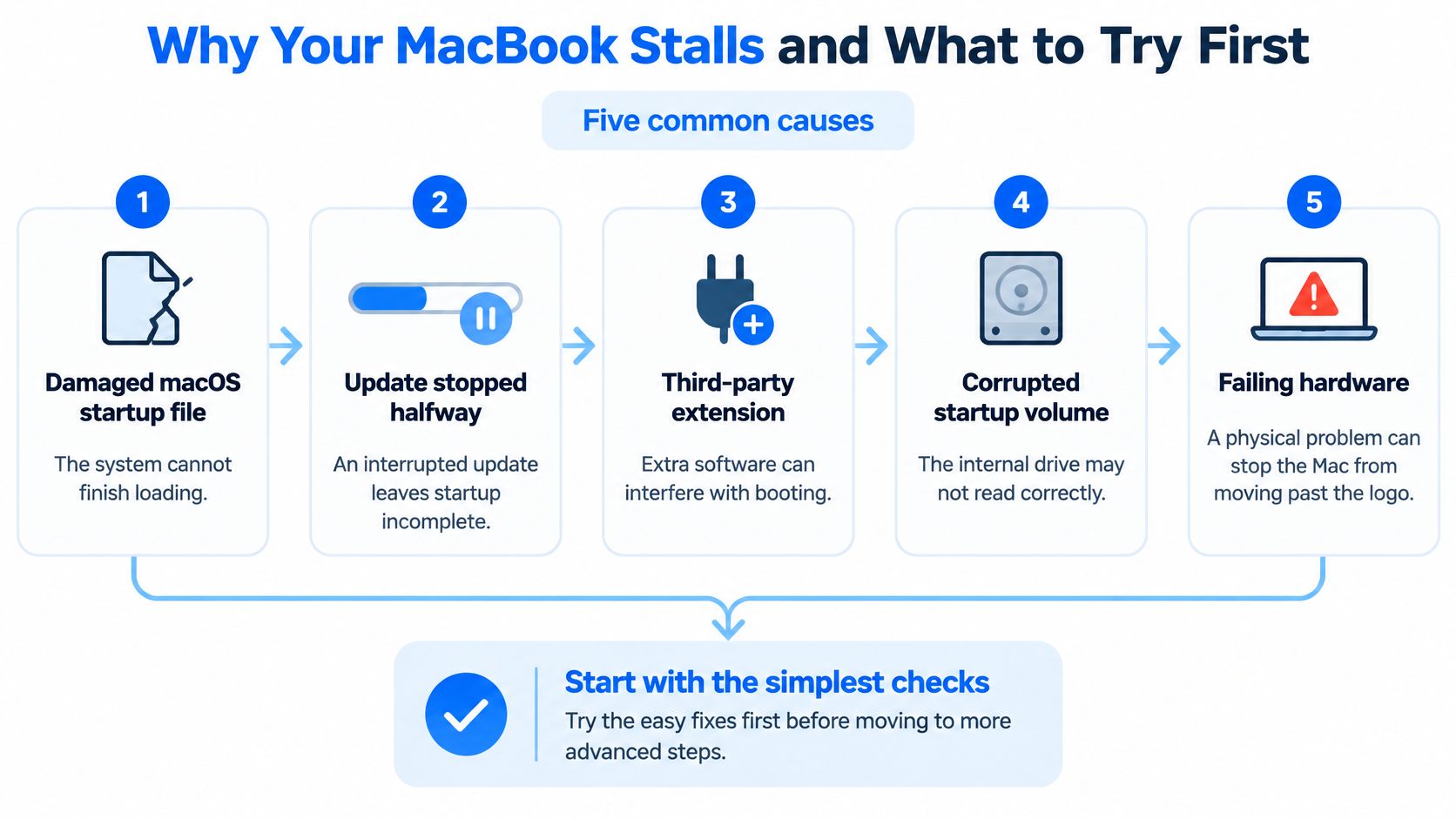
A Mac that stays on the logo is usually one of five faults: a damaged macOS startup file, an update that stopped halfway, a third-party extension, a corrupted startup volume, or a failing SSD or logic board. Software cases can often be recovered without wiping files. A fault that remains after Recovery and a clean disk check is more likely a failing SSD or logic board.
Start with checks that cost nothing and do not write to the drive.
Hold the power button for up to 10 seconds until the Mac is fully off.
Unplug every accessory, including USB hubs, external drives, printers, adapters and cables. A connected device can block startup.
Press the power button once. If a progress bar appears, wait up to 15 minutes. A disk check can look frozen while it is still working.
Write down whether the logo returns, how long you waited, and whether the bar moved.
A Mac that reaches the desktop after unplugging has an accessory or cable fault. Plug items back one at a time until the hang returns, then leave that cable or hub out. A Mac that returns to the logo continues to the processor-specific startup routes, still without erasing anything.
Practical rule: The logo only means the Mac found a startup disk. It does not name the fault.
This is a common support problem in the UK, not a rare one. Statista reports that approximately 25% of UK internet users owned a MacBook, while Apple held about 58% of the broader UK technology market in 2024. That ownership figure is not a failure rate. It does show how many homes and small firms keep personal files, work documents and photographs on these machines. If the Mac shows no light, fan or logo at all, that is a different fault from a hang, covered in our guide to a MacBook that will not turn on.
Startup Routes and Keys for Apple Silicon and Intel Macs
Do not open the Apple menu. About This Mac only appears after the Mac has already started, and yours has not. Identify the chip from the outside, then use the matching keys. A wrong key is harmless. It fails to open the menu and wastes a restart.
Tell the chip before you hold any key
Read the model on the underside, or recall whether this is a 2020-or-later MacBook Air or Pro that shipped with an M-series chip.
From a full shutdown, hold the power button. Apple silicon shows Loading startup options. An Intel Mac does not. Intel needs Option for the disk list, or Command-R for Recovery.
If a Bluetooth keyboard does nothing, plug in a USB or USB-C wired keyboard and repeat that same route.
The startup options screen may show only the internal disk. That is normal when no other bootable disk is connected.
Route | Apple silicon | Intel |
|---|---|---|
Reach startup options | Hold the power button until Loading startup options appears | Restart and hold Option until the startup disk list appears |
Choose a startup disk | Select the disk on the startup options screen | Select the disk from the list shown while Option is held |
Open macOS Recovery | From startup options, choose Options | Restart and hold Command-R until the Recovery window opens |
The two differences that matter
Apple silicon uses one long press of the power button, then the on-screen choices. You pick the disk there, and you open Recovery by choosing Options, then Continue.
Intel splits those jobs across two restarts. Hold Option as soon as you power on to see disks. On a separate restart, hold Command-R until the Recovery window opens. Releasing the keys too early drops you back to the logo, so keep them down until the list or window appears on screen.
If neither route responds, the keyboard is the first suspect, not the logic board. A wireless keyboard that was paired before the hang often cannot send keys during early startup. A cheap wired keyboard removes that doubt. Once startup options or Recovery appear, leave the Mac on mains power and move to the diagnostic tests.
How to Run Safe Mode and Apple Diagnostics
Safe Mode is a test, not a repair. It loads only essential system files and runs a basic disk check, so the result tells you where to look next. Apple's Mac User Guide describes Continue in Safe Mode on Apple silicon and holding Shift on Intel Macs.
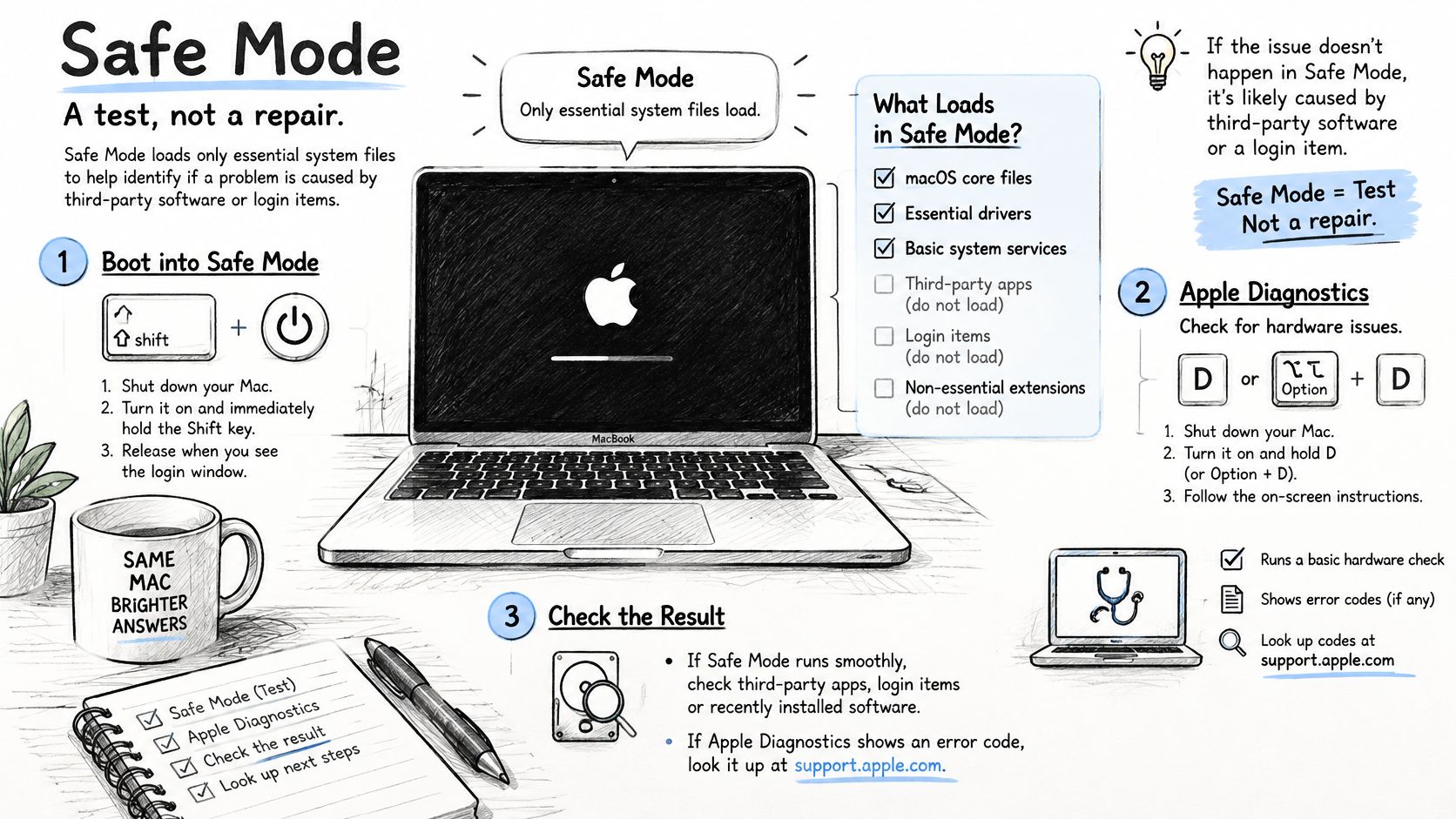
Apple silicon
Shut down.
Hold the power button until startup options appear.
Select the startup volume.
Hold Shift and choose Continue in Safe Mode.
Intel
Restart.
Immediately hold Shift until the login window appears.
You should see Safe Boot in red on the login window. Sign in with the normal account password.
What a pass and a fail each mean
A successful Safe Mode start, followed by a normal restart that also works, points to a third-party extension, login item, cache or software conflict. It does not prove the logic board is dead. Open System Settings (or System Preferences on older macOS), remove recent login items, and quit or uninstall the last security tool, VPN or "cleaner" you added. Restart once, normally.
If Safe Mode fails, run Apple Diagnostics. On Apple silicon, enter startup options and press Command-D. On Intel, restart and hold D. A hardware fault code names a component to report to a workshop. A clean test keeps the software path open. Write the Safe Mode result and any code on paper. You will need both before the next decision.
Intel resets, only if Safe Mode and a normal restart still fail
Do not treat the logic board as dead until these firmware resets have been tried, and do not run either while an update or progress bar is moving.
NVRAM, Intel only:
Shut down.
Power on and immediately hold Option-Command-P-R for about 20 seconds, until a second chime, or until the logo appears and disappears twice on a T2 Mac.
Apple silicon has no NVRAM reset. A full shutdown of about 30 seconds, then one normal start, is the equivalent.
SMC, Intel only: On a T2 MacBook from 2018 to 2020, shut down, hold the power button for 10 seconds, release, wait a few seconds, and start up. On an older non-T2 MacBook, shut down, hold left Shift-Control-Option and the power button for 10 seconds, release every key, then press power.
Two pitfalls
A frozen progress bar is not proof of a dead SSD. Apple explains that the Mac can show the logo when it finds a startup disk, and a bar while it checks that disk.
Repeated force restarts during encryption, a filesystem repair or an update can complicate recovery. Try each route once, note the result, and move on.
If the logo is still there, go to Recovery and Disk Utility. Do not erase the disk.
Repair the Startup Disk From macOS Recovery
Run First Aid before any erase or reinstall. Erasing first destroys files and the evidence a workshop would use. A drive that fails First Aid may not survive a reinstall either.
From macOS Recovery, choose Disk Utility and continue.
In the sidebar, select the internal startup volume, usually Macintosh HD, not an external disk.
Click First Aid and let it finish. A large drive can take a long time.
Read the result against the table.
If First Aid reports errors it cannot repair, stop and secure your data before going further.
A common slip is running First Aid on the APFS container instead of the startup volume. The container result is harder to read and can look fine while the volume you boot is damaged. Select Macintosh HD first. If the sidebar is collapsed, use View, then Show All Devices, so the internal disk is visible.
First Aid result | What it suggests | Next step |
|---|---|---|
Completes with no errors | Filesystem is readable, so the fault is probably software | Back up, then reinstall macOS, or return to Safe Mode to find a conflicting extension |
Errors found and repaired | Minor volume damage was fixed | Restart; if the logo returns, back up and reinstall |
Errors found and not repairable | Volume or drive damage beyond First Aid | Back up any readable data first, then stop and do not erase |
Repeated failure on restart | Storage is likely failing | Stop; arrange professional diagnosis and data recovery |
If the volume is not even listed
You cannot select what Disk Utility does not show. An internal disk that is missing, greyed out, or drops out mid-check is undetected or failing. Another reinstall will not create a volume the Mac cannot see.
Leave the Mac powered and on charge if the volume is still partly readable, and copy what you can. If it is not listed at all, stop home repairs and book diagnosis.
Back Up and Reinstall macOS Without Losing Data
Four answers decide the reinstall, and you should already have them: Intel or Apple silicon, whether a backup exists, whether Recovery shows the internal volume, and whether you know the FileVault password.
Apple's UK guidance separates Apple silicon recovery from Intel recovery. It also states that FileVault credentials are required during startup after encryption is enabled. The Mac may look frozen when it is waiting for your normal login password. An Apple ID password will not open that disk.
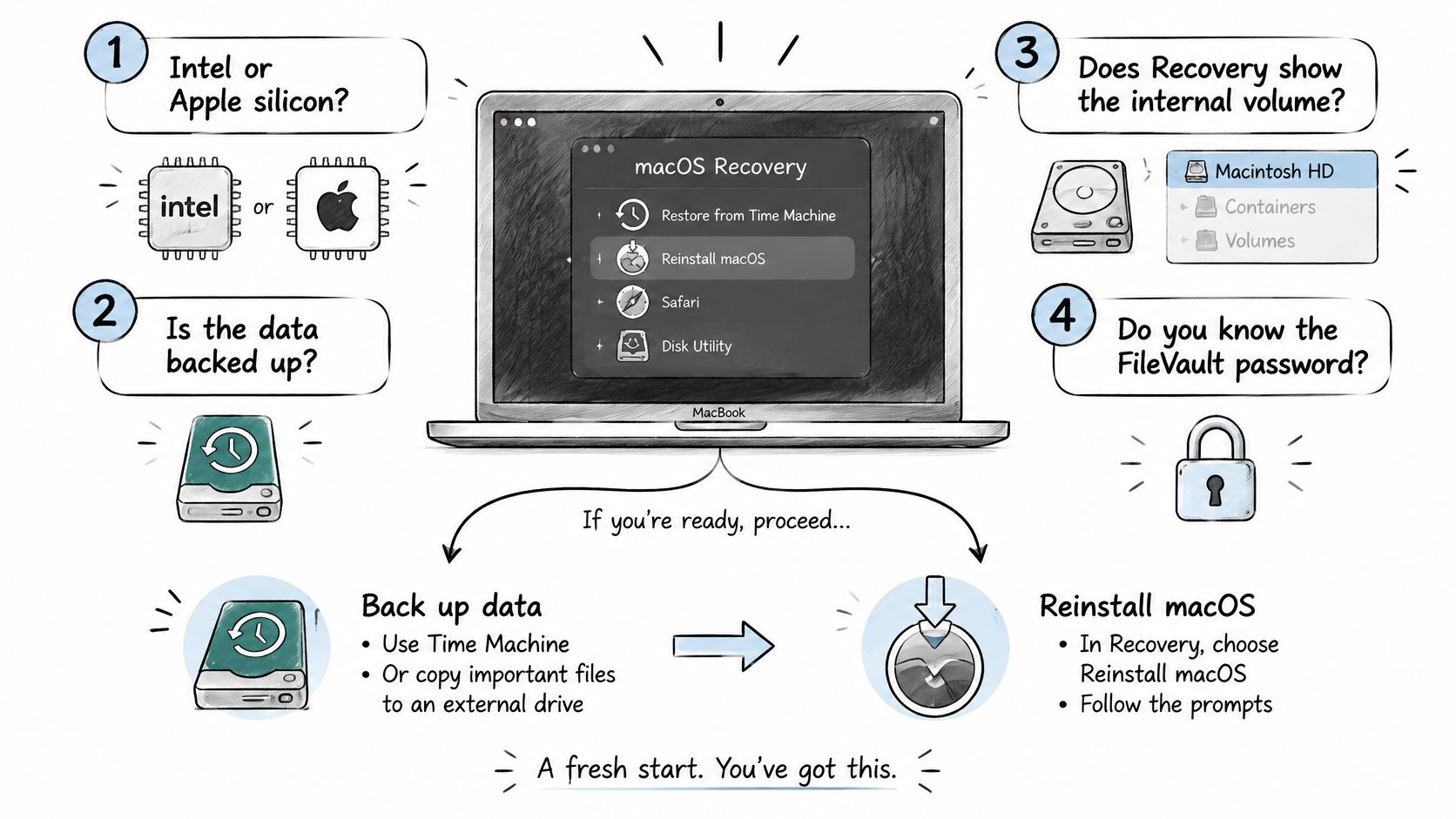
Choose Reinstall macOS from Recovery only when the internal volume is visible and readable. That reinstall replaces system files and keeps user data when the disk can be read. Erase stays off limits until files are copied, or Time Machine has a current backup.
Before you click Reinstall
Copy first: Move the files you cannot replace onto an external drive, or confirm Time Machine finished a backup you can open on another Mac.
Note the version and the symptoms: Write the macOS version if Recovery shows it, plus how the hang started, so a later visit is not a guess.
One reinstall, not a loop: Repeated attempts overwrite evidence and add wear to a disk that may already be weak.
No DIY recovery apps on a failing drive: Clicking, vanishing volumes, or a disk that drops out of Disk Utility need controlled recovery, not a download. Our notes on how to recover deleted files cover the software cases. A drive that will not mount is a different job.
No backup, plus a volume that will not mount, means professional data recovery before any reinstall. The service boundary is not "reinstall macOS". It may be a storage-health check, a controlled copy, or logic-board diagnosis.
If you want the Recovery screens beside you while the Mac sits on the logo, this walkthrough shows the same non-destructive path.
Decide Whether to Book a Board-Level Diagnosis
Stop at home when the symptom is no longer a software test. Liquid damage, no power or charging, a hardware code from Apple Diagnostics, or critical files with no backup on a drive that will not mount all belong in a workshop.
Case | Signal | Recommended action |
|---|---|---|
Liquid damage | Logo fails after a spill, with wet keyboard, battery or corrosion | Power off, avoid repeated restarts, book board-level diagnosis |
No power or no charge | Logo never appears, no fan or light response | Book power and charging diagnosis; micro-soldering may be needed |
Apple Diagnostics reports a hardware fault | Hardware error code shown in the test | Take the reported component to a repair workshop |
Critical files, no backup | Drive will not mount and important data is unsaved | Book professional data recovery before any reinstall |
Board-level diagnostics and micro-soldering can restore power, charging and some liquid faults without replacing the whole logic board. Any attempt by a third party to open or modify the hardware voids the warranty, so do not open the case at home. We repair all types of Apple and Mac computers and work with both macOS and Windows, including MacBook Air and MacBook Pro. Supported laptops also include ASUS ROG and TUF, Dell XPS and Inspiron, HP Pavilion and Envy, and Lenovo ThinkPad and Legion. What that looks like on a Mac is set out in our MacBook logic board repair notes.
Bring the Mac model, the macOS version, when the symptom started, any Apple Diagnostics result, and whether a backup exists. Book a diagnosis before you agree to board work, so the fault is named before the repair is priced.
Steel City IT in Frecheville, Sheffield, diagnoses MacBooks that stay on the Apple logo, from a readable disk that needs a careful reinstall through to storage recovery and board-level power or liquid faults. Bring the notes from the checks above so we can name the fault before any erase or board work. Visit Steel City IT to book that diagnosis.