
Hard Drive Data Recovery Service: A Complete UK Guide

You've opened the laptop to finish invoices, send family photos, or check tomorrow's job list, and the drive clicks, stalls, or vanishes. That sinking moment isn't really about hardware. It's about the files you can't reach and the fear that one wrong restart will make things worse. Slow down. The next action you take matters more than speed.
Table of Contents
What a Hard Drive Data Recovery Service Really Does - Why Local Drives Still Matter
Logical or Physical Failure and the Recovery Each Needs - Match Your Symptoms to a Fault
What to Stop Doing Before a Failing Drive Reaches a Technician - Actions That Quietly Destroy Recoverable Data - What to Gather Instead
How a Professional Recovery Runs From Diagnosis to Return - The Seven Steps in Practice
What Drives the Price and Turnaround of Recovery - Why These Factors Bite
Choose a Sheffield Provider and Book a Diagnostic - Questions That Reveal How a Provider Works
What a Hard Drive Data Recovery Service Really Does
Say a Sheffield bookkeeper starts the office PC, hears the hard drive clicking, and finds the accounts folder gone. Windows may offer to format the disk or run a repair. Neither option answers the question, which is whether the underlying records can still be read safely.
A hard drive data recovery service retrieves files from storage that the operating system can no longer read reliably. That's different from copying visible folders to a USB stick, and it's different from running a repair tool that rewrites parts of the disk to make Windows happy. Recovery works underneath the normal file view, at sector level.
Think of the drive as a filing cabinet. Your documents are the papers inside the drawers, and the file system is the index card that says where each paper sits. Damage the index and the papers may still be there, just impossible to find through the usual route. A technician rebuilds that index from a protected copy, then extracts what survives.
Why Local Drives Still Matter
Cloud storage hasn't removed this risk. The UK Business Data Survey 2024 found that 99% of large, medium and small businesses handled digitised data, while 35% stored and processed that data on their own premises. For a small firm, one failed workstation drive can still hold customer records, accounts, and project files that exist nowhere else.
A proper service follows three stages. First, the technician diagnoses whether the fault is logical, electronic, firmware related, or mechanical. Second, they make a protected sector level copy so the fragile original isn't scanned repeatedly. Third, they rebuild and check files from that copy before returning them to you.
Recovery isn't about forcing a sick drive to boot one more time. It's about reading what remains, once, in a controlled way.
We specialise in data recovery, including from damaged or corrupted hard drives, from our Frecheville workshop serving Sheffield. The sections ahead explain failure types, the recovery process, price and turnaround, what to avoid, and how to choose a provider you can trust with irreplaceable files.
Logical or Physical Failure and the Recovery Each Needs
Every case starts with one split. A logical failure means the drive's mechanics still work, but its files, partitions, or file system are damaged. A physical failure means the drive itself can't be read reliably, because electronics, firmware, heads, or the motor have failed. The recovery each needs is very different, and confusing the two is where people lose data.
The consequences aren't rare. The Cyber Security Breaches Survey 2024 found that among businesses that identified a breach or attack, 13% experienced at least one negative outcome, including loss of money or data, and 4% of all surveyed businesses had temporary loss of access to files or networks. Temporary inaccessibility can come from file system corruption, malware, failed boot structures, or a failing disk, and it's often recoverable if the medium is stabilised and imaged before repeated use.
Match Your Symptoms to a Fault
Failure type | Typical symptoms | Usual recovery approach | Likelihood of full recovery |
|---|---|---|---|
Accidental deletion or formatting | Files missing, drive reads normally | Logical recovery from a sector level image | High if no new data has been written |
Corrupted file system | Drive shows as RAW or asks to be formatted | Logical repair carried out on a copy | High where metadata survives, lower after overwrite |
Failed partition table | Drive not recognised, partitions missing | Partition reconstruction on a copy | High where backup structures survive, lower after new partitions are created |
Electronic (circuit board) fault | Drive spins but is not detected | Board level repair or donor board, then imaging | Good where platters and heads are undamaged |
Mechanical fault (head or motor) | Clicking, grinding or no spin up | Specialist mechanical work, then imaging | Low to moderate, set by head and platter damage |
Firmware corruption | Drive stuck, busy or reporting wrong capacity | Firmware repair with specialist tools | Moderate where platters are undamaged and modules can be rebuilt |
Accidental deletion is the gentlest case. Deleting a file usually removes its index entry, not the data itself, so the contents often survive until new files overwrite those sectors. Formatting works in a similar way. That's why a drive that's been left alone after deletion gives a technician far more to work with.
A corrupted file system looks scarier. Windows may call the drive RAW and offer to format it, which means it can't read the index. Don't accept that offer. The same patience applies when partitions vanish after a failed partition table. In both cases the technician rebuilds structures on a copy, never on your only original.
Physical faults change the rules. An electronic fault may leave a drive spinning but invisible, while a mechanical fault announces itself with clicking or grinding as damaged heads struggle over the platters. Firmware corruption is quieter, leaving a drive stuck busy or reporting the wrong capacity. If your device is solid state rather than spinning, the failure pattern differs again, so read our guide to SSD data recovery before assuming the same steps apply.
There's no honest single success rate across this mix of faults, and we won't invent one. Use the likelihood column as your guide, match your symptoms to a row, and ask any provider for its own recovery figures for that fault type when you're quoted. If your row involves noise, heat, or a drive that won't stay detected, the safe decision is to leave it switched off.
What to Stop Doing Before a Failing Drive Reaches a Technician
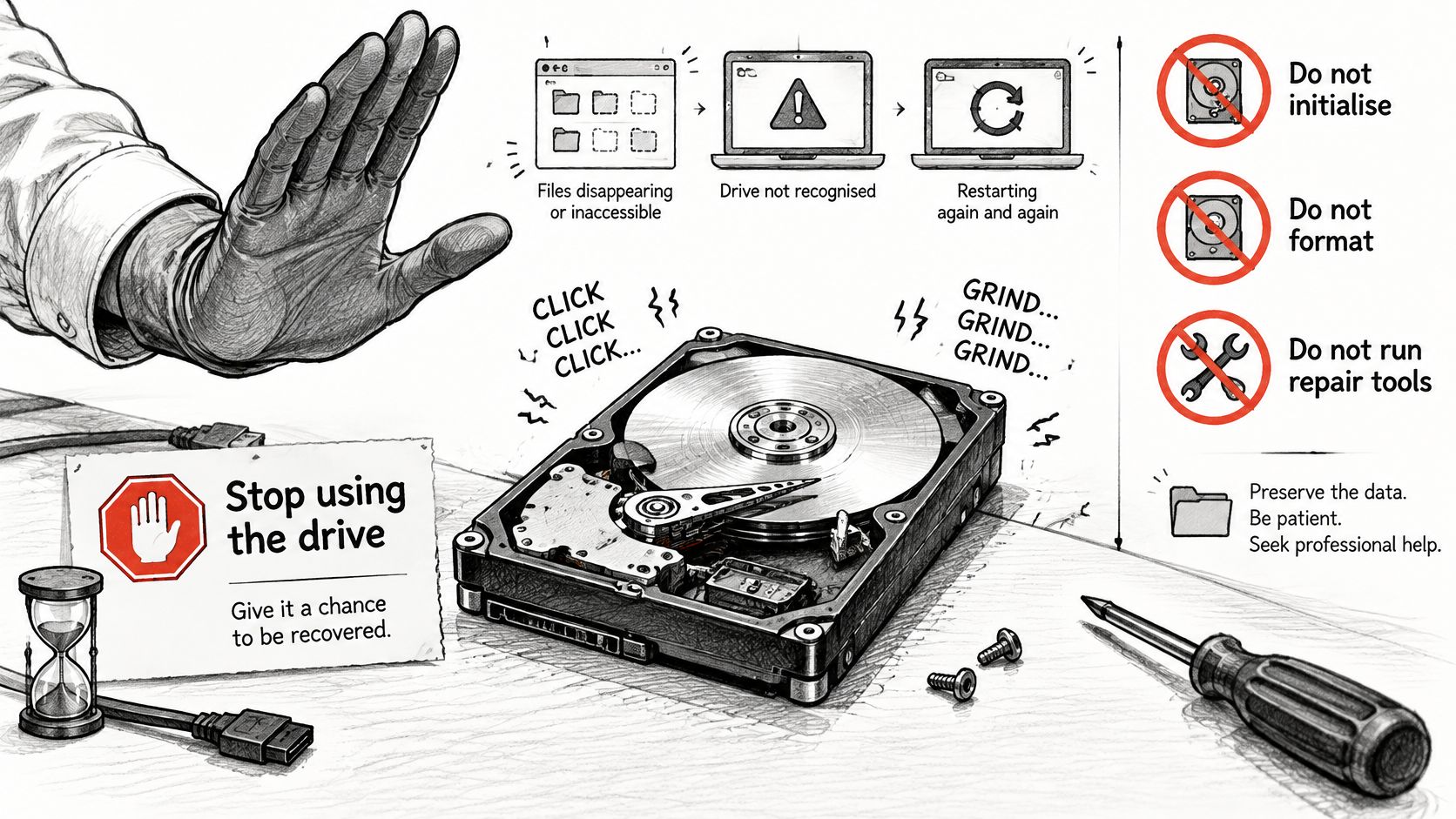
Start with one rule. Stop using a clicking, grinding, disappearing, or repeatedly restarting drive. Every extra power cycle gives damaged heads another pass over the platters, and every write risks overwriting the sectors a technician needs. If you're unsure whether your symptoms count as serious, check the common hard drive failure signs before you test the drive again.
Actions That Quietly Destroy Recoverable Data
Don't initialise or format: Windows presents this as a fix, but it writes new structures over the old index you're trying to save.
Don't run CHKDSK or repair utilities: These tools rewrite file system records to restore consistency, which can permanently discard damaged but recoverable entries.
Don't reinstall Windows on the same disk: An installation writes gigabytes of new data across exactly the sectors where deleted files may still sit.
Don't keep power cycling to test it: Repeated spin ups stress failing heads, motors, and electronics, and a drive that reads intermittently today may not read tomorrow.
Practical rule: If the drive makes a new noise, smells hot, or drops out mid copy, unplug it and write down what happened instead of trying once more.
What to Gather Instead
Bring information, not experiments. Note the drive model from its label, write a short timeline of symptoms, and list your priority files in order, for example payroll first, then customer records, then photographs. If the drive is encrypted, bring the password or recovery key, because imaging can succeed while the files inside stay locked without it.
Privacy deserves the same care as the hardware. The ICO encryption guidance highlights risks from inadequately protected devices and inappropriate storage locations, which matters when a drive holds payroll or customer records. We follow strict protocols to keep customer data safe and confidential during repairs, and you should expect any provider to explain theirs.
Before handover, ask three questions. How will recovered data be transferred to you, how long will any working copy be retained, and how will it be deleted afterwards? A clear, unhurried answer to all three is a strong sign of a trustworthy service.
How a Professional Recovery Runs From Diagnosis to Return
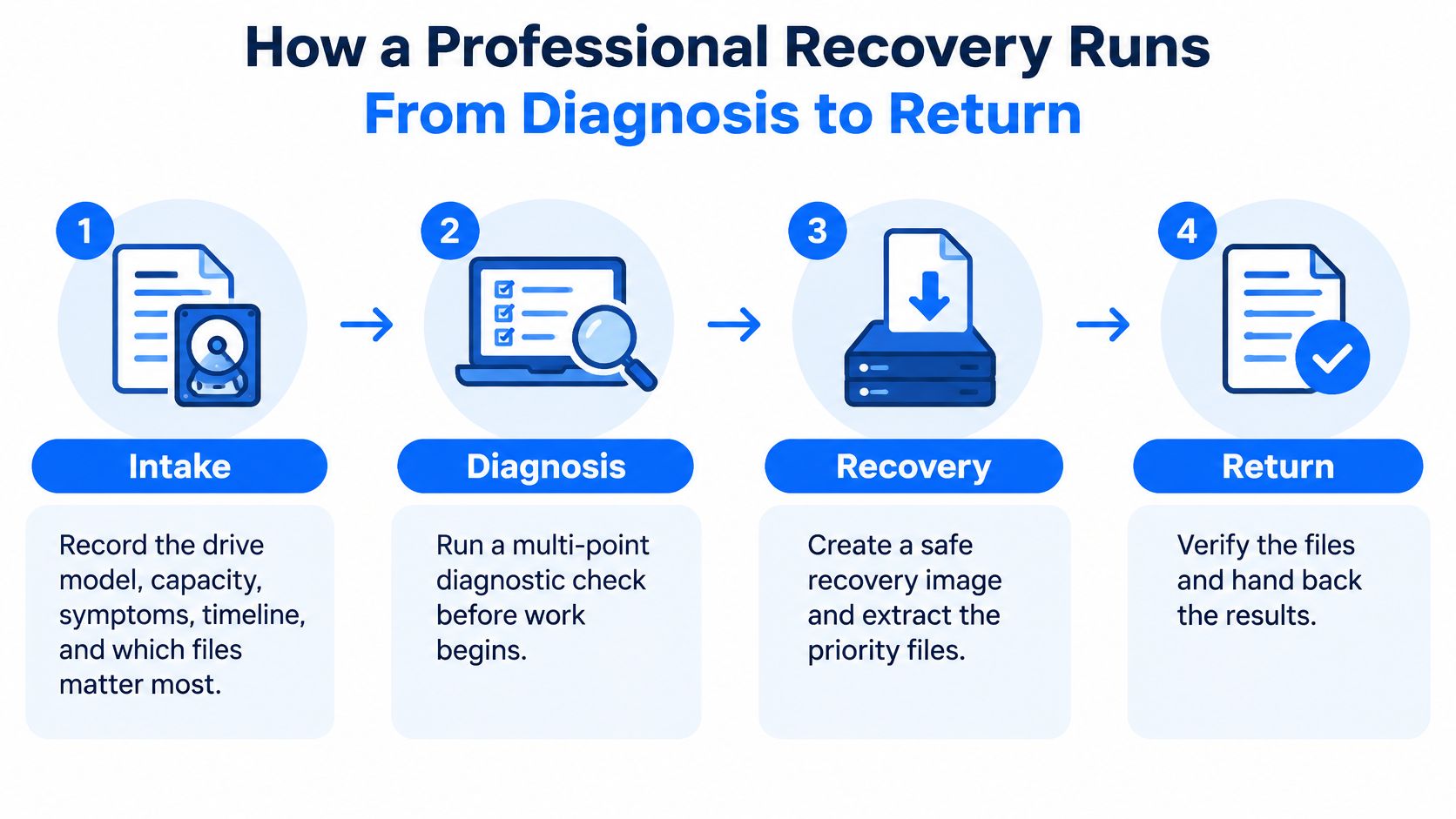
A controlled recovery follows a fixed order, and the order itself protects your data. Skipping ahead, for example scanning the original drive directly, trades a little speed for a real risk of losing sectors that would have read once under gentler conditions.
The illustration below summarises the journey from drop off to return.
The Seven Steps in Practice
Intake: The technician records the drive model, capacity, symptoms, timeline, and which files matter most. This protects your priorities, because a failing drive may only allow limited reading and the most valuable areas should be targeted first.
Diagnosis: We run a multi point diagnostic check before work starts and give an estimated timeline when you drop the device off. This step separates logical damage from electronic or mechanical faults, so nobody attempts software recovery on a drive with failing heads.
Protected imaging: The original is connected read only and copied sector by sector to create a working image. UK forensic practice follows the same principle, and the Crown Prosecution Service guidance on digital material states that original digital data should only be accessed by a competent person who can explain the implications of the work. Imaging first means repeated scans can't further damage your only copy.
Fault logging: Unreadable sectors are recorded during imaging, and critical regions such as partition tables and file system structures are prioritised. This map tells the technician where the index survives and where file contents are likely to be incomplete.
Reconstruction: The file system is rebuilt and files are recovered from the image, never from the original. Trial and error is safe here, because a failed reconstruction attempt on a copy costs nothing and can be repeated differently.
Reporting: You receive a report separating imaged sectors, recovered files, and unreadable regions. That separation lets a business decide rationally, for instance whether the recovered accounts database justifies the cost before paying for full extraction.
Return: Recovered data is transferred to a medium you choose, and you check the files open correctly before the original drive is returned or disposed of. Checking matters, because a file can be structurally present yet still missing sectors in the middle.
One caution is worth stating plainly. A drive that has been repeatedly powered on, scanned with consumer software, or subjected to repair utilities may already have lost part of its recoverable data before it reaches a workshop. The process above can't restore overwritten sectors, which is why stopping early protects more files than any later technique can.
What Drives the Price and Turnaround of Recovery
No honest provider can give a fixed price before the drive is examined, and a firm quote offered over the phone without diagnosis should make you cautious. Two drives with identical symptoms can need entirely different work. One may need a logical rebuild from a clean image, while the other needs board level repair before imaging can even start. What a provider can do is explain which factors move the price and the timeline, then confirm both in writing for your specific job.
Factor | Effect on price | Effect on turnaround |
|---|---|---|
Failure type | Logical cases usually cost less than electronic or mechanical ones | Logical cases are typically quicker, mechanical work adds time |
Drive condition | Severe damage needs more work and diagnosis | Each additional stage extends the timeline |
Data volume and fragmentation | Larger or fragmented volumes take more reconstruction work | Rebuild time rises with volume |
Encryption | Encrypted drives may need keys or extra work | Set by whether the key is available at intake |
Urgency | Expedited handling typically costs more than standard service | Priority jobs move ahead in the queue, shortening the wait |
Why These Factors Bite
Logical cases tend to be quicker because the drive reads steadily and imaging runs at normal speed. A mechanically damaged drive may only tolerate slow, interrupted reading with constant monitoring, so the same capacity takes far longer to image. Severe damage also adds diagnosis time at each stage, because the technician must confirm the drive is stable before moving on.
Data volume works in a similar way. A large, heavily fragmented drive scatters individual files across many areas, and each file must be reassembled in the right order during reconstruction. Encryption adds a different kind of delay. Without the key or password, a perfect image still contains unreadable data, so time spent hunting for a BitLocker recovery key in a Microsoft account is time added to your job.
Urgency is the one factor you control. Choosing expedited service means paying a premium for queue priority, so weigh it against what downtime costs you. A drive holding this week's accounts may justify it; a drive of old family photos may not.
We confirm turnaround in writing for each job rather than quoting a standard figure, because the timeline is set by problem complexity. If a repair costs more than the device is worth, we tell the customer, and the same honesty should apply when recovery would cost more than the data justifies.
A quote you can't compare is a quote you can't judge. Ask for it itemised, in writing, with the timeline attached.
When you're quoted, ask whether diagnosis is charged separately, whether the quote is itemised by stage, and what happens to the price if recovery only partly succeeds. Ask for the estimated timeline in writing too. Clear answers cost a good provider nothing.
Why Backups Beat Recovery After Ransomware or Drive Failure
A recovery workshop should tell you this plainly: recovery is a last resort, not a resilience plan. Restoring a tested backup is faster, cheaper, and far more certain than extracting data from a failed or encrypted drive, so treating recovery as your safety net means accepting risk you could have avoided entirely.
The image below shows the fork every data loss reaches: restore from a copy, or attempt recovery from damaged media.
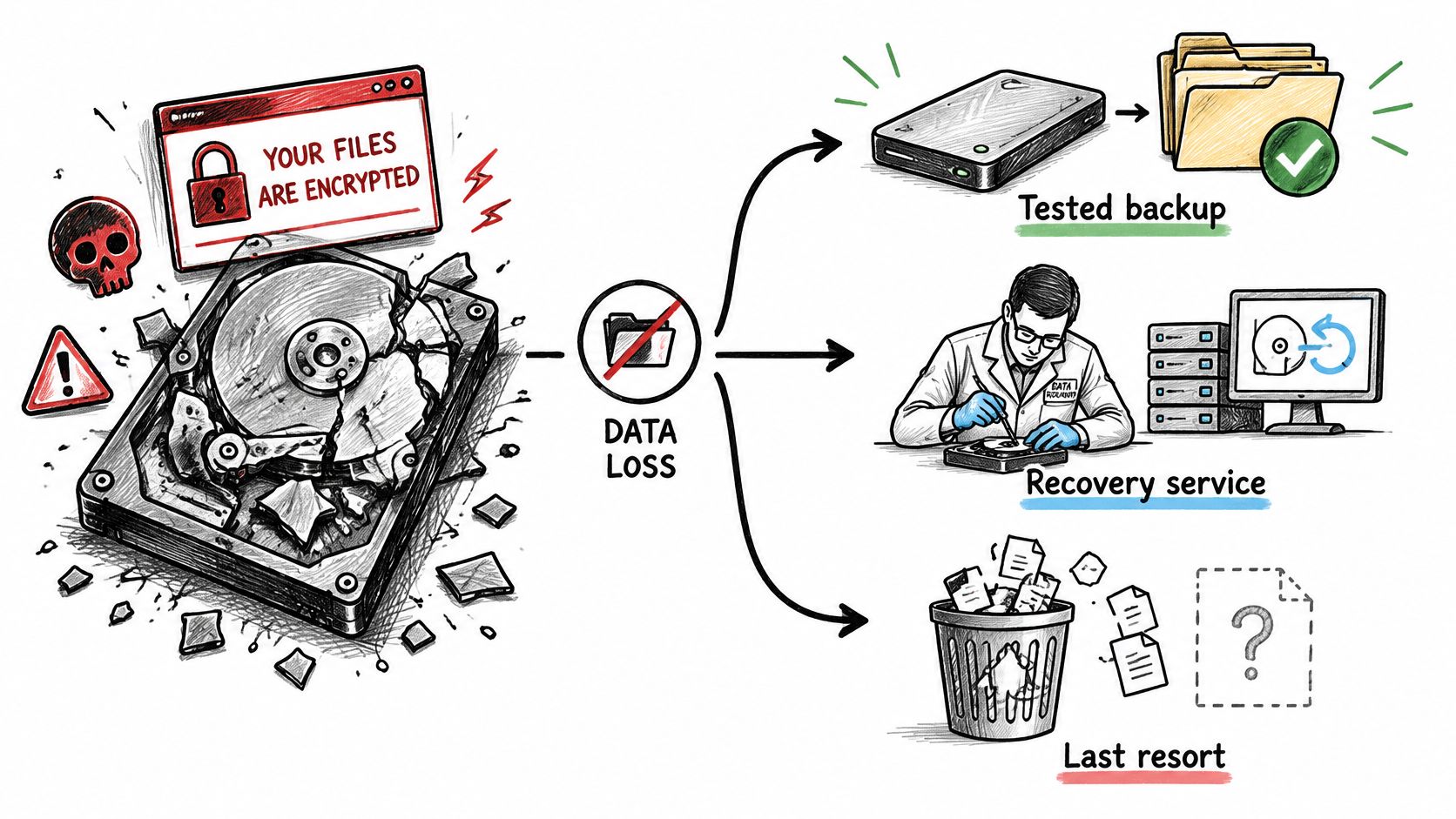
UK evidence supports that ordering. The Databarracks Data Health Check reported that 1 in 4 surveyed organisations experienced ransomware in the previous 12 months, while 59% recovered from backups rather than paying the ransom. The same research stresses that a backup only counts if it has been tested and kept offline or immutable, because ransomware actively seeks out connected copies. A backup you have never test-restored works like a spare tyre you have never checked: it may be flat on the day you need it.
Match what you see to the right first move, before any further damage is done.
Route | Best when | First action | Main limit |
|---|---|---|---|
Hard drive recovery service | Deleted files, damaged hardware or corrupted systems with no usable backup | Stop using the drive and have it imaged | Slower and costlier, results set by the fault |
Backup restoration | A tested, offline or immutable backup exists | Restore a clean copy to a clean device | Only as good as the last tested backup |
Ransomware response | Files are encrypted by malware | Isolate the affected system before anything else | Restoring to an uncleaned system can repeat the loss |
The short video below walks through why tested, isolated backups restore faster than emergency extraction.
Follow a documented order after any loss. Isolate the affected system from the network, identify the cause, restore a clean copy to a clean device, and run a restore test before relying on the result. Each step protects the next: isolation stops encryption spreading, while restoring onto a clean device prevents reinfection.
Learning how to clone a hard drive helps with planned upgrades, but a clone of an infected or failing system just preserves the problem, so it is no substitute for versioned backups. For day to day habits that prevent loss in the first place, practical backup advice from myhalo is worth adopting before you need it.
A restore onto a reinfected or unisolated system can repeat the loss within hours. Test the backup, keep one copy offline, and treat recovery services as the route you hope never to need.
Choose a Sheffield Provider and Book a Diagnostic
Judging a provider is easier with a checklist than with promises. Work through these questions with any workshop before you hand over a drive containing payroll, customer records, or family photographs.
Questions That Reveal How a Provider Works
Do they diagnose before quoting: A firm price without examination usually means guesswork, and guesswork gets revised upwards later.
Do they work from a sector level image: If the plan involves scanning or repairing your original drive directly, your only copy carries all the risk.
Do they issue a written report: You should see imaged sectors, recovered files, and unreadable regions stated separately before you commit to full costs.
Do they explain confidentiality: Ask how data is stored during the job, who can access it, and when working copies are deleted.
Can they handle board level faults: Electronic failures need component level skills and micro soldering, not just software, so ask where that work happens.
Will they tell you not to proceed: An honest provider says plainly when recovery isn't worth the cost, even though that honesty loses them the job.
The screenshot below shows our workshop site, where you can check services and contact details before visiting.

Steel City IT is one option that meets this checklist. From our Frecheville workshop serving Sheffield, we offer sector level analysis, controlled handling of the original drive, and board level skills for circuit board faults. If a device is beyond repair, we tell the customer directly and can often recommend affordable replacements or upgrades. After drop off, we keep you updated on repair status by phone or email, so you're not left guessing while a drive is being imaged.
If your business also needs help documenting recovery priorities or tightening data handling procedures around incidents like these, you can connect with Faberwork consultants for that wider operational support. That kind of preparation sits alongside technical recovery rather than replacing it.
The best time to choose a provider is before panic sets in, but the second best time is now, with the drive switched off.
Your next step is simple. Stop using the drive, write down the symptoms and your priority files in order, and contact the workshop through our website to request a diagnostic and a written estimate. Ask for the expected timeline when you drop the device off, and bring any encryption passwords or recovery keys with you. That small amount of preparation gives the technician the best possible starting point and gives your files their best chance.
If your drive is clicking, showing as RAW, or holding files you can't afford to lose, switch it off and let us diagnose it properly before further damage is done. We offer sector level data recovery, board level repair, and honest written estimates from our Frecheville workshop, and we'll tell you plainly if recovery isn't worth the cost. Visit Steel City IT to book a diagnostic and get your priority files assessed.