
What Is Bloatware? Causes, Slowdowns and Safe Removal

Bloatware is non-essential software that a manufacturer, carrier or retailer preinstalls on a new device, usually without the owner choosing it.
You've just switched on a new laptop, but instead of getting straight to your files, you're closing subscription offers, account requests and unfamiliar notifications. It's reasonable to wonder which programs belong there and which you can safely remove. The useful distinction isn't whether an app arrived preinstalled, but whether you need it and what it does when you're not using it.
Table of Contents
What Bloatware Means in Plain Terms - Familiar names can still be unwanted extras - Identify before you delete
Telling Bloatware From Useful and Malicious Software - Preinstalled doesn't mean unnecessary - Bloatware isn't the same as malware - Apply a necessity, removability and resource test
How Bloatware Slows Down a Computer - Where the resources go - Defaults aren't evidence of the best choice
How to Spot Bloatware on a Windows PC - Build an evidence-based shortlist - Make comparisons meaningful
Removing or Managing Bloatware Without Breaking Your PC - Choose by function, not category alone - Avoid blind debloating
Decide Whether a Clean Reinstall Is Worth It - Weigh the disruption against the evidence
What Bloatware Means in Plain Terms
A new laptop sits unboxed on the kitchen table. Its desktop already contains trial apps, shopping shortcuts and sign-up prompts, even though its owner hasn't installed anything. Those extras are what people usually mean when they ask, what is bloatware?
In everyday UK usage, the term usually refers to unwanted factory-installed software rather than programs you deliberately downloaded. Think of promotional leaflets slipped into a shopping bag. A shopper might find an offer useful, but someone else has extra clutter to carry home.
The distinction between useful software and unwanted extras is easier to see when you group the apps by purpose.
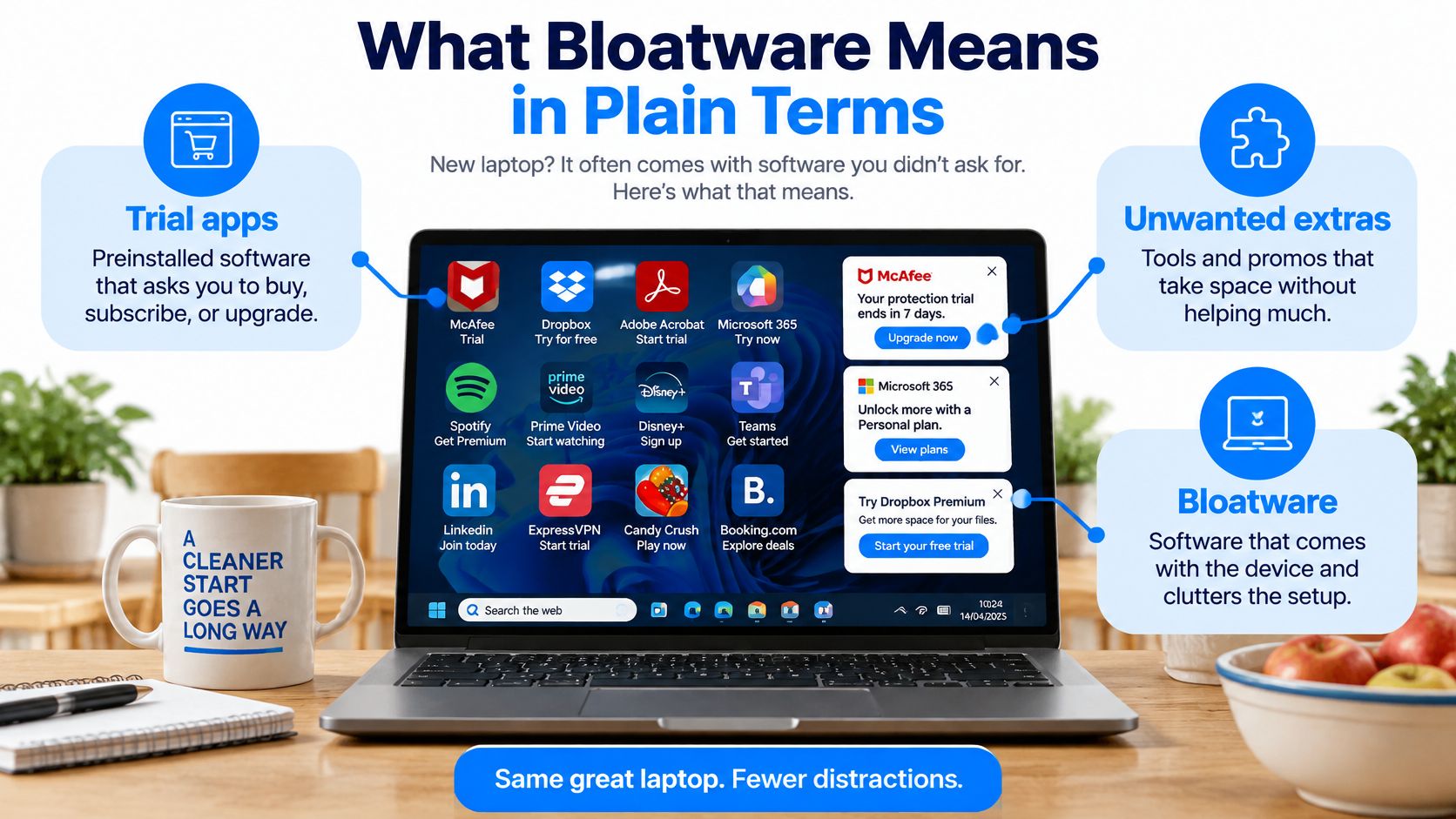
Familiar names can still be unwanted extras
Bloatware doesn't have to be an obscure program with a suspicious name. In its laptop investigation, Which? reported that most of the 275 laptops assessed contained at least one application it classified as bloatware, with the applications and shares shown below.
Most common bloatware on new UK laptops
Application | Share of 275 laptops tested |
|---|---|
Microsoft Teams | 73% |
Booking.com | 19% |
ExpressVPN | 16% |
OneDrive | 12% |
Amazon | 11% |
These are recognisable commercial services, not automatically harmful programs. Someone who uses Teams for work might welcome its presence. Someone who never uses it might prefer not to have another app requesting attention.
Likewise, a cloud-storage client can be valuable if it holds your working documents. Its usefulness changes if you already use another service and don't want duplicate sync prompts.
Identify before you delete
Bloatware is a practical judgement, not a universal blacklist. A promotional application, an unused trial and an essential hardware utility can all appear in the same installed-apps list, but they shouldn't receive the same treatment.
Start by opening your device's installed-apps list and marking programs you don't remember choosing. Include familiar names as well as unfamiliar ones, but don't uninstall anything yet.
Practical rule: Treat an unfamiliar application as something to investigate, not something to delete.
The aim is to create a shortlist. Finding out who publishes each program and why it's present is safer than assuming everything you didn't install must be unnecessary.
Telling Bloatware From Useful and Malicious Software
People don't agree on whether preinstalled apps are a nuisance. In a nationally representative online survey of 2,271 UK adults conducted on 1 December 2022, YouGov found that 43% disliked manufacturers preinstalling apps or software on phones and computers, while 41% didn't mind.
That split makes sense. A ready-to-use browser is convenient when you need to get online immediately, while a security subscription prompt can feel intrusive if you've already chosen your protection. Neither reaction tells you, by itself, whether the application is technically necessary.
Preinstalled doesn't mean unnecessary
Windows needs software to communicate with your graphics hardware, wireless adapter and other components. Your laptop may also need a manufacturer utility to manage its battery settings or keyboard features. These programs aren't equivalent to a shopping promotion because they arrived together.
The same principle applies to phones. CMA-published material on Android browser distribution describes how browsers can arrive through manufacturer arrangements. Their presence alone doesn't establish that they're wasteful or unsuitable.
A useful app can still deserve a privacy review. Check its permissions, whether it starts automatically and whether it needs the account access it requests. Legitimate software isn't automatically software you must accept on its default settings.
Bloatware isn't the same as malware
Bloatware is generally legitimate software that's unwanted or unnecessary for its owner. Malware is software designed to carry out harmful or unauthorised activity. Subscription reminders are annoying, but they aren't evidence of an infection on their own.
Using the shopping-bag comparison, necessary software is the handle that makes the bag work, bloatware is the promotional leaflet, and malware is a stranger's harmful parcel slipped inside. The analogy isn't a diagnostic tool, but it helps separate inconvenience from malicious behaviour.
For a closer explanation of disguised malicious software, read our guide to what a Trojan virus is on a computer. If you're writing a security report rather than diagnosing your own machine, Statlyst's citable malware figures for reporting offer a separate resource for that topic, not a test for whether a particular app is bloatware.
Bloatware, legitimate software and malware compared
Type | Typical example | Main risk | Usual action |
|---|---|---|---|
Bloatware | Trial antivirus or promotional app | Clutter, background processes and prompts | Disable or uninstall if not needed |
Necessary vendor or Windows software | Graphics driver or Windows Security | Hardware or protection stops working if removed | Keep |
Legitimate optional software | Browser you chose or cloud-storage client | Unneeded permissions, storage or background activity | Keep if used, otherwise uninstall |
Malware | Malicious fake optimiser or injected adware | Stolen data, hijacked browser or ransomware | Scan and remove; change affected passwords from a trusted device |
Apply a necessity, removability and resource test
Before deciding what to do, ask:
Necessity: Does it provide hardware control, protection, accessibility or another function you rely on?
Removability: Can you uninstall it normally through Settings, and does the publisher explain any consequences?
Resource use and access: Does it run without your involvement, or request access you don't consider appropriate?
A missing uninstall button isn't proof of malware. Equally, an uninstall button isn't a guarantee that removing the program won't interrupt your workflow. Identify its role first, then decide whether keeping, configuring or removing it best suits you.
How Bloatware Slows Down a Computer
The visible application window often isn't the main performance problem. An app can close its window while leaving an updater, background service or notification process running.
These are the areas to inspect when a computer feels busy despite having little open.
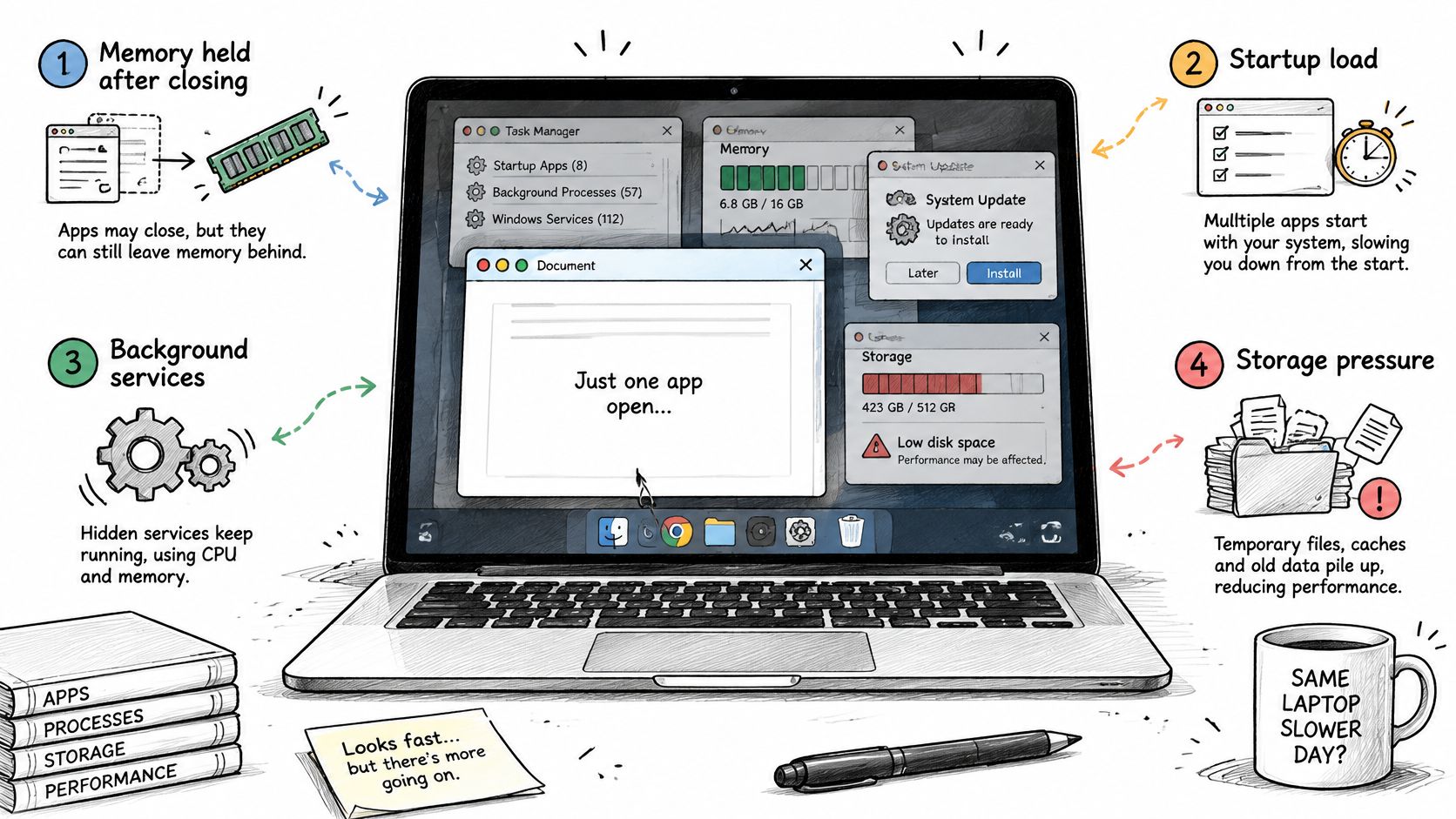
Where the resources go
Persistent processes occupy RAM. That leaves less memory available for your browser, documents or games. On a memory-constrained machine, Windows may need to move more working data between memory and storage.
Startup entries and scheduled services also create CPU and disk activity. Several applications checking accounts, loading interfaces and starting update services together can delay the point when your desktop feels ready.
Update agents use network connections and write downloaded files. Retained caches, installers and application data also consume storage, with resource pressure particularly relevant on constrained devices, as discussed in this peer-reviewed analysis of preinstalled Android software. That study concerns phones, so it shouldn't be treated as a Windows performance benchmark.
For a visual accompaniment to the performance checks, this video is available to watch.
Defaults aren't evidence of the best choice
People may continue using bundled software because changing it takes effort. The Competition and Markets Authority's work on choice architecture discusses this inertia around preinstalled defaults.
That doesn't mean the default is bad. It means its continued presence doesn't prove that the owner selected it after comparing alternatives.
Diagnose what a program does, rather than judging the logo on its shortcut.
A slow machine may instead have failing storage, insufficient RAM, a troublesome browser extension or malware. Deleting promotional apps won't repair those faults.
Indiscriminate removal creates another problem. Manufacturer components can support hotkeys, firmware updates, power profiles, graphics switching and recovery functions. If startup activity is the symptom you've identified, our instructions on how to disable startup items provide a more controlled starting point than removing every vendor application.
The mechanism matters more than the brand name. Look for the process using resources, establish what launches it and verify whether changing it improves responsiveness.
How to Spot Bloatware on a Windows PC
Use Windows' built-in tools before downloading anything. Keep a simple note containing the application name, publisher, observed behaviour and any change you make.
Begin with the installed-apps inventory rather than the desktop shortcuts.
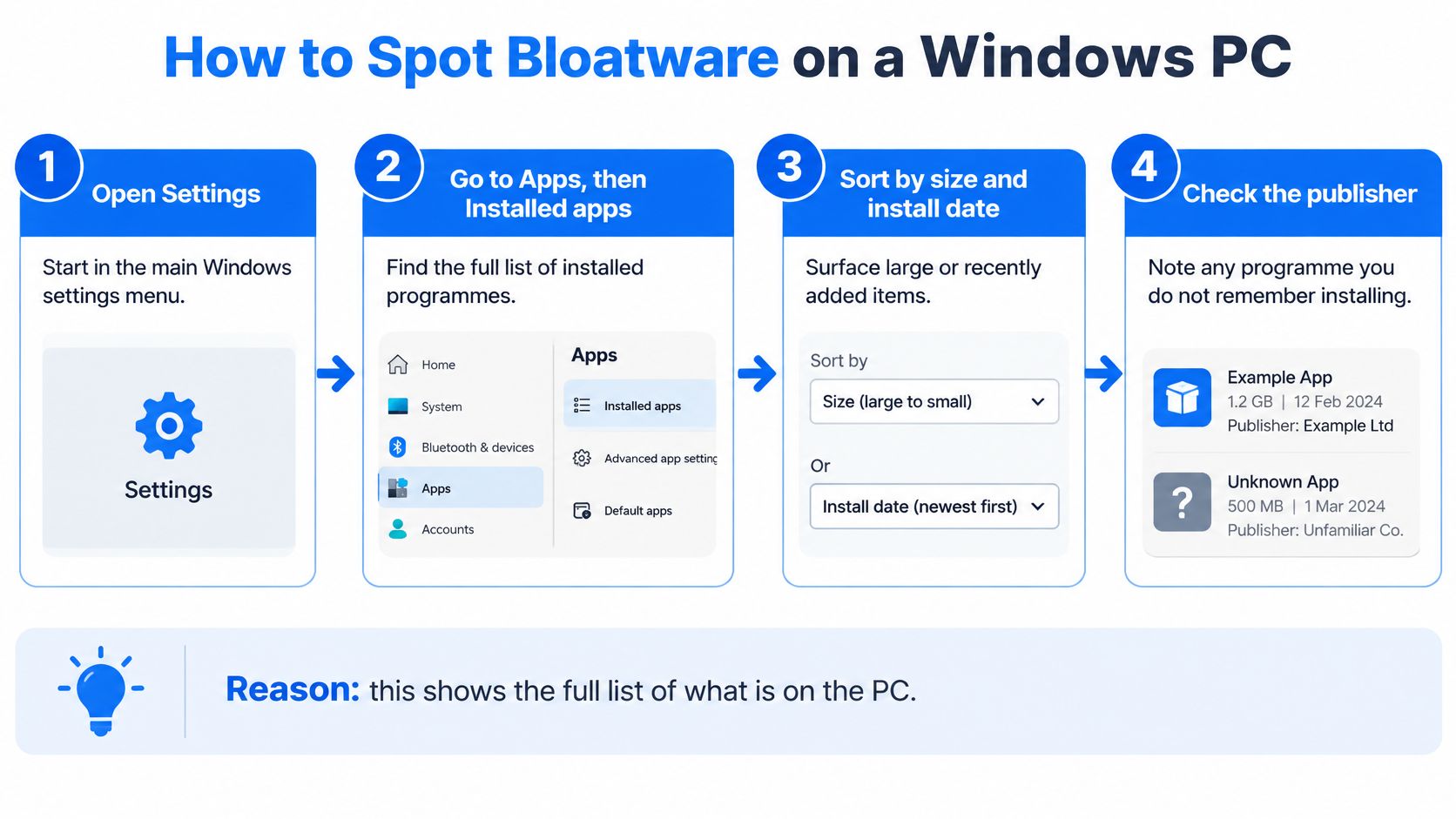
Build an evidence-based shortlist
Open the installed-apps list. Go to Settings, Apps, Installed apps, then sort by size and installation date in turn. Record unfamiliar publishers, checking the application's details or executable properties if necessary; sorting only by name makes it easy to overlook recent additions.
Check what launches automatically. Press Ctrl+Shift+Esc, then open Startup apps in Task Manager. Review the status and startup impact, remembering that this tab identifies automatic launch behaviour, not whether the program itself is safe to remove.
Inspect activity without an open window. In Task Manager's Processes tab, sort by memory, CPU and disk usage while your usual applications are closed. Watch for sustained activity rather than treating a brief update spike as a fault.
Review scheduled launches. Search Start for Task Scheduler, then inspect Task Scheduler Library for recognisable vendor tasks and logon triggers. Read the task's Actions tab to identify the executable, but leave Windows tasks and anything you can't confidently identify unchanged.
Inspect storage use. Open Settings, System, Storage and review the application and temporary-file categories. Don't manually delete unfamiliar folders from Windows or Program Files just because they're large.
Record a baseline before changing anything. Note startup duration, idle memory use, free disk space and battery behaviour under comparable conditions. Use the same starting point and workload when you check again, otherwise an update or a different set of browser tabs can distort the comparison.
A useful suspect combines several clues: an unused trial, an automatic launch entry, activity when you're not using it and repeated prompts you didn't request. An unfamiliar name alone is weak evidence, because legitimate drivers and services often have technical names.
Make comparisons meaningful
Allow updates and initial setup activity to finish before judging a newly configured computer. A machine downloading updates isn't in the same state as one sitting idle after those updates have completed.
Keep your notes specific. Write the process name and what you observed, rather than recording that the laptop felt slow.
Keep the test reversible: Change a suspect entry, restart and check the result before changing another.
Other platforms offer similar checks, although menu names can vary:
Android: Open Settings, Apps, review storage use where available, and inspect each suspect app's battery and permission settings.
iPhone: Open Settings, General, iPhone Storage and review apps you don't recognise or use.
Mac: Review Applications, then System Settings, General, Login Items, including background items where shown.
Apply the same judgement to each device: establish the app's purpose, check your removal options, and inspect its actual activity. Don't force removal of protected components just to shorten the app list.
Removing or Managing Bloatware Without Breaking Your PC
Use a reversible order rather than a bulk cleanup. A shorter installed-apps list is only useful if your computer still performs the tasks you need.
Protect your files first. Back up important documents and check that you can open the backup. Create a Windows restore point where System Protection is available, but don't treat it as a replacement for a file backup.
Resolve accounts and subscriptions. Cancel any unwanted paid renewal through the service's account settings, then sign out where appropriate. Uninstalling an application doesn't cancel its subscription.
Disable automatic launch before uninstalling. Use the computer through your normal activities and check that printing, keyboard controls, displays and other relevant features still work. If something stops working, re-enable the entry and investigate.
Use the normal uninstaller. Remove the app through Settings, Apps, Installed apps, or use the publisher's own removal tool when its documentation recommends one. Restart if requested.
Handle leftovers carefully. Remove clearly identified personal caches or abandoned data only after confirming that you no longer need them. Leave shared components and uncertain folders alone.
Choose by function, not category alone
Which preinstalled software to remove and which to keep
Software type | Usually safe to remove? | Check before acting |
|---|---|---|
Trial antivirus or subscription app | Yes, if you don't use it | Cancel the subscription first and verify active protection |
Vendor utility for hotkeys, battery or fans | Usually keep | Confirm it controls a function you rely on |
Graphics control panel | Keep | Removing it can disable display switching |
Cloud-storage client or browser you don't use | Yes | Confirm files are fully synced and needed files are available locally |
Windows Security and drivers | Keep | Removal weakens protection or hardware functionality |
Recovery and firmware tools | Keep | May be needed for repairs and updates |
For cloud storage, inspect whether your files are stored locally or represented by online-only placeholders. Being able to see a filename in File Explorer doesn't necessarily mean its contents are on the laptop.
Security software needs equal care. After removing an unused antivirus trial, open Windows Security and verify that your intended protection is active before continuing normal browsing.
Avoid blind debloating
Random debloat scripts and forum downloads may remove more than their names suggest. A script running with administrator rights can change services, scheduled tasks, security settings and Windows components without giving you a useful explanation of each decision.
A published source code repository isn't a personal safety guarantee. If you can't explain what a command changes or how you'd reverse it, don't run it merely because someone promises a faster PC.
Prefer targeted removal and trusted publisher tools. If a program resists normal removal, stop and identify why rather than downloading successive cleaners that add further uncertainty.
Decide Whether a Clean Reinstall Is Worth It
A clean reinstall becomes reasonable when vendor software is highly integrated, repeatedly returns after removal, or leaves the machine unstable despite controlled troubleshooting. It isn't the automatic next step whenever an app refuses to disappear.
Weigh the disruption against the evidence
Compare your recorded startup behaviour, idle resource use, storage space and stability. If targeted changes helped, there may be no reason to erase a working setup.
If they didn't, check hardware health before assuming Windows is the cause. Reinstalling onto a failing drive won't resolve the underlying fault and may put important files at further risk.
A reinstall also means preparing backups, recovering software licences, reinstalling applications and drivers, and signing back into accounts. Our guide to a Windows reinstall explains the preparation involved.
Choose targeted cleanup when you've identified a removable application and the rest of the system behaves normally.
Consider a clean installation when software conflicts persist and the hardware checks don't reveal another cause.
Prioritise data protection when the machine crashes during file access or storage health is uncertain.
At Steel City IT, we build and set up machines with a clean operating system and no preinstalled trial software, so the computer runs at its true potential from the first boot. That provides a clean starting point, not a promise that every future slowdown is software-related.
Run the checks, record what you find and use those observations to choose the least disruptive fix that addresses the actual cause.
Steel City IT offers PC speed cleanup and optimisation, Windows software troubleshooting, virus removal and clean Windows reinstalls. If you're unsure which applications are safe to remove, visit Steel City IT to discuss an assessment of your desktop or laptop and whether targeted cleanup is enough.