
Nintendo Switch Not Charging Fix: What to Do

A dead Nintendo Switch is easy to misread. You connect the charger, see no battery icon, try the dock, swap cables, and start wondering whether the console has finally failed. Before buying parts or opening the case, work through the power path in order. A frozen charging state, blocked USB-C port, damaged dock, failed battery, and board-level charging fault can produce similar symptoms, but they don't need the same fix.
The safest approach is to establish a clean baseline first, then isolate the adapter, dock, port, battery, and charging circuitry. This Nintendo Switch not charging fix guide follows that order and makes clear when home troubleshooting has ended and professional micro-soldering is the sensible option.
Table of Contents
Performing the Official Power Reset - Follow the reset in order
Isolating Cable and Dock Power Faults - Separate console faults from dock faults
Safely Cleaning the Console USB-C Port - Use a gentle cleaning method
Diagnosing Battery and Charging IC Failures - Compare the likely fault paths
Understanding Board-Level Repair Options - Why diagnosis matters
Performing the Official Power Reset
If a Switch is black screen, unresponsive, or charging inconsistently, start with a power reset. Disconnect the AC adapter from both ends for at least 30 seconds. That clears the adapter from the power path instead of just flipping a socket switch. Then reconnect the official HAC-002 adapter directly to a wall outlet, not a power strip, and plug it into the console.
This step matters because a console that looks dead may be stuck in an abnormal power state. Swapping cables without clearing that state usually changes nothing. Nintendo gives the same direct-outlet advice in its UK charging troubleshooting guidance.
Follow the reset in order
Disconnect the adapter fully. Remove it from the Switch and the wall outlet, then leave it unplugged for at least 30 seconds.
Use a known-working wall outlet. Skip the power strip or extension lead for the first test.
Use the official HAC-002 adapter. Connect it directly to the console, not the dock.
Watch for any response. Look for a charging icon, battery symbol, screen activity, or any change in behaviour.
Try another outlet if nothing changes. A bad socket can mimic a console fault.
If the Switch stays frozen, hold the power button down long enough for a forced shutdown, release it, then press it normally once. Keep hands off the cables while you test. Repeatedly reconnecting parts makes the result harder to read and can turn a borderline connector into a worse fault.
Practical rule: Do not open the console until the official adapter has been reset and tested directly from a wall outlet.
A battery discharged too far also needs patience. Nintendo says a Switch takes approximately 3 hours to fully charge when powered off or in sleep mode, and charging takes longer during use. If the console reaches full charge but then runs for an unusually short time once undocked, Nintendo says it needs repair.
Isolating Cable and Dock Power Faults
Charging is a chain, not a single component. The wall outlet supplies the AC adapter, the adapter feeds the dock or console, and the USB-C connection carries power into the Switch. A fault anywhere in that chain can look like a dead motherboard, so change one variable at a time.
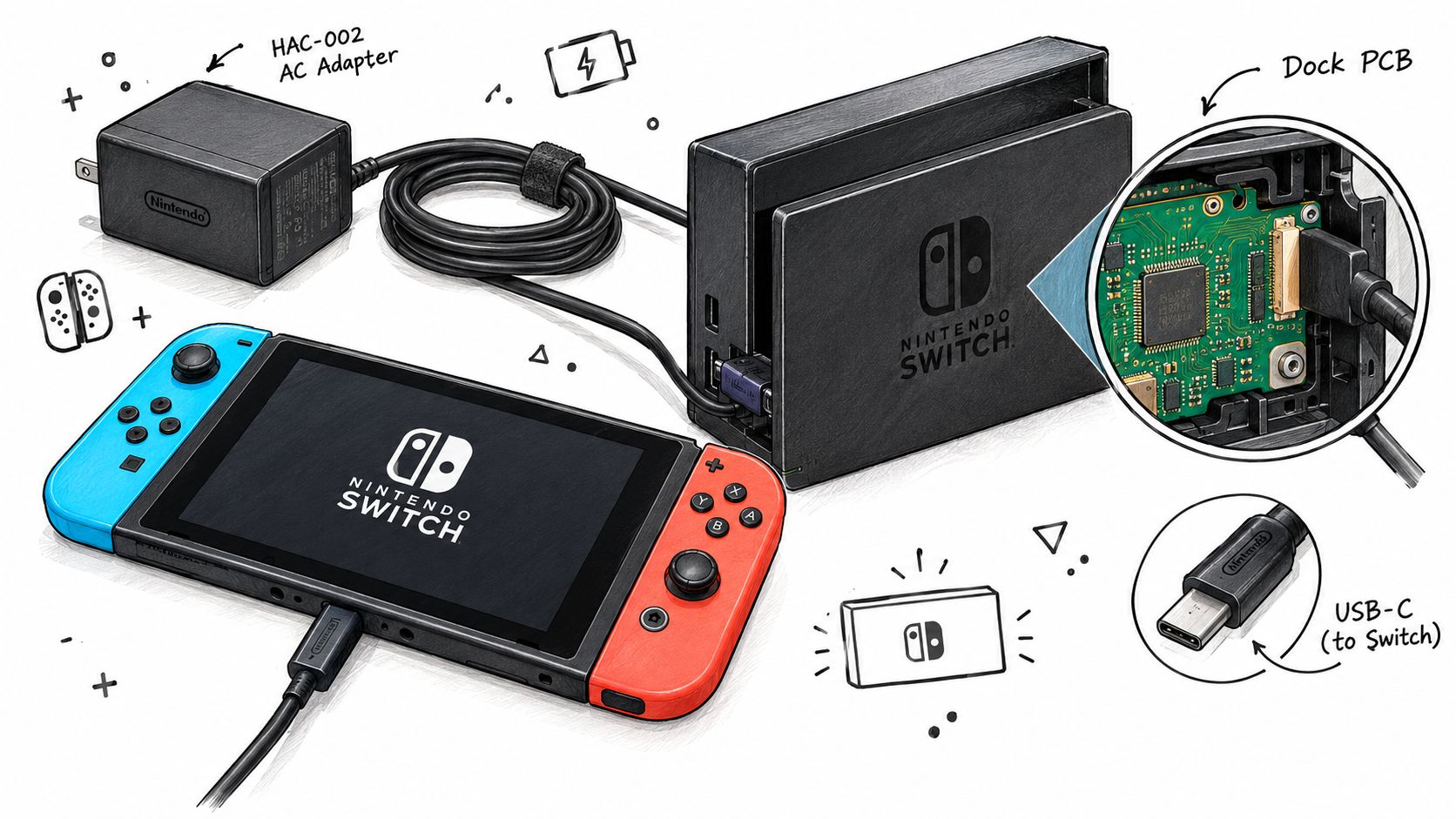
Start with the official HAC-002 adapter and connect it directly to the console. If direct charging works but docked charging doesn't, the dock, its connector, or the dock's internal electronics become more likely suspects. If neither route works, test the adapter at the wall and inspect its cable for cuts, crushed sections, exposed insulation, or a connector that feels damaged.
A USB-C plug can look fine while failing electrically. Don't bend it inside the port, hold it at an angle, or keep reconnecting it in the hope that charging will return. Intermittent charging is valuable diagnostic information, but forcing the connection can turn a loose or cracked port into lifted board pads.
Separate console faults from dock faults
Use this sequence:
Direct console test: Connect the official adapter straight to the Switch. This bypasses the dock's power path.
Dock test: If direct charging works, reconnect the adapter to the dock and place the console in position without applying pressure.
Outlet test: Try a different wall outlet while keeping the same adapter and console.
Accessory comparison: If you have access to a confirmed compatible official setup, change either the adapter or dock, not both at once.
Heat check: Stop using the equipment if the adapter, connector, dock, or console becomes unusually hot.
Many generic USB-C chargers are unsuitable for reliable diagnosis because their power behaviour may not match what the console expects. I wouldn't use an unlicensed charger to decide whether a Switch motherboard is healthy. Use the official adapter first, and if you need a broader electrical check, follow a safe power supply testing method rather than probing a live connector casually.
The dock can also fail independently of the console. If the Switch charges directly but not in the dock, don't replace the battery or USB-C port on the assumption that the handheld is at fault. Test the dock and adapter as separate items, inspect the dock's USB-C connector for contamination or damage, and keep the console's direct charging result as your baseline.
Safely Cleaning the Console USB-C Port
Lint is often compressed at the back of a USB-C port where the plug needs to seat fully. The result can be a cable that feels inserted but doesn't make dependable contact. Cleaning is worth attempting, but a port is delicate and the wrong tool can cause more damage than the original debris.
Power the Switch down completely and disconnect the adapter. Shine a torch into the port without inserting the plug, looking for compacted lint, bent contacts, corrosion, or a displaced centre section. A port that looks clean can still have broken solder joints underneath, so visual inspection is useful but not conclusive.
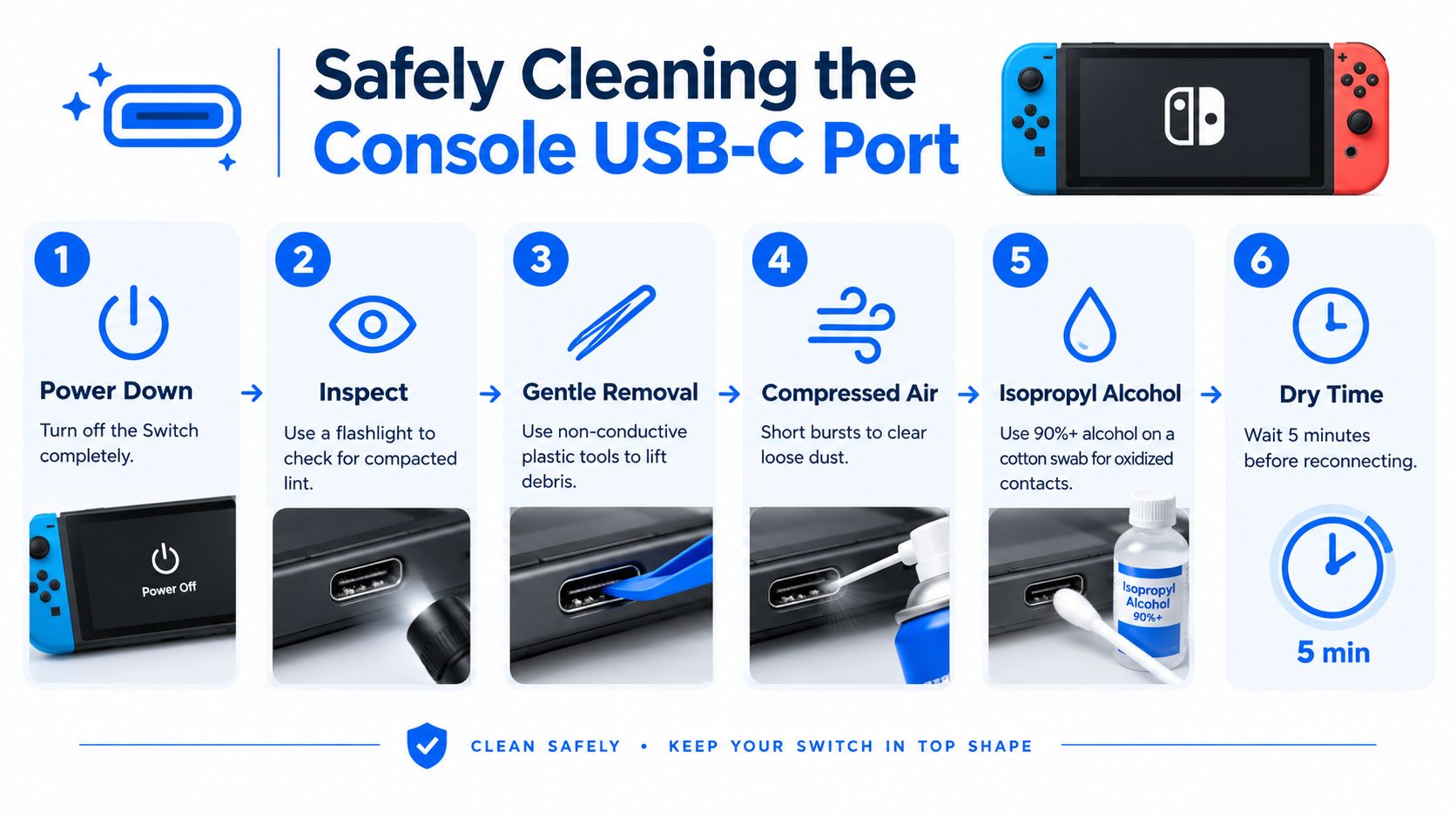
Use a gentle cleaning method
Power down fully. Don't clean a live port.
Inspect with a light. Identify lint before attempting removal.
Lift debris carefully. Use a non-conductive wooden or plastic tool at the edges, never a pin, needle, or screwdriver.
Clear loose dust. Use short, controlled bursts of compressed air rather than forcing an object into the socket.
Address visible oxidation cautiously. A small amount of high-strength isopropyl alcohol on a suitable swab can help with accessible surface contamination, but don't pour liquid into the port.
Allow it to dry completely. Don't reconnect power until the port is dry.
Metal tools can bridge contacts and scratch or bend the small internal pins. A wooden toothpick is safer, but it still needs a light touch. If the centre tongue is cracked, contacts are visibly bent, or the socket moves when the cable is inserted, stop cleaning.
Port movement is particularly important. A loose socket may have broken solder joints or damaged pads beneath it, and no amount of surface cleaning will restore that connection. The embedded cleaning video below shows the handling principles, but don't copy any step that involves force or metal tools.
Diagnosing Battery and Charging IC Failures
Once the adapter, dock, and port have been checked, the fault may be inside the console. Two common causes remain: a battery that no longer accepts or holds charge, and a board-level charging fault that blocks power from reaching the battery correctly. They can look similar from the outside, so the symptom matters more than the assumption.
A battery problem usually shows up in capacity and retention. The console may charge, show full, then lose power quickly after it is undocked. Nintendo's UK guidance uses approximately 3 hours as the full-charge benchmark for a Switch powered off or in sleep mode. If the system still fails to reach a full charge after that period and the official reset-and-retry process has not changed anything, the battery or the charging path needs closer inspection. The benchmark is documented in Nintendo's UK battery support information.
A charging IC fault presents differently. The console might fail to detect a power source, show a charging symbol without any increase in battery level, or stay dead even with a known-good adapter and a clean port. A board can also have a shorted capacitor or damaged power rail, which can pull current in the wrong place or stop startup entirely. Those faults call for electrical testing, not another battery ordered on guesswork.
Compare the likely fault paths
Symptom | More consistent with | What it doesn't prove |
|---|---|---|
It charges, then dies quickly when undocked | Battery capacity or battery health problem | It doesn't rule out a board fault |
No response with the official adapter and direct wall connection | Port, battery, or charging circuitry | It doesn't identify the failed component |
Charging appears but the level doesn't progress | Battery acceptance problem or charging circuit fault | The icon alone doesn't prove normal charging |
The console works only with cable pressure | Port or solder-joint damage | Cleaning won't repair a loose socket |
Direct charging works but docked charging fails | Dock or dock-side power fault | It doesn't automatically implicate the battery |
A console that powers on only while connected to the adapter is a useful warning sign. It may have an internally failed battery, or a charging circuit that never replenishes the pack. A technician separates those possibilities by checking battery condition, connector continuity, current behaviour, and the relevant power rails.
Don't keep charging a unit that becomes hot, smells unusual, or shows signs of liquid exposure. Continued power can make corrosion worse or expand a short-circuit fault. At that point, replacing the charging port, battery, or motherboard without diagnosis is just swapping parts instead of fixing the cause.
Understanding Board-Level Repair Options
A charging fault doesn't automatically mean the whole motherboard needs replacing. The USB-C socket, charging IC, protection components, capacitors, and board traces can each fail independently. A competent technician uses magnification, a multimeter, a controlled power source, and component-level testing to identify which part is stopping the console from charging.
Why diagnosis matters
Full-board replacement can be a poor match for a console containing valuable saved data or a fault limited to one replaceable component. Board-level work can preserve the original motherboard while addressing a damaged port, failed charging component, broken pad, or shorted section of a power rail. It also avoids treating every no-charge symptom as a battery replacement.
Micro-soldering isn't a sensible home repair with a domestic heat gun. USB-C ports are attached directly to the board, and excessive heat or force can lift pads, damage nearby components, or break traces that were previously intact. Charging IC work demands even more control because the technician must remove and replace a small surface-mounted component without disturbing the surrounding circuitry.
A replacement part is only a fix when the technician has proved that part caused the fault.
Official repair routes can suit owners who prefer manufacturer handling, but the practical route varies by model and age. Nintendo's UK support provides separate charging guidance for the original Switch and Switch 2, including forced power-off and USB-C cross-testing, and says repairs can take up to 10 working days. Its UK repair price list includes categories for power issue, battery replacement, and water damage, as shown in the Nintendo UK repair information.
An independent workshop may instead diagnose the board and repair the failed component, subject to condition and parts availability. Ask whether the service includes fault finding, whether genuine or suitable replacement parts are used, what happens if liquid or previous repair damage is found, and what warranty applies to the completed work. A useful overview of the process is available in this guide to micro-soldering repair.
Preparing Your Console for Professional Service
If the Switch still won't charge after the official reset, direct adapter test, port inspection, and dock isolation, stop forcing the cable. Professional diagnosis is appropriate when the port is loose, charging works only at an angle, the console stays unresponsive, or the unit has suffered impact or liquid exposure.
Before taking it to a Sheffield workshop, prepare the console and the information that will help the technician reproduce the fault.
Back up save data where possible. Use Nintendo's available cloud-save options before handing over a console that still powers on.
Remove personal accessories. Take out the microSD card and game cartridge, and record any accessories you are sending.
Describe the failure precisely. Say whether the battery icon appears, whether direct charging differs from dock charging, and whether the fault is intermittent.
Mention previous equipment. Tell the technician about third-party chargers, liquid exposure, drops, and earlier port or battery work.
Ask about the repair scope. Confirm whether the quote covers diagnosis, component-level repair, testing, and a warranty on the work.
Don't send the dock and adapter automatically. Include them when the workshop requests them or when the fault specifically affects docked charging. A clear fault history prevents a technician from testing the wrong symptom and helps distinguish an accessory problem from a console board fault.
For local options, review the available Nintendo Switch repair service and provide the exact model, the charging behaviour, and the troubleshooting already completed. That information gives the workshop a useful starting point without encouraging unnecessary parts replacement.
Steel City IT provides Sheffield console diagnostics and component-level repair for Nintendo Switch charging, power, USB-C, liquid-damage, and other board faults. If your Switch still won't charge after these safe checks, visit Steel City IT to discuss a professional diagnosis and repair.