
What Is a Trojan Virus on a Computer? a Plain-English Guide

You've clicked something, the screen has done something odd, and now you're searching What Is a Trojan Virus on a Computer because you want a straight answer, not a sales pitch. Take a breath. You're not daft for clicking, and you don't need to be an IT expert to understand what happened, what to check next, and when to ask for help.
Table of Contents
The Moment Everything Went Wrong - Why That Ordinary Click Matters
What a Trojan Virus Actually Is - Disguise, Click, Then Payload
How a Trojan Differs From Other Malware - Why Real Infections Often Overlap
How Trojans Sneak Onto a Home Computer - Routes You'll Actually Meet
Warning Signs That Are Easy to Miss - Quiet Clues Worth Checking
Removing a Trojan and Recovering Safely - A Calm Order of Actions
Preventing the Next Infection - Habits That Block Specific Tricks
The Moment Everything Went Wrong
It's early evening in Sheffield. You've finished a bit of work, the kettle's on, and an email lands that looks like a delivery notice you were half expecting. The attachment has a sensible name. You open it, nothing much seems to happen, and you carry on.
Ten minutes later the fan is louder than usual. A pop-up says your browser needs an urgent update. Your normal homepage looks different, or a program you don't recognise asks for permission to make changes. Nothing has exploded, but the machine no longer feels like yours.
Why That Ordinary Click Matters
That uneasy feeling is often the first real clue. A Trojan doesn't usually announce itself with a skull and crossbones. It arrives dressed as something useful, familiar, or urgent, because deception is the whole trick.
You might be thinking about your photos, your banking app, or whether you've broken the computer for good. Those are fair worries, and they're exactly why panic clicking is unhelpful. Closing random windows, installing the first free cleaner you find, or typing passwords to prove everything still works can make a bad hour worse.
If something feels off after a download or attachment, stop, disconnect, and assess before you try to fix it by clicking more things.
Read on in order and you'll build a clear picture. You'll learn what a Trojan is, how it differs from other malware, how it likely got in, and which quiet warning signs matter more than pop-ups. You'll also get a calm recovery sequence and a short prevention checklist you can use tonight, without jargon and without anyone talking down to you.
What a Trojan Virus Actually Is
Start with the old story. Greek soldiers hid inside a huge wooden horse, the people of Troy wheeled it inside their walls as a prize, and at night the soldiers climbed out and opened the gates. The horse wasn't the army. It was the delivery trick that got the army inside.
A computer Trojan works the same way. It's malware that disguises itself as legitimate software, a document, an installer, or another trusted file so you're persuaded to run it. The UK Cyber Security Breaches Survey 2024 definition of malware covers malicious software designed to infiltrate and damage computers without consent, including viruses, worms, and Trojan horses.
This visual maps the wooden horse idea onto a modern laptop download.
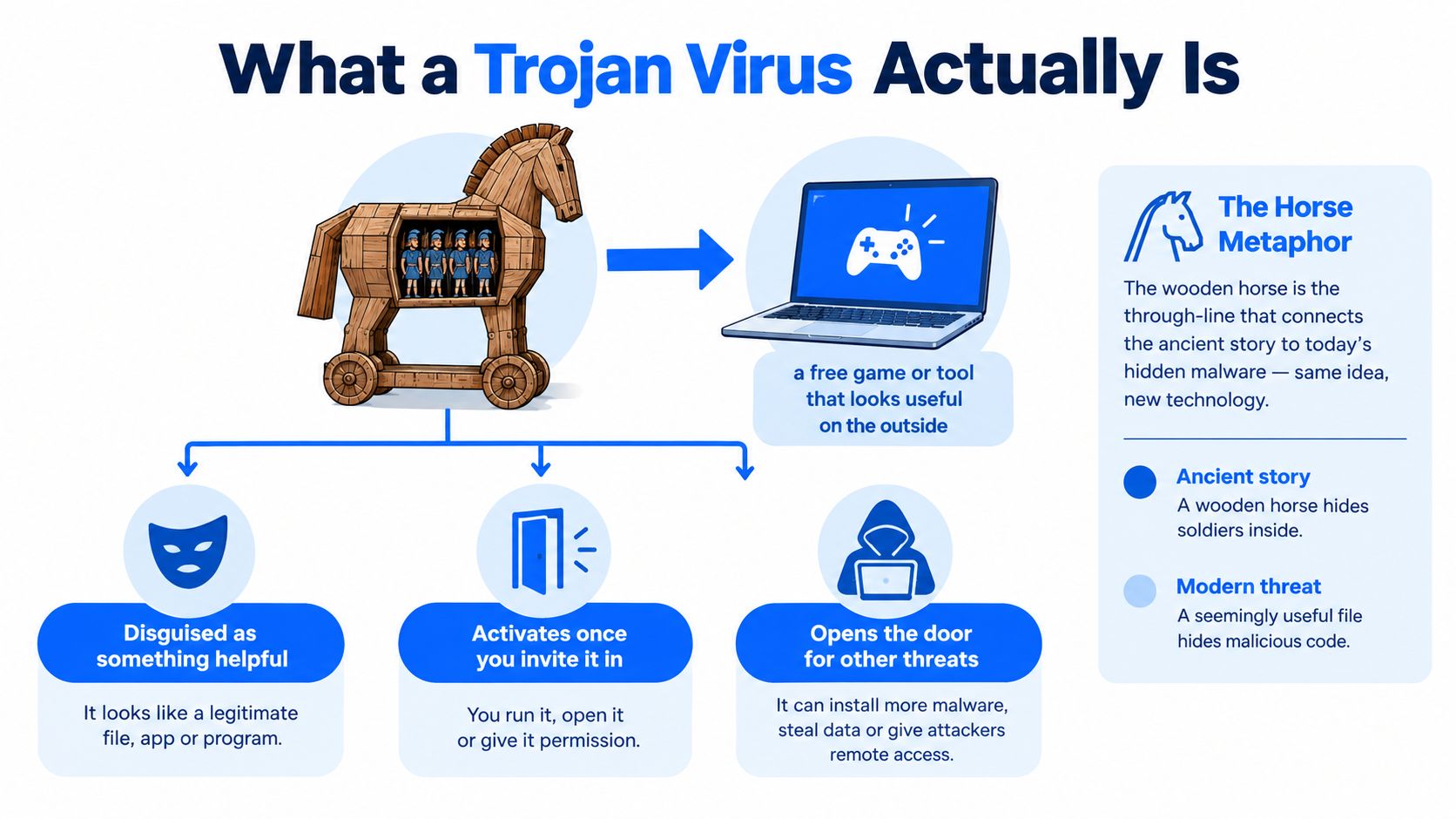
Disguise, Click, Then Payload
That word payload means what the hidden code does after you run it. It might steal saved passwords, log what you type, open remote access for a criminal, change system settings, or download more malware. One Trojan rarely does everything, which is why Trojans are better understood as a method than as one fixed program.
Here's where people get confused. We call it a Trojan virus, but a Trojan generally doesn't copy itself by attaching to other files like a classic virus does. It relies on you inviting it in. The UK's National Cyber Security Centre Trojan factsheet identifies Trojans as malicious code that appears legitimate.
A fake invoice: You open it expecting a bill, and hidden code runs instead.
A cracked game: The game may even work, while something else installs.
A fake update: You click to stay safe, and grant the very access you wanted to avoid.
If that program runs with administrator rights, the risk grows because you've effectively handed it the master key. It can alter security settings and reach files belonging to other users on the same machine. Before running anything unfamiliar, check its source, publisher, and the permissions it asks for. If you can't verify those things, treat it as untrusted.
How a Trojan Differs From Other Malware
Most of us call every nasty program a virus. That's understandable, but the labels describe different behaviour, and behaviour tells you what to worry about first.
This comparison puts the main types side by side so you can see the difference at a glance.
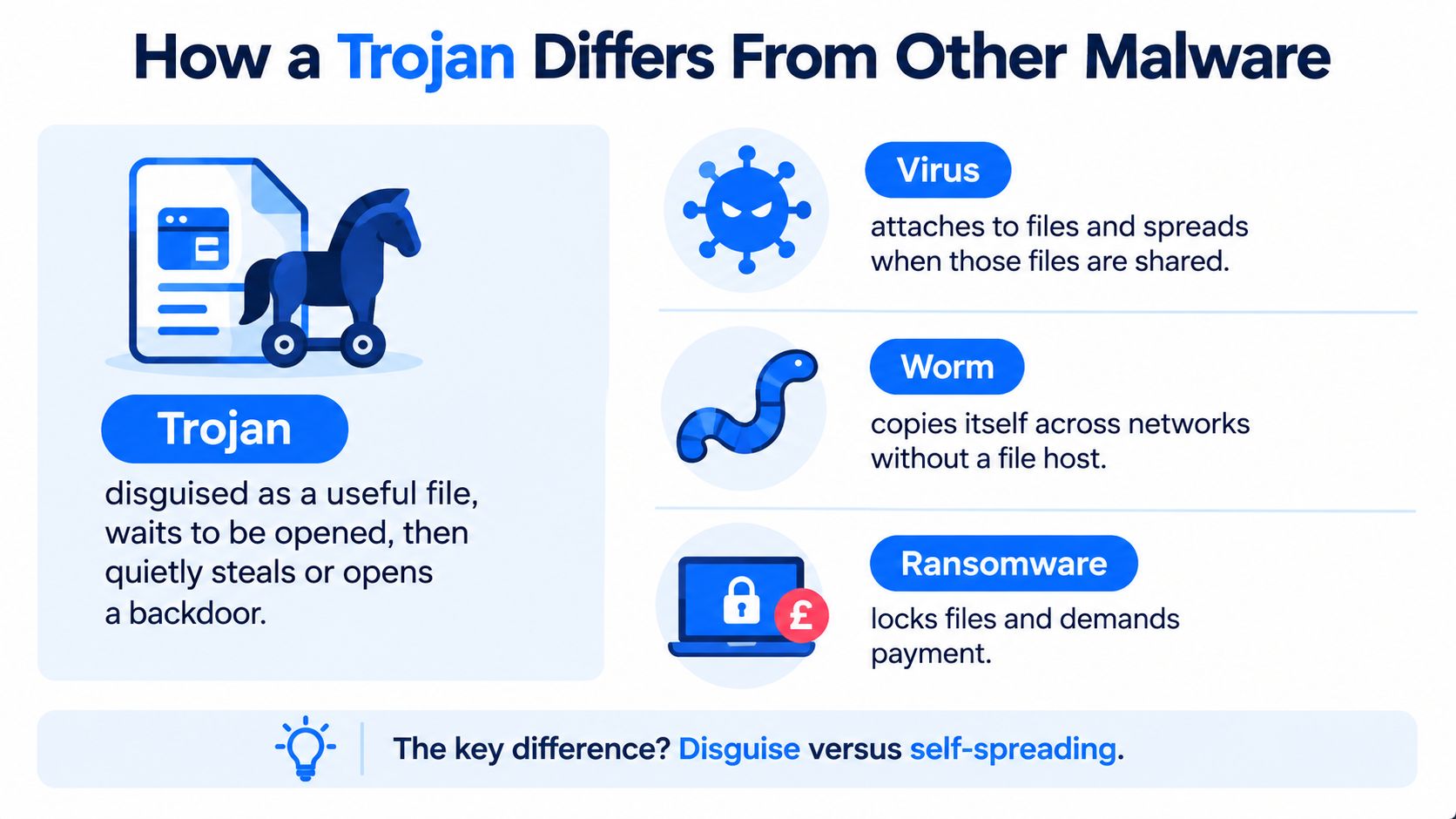
Type | How It Mainly Spreads | What It Mainly Does |
|---|---|---|
Trojan | You're tricked into running it | Opens a door, steals data, or installs more malware |
Virus | Attaches to files that get shared | Spreads when those files are opened elsewhere |
Worm | Copies itself across networks | Moves without needing a host file |
Ransomware | Often arrives through another infection | Locks files and demands payment |
Spyware | Bundled or installed quietly | Collects information about you |
Why Real Infections Often Overlap
In real life these categories blur. A Trojan might be the doorman that lets spyware in on Monday and ransomware in on Friday. That's why deleting one suspicious file and declaring victory can be risky. You need to check what arrived after it.
Useful distinction: A Trojan describes how malware gets in through disguise. Ransomware and spyware describe what malware does once it's there.
Historical figures show malware has been a recurring category even as attack methods shifted. The 2019 Cyber Security Breaches Survey main report found viruses, spyware, or malware identified by 20% of businesses reporting a breach or attack, down from 33% in 2017.
If you'd like the same ideas explained visually, this short video is a helpful recap before you move on.
How Trojans Sneak Onto a Home Computer
Trojans don't usually batter down the door. They knock politely, wearing a uniform you recognise. For a home user, the routes are mundane, which is exactly why they work.
A common one is the phishing attachment. It looks like an invoice, a parcel delay, or a message from a colleague, and it creates just enough urgency that you open it before checking the sender properly. Banking Trojans such as Trickbot have used convincing phishing messages to target individuals and businesses, as described in the NCSC Trickbot advisory on banking Trojan risks.
This checklist shows five everyday routes worth recognising on sight.
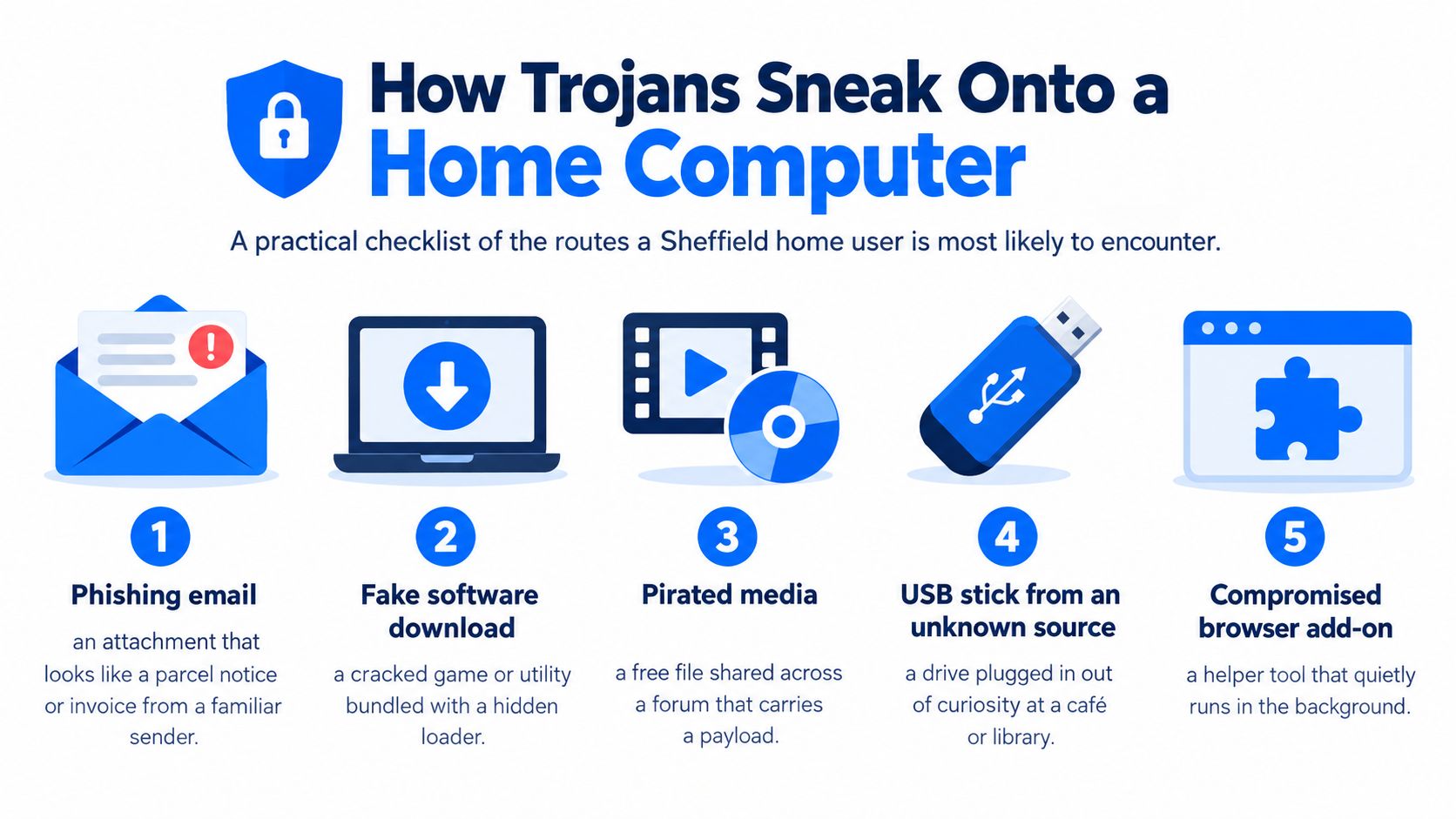
Routes You'll Actually Meet
Fake updates are another favourite. A website claims your browser or media player is out of date and offers a download. Genuine updates come through the program itself or its official site, not through a random pop-up that appeared while you were reading the news.
Cracked software and free game downloads carry a different risk. You're already stepping outside the official shop, so there's no trustworthy publisher to check. The file might work perfectly while a hidden loader installs in the background.
Unexpected attachments: Pause even if the sender's name looks familiar.
Installers from forums: Treat bundled extras and disabled antivirus warnings as a stop sign.
Unknown USB sticks: Curiosity isn't worth it, however harmless the drive looks.
Browser add-ons: A helpful coupon finder shouldn't need sweeping access to every page you visit.
Ask one simple question before you run anything. Did I go looking for this from the official source, or did it come looking for me? That distinction blocks a surprising share of these routes, because most Trojans need your click far more than they need clever code.
Warning Signs That Are Easy to Miss
Here's the uncomfortable truth many guides skip. Your computer can look completely normal and still be compromised. No pop-ups does not mean no risk, because a Trojan built to steal passwords or provide quiet remote access has every reason to stay invisible.
Obvious trouble still matters. New pop-ups, crashes, slowness, or security software switching itself off all deserve attention. But if you only watch for drama, you'll miss the quieter evidence sitting in settings you rarely open.
Quiet Clues Worth Checking
Unfamiliar startup entries: Programs launching with Windows that you never installed.
Unexpected browser extensions: Toolbars or helpers appearing after a download.
New administrator accounts: Users you didn't create on a family machine.
Settings changing alone: Security options or homepages reverting after you fix them.
Login alerts: Emails about sign-ins from places you've never been.
Official figures support caution about visible symptoms. The Cyber Security Breaches Survey 2025 estimates put cyber crimes against UK businesses at around 8.58 million, while only around 7,000 businesses were estimated to have experienced virus, spyware, or malware related cyber crime. Categories on a form don't capture every covert compromise.
Social engineering matters too, because the message that delivered the file may have felt ordinary. If you've recently opened a suspicious attachment, installed pirated software, or followed a fake update prompt, investigate even if the PC seems fine. If repeated checks leave you unsure whether it's software, hardware, or both, a local diagnostic through laptop repair in Sheffield can separate a malware problem from a failing drive before you lose files.
Removing a Trojan and Recovering Safely
The first hour matters most, and the goal is containment before cleanup. Disconnect the computer from Wi-Fi or unplug the network cable. Don't use it for online banking, email password resets, or shopping while you suspect it's compromised.
A Calm Order of Actions
Preserve evidence: Photograph suspicious messages or warnings with your phone so you don't have to reopen them.
Run a full scan: Use current security software, let it finish, and follow its remediation advice.
Read the result carefully: A blocked download isn't the same as a quarantined file, and neither automatically proves an active infection ran.
Change passwords elsewhere: Use a known clean phone or computer, starting with email and banking, and turn on multifactor authentication.
That last step catches people out. Removing the file doesn't rewind time. If the Trojan ran, saved passwords, browser sessions, or personal files may already have been exposed, a distinction highlighted in the Cyber Security Breaches Survey 2025 to 2026 release, which estimated 43% of businesses experienced a breach or attack in the previous 12 months.
Cleaning the machine and securing your accounts are two separate jobs. Finish both.
Sometimes repeated scans keep finding traces, settings keep changing back, or you cannot trust the system again. That is when a clean Windows reinstall is often safer than a fourth scan, provided your important files are backed up and checked first.
Larger organisations formalise this kind of evidence led recovery, and this media enterprise secureops success story shows how structured security operations work at scale. At home, Steel City IT offers diagnostics, data preserving cleanup, and clean reinstalls with drivers and updates configured, which you can arrange through computer repair in Sheffield if you'd rather not gamble on a machine you use for banking.
Preventing the Next Infection
Prevention works best in layers, because no single habit catches everything. Think of each control as blocking a specific door you met earlier, rather than as general advice to be careful online.
Automatic updates close known holes in Windows and your everyday applications, so turn them on and restart when prompted instead of postponing for weeks. Current anti-malware protection then watches what runs, while a standard user account for daily use limits the damage if something slips through, because it can't grant itself administrator rights.
Habits That Block Specific Tricks
Official sources only: Download software from the maker, not from a forum link or advert.
Pause on urgency: Invoices and delivery warnings that demand immediate clicks deserve a sender check first.
Tested offline backups: Keep copies of photos and documents disconnected from the PC, and check they restore.
Multifactor authentication: Protect email first, since email resets almost everything else.
Removable media caution: Scan USB drives and avoid found or borrowed sticks you can't verify.
For small firms, the same layering grows into formal governance, and this GRC shield for compliance teams illustrates how structured controls support that work. At home, you don't need a compliance department. You need a short routine you'll keep.
Do three things tonight. Turn on automatic updates, remove browser extensions you don't recognise, and switch on multifactor authentication for your main email account. Then make one backup of the files you'd cry over and unplug that drive when it finishes.
You'll find more plain English guides on the Steel City IT computer repair blog, covering slow machines, storage upgrades, and Windows problems in the same no nonsense style. A faster, cleanly configured system is also easier to keep updated, which is why an SSD upgrade or clean reinstall can support security as well as speed.
If you're staring at a PC or laptop you no longer trust, Steel City IT in Frecheville can run proper diagnostics, remove malware while protecting your files, or carry out a clean Windows reinstall when that's the safer route. Bring the machine in before you type another banking password on it, and visit Steel City IT to get your repair started today.