
Repair Desktop Computer

You press the power button and get spinning fans but no picture. Or Windows finally loads, then freezes while you're trying to open the files you need. Before you order a replacement part, decide what matters most: recovering your data, restoring a dependable work machine, or keeping a capable gaming PC running without wasting money.
Table of Contents
When a Desktop Stops Working and What Comes Next - Choose the right outcome - Keep replacement in perspective
Deciding Whether to Repair, Upgrade or Replace - Compare complete outcomes - Write down a go or no-go decision
Setting Up a Safe Repair Workspace - Prepare the bench and machine - Record the starting position
Diagnosing the Fault Step by Step - Follow the power and startup path - Let the symptom guide the test - Verify the hardware repair
Replacing and Upgrading the Parts That Actually Matter - Match the part to the workload - Common Desktop Upgrades Compared - Check compatibility before ordering
Fixing Windows, Malware and Storage Failures - Preserve before changing - Remove compromise and verify the result
Knowing When to Hand the Machine to a Professional - Prepare a controlled handover
When a Desktop Stops Working and What Comes Next
Desktop repair starts with triage, not dismantling. A machine that won't start may have a power-delivery fault, a display problem or an operating-system failure. Those need different tests, and treating them as the same problem encourages unnecessary purchases.
Write down exactly what happens before changing anything. Note whether fans start, lights appear, the monitor reports no signal, Windows displays an error, or the machine shuts down during a particular task. Record recent changes such as a graphics upgrade, software installation, power interruption or liquid spill.
Choose the right outcome
A useful assessment puts the machine into one of these categories:
Quick home fix: An external connection, monitor input or clearly identifiable seating problem that you can check safely.
Planned upgrade: The computer works, but a confirmed storage, memory or graphics limitation prevents it meeting your needs.
Workshop repair: The cause remains uncertain, electrical testing is required, or continuing could endanger valuable files.
End-of-life decision: The platform no longer meets your requirements and restoring it would involve disproportionate work.
Before opening the case, check external connections and distinguish no power, no display and failure to load Windows. Don't treat a black screen as proof that the motherboard has died.
First priority: If the desktop contains the only copy of something irreplaceable, data preservation takes precedence over getting it to start.
Keep replacement in perspective
Computers are embedded in UK household life. OECD survey data reported by the Exeter Centre for the Circular Economy found that 93% of UK households had a working computer, compared with 30% in 2005, while the UK generated an estimated 1.6 million tonnes of electronic waste in 2019.
Those are national figures, not Sheffield-specific repair-demand measurements. They provide context for a sensible approach: assess the equipment you already own before discarding it.
Ask what the machine must do after repair. A desktop used for documents and email has different requirements from a gaming system or a business workstation. Define success before spending anything.
Deciding Whether to Repair, Upgrade or Replace
A failed component isn't automatically a failed investment. A desktop with a defective SSD or power supply may still have a suitable processor, enough memory and a serviceable case. Conversely, replacing a motherboard in an unsuitable platform can leave you with an expensive machine that still doesn't do the job.
Repairability evidence supports assessment rather than automatic disposal. Parliamentary evidence covering 12,267 devices reported that 53% were successfully fixed, 28% needed spare parts or further work, and 19% were beyond repair, although this wasn't a desktop-only dataset (UK parliamentary repair and reuse evidence).
Compare complete outcomes
Ask for a written repair estimate that separates diagnosis, parts, labour and any necessary software work. Then compare it with a suitable refurbished or new desktop, including setup and migration.
Include these often-missed items:
Existing software: Can your applications be reinstalled, and are their licences transferable?
Secondary faults: Has testing identified other worn or unreliable components?
Data migration: What's involved in transferring files, settings and business applications?
Running costs and support: Consider energy use, warranty terms and whether the repaired platform supports your required software.
Downtime: A cheaper option isn't necessarily economical if it leaves you unable to work.
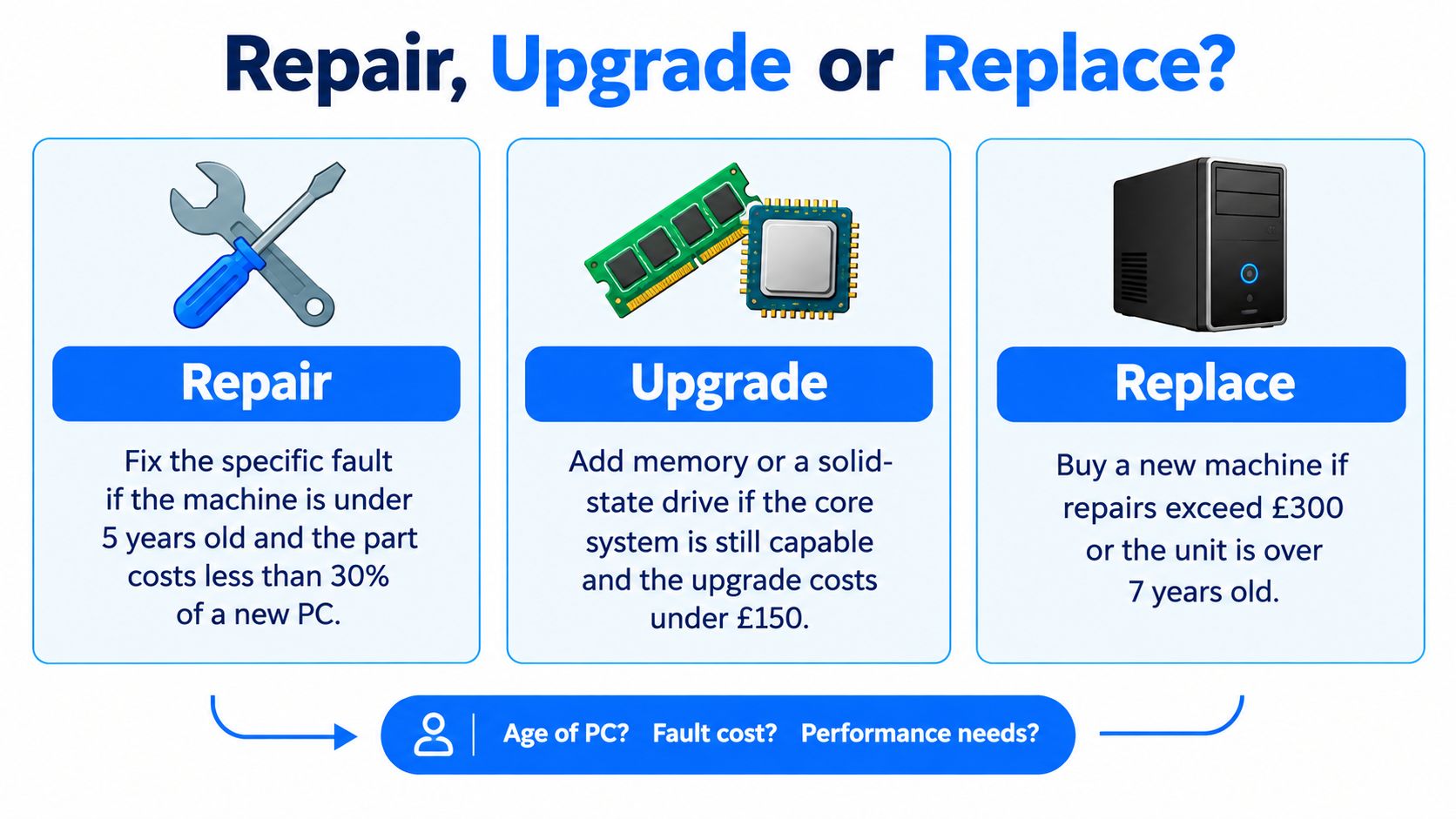
The visual below provides a comparison aid. Treat its age and price thresholds as prompts, not universal break-even rules; component condition, compatibility and your workload matter more than a fixed cut-off.
Write down a go or no-go decision
Use this practical calculation:
Repair route = diagnosis + repair + required upgrades + setup and migration.
Replacement route = suitable replacement + setup and migration, less any confirmed trade-in value.
Compare both against the capability and warranty you'll receive. Keep data recovery separate: you may need your files even when the computer itself isn't worth repairing.
An honest recommendation not to repair is a useful diagnostic outcome, not a failed service.
Your decision record should name the fault, the proposed remedy, the total authorised cost and the acceptance tests. If the estimate depends on unresolved faults, request staged approval rather than an open-ended repair.
Where the answer is replacement, arrange appropriate data erasure and responsible electronics disposal. Don't assume that a computer which won't boot has unreadable storage.
Setting Up a Safe Repair Workspace
A kitchen table can provide working space, but a clear surface alone isn't an ESD-protected workstation. Before handling internal components, organise both electrical safety and electrostatic-discharge precautions.
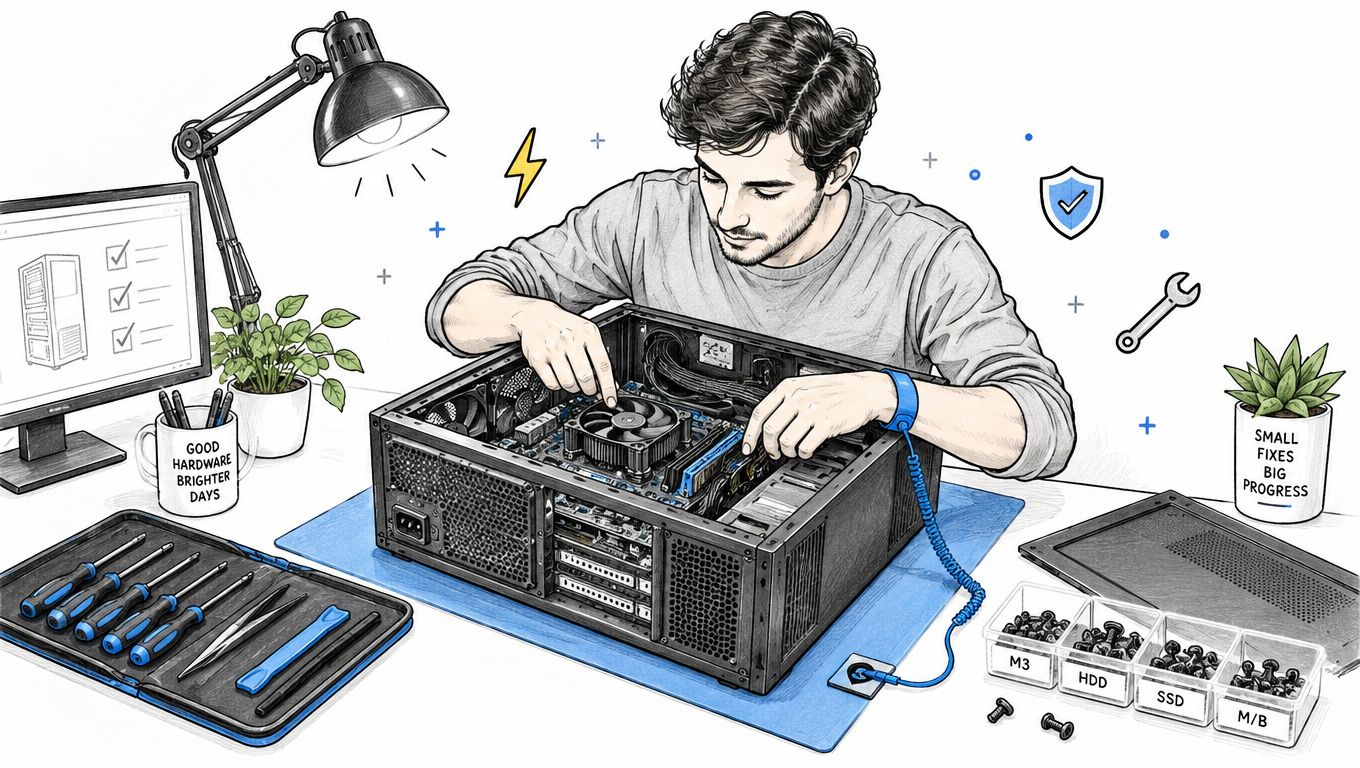
The workshop image illustrates the access and visibility you're aiming for.
Prepare the bench and machine
Shut down the desktop and disconnect mains power before opening it. Don't open a power supply's metal enclosure; internal PSU repair belongs with appropriately equipped specialists.
Use good lighting, a suitable screwdriver, labelled screw containers and a camera. Photograph the motherboard connections, storage arrangement and graphics-card cabling before unplugging anything. Keep drinks away and avoid working on carpet.
ESD precautions are a trade requirement, not decorative workshop equipment. The UK occupational standard for repairing electronic equipment explicitly requires precautions when handling sensitive components and circuit boards.
Use a grounded ESD mat and wrist strap with a proper grounding arrangement, following their manufacturer's instructions. Don't improvise a connection to mains wiring. Keep replacement boards in antistatic packaging until needed, and handle them by their edges rather than contacts or exposed circuitry.
Record the starting position
If the computer can operate safely, record its Windows version and activation status, motherboard model, BIOS version, installed memory and storage layout. Save encryption recovery information securely where applicable. Don't update firmware merely because a newer version exists while you're diagnosing an unrelated fault.
For a machine that won't start, photograph labels and record what you can without powering it unnecessarily. Make a separate note of what's backed up and what exists only on the internal drive.
Use the video as an additional visual reference, not a substitute for your particular motherboard or case instructions.
Keep this checklist beside the bench:
Power isolated: Mains disconnected before internal work.
ESD controls ready: Mat, strap and component storage arranged correctly.
Original layout recorded: Connections photographed and screws labelled.
Data status understood: Backups and recovery requirements documented.
Stop conditions agreed: Burnt components, liquid contamination or damaged connectors mean no further power-on attempts.
Don't force a connector that won't seat. Check its orientation and latch before applying pressure.
Diagnosing the Fault Step by Step
Change one variable at a time. Replacing memory, disconnecting storage and swapping the graphics card together might produce a working computer, but it won't tell you which change solved the fault.
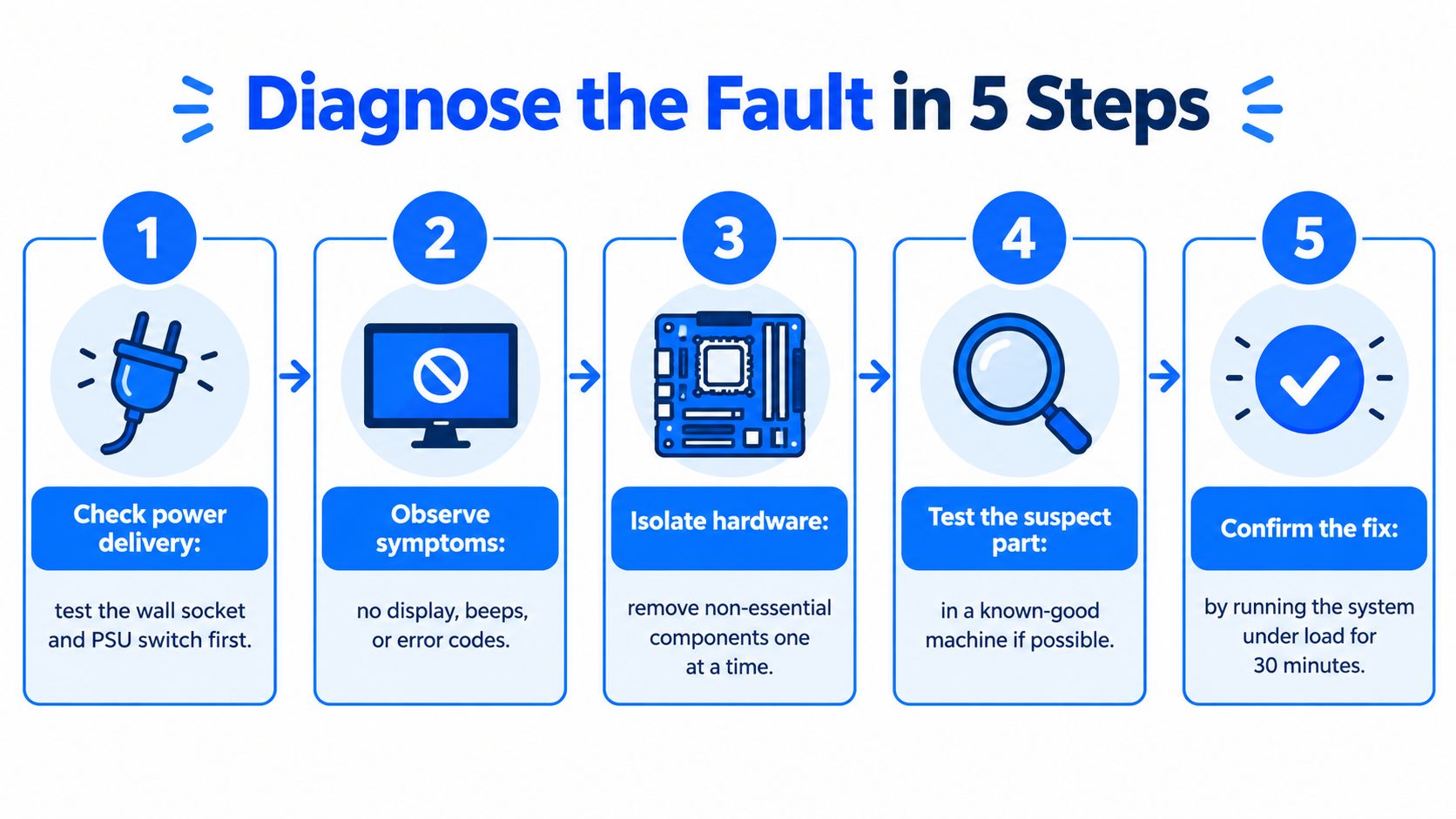
The sequence below is a useful overview. Its fixed load-test duration shouldn't be treated as proof of reliability; reproduce the original failure conditions and choose tests appropriate to the repaired hardware.
Follow the power and startup path
Start outside the case. Check the socket using suitable known-working equipment, then the mains lead, PSU switch, monitor power and display input. For a completely unresponsive machine, the PC won't turn on troubleshooting guide provides a focused starting point.
Inspect the disconnected computer for burnt areas, contamination, loose plugs and misplaced case standoffs. A possible short circuit needs investigation before fitting replacement hardware.
Workshop power testing proceeds through PSU output, standby rails, the power-button signal and motherboard response. Live measurements require suitable equipment and competence. Don't probe unfamiliar connectors or accept a spinning PSU fan as evidence that its outputs remain stable under load.
Observe POST behaviour. Record motherboard diagnostic lights, displayed codes or beep patterns and consult the exact board manual. Fans turning only demonstrate that some power is present.
Next, isolate memory using the manufacturer's recommended slot arrangement and known-good compatible modules where available. Then check graphics output, card seating and power connections. Motherboard display sockets are only useful when the installed processor and configuration support them.
Check whether firmware detects the storage device before attempting Windows repair. A missing drive and a detected drive that won't boot are different findings.
Let the symptom guide the test
Powers on without a picture: Rule out the monitor and cable before blaming graphics hardware.
Restarts under load: Investigate temperatures and power delivery, then memory and driver stability.
Clicks but won't complete POST: Establish whether the sound comes from a drive, fan or power-related cycling. Don't repeatedly start a potentially failing disk.
Boots but loses network access: Check the cable, adapter status and software configuration rather than replacing unrelated components.
Substitute only with known-good compatible parts and record every change. Don't put a suspect PSU into a healthy computer just to see what happens.
Verify the hardware repair
The acceptance record should include cold-boot POST, memory testing, CPU and GPU load testing with temperature logging, and appropriate storage-health checks. Validate USB, audio and network connections, then repeat the task that originally triggered the problem.
Record the test used, result and any remaining limitation. Hardware stability is an acceptance requirement, but it isn't an account-security assessment.
Replacing and Upgrading the Parts That Actually Matter
The most useful upgrade fixes a measured bottleneck. A graphics card won't solve storage-related delays when opening documents, and extra RAM won't repair a failing drive.
Repair first, upgrade second. Establish a stable baseline before adding performance changes, otherwise a new compatibility problem can become tangled with the original fault.
Match the part to the workload
An SSD is a strong candidate when the operating system runs from a mechanical hard drive and storage activity coincides with delays. Check drive health before deciding whether migration is appropriate; copying an unhealthy or compromised installation isn't automatically the right route.
Memory matters when normal work exhausts the installed capacity. Observe memory use in Windows Task Manager while your usual applications are open. If capacity isn't the limitation, buying more won't address the underlying cause.
For gaming, compare GPU demand with processor limitations, display requirements and the games you use. Cooling work should address observed temperatures, airflow restrictions or a defective fan, not substitute for diagnosing crashes.
Common Desktop Upgrades Compared
Upgrade | Typical Cost | Difficulty | Responsiveness Gain |
|---|---|---|---|
SSD storage | Entry-level to moderate, depending on capacity and migration | Accessible fitting; migration needs care | Strong candidate when mechanical storage is the bottleneck |
RAM | Entry-level to moderate, depending on specification | Accessible with compatibility checks | Useful when existing capacity is insufficient |
Graphics card | Moderate to substantial | Requires power, clearance and driver checks | Mainly benefits graphics-limited workloads |
Cooling | Modest for a fan; more involved for a cooler | Varies with mounting and access | Helps where temperature limits sustained performance |
These are qualitative comparisons, not local quotations. Request a parts-and-labour estimate for the exact machine.
Check compatibility before ordering
For RAM, confirm the supported memory generation, module type and motherboard configuration. For storage, check the interface, physical format and available connections; similar-looking slots don't guarantee compatibility.
A replacement PSU needs suitable capacity, connectors and physical fit. Use the replacement unit's own approved modular cables rather than assuming the previous cables are interchangeable.
Graphics card: Check case clearance, power connections and the balance of the existing system.
CPU cooler: Confirm socket mounting, case height and clearance around memory.
Case fans: Check size, connector type and intended airflow direction.
The desktop PC upgrade guide can help you prepare a compatibility checklist before buying parts.
Confident home users can tackle straightforward component swaps with the right preparation. CPU socket damage, soldering, GPU reballing and custom liquid-loop work require a different level of equipment and judgement. A motherboard replacement also deserves careful planning around wiring, firmware, software activation and the opportunity to choose a more suitable platform.
Fixing Windows, Malware and Storage Failures
Making Windows boot, removing visible malware and securing your accounts are separate outcomes. Don't accept the first as proof of the other two.
The Government's 2024 Cyber Security Breaches Survey found that 92% of businesses restored operations within 24 hours of their most disruptive breach or attack, but that restoration measure doesn't establish whether credentials or malware persistence were addressed (Government cyber security breaches survey).
Preserve before changing
If compromise is suspected, document symptoms and disconnect the desktop from networks. Establish which files must be recovered and whether evidence needs preservation before starting cleanup.
Use this overview with an important qualification: a failing drive may need imaging or specialist recovery before ordinary backup attempts or filesystem repair.
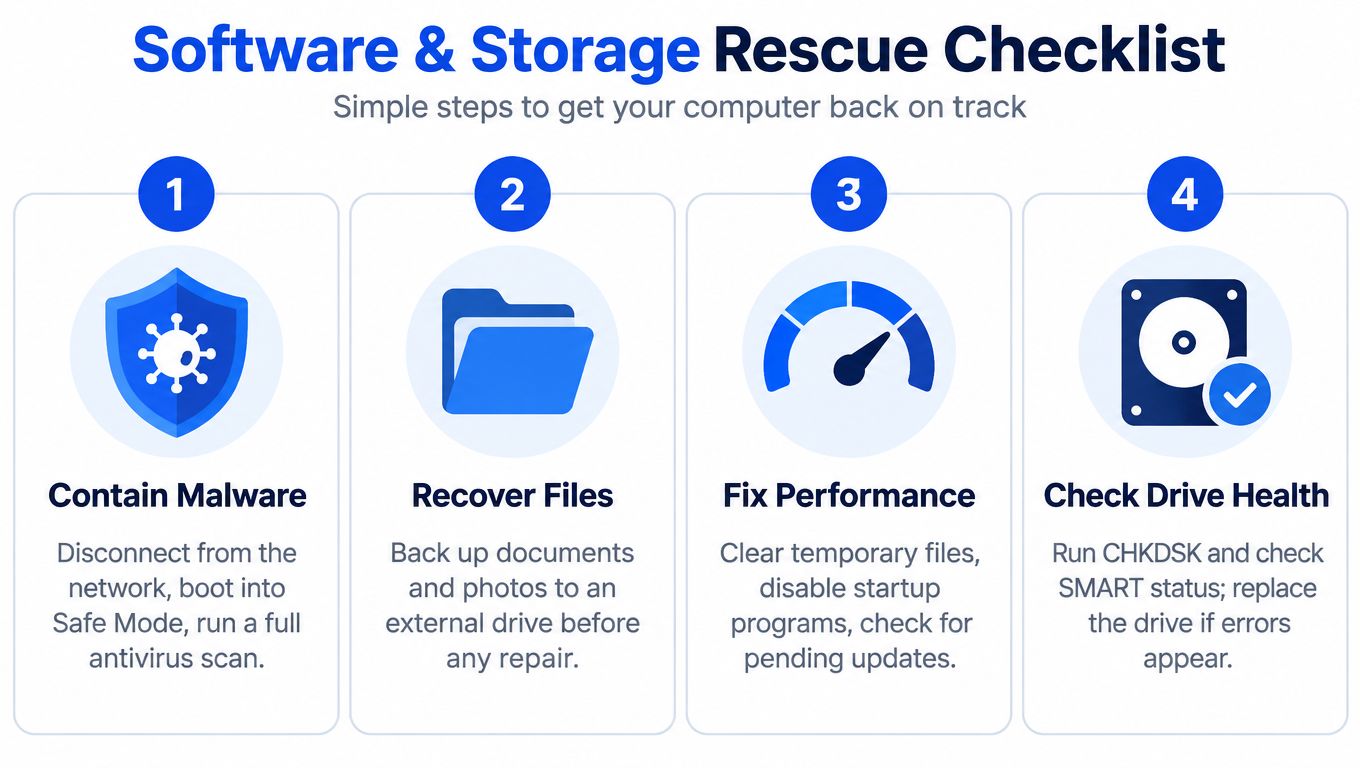
For a stable drive with verified backups, targeted Windows troubleshooting may be appropriate. The Windows repair on startup guide addresses startup problems, but recovery priorities should determine which actions you authorise.
If a drive clicks, disconnects, develops filesystem corruption or holds irreplaceable records, stop repeated DIY attempts. Don't run CHKDSK or reinstall Windows first merely because they're familiar tools. Write operations can alter material that a recovery specialist needs.
Recovery boundary: Reinstalling Windows is a repair option, not a data-preservation strategy.
Remove compromise and verify the result
On suitable hardware, use trusted offline or bootable scanning tools. Investigate persistence mechanisms such as scheduled tasks, unwanted remote-access software and browser extensions, rather than deleting only the obvious malicious file.
Patch Windows and applications and confirm that security controls are active. Where installation integrity can't be established, consider a clean installation after recovery and backup verification. Scan customer files before restoration, and don't indiscriminately restore executables.
Complete a separate security acceptance checklist:
Operating system: Clean boot, Windows Event Viewer review, monitored restart and appropriate driver or firmware checks.
Protection: Microsoft Defender active and updated, with browser extensions and remote-access tools reviewed.
Accounts: Passwords changed from a known-clean device, multifactor authentication enabled and unwanted browser sessions revoked.
Recovered files: Important documents checked before normal use, with a verified backup kept separately.
This distinction matters beyond the desktop itself. The Crime Survey for England and Wales estimated 798,000 computer-misuse incidents against people aged 16 and over in the year ending March 2026, as reported in this UK computer-misuse statistics summary. Treat email, cloud storage and business accounts as part of recovery, not an afterthought.
Knowing When to Hand the Machine to a Professional
Stop home troubleshooting when the next step requires live electrical measurements, board-level soldering or controlled drive recovery. Liquid damage, persistent POST failures after sensible isolation, GPU memory faults and damaged sockets belong on an equipped bench.
Prepare a controlled handover
Give the workshop your symptom record, configuration photographs and details of changes already attempted. Identify essential files and agree whether recovery must precede repair.
Authorisation: Set an approval limit and require permission before wiping, reinstalling or replacing storage.
Privacy: Agree how diagnostic access will work and how recovered files will be handled.
Accountability: Request written findings, parts details, warranty terms and recorded acceptance tests.
Check existing warranty arrangements before commissioning invasive work. Ask whether specialist recovery is handled locally or referred elsewhere; don't assume every repair workshop has clean-room facilities.
A suitable Sheffield workshop should explain what it has established, what remains uncertain and what affects turnaround. Don't accept an unconditional completion promise before diagnosis.
If repair isn't worthwhile, request a clear separation between recovering your files and retiring the hardware. Confirm data-erasure arrangements, trade-in eligibility and responsible disposal. The useful outcome is a documented decision, not a computer that briefly turns on.
Steel City IT offers desktop diagnostics, component and board-level repair, upgrades, Windows troubleshooting and data recovery from its Frecheville workshop. Visit Steel City IT with your symptom notes and backup requirements to discuss whether repair, an upgrade or replacement is the sensible next step.