
Windows Install with USB: A Practical Step-by-Step Guide

Your laptop blue-screened for the third time this week, Startup Repair has given up, and you're staring at a drawer of old USB sticks wondering if a Windows install with USB will save the machine or wipe the family photos with it. That's the exact moment most guides rush you to click Next. Don't. A clean reinstall is powerful, sometimes essential, and sometimes the wrong afternoon entirely. Work through the decision first, then follow the steps in order.
Table of Contents
Deciding Whether a USB Install Is Actually the Right Move - Signals That Point Each Way
Checking Your Hardware and Backing Up Before You Start - Back Up Like the Install Will Go Wrong
Creating a Bootable Windows USB the Safe Way - Use Microsoft's Own Tool
Entering UEFI or BIOS and Choosing the Right Boot Entry - The Three Settings That Matter
Walking Through Windows Setup and Choosing Your Partition - The Most Dangerous Screen in the Process
Understanding GPT, UEFI and the Partitions Windows Creates - UEFI Versus Legacy Boot at a Glance - Checking the Disk Yourself With DiskPart - After the Reboot, Where Guides Usually Abandon You
Fixing Common Windows USB Install Errors and Knowing When to Call It - When the USB Itself Is the Problem
Deciding Whether a USB Install Is Actually the Right Move
Start with symptoms, not software. A clean install earns its keep when Windows files are corrupted beyond repair, malware survives proper cleanup, recovery partitions fail, or you've fitted a new SSD with nothing on it. The same logic applies if the machine won't boot at all and you need a controlled route back in from outside the broken installation.
Plenty of problems don't need that nuclear option. A single faulty driver, a recent update gone wrong, or a full drive choking Windows often responds to a repair or reset instead. If the machine is slow on an ageing hard drive, an SSD upgrade with your existing Windows and files migrated across usually beats reinstalling everything from scratch.
Signals That Point Each Way
Clean install fits: Repeated blue screens after driver updates, system files that won't repair, or a replaced system drive with no operating system.
Try repair first: One broken app, a single bad update, or a boot loop that started yesterday after a clear change you can undo.
Upgrade hardware instead: Windows works but crawls, the hard drive grinds, and everything takes minutes rather than seconds to open.
Home computers are hardly a niche concern. The Office for National Statistics reported that 90% of private households in the United Kingdom had a home computer during April 2020 to March 2021, though it doesn't collect figures by operating system, as set out in ONS data on household technology ownership. That means you can't assume any given machine's Windows version or hardware. You have to inspect the one in front of you.
Bench rule: If you can't state in one sentence what's broken and why a reinstall fixes it, you're not ready to format anything.
Two questions decide everything that follows. Will this hardware run the Windows version you're about to install, and is everything that matters backed up somewhere that isn't this drive? If either answer is no or maybe, stop here and sort that first. If both are a confident yes, keep going.
Checking Your Hardware and Backing Up Before You Start
Here's the assumption worth challenging. Many users treat the USB creation as step one, when the actual step one is checking whether Windows 11 is even appropriate for an older machine. Windows 11 requires TPM 2.0, UEFI firmware with Secure Boot capability, at least 4 GB of RAM, 64 GB of storage, and a compatible 64-bit processor, and devices lacking even one of TPM 2.0, UEFI, or Secure Boot cannot upgrade easily, as summarised in research on Windows 11 adoption and hardware requirements.
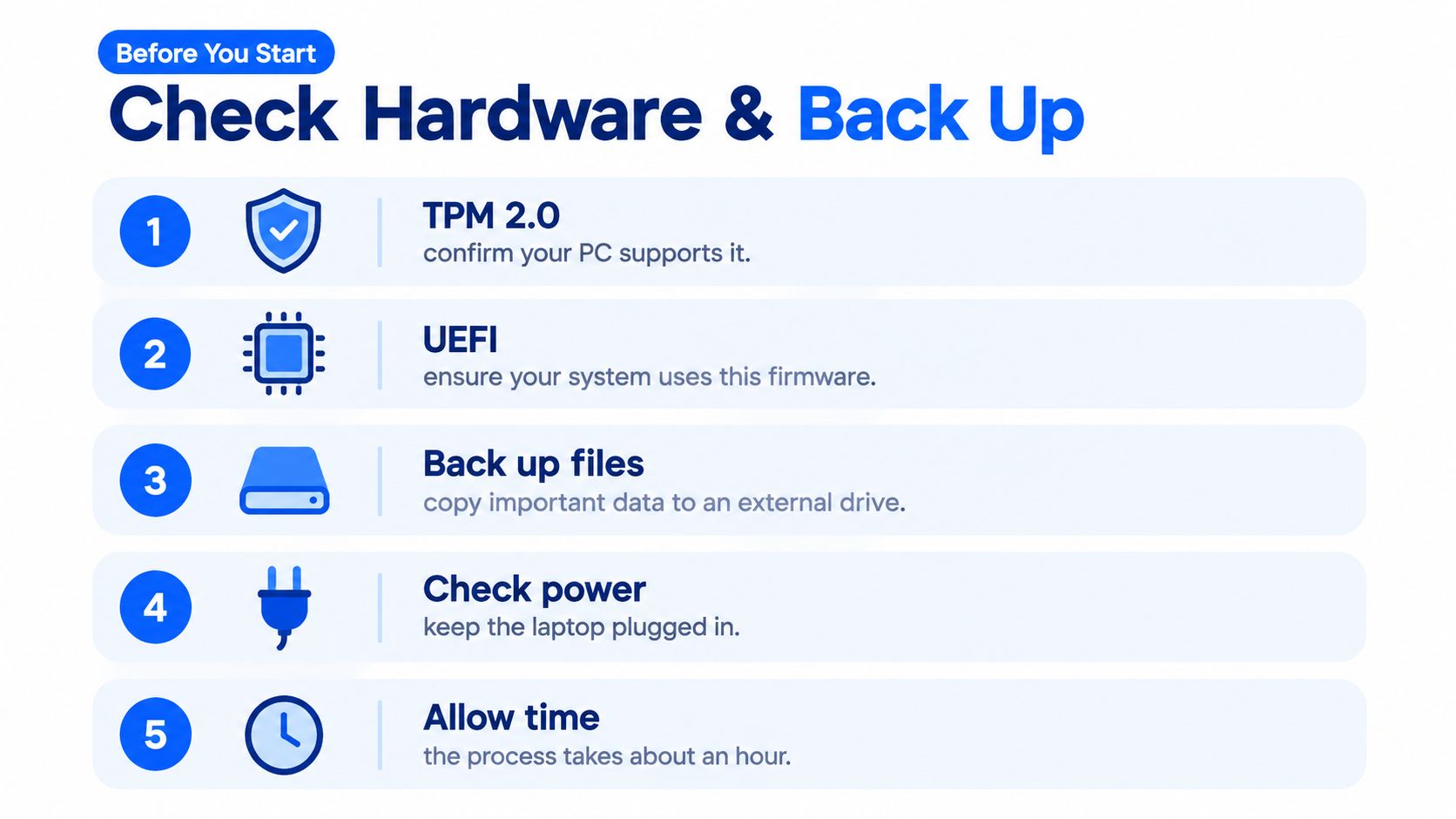
That check became urgent after Windows 10 support ended on 14 October 2025, per the same adoption research. If your machine fails the checklist, don't force it. Staying put temporarily on a controlled path, fitting a supported upgrade, or replacing the machine are all more honest options than a hacked install that leaves you without working Wi-Fi, graphics, or printer drivers.
Back Up Like the Install Will Go Wrong
Copy documents, photos, and desktop files to an external drive or cloud storage, then open a few to confirm they copied. Export browser bookmarks, note product keys and passwords stored only on this PC, and record your BitLocker recovery keys from your Microsoft account before you touch firmware settings. If the drive holds business data, consider a full image backup so the original installation can be restored wholesale, or use a structured data migration service approach rather than dragging folders and hoping.
Small firms need extra care here. UK business research found 45% of organisations identified existing-application compatibility as a concern and 32% worried about operational disruption around the move to Windows 11, according to UK business research on Windows 11 migration concerns. Inventory your accounting software, printers, network shares, and any specialist peripherals before wiping anything, and test on a spare machine if you can.
If you're also weighing a memory upgrade while the machine is open, check compatibility before ordering parts. Mac owners in the household face the same discipline, and you can find Mac RAM installation tips that reinforce the same point about matching specifications first. Preparation is the cheapest part of this job. Skipping it is the most expensive.
Creating a Bootable Windows USB the Safe Way
Do this on a working computer while the broken one sits switched off. You'll need a stable internet connection and a blank USB flash drive with at least 8 GB, because everything already on it will be erased, as Microsoft states on Microsoft's UK Windows 11 download page. Grab a stick with nothing precious on it, and check it twice.
The photograph below shows the physical side of the job, which is the easy part.

Use Microsoft's Own Tool
Download the Media Creation Tool from that Microsoft page, run it, and accept the licence terms. Choose your language and edition, select USB flash drive as the media type, pick your stick from the list, and let the tool download and write the installer without interruption. Don't yank the drive out mid-write, and don't use the PC for anything heavy while it works.
Confirm the target machine is a 64-bit x86 PC before you start, because the standard Media Creation Tool creates x64 media rather than ARM media. Downloading the wrong architecture wastes an hour and produces a stick that will not boot the machine you need. For the vast majority of home desktops and laptops, x64 is correct.
A half-written installer stick fails in confusing ways that look like hardware faults. Let the tool finish and confirm completion before you touch it.
If your only working machine runs macOS or Linux, you can download the official ISO instead and write it with a separate flashing tool. That route works, but it's less forgiving, so borrow a Windows PC if one's available. Keep a note of your 25-character product key if the machine has no digital licence attached.
The video below walks through the creation process visually if you want to watch each screen before committing.
Entering UEFI or BIOS and Choosing the Right Boot Entry
Most failed installs don't fail in Windows Setup. They fail here, at power-on, because the machine booted the USB in the wrong mode and Setup never stood a chance. Modern machines use UEFI, a graphical firmware setup, while older ones show a plain text BIOS screen, and the distinction matters more than most guides admit, as explained in this comparison of UEFI and BIOS firmware.
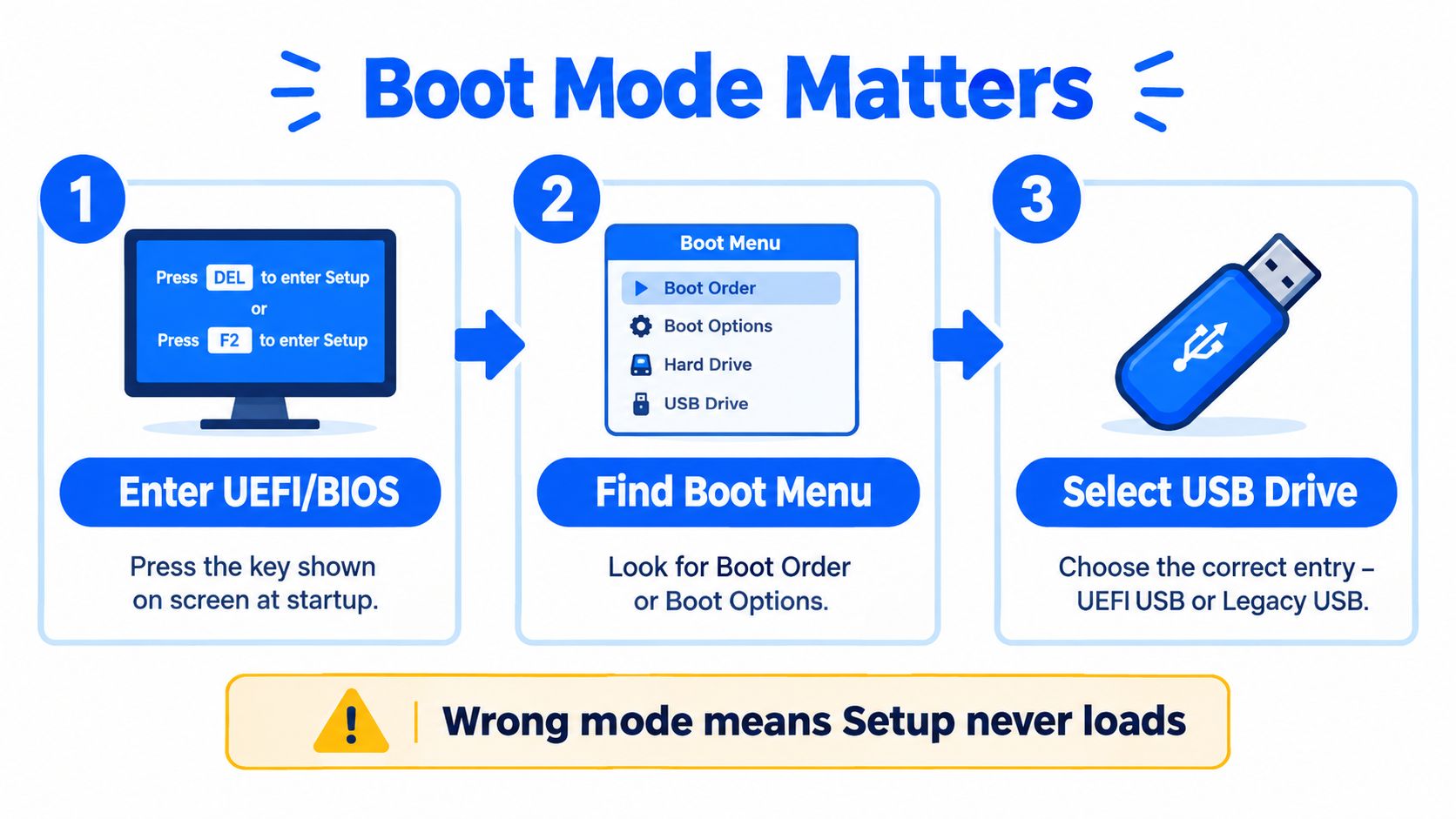
Insert the USB, power on, and tap the key shown on screen, commonly F2, Delete, Escape, or F12 depending on the manufacturer. My strong preference is the one-time boot menu rather than changing permanent boot order. It gets you booted from USB once without leaving altered settings behind for the next person.
The Three Settings That Matter
UEFI mode on: Look under Boot settings and confirm UEFI rather than Legacy is the active mode.
Legacy or CSM off: Disable it where the option exists, so the machine can't boot the stick the old way.
Secure Boot on: Enable it for a Windows 11 install, since it's part of the platform requirement.
Now the decisive click. In the boot menu you'll often see the same USB listed twice, once plain and once prefixed with UEFI. Choose the UEFI entry every time for a modern install. The plain entry boots in legacy mode and sets up the partition mismatch that causes grief two screens later.
One warning before you save anything. Changing firmware settings can trigger a BitLocker recovery prompt on the existing installation, which is exactly why you recorded that recovery key earlier. If a prompt appears, enter the key carefully rather than guessing or powering off repeatedly. If you can't find a setting, stop tweaking and use the one-time boot menu alone.
Walking Through Windows Setup and Choosing Your Partition
Setup opens with language, time format, and keyboard choices. Pick English (United Kingdom) where offered so the keyboard layout matches the symbols printed on your keys. Click Install now, then handle the product key screen directly. Enter a key if you have one, or choose the option saying you don't have one and let a digital licence reactivate Windows later on hardware that's been activated before.
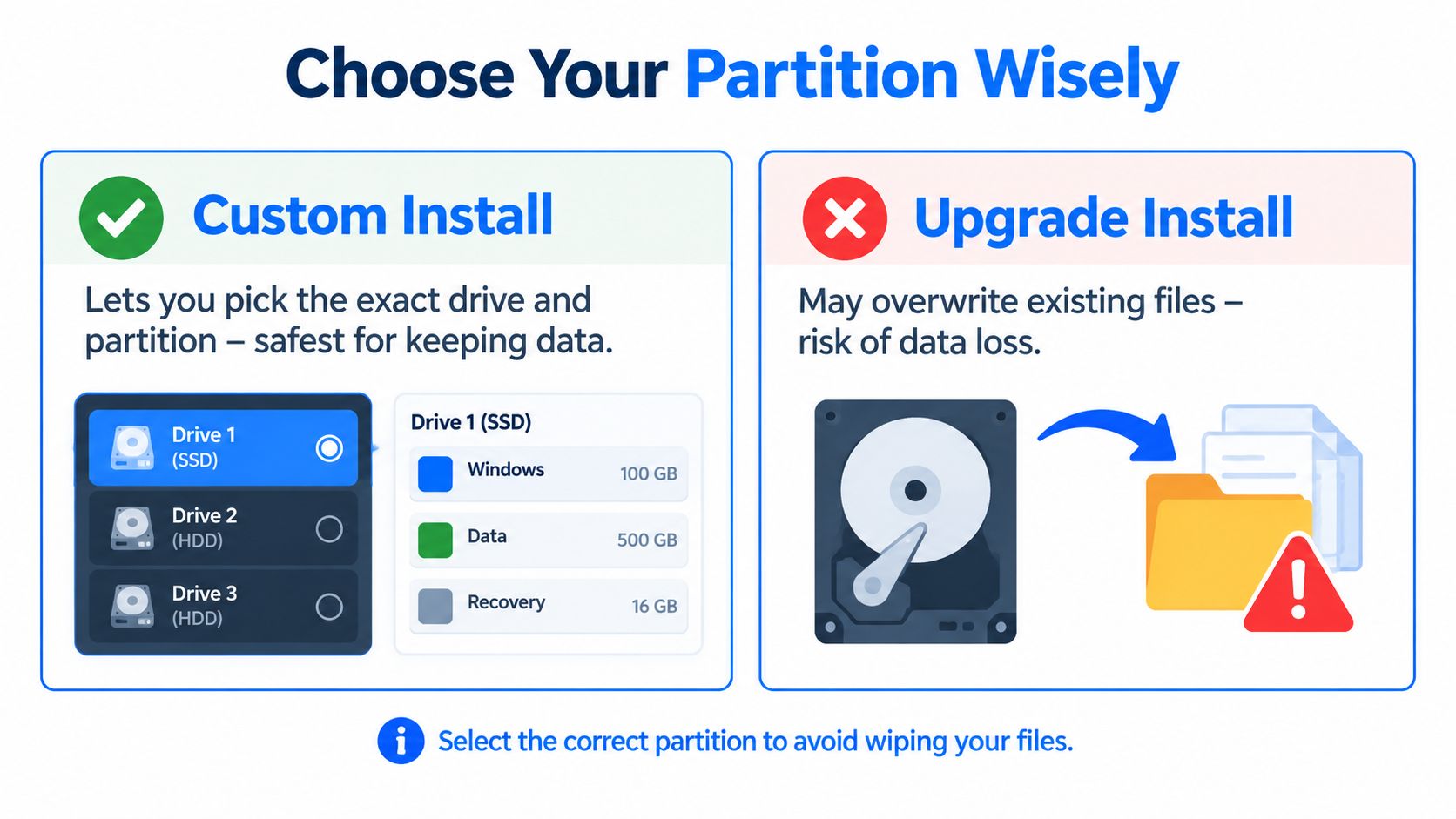
Next comes the choice that defines the whole job. Upgrade keeps files and apps and only works when started from inside a working Windows. Custom is the clean install path, and it's the one you want from a booted USB when Windows is corrupted or the drive is new. Don't pick Custom expecting your apps to survive. They won't.
The Most Dangerous Screen in the Process
The disk selection page lists drives by number and size, not by the friendly drive letters you're used to. Those letters mean nothing here and can mislead you badly. Identify your system disk by its total size, and ideally disconnect every other internal and external drive before you reach this screen so there's only one plausible target.
Full wipe intended: Delete each partition on the system disk until it shows as unallocated space, select that space, and click Next.
Data drive present: Touch nothing on it, and if you can't tell which disk is which, power off and physically unplug the data drive.
Keeping a partition: Select only the existing Windows partition and accept that this is a messier, less clean result.
Workshop habit: Read the disk size out loud before deleting anything. It sounds daft. It has saved more data than any software tool.
Deleting partitions on the wrong disk is the one mistake in this whole process that backup discipline exists for. If anything on that screen looks unfamiliar, stop. Setup hasn't changed anything irreversible until you confirm deletions and proceed, so backing out costs you nothing but a reboot.
Understanding GPT, UEFI and the Partitions Windows Creates
When you select unallocated space and click Next, Setup isn't doing magic. It's building a standard partition layout matched to how the machine booted. A PC booted in UEFI mode should use a GPT-partitioned system disk, while Legacy or CSM boot with MBR can prevent Secure Boot and cause installation errors, as described in Microsoft's guidance on Media Creation Tool boot mode behaviour. Boot mode and partition scheme are a matched pair. Mismatch them and Setup refuses the disk.
GPT, short for GUID Partition Table, is the modern scheme that pairs with UEFI firmware. MBR, or Master Boot Record, is the older scheme tied to legacy BIOS booting. You don't choose between them directly in the graphical screens. Setup applies whichever scheme matches the boot mode you selected back in the firmware menu, which is why that earlier click carried so much weight.
UEFI Versus Legacy Boot at a Glance
Setting | UEFI with GPT | Legacy or CSM with MBR |
|---|---|---|
Firmware mode | UEFI enabled, CSM disabled | Legacy or CSM enabled |
Partition scheme | GPT on the system disk | MBR on the system disk |
Secure Boot | Available and expected for Windows 11 | Not available in legacy mode |
Boot entry to pick | The entry prefixed with UEFI | The plain USB device name |
Typical outcome | Setup accepts the disk and builds standard partitions | Setup may refuse the disk on modern firmware |
On a clean UEFI install, Setup creates four partitions from that unallocated space. The EFI System Partition holds the boot files the firmware reads at power-on. The Microsoft Reserved Partition, or MSR, is reserved space Windows uses for disk management tasks. The large Windows partition is where the operating system, your apps, and your files live. Finally, a recovery partition stores the tools Windows uses for repair and reset operations. Seeing several small partitions afterwards is normal, not clutter to delete.
Checking the Disk Yourself With DiskPart
If Setup complains about the disk, press Shift+F10 to open a command prompt, type , then . A GPT disk shows a mark in the Gpt column, which confirms the scheme at a glance. Only if data on that disk can definitely be erased would you select it, run , then , and only after verifying the disk by size one final time. Those commands are destructive and instant. There's no undo, so treat them as a technician's tool rather than a routine step.
Understanding what Setup builds turns error messages from dead ends into diagnoses. A refused disk almost always means boot mode and partition scheme disagree.
After the Reboot, Where Guides Usually Abandon You
Setup copies files, reboots, and walks you through region, keyboard, network, and account screens. Sign in with the Microsoft account holding your digital licence if you have one, since activation usually resolves itself once you're online. Remove the USB stick when the machine restarts into the new installation so it doesn't boot the installer again.
Then run Windows Update repeatedly until it offers nothing new, because it delivers most modern drivers automatically. Afterwards, visit the laptop or motherboard manufacturer's support page for chipset, graphics, and audio drivers in the versions they recommend. A machine with no Wi-Fi or sound at first boot isn't broken. It's unfinished.
Restore your files from the external drive, reinstall your applications from their original sources, and test the things that matter before declaring victory. Open your accounting package, print a test page, check your network shares, and confirm BitLocker status matches what you expect. For Sheffield home users and small firms alike, that verification pass is the difference between an installed machine and a working one. Workshops such as Steel City IT offer clean reinstall work with drivers and updates configured as part of the service, which is one option if you'd rather hand over this final stretch.
Fixing Common Windows USB Install Errors and Knowing When to Call It
Certain failures show up at the bench again and again, and most have plain causes. The message that Windows cannot be installed to this disk usually means an MBR disk met UEFI-only firmware, so recheck your boot entry and disk scheme rather than retrying blindly. An installer that refuses to run at all on older hardware is often reporting an unsupported processor or missing TPM, which takes you straight back to the hardware checklist you may have skimmed.
Repeated reboots into the USB installer mean the stick is still inserted or the boot order still favours it. Remove the stick and let the internal drive take over. Missing Wi-Fi, sound, or graphics after Setup points to drivers, so work through Windows Update and then the manufacturer's page. A completed install that won't activate usually needs the correct Microsoft account sign-in or the original product key entered manually.
When the USB Itself Is the Problem
Faulty or undersized sticks cause a surprising share of failures, along with sticks that still held old files when written. Start again with a known-good, blank drive built as trusted media. That mirrors official practice, since UK government guidance on setting up Windows laptops and tablets identifies USB as an official method for a clean Windows 10 installation when the original recovery image is unavailable, instructing technicians to wipe and format the USB before loading the installer so the media is known to be clean.
If a drive disappears mid-install, clicks, or throws different errors each attempt, suspect dying hardware, not your technique.
Some faults sit beyond any installer. A failing storage drive, a corrupted firmware, or a motherboard fault will defeat every USB you build, and repeated attempts can make data recovery harder. Machines stuck before Setup even loads may need the kind of diagnosis covered in guidance on Windows repair on startup before a reinstall is worth attempting. Knowing when to stop isn't defeat. It's the same judgement you applied at the start, and it's what protects your data when enthusiasm won't.
If your checks suggest a clean reinstall is right but the disk errors, missing drivers, or activation problems are piling up, Steel City IT in Frecheville can run the Windows install from USB for you, including hardware diagnosis first, data backup, and driver and update configuration afterwards. Bring the machine in before a failed drive turns a reinstall into a recovery job, and start by visiting Steel City IT to arrange an assessment.