
Windows Problem Code 43: Diagnosis and Fixes

You've updated the graphics driver, restarted the PC, and the yellow warning icon is still sitting beside the device in Device Manager. Perhaps your monitor has gone blank, a USB device keeps disconnecting, or an external drive no longer appears reliably. Windows problem Code 43 looks decisive, but in a Sheffield workshop it's usually the start of the diagnosis, not the final verdict.
The important question is whether Windows is reporting a software failure, a communication problem, or a genuine fault on the device's circuit board. Replacing a graphics card or drive before separating those possibilities can waste money, while repeatedly reinstalling drivers can make a failing component harder to assess.
Table of Contents
Understanding What Windows Problem Code 43 Actually Means - Why the affected device matters
First-Line Driver and Software Interventions - Use a controlled sequence
Physical Hardware Isolation and Reseating Procedures - Make the system safe before touching it - Isolate one connection at a time - Know what reseating can and can't prove
Deciding Between Repair and Replacement - Put data before convenience
When to Seek Professional Diagnostics and Repair - Board-level faults need different tools
Understanding What Windows Problem Code 43 Actually Means
Code 43 is a Device Manager status, not a diagnosis of one particular component. Microsoft describes it as a condition where a driver reports that its device has failed. Windows then stops the device and displays the message, “Windows has stopped this device because it has reported problems.” The status can appear against graphics adapters, USB devices, storage devices and USB-C controllers, rather than only against a graphics card. Microsoft's device installation documentation explains the underlying status and why Windows disables the affected device.
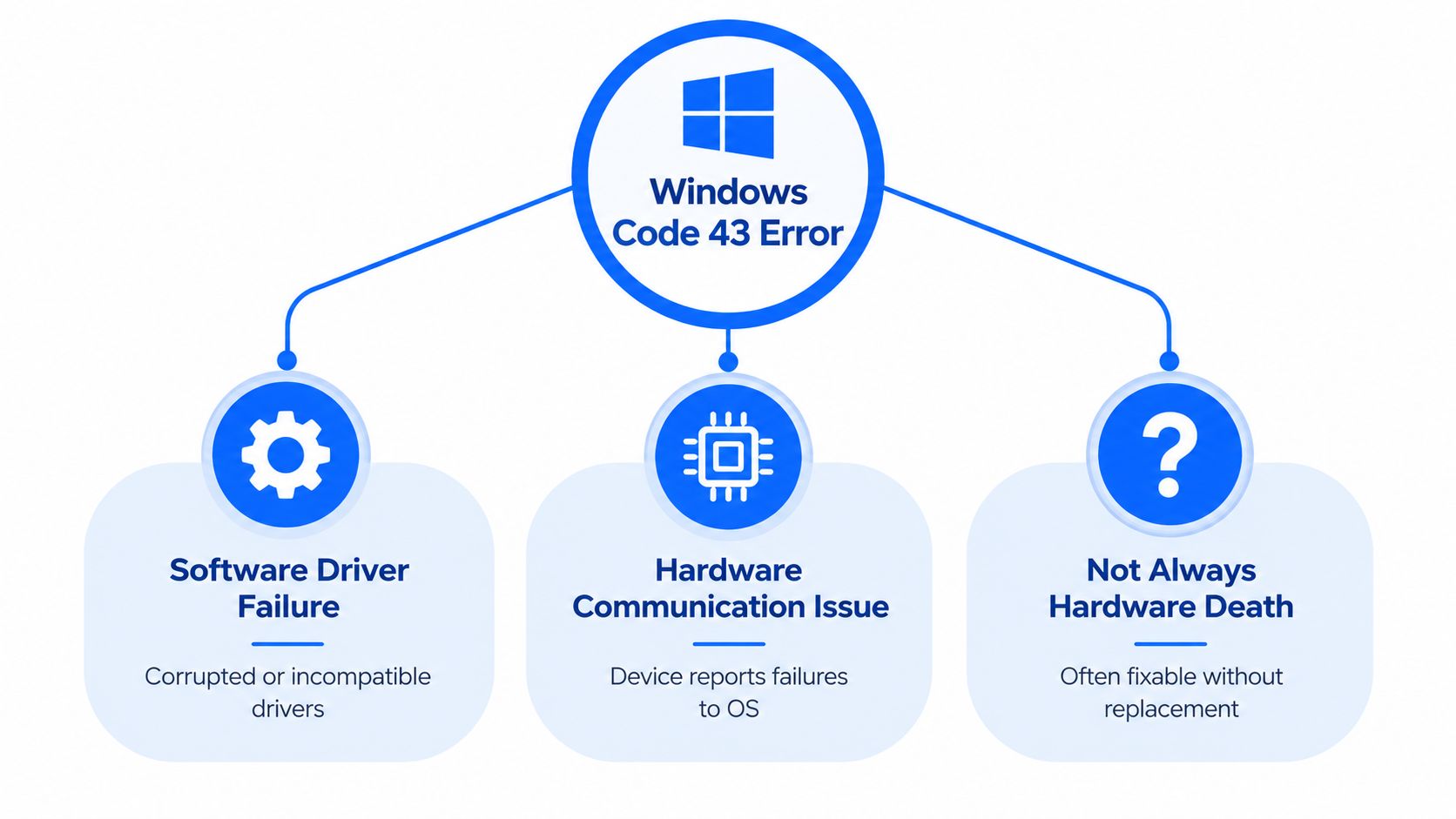
The driver is the messenger between Windows and the hardware. If that communication breaks down, the device can report a problem even when the physical component isn't permanently dead. Corrupted driver files, an unsuitable driver branch, firmware or enumeration problems, power delivery, poor connections and damaged hardware can all sit on different sides of the same Code 43 message.
Why the affected device matters
A graphics adapter that shows Code 43 deserves a different investigation from an external drive. A GPU fault may involve the driver, PCIe detection, auxiliary power, VRAM or the board itself. A USB device may instead point towards a cable, port, hub, controller package or the device's own electronics.
Microsoft's graphics guidance treats Code 43 as capable of indicating either a hardware problem or failing driver software. That's why a sensible repair process doesn't jump straight to replacement. It first establishes whether Windows can communicate with the device after the driver is refreshed, then checks whether the same behaviour survives controlled physical and cross-system testing.
Workshop rule: Code 43 tells you that Windows stopped trusting the device. It doesn't tell you which part failed.
This distinction is especially useful for Sheffield users deciding whether to repair an older gaming PC, work laptop or storage device. The status has remained relevant through major Windows generations, but its persistence doesn't make it a hardware-failure percentage or a reliable replacement trigger. The useful conclusion is narrower and more practical. Treat Code 43 as an operating-system response to a reported failure, then prove whether the cause is software, connection, power or hardware.
First-Line Driver and Software Interventions
Start in Device Manager, because the aim is to make one controlled change and observe the result. Microsoft's current graphics Code 43 support procedure centres on updating the driver, removing the affected device and allowing Windows to detect it again.
Save open work first. Then open Device Manager, expand the relevant category, right-click the device with the yellow exclamation mark and open Properties. Record the device name, hardware IDs and the exact status message before changing anything. Those details help identify the correct manufacturer driver and give a technician something useful if the problem remains.
Use a controlled sequence
Update the driver. Choose the driver update option in Device Manager and allow Windows to check for an available driver. For a GPU, also compare the installed version with the current driver supplied by the card or system manufacturer. Avoid unofficial or modified packages, because they make the result harder to interpret.
Remove the device entry. If updating changes nothing, select Uninstall device from the device's context menu. Don't remove unrelated storage, keyboard or pointing-device entries because they appear nearby. The objective is to refresh the problem device, not to create another fault during an active session.
Restart or scan for hardware changes. After removal, restart Windows, or use Scan for hardware changes in Device Manager. This forces Windows to re-enumerate the hardware and rebuild the relevant driver association. Check whether the status changes to This device is working properly.
Check the result, not just the icon. Test display output, USB stability or drive access according to the device involved. A disappeared warning icon is encouraging, but it isn't enough if the GPU still produces artefacts or the drive disconnects during file access.
If Code 43 began after a recent driver change, retain the previous driver details and avoid installing several different packages in succession. A clean, documented installation is more useful than a cycle of random downloads. Creating a Windows System Restore point before broader changes can also give you a defined rollback position.
The device may also depend on more than its visible driver. Graphics systems can rely on chipset and firmware support, while USB-C devices may involve controller or UCSI packages. If the warning returns immediately after a clean manufacturer driver installation, stop treating the problem as ordinary driver clutter and move to physical isolation.
Practical boundary: Two careful software interventions are enough to establish a useful direction. Repeating the same uninstall and reinstall loop doesn't prove anything new.
A clean Windows environment can help separate the operating system from the component. Persistence with current OEM drivers, a clean installation and another compatible machine materially increases suspicion of hardware, firmware, power delivery, VRAM or board-level failure. It still doesn't identify the failed part by itself, so the next stage needs controlled physical testing rather than more software resets.
Physical Hardware Isolation and Reseating Procedures
Once the software path has been tested, change the conditions around the device. A loose connector, unstable port, external hub or inadequate power path can make a healthy component report a failure. Work methodically and change one variable at a time, otherwise you won't know which action affected the result.
Make the system safe before touching it
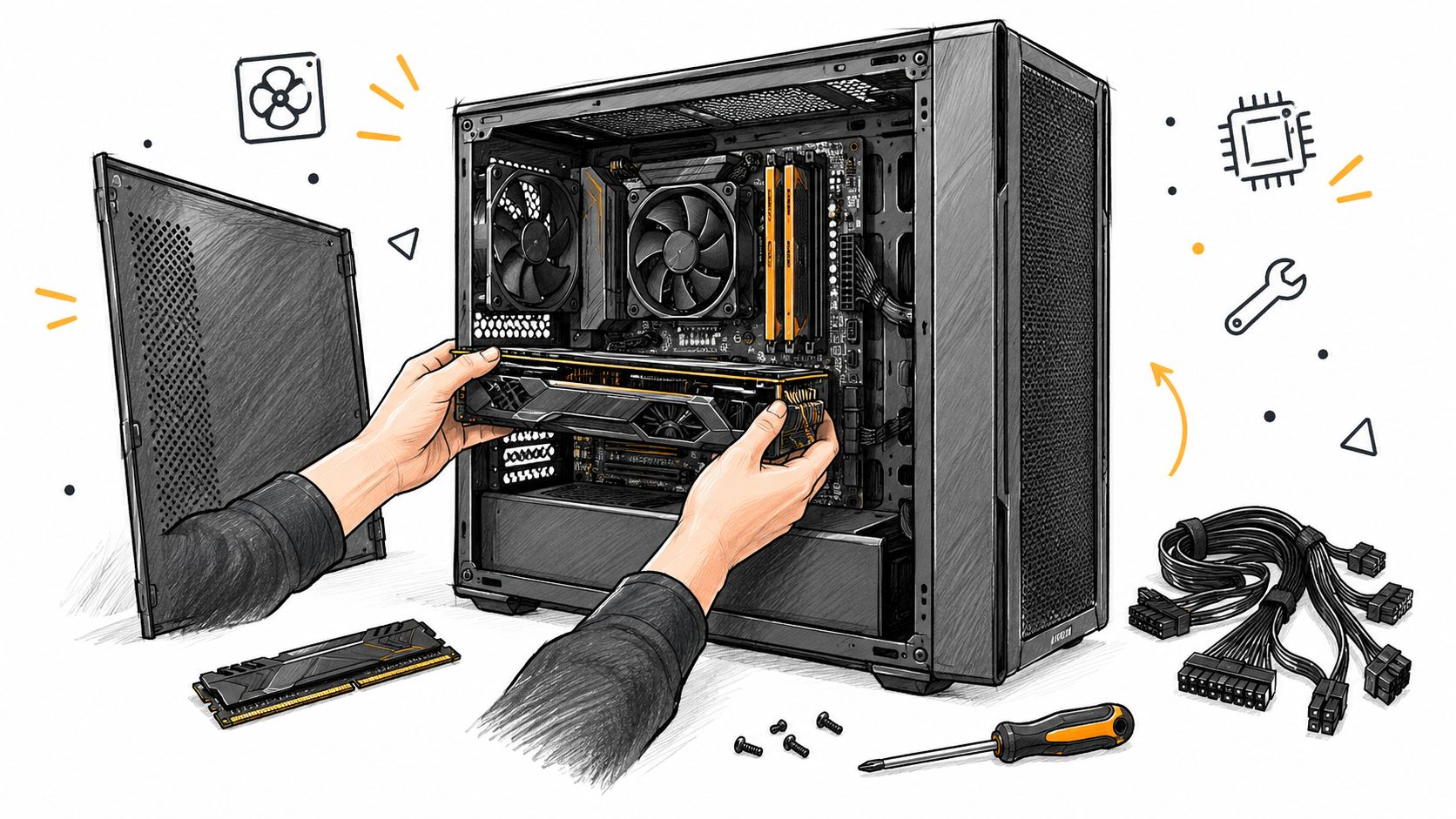
Shut the computer down fully. Disconnect the mains power, remove external power supplies where applicable, and hold the case power button briefly to discharge residual power. For a laptop, don't open the chassis unless you're confident about its construction and battery isolation.
A desktop GPU should be checked for firm seating in its PCIe slot and for correctly connected auxiliary power leads. Inspect the connector area for scorching, melted plastic, unusual odours or visible damage. Don't force a card into place, and don't work inside a powered system.
The display path deserves its own test. Use a known-good cable, another suitable port and, where practical, a different display. A Code 43 GPU can coexist with a separate cable or monitor problem, so a blank screen alone doesn't establish a failed graphics processor.
Isolate one connection at a time
For an external USB device, remove hubs, adapters and extension cables before testing it directly from the computer. Try another compatible port and cable, then test the device on another suitable system if one is available. This is particularly important for storage, where a damaged enclosure or cable can look like a failed drive.
Microsoft's guidance also supports safe removal and a complete power disconnect for externally powered devices before reconnection. Its UK support guidance for graphics and device Code 43 follows the same general principle of removing the affected entry and allowing Windows to detect it again.
External drives: Eject the drive properly before unplugging it. If it clicks, repeatedly disappears or produces unusual mechanical noises, prioritise copying or imaging accessible data rather than repeatedly power cycling it.
USB peripherals: Test without a hub, then compare ports and cables. Don't indiscriminately delete USB storage or input-device entries while the session is active.
Internal graphics cards: Check seating, PCIe power leads, display output and physical signs of heat or damage. A card can be detected while still failing under load.
USB-C systems: Check the relevant controller, chipset and firmware packages rather than focusing only on the visible peripheral driver.
Know what reseating can and can't prove
Reseating can correct a poor contact or reveal a power connection problem. It can't repair failed VRAM, a damaged GPU core, a shorted component or a cracked solder joint. If the fault returns with the original setup, a known-good cable or port makes no difference, and the device behaves the same on another compatible machine, further reseating is unlikely to add useful evidence.
A structured graphics card fault check should include display output, PCIe link detection, temperature behaviour, power delivery and visual artefacts. Don't declare a GPU dead solely because Device Manager reports Code 43, but don't let the status become an excuse to ignore consistent physical symptoms either.
Deciding Between Repair and Replacement
The repair decision should follow evidence, not frustration. A component that works after re-enumeration belongs in a different category from one that fails with current OEM drivers on more than one compatible system. An external drive with important files also carries a data-risk decision that a graphics card usually doesn't.
Observed behaviour | More likely direction | Sensible next action |
|---|---|---|
Code 43 clears after driver update or device re-enumeration | Driver corruption or an operating-system communication fault | Keep the stable driver, document the version and monitor the device |
The device works after removing a hub, changing a cable or using another port | Connection, power or enclosure problem | Replace the suspect cable or isolate the failing accessory |
A GPU shows artefacts, unstable output or fails physical checks | GPU, VRAM, power or PCB fault | Stop repeated driver installs and arrange component-level diagnosis |
An external drive disconnects or makes unusual noises | Drive or enclosure degradation is possible | Protect accessible data first, then assess recovery or repair |
Code 43 persists after clean software isolation and another compatible machine | Hardware or firmware suspicion increases | Obtain a diagnostic report before buying a replacement |
A clean installation can tell you whether the Windows environment is involved, but it doesn't automatically prove the component is beyond repair. A GPU may have a replaceable board-level fault or VRAM issue. Conversely, a device that appears briefly after a reinstall may still be unreliable under temperature, power or workload changes.
Put data before convenience
External storage changes the order of operations. Microsoft includes external drives among Code 43 scenarios and advises safe ejection and power disconnection, but general reinstall instructions don't distinguish a driver fault from a degrading drive or enclosure. If the files matter, back up or image what remains accessible before experimenting with repeated restarts or driver removal.
UK repair research supplied with this guidance identifies unsupported software or security updates as a major problem for 59% of respondents and difficulty obtaining spare parts as a concern for 54% in a 2025 multi-country survey that included the UK. The referenced Microsoft-hosted material?redirectedfrom=MSDN) is also useful historical context for the long-running Code 43 recovery workflow, but those repair barriers make replacement an incomplete answer.
For a gamer, replacement may be the sensible route when a card has severe board damage, unavailable parts or an uneconomic repair. For a small business, a targeted repair or data recovery attempt may be preferable when the system contains valuable files or a replacement would require migration and downtime. The right choice depends on the device's role, physical evidence, data value and the confidence of the diagnosis.
When to Seek Professional Diagnostics and Repair
DIY troubleshooting ends when it stops producing new evidence. If Code 43 survives a careful driver update, device removal, re-enumeration, direct connection and compatible-system test, continuing to repeat those steps isn't a diagnosis. The same applies when you find scorch marks, a burnt smell, damaged connectors, persistent display artefacts, unstable power behaviour or storage that disconnects during access.
A proper assessment should capture the device identity, hardware IDs, driver history and the exact conditions under which the failure occurs. For a GPU, that may include PCIe detection, output testing, temperature behaviour, power rails, VRAM checks and artefact analysis. For storage, it should prioritise controlled handling and data preservation before invasive repair.
Board-level faults need different tools
Driver software can't repair a failed memory chip, damaged power circuit or board-level communication fault. Component-level diagnosis may identify a repairable PCB issue, while micro-soldering can address faults that would otherwise lead to full-board replacement. It can also establish when repair isn't economically sensible, which is valuable before ordering an expensive replacement graphics card.
In Sheffield, Steel City IT provides computer and console diagnostics, Windows troubleshooting, data recovery, GPU repair and board-level micro-soldering from its Frecheville workshop. Its professional diagnostics service is relevant when the device needs controlled testing rather than another generic driver package.
Stop and preserve: If a drive is clicking, disconnecting or becoming unreadable, protect the data before trying more fixes. Restoring Windows is secondary to preserving the files.
Bring the failed device, its power supply and any relevant cables if possible. A clear repair assessment should tell you whether the evidence points to software, a connection, a replaceable component or a board that is not economically repairable. That answer lets you compare repair, replacement and data recovery on facts instead of the Code 43 message alone.
If your PC, laptop, GPU or external drive is still showing Windows problem Code 43, Steel City IT can carry out software isolation, hardware diagnostics, GPU and board-level repair, or controlled data recovery where appropriate. Visit Steel City IT to arrange a Sheffield assessment before you replace a component that may still be repairable.
