
MacBook Overheating: Causes, Fixes and When to Repair

A 4K export is running, the deadline is this afternoon, and the underside of your MacBook has become uncomfortable to rest on your knees. The fans have been at full pitch for ten minutes and the aluminium above the keyboard is too warm to leave your palm on. You start wondering whether something inside has cooked, whether the machine is on its way out, or whether you should just close the lid and hope.
Most of the time it's none of those things. A notebook chassis is the heatsink, so a thin aluminium body shedding 30 or 40 watts of processor heat will always feel warm. The useful question isn't whether the Mac is hot. It's whether that heat is costing you speed, and whether the cause sits in the room, in the software, or in the hardware.
Work through the checks below in the order given. Each costs nothing, undoes nothing, and rules out a cause before you reach for a screwdriver.
Table of Contents
Quick Checks to Run Before You Open the Case
Start with the possibility that nothing is wrong. These machines are built to run warm under load and to protect themselves when they can't. A fan that spins up during a video export, a long compile or a game is the cooling system doing its job, and the noise usually peaks a minute or two after the heavy task begins.
The checks below separate that ordinary behaviour from a genuine fault. Run them in order, because the cheap explanations are also the common ones.
Quick check | Normal | Problem sign | First action |
|---|---|---|---|
Room temperature | Comfortable room | Hot room or direct sun | Move somewhere cooler and shaded |
Background apps | Low CPU at idle | One process busy while the Mac should rest | Quit or update that app |
Charger | Apple charger or matching wattage | Third-party or underpowered adapter | Switch to the supplied charger |
Vents and surface | Clear grille on a hard, flat surface | Bed, sofa or lap blocking the vents | Use a hard surface and a stand |
Fan behaviour | Brief fan spin-up under heavy load | Fans loud at idle | Quit background apps, then time a repeatable workload |
Two rows catch many users. The first is the surface. A MacBook sitting on a duvet, a cushion or a lap covers its intake and traps hot air against the bottom case, so a machine that idles comfortably on a desk will climb steadily on a sofa with nothing demanding running at all. Give it a hard, flat surface and a few centimetres of clearance and the temperature usually settles by itself.
The second is fan behaviour. Noise under load is expected. Noise at idle is a message.
Practical rule: if the fans are loud and the chassis is warm with no apps open, look at what's running before you look at the hardware.
If the Mac still runs hot, or still feels slow, once these five checks are done, the problem is worth measuring rather than guessing at. That's the next step, and it doesn't involve opening anything.
How to Confirm Throttling in Activity Monitor
Heat only matters when it costs performance. A Mac that runs warm but finishes the same export in the same time hasn't got a thermal fault; it's got a cooling system coping with a warm room. To decide whether there's a real problem, measure a repeatable workload instead of watching a temperature reading.
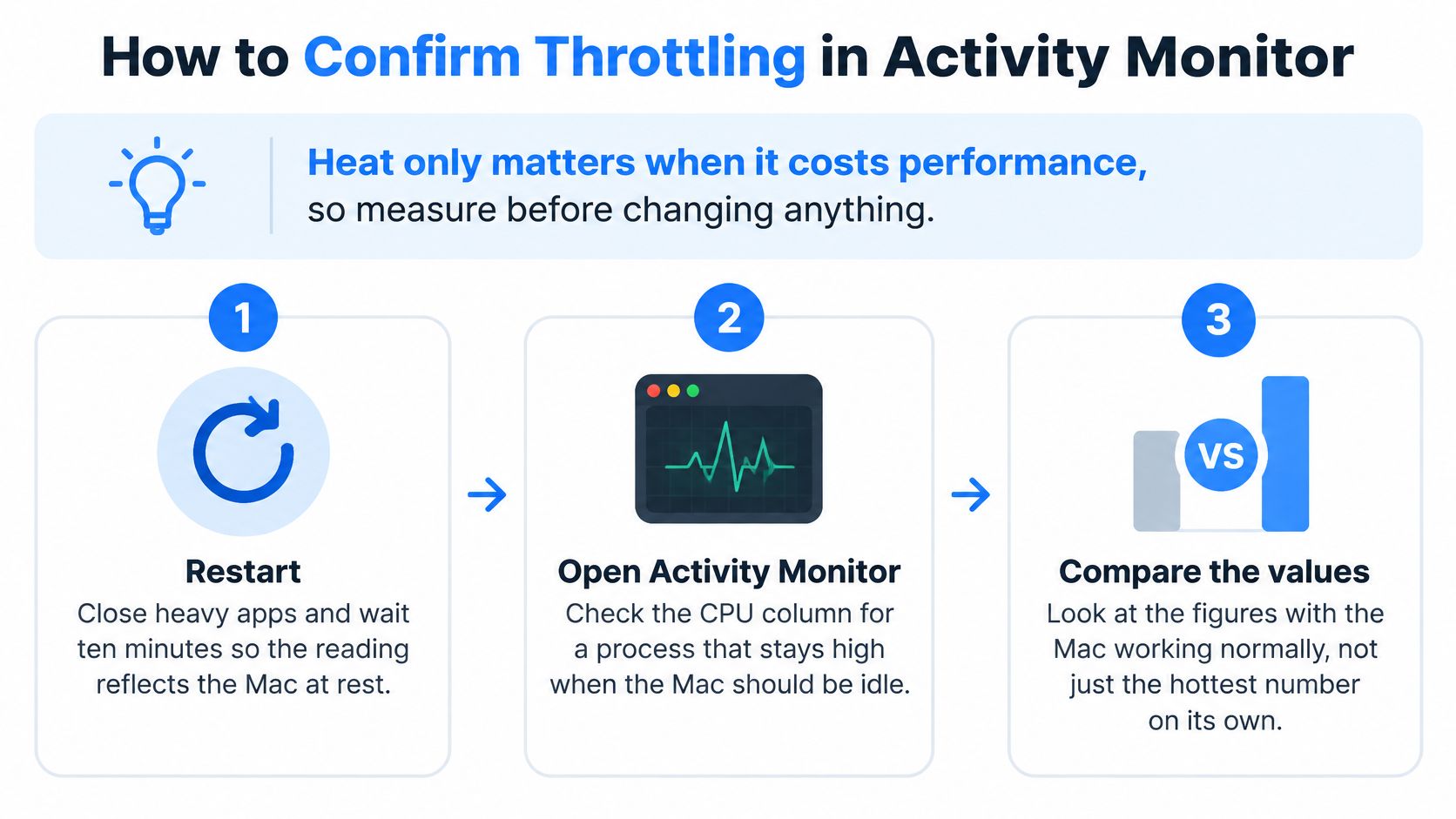
Restart and let it settle. Close the heavy apps, restart, and leave the Mac alone for ten minutes. A reading taken five minutes after a render reflects the heat you just made, not the machine at rest.
Open Activity Monitor. It lives in Applications, then Utilities. Choose the CPU tab and click the % CPU heading so the busiest process sits at the top.
Deal with the top offender. Quit anything using significant processor time when the Mac should be idle, then update it if the app is old. Check System Settings, General, Login Items for software that launches itself at every boot.
Time one repeatable job. Export the same 4K clip with identical settings and write down the duration, the fan noise and whether the Mac slowed partway through. Identical settings are the entire point: a different timeline or codec tells you nothing.
Compare against a documented case. PCMag UK's test of the 2018 Core i9 MacBook Pro recorded a 2.9GHz machine dropping to about 2.2GHz under sustained heat, with a Premiere Pro render taking 39 minutes 37 seconds against 27 minutes 18 seconds for the same laptop externally cooled. That's the shape of real throttling: the clock falls below the advertised base speed and the work takes markedly longer.
Repeat after every change. Log completion time, clock frequency, fan state and any crash or restart, so the next change is judged against evidence rather than a feeling.
One slow benchmark proves nothing on its own. Firmware bugs, background processes, an unsuitable power adapter and a failing battery all produce the same symptom, and the same 2018 model shipped with thermal-management firmware that Apple later corrected, so software and firmware checks come before any board replacement.
A free sensor utility that reports CPU temperature and fan speed in RPM is useful context during the test, but the timed result decides the question. If the second run after a change is faster, the change worked.
Metric | What to record | Throttling sign |
|---|---|---|
Completion time | Seconds or minutes for the identical export | Repeat runs finish markedly later than the baseline |
Clock frequency | Sustained CPU speed during the run | Falls well below the advertised base clock |
Fan state | Fan speed and whether it ramps up during the run | Full speed alongside slowdown, or loud fans at idle |
Crashes or shutdowns | Any restart or freeze during the run | Any occurrence, then move to the reset and firmware checks |
Safe Mode, SMC and NVRAM Resets by Chip Type
Three resets cover most software-side thermal oddities, and all three are safe to try. None deletes files, none needs a tool, and each takes under a minute. They do different jobs: Safe Mode loads macOS with minimal extensions and login items, so a cool, quiet Mac in Safe Mode points at third-party software, while the SMC and NVRAM resets clear the low-level settings that govern fans, power delivery and startup behaviour.
Mac type | Safe Mode | SMC reset | NVRAM reset |
|---|---|---|---|
Apple silicon (M-series) | Hold the power button until startup options appear, select the disk, hold Shift and choose Continue in Safe Mode | Not applicable; a full shutdown and restart does the same job | Not applicable; restart instead |
Intel MacBook | Restart and hold Shift until the login window appears | Shut down, hold Control, Option and Shift with power for about 7 seconds, release, then press power | Restart and hold Option, Command, P and R until the second startup chime, about 20 seconds |
On Intel MacBooks
Save anything open, then shut the Mac down completely. Hold Control, Option and Shift on the left of the keyboard, press the power button and keep all four held for about seven seconds. Release them together and press power again to start. That clears the system management controller, the chip that sets fan behaviour and power handling.
For NVRAM, restart and hold Option, Command, P and R until you hear the second startup chime, roughly twenty seconds, then let go. Check the date and time, display brightness and startup disk afterwards, because those settings get rebuilt and can come back wrong.
On Apple silicon
There is no separate SMC key to press and no user-accessible NVRAM reset. A full shutdown and restart is the equivalent step, and the M-series machines handle power management themselves in most cases. Safe Mode is the one worth using diagnostically: hold the power button until startup options appear, pick the disk, hold Shift and choose Continue in Safe Mode.
Whichever reset you try, re-run the timed workload afterwards. A reset that doesn't change the number didn't fix anything, and knowing that saves you repeating it.
Cleaning, Fan and Thermal Paste Repairs You Can Do Yourself
Physical work is where DIY stops being free. Any attempt by a third party to open or modify the hardware voids the warranty, so if your Mac is still covered, an internal clean isn't a job to teach yourself on a Saturday afternoon. The steps below stop at the case for that reason.
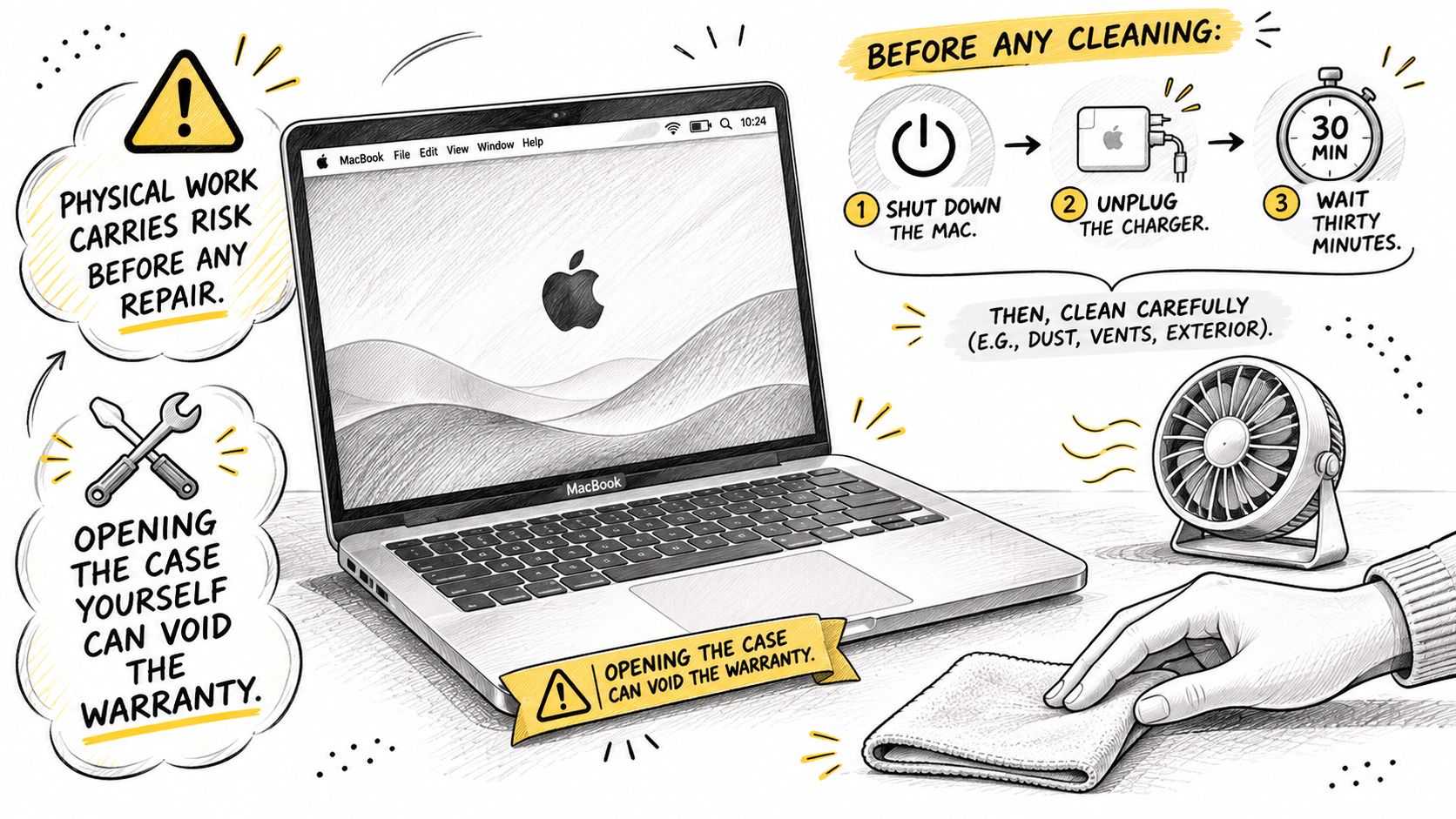
Start with the outside. Most of the improvement people feel comes from airflow and dust clearance, not from anything inside the chassis.
Cool it first. Shut down, unplug the charger and leave it half an hour. Cold metal shows dust clearly and you won't rush a job on a warm machine.
Blow out the grilles. Short bursts of compressed air at the intake and exhaust, can held upright so propellant never sprays onto the board. Long continuous blasts overspeed the fan bearing.
Clear what a brush reaches. A soft anti-static brush lifts lint and pet hair out of the intake slots without opening anything.
Raise the machine. A stand or riser that lets air reach the underside is the single change most owners notice within an hour.
If you want the full routine for a dusty machine, Philadelphia Mac maintenance and dust cleanup sets out what a proper clean involves and why the internal work matters on older chassis. The deeper version of the job, where the heatsink fins are packed solid, is the point where I'd stop recommending home tools.
Fan replacement and paste renewal are workshop jobs. A fan has to match the exact model, the battery and often the keyboard come out to reach it, and the thermal paste on older Intel MacBook Pro models dries and cracks after several years of heat cycles. Apple silicon machines aren't built for home repasting at all. If you want to know what the paste side of the job involves, thermal paste replacement on a laptop explains the process before you commit to it.
One warning overrides everything else here. If the battery looks swollen, if the trackpad clicks unevenly or the case no longer sits flat, stop using the Mac and stop charging it. Never press on a bulging battery to see how bad it is.
Signs Your Overheating Is Board or Liquid Damage
Once the workload test, the resets and an external clean have all run, the symptoms that remain point at hardware. This table maps what you're seeing to the likely cause and what to do about it.
Symptom | Likely cause | Next step |
|---|---|---|
Will not power on or charge | Failed USB-C port or primary power IC | Board-level diagnosis before any replacement |
Heat and failure after a liquid spill | Corrosion on the logic board | Power off, do not charge, book diagnosis |
Shutdowns or spikes under light load | Failing sensor or thermal-management fault | Run the workload test and firmware checks first |
Bulging or swollen battery | Battery swelling | Stop charging and book a battery replacement |
Overheating on a 15-inch MacBook Pro (Mid 2015) | Battery defect covered by the 2019 recall | Check the serial number with Apple |
Check the model and serial number in About This Mac before blaming the hardware. Coverage of Apple's June 2019 recall explains that certain 15-inch MacBook Pro (Retina, Mid 2015) machines, sold mainly between September 2015 and February 2017, contained batteries that could overheat and create a fire risk, and eligibility depended on the individual serial number rather than the model name. Apple's own figures for the same worldwide defect, reported at the time, covered about 432,000 computers sold in the United States and 26,000 in Canada, with 26 reports of battery overheating, five minor burns, one smoke inhalation report and 17 reports of minor property damage. UK fire and rescue services publicised the recall because affected machines here carried the same hazard. If your serial is covered, stop using the Mac and arrange the free battery replacement.
A liquid spill isn't over when the surface looks dry. Corrosion on the logic board keeps working for days, so power off, keep the charger unplugged and book a diagnosis rather than waiting to see whether it recovers. Charging and power faults on the board are repairable without replacing the whole board, which is what MacBook logic board repair covers through micro-soldering. Our warranty covers charging port defects and power supply failures, so a port that won't charge is worth diagnosing properly rather than working around with a dock.
Preventing Overheating Before It Starts
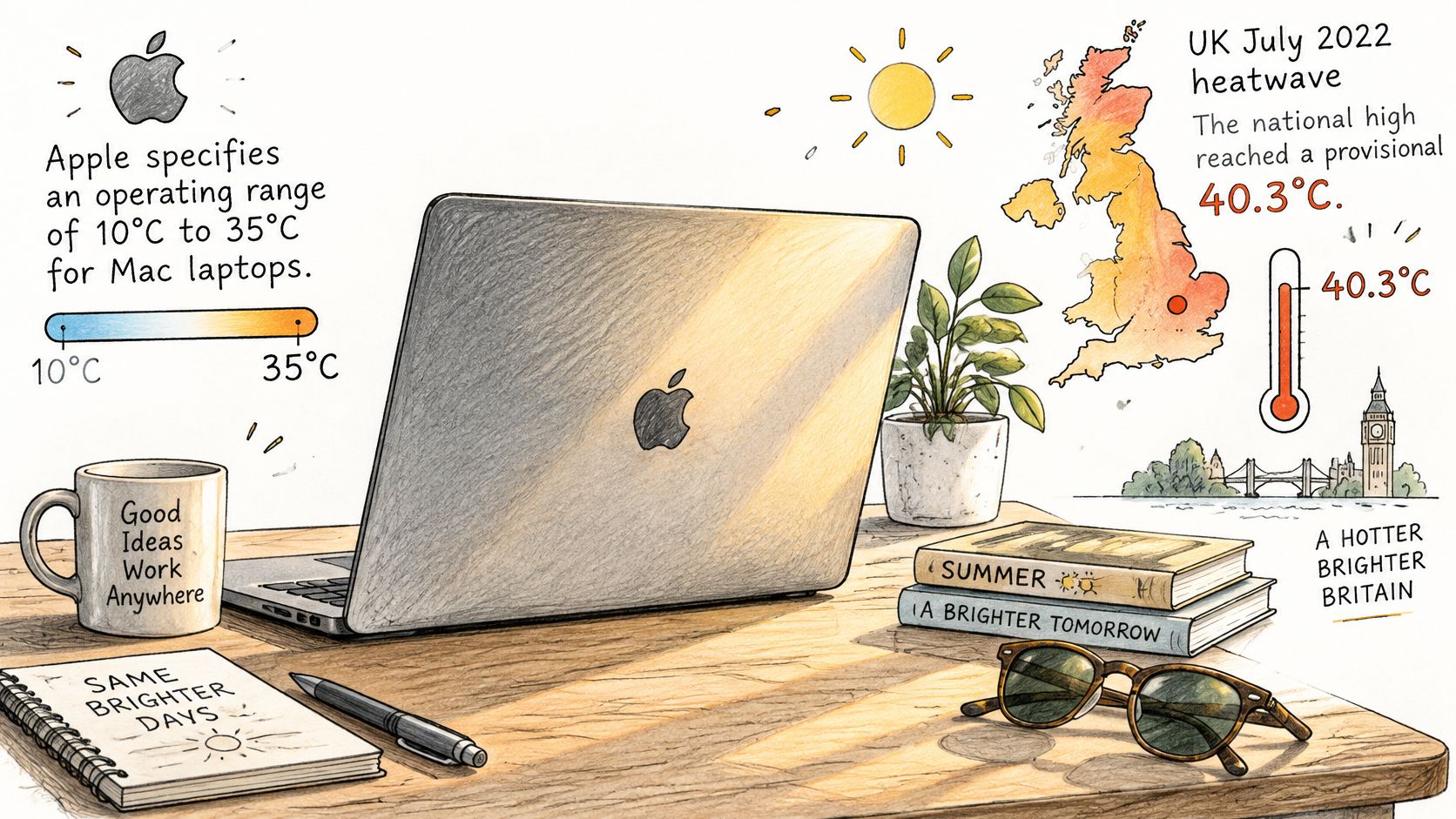
Ambient temperature is the factor owners overlook most. Apple's guidance on operating conditions for Mac laptops specifies a 10°C to 35°C operating range, and temperatures above that range contribute to throttling, fan activity, unexpected shutdowns, battery stress and hardware damage.
Britain has gone past the top of that range. During the July 2022 heatwave the UK recorded a provisional all-time high of 40.3°C at Coningsby, Lincolnshire, on 19 July 2022, the first time the country had exceeded 40°C, and the Met Office reported that 46 locations surpassed the previous national record of 38.7°C. A home office that is already warm leaves your Mac with far less thermal headroom before the processor and battery climb further, which is why the same export runs hotter and slower in August than in March.
The habits that protect the machine over time are mostly scheduling decisions:
Move long exports and big builds to cooler hours. Rendering at 7am instead of 5pm on a hot day is free performance, and it keeps the battery out of the worst of the heat.
Close the tabs that play video. A browser tab running an embedded player or a heavy script keeps the processor busy in the background; the same applies to extensions you don't actively use.
Install macOS updates when they arrive. Firmware corrections are delivered through system updates, so an out-of-date machine can be carrying a thermal bug that's already been fixed.
Clean the vents every few months if you work near dust, pets or a smoker's room, using the outside-the-case method from the cleaning section.
Treat sustained indoor temperatures near or above 35°C as outside the machine's specified environment. Reduce the workload and improve airflow before assuming a fault.
Deciding When to Book a Repair in Sheffield
Keep troubleshooting while each change produces a measurable gain on the timed workload. Book a repair when the Mac still overheats or still slows after a week of these steps, when any symptom from the table above appears, or when liquid, a swollen battery or a failure to charge is involved. Those last three aren't troubleshooting problems, they're bench jobs.
Steel City IT works from a workshop in Frecheville and serves Sheffield, including Birley, Hackenthorpe and Woodhouse. We repair all types of Apple and Mac computers and are experienced with both Windows and macOS systems, so a mixed household doesn't need two repairers. Board-level micro-soldering handles power, charging and liquid faults that would otherwise mean a new logic board, and we fit genuine parts.
Typical turnaround is within a few days depending on complexity. Before you come in, check what a repair is likely to cost on our computer repair prices page, and bring three things: the model and serial number, the results of your timed workload test, and a note of every reset you've tried. Mention a swollen battery when you book, and don't open the case before the visit.
If your MacBook is still running hot after the checks, resets and a clean, Steel City IT can take it from there with proper diagnostics rather than guesswork. We test cooling, battery health and board-level faults in-house, repair the original logic board where possible, and cover charging port defects and power supply failures under warranty. Bring your timed workload results to the Frecheville workshop and visit Steel City IT to arrange a diagnostic or get a quote before any work starts.