
Windows Repair on Startup How to Fix Boot Failures Fast

Your PC powers on, you get the manufacturer logo, the dots start spinning, and then nothing useful happens. Maybe it loops back to the same screen. Maybe it says Preparing Automatic Repair and never gets beyond it. Maybe it drops into recovery, restarts, and repeats the whole thing again. At that point you might do the same thing: hold the power button, try again, hope for luck.
That usually makes diagnosis harder.
A failed Windows boot can come from a bad update, corrupted system files, a damaged boot record, a driver that won't load, or a storage problem that Windows can't get past. The right fix depends on which one you're dealing with. If you jump straight to reinstalling Windows, you can waste hours, lose programs, and sometimes make data recovery more awkward than it needed to be.
Table of Contents
When Windows Will Not Start and What to Do First - Protect your data before you chase the boot - Know when it isn't a startup repair problem
Understanding Why Startup Fails and How to Reach Recovery - What the symptom usually points to - The reliable way into Windows Recovery Environment - Why recovery mode matters
Running Startup Repair and Safe Mode the Right Way - What Startup Repair is good at - Safe Mode is for isolation, not magic - When to stop using menu-based fixes
Fixing Boot Records and System Files with Command Line Tools - A sensible order that avoids guesswork - Commands worth using and when to use them - How to read the result properly - What not to force
Handling Update Loops BitLocker Prompts and System Restore - If it started after an update - If you're seeing a BitLocker recovery prompt - When System Restore is the better option
Keeping Windows Booting Reliably and Knowing When to Get Help - The maintenance habits that actually matter - The point where DIY should stop
When Windows Will Not Start and What to Do First
A common workshop job starts the same way. The customer says the PC was “fine yesterday”, then it froze, updated, or restarted unexpectedly, and now it won't get past the logo screen. Sometimes they've already force-powered it off six or seven times. Sometimes they've tried random commands copied from a forum. By then the original fault is mixed in with extra confusion.
The first job is to stop forcing restarts unless you're deliberately trying to enter recovery. Repeated hard shutdowns during startup can interrupt file operations and make an already damaged Windows installation less stable. If the machine is making unusual drive noises, powers off suddenly, or disappears from BIOS storage lists, stop there and treat it as possible hardware failure first.
Protect your data before you chase the boot
If there's anything on the machine you can't replace, think about the data before the operating system. Family photos, coursework, business files, accounts packages. They matter more than getting back to the desktop quickly.
Use this simple first check:
Note the exact behaviour: Is it freezing on the logo, looping into repair, showing a blue screen, or asking for a recovery key?
Write down recent changes: New GPU driver, Windows update, SSD upgrade, power cut, liquid spill, BIOS change.
Disconnect extras: Remove USB sticks, external drives, docks, printers, and anything else that isn't needed to boot.
Don't rush to wipe it: A clean install is sometimes correct, but it's not the first move if the drive may still hold recoverable data.
If the machine is beyond sensible repair or you're dealing with dead laptops that still contain storage worth handling properly, ATL electronics recycling services are useful to review before you dispose of anything. Too many people bin a machine before checking whether the drive can still be recovered or securely processed.
Practical rule: If the PC still powers on but Windows won't load, treat it as a recovery job. If the PC won't power on at all, it's a different fault path.
Know when it isn't a startup repair problem
Some people search for Windows repair on startup when the machine isn't booting far enough to reach Windows at all. No fan spin, no display, no keyboard lights, power cycling after one second. That points away from Windows and towards power, board, RAM, or firmware issues. If that sounds closer to what you've got, this guide on a PC that won't turn on is the better starting point.
For everything else, the calm approach works best. Start with Windows Recovery Environment. Use the built-in repair tools first. Move to Safe Mode if Windows will partly load. Use command-line repairs only when the symptom points that way. Escalate to hardware testing when software fixes keep failing for no good reason.
Understanding Why Startup Fails and How to Reach Recovery
Startup failures look similar from a distance, but the screen behaviour usually gives away the category.
If you hang on the Windows logo with spinning dots, I start thinking about system file damage, a driver stall, or storage errors. If you see Preparing Automatic Repair over and over, Windows has noticed startup failure and is trying to hand over to recovery, but the underlying issue is still there. If the machine blue screens and restarts before the sign-in screen, recent drivers or updates move higher up the suspect list.
Microsoft still treats this as a core recovery scenario. Startup Repair is a built-in Windows Recovery Environment feature designed to diagnose and repair common startup problems, and Microsoft's current support guidance places it in Windows RE under Troubleshoot > Advanced options > Startup Repair on its maintained documentation for modern Windows builds (Microsoft Startup Repair guidance).
What the symptom usually points to
Here's the quick read I use before choosing a tool:
Symptom | More likely cause | Better first move |
|---|---|---|
Logo screen freeze | Damaged system files, disk read issue, driver hang | Startup Repair, then Safe Mode |
Automatic Repair loop | Boot configuration issue, failed update, system corruption | WinRE, Startup Repair, then command-line checks |
Blue screen during boot | Driver conflict, update problem, corruption | Safe Mode or uninstall recent update |
BitLocker prompt | Encryption recovery event, update or firmware-related trigger | Find key first, don't force repairs |
No drive detected in BIOS | Drive or connection fault | Hardware diagnostics before Windows tools |
That table won't replace diagnosis, but it stops the usual mistake of treating every failure like the same job.
The reliable way into Windows Recovery Environment
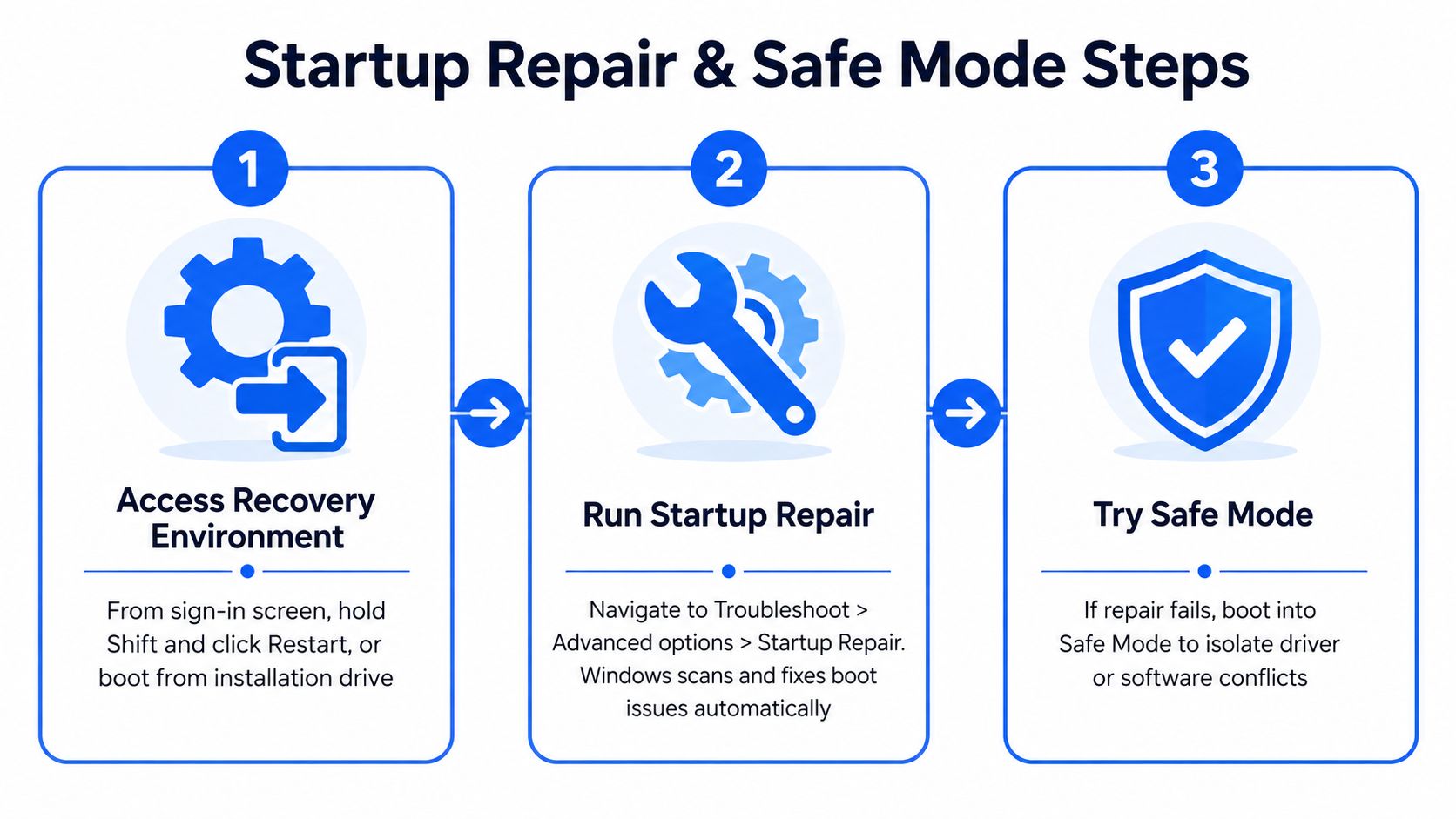
Windows repair on startup begins in WinRE, not from the normal desktop. Microsoft's guidance is precise here. If Windows won't boot normally, you can force the PC into Windows Recovery Environment by interrupting boot three times, then go to Troubleshoot > Advanced options > Startup Repair. Dell also notes that recovery often triggers automatically after two consecutive failed boots, which matches what turns up in real workshop cases (Microsoft WinRE startup repair path).
Use one of these routes:
From the sign-in screen if you can get that far. Hold Shift, click Restart.
From a boot loop. Power on, interrupt startup before Windows fully loads, repeat until WinRE appears.
From installation media if the local recovery environment is damaged or missing.
Don't keep interrupting endlessly. If WinRE doesn't appear after the normal forced-recovery process, that itself is useful diagnostic information.
Why recovery mode matters
WinRE is the safe workspace because Windows isn't trying to complete a normal boot while you repair it. That means fewer locked files, fewer background processes getting in the way, and a much cleaner view of whether the problem is the boot path itself or something that happens later in startup.
If WinRE opens cleanly, that's often encouraging. It tells you the machine still has enough life in the firmware, memory, display path, and storage access to load recovery tools. If WinRE crashes, freezes, or can't see the internal drive, stop thinking purely in software terms.
Running Startup Repair and Safe Mode the Right Way
The first built-in tool to try is Startup Repair. It's the least destructive option and it exists for exactly this kind of fault. It won't fix everything, but it can clear common boot issues without touching personal files.
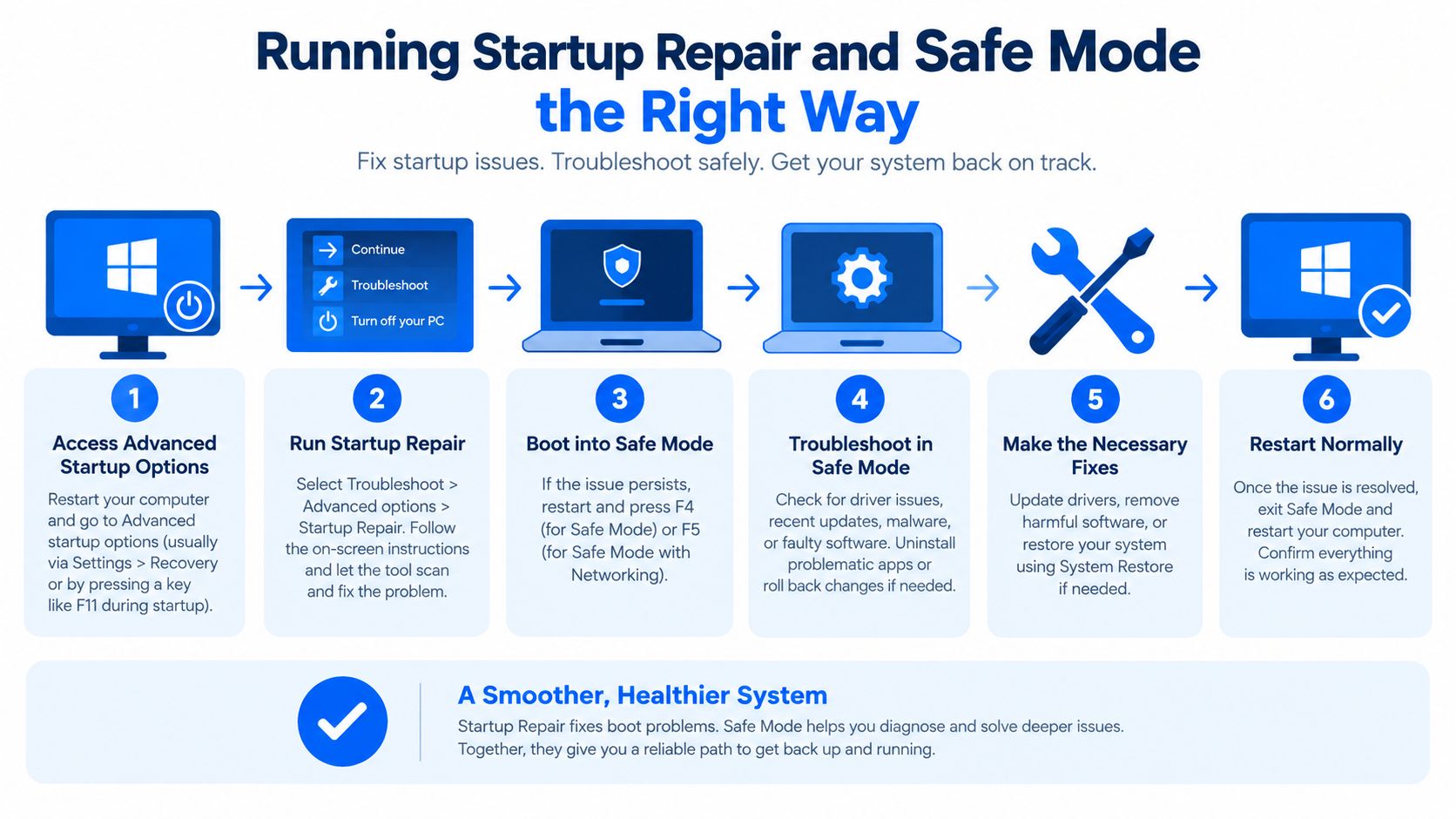
From WinRE, go to Troubleshoot > Advanced options > Startup Repair and choose the Windows installation if prompted.
What Startup Repair is good at
It's most useful when Windows has a damaged startup path, missing or inconsistent boot information, or corruption that stops the operating system loading cleanly. It can also sort out some problems caused by interrupted updates or sudden power loss.
What it does badly is tell you the whole story. If it runs, restarts, and drops you back into the same loop, that doesn't mean “nothing is wrong”. It usually means the fault is deeper than the automatic tool can correct.
Watch for these outcomes:
Boots normally afterward: Good. Back up important data and check what changed before the failure.
Returns to WinRE once: Try one more pass if the first run was interrupted or the machine behaved inconsistently.
Keeps looping back to repair: Stop repeating it. Move on.
Reports it couldn't repair your PC: Take that at face value and switch method.
If Startup Repair fails twice in the same way, more retries usually waste time.
A lot of startup issues clear only after isolating third-party software or a bad driver. That's where Safe Mode earns its keep.
Safe Mode is for isolation, not magic
From WinRE, open Startup Settings, restart, then choose Safe Mode. If the machine boots there, Windows itself is still capable of loading a minimal environment. That narrows the problem sharply.
Use Safe Mode to undo the thing most likely to have broken startup:
Remove a recent driver: Graphics, storage, chipset, Wi-Fi, and security software drivers are frequent offenders.
Uninstall the latest quality update: If the failure began straight after Patch Tuesday or a forced overnight update, this is a strong move.
Disable unnecessary startup items: If the machine reaches the desktop in Safe Mode but not normally, trim back anything loading at startup. This guide on how to disable startup items is useful if you need the exact route.
Check Device Manager for obvious failures: A broken device entry after an update can tell you exactly where the hang starts.
Here's a quick visual walkthrough before you work through the menu paths:
When to stop using menu-based fixes
Safe Mode helps if the machine starts once stripped down. It doesn't help much when Windows crashes before even the minimal driver set can load. At that point the decision changes. You're no longer testing software loaded at startup. You're repairing core operating system files, the boot record, or the disk itself.
A local workshop like Steel City IT can take over at this stage if you'd rather not work in Command Prompt, but the next set of tools are still manageable if you're careful and you know what each one is for.
Fixing Boot Records and System Files with Command Line Tools
A lot of failed repairs go wrong here for a simple reason. People open Command Prompt in WinRE, paste five commands from a forum, then have no idea which result matters.
Treat it as a decision path instead. Start with the part most likely to be damaged, then only move deeper if the symptom fits. That is how you avoid turning a repairable boot fault into a reinstall job.
A sensible order that avoids guesswork
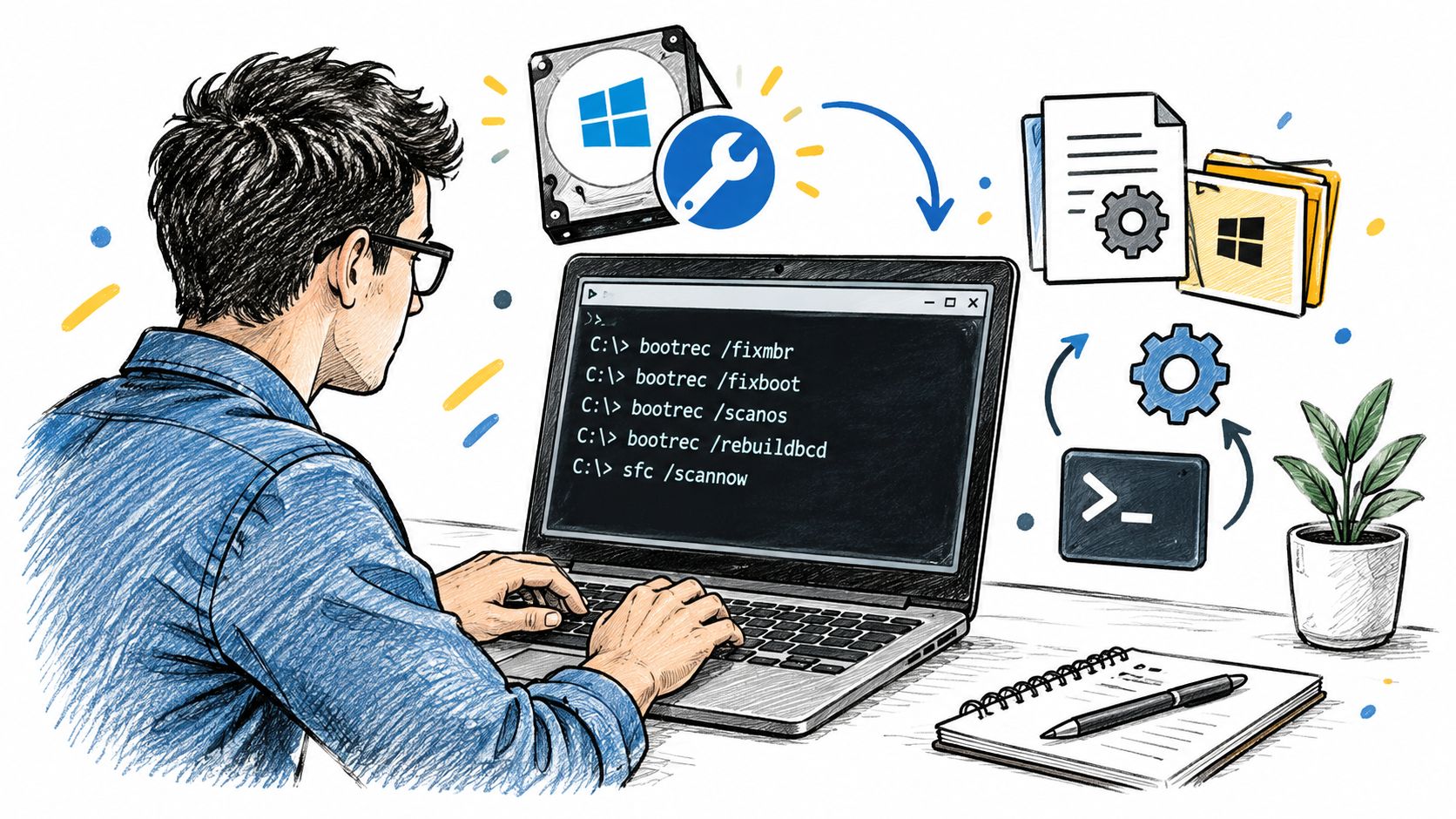
Use the commands in this order for ordinary Windows boot failures:
Check the disk if the machine suffered a hard shutdown, froze during boot, or started showing file errors.
Check protected Windows files after the disk check finishes.
Repair the Windows image if SFC reports corruption it cannot fix.
Repair boot records and the BCD only when the fault points to the boot path itself.
Order matters. Running file repair on a damaged file system wastes time, and bootrec will not fix a bad update, a broken driver, or a dying SSD.
Commands worth using and when to use them
Run these from Command Prompt in WinRE. If the Windows partition is not , adjust the drive letter first.
Disk check for file system damage
chkdsk C: /f /rUse this after improper shutdowns, sudden power loss, or repeated boot loops that suggest file system corruption. repairs logical errors. checks the disk surface and tries to recover readable data from bad sectors. On a large or failing drive, this can take a long time.
System File Checker for protected Windows files
sfc /scannowThis checks core Windows files and replaces damaged copies where it can. It remains a standard repair step in workshop practice, usually paired with chkdsk and DISM when startup trouble follows crashes or corruption (UK repair workflow for startup and BSOD issues).
In WinRE, may need the offline Windows path instead of the basic command. If the standard scan says it cannot run, check the Windows drive letter with , then use the offline form:
sfc /scannow /offbootdir=C:\ /offwindir=C:\WindowsDISM for the Windows image
DISM /Online /Cleanup-Image /RestoreHealthUse this when SFC says it found corruption but could not repair everything. DISM works at the image level, so it often clears the blockage that stops SFC finishing properly.
Inside WinRE, is not always the right target. On some systems you will need an offline image command instead:
DISM /Image:C:\ /Cleanup-Image /RestoreHealthIf DISM returns a source error, stop and verify the Windows partition before forcing more commands.
Boot record and BCD repair commands
bootrec /fixmbr
bootrec /fixboot
bootrec /scanos
bootrec /rebuildbcd
Use these when the machine is clearly failing before Windows loads properly, for example with missing boot data messages or a damaged BCD store. They are for bootloader faults. They do not fix general instability once Windows has already started loading.
One trade-off matters here. can return Access is denied on newer UEFI systems. If that happens, do not keep repeating it. Check whether the EFI partition needs separate repair work rather than assuming the command failed at random.
How to read the result properly
The result should change the symptom. That is the test.
If repairs errors and the machine gets further into boot, corruption was part of the problem. If SFC repairs files and the loop becomes a one-off crash, you have narrowed it down. If every command completes cleanly and the behaviour stays exactly the same, Windows may not be the fault.
Use the table below to decide what the output means:
Result | Likely meaning | Next move |
|---|---|---|
chkdsk finds and fixes errors | File system corruption was involved | Reboot and test again |
SFC repairs files | Protected Windows files were damaged | Reboot and test normal startup |
SFC cannot complete or cannot fix all files | Windows image damage or storage trouble | Run DISM, then run SFC again |
bootrec completes but the symptom is unchanged | The fault is probably not the bootloader | Recheck the cause, including storage or firmware |
Commands cannot see the Windows drive | Wrong partition letter, disconnected drive, or hardware trouble | Verify disk detection in BIOS or UEFI and inspect the drive health |
A machine that survives all four stages with no symptom change often ends up being a storage fault, firmware issue, or board-level problem.
What not to force
Do not jump straight to Reset this PC just because Command Prompt looks awkward. In a lot of workshop cases, a targeted repair gets the machine booting again without flattening the installation.
Avoid repeating heavy scans on a drive that is clicking, dropping out of BIOS, or stalling for long periods. At that point, the job changes from repair to data preservation and hardware diagnosis.
Handling Update Loops BitLocker Prompts and System Restore
Not every boot failure is ordinary corruption. Some are recovery problems caused by updates, reset bugs, or device encryption events. They can look similar on screen, but the response is different enough that guessing is risky.
A machine stuck after a Windows reset or recovery attempt may not need the same treatment as one with damaged boot files. Microsoft issued a 2025 out-of-band fix for Windows reset and recovery failures, and a separate 2025 Windows 10 patch left some systems stuck at the BitLocker recovery prompt, which shows why these cases need their own decision path (report on Microsoft's emergency fix and BitLocker-related patch issue).
If it started after an update
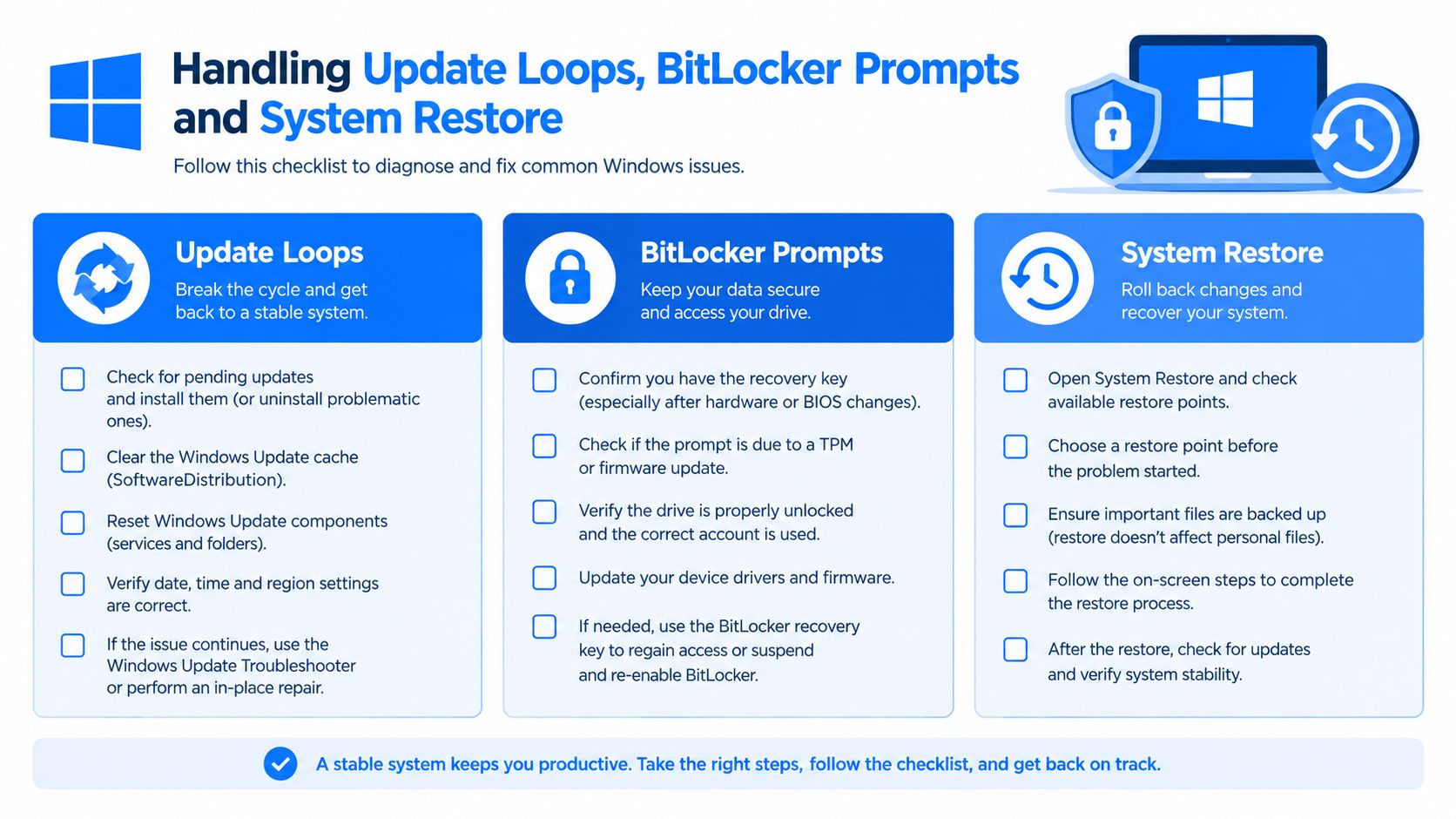
When the timing lines up exactly with a Windows update, don't assume the whole installation is dead. In WinRE, use the option to uninstall the latest quality update before you consider broader repair. This is especially sensible when the PC booted normally before the update and failed immediately afterwards.
System Restore is also valuable here if restore points exist. It rolls system files and configuration back to an earlier state without removing personal documents. If you haven't used it before, this explanation of a Windows System Restore point is a good primer before you commit to it.
If you're seeing a BitLocker recovery prompt
People get themselves into trouble.
A BitLocker recovery screen is not the same thing as a broken bootloader. It means Windows wants the recovery key before it trusts the startup state. That can happen after firmware changes, some update events, storage changes, or repeated failed boots.
Do this first:
Stop restarting repeatedly: It won't bypass encryption.
Look for the recovery key: Check the Microsoft account tied to the device, organisational records if it was work-managed, or any printed/exported key you stored earlier.
Don't reset the PC to get rid of the prompt: You can make data access harder if you still need the encrypted contents.
If BitLocker is asking for a key, the immediate task is identity and access, not startup repair.
When System Restore is the better option
System Restore is one of the cleaner answers when startup failure follows a driver install, update, or software change and the disk itself seems healthy. It doesn't solve physical storage faults, but it can neatly undo a bad change that happened just before the boot problem.
Use it when:
The machine worked until a specific change
WinRE is accessible
Restore points exist
There's no sign of drive failure or encryption access problems
If restore completes and nothing changes at all, that's useful information. It suggests the trigger wasn't in the set of changes the restore point can reverse, or the fault is below Windows at storage, firmware, or hardware level.
Keeping Windows Booting Reliably and Knowing When to Get Help
Most repeat boot failures come from the same habits. Ignored storage warnings, unstable drivers, half-finished updates, cheap replacement parts, and no backup until the day the machine stops starting.
The prevention side isn't glamorous, but it works.
The maintenance habits that actually matter
Keep these in place if you want fewer startup repairs:
Back up before trouble starts: Cloud sync is not the same as a full backup if the whole system becomes inaccessible.
Be selective with drivers: Install graphics, chipset, and storage drivers from proper sources. Don't update everything just because a utility offers it.
Watch storage behaviour: Freezes, long pauses, disappearing drives, and strange noises are warnings, not annoyances.
Create recovery media: A bootable Windows installer or recovery drive saves time when local WinRE is damaged.
Avoid dirty shutdowns: If a machine keeps freezing, diagnose it. Don't normalise holding the power button every week.
The point where DIY should stop
Some startup faults begin in Windows and end on the bench with hardware tools. That's normal.
Get help when you see any of these:
The loop survives targeted repair: Startup Repair, Safe Mode rollback, chkdsk, SFC, and DISM have all been tried and the symptom barely changes.
The drive looks physically unhealthy: Clicking, vanishing from BIOS, heavy stalling, or read failures mean data may be at risk.
The machine has liquid damage or power faults: That isn't a Windows job.
The fault follows board-level events: Burn marks, charging faults, unstable power rails, or intermittent detection need proper electronics diagnosis.
You need the data more than the machine: Recovery strategy matters more than getting Windows to boot quickly.
In workshop terms, the path shifts from software repair to storage testing, component diagnosis, and board-level escalation. Some machines need a clean Windows reinstall. Some need a new SSD with data migration. Some need micro-soldering or controlled recovery work because the operating system was never the problem.
If you've worked through the safe steps and the machine still won't behave, you haven't failed. You've ruled out the easy path and protected the data by not forcing a reset too early.
If your PC or laptop is stuck in a boot loop, hanging at the Windows logo, or falling back into recovery after every restart, Steel City IT can diagnose whether you're dealing with boot corruption, storage failure, or a deeper board-level fault. We handle Windows repair, clean reinstalls, SSD upgrades, and data recovery from our Sheffield workshop, so if you want a proper assessment rather than another blind reinstall, visit Steel City IT.