
Can You Recover Files from a Dead Hard Drive

Recovery is often possible. UK benchmarks show 88% to 96% success rates for mechanically failing drives, but only if you stop making things worse.
You're probably reading this because a laptop won't boot, an external drive has vanished from File Explorer, or a hard drive is making a sound no storage device should make. The important question isn't only whether the drive is “dead”. It's what has failed, and what you do next.
A hard drive can stop working while the magnetic data on its platters remains readable. Logical corruption, failed firmware, a damaged controller board, worn heads, and seized motors all produce different recovery paths. Software can help with some failures, but it can also turn a recoverable mechanical problem into permanent platter damage.
Table of Contents
Recognizing When Your Drive Has Truly Died - The symptoms tell you which path is safe
Safe Initial Checks Before Any Recovery Attempt - Listen before you connect it again - Check detection without attempting repairs - Eliminate the outside causes carefully
Cloning and Software-Based Recovery Methods - Build an image before searching for files - Recover from the image, not the patient drive
When DIY Recovery Becomes Dangerous - Compare the risks honestly - The UK benchmark supports restraint
Professional Recovery and What Actually Happens - Imaging protects the original - Engineering changes the decision
Questions About Dead Drive Recovery - Can water damage be reversed? - Should you open the hard drive casing? - Is a dead drive always unrecoverable? - Will an encrypted drive be harder? - How much does professional recovery cost? - What should you do right now?
Recognizing When Your Drive Has Truly Died
The laptop worked yesterday. Today it will not boot, the external drive has disappeared from File Explorer, or the disk has started making an unfamiliar clicking sound. “Dead” describes the result, not the cause. The cable, enclosure, power supply, file system, controller, or drive mechanism may be responsible, and each fault calls for a different response.
A laptop that will not boot could have a corrupted operating system or unreadable system sectors. A drive that spins normally but appears as RAW may have a damaged partition table or file system. Repeated clicks, grinding, beeps, or complete silence point towards a more serious hardware fault.
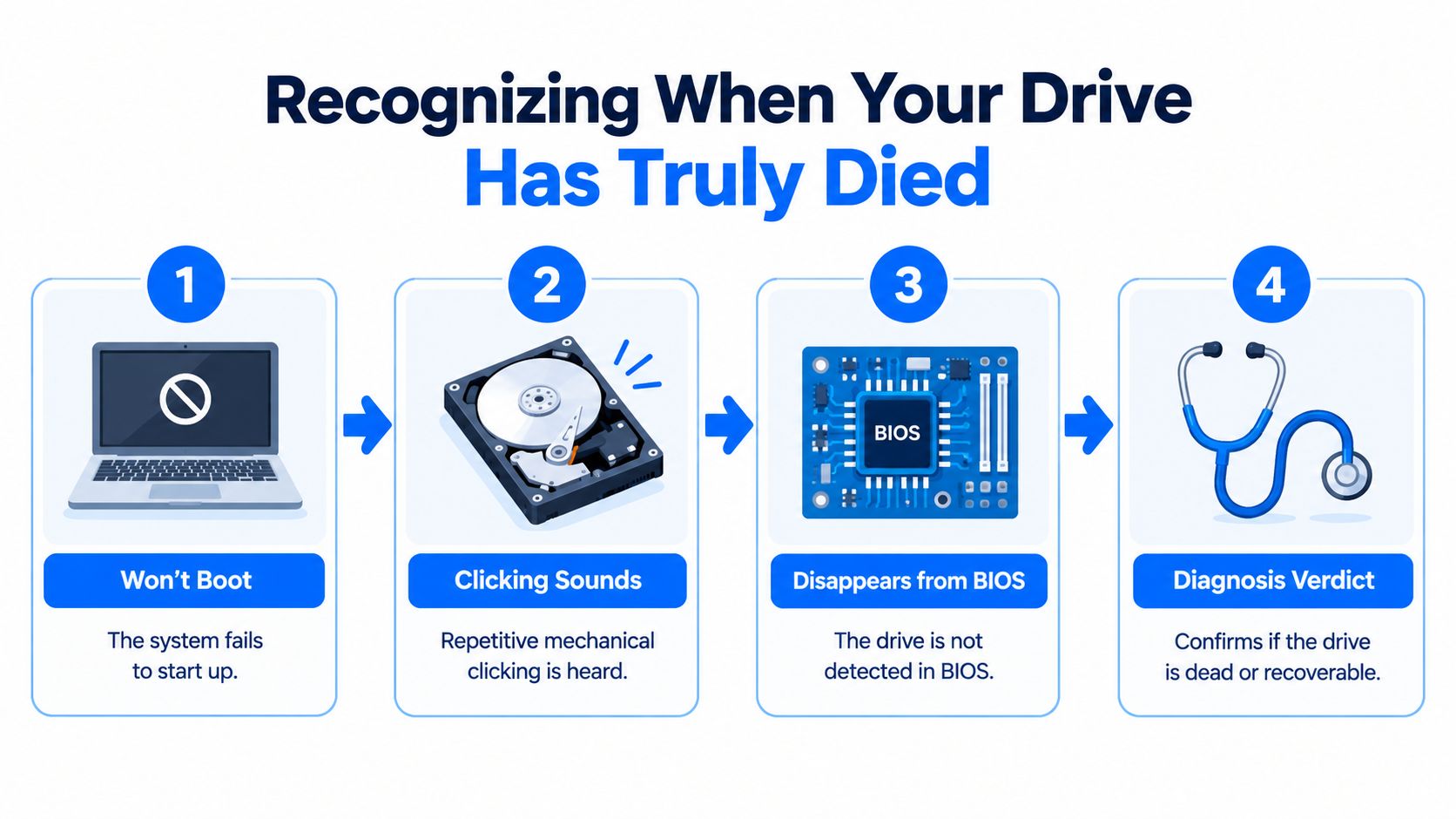
The symptoms tell you which path is safe
Logical failure means the drive hardware still operates, but the information that organises the files has become damaged. Accidental deletion, a corrupted partition table, an interrupted format, and some file system errors fall into this group. The disk may show its correct model and capacity while sounding completely normal.
Firmware or electrical failure prevents a functioning platter assembly from communicating properly with the computer. A failed controller board or damaged firmware can make the drive spin while reporting the wrong capacity, freezing the system, or disappearing from the BIOS.
Mechanical failure demands the quickest change in approach. Clicking can indicate damaged read/write heads or a failed initialisation process. Grinding, repeated ticking, beeping, or no spin may involve the heads, spindle motor, or other internal components. Further experiments can reduce the chance of recovery.
Practical rule: A drive that develops a new mechanical noise has given you enough information to stop powering it.
Each additional power-on can force damaged parts to operate again. If a head is no longer flying correctly above the platter, repeated attempts can scratch or mark the magnetic surface. Compare the sounds and symptoms with this guide to hard drive failure signs, then decide whether the drive should remain untouched.
“Dead” does not automatically mean “lost”. Creative IT reports a 96% recovery success rate for mechanically functional hard drives, 88% for damaged HDDs, and 94% across all forensic cases, based on more than 1,200 forensic cases completed in 2023 and 2024. Creative IT's UK recovery benchmark shows why the drive's condition and failure type matter, and why stopping early can be the most useful decision you make.
Safe Initial Checks Before Any Recovery Attempt
Start with observation, not software. You can learn a great deal without opening the drive, repairing anything, or asking it to read every sector.
Listen before you connect it again
A healthy mechanical drive normally spins with a steady, unobtrusive hum. Clicking, grinding, buzzing, beeping, or a repeating start-and-stop pattern changes the decision immediately. Disconnect it and leave it powered down.
Silence isn't automatically good news. No sound can mean the drive isn't receiving power, the motor has seized, the controller board has failed, or the drive is not starting its normal sequence. It can also mean the external enclosure or power adapter has failed instead of the disk itself.
Check detection without attempting repairs
If the drive is internal, check whether it appears in the computer's BIOS or UEFI. If it appears with its correct model and capacity, the hardware may still be accessible. If it has vanished entirely, reports an implausible capacity, or causes the firmware screen to hang, treat that as a warning rather than an invitation to keep restarting.
Don't initialise an unknown disk, format it, or accept an operating system prompt to repair it. Those actions can write changes to the source drive before you've secured an image.
Eliminate the outside causes carefully
For an external drive, try a different known-good data cable, USB port, and compatible power source. You can also test it on another computer, provided the drive has no clicking, grinding, burning smell, or other physical symptom. This is a limited diagnostic check, not a recovery session.

If a different cable restores normal detection and the drive sounds healthy, copy important files to separate storage immediately. Don't use the opportunity to reorganise folders or run a lengthy repair. If the symptom follows the drive, stop testing it.
The safest initial checks answer one question: is this a connection problem, a logical access problem, or a physical failure? If you can't answer confidently, the risk of another power cycle outweighs the value of another home test.
Cloning and Software-Based Recovery Methods
Recovery software is useful when the drive is physically stable. It's the wrong first tool for a disk that clicks, grinds, overheats, repeatedly disconnects, or refuses to identify correctly.
The safest workflow is to preserve the original and work from a copy. Don't install recovery software on the source drive, don't save recovered files back to it, and don't run repair commands that alter its file system.
Build an image before searching for files
A sector-by-sector image or clone captures what the drive can still read. Tools such as GNU ddrescue and specialist cloning software can prioritise readable areas, record bad regions, pause at difficult sectors, and return to weak areas later. That's more suitable than a normal file copy, which may stall indefinitely when it reaches damaged sectors.
Use a separate, healthy destination with enough capacity for the source image. Connect the source as read-only where the hardware and software allow it. The original should remain untouched while you examine the clone.
If the drive disconnects repeatedly, makes a new noise, becomes unusually hot, or causes the computer to freeze, stop the imaging process. A failing drive can deteriorate during a scan, and repeated reads may place unnecessary stress on already damaged components.
Recover from the image, not the patient drive
Once an image exists, recovery tools can work against that copy. Depending on the failure, you might rebuild a partition, reconstruct a damaged file system, recover deleted entries, or use file carving to identify file contents without relying on folder structure.
Save recovered data to different storage. An image is not the same as a normal backup, and a partial image may contain damaged or missing regions. Check important documents, photographs, project files, and databases individually rather than assuming that a successful scan means every file is intact.
For a practical overview of the imaging approach, see this guide to how to clone a hard drive.
Drive symptom | Likely issue | Recommended approach | DIY safe? |
|---|---|---|---|
Drive appears normally and sounds healthy | Deleted files or file system corruption | Image it first, then scan the image | Usually, with care |
Drive appears as RAW or asks to be formatted | Partition or file system damage | Do not format, create an image and reconstruct from the copy | Possible, if stable |
Drive slows down, freezes, or disconnects during reads | Bad sectors or unstable hardware | Stop ordinary scanning and use controlled imaging | Risky |
Repetitive clicking or grinding | Head or mechanical failure | Power down and seek laboratory assessment | No |
No spin or no detection | Electrical, firmware, or mechanical fault | Avoid repeated power cycles and specialist software | No |
Software can interpret data that the operating system can reach. It can't replace a failed head, repair a seized motor, or safely open a drive. That boundary is where many home attempts go wrong.
When DIY Recovery Becomes Dangerous
There's a clear point where curiosity becomes a liability. If the drive clicks repeatedly, smells of burning electronics, shows board discolouration, or doesn't spin, stop handling it as a software problem.
A drive with logical corruption may tolerate a carefully controlled image. A drive with damaged heads may not tolerate another full scan. The heads can contact the platter surface, and once the magnetic coating is physically scored, no application can reconstruct the material that has been removed.
Compare the risks honestly
DIY action | What it may help with | What it can damage |
|---|---|---|
Trying a different cable or port | A failed connection or enclosure | Very little, if the drive is quiet and stable |
Reading a normally detected drive | Logical corruption or deletion | The source, if software writes to it |
Running a full scan on a clicking drive | Very little | Heads, platters, and the remaining readable data |
Opening the casing at home | Nothing safely | Platter surfaces through dust and handling |
Repeatedly power cycling | Almost nothing | A failing motor, heads, and platter coating |
Professional labs use controlled clean-room environments because the inside of a hard drive isn't an ordinary repair area. Dust, fingerprints, and incorrect alignment can create further problems when the heads move across the platters. A donor board or head assembly also has to be compatible, and some repairs require transferring unique drive electronics rather than swapping a green circuit board.
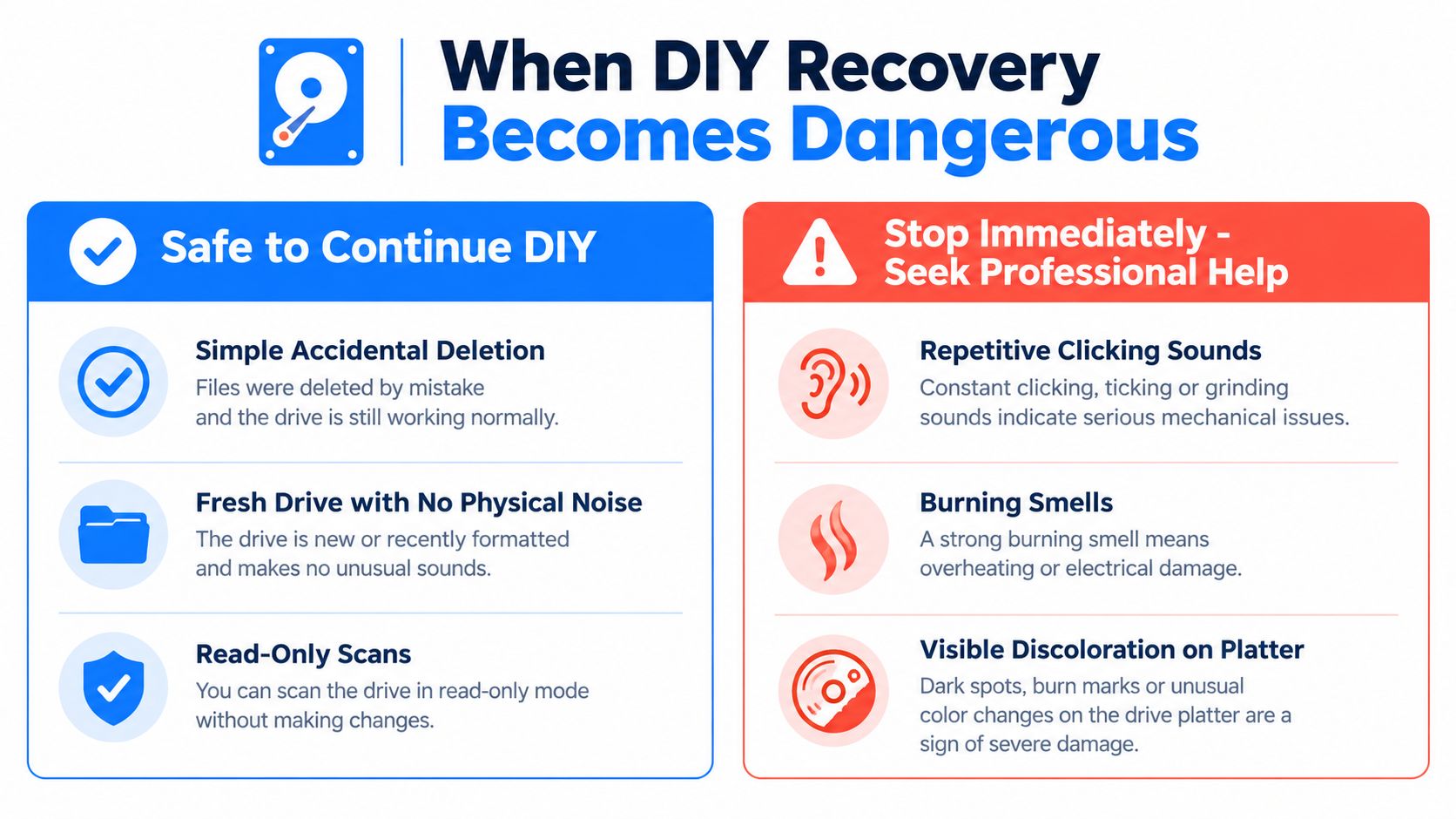
The UK benchmark supports restraint
Data Recovery Specialists reports a 98% hard-drive success rate alongside 1,936 hard drives received for diagnostic evaluation in a single year. It also records 16,192 spare parts catalogued for donor use, which illustrates why specialist recovery is more than running a consumer application. The specialist's UK service data shows the role of diagnostics, compatible parts, and controlled intervention.
That figure isn't a promise for your particular disk. Recovery depends on the condition of the platters, the failure mechanism, previous attempts, encryption, and whether anyone has continued powering the drive after the first warning. It does show that dead-drive work is a routine specialist discipline, not an unusual miracle.
Stop point: Clicking, grinding, burning smells, visible board damage, or no spin means the next safe action is to disconnect the drive, label the cables and enclosure, and arrange an assessment.
Freezer tricks, tapping the casing, opening the lid, and random board swaps belong in the list of things not to try. A brief change in behaviour doesn't prove the method worked. It may only mean the drive has been given another opportunity to damage itself.
Professional Recovery and What Actually Happens
A professional recovery begins with diagnosis, not a promise. The technician identifies whether the problem is logical, electrical, firmware-related, or mechanical, then chooses a process that limits further reads from the original media.
The first priority is usually to make the drive stable enough to image. If the electronics have failed, the lab may work on the controller board. If the heads or motor have failed, technicians may need compatible donor components and controlled internal work. Firmware faults can require specialist hardware capable of communicating with areas of the drive that ordinary operating systems cannot access.
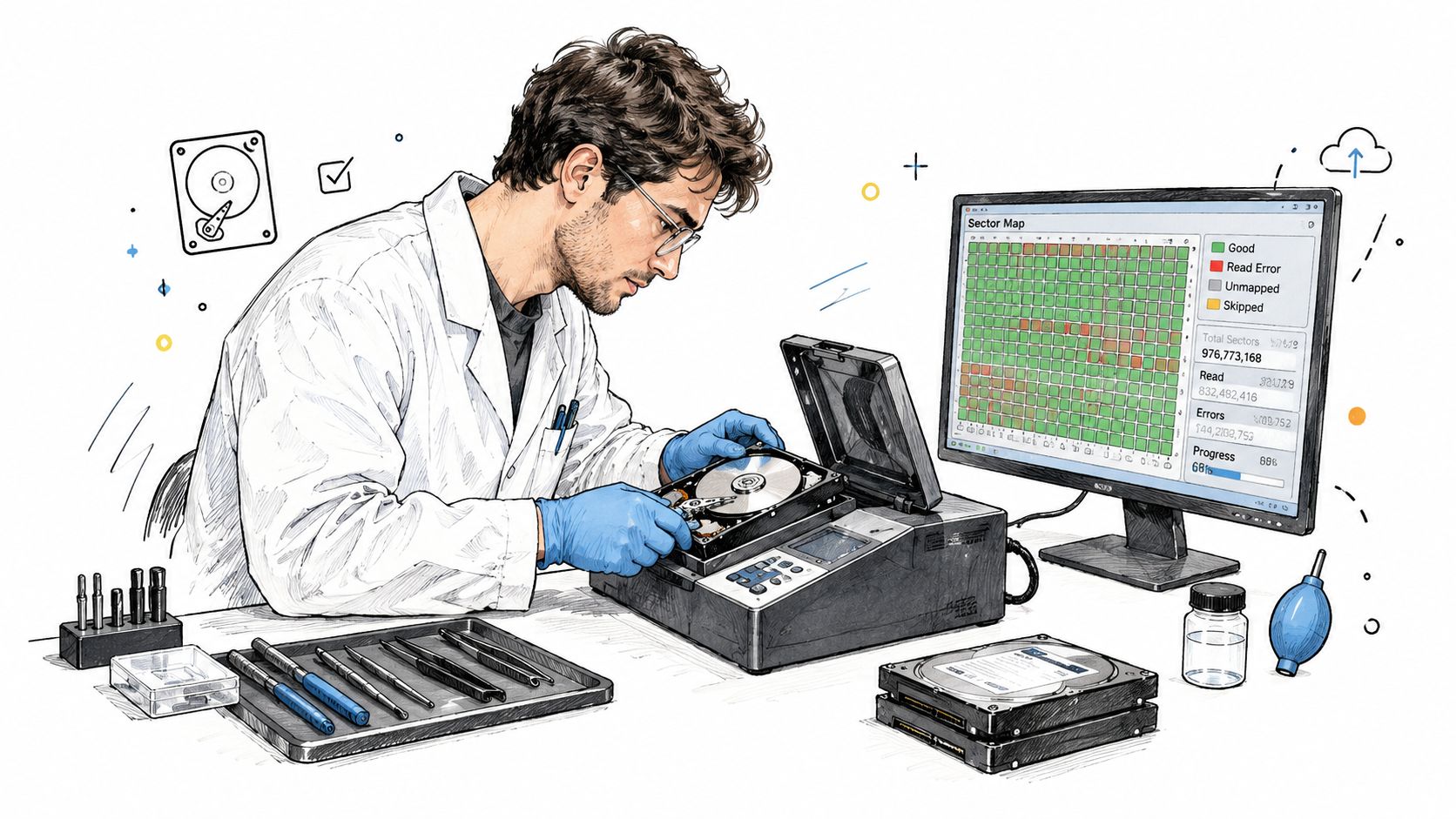
Imaging protects the original
After access is restored, the technician creates a controlled image rather than browsing folders on the failing disk. Specialist imagers can manage timeouts and bad sectors more carefully than a standard desktop copy. The recovery work then happens against the image, while the source remains available if another pass is needed.
That distinction is central. A laboratory isn't applying a magic “undelete” button. It's preserving readable sectors, bypassing failed access components where possible, reconstructing the file system, and checking whether the resulting files open correctly.
The UK figures provide useful context. Creative IT's benchmark records 88% recovery success for damaged HDDs and 96% for mechanically functional drives. The difference shows why a technician needs to assess the drive before choosing a method. A drive with intact platters may still offer substantial recovery potential, while severe surface damage can remove the data itself.
Engineering changes the decision
A home user generally has cables, software, and a normal workbench. A specialist service may have donor parts, board-level repair capability, firmware tools, imaging hardware, and an environment suitable for opening the drive. Those resources don't guarantee recovery, but they address failure types that software can't touch.
Businesses can also reduce the pressure created by a single failed disk through a broader Dallas IT disaster planning approach. Backups, tested restoration procedures, and clear responsibility matter because recovery is a response to failure, not a substitute for resilience.
For Sheffield readers deciding whether to send a drive away or arrange a local assessment, guidance on hard drive recovery near me can help frame the practical next steps. Keep the failed drive powered off and preserve its external case, adapter, and original cables if they may help identify the fault.
A good recovery service should explain what it found, what work is proposed, what data may be recoverable, and what happens if the attempt fails. Be wary of anyone who treats every dead drive as the same problem or recommends opening it before a proper diagnosis.
Questions About Dead Drive Recovery
Can water damage be reversed?
Water-damaged drives need controlled handling, not a quick power test. Moisture can corrode the controller board, connectors, and internal components. Residue may also reach the platter and head assembly, where further contact can turn a recoverable fault into permanent damage. Disconnect power, avoid hairdryers or other drying experiments, and get specialist advice before testing the drive again.
Should you open the hard drive casing?
No. The sealed enclosure protects the platter and heads from ordinary room contamination. Dust that looks harmless on a desk can obstruct the heads as they move close to the platter surface. Opening the casing outside a suitable controlled environment can reduce the recovery chance before anyone has diagnosed the original fault.
Is a dead drive always unrecoverable?
“Dead” usually means the computer cannot communicate with the drive. It does not confirm that every file has gone. Mechanically sound drives and some damaged drives can still produce strong recovery results, but the individual condition decides the outcome. Scratched platters, overwritten files, contamination, encryption, and earlier DIY attempts can all reduce what is recoverable.
The decision point is simple: stop testing once the drive shows physical symptoms or behaves unpredictably. Repeated power cycles can worsen head damage, while software can alter the file system you are trying to preserve.
Will an encrypted drive be harder?
Usually, yes. A technician needs the correct key and enough usable structure around the data. Readable raw sectors alone may not produce usable files. As the published UK benchmark introduced earlier shows, encrypted drives recover at a lower rate than mechanically functional ones, so disclose the encryption status during diagnosis.
How much does professional recovery cost?
There is no honest single price for every case. A stable drive with a logical fault requires different work from one with failed heads, a damaged controller board, firmware problems, or platter damage. Request a diagnosis and written explanation of the proposed work before authorising recovery, particularly when the files support a business or legal matter. A no-recovery outcome should also be explained before work begins.
What should you do right now?
Clicking, grinding, burning smells, or complete silence are stop signs. Shut the computer down and disconnect the drive. Do not run CHKDSK, format it, install recovery software, or keep reconnecting it to see whether it returns. If it sounds normal and reports the correct capacity, an image-first process may be reasonable. Stop immediately if it freezes, disconnects, reports the wrong size, or develops physical symptoms.
Steel City IT provides diagnostics and data recovery for failing drives and corrupted file systems, including sector-level analysis and controlled handling. If you are in Sheffield or nearby, visit Steel City IT before powering the drive on again, while the original media remains in its current condition.
