
Data Recovery Best Software in 2026: Picks Compared

Most “best data recovery software” rankings start with scan speed or a recovery-rate score. That's the wrong first question. The right tool depends on what failed, and when a drive is clicking or ransomware is suspected, the safest first move may be to stop scanning.
UK organisations face recurring data loss: in a 2024 survey of security professionals at large organisations, 73% of UK respondents had experienced at least one data-loss incident in the previous 12 months, averaging 16 incidents per organisation. Careless users were identified as the main cause by 82% of UK respondents, according to Proofpoint's 2024 Data Loss Landscape Report. Recovery software belongs alongside backups, not in place of them, and it can only help while the device remains readable.
Table of Contents
When Software Is the Wrong First Step - Preserve the source before trying to recover it
Free Tools That Handle Simple Deletions - When filenames matter less than finding the file
What Test Results Actually Measure - Run a test you can verify
Choosing the Right Tool for Each Situation - Know when to stop
Best Data Recovery Software at a Glance
Tool | Windows | macOS | Free option |
|---|---|---|---|
Recuva | Yes | No | Free version with basic recovery |
PhotoRec | Yes | Yes | Free and open source |
Disk Drill | Yes | Yes | Free scan with limited recovery |
EaseUS Data Recovery Wizard | Yes | Yes | Free trial with a recovery limit |
Stellar Data Recovery | Yes | Yes | Free preview before purchase |
R-Studio | Yes | Yes | Free demo with a recovery-size limit |
Quick verdict: Recuva or PhotoRec suits a recent deletion on a healthy drive. Disk Drill is a practical choice for a Mac user who wants to preview files before paying. Consider EaseUS or R-Studio for a lost partition, and Stellar for photos or video on a memory card. If a drive clicks or you suspect ransomware, start with no recovery software at all.
The tools aren't interchangeable. Recuva is a simple Windows option for straightforward deletions, while PhotoRec is free and works across Windows, macOS and Linux. R-Studio also supports Linux, and its advanced features are aimed at more involved recovery work. Disk Drill, EaseUS and Stellar offer graphical workflows across Windows and macOS, but the features available in a free version can vary.
Use the table as a first filter, not a final verdict. Free recovery limits, supported file types and licence prices can change between versions or promotions, so check the vendor's current product details before buying. Licence prices change, which is why the recommendations here match tools to failure types rather than ranking them by cost.
The selection rule: Match the operating system first, the failure type second, then the budget.
When Software Is the Wrong First Step
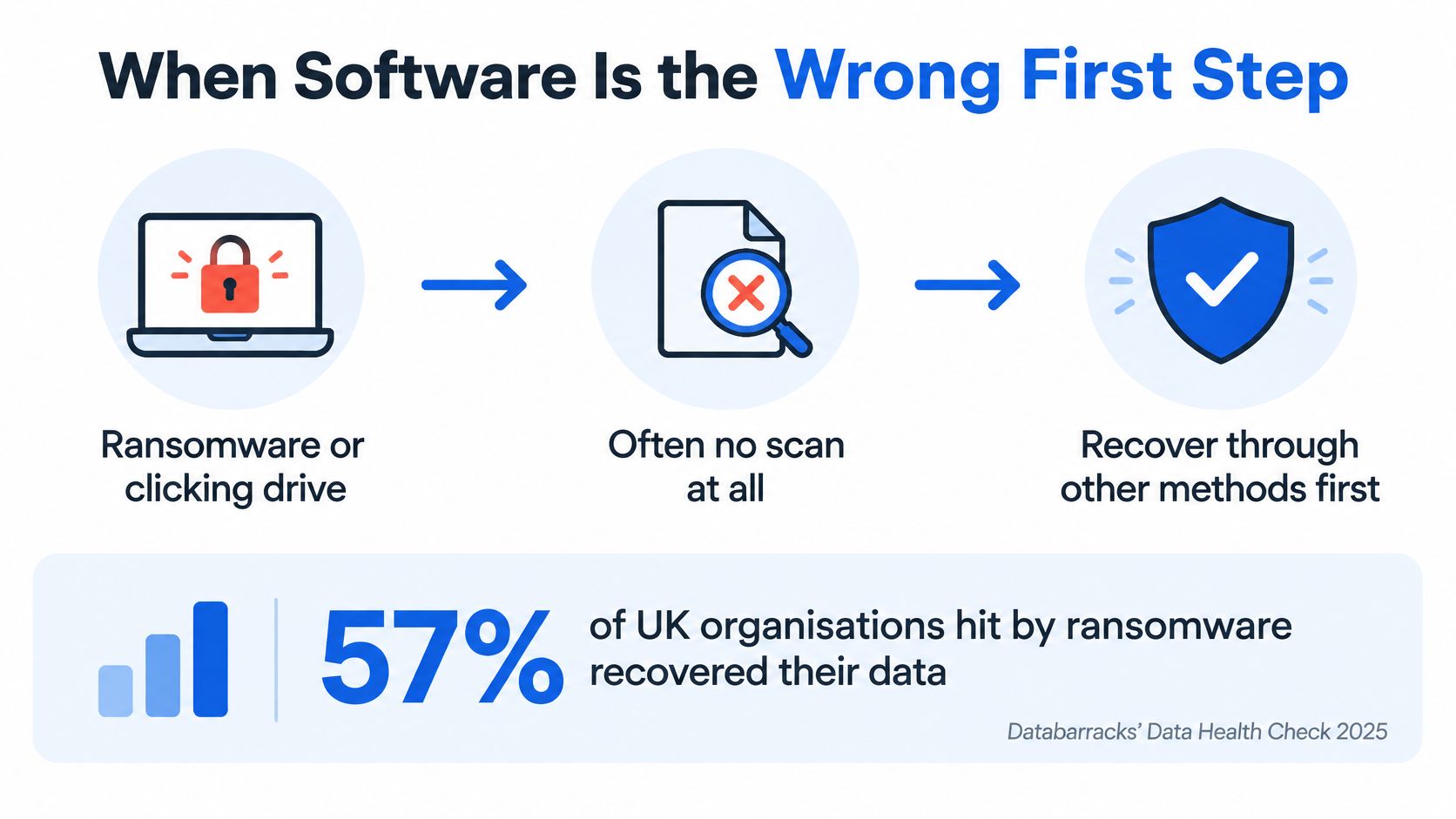
A clicking drive or a ransom note is a signal to stop, not to scan. Installing recovery software on the affected disk writes new data over what you want back. Repeated reads stress failing hardware. No application reverses encryption or fixes a mechanical fault. Doing nothing to the source is often the move that keeps recovery possible.
Backups provide a separate route that skips scanning entirely. Databarracks' Data Health Check 2025 found that 57% of UK organisations hit by ransomware recovered their data from backups, while 17% paid the ransom. The UK government's Cyber Security Breaches Survey 2023 reported that approximately 96% of large businesses had adopted data backups. A backup still needs checking. It can be incomplete, out of date, disconnected, or damaged by the same error that took the originals.
Preserve the source before trying to recover it
Use this sequence when physical damage or malware is possible:
Stop using the device. Do not install anything on it or save new files to it.
Avoid repair utilities and repeated scans. A repair alters the file system. Extra passes add load to a weak drive.
Create a sector-level image if the media reads stably. Work from the image, keep the original untouched.
Isolate a suspected ransomware device from the network. Leave encrypted files alone while you assess options.
Check the backups. Confirm the files you need open and are current.
Scan only when the device is stable and the loss is a recent deletion.
Limits differ by media. This explanation of SSD data recovery challenges sets out why the drive type and the cause of loss change the odds.
The dividing line is practical. A software case is a healthy, readable device with a recent deletion. An imaging case is a failing, encrypted, reformatted or business-critical device where preservation comes first. In that second category, another scan is not progress.
Free Tools That Handle Simple Deletions
For a recent deletion on a healthy Windows drive, Recuva is a sensible first try. It offers a free basic recovery option and a straightforward workflow. It's not a substitute for a controlled process on a failing drive, and installing it on the affected disk risks writing over data you're trying to retrieve.
A UK PCMag lab test found that Recuva's quick scan recovered 5 of 6 deleted files from a traditional hard drive after the Recycle Bin had been emptied. The quick scan missed an MP4 that the slower deep scan recovered. On a reformatted USB drive, Recuva's deep scan recovered 8 of 12 deleted files, according to the UK PCMag Recuva test. That makes it useful for simple deletions on healthy media, but not a high-assurance choice for reformatted drives or fragmented file systems.
When filenames matter less than finding the file
PhotoRec takes a different approach. It's free, open source and available for Windows, macOS and Linux, but its text-based interface is less friendly than a typical recovery wizard. It searches for file signatures rather than relying on the file system's directory structure, which can help it find files that a graphical tool misses.
The trade-off is that signature-based recovery often loses original filenames and folder structure. You may recover the contents of a photo or document but have to identify and sort it yourself. That can be acceptable when the files matter more than their original organisation.
Install the recovery tool on a different drive from the one you're scanning, and save recovered files to a separate disk. Writing either the software or recovered files to the source can overwrite sectors that still contain data. The guidance in this USB drive recovery guide is useful when you're dealing with removable storage.
Free tools are usually enough when the file was deleted recently, the drive is healthy and the file type is common. If the first scan finds nothing useful, or the drive starts behaving erratically, stop rather than cycling through repeated scans on the original.
Paid Tools for Deep Scans and Lost Partitions
Paid tools earn their place when you need more than a basic undelete. Disk Drill, EaseUS Data Recovery Wizard and Stellar Data Recovery run on Windows and macOS. R-Studio also supports Linux. Their features differ, so pick based on the task rather than the longest feature list.
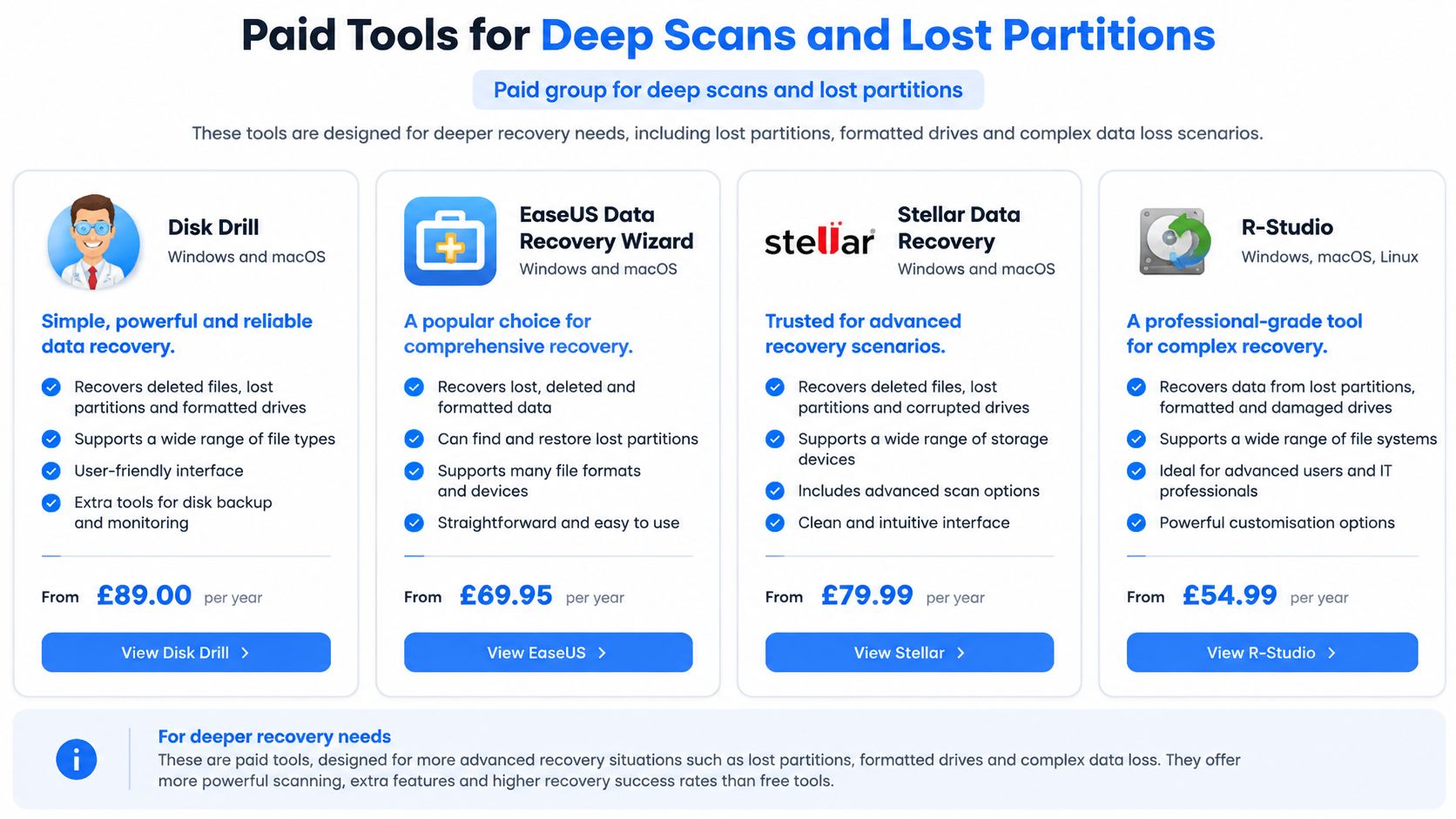
Disk Drill combines scanning, previewing and recovery in one workflow. That can be useful when you want to inspect files before deciding whether a paid recovery is worthwhile. Its platform support and preview features make it a reasonable option for users who value an approachable interface.
EaseUS Data Recovery Wizard is a candidate for lost or formatted partitions, where the goal is to locate data that's no longer visible through the usual file browser. Stellar Data Recovery is worth considering for photos and video on memory cards. Neither can repair a physically damaged card or drive that the computer can't detect.
R-Studio is the more technical option in this group. RAID and network recovery features, along with a hex editor, make it more suited to technicians and experienced users than someone trying to restore one accidentally deleted file.
Tool | Justifies the price | Does not fix |
|---|---|---|
Disk Drill | Windows and macOS scan, preview and recovery in one workflow | Physical failure or blocks already erased by SSD TRIM |
EaseUS Data Recovery Wizard | Lost or formatted partitions on Windows and macOS | A drive that isn't detected |
Stellar Data Recovery | Photos and video from memory cards on Windows and macOS | A physically damaged or undetected card |
R-Studio | RAID, network recovery and a hex editor, including Linux | A drive that needs controlled imaging rather than another licence |
A paid licence won't fix a physically failing drive, and software can't reliably restore data that SSD TRIM has already erased. This guide doesn't quote licence prices because versions and promotions change. Check the vendor's current price and the exact recovery limit before paying.
Use this video as a visual introduction to recovery-tool workflows, then verify that the software supports your device and file system.
Before buying, shortlist one tool, run its free scan and preview two files you know should be present. If the previews are corrupt or the expected files don't appear, don't assume a paid licence will solve the underlying problem.
What Test Results Actually Measure
A recovery percentage is only meaningful when you know what was tested. Different tests use different drives, file systems, file types and kinds of damage, so a headline score from one tool can't be treated as a promise for your device.
A UK-published academic comparison of forensic suites and commercial recovery applications found that mass-market tools performed comparably to forensic software for the recovery function tested, but results varied between tools. That supports a practical conclusion: brand recognition and an attractive interface don't prove which tool will work best on your case.
Run a test you can verify
If you want to compare tools safely, use a spare drive and files you can check against their originals. Copy a known set of files to it, delete them, then test two recovery engines against a sector-level image of the drive. Don't use the only copy of important data as a test case.
Compare more than whether a filename appears in the results. Check whether the recovered file opens, whether its contents match, and whether the folders, metadata and file signatures are intact. For a technical comparison, generate hashes for the original and recovered files and record any differences.
Criterion | What to check | Why it matters |
|---|---|---|
Scan depth | Quick-scan results against deep-scan results on the same drive | Quick scans can miss fragmented or overwritten files |
File signature coverage | Whether the tool recognises the file types you need | Photos, video and documents use different signatures |
Partition reconstruction | Whether it can rebuild a lost or formatted partition | Helps distinguish logical damage from data that's no longer available |
Media handled | HDD, SSD, USB and memory-card support | SSD TRIM can erase deleted blocks quickly |
Preview before paying | Whether you can verify recoverable files first | Shows whether files are readable before you spend money |
Output handling | Whether you can save to a separate drive | Prevents recovered data from overwriting recoverable sectors |
SSDs need particular caution. TRIM and controller behaviour can make software-only recovery less predictable than on a traditional hard drive. If data was recently deleted from an SSD, a scan may find names or fragments without restoring usable files.
Use consumer software for recent deletions on healthy media. Move to controlled imaging and specialist analysis for failing, reformatted, encrypted, RAID or business-critical devices. Those cases need careful handling more than another licence.
Choosing the Right Tool for Each Situation
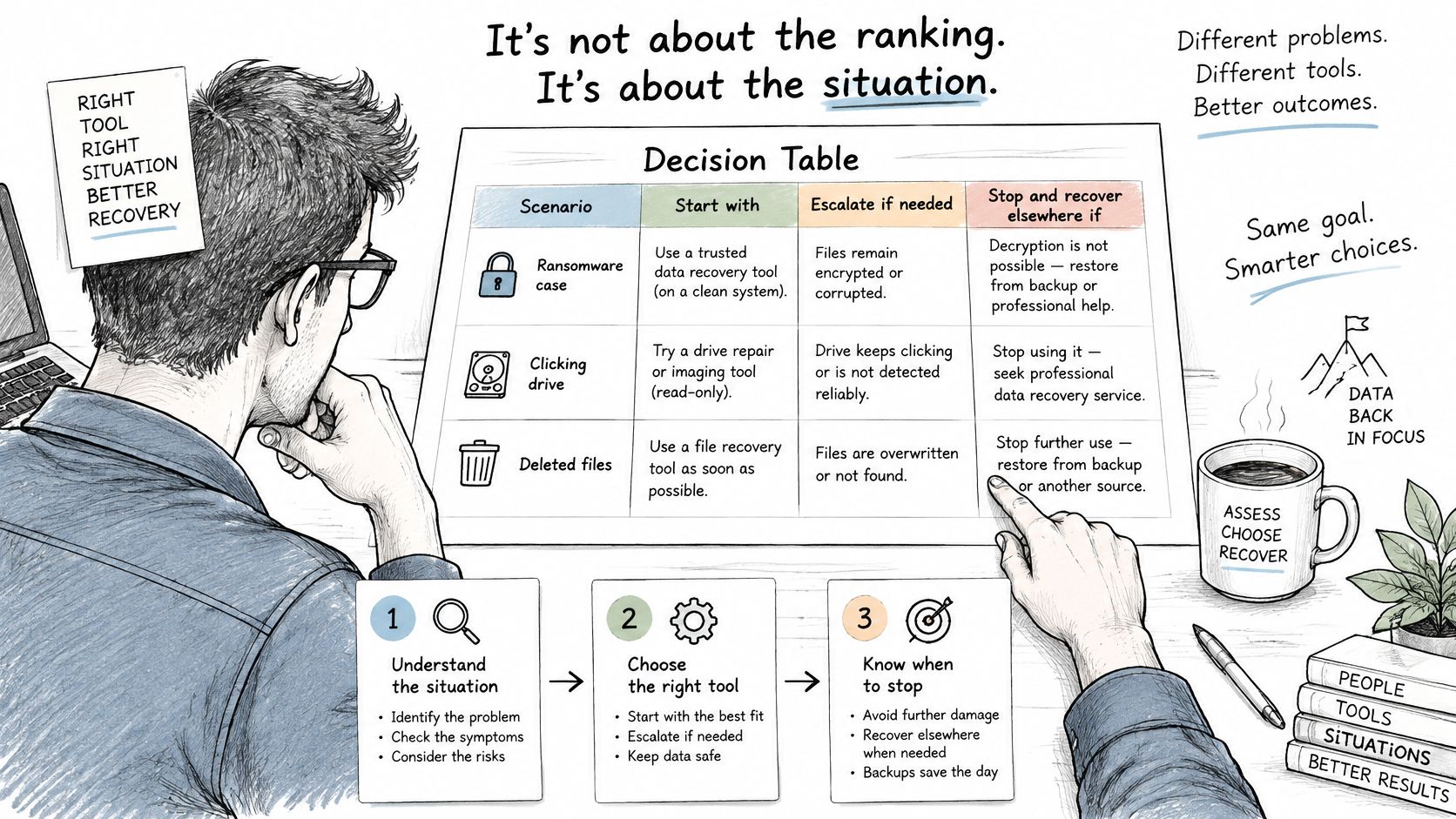
Start with the failure, not a software ranking. The table gives a first option and a clear point to stop or escalate.
Situation | Start with | Escalate when |
|---|---|---|
Deleted file on a healthy internal drive | Recuva quick scan, then deep scan | The deep scan finds nothing or the drive clicks |
Deleted file on a Mac | Disk Drill or PhotoRec | Recovered files are corrupt or the drive is failing |
Formatted or lost partition | EaseUS Data Recovery Wizard or R-Studio | The partition can't be rebuilt after one attempt |
Photos from a memory card | Stellar Data Recovery or PhotoRec | The card is physically damaged or not detected |
Files deleted from an SSD | One scan with a preview-capable tool | TRIM limits apply and recovery is unlikely after heavy use |
Suspected ransomware | No recovery software first | Isolate the device and check backups |
A home user who deleted holiday photos from a healthy laptop can try one Recuva scan, or PhotoRec if they're comfortable with a less polished interface. A Mac user who emptied the Trash can start with Disk Drill to preview found files, or choose PhotoRec if they're prepared to sort files without their original names.
A USB stick that appears to have reformatted itself is a different problem. A lost-partition tool such as EaseUS or R-Studio is a more suitable first choice than a basic undelete utility. If it's an SSD, make one careful scan with a preview-capable tool and treat missing or corrupt previews as a reason to stop, not an invitation to keep trying products.
Know when to stop
If an external drive clicks, stop using it. A scan can't restore hardware that's failing, and continued activity can make a later recovery attempt harder. Imaging the drive before file recovery is the appropriate next step when the media is unstable.
A second failed attempt on the same drive is also a signal to stop. Each additional scan may add little information while increasing risk, especially if the device is showing read errors or disconnecting. Find the row that matches your situation, start with its recommended tool, and apply the escalation point without exception.
Decide Whether to Call a Recovery Specialist
A recovery specialist is the right next step when a drive isn't detected, clicks, or keeps disconnecting; when two software attempts have failed; or when you're dealing with encryption, RAID or business-critical files without a current backup. In those cases, buying another tool can delay a better assessment while putting the remaining data at risk.
Keep the device unpowered and bring a clear note of what happened, which software you've tried and whether any backup copies exist. That information helps the technician avoid repeating risky steps and decide how to handle the media. Don't take the drive apart or run another repair utility before assessment.
Steel City IT specialises in data recovery from damaged or corrupted hard drives. Its process uses sector-level analysis and controlled handling, with a multi-point diagnostic check before and after the work. When you drop off the device, the workshop gives an estimated timeline and provides status updates by phone or email. For a plain-language overview of the process, see how data recovery services work.
Keep using software only if the drive is healthy and a preview has already shown the files you need. Otherwise, stop, leave the device unpowered and book an assessment rather than spending on another licence.
If a deleted file is on a stable drive, the right recovery tool may be enough. If the drive is clicking, corrupted or undetected, Steel City IT offers controlled data recovery and diagnostic assessment in Sheffield. Visit Steel City IT to arrange an assessment before trying another scan.