
Laptop Making Clicking Noise: What to Do First

The most popular advice for a laptop making clicking noise is also the riskiest. You're told to restart it, run a disk repair tool, download a health checker, or blast the vents with compressed air and see if the sound goes away. If the click is coming from a failing mechanical hard drive, every one of those steps keeps damaged parts moving over your files.
Don't start with a fix. Start with triage. Work out where the sound comes from, whether your files are at risk, and what you should do in the next minute. A fan rattle and a hard drive click can sound similar across a room, but they need opposite responses. One can wait for a service. The other should be switched off now.
Table of Contents
What That Click Is Telling You - Why an SSD Changes the Answer - Match the Pattern Before You Touch Anything
How to Isolate the Click Safely - The Shutdown-First Sequence - Actions That Reduce Recoverability
Copy Files Before Any Repair Attempt - Copy, Then Stop - What a Workshop Does Differently
Checks for Fans, Discs and Loose Parts - Fans and Blocked Airflow - Optical Drives, Hinges, and Loose Hardware - Speakers and Coil Whine
When Home Checks Should Stop and Booking Help - Use the Threshold, Not Your Optimism - Why These Faults Arrive Together - What to Bring and What to Expect
What That Click Is Telling You
A clicking laptop can have a harmless source, such as a fan or speaker, or a fault that puts files at risk. The sound alone cannot identify which one. Start with its timing and rhythm, then match those clues to likely sources before deciding whether it is safe to keep the machine running.
A regular click during startup deserves the most caution. If it repeats steadily and the laptop is slow, freezes, shows missing files, or will not boot properly, treat it as a possible mechanical hard-disk drive fault. A traditional hard disk uses moving heads to read data from spinning platters. If a head cannot read correctly, it may reset and try again, producing repeated ticks. Each attempt means more movement around the stored data, so shut the laptop down rather than restarting to check.
Why an SSD Changes the Answer
A solid-state drive has no spinning platters or read heads, so an SSD-only laptop cannot make the classic mechanical hard-drive click internally. Look instead for a cooling fan, speaker, optical drive, coil whine, or something loose inside the chassis. The distinction matters because a fan rattle and a drive fault call for different next steps.
An external USB hard drive can still click even if the laptop itself has only an SSD. Once the laptop is off, disconnect external storage and consider whether the sound came from beside the machine rather than inside it.
Age can muddy the picture. On an older laptop, a worn fan, heat, a tired battery, and storage trouble may appear around the same time. The useful clues are when the click starts and what the laptop does alongside it. Steel City IT's guide to hard drive failure signs covers signs that can help you recognise a possible storage fault.
Match the Pattern Before You Touch Anything
Use this table as a first sort, not a final diagnosis. Listen to the sound and note when it begins. If the first row fits, stop using the laptop.
Sound pattern | Likely source | What else you notice | Do this first |
|---|---|---|---|
Regular click or tick during startup | Mechanical hard-disk drive | Slow access, freezes, missing files, or failure to reach firmware | Shut down and do not restart |
Click or rattle that changes with fan speed | Cooling fan or debris in the airflow | Louder under load, warm chassis, blocked vents | Power off before any cleaning |
Seeking noise only when a disc spins | Optical drive | Happens with a CD or DVD inserted, or when the tray cycles | Eject the disc and retest without it |
Single tick when the lid or base moves | Loose screw, cable, or hinge | Changes if the chassis is tilted or pressed | Stop flexing it and note the spot |
Crackle only while audio plays | Speaker or audio circuit | Silent when the volume is muted | Mute the sound and check whether it stops |
Thin buzz that shifts with processor load | Coil whine | No file errors and the machine still works | Treat it as electrical noise, not a drive fault |
A fan-linked noise usually changes with workload. It may grow louder when you open a game, export video, or run updates, then ease as the machine cools. A drive click is less tied to temperature. It may begin before Windows loads and repeat while the laptop is idle.
Other sources have their own clues. An optical drive makes a seeking noise when a disc spins. A hinge may tick as you move the lid, while speaker crackle may stop when muted. Coil whine is a thin electrical buzz that shifts with processor load; by itself, it does not point to a mechanical drive fault.
Practical rule: If the click is regular and your files are not backed up, shut down. Do not clean, shake, or run disk repair before identifying the source.
The reason is simple: a replacement fan or drive can be fitted, but lost photos, accounts, coursework, or business records may not be recoverable. Triage the sound first, then protect files before attempting cleaning or repair.
How to Isolate the Click Safely
Isolation means removing one possible source at a time without giving a failing drive more work. The sequence below is deliberately short. You're not trying to fix anything yet, and you're not collecting evidence by restarting the laptop ten times.
The visual summary shows the shutdown-first order to follow before any hands-on check.
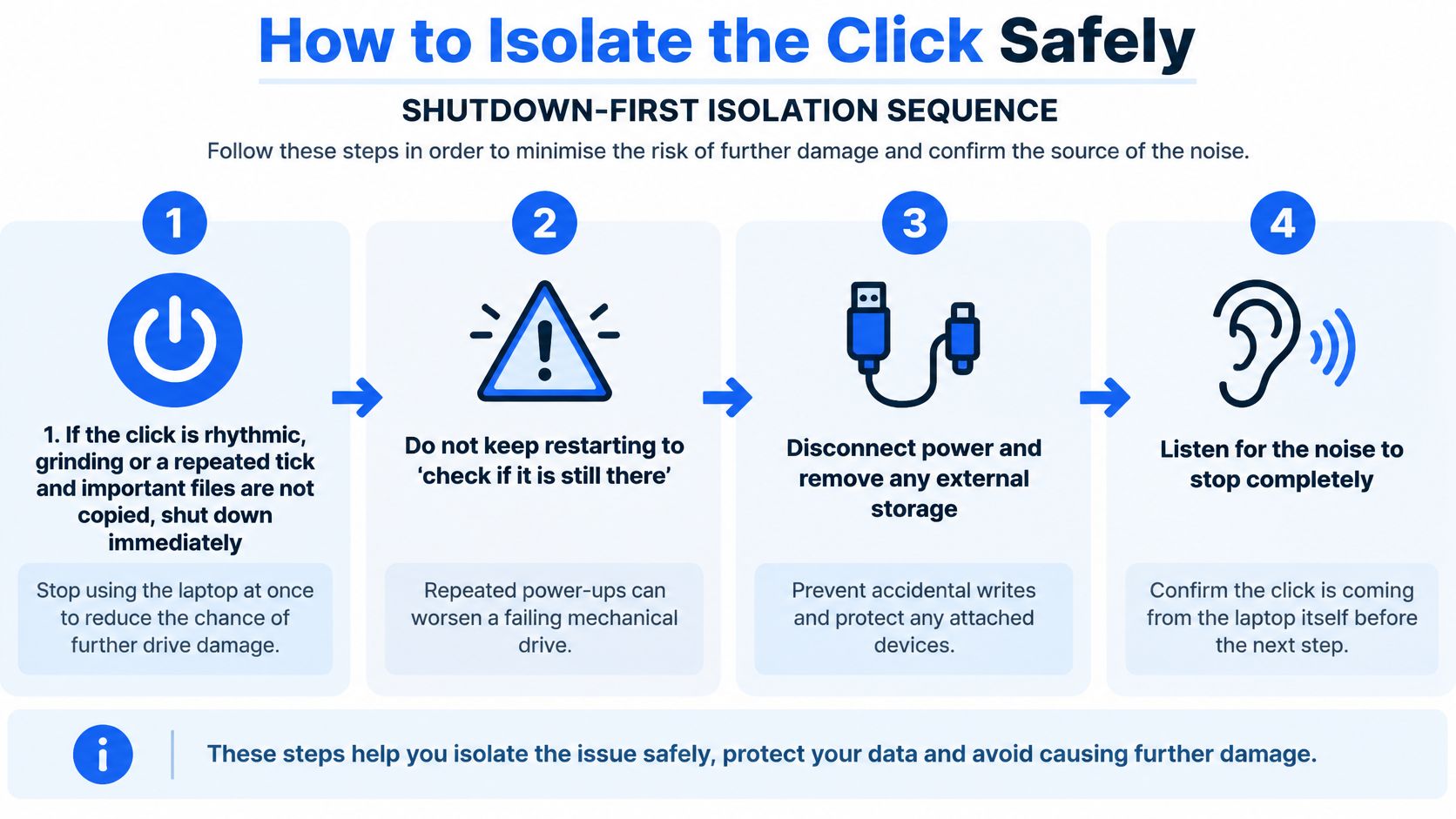
The Shutdown-First Sequence
Shut down immediately if the click is rhythmic, grinding, or a repeated tick. Do this first when important files aren't copied elsewhere. Data Clinic guidance on laptop hard drive failure identifies repetitive clicking during startup as consistent with read/write heads repeatedly failing to read the platter, and warns that repeated power cycles can worsen physical damage.
Write down the pattern while it's fresh. Note whether it begins before Windows, whether the laptop reaches the firmware or BIOS screen, and whether files were slow or missing. Those three facts help a technician more than a vague description days later.
Disconnect the charger and external storage. Remove USB drives, memory cards, and docks so you don't confuse an external mechanical drive with an internal one. Leave the laptop off while you do it.
On a model with a user-removable 2.5-inch drive, remove that drive only if you're confident and the design allows it. Disconnect AC power and the battery where designed, take the drive out carefully, then boot briefly with the bay empty or with a known-good SSD. If the click vanishes without the suspect drive, you've found your source.
Don't plug the suspect drive into another computer for ordinary browsing. A second machine will try to mount it, index it, and retry unreadable areas, which is exactly the workload you're trying to avoid. Ordinary consumer cloning software does the same damage in a tidier window.
Compare behaviour across the remaining suspects. Fan and hinge noise typically changes with fan speed or chassis movement, whereas a drive fault keeps a regular seek-like rhythm and may cause boot failure or disappearance from BIOS.
The short video below is useful for hearing how different fault noises behave before you decide whether a brief retest is justified at all.
Actions That Reduce Recoverability
Some common fixes belong on a banned list until the source is known. They feel proactive, but they add reads, movement, or heat to a part that's already failing mechanically.
Repeated restarts: Each power-up asks damaged heads to sweep the platters again, so a quick check isn't harmless.
CHKDSK and repair scans: These tools are built for logical file system errors, not broken hardware, and a long scan forces repeated retries.
Tapping or shaking: Movement can increase head-to-platter contact inside the drive and turn a partial recovery into a scored platter.
Assuming it's Windows: Software doesn't produce a rhythmic mechanical tick from inside the case, so reinstalling anything wastes the drive's remaining life.
If your laptop is SSD-only, skip drive removal entirely. There's no platter to isolate, so test the fan curve, mute the speakers, eject any disc, and check for a loose screw or hinge instead. Treat a clicking external USB hard drive as the exception, because it gets the same power-off rule as an internal mechanical drive.
One controlled test with the suspect drive removed tells you more than six hopeful restarts with it connected.
When isolation points at storage, stop diagnosing sound and start protecting files. When it points at the fan or chassis, you can move to the physical checks later in this article with far less risk.
Copy Files Before Any Repair Attempt
Once a mechanical drive is the likely source, the job changes. You're no longer asking how to stop the noise. You're asking how to lose the fewest files if the drive only works for a few more minutes, or not at all.
Capture the facts first, because they shape whether a workshop attempts a controlled clone or sends the drive for specialist handling straight away.
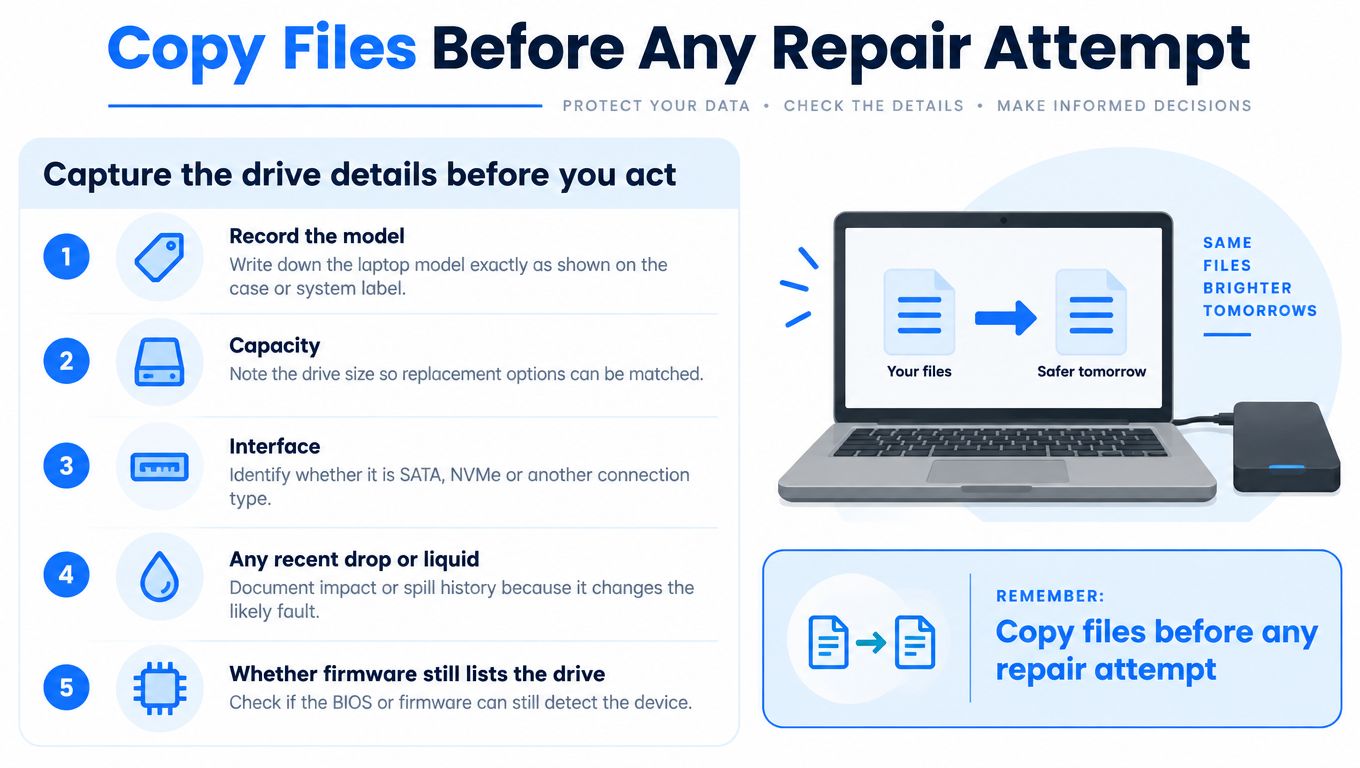
Record the model, capacity, and interface from the drive label or firmware if you've already noted them. Add any recent drop or liquid exposure, the laptop's general condition, and whether firmware still lists the drive. Don't power up again just to fill a blank on that list if the clicking was continuous.
Copy, Then Stop
If the laptop still opens and files are readable, copy the irreplaceable items first. Start with documents, photos, accounts data, browser exports you need, and project folders. Send them to a separate external drive or cloud folder, not to another partition on the same clicking disk.
Work in small batches and watch for freezing. If a folder hangs, skip it and move to the next priority rather than letting the drive grind on one unreadable area. Don't install backup software, antivirus updates, or repair utilities during this window, because installs write to the disk and steal time from copying.
When the must-have files are safe, stop. It's tempting to attempt one full image overnight, but a long unattended pass is how a weak drive dies with nobody watching. For a longer-term routine after this scare, the CloudOrbis guide to data backup is a useful reference for building copies that don't depend on one ageing laptop drive.
What a Workshop Does Differently
If the drive remains stable and is detected, an engineer normally works from a read-only, sector-aware clone rather than from your original disk. The destination is at least as large as the source, retries are limited, progress is logged, and critical folders come before any prolonged full-disk pass. That approach is outlined in Steel City IT's notes on data recovery from a laptop hard drive.
That controlled workflow matters because mechanically failed clicking drives may require specialist clean-room handling and no recovery outcome can be guaranteed, as 365 Techies data recovery guidance sets out. A drive powered down quickly is in a different position from one restarted repeatedly, and repeated operation reduces the chance of recovery.
Stop home recovery and get an assessment before another power-on if any of these apply:
Continuous clicking: The heads click without pause from switch-on.
Spin down: The drive starts, then stops, then tries again.
Missing from firmware: BIOS or UEFI no longer lists the drive at all.
Impact history: The laptop was dropped shortly before the noise began.
Don't open the drive on a kitchen table. The platters and heads sit in a sealed, filtered enclosure for a reason, and ordinary room dust is contamination at that scale. Don't swap in random donor parts either, because matched components and firmware details matter, and a wrong board can add electrical damage to mechanical damage.
No honest service can promise that every clicking drive will return your files. The honest offer is preservation, triage, and a clear prognosis before you spend more.
Hand over three things: the untouched drive or laptop, your notes on timing and symptoms, and a short ranked list of must-have folders. That ranking lets the engineer chase your tax records and family photos before spending the drive's remaining life on downloads you can replace in an afternoon.
Checks for Fans, Discs and Loose Parts
Start with the sound's source and the risk to your files. Check fans or loose hardware only after a rhythmic storage click has been ruled out. If you are unsure whether the drive is involved, shut the laptop down rather than cleaning around a possible fault. A fan check cannot protect a drive that is still clicking.
Fans and Blocked Airflow
Place the laptop on a hard, flat surface with its vents uncovered. A bed, sofa arm or stack of paperwork can restrict airflow, making the fan work harder and a loose or unbalanced part easier to hear. Dell guidance on troubleshooting fan issues recommends a hard, flat surface and unobstructed vents.
Switch the laptop off before cleaning. Wipe the exterior grilles with a dry cloth, remove lint you can reach without opening the case, and let a hot machine cool. If you use compressed air, apply short bursts at an angle to the grille. Avoid blasting straight through the fan, which can make its blades spin faster than intended.
Afterward, try the laptop once under a light load and listen for a change. If the click remains after light external dusting, or becomes a rattle suggesting a cracked blade or dry bearing, stop. A cotton bud cannot fix worn parts, and opening the case is a repair task. If diagnosis shows that a replacement fan is needed, match its exact model and connector rather than choosing by appearance. You can shop PC cooling fans at Godukkan, but confirm compatibility before ordering.
Optical Drives, Hinges, and Loose Hardware
An optical drive may seek when a disc is inserted or when the tray cycles at startup. Eject the disc, leave the tray empty, then listen on the next boot. If the firmware lets you disable the drive, doing so can help identify whether it is the source without opening the laptop.
A tick that occurs only as the lid moves points toward a hinge, screw, or cable. Note the lid angle at which it happens and whether a gentle press on one corner changes the sound. Then stop testing it by flexing the base. Repeated movement can worsen a cracked hinge mount or pinch a display cable, potentially causing a screen fault.
A screw loose inside the chassis can sound minor, but metal near a circuit board can cause a short if it shifts. If something rattles freely when you gently tip the powered-off laptop, do not shake it to confirm. Stop and arrange a strip-down.
Speakers and Coil Whine
Speaker crackle that vanishes when muted is likely in the audio chain rather than storage. Try headphones if available. Clean headphone audio points toward the speaker or its wiring; crackling through both headphones and speakers makes a driver or audio-circuit fault more likely.
Coil whine is a thin electrical buzz associated with processor or graphics load. It may be easiest to hear in a quiet room during a game menu or benchmark. Cleaning will not resolve it, and it does not threaten files. Note when it occurs, and raise it for service if it is new, grows louder or comes with instability.
Cleaning can shift dust. It cannot repair worn bearings, broken blades or a failing hard drive mechanism.
If the sound survives these simple checks, or the laptop has heat shutdowns, a burning smell or instability, stop testing and book a repair. Home checks can help identify an external airflow issue or narrow down a sound. They cannot safely settle a suspected internal mechanical fault.
When Home Checks Should Stop and Booking Help
The decision isn't really about confidence with a screwdriver. It's about what another power-on could cost. A fan investigation on a backed-up machine is low stakes. Another restart on the only copy of your business accounts, sitting on a clicking mechanical drive, is not.
Use the Threshold, Not Your Optimism
Situation | Keep checking at home? | Next step |
|---|---|---|
Files already copied, click tracks fan speed, no burning smell | Limited external vent check only | Retest; book a fan service if the rattle returns |
Regular click and files not yet copied | No | Leave it off and arrange a drive assessment |
Drive missing from firmware or it spins down | No | Specialist recovery, not disk-repair software |
Recent drop or liquid as well as the noise | No | Drive assessment plus board-level inspection |
SSD laptop and the click follows the fan curve | External dust only, not bearing repair | Fan service if cleaning the grilles does nothing |
Burning smell or heat shutdowns | No | Stop immediately and book a repair |
Home checks are reasonable only when files are already copied, the noise tracks fan speed, there's no burning smell, and the machine still boots cleanly. Move outside any one of those conditions and the balance shifts. You're no longer saving a workshop fee, you're gambling the recoverable window.
Waiting a few days with the laptop off does not make a clicking drive worse. Using it for those few days can. That's the counterintuitive part for most owners, because a machine that still boots feels mostly fine. A clicking drive that boots today and gets used normally is spending its remaining mechanical life on email and updates instead of on your one controlled copy.
Why These Faults Arrive Together
A clicking laptop often appears late in the machine's life, when several ageing parts overlap. The University of Exeter consumer-electronics review reports that laptop and tablet owners most commonly kept devices for 5-6 years before purchasing replacements, and cites an estimated laptop lithium-ion battery lifespan of approximately 4.5-5.5 years. That's why a swelling battery, noisy fan, and tired drive so often show up in the same season.
Don't blame the click on the battery alone, though. A battery doesn't produce a rhythmic startup tick with missing files. The same review context is useful mainly as a prompt to assess the whole machine with a clear eye, including whether a repair extends its life or just delays a replacement by a few months. For a work machine, F1Group guidance on business laptop support is worth reading alongside that decision, because downtime and data exposure affect more people than the person holding the laptop.
Repair is still the right call in many of these cases. A sound chassis, good screen, and adequate processor with a dead drive or worn fan is a strong candidate for an SSD upgrade and service. A machine with liquid damage, charging faults, and a clicking drive needs board-level inspection before anyone quotes a simple part swap.
What to Bring and What to Expect
Gather four things before you book, and leave the laptop off while you do it:
The charger: Power and charging behaviour can't be assessed properly without it.
A timing note: Say whether the click starts on a cold boot, after sleep, or only under load.
Incident history: Mention any drop, spill, recent upgrade, or previous repair, even if it seems unrelated.
A must-have folder list: Rank what's irreplaceable so recovery effort goes to the right data first.
A proper visit should confirm the source before swapping parts. Expect a read-only backup or sector-level plan first where storage is involved, then repair, which is the sequence described in Steel City IT's overview of professional diagnostics. If liquid or charging problems sit beside the noise, board-level checks belong in the same assessment rather than as a surprise later.
We support Apple MacBook Air and Pro, ASUS ROG and TUF, Dell XPS and Inspiron, HP Pavilion and Envy, and Lenovo ThinkPad and Legion models, and our services include laptop and desktop repairs, data recovery and backup, and hardware upgrades including RAM and SSDs. That means a fan service, an SSD replacement with your saved files migrated, or a recovery-first assessment can be handled as one joined-up job rather than three separate guesses. Software work such as Windows troubleshooting, virus removal, and a clean reinstall comes after the hardware and data questions are settled, not before.
The fork is simple in the end. If the laptop boots cleanly, files are safe, and the noise follows the fan, a service and possible SSD upgrade can extend a good machine for years. If a mechanical drive clicks and holds the only copy of anything that matters, it goes to recovery first and repair second, and it stays off until it's assessed.
If your laptop is clicking and you're not certain your files are safe, leave it switched off and bring it to Steel City IT in Frecheville, where we'll isolate the sound, protect your data with a recovery-first plan, and repair or upgrade the hardware once your files are secure. You can check our laptop repair, data recovery, and SSD upgrade services and get in touch via Steel City IT.