
How to Run a Windows Repair Install Without Losing Data

Your PC still boots, but Windows Update fails, apps crash, or the same error returns after every restart. You want the files and programs left where they are. A Windows repair install is the option that reinstalls the system files over the current installation instead of wiping the disk.
Before you start setup, match the fault to the recovery path. A repair is the least disruptive choice when the machine still reaches the desktop. A reset or a clean install fits when Windows will not start, the PC is leaving your hands, or malware has damaged the system. Hardware faults sit outside all of those paths, and reinstalling will not cure them.
Table of Contents
Choose Between Repair Install, Reset and Clean Install - The Windows Update route on Windows 11 - Which row to follow
Run a Windows Repair Install Step by Step - Before you launch setup - Run setup from Windows - What a finished repair looks like
Fix Repair Install Failures and Stuck Restarts - Failures you meet during setup - After the desktop returns
When Hardware or Malware Means Reinstalling Will Not Help - Checks before you reinstall again - When to bring it in
Choose Between Repair Install, Reset and Clean Install
Read the table left to right. The middle columns show whether your documents and your programs survive. The last column is the situation that row is built for.
Option | Keeps personal files | Keeps installed apps | Best when |
|---|---|---|---|
Repair install with setup.exe (Keep personal files and apps) | Yes | Yes | Corrupted system files, failed updates or recurring Windows errors |
Setup with Keep personal files only | Yes | No | Apps are damaged and you accept reinstalling them |
Fix problems using Windows Update (Windows 11 22H2 or later) | Yes | Yes | Windows still boots and you want to avoid USB media |
Reset this PC with Keep my files | Yes | No | Windows is unstable and reinstalling apps is acceptable |
Reset this PC with Remove everything | No | No | The PC is being sold or given away |
Clean install from USB media | No | No | Malware has damaged the system or the disk is failing |
A repair install works because setup writes fresh Windows system files and components over the copy that is already there. Your account, desktop and installed programs stay in place. Pick the setup row that drops apps only when those programs themselves are the problem and you are ready to put them back from their installers.
The Windows Update route on Windows 11
Microsoft's UK support guidance describes Fix problems using Windows Update as a reinstall of the same Windows version already on the PC. It repairs system files and components and keeps apps, files and settings. Windows downloads a repair version of the last successfully installed update, then installs it through Windows Update. Keep the PC on mains power and on the internet for the whole job.
The option applies to Windows 11 version 22H2 or later. On an older Windows 11 install it can be missing until the required 2024 update level is in place. If you cannot see it, install pending updates first, or use setup from the desktop instead.
Which row to follow
If Windows still reaches the desktop and updates fail or errors keep coming back, start with a repair that keeps files and apps. If Windows will not boot, or you are selling or giving the PC away, use a reset or a clean path and accept that programs will not come back. If you suspect malware after real system damage, installation media used as a clean install is the safer route, because a repair only restores the existing installation and can leave a compromised system in place.
Practical rule: Back up Documents, Desktop, browser bookmarks and any licence keys to an external drive before you touch recovery. A preservation option is not a backup.
On Windows 10 you cannot use Fix problems using Windows Update. Run from the desktop and select Keep personal files and apps. A repair puts the current installation back in working order. It does not bring back free security updates. If the PC meets Windows 11 hardware requirements, an upgrade run through can also keep files and apps, and that is often the better long-term choice. If it does not meet them, plan a replacement rather than another repair cycle.
Try a system restore point first when the trouble started after one recent change. If you are weighing a full wipe instead, CTF's Windows 10 reinstall guide walks through a clean Windows 10 reinstall so you can see how much more that path removes.
Run a Windows Repair Install Step by Step
Start from a desktop that already boots into Windows. That single condition defines this repair: runs as a program inside the installation it is about to repair, so if Windows cannot reach the desktop, you have no repair install available and you are really choosing between reset and clean install.
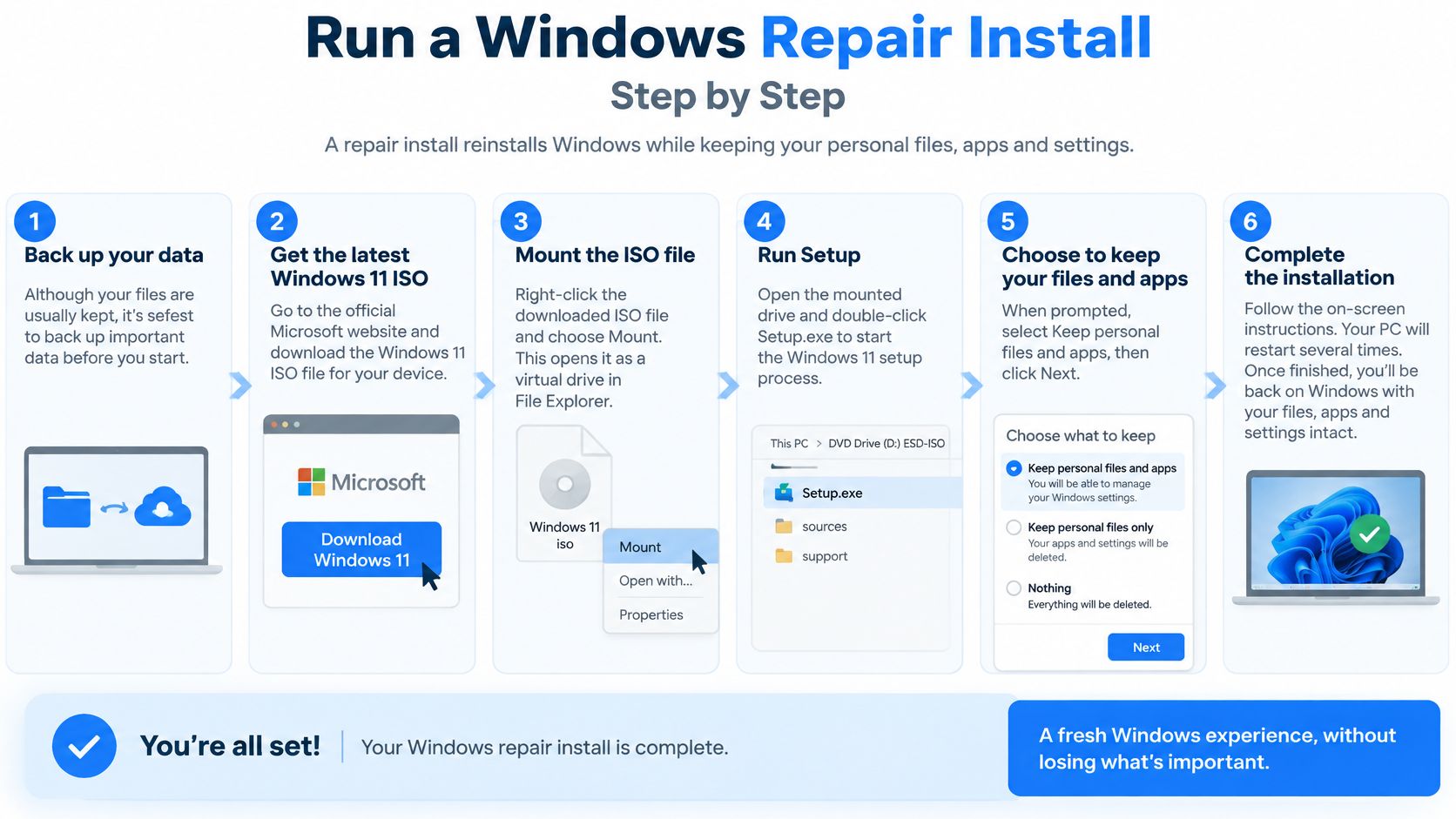
The screen that decides everything is Change what to keep. Keep personal files and apps carries over your documents, profiles and installed programs, including their settings and registry entries, which is why it is the only choice that counts as a repair. Keep personal files only keeps the data and discards every program. Keep nothing is a fresh installation that sweeps the drive. Read that screen twice before you click Next, because there is no undo once setup starts writing.
Before you launch setup
Open Settings, System, About and write down the Windows edition, build, architecture and whether Windows reports itself as activated. Note whether device encryption or BitLocker is on. You will want those details if setup asks questions or activation looks wrong afterwards.
Find the BitLocker recovery key in your Microsoft account, or on the printout saved when encryption was switched on. Setup can demand that key mid-way, and there is no shortcut around it.
Copy your files to an external drive, then open a few of them from that drive. A backup you have not opened is only a guess.
Get installation media that matches the installed edition and the display language. The Media Creation Tool or an official ISO is the right source. A mismatched language is a common reason setup refuses to keep apps.
Pause third-party antivirus, or at least write down that it is installed, so it cannot block setup. Leave Microsoft Defender alone.
Plug a laptop into mains power and leave the internet connected. A battery rundown halfway through is how a repair becomes a broken boot.
Run setup from Windows
Mount the ISO, or open the USB in File Explorer, and double-click . You must already be signed in to Windows. If the PC restarts into a blue setup screen from the stick, shut down, remove the USB, and start again from the desktop.
At Change what to keep, confirm Keep personal files and apps is selected before you continue.
Let every restart finish. Do not hold the power button because the progress bar looks stuck for a while. Setup can sit on one percentage for a long time on a slow drive, and cutting power mid-install is how files get corrupted.
This short walkthrough shows the same desktop-started repair, including the screen where you choose what to keep.
What a finished repair looks like
You should land back on your own desktop, with the same sign-in, your files in place and your usual apps still listed. Then check activation, Device Manager, Windows Update, a couple of everyday programs, each user profile, and the network, audio, graphics and storage drivers. Expect one or two drivers to have reverted to older versions, since setup sometimes reinstalls a generic driver over a manufacturer one; update those from the vendor rather than leaving them.
If those all behave, the repair has done its job and no further reinstalling is needed. If the same error is already back within minutes of the first boot, stop repeating setup and look at the disk and memory instead. SMART data and a memory test cost you an hour and tell you whether you are reinstalling onto failing hardware.
Fix Repair Install Failures and Stuck Restarts
The mistake that wipes apps is booting the installation media. That path does not offer the keep-apps choice you get from inside Windows. It starts a clean install. If you notice the wrong screen before you confirm, cancel, restart into Windows, and launch setup from File Explorer.
Symptom | Likely cause | Fix |
|---|---|---|
Setup starts a clean install and apps disappear | Media was booted instead of setup.exe run from Windows | Cancel, restart into Windows and run setup.exe from File Explorer |
Windows Update does not offer the repair option | Windows 11 older than 22H2 or missing the 2024 update | Install all pending updates, then retry or use setup.exe |
BitLocker recovery screen during setup | Recovery key not available to setup | Enter the 48-digit key from the Microsoft account or the saved record |
Setup stops because there is not enough space | Free space below what setup needs | Remove large files or move data to external storage, then retry |
Progress stalls for hours | Slow or failing drive, or interrupted power | Wait several hours before forcing shutdown, then check disk health |
Activation lost after the repair | Licence tied to a changed device or account | Check Settings, then sign in with the Microsoft account linked to the licence |
Apps or drivers misbehave after restart | Outdated graphics, network or audio drivers | Update drivers from the manufacturer, then run Windows Update |
Failures you meet during setup
Fix problems using Windows Update is missing when the PC is older than 22H2 or has not had the 2024 update level. Install every pending update, restart, and look again. If it still is not there, use from matching media. Our guide to Windows Update errors covers the error codes that block that download.
A BitLocker screen means setup cannot see the recovery key. Type the 48-digit key from the Microsoft account page or from the record you saved before you started. Guessing will not open the drive.
When setup stops for lack of space, move videos, installers and old downloads to an external disk, empty the Recycle Bin, and run setup again. Do not delete your only copy of a file to make room.
A progress bar that barely moves is often a slow or failing drive, or a brief power cut. Wait several hours before you force a shutdown. A forced power-off can corrupt the files you were trying to save. If it is still frozen after that wait, check disk health before a second attempt.
After the desktop returns
Open Settings and confirm Windows is activated. If the licence dropped off, sign in with the Microsoft account that the digital licence is linked to. A local account switch is a frequent reason activation looks lost when the hardware has not changed.
If sound, Wi-Fi or the display misbehaves, install the current graphics, network and audio drivers from the PC or laptop maker, then run Windows Update. Windows' generic drivers get you to the desktop. They are not always the right ones for that model.
If the same error returns after two complete attempts, write down the code and stop. Another reinstall will not fix a failing disk or bad memory.
Check Your PC After the Repair Install
A finished progress bar is not the same as a healthy PC. Set aside about an hour and work through the checks in order. Each one catches a different failure that setup will not announce.
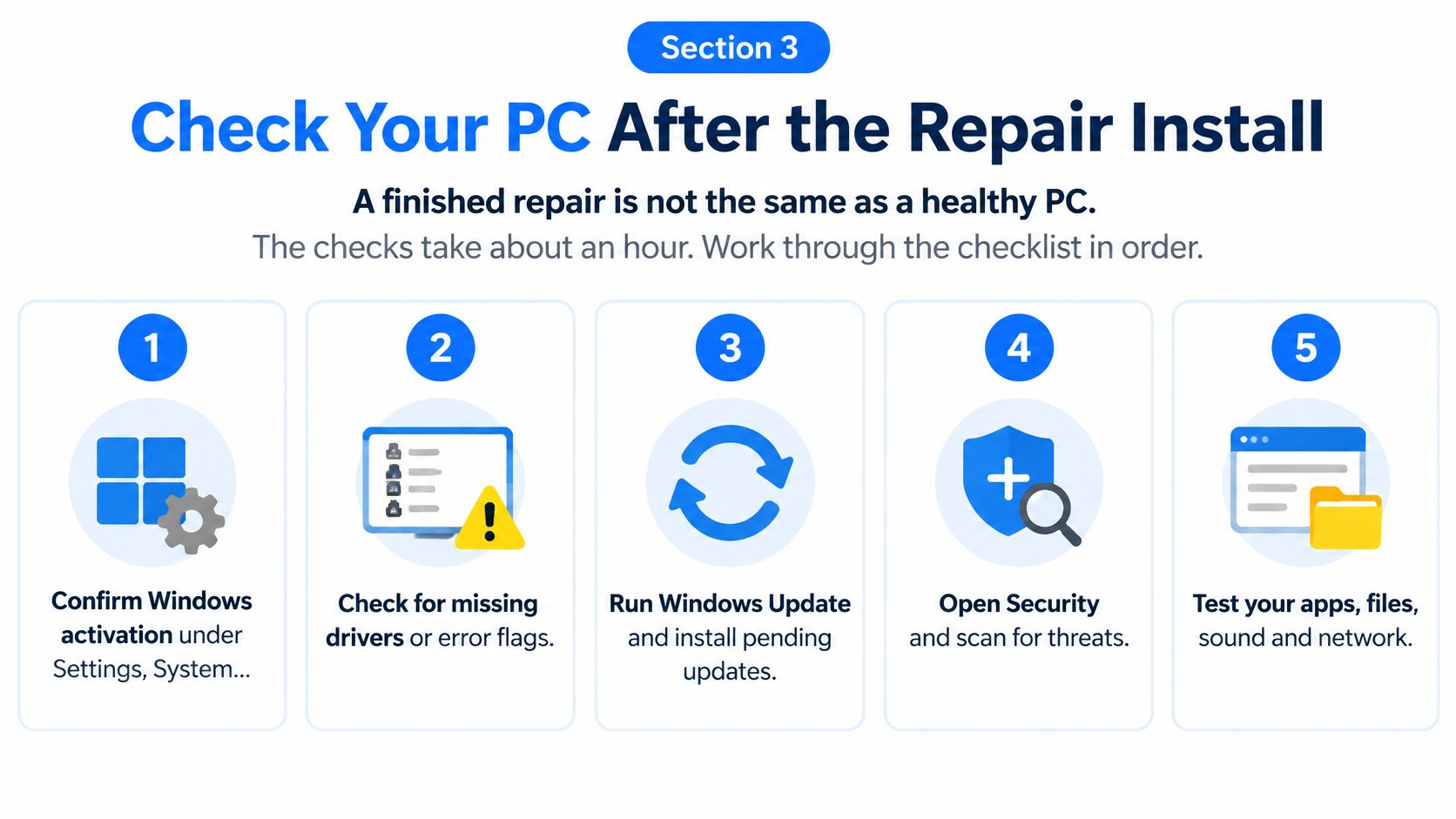
Activation: Open Settings, System, Activation. An unactivated copy will nag you and can block personalisation, so fix the sign-in before you judge anything else.
Device Manager: Look for yellow marks, especially on graphics, network, audio and storage. A warning there explains a missing Wi-Fi adapter or a silent speaker better than another repair will.
Windows Update: Keep running it until the list is empty, and restart after each batch. Leftover updates are how the original fault comes straight back.
Everyday apps: Open the programs you use and confirm they still hold their settings. One that will not start needs its original installer, not a third repair.
User profiles: Sign in to each account and check Documents and Desktop. A profile that opens empty is a restore job from the backup, not a settings tweak.
Microsoft Defender: Run a full scan so you know nothing unwanted survived the repair.
Drive health: Use the drive maker's tool, or the built-in disk check. A repair cannot heal sectors that are already failing.
Peripherals: Print a page, join Wi-Fi, play a sound and open a video. These catch the driver gaps Device Manager sometimes hides.
Keep the external backup for at least two weeks. Delete it only after you have used the PC normally and nothing important is missing. Reinstall any app that will not start, using the installer from the publisher, and sign back in so its data can sync.
The repair has not held if the original error is back within a day or two, if Device Manager warnings return after driver updates, or if files vanish between restarts. At that point the operating system is no longer the prime suspect.
When Hardware or Malware Means Reinstalling Will Not Help
A repair install can return Windows to a clean state, but it cannot replace failing hardware or clear an infection that has dug into the system. If an ageing hard drive, a failing SSD, defective RAM, overheating or malware is the cause, another setup pass puts data at risk and changes nothing. Microsoft's UK reset guidance warns that recovery options can cause data loss and says to back up first. Keep my files preserves personal files but removes applications, and a full reset removes everything.
Checks before you reinstall again
Drive: Read the S.M.A.R.T. status in the manufacturer's tool. Clicking, grinding or long pauses when you open a folder point at the disk, not at Windows. A drive on its way out can corrupt the new install during its first round of updates.
Memory: Run the Windows Memory Diagnostic from the Start menu. Bad RAM flips bits while setup unpacks files, so you get a clean-looking install that crashes at random.
Heat: Watch CPU and GPU temperatures under load. Sustained heat throttles the machine and shuts it down no matter how clean the system files are.
Malware: Unexpected pop-ups, a browser that redirects, or programs you did not install call for an offline Microsoft Defender scan. Our guide to removing malware from a Windows PC explains what a repair install will not clear.
Stop reinstalling if blue screens return after a clean repair, if a battery is bulging, if you smell burning, or if a drive disappears from File Explorer. Back up first, then leave the disk alone.
StatCounter put Windows 11 at 60.44% of UK desktop Windows usage in July 2025, with Windows 10 at 38.25%. Microsoft's Windows 10 lifecycle page lists support ending on 14 October 2025, so that large Windows 10 share no longer gets free software updates, technical assistance or security fixes. A slow Windows 10 PC may need an upgrade or a replacement decision, not a third repair of an unsupported install.
When to bring it in
Book a bench visit when repeated repair attempts fail, a disk clicks or drops out, malware has damaged Windows, or the files cannot be lost. We run a multi-point diagnostic check before and after every repair. If a repair would cost more than the device is worth, we say so.
Steel City IT works from Frecheville and covers Sheffield, including Birley, Hackenthorpe and Woodhouse. Contact us through the website or by phone and we will set a time that suits you. Back up what you can, and bring the error codes with the machine.
If Windows still misbehaves after a careful repair install, or the drive and memory checks look wrong, Steel City IT can diagnose the PC, repair Windows where that is the right fix, and recover data when the disk is at fault. We will tell you if a repair is not worth the cost of the machine. Visit Steel City IT to book a time.