
Does Reinstalling Windows Remove Viruses? the Truth

You're sitting at home in Sheffield when your Windows laptop starts behaving strangely. Pop-ups appear, files won't open, or a ransom message suddenly covers the screen. The first thought is often simple: if I reinstall Windows, will the virus disappear?
Usually, a clean reinstall can remove most ordinary Windows malware. But “reinstall” can mean several different things. Resetting Windows while keeping personal files, using an in-place upgrade, wiping everything through Windows recovery, and performing a clean installation from trusted media don't provide the same level of protection.
Table of Contents
Understanding Different Reinstallation Methods - Windows Reset with files kept - Windows Reset with everything removed - In-place upgrade - Genuine clean installation
Why Some Malware Survives Reinstallation - The infection may be outside the Windows partition - Accounts can outlive the computer - Rare persistence below Windows
Safe Reinstallation Workflow Step by Step - 1. Isolate the computer - 2. Decide what must be preserved - 3. Prepare trusted installation media - 4. Install, patch, and protect - 5. Reset credentials and reconnect carefully
The Critical Challenge of Safe Data Recovery - Sort files by risk - Scan before copying
When Professional Help Makes Sense - What a technician can add - Prepare before handing over the computer
The Short Answer to Your Virus Question
The practical answer to does reinstalling Windows remove viruses is: it depends on the method and on what has been compromised.
A clean installation replaces the existing Windows environment. That removes the infected operating-system files, installed applications, registry entries, startup configuration, scheduled tasks, browser extensions, and other components where ordinary malware may have established itself. The UK National Cyber Security Centre's guidance for hacked devices advises users to update the computer and run antivirus remediation first. If antivirus can't clean the system, the NCSC says the device should be wiped and everything reinstalled, beginning with the operating system.
That doesn't make every reset safe. A quick reset that preserves personal files may leave suspicious programs, scripts, extensions, or altered settings in place, or restore them later. An in-place upgrade also installs a new Windows layer over the existing environment rather than deliberately clearing everything that might be compromised.
The reassuring part: a proper clean reinstall is a powerful way to contain a typical file-based infection. The important part is completing the recovery properly afterwards.
Consider two Sheffield users. One has adware and a malicious browser extension. A full wipe followed by a trusted Windows installation will normally remove that infection. The other has ransomware, an exposed Microsoft account, and an infected external drive. Reinstalling Windows may clean the laptop itself, but it won't automatically secure the account, decrypt files, or clean the external drive.
Some threats also operate outside the normal Windows installation. Malware can return through an infected backup, a malicious installer, a compromised browser or cloud account, or, more rarely, firmware or boot-level components. The NCSC's device-erasure guidance therefore treats erasure as a strong remediation measure, not an absolute guarantee.
The safest expectation is straightforward: a clean reinstall removes the infected Windows environment, but recovery isn't complete until accounts, backups, removable storage, updates, and restored files have also been checked.
Understanding Different Reinstallation Methods
Windows offers several recovery routes, and they differ considerably when malware is involved. The wording in Settings can make them sound similar, but the security result isn't the same.

Windows Reset with files kept
Keep my files removes applications and reinstalls Windows while preserving personal data. That can be useful for ordinary software problems, but it's a weak choice when you suspect malware. Personal folders may contain infected installers, scripts, macros, or browser-related files, and retained settings or restored content can provide a route back into the new installation.
It also doesn't give you the same confidence as erasing the affected Windows environment. If antivirus can't clean the computer, the NCSC recommends wiping it rather than relying on a less-destructive reset.
Windows Reset with everything removed
Remove everything is more thorough. It removes personal files, applications, and settings, then reinstalls Windows through the recovery process. The NCSC identifies “Remove everything” through Reset, recovery media, or installation media as an appropriate way to erase a Windows device.
However, the result still depends on the recovery source and what you restore afterwards. A contaminated recovery image, infected backup, or malicious installer can undermine the clean start.
In-place upgrade
An in-place upgrade keeps much of the existing Windows installation, applications, settings, and data. It's designed to repair or update Windows while preserving the working environment, not to investigate and eliminate a deep compromise. It may fix damaged system files, but it shouldn't be treated as a malware-removal procedure.
Genuine clean installation
A clean install starts from trusted installation media and erases the relevant Windows partitions before installing a fresh operating system. This provides the strongest practical protection against ordinary malware located in the existing Windows installation.
Method | Main purpose | Malware-removal confidence |
|---|---|---|
Keep my files | Preserve data while refreshing Windows | Low |
Remove everything | Erase the device through Windows recovery | Stronger, with limitations |
In-place upgrade | Repair or update an existing installation | Low for suspected malware |
Clean install | Replace the Windows environment from trusted media | Highest practical option for ordinary malware |
For broader equipment records, organisations may also benefit from streamline hardware warranty management, particularly when tracking devices through repairs, replacements, and operating-system lifecycle changes. For the malware problem itself, the practical distinction is the one covered in this guide to removing malware: preserving the existing environment is not the same as wiping and rebuilding it.
Why Some Malware Survives Reinstallation
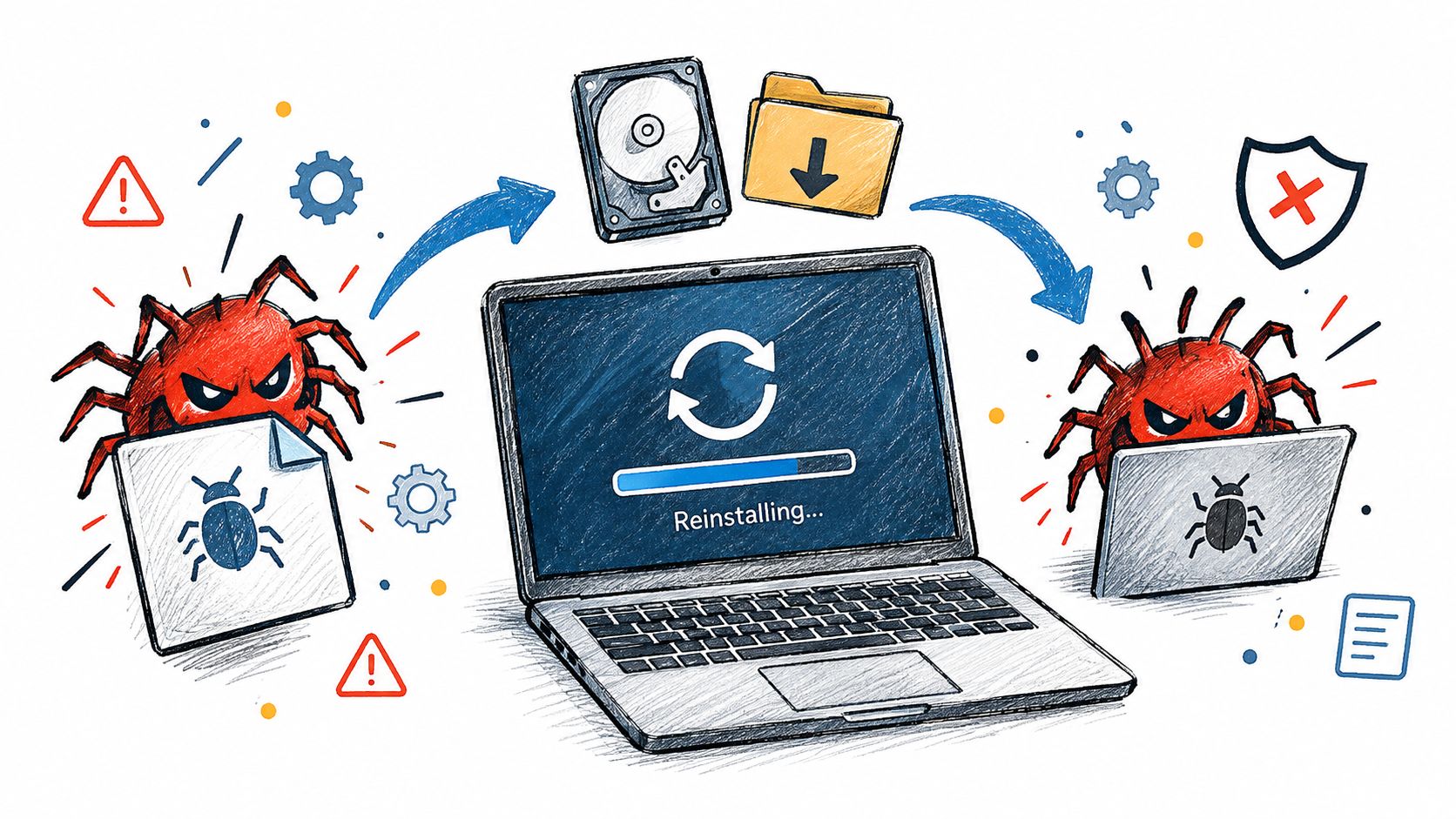
A Windows reinstall cleans the part of the computer where Windows lives. It doesn't automatically clean every location that can store data, run code, or preserve access to your accounts.
The infection may be outside the Windows partition
A standard clean installation targets the operating-system volume. Malware may also exist on another data partition, a USB drive, an external hard disk, or a cloud-synchronised folder. If an infected executable or script is copied back after installation, the new Windows system can become compromised again.
Restore points and backups deserve the same caution. The NCSC warns that malware may survive in backups and recommends restoring only from a last-known-good copy. Antivirus software should scan restored files before they're opened or copied into normal working folders.
The same principle applies to applications. A downloaded installer that was present during the original infection may still be malicious, even if the newly installed Windows system is clean. Reinstall programs from trusted publishers instead of copying old program folders back.
Accounts can outlive the computer
A reinstall doesn't revoke stolen browser sessions, reset an email password, or remove an attacker's access to a Microsoft, banking, gaming, or social-media account. If an infostealer captured credentials before the wipe, the account may remain exposed even after the laptop appears normal. Readers investigating this side of an incident can use credential exposure intelligence from Horus Intelligence to understand why account protection matters alongside device cleaning.
Change important passwords from a separate clean device. Enable multifactor authentication where available, review active sessions, and avoid signing back into accounts from the newly installed computer until Windows and its security tools are fully updated.
A clean laptop can still be connected to a compromised account. Treat the device and the identities used on it as separate parts of the incident.
Rare persistence below Windows
Boot-level malware and firmware compromise are unusual, but they explain why a reinstall isn't an absolute guarantee. Software that runs before Windows, or code stored in firmware, may not be removed by erasing the Windows partition. Persistent detections, suspicious network activity, or the same symptoms immediately returning after a careful clean install justify specialist diagnostics.
For a visual explanation of how the reinstall process fits into broader malware remediation, this video provides useful context:
The NCSC's position is appropriately cautious. Antivirus scanning or deleting one offending application may not remove everything, while full erasure and reinstallation address the normal Windows environment more effectively. The remaining work is checking what sits outside that environment and what may be restored into it.
Safe Reinstallation Workflow Step by Step
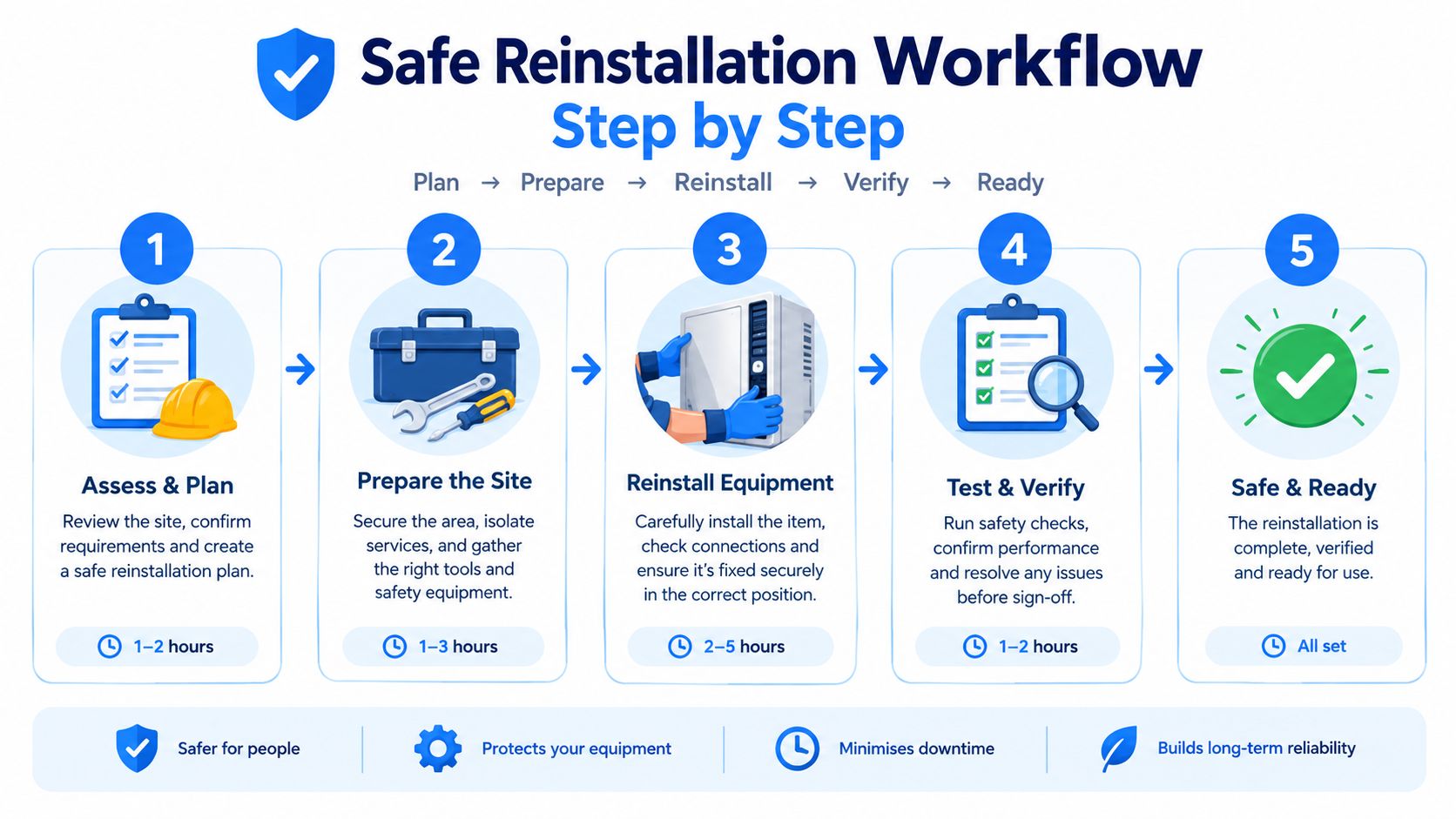
A secure reinstall is a sequence, not a single button. Skipping the order can expose an unpatched system or bring the infection back through saved files.
1. Isolate the computer
Disconnect Wi-Fi and unplug the network cable. Remove external drives, USB sticks, and other storage devices. If ransomware is actively encrypting files, isolation helps limit access to shared folders and other systems.
Don't log into email, banking, or business accounts from the suspected machine. Use a known-clean phone or computer for urgent account changes instead.
2. Decide what must be preserved
Before wiping anything, identify essential documents, photographs, work files, and other irreplaceable data. Don't copy every folder automatically. Separate personal documents from programs, scripts, cracked software, unknown downloads, browser profiles, and files with unfamiliar extensions.
If the computer belongs to a small business, preserve relevant evidence before making changes. Note detection messages, unusual account activity, filenames changed by ransomware, and the approximate time the problem began. That information can help a technician understand the incident.
3. Prepare trusted installation media
Use installation media obtained from a trusted source. If Windows still starts, avoid downloading tools from suspicious pop-ups or unfamiliar websites. The aim is to start the rebuild from media that wasn't created or modified by the infection.
Select the option that removes the affected Windows installation rather than preserving the existing environment. A full procedure is described in this Windows 11 reinstall guide, but the security principle is the same for supported Windows versions.
4. Install, patch, and protect
After installation, apply current Windows updates before normal browsing or restoring files. Install updated antivirus protection, update drivers and essential applications, and keep the computer disconnected from ordinary networks until those protections are ready.
The NCSC recommends disconnecting the infected computer, safely wiping it, reinstalling from a clean source, updating Windows and applications, installing current antivirus software, and reconnecting only afterwards. This order prevents an unpatched system from spending unnecessary time exposed during setup.
5. Reset credentials and reconnect carefully
From a separate clean device, change passwords that may have been exposed. Start with email, Microsoft accounts, banking, work systems, password managers, gaming services, and social media. Enable multifactor authentication and review account sessions where the service allows it.
Only restore verified files after scanning them with current antivirus software. Reconnect external storage one device at a time, and stop if detections return. If the same symptoms appear after this complete process, don't keep repeating casual resets. The infection, account, backup, or hardware may need a deeper investigation.
The Critical Challenge of Safe Data Recovery
Many people focus on the Windows installation and underestimate the restoration stage. A clean system can be reinfected by the first USB drive, installer, email archive, or synchronised folder copied back onto it.

The NCSC says ransomware can target backups and that backups may contain replicated malware. It recommends connecting them only to known-clean devices, scanning them before restoration, and keeping copies offline or otherwise separated. The NCSC guidance on mitigating malware and ransomware attacks supports a staged recovery rather than blindly copying everything back.
Sort files by risk
Start with files that are valuable and unlikely to execute code:
Lower-risk personal content: Photographs, ordinary PDFs, and personal documents can usually be prioritised, but they should still be scanned before opening.
Higher-risk software: Downloaded programs, installers, cracks, game modifications, and scripts should be replaced with fresh copies from trusted publishers.
Potentially complex archives: Email archives, browser profiles, macros, and synchronised work folders may contain active content or preserve compromised sessions.
Unknown removable media: Treat unfamiliar USB devices and old external drives as untrusted until they're assessed.
This approach protects important data without assuming that every backed-up file is harmless. A document can be valuable and still carry a malicious macro, while a folder that looks ordinary may contain an executable hidden among personal files.
Scan before copying
Use a clean computer with current antivirus protection to inspect backup media. Scan the files before transferring them to the newly installed Windows system, then restore in batches rather than all at once. That makes it easier to identify which group caused a new detection.
Don't restore old browser profiles or saved credentials just because they make the computer feel familiar. Sign into services again with newly changed passwords, and download applications afresh.
The ICO reported in 2025 that 56% of people said they had experienced a data breach, as recorded in its relevant reporting and referenced by the NCSC's malware guidance. This reinforces the practical point that recovery involves personal and account data, not only Windows files.
If you're worried about losing important documents during the process, read this explanation of whether reinstalling Windows deletes files. For damaged drives, ransomware-affected data, or uncertain backups, stop before experimenting. Further copying can overwrite recoverable information or spread the problem to another computer.
When Professional Help Makes Sense
A confident home user can often handle a straightforward clean installation where the files are backed up safely and there are no signs of account compromise or hardware-level persistence. Professional help becomes sensible when the cost of a mistake is higher than the convenience of doing it alone.
Seek specialist assistance if ransomware has encrypted business or personal files, if the computer shows repeated detections after a careful clean install, or if Windows becomes compromised again immediately after restoration. Suspected firmware or boot-level activity also falls outside an ordinary reset. In those cases, repeated wipes may destroy evidence without solving the underlying issue.
UK government data illustrates why malware remediation remains a practical concern. The 2025 Cyber Security Breaches Survey estimated approximately 8.58 million cyber crimes of all types against UK businesses during the previous 12 months, including about 680,000 non-phishing cyber crimes. Its technical report recorded ransomware breaches or attacks affecting 3% of businesses and 1% of charities in both 2024 and 2025. These figures don't mean every incident requires a reinstall, but they show the environment in which home users and small organisations have to make recovery decisions.
What a technician can add
A repair professional can separate malware removal from data recovery, examine symptoms before wiping the machine, and build a clean installation with drivers and updates configured. For more difficult cases, diagnostics may include storage health checks, account review, controlled backup handling, and investigation of recurring detections.
Steel City IT in Sheffield offers virus and malware removal, Windows troubleshooting, data recovery, and clean Windows reinstalls for computers and laptops. That makes a local repair assessment an option when you aren't sure whether the problem is a routine Windows infection, a failing drive, ransomware, or a wider account-security incident.
Prepare before handing over the computer
Write down what happened and what you saw. Include ransom messages, unfamiliar programs, changed passwords, missing files, antivirus detections, connected storage, and whether the machine was used for banking or business work.
Ask whether the service will preserve essential data before wiping, how backup files will be scanned, which reinstall method will be used, and what post-installation updates and security checks are included. Don't authorise a blind reset if the drive contains irreplaceable files or the infection may have affected other devices.
The key decision is not whether reinstalling Windows is useful. It often is. The decision is whether you can isolate the device, recover data safely, secure exposed accounts, and verify the result without making the situation worse.
If your Sheffield PC or laptop is showing malware symptoms, Steel City IT can assess the infection, handle safe data recovery, and complete a clean Windows reinstall with updates and drivers configured. Visit Steel City IT to arrange an assessment before wiping a device that contains important personal or business files.