
Will Reinstalling Windows Delete My Files? 2026 Guide

Reinstalling Windows does not automatically delete your personal files if you select the correct “keep files” option. Choose the wrong reset mode, however, and Windows can remove your files, apps, settings, and everything else on the drive.
You're probably asking because the PC has become painfully slow, Windows keeps crashing, or a repair guide has told you to reinstall the operating system. That's a worrying moment when the laptop contains family photos, work documents, browser bookmarks, and files you haven't copied anywhere else.
The practical answer is reassuring, but it comes with a firm warning: the word “reinstall” covers several different procedures. A repair reinstall can preserve your files and apps. Another option preserves personal files but removes applications. A full reset removes everything. Treat the choice on screen as a data-loss decision, not a harmless setup prompt.
Table of Contents
The Short Answer on Windows Reinstalls - The option matters more than the word reinstall
Comparing the Three Windows Reset Options - Choose according to the problem
Understanding the Clean Install Process - Why a technician may recommend the destructive route
Essential Backup Steps Before Any Reinstall - A sensible pre-install checklist
When Hardware Faults Complicate Software Resets - Stop and assess the drive first
Securing Professional Reinstall and Data Services - What a complete reinstall should include
The Short Answer on Windows Reinstalls
Microsoft's UK guidance makes the central point clear. Reinstalling Windows doesn't automatically delete personal files when you choose a reinstall path that keeps your data. The available installation-media options are Keep personal files and apps, Keep personal files only, and Keep nothing, with the final option removing personal data, settings, and apps. You can review those choices in Microsoft's Windows reinstall guidance.
Windows Reset presents a similar decision. Keep my files reinstalls Windows while preserving personal files, whereas Remove everything deletes files, applications, and settings. That means the answer to “will reinstalling Windows delete my files” is usually no, provided you select the keep-files route and the storage hardware is healthy.
The option matters more than the word reinstall
Before clicking anything, identify which process you're starting:
Repair-style reinstall: Windows replaces damaged system components while aiming to retain personal files and, where offered, installed apps.
Keep-files reset: Windows is reinstalled, personal data remains, but applications and settings may be removed.
Full reset or clean install: Windows starts afresh and the selected drive or partition can be erased.
Don't rely on the reassurance of a button labelled “Reset” or “Install”. Read the outcome displayed immediately before confirmation. Microsoft's recovery options documentation describes these outcomes as controlled choices, not a single automatic wipe.
Practical rule: If the screen says “Remove everything” or “Keep nothing”, stop and back out unless you have already made and checked a separate backup.
Even the safer option isn't a substitute for a backup. A failed drive, interrupted installation, accidental selection, or damaged file system can still leave you without access to the data. In a Sheffield repair workshop, I'd rather see a customer arrive with a recent copy of their files than depend on a recovery option they hope they've selected correctly.
Comparing the Three Windows Reset Options
The three choices sound similar because Microsoft uses the broad terms reset and reinstall across different recovery routes. Their consequences are not similar. The right selection depends on whether you're repairing Windows, removing a persistent infection, or preparing the computer for another person.
A repair reinstall that offers Keep personal files and apps is the least disruptive route. Your documents and photos remain, and compatible applications may remain installed. It's suitable when Windows system files are damaged but the machine is otherwise stable and you don't need to remove every application.
Keep personal files only is more aggressive. It preserves personal data and settings through the installation-media process, but removes installed applications. You'll need to reinstall programs such as Microsoft 365, Adobe software, games, accounting tools, and specialist utilities afterwards.
Keep my files in Reset this PC also preserves personal files, but it removes apps and resets relevant Windows settings. It's a sensible repair option for a badly misbehaving installation when you've accepted that applications will need setting up again.
Reinstall Option | Personal Files | Installed Apps | Windows Settings |
|---|---|---|---|
Keep personal files and apps | Preserved | Preserved where compatible | Some system components are refreshed |
Keep personal files only | Preserved | Removed | Reconfigured by the reinstall |
Keep my files | Preserved | Removed | Reset or reconfigured |
Remove everything or Keep nothing | Removed | Removed | Removed or returned to a clean Windows state |
Microsoft explicitly distinguishes Keep personal files only, which retains personal data and settings while removing apps, from Keep nothing, which removes personal data entirely. That distinction is set out in the UK-facing installation-media guidance.
Choose according to the problem
For a slow computer caused by unwanted applications, a keep-files reset can provide a cleaner starting point, but you'll spend time rebuilding the software environment. For malware, the safest route depends on the infection and the condition of the system. If you're selling or giving away the laptop, don't choose a file-preserving option. Use the full data-removal route after confirming you have copied anything you need.
The most dangerous mistake is treating Remove everything as a stronger version of “Keep my files”. It isn't. It's a different outcome, and personal data should be considered gone once you confirm it.
Understanding the Clean Install Process
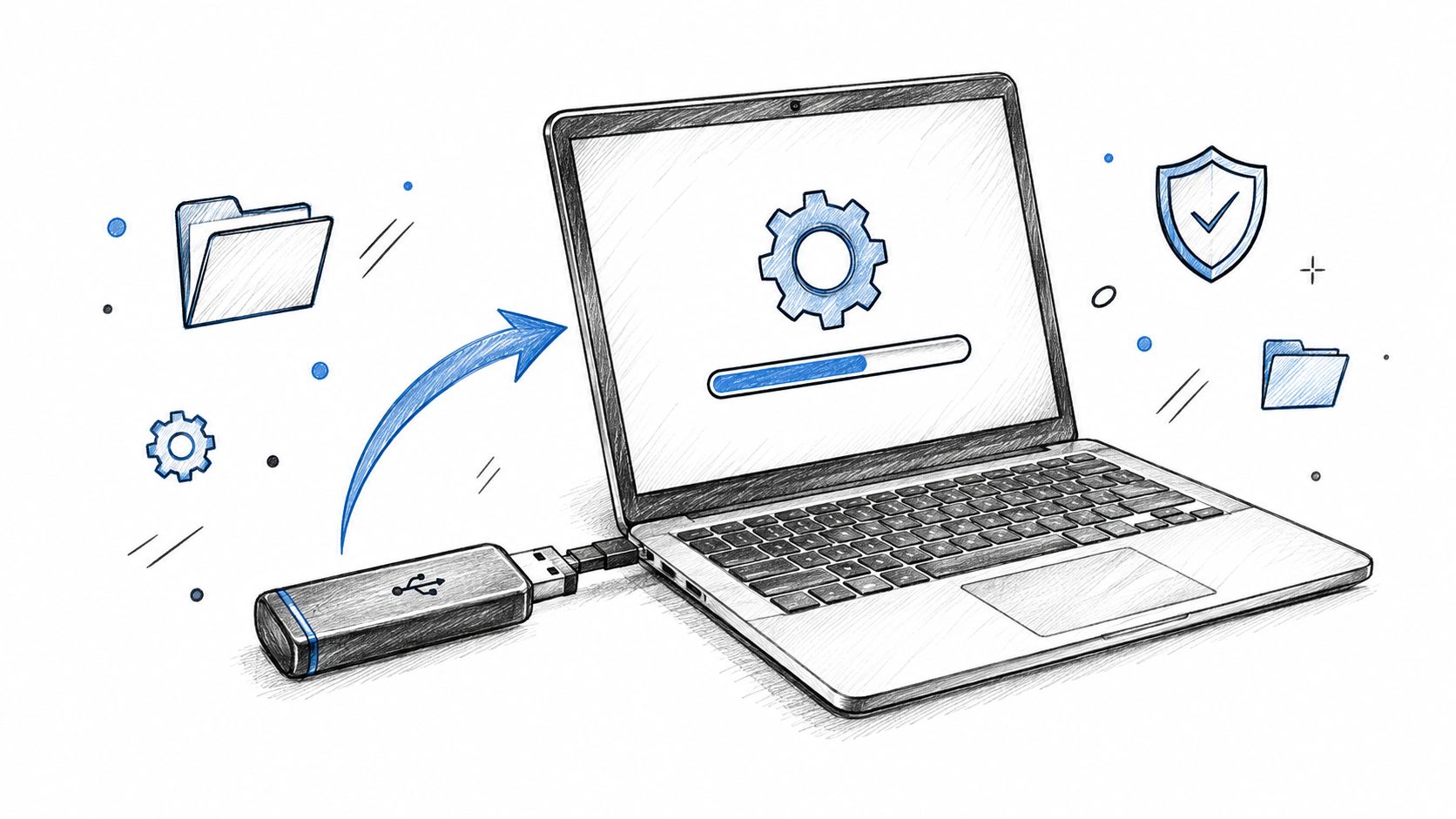
A true clean install from USB installation media is more destructive than a keep-files reset. You boot from the installer, select the target Windows partition, and remove or format it before installing a fresh copy. Any files stored on that partition can be deleted, so a clean install must come after a verified backup, not before it.
Why a technician may recommend the destructive route
A built-in reset is convenient, but it isn't always the cleanest answer. If Windows has suffered severe corruption, persistent malware, repeated boot failures, or years of accumulated software conflicts, preserving the existing installation can preserve some of the mess as well. A clean installation removes the old Windows environment and gives the technician a known starting point.
That doesn't mean a technician should immediately wipe the drive. The correct order is diagnosis, backup or data migration, hardware checks, then installation. If the drive is failing, installing Windows may create unnecessary write activity and make recovery harder.
A clean install also requires more work after the first boot. Drivers need checking, Windows updates need applying, user accounts need configuring, and applications need reinstalling. Files then need to be copied back carefully rather than dumped onto the machine without checking their source.
For a practical overview of the process and the decisions involved, see this Windows 11 reinstall guide. The important point is simple: USB installation media gives you control, but it also gives you more opportunities to erase the wrong partition.
A clean install is a repair method, not a backup method. Once you start deleting partitions, Windows can't protect files you failed to copy elsewhere.
Use the clean route when the existing installation can't be trusted or when a full reset is specifically required. Don't use it merely because Windows is slow until you've checked storage health and ruled out simpler causes.
Essential Backup Steps Before Any Reinstall
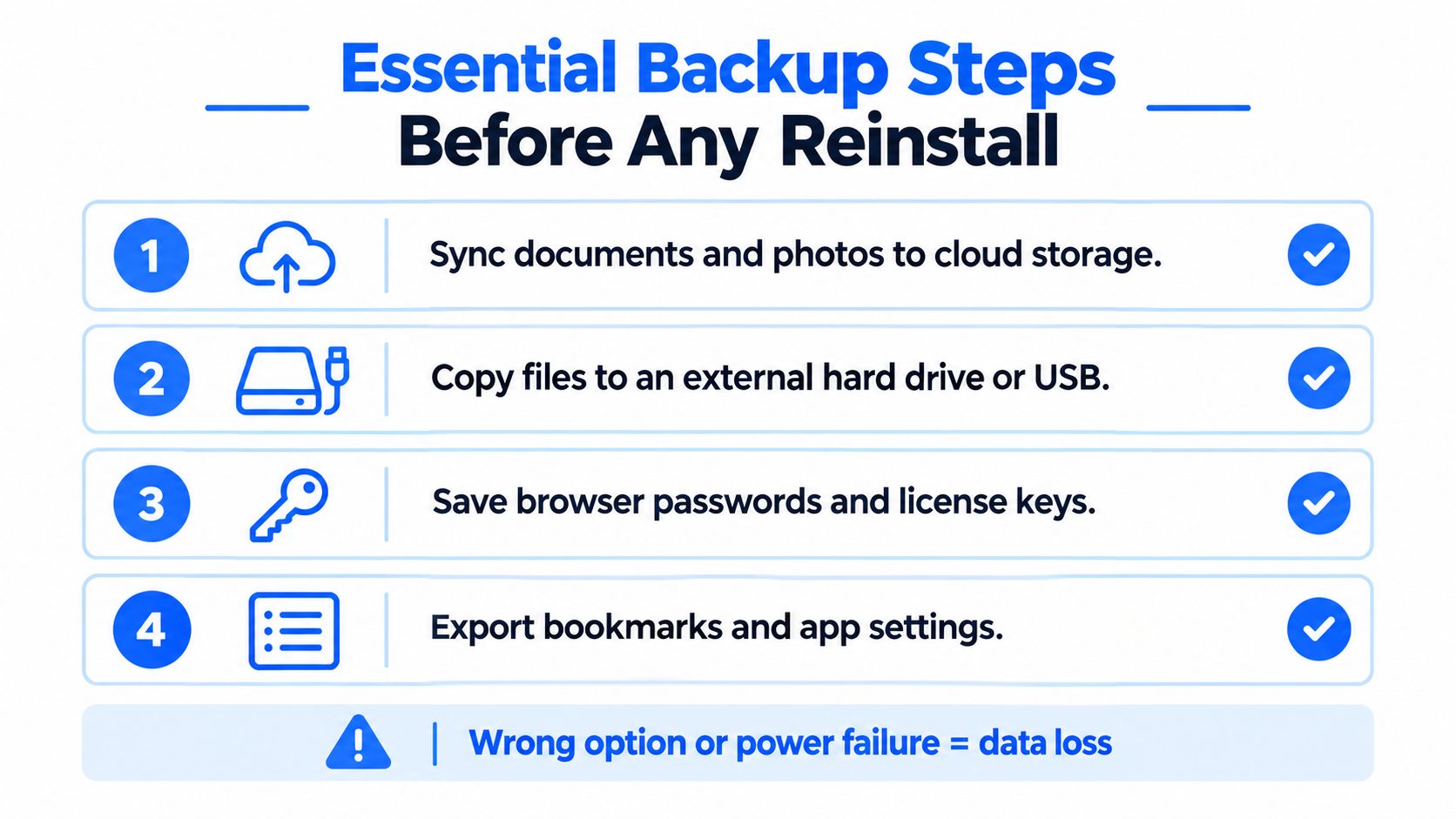
Back up first, even when you intend to select Keep my files. That option reduces the risk created by the reinstall process, but it doesn't protect against a failing SSD, a damaged user profile, a power cut, or a mistaken click.
Start with the files you'd struggle to replace. Copy your Documents, Desktop, Pictures, Videos, Downloads, project folders, email archives, and any files stored outside your normal profile. Open several copied files from the backup destination. A copy that exists but won't open isn't a usable backup.
A sensible pre-install checklist
Copy personal folders: Use an external drive or trusted cloud storage, then open representative files to confirm the transfer worked.
Check browser data: Export bookmarks and make sure you know how your browser passwords are stored or synchronised.
Record software access: Note product keys, licence details, subscription accounts, and installer sources for important applications.
Save specialist settings: Export email profiles, game saves, design presets, accounting data, and application configuration where the software supports it.
Cloud synchronisation needs checking rather than assuming. OneDrive can show files that appear in File Explorer but exist only online, depending on the account and storage settings. Make sure critical files are available offline before starting the reinstall, or copy them to a separate destination.
If the drive is nearly full or showing errors, avoid repeatedly dragging large folders around. A technician may recommend cloning the drive or migrating data to a healthy SSD first. The hard-drive cloning service information is relevant when you need to preserve an entire working environment before replacing storage.
Disconnect unnecessary external drives during installation. That simple precaution reduces the chance of selecting the wrong storage device or allowing the installer to interfere with a backup disk. Keep the backup disconnected once verification is complete, and reconnect it only after Windows is running properly.
When Hardware Faults Complicate Software Resets
A reinstall fixes Windows software. It doesn't repair a failing hard drive, worn flash storage, bad memory, overheating, or a damaged motherboard. If the underlying hardware is unstable, a fresh Windows installation may fail again or, worse, push a marginal drive into complete failure while the system is writing new files.
Pay attention to symptoms that don't fit an ordinary Windows problem. Freezing during file copies, disappearing folders, repeated blue screens, clicking noises from a mechanical drive, corrupted downloads, and files that suddenly refuse to open all deserve hardware diagnostics before recovery work begins.
Stop and assess the drive first
If the computer is still running, copy the most important files immediately and avoid unnecessary restarts. Don't run a clean install just to see whether it cures the problem. Every installation writes heavily to the storage device, and that's the wrong experiment when your only copy of important data may already be at risk.
A drive can also have a corrupted file system without obvious physical noise. Windows may report repairable errors, but repeated corruption after repairs points to a deeper issue. A technician should assess the drive's condition, check whether the data can be read consistently, and choose a recovery method that minimises further stress.
Stop before reinstalling: A crashing PC with disappearing data needs diagnosis first. A clean Windows image won't bring back files that a failing drive can no longer read.
Data recovery is not the same as copying a folder in File Explorer. Specialist handling may involve sector-level analysis, controlled imaging, and working from a clone rather than the original drive. If the storage device is unstable, repeated attempts to boot Windows or launch recovery tools can reduce the chance of a successful recovery.
For SSD-specific problems, review the SSD data recovery service before selecting any reset option. The decision is straightforward: if the files matter and the drive shows warning signs, protect the data first and repair Windows second.
Securing Professional Reinstall and Data Services
DIY recovery is reasonable when the computer is stable, the files are backed up, and you understand the option you're selecting. Hand the machine to a specialist when the backup won't complete, the drive disappears, malware keeps returning, or you can't tell whether the installer is targeting the correct disk.
A proper service should begin with diagnosis rather than immediately wiping the system. The technician should confirm storage health, identify the correct Windows partition, discuss what data needs preserving, and explain whether the job is a keep-files reset, an installation-media reinstall, or a full clean install.
What a complete reinstall should include
A clean Windows installation is only part of the job. The finished computer should also have:
Hardware checks: Storage, memory, cooling, power, and other relevant components assessed before installation.
Driver configuration: Essential device drivers installed and tested, including network, graphics, audio, and chipset components where applicable.
Windows updates: The system brought up to date before it's returned for normal use.
Data migration: Backed-up files copied back without confusing old system folders with personal data.
Software rebuilding: Required applications installed from legitimate sources, with licences and accounts ready.
Security setup: User accounts, updates, browser settings, and sensible protection configured for everyday use.
For Sheffield customers, a local workshop can also deal with the hardware issue behind the Windows symptoms. Steel City IT operates from Frecheville and provides Windows reinstalls, diagnostics, data recovery, storage upgrades, and data migration for customers across nearby areas including Birley, Hackenthorpe, and Woodhouse.
The recommendation is blunt. If your files exist in one place only, don't gamble on a reinstall menu. Make a verified backup, choose the recovery path based on the actual fault, and use a clean install only when the system needs a genuinely fresh start.
If you're unsure which Windows option to choose, Steel City IT can diagnose the PC, protect or migrate your data, and complete a clean reinstall with drivers and updates configured. Visit Steel City IT to arrange support before a reset turns a repair into data loss.