
Personal Computer Service: When to Call

Many adults in Great Britain rely on a computer and the internet for daily tasks, so a faulty machine is more than an inconvenience. It can interrupt homework, stop a business opening its files or cut off access to familiar services.
A good personal computer service starts with diagnosis rather than a shopping list of parts. The useful questions are simple: what is wrong, are your files safe, and will repair or upgrade give reliable use for the money? The answer should weigh the measured fault, the machine's age, the value of your data and how much working life is left.
Table of Contents
What a Personal Computer Service Covers - What to describe at the counter
How Diagnostics Separate the Real Fault - The checks behind a useful diagnosis - When symptoms overlap
Repair Upgrade or Replace - When to repair, upgrade or replace a computer - Compare the complete cost
Malware Removal and Data Recovery - Remove the cause, not just the warning - Different data losses need different handling
Upgrades and Custom Builds That Stay Balanced - Spend on the limiting component - Start again with a matched specification
Problems Home Users and Small Firms Actually Bring - Homework and household accounts - Macs and gaming equipment - Business files and downtime
Book the Right Job in Sheffield - Give us a useful booking brief - Agree the outcome before work begins
What a Personal Computer Service Covers
Service | Typical problem | What is done | Typical timescale |
|---|---|---|---|
Desktop and laptop hardware repair | Failed parts, no display, damaged ports | Test components and replace the failed part with a compatible one | Estimate given at drop-off after initial assessment |
Windows troubleshooting | Crashes, errors, instability | Targeted fixes or a clean reinstall with drivers and updates | Minor software work typically takes 2–3 days |
Virus and malware removal | Pop-ups, infection, suspicious account activity | Contain infection, remove persistence, patch software and check protection | Straightforward minor jobs typically take 2–3 days |
Logic board repair | Liquid damage, no power, charging failure | Board-level diagnostics and precision micro-soldering | Quoted after diagnosis and parts assessment |
Component upgrades | Slow storage, insufficient memory, weak graphics, overheating | Fit suitable RAM, SSD, graphics or cooling components, then test | Agreed after a health and compatibility check |
Data recovery | Failing drive, corrupted files, accidental deletion | Assess the storage and recover readable data using controlled handling | Quoted after the drive is assessed |
Custom gaming PC build | Need for a new, balanced machine | Select parts, assemble, configure and test with a clean operating system | Agreed when the specification is settled |
Console repair | HDMI, overheating or power faults on Xbox, PlayStation or Switch | Diagnose and repair the affected components | Confirmed after fault and parts assessment |
In 2020–2021, 90% of UK private households reported having a home computer, according to the Office for National Statistics' household equipment figures. Those computers serve different needs, so the right service follows the fault rather than the owner's level of technical knowledge.
The table is a starting point, not a diagnosis. A laptop with no picture might have a damaged screen, a memory fault or a board that isn't starting correctly. Replacing the display before testing the machine could leave you paying for a part that wasn't needed.
What to describe at the counter
Describe what you can observe. Useful details include whether the fan starts, whether a charging light appears, what the error message says and whether the fault happens on battery power or with the charger connected.
Apple laptops and desktops follow the same symptom-led approach, although their parts, operating systems and repair procedures differ. A MacBook charging fault belongs with power and board diagnostics, not automatically with software support just because it won't reach the desktop.
Our work also includes backup, network troubleshooting, software installation and home-user IT advice. Sometimes the computer itself is sound and the interruption comes from a wireless connection, an application or a peripheral.
Before booking: Match the main symptom to a row, then describe the symptom rather than prescribing the repair.
At Steel City IT, minor work such as software updates or virus removal can typically be completed within 2–3 days. Board-level repairs and recovery need assessment before a useful completion estimate can be given, especially where damage or unreadable storage complicates testing.
Phone and tablet screen glass sits outside this workshop's scope. Computers, laptops, Macs and consoles are the relevant devices.
How Diagnostics Separate the Real Fault
A diagnostic is a road test with gauges, not a guess based on the noise. Ofcom's Online Nation 2025 reports that 95% of UK people aged 16 and over had home internet access, while UK users averaged about four hours online daily across personal smartphones, tablets and computers, according to the Ofcom report. When you rely on a computer, identifying the cause matters more than making a quick part swap.
The diagnostic sequence keeps the proposed repair tied to evidence.
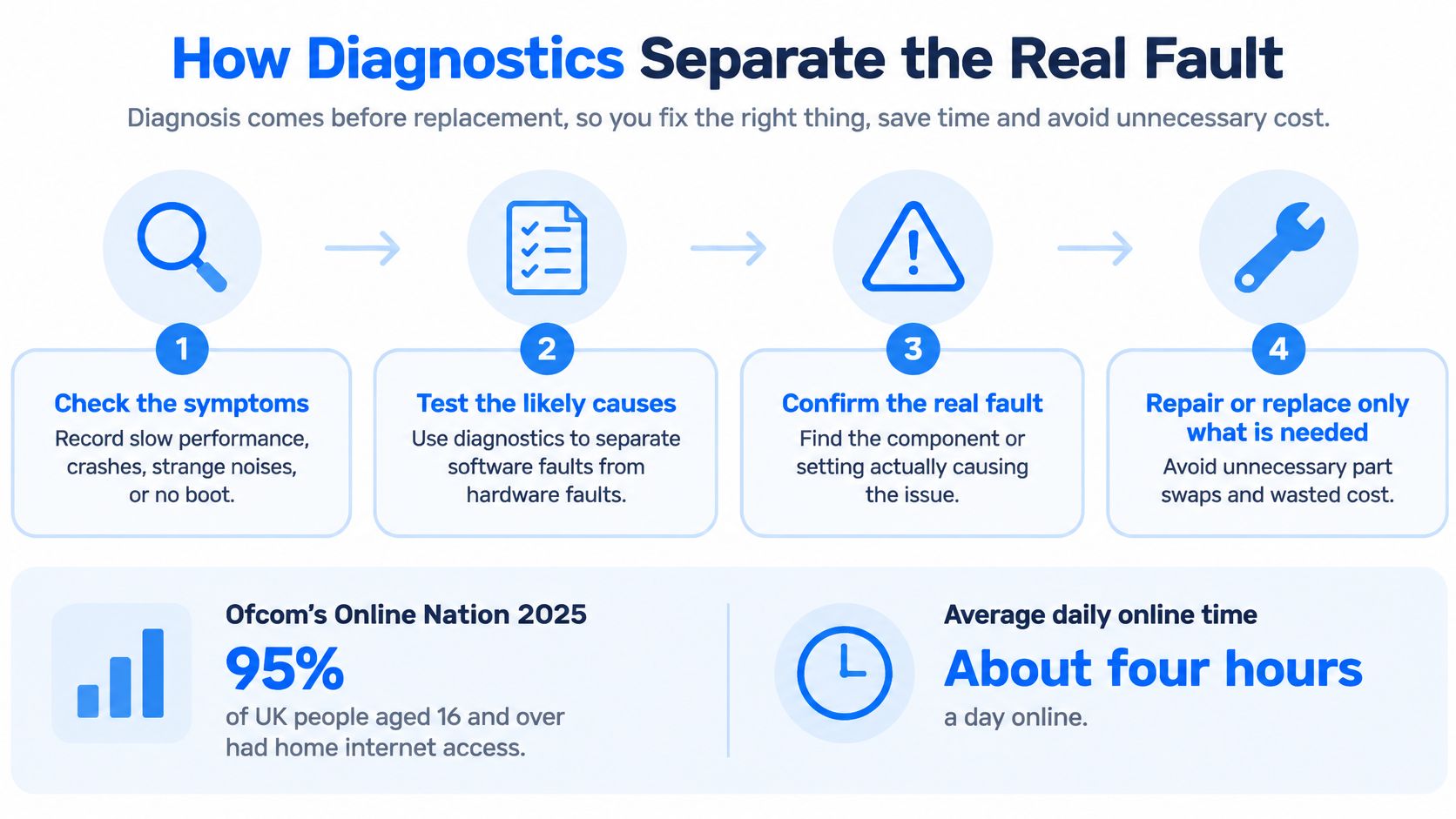
The checks behind a useful diagnosis
Record the symptom and its trigger. Note recent drops, spills, updates and new equipment. A crash during a game needs a different test from a crash while the machine sits idle. Record how the fault can be reproduced.
Measure the machine's condition. Check boot time, free storage, drive-health information, memory use, background activity, temperatures and crash history. Windows Task Manager, Event Viewer and drive diagnostic tools help distinguish observations from assumptions.
Separate causes that feel similar. A mechanical drive struggling with small file requests can make Windows feel frozen. Insufficient RAM can force it to use storage for temporary working space. Excessive temperature can make the processor reduce its speed, while startup software can keep an otherwise healthy machine busy.
Choose the intervention only after testing. An SSD migration needs a storage-health assessment first. Afterward, check the file system, drivers, relevant firmware and backup arrangements rather than treating a successful first boot as proof that everything is sound.
Repeat the relevant tests after repair. Compare responsiveness, temperatures and stability under the conditions that originally caused trouble. Every repair we undertake receives a multi-point diagnostic check before and after the service.
When symptoms overlap
Say a laptop is both slow and unusually warm. Clearing a blocked cooling system might lower its temperature, but that doesn't establish whether its drive is healthy. The technician needs to test both, otherwise a quieter fan could distract from storage that still threatens the customer's files.
Power symptoms need similar care. A sudden shutdown isn't proof that the power supply is faulty, although our guide to power supply failures explains why that component belongs in the investigation.
Ask what was measured and what changed, not which part was recommended. A useful answer connects the fault, the test result and the proposed work.
Repair Upgrade or Replace
Replacing a computer isn't automatically the economical choice. The Big Repair Project study, based on 5,958 survey responses and 473 repair logs collected across the UK from 2022–2024, recorded computers among its most frequent repair categories.
That doesn't mean every machine deserves another repair. It means the decision should follow the condition of the computer, the work you need it to do and the full cost of making it dependable.
The practical choices are repair, upgrade or replacement, with data protection treated separately.
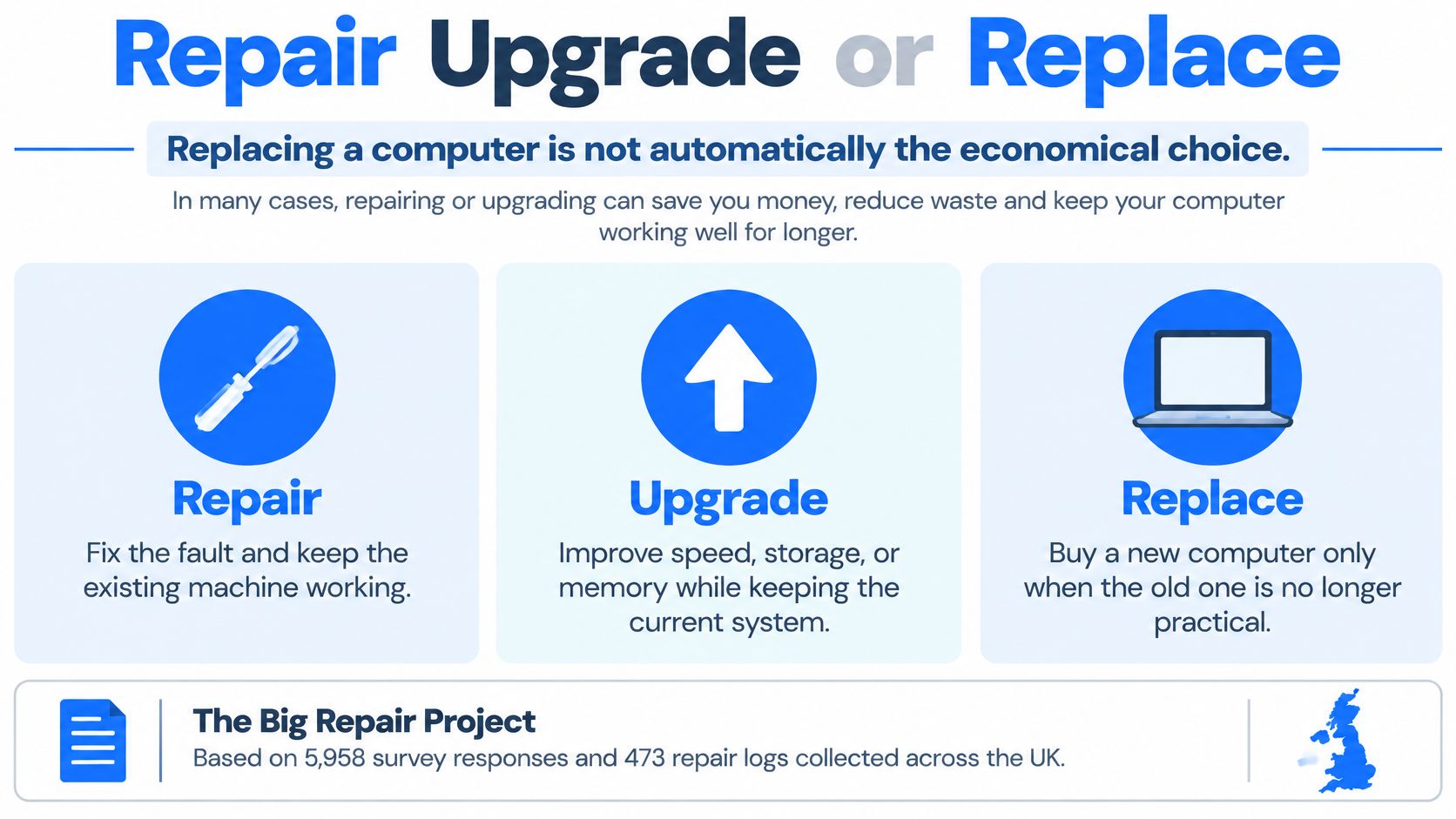
When to repair, upgrade or replace a computer
Situation | What to check | Sensible choice | Why |
|---|---|---|---|
Slow to boot, drive still detected | Drive health, free space and storage activity | SSD upgrade and migration if the source is healthy | Storage may be the restriction rather than the whole PC |
Memory pressure, supported CPU | RAM use, upgrade slots and compatibility | Add compatible RAM | Keeps a suitable platform useful without replacing everything |
Crashes or errors, hardware tests pass | Event history, software conflicts and malware | Targeted repair or clean Windows reinstall | Software damage alone doesn't justify a new computer |
Liquid damage, no power or no charge | Localised board fault versus replaceable part | Logic-board repair where the assessment supports it | May restore a worthwhile laptop without replacing the entire board |
Clicking drive or missing files | File value, backups and drive condition | Recover data first | The files can matter even when the PC isn't worth keeping |
Graphics artefacts or GPU instability | Fault location, card condition and repair quote | Component-level GPU repair when economical | A localised fault may cost less to address than replacing the card |
Several faults on an old unsupported PC | Total repair cost against a suitable replacement | Replace and migrate what matters | Multiple repairs may leave other limitations unresolved |
Beyond economical repair | Likely reliability after the proposed work | Stop and recommend replacement or another upgrade path | Avoid spending on a machine that won't return to dependable use |
Compare the complete cost
Add together the necessary repair, worthwhile upgrades and any setup or migration work. Compare that total with a suitable replacement, not the cheapest advertised computer or an unnecessarily powerful new model.
Age helps, but it isn't a verdict. An older desktop with a healthy board, supported software and replaceable parts may remain useful. A newer laptop with extensive liquid damage and several failed assemblies may be harder to justify.
Consider battery condition, hinges, display, ports, software support and whether the machine still runs your essential applications. Energy use also belongs in the comparison where it matters, but don't assume that buying new automatically offsets the cost and resources involved.
Keep the machine when the fault, total cost and realistic remaining usefulness justify the work. Keep the files safe regardless of that decision.
If a device is beyond repair, we'll say so directly and can often recommend an affordable replacement or upgrade. Custom-built, configured or personalised computers and components are non-returnable unless faulty, so settle the specification and suitability before ordering.
Malware Removal and Data Recovery
The Cyber Security Breaches Survey 2025 found that 43% of UK businesses, approximately 612,000 organisations, reported a breach or attack in the preceding 12 months, while 3% experienced a ransomware breach or attack, according to the UK Government survey. Those are business figures, but they underline why removing a suspicious file isn't a complete remediation process.
The checklist extends from containment to verified recovery.
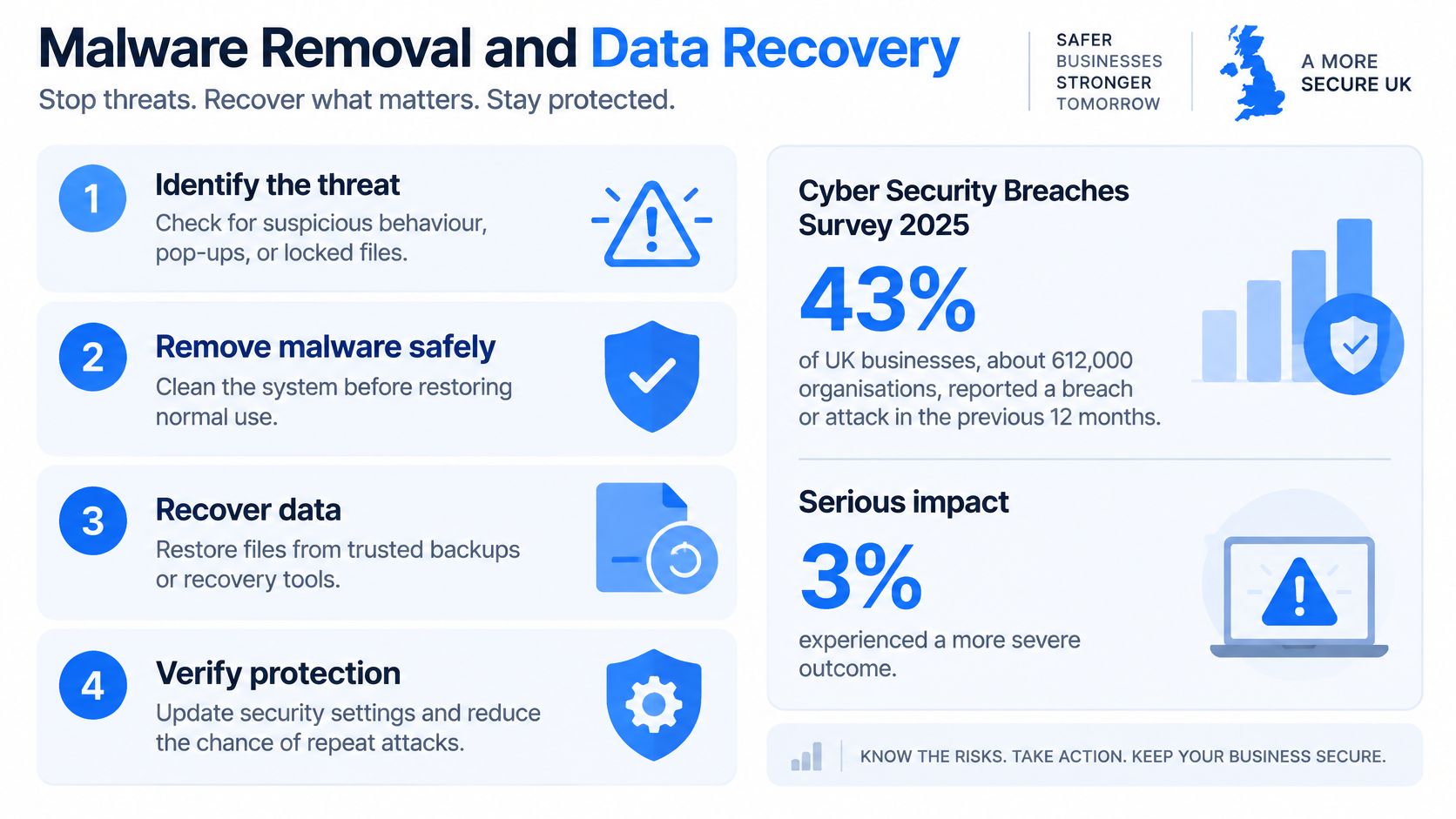
Remove the cause, not just the warning
Malware can resemble damp behind paint: wiping away the visible mark doesn't address what's underneath. A superficial antivirus pass can leave compromised accounts, damaged system files or mechanisms that restart unwanted software.
A proper response follows this sequence:
Contain the infection. Disconnect the affected machine from networks and preserve evidence where a business incident requires it.
Find how it survives. Examine scheduled tasks, startup entries and browser extensions, then scan from a trusted environment.
Repair and patch. Address operating-system damage and update applications before normal use resumes.
Secure accounts. Reset exposed passwords from a trusted device and review account recovery settings.
Verify protection and backups. Confirm security tools work and test that restored files are usable.
Chromebook owners can also use the Chromebook protection tips from Gini Help to understand browser-related warning signs rather than assuming every alert means a Windows-style infection.
Different data losses need different handling
A clicking or disappearing drive needs controlled assessment, not repeated attempts to start Windows. Where appropriate, recovery involves copying readable sectors to separate storage and working from that copy, reducing unnecessary access to the original.
A corrupted file system can make intact file contents inaccessible. An accidental deletion is different again: writing more data may overwrite material that recovery tools could otherwise find. SSD behaviour introduces further complications, explained in our guide to SSD data recovery.
We follow strict protocols to keep customer information safe and confidential during repairs. If you request a complete data wipe, we can perform one during the repair, but recovery and backup decisions must come first.
This accompanying video provides another way to follow the topic.
Don't keep powering a failing drive or run random clean-up tools before assessment. Tell us which files matter and whether a verified backup exists.
Upgrades and Custom Builds That Stay Balanced
Say a family laptop takes too long to open homework documents. Its processor handles the applications adequately, its screen and battery remain usable, but storage activity stays busy whenever Windows starts. A suitable SSD and a tidy Windows installation may make more sense than replacing the laptop.
Now take a gamer whose older platform can't deliver the performance needed alongside a modern graphics card. Buying the card alone may leave the processor, power supply or cooling unsuitable. A tested custom build can be the more coherent choice.
The difference is whether the existing machine can support the parts and workload you need.
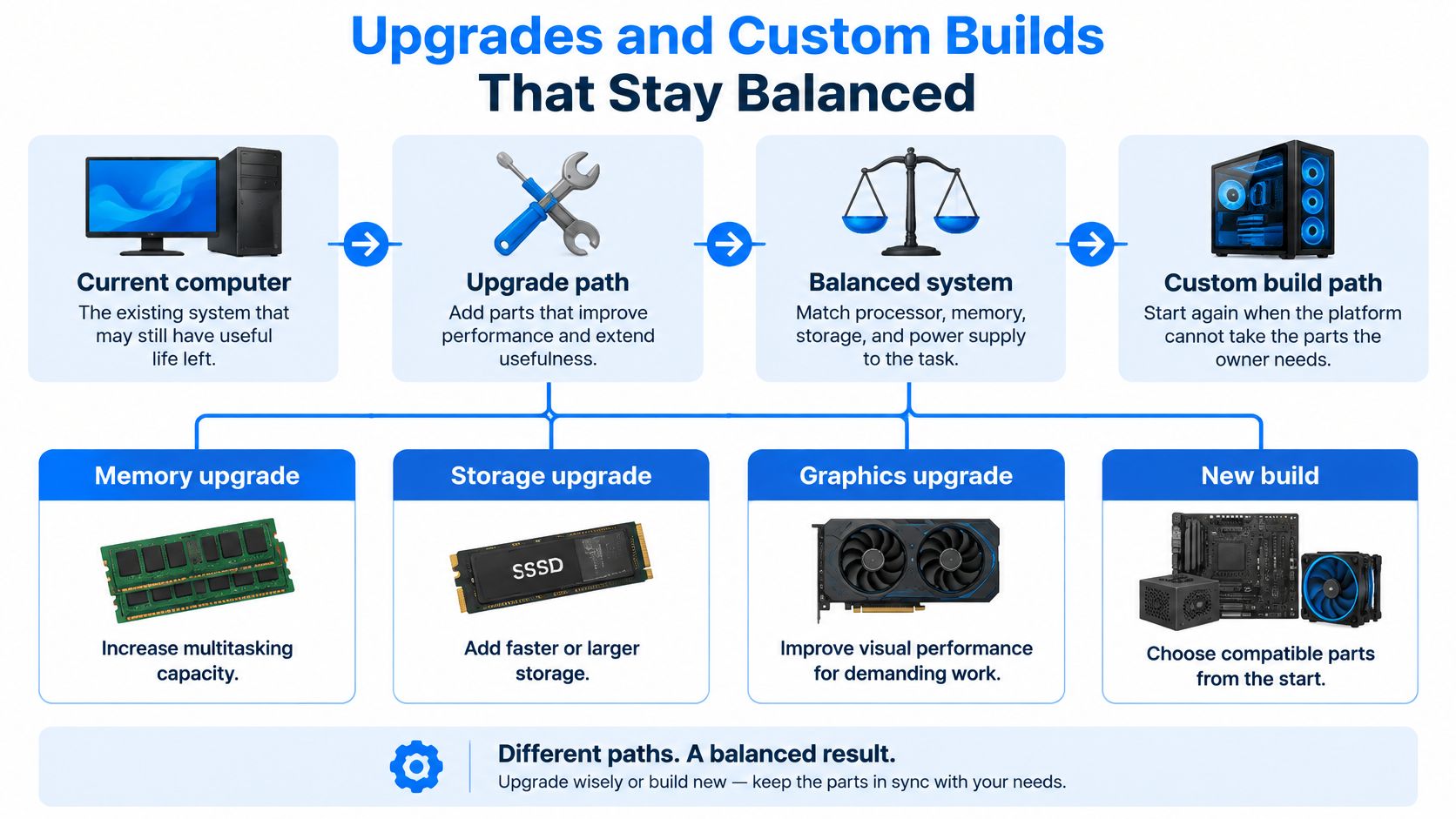
Spend on the limiting component
RAM helps when working memory is the constraint. It won't cure a damaged drive or a processor that's already fully occupied by the task. An SSD improves storage responsiveness, but it doesn't provide the graphics capability needed for demanding games.
Cooling work has a different purpose: allowing components to sustain their intended performance without excessive heat. A graphics upgrade needs checks for case clearance, power connections, power-supply suitability and the applications being used.
Our PC upgrade guide is a useful starting point for choosing which change fits the job. Data migration should also be planned so that files, applications and licences remain usable rather than merely appearing on the new drive.
Start again with a matched specification
For a custom gaming PC, buyers can choose the CPU, GPU, RAM, HDD or SSD storage, and cooling system. We assemble, configure and test the combination rather than treating each component as an isolated purchase.
Compatibility comes first. Genuine, suitable parts need the correct sockets, connections, power provision and physical space.
Software should stay clean. We set up machines with a clean operating system and no pre-installed trial software, so unwanted programs aren't occupying resources from the first boot.
Testing follows assembly. Startup alone doesn't establish stability under gaming or creative workloads.
Console and handheld work is a neighbouring service, not an identical upgrade menu. Our Steam Deck upgrades include high-capacity 2280-form-factor SSDs and upgraded high-density battery cells, which require device-specific assessment and fitting.
Before paying, ask: which part is limiting the work, and will the rest of the machine keep up after it's changed?
Problems Home Users and Small Firms Actually Bring
The Crime Survey for England and Wales estimated 692,000 incidents of computer misuse in the year ending March 2025, according to the Office for National Statistics. Security work therefore belongs alongside ordinary breakdowns, although the symptom alone doesn't tell you which service is needed.
These are hypothetical situations, with different routes to a useful outcome.
Homework and household accounts
A Sheffield parent brings in a laptop that crawls when opening school documents. Testing finds storage delay and unnecessary startup programs, rather than a failing processor. An appropriate storage upgrade and software clean-up return it to useful homework duty.
Another household reports pop-ups followed by unexpected account alerts. The job isn't just to make the warnings disappear: the machine needs remediation and the affected accounts need securing. The outcome is a stable installation and restored account control, not a new laptop by default.
Macs and gaming equipment
A MacBook stops charging after a spill. Board assessment identifies whether the fault can be repaired at component level rather than assuming the complete board must be replaced. We repair Apple and Mac computers as well as Windows machines, with experience across macOS and Windows.
A gamer reports coloured artefacts during play. Testing needs to separate the graphics card and its video memory, often called VRAM, from a cable, display or software fault. If the problem is a console's damaged HDMI connection or cooling system instead, it belongs on the console repair bench.
Phone and tablet glass repairs aren't part of these jobs. Booking the correct device category avoids an unnecessary trip.
Business files and downtime
A small firm can't open yesterday's working files. The immediate priority is preserving the storage and identifying a usable backup, followed by recovery where needed. Windows troubleshooting and a security check may also be necessary before the computer returns to work.
We provide business troubleshooting and security audits, with the aim of minimising downtime. The useful outcome isn't merely a computer that starts, but access to the files and applications the business needs.
After the urgent fix: Agree a simple upkeep routine that fits how the machine is actually used.
That can include system updates, virus protection, performance maintenance and practical advice about downloads, storage and backups. Preventative maintenance won't guarantee that parts never fail, but it gives the owner a clearer way to spot trouble and protect their work.
Book the Right Job in Sheffield
You don't need to arrive with a technical diagnosis. A clear account of the fault, the device and the files at risk gives us a better starting point than a guessed replacement part.
Our Frecheville workshop serves Sheffield, including nearby Birley, Hackenthorpe and Woodhouse. Steel City IT is the local fit for computer, laptop, Mac and console work, rather than mobile phone or tablet screen repairs.
Give us a useful booking brief
Contact us through the website or by phone to agree a convenient drop-off time. Prepare these details:
Device and system. Give the make and model if available, and say whether it runs Windows or macOS, or which console it is.
Symptom and timing. Explain what happens, when it began and whether a spill, impact, update or new component came just before it.
Files and privacy. Say which files must be saved, whether you have a backup and whether you're requesting a wipe rather than preservation.
Your preferred outcome. Tell us whether you want a repair, a performance upgrade or an assessment of whether the machine is worth keeping.
Bring the charger for a laptop power or charging fault, and note any error message before the visit. Don't send passwords in an initial message; discuss any access needed for testing when the job is arranged.
Agree the outcome before work begins
We'll give an estimated repair timeline at drop-off. More involved faults may need diagnosis before the scope of work becomes clear, particularly when data recovery or board damage is involved.
We use compatible components and check repairs before and after the service. If the device can't be saved, we'll tell you rather than present further spending as the only option.
Once the urgent problem is resolved, preventative upkeep can be discussed separately. Post-purchase help is also available for troubleshooting, setup and general questions about laptops, gaming consoles and gaming PCs.
Steel City IT offers diagnosis-led computer repairs, upgrades, malware removal, data recovery and custom PC builds in Sheffield. Visit Steel City IT to arrange a drop-off, and tell us your device, its main symptom and whether your files need protecting.