
Virus Removal for Computer: A Complete 2026 Guide

You click a familiar search result and land somewhere completely different. Pop-ups appear whenever you open a browser tab, the laptop fan runs hard while you're doing nothing, and Windows Defender has unexpectedly switched itself off. By the time the problem feels obvious, the machine may have already exposed saved passwords, browser sessions or personal files.
That's why virus removal for a computer shouldn't mean running one antivirus scan and hoping for a green tick. A safer repair treats the incident in layers: contain the device, preserve important data, remove the software, check persistence, protect accounts and decide whether the Windows installation can still be trusted.
Table of Contents
Safety First Before You Touch Any Scan - Cut off access and preserve clues - Don't create new evidence
The Step-by-Step Virus Removal Workflow - Start with a controlled Windows session - Inspect what starts and what persists - Move outside Windows when necessary
Verifying the Machine Is Actually Clean - Treat passwords as exposed - Check the parts that survive a scan
When DIY Stops and the Workshop Takes Over - What a repair workshop adds
When Your Computer Catches Something Nasty
A Sheffield household PC can start with symptoms that look irritating rather than dangerous. The browser opens to an unfamiliar search page, adverts cover ordinary websites and every click produces another pop-up. The owner blames a bad extension, an ageing hard drive or a child downloading the wrong game launcher.
Then smaller clues collect around the main problem. A new toolbar appears without a clear installation, an unfamiliar programme sits in the startup list and the fan ramps up while the desktop is idle. Sometimes the webcam light flickers even though no video app is open. None of these signs proves an infection by itself, but several together deserve immediate attention.
Practical rule: Treat a pattern of unexplained changes as evidence, not as a collection of unrelated glitches.
Adware-style behaviour can be the visible layer of a more serious compromise. A hijacked browser may be pushing unwanted adverts, but the same incident can involve credential theft, unauthorised access or software that tries to survive a restart. UK government research found that 42% of respondents said their devices had been infected with a computer virus or malware, and 50% felt very or fairly at risk of device infection. Those figures come from the UK government study of public attitudes to cyber crime and fraud.
The same research reported that 25% said someone had accessed an online account without permission, while 12% said someone had accessed a personal device without permission. That connection matters. Cleaning files without reviewing accounts can leave the most valuable part of the incident unresolved.
A machine that is merely slow might need storage or software work. A machine showing redirects, disabled protection, unexpected startup entries and unexplained account alerts needs a controlled response. Don't keep browsing, shopping or signing into email while you decide what to do. Containment comes first.
Safety First Before You Touch Any Scan
A technician's first move isn't always to install another scanner. It's to stop the computer communicating while you establish what has happened.
Cut off access and preserve clues
Disconnect Wi-Fi and unplug the Ethernet cable. If the computer is on a home or small-business network, this reduces the chance of continued communication with an attacker and helps prevent the device from reaching other systems. Don't reconnect just because the desktop looks normal after a restart.
Stop using the affected computer for banking, email, password management and cloud storage. Use a phone or another known-clean device for urgent account checks. Photograph suspicious alerts and unfamiliar screens before closing them, because fake security warnings often disappear when the programme is terminated.
Record the Windows version, installed security product, approximate time the symptoms began and anything installed just before the change. Note browser redirects, missing files, disabled protection and unusual login notifications. This short timeline is useful whether you continue at home or hand the computer to a workshop.
Create a cautious backup of irreplaceable documents only if the machine remains usable and you understand the risk. Use an external drive that you can disconnect immediately afterwards. An attached backup drive can be encrypted by active ransomware, and an unverified backup can carry malicious files into a clean installation.

Don't create new evidence
Leave unknown USB sticks, downloaded installers and suspicious email attachments alone. They may explain the original infection, but opening them again can worsen the situation. If you need to preserve an attachment for diagnosis, keep it isolated and tell the technician where it came from.
A restore point may help with some software changes, but it isn't proof that malware has gone. Before relying on it, understand how to create a Windows system restore point and remember that account credentials still need separate attention.
The NCSC recommends updating the device and programmes, running an antivirus scan and following the antivirus remediation advice. If the antivirus cannot clean the system, its guidance is to wipe the device and reinstall the operating system. When infection blocks browser-based security software, the NCSC says expert help is likely required, as explained in its guidance for hacked devices.
Don't delete random files from Windows folders or edit the registry because a forum post told you to. Preserve the state of the machine, isolate it and use a deliberate escalation path.
The Step-by-Step Virus Removal Workflow
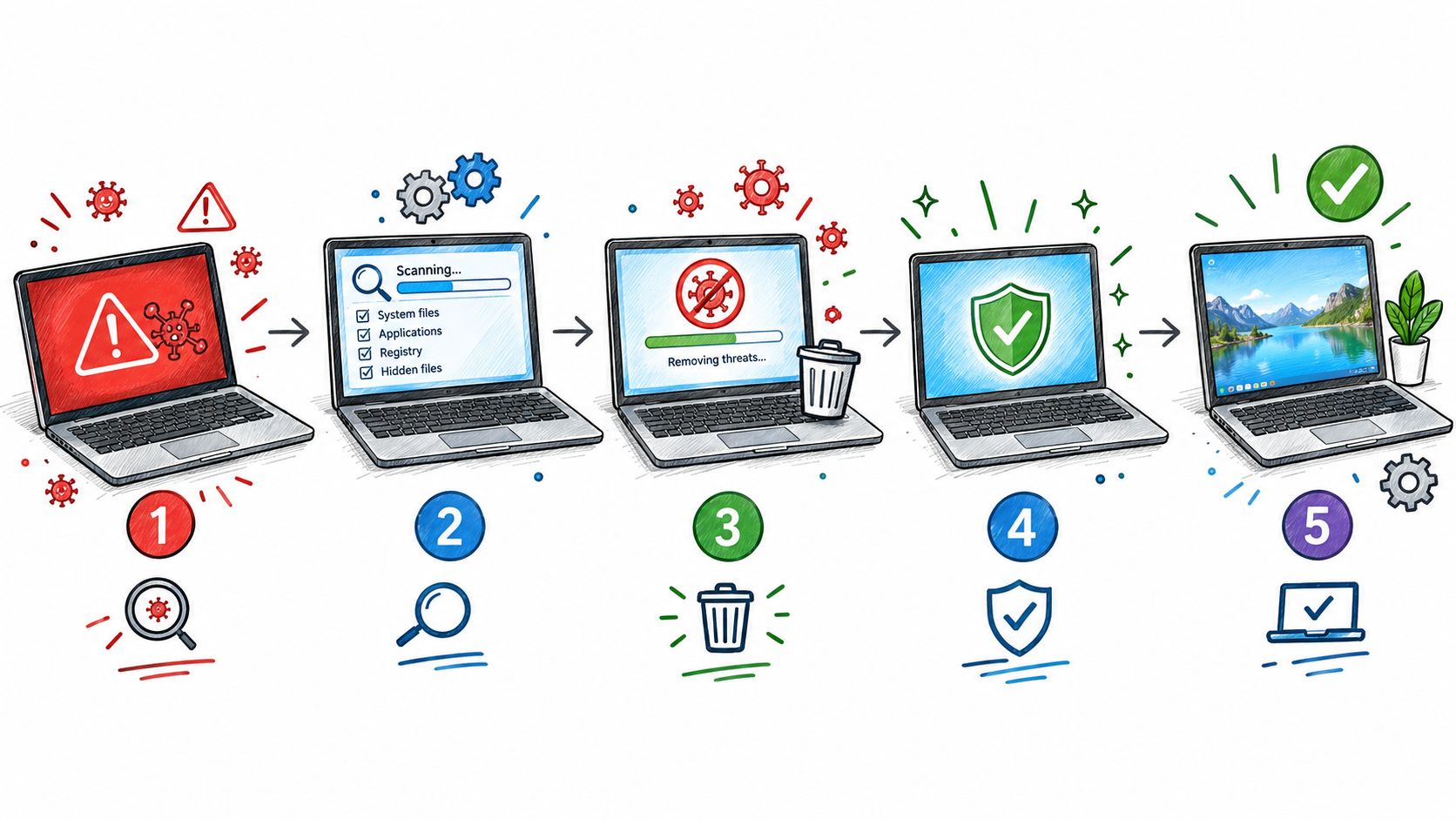
Once the computer is isolated and important evidence is recorded, work from the least disruptive tools towards scans that run outside the normal Windows session. The order matters because malware that starts with Windows can interfere with a scanner running inside Windows.
Start with a controlled Windows session
Boot into Safe Mode with Networking only when you need network access for an approved update or scanner. Safe Mode loads fewer drivers and startup components, so some persistence mechanisms won't run. If networking itself feels unsafe, use ordinary Safe Mode and prepare tools on another clean machine.
Update Microsoft Defender definitions, then run a Microsoft Defender Offline scan from Windows Security. This restarts the computer and examines the installation before the usual Windows session loads. Quarantine detected items rather than manually deleting files, and record the detection names.
After Windows returns, run a full scan. Add a second opinion with Malwarebytes Free and the Emsisoft Emergency Kit, downloading them only from their official sites and keeping the network disconnected whenever an offline copy is available. Different scanners can identify different families and behaviours, but no scanner should be treated as a guarantee on its own.
Inspect what starts and what persists
Open Task Manager and review processes using unusual amounts of CPU, memory or network activity. Don't terminate an unfamiliar process just because its name looks odd. Search the publisher, file location and digital signature, then record the details before changing anything.
Use Autoruns to inspect logon entries, scheduled tasks, services and browser-related startup points. An unwanted programme can return after a successful scan if its launcher remains active. Check installed programmes and browser extensions as well, particularly anything added close to the first symptom.
Run the built-in Microsoft Malicious Software Removal Tool as an additional check for known legacy threats. It isn't a replacement for Defender or a forensic investigation, but it fits the layered process and can provide another result to compare.
Move outside Windows when necessary
If detections return, protection is disabled again or the symptoms continue, create a rescue USB on a clean computer. Tools such as Kaspersky Rescue Disk or ESET SysRescue can scan the system drive without loading the infected Windows environment. That makes it harder for rootkits and other low-level threats to hide behind the operating system.
Quarantine what the rescue environment identifies, restart into Windows and repeat the checks. I want two clean passes after remediation, with no returning redirects, suspicious startup entries or security changes, before the machine goes back online. If scans disagree, the computer behaves strangely or the drive shows errors, stop treating this as a routine cleanup and reassess whether reinstalling is safer.
The NCSC also warns against restoring data too early. Its recovery guidance for infected devices says to restore only from the last known good backup and not to attempt data rescue from an infected system if doing so could carry the infection forward.
Cleanup Versus Clean Reinstall
A clean-up preserves the existing Windows installation. A clean reinstall replaces it. Neither path is automatically correct, and the decision should be based on the infection, the reliability of the hardware and the value of the current setup.
Cleanup makes sense when the symptoms are limited to adware, a browser hijack or an unwanted programme, the operating system remains stable and the user can verify that startup entries and accounts are safe. It also avoids reinstalling drivers, applications, game libraries and accessibility settings. The trade-off is uncertainty. If malware has altered many parts of the installation, proving that every persistence mechanism is gone can take longer than rebuilding.
Reinstallation becomes more attractive when the machine has a bootkit, persistent ransomware, unexplained administrator accounts or repeated detections after careful scans. It's also sensible when a tired hard drive or SSD is already producing crashes and slowdowns. A fresh installation won't repair failing hardware, but it gives you a clean software baseline before testing the rest of the system.
Microsoft's official Windows clean installation guidance explains the installation-media process. In a Sheffield workshop, a cautious technician may clone or image the drive first, where its condition allows, so the original remains a safety net during data checks. That isn't the same as blindly copying every file back. Separate important documents from programmes, scripts and unknown executables.
Decision Factor | Stick With Cleanup | Go For Clean Reinstall |
|---|---|---|
Infection depth | Browser hijack, adware or a clearly isolated unwanted app | Rootkit, bootkit, ransomware or unknown persistence |
Scan history | Detections stop and the system behaves normally | Threats return or security tools keep disabling themselves |
Hardware | Drive is healthy and Windows is stable | Drive is failing, unusually slow or producing errors |
Data | Files have a known-good backup | Data needs imaging or controlled recovery before wiping |
Setup | Drivers and applications are difficult to replace | Installation is already unstable or heavily modified |
Trust | Account review finds no wider compromise | Unknown accounts, credential theft or unauthorised access is suspected |
Before wiping, understand whether reinstalling Windows deletes personal files by reading this explanation of the reinstall process. If the old drive is being retired or sold, use a proper guide to fully erase data from old hard drives, rather than assuming a quick format makes sensitive data unrecoverable.
The honest test is simple: if repeated repair attempts take longer than a controlled rebuild, another scan isn't automatically the safer choice. Preserve the data, verify the licence and recovery options, then start fresh.
Verifying the Machine Is Actually Clean
A removal result is only one part of the handback. Before I'd consider an infected computer ready for normal use, I'd want evidence that the software is gone, the common persistence points are quiet and the accounts used on that computer are protected.
Start with an offline rescue scan if the original incident involved repeated detections, disabled protection or suspicious boot behaviour. Follow it with Windows Defender and a second-opinion scanner such as Malwarebytes. The purpose isn't to collect green ticks for their own sake. It's to compare results after the machine has been restarted and exposed to a different inspection environment.
Treat passwords as exposed
Use a known-clean phone or computer to change passwords for email, banking, cloud storage, shopping and social accounts. Don't reuse the old password, especially if the affected machine stored it in a browser or password manager. Enable two-factor authentication wherever the service supports it, then review recent sign-ins, recovery addresses, forwarding rules and unfamiliar sessions.
Browser review needs more than deleting history. Remove extensions you don't recognise, inspect saved passwords, check the homepage and search provider, and confirm that the browser shortcut and proxy settings haven't been altered. If banking details or payment information were entered while the infection was active, contact the bank through its official channel rather than waiting for another warning.
Check the parts that survive a scan
Use Autoruns and Task Scheduler to look for unfamiliar launchers, scripts and recurring tasks. Review installed programmes, services and local user accounts. Install current Windows updates and update browsers, drivers and other software from trusted sources.
Do not restore everything immediately. The NCSC warns that an unverified backup can reintroduce malware, so restore documents from the last known good backup, not from the infected installation. Keep the original drive or backup separate until the restored system has been checked.
Keep a short incident record: the first symptom, detected names, accounts changed, backups used and actions taken. That note helps identify a repeat infection and tells a workshop what has already been attempted. For related Windows protection issues, the Windows security fix service is one example of the kind of broader remediation that may be needed beyond deleting a suspicious file.
A clean desktop isn't enough if an attacker still has a valid session cookie, a working password or access through an overlooked scheduled task. Verification closes those gaps.
When DIY Stops and the Workshop Takes Over
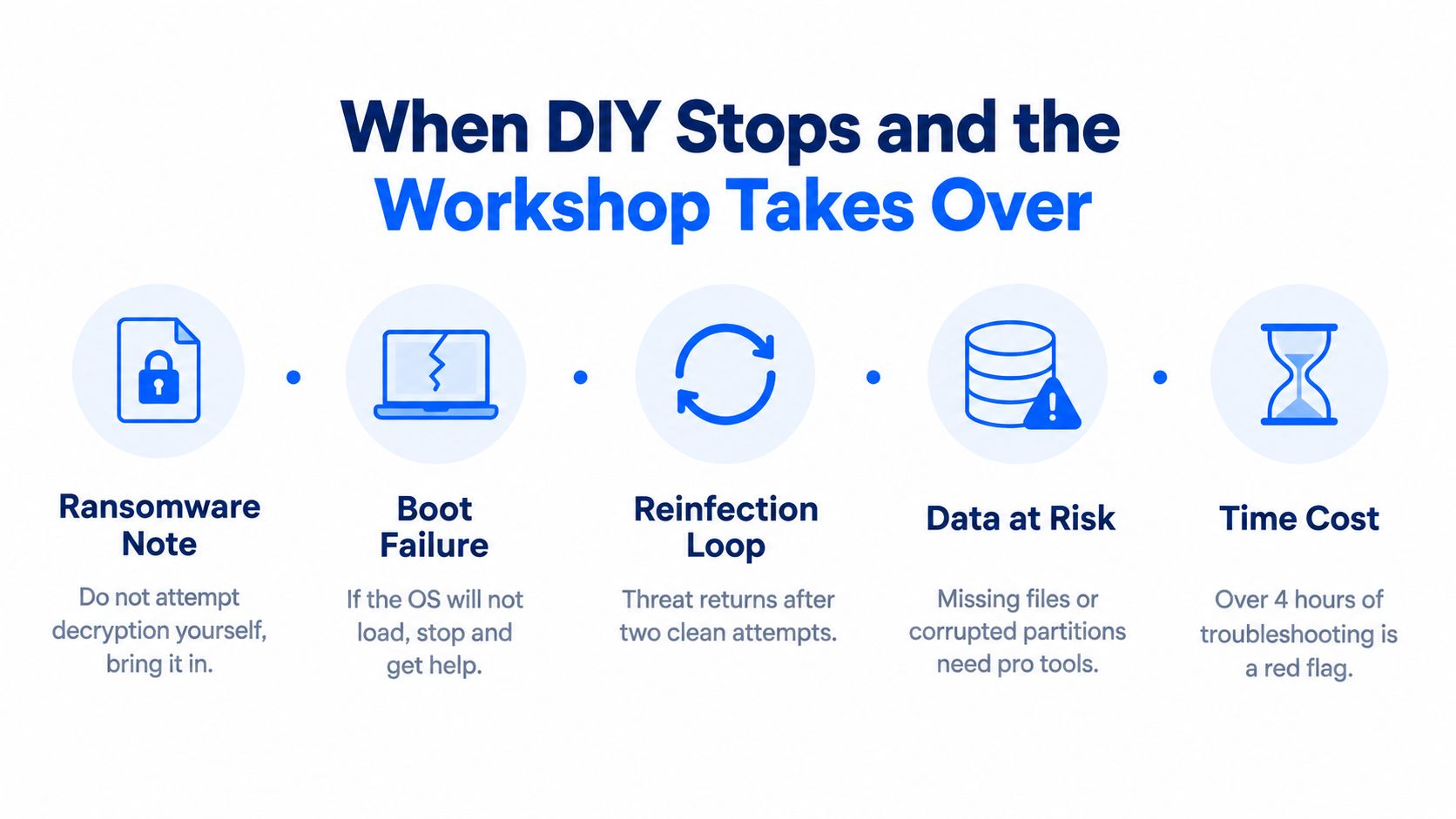
Stop troubleshooting at home when you see a ransom note, encrypted file extensions, a BIOS or firmware-level warning, or the same infection returning after careful scans. Unexpected beeps, clicking noises, repeated drive errors or missing partitions point towards hardware or data-recovery work, not another download.
Banking and email activity changes the risk as well. If you entered credentials on the affected machine, assume they may need changing from a clean device. For teams and households, it's also useful to understand the broader human side of access and misuse, and Vigil Security's insider threat awareness guidance provides relevant context without reducing every incident to a software scan.
What a repair workshop adds
A professional service can image the drive before making destructive changes, inspect storage health, recover data using controlled procedures and scan from external media. It can also test memory, storage, power and other components when a supposed virus is really a failing computer producing similar symptoms.
Bring the technician the original charger, recovery keys, suspicious messages and a written symptom timeline. Mention every account used on the machine, any USB devices connected recently and whether files were already restored from backup. Those details can change the safest route.
A workshop cannot promise that every file is recoverable or that a compromised account will be restored by cleaning Windows. It should explain whether the appropriate answer is targeted removal, data recovery, a clean Windows installation or replacement hardware. Costs vary with the work required and should be compared fairly with the value of the data and the price of replacing an ageing budget computer.
If you've spent two evenings fighting the same infection without progress, the next hour belongs to a technician. Continuing to experiment can overwrite recoverable data, spread an infection through backups or turn a manageable reinstall into a more complicated recovery job.

Steel City IT provides diagnostics, virus and malware removal, data recovery and clean Windows reinstalls for computers and laptops from its Sheffield workshop, with the final approach depending on the machine and the condition of the data.
If your Sheffield PC is showing redirects, pop-ups, disabled security or returning detections, stop signing into sensitive accounts and isolate it first. Steel City IT can assess the infection, protect or recover your data, and carry out targeted removal or a clean Windows reinstall where that is the safer route. Visit Steel City IT to arrange computer repair and discuss the next step.