
What Is System Cleanup: Guide for PC Owners in Sheffield

System cleanup is the organised removal of unnecessary files, programs, and malware to restore speed and stability. In the UK, households generated 26.2 million tonnes of waste in 2024, with a household recycling rate of 44.5%, a reminder that structured cleanup is treated as a measured, recurring process, not a one-off chore (GOV.UK WasteDataFlow).
Your computer may be showing the digital equivalent of an overfilled spare room. It takes longer to start, the fan runs while you're only checking email, and Windows freezes when you open another programme. In a Sheffield home, that can mean missed work, interrupted gaming, or a laptop that feels ready for the scrap heap when it may need careful maintenance.
Table of Contents
Introduction to System Cleanup
System cleanup means checking a computer for digital clutter, unwanted software, security threats, and settings that consume resources unnecessarily. The work can include clearing temporary files, removing unused applications, checking startup items, scanning for malware, and deciding whether the storage drive or Windows installation needs more substantial attention.
A slow computer doesn't always have one obvious cause. Windows updates can leave behind old system files, applications may start automatically, browsers can build up temporary data, and an unwanted programme can keep using memory in the background. A nearly full drive can also leave Windows with less room for normal tasks, while an ageing hard drive may be struggling mechanically rather than suffering from clutter.
Practical rule: Cleanup should remove a known source of trouble, not delete files simply because their names look unfamiliar.
The safest approach starts with observation. Note whether the slowdown happens during startup, when opening files, while browsing, or under a demanding workload. Check available storage, review installed programmes, and back up important documents before making changes.
For many routine problems, Windows' own tools are enough. For a computer that has persistent malware, repeated crashes, damaged files, or a failing drive, deleting temporary data won't solve the underlying fault. That distinction is central to understanding what system cleanup can do, and when a local repair assessment is the sensible next step.
What System Cleanup Actually Means
Think of a computer as a workbench. If old packaging, unused tools, and broken parts cover the surface, finding the screwdriver takes longer and working safely becomes harder. A Windows PC faces a similar problem when temporary files, old update data, unused applications, browser caches, and unwanted programmes accumulate.
Cleanup doesn't magically make every component newer. It removes avoidable obstacles so the existing hardware can use its storage, memory, processor time, and startup sequence more efficiently. Microsoft tools such as Disk Cleanup and Windows Update Cleanup are commonly used to remove temporary files, previous update data, and earlier Windows installations that may occupy storage (Which? guidance on deleting junk files).
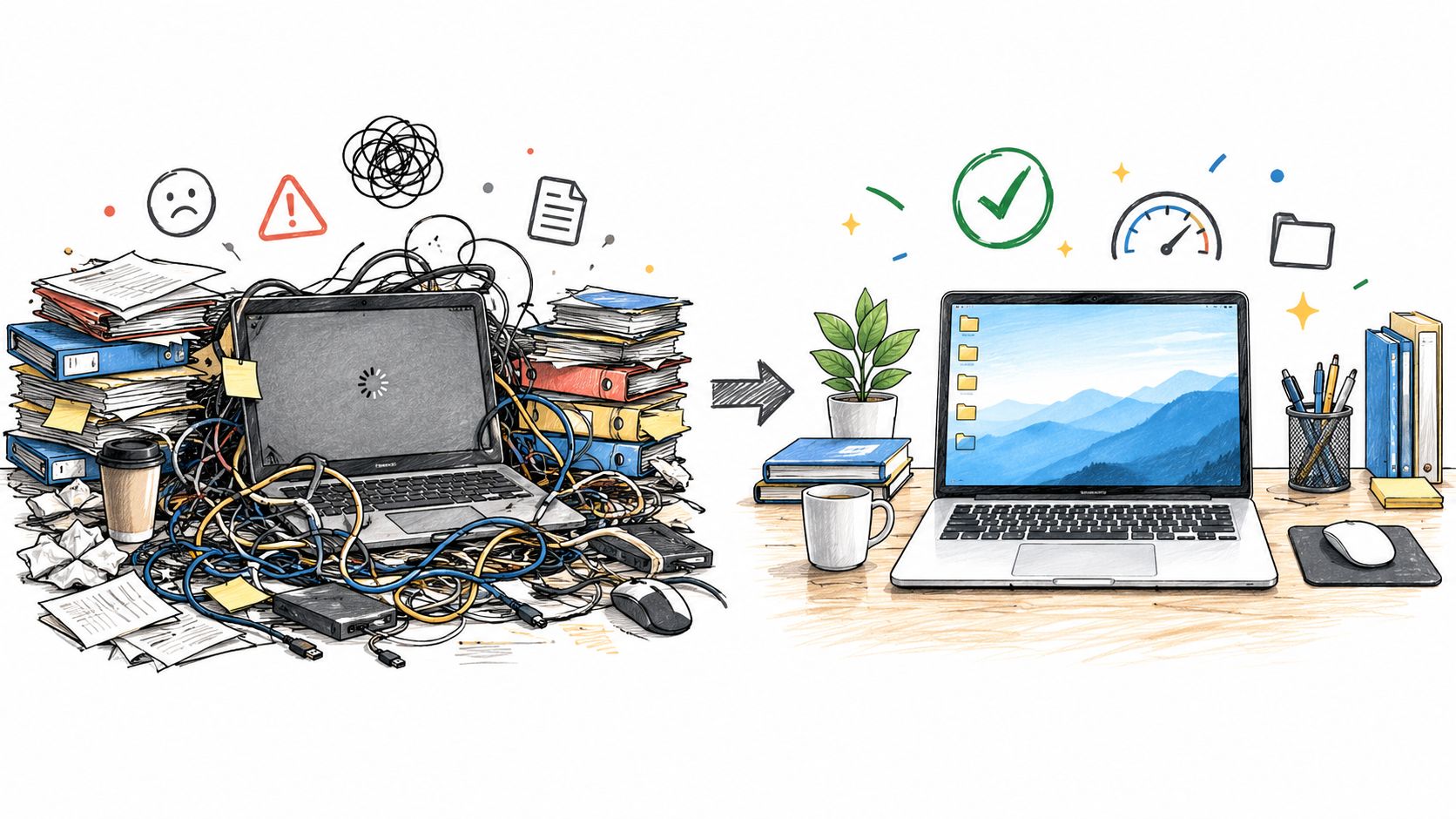
What gets removed
A sensible cleanup might deal with:
Temporary files, created while Windows and applications perform routine work.
Old update material, including previous installation files that are no longer needed.
Unused applications, especially programmes that run background services.
Startup items, which can make sign-in feel sluggish.
Malware and unwanted software, which can consume resources and threaten files.
The principle is similar to cleaning a phone connection. If you're dealing with a handset rather than a PC, this practical guide to clean your iPhone charging port explains how to remove physical debris safely without poking blindly at delicate components.
Digital security needs the same care. If you suspect an infection, don't treat unfamiliar folders as rubbish. Use a reputable scanner and follow a controlled malware-removal process, such as the guidance on removing malware from Windows, before deleting anything that may be evidence or part of a running system.
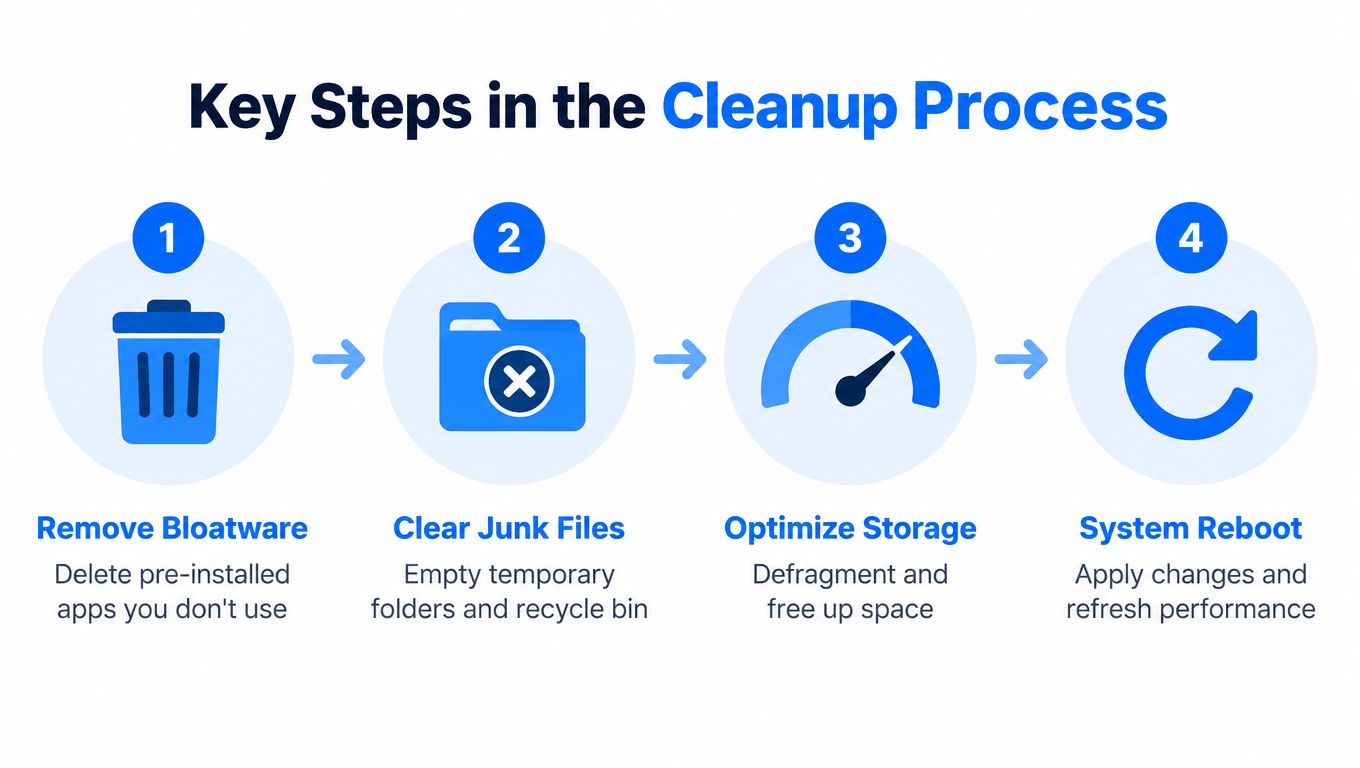
Key Steps in the Cleanup Process
A complete cleanup has several parts because different problems need different remedies. Removing an unused application won't detect a rootkit, and deleting temporary files won't repair a failing storage drive.
Start with a safe inspection
Before changing anything, back up documents, photographs, saved games, and other irreplaceable files. Check Windows Security, look at installed applications, and use Task Manager to identify programmes consuming unusual processor, memory, or disk activity.
Bloatware removal comes next. Manufacturers and software installers may add trial applications or utilities you never use. Uninstall items through Windows' installed-apps settings, but leave hardware drivers, Microsoft components, and programmes you can't identify until you've checked them.
Malware removal requires more than deleting a suspicious shortcut. Run a trusted security scan, disconnect from the internet if an infection appears active, and avoid logging into sensitive accounts from the affected machine. UK repair guidance commonly combines malware removal with bloatware removal, temporary-file clearing, an operating-system security check, antivirus reinstallation, and Windows updates (DGM Tech virus removal guidance).
Reclaim storage carefully
Disk Cleanup can remove temporary data, delivery optimisation files, thumbnails, Windows Update Cleanup data, and previous Windows installations when the options are selected carefully. The Windows disk cleanup guide can help you understand which categories are appropriate before confirming deletion.
Startup optimisation is separate from storage cleanup. In Task Manager, review applications that launch at sign-in and disable only items you recognise. Drivers and Windows updates also matter because an outdated or damaged driver can create crashes or poor hardware behaviour that a file purge won't fix.
The process usually ends with a restart. Rebooting lets Windows apply changes, release locked files, and rebuild certain working caches. If you're resetting a phone rather than maintaining a PC, consult these Google Pixel factory reset steps first, because a reset can erase personal data and requires a different backup plan.
DIY Tips Versus Professional Services
DIY cleanup suits a computer that still starts normally, has a clear storage shortage, and shows no signs of serious infection. Professional help makes more sense when the cause is uncertain, the data is important, or previous attempts have made the problem worse.
Aspect | DIY Cleanup | Professional Service |
|---|---|---|
Initial checks | Review storage, installed apps, Task Manager, and Windows Security | Diagnose software, hardware, drive health, and startup behaviour together |
File removal | Use Disk Cleanup and uninstall known unwanted programmes | Identify safe recovery targets and protect important data first |
Malware | Run trusted security scans and avoid suspicious downloads | Remove persistent infections and check for reinfection risks |
Performance | Disable recognised startup items and install updates | Assess whether cleanup, repair, an SSD upgrade, or reinstall is appropriate |
Risk | Lower cost, but mistakes can remove useful software or personal files | More controlled, particularly where business data or failed boots are involved |
For a straightforward machine, begin with a backup and make one change at a time. Keep notes, restart after major changes, and test the computer before moving on.
If startup is the main complaint, this guide to disabling startup items provides a focused approach. Don't disable security tools, touchpad utilities, graphics controls, or driver services just because they appear in the list. If you can't identify an entry, leave it alone until you've checked its publisher and purpose.
When to Call a Local Expert
DIY cleanup has a clear boundary: you should stop when you can't tell whether the next action will protect or damage your data. A computer that displays pop-ups, changes browser settings, blocks security software, or creates unfamiliar user accounts may need malware remediation rather than ordinary tidying.
Call for help if Windows crashes repeatedly, fails to boot, shows drive errors, or becomes unstable immediately after cleanup. A professional can separate software trouble from failing storage, overheating, damaged memory, power faults, or a board-level problem. Those causes require different solutions, and repeated reinstall attempts can make data recovery more difficult.
When a reinstall is the safer route
A clean Windows reinstall is often used when targeted removal is unreliable, particularly after deep malware infection or serious system corruption. The process normally involves backing up what can be recovered, wiping the existing installation, reinstalling Windows, and applying drivers and updates. UK technical guidance describes this wipe-and-reinstall workflow for heavily infected or unstable systems (Osiris Systems maintenance guidance).
That doesn't mean you should immediately erase the machine. Confirm that important files are backed up, check whether browser passwords or application licences need exporting, and establish whether the storage drive itself is healthy. If the drive is failing, reinstalling Windows may hide the warning temporarily while putting your files at greater risk.
Windows 10 support ended on 14 October 2025, according to Which? coverage of the support deadline. The same report said around 20 million people in Britain were affected and almost 13 million computers became vulnerable when support ended. That makes a system assessment more important than a superficial speed boost. Cleanup may form part of the answer, but an upgrade, replacement, or secure migration may be necessary if the device can't run a supported operating system.
Sheffield users can also face practical hardware limits. A laptop with a small drive may need a higher-capacity SSD, while a gaming PC may need storage, cooling, memory, or graphics diagnosis. A local technician can explain the options before you spend money on parts or risk losing files.
Benefits of Regular System Maintenance
Regular maintenance gives you a clearer picture of your computer's condition. You can spot a filling drive, a new startup programme, unusual security warnings, or a gradual change in boot behaviour before the issue becomes an emergency.
The benefits go beyond speed:
More dependable storage: Removing unnecessary system data leaves room for normal Windows work and personal files.
Lower security exposure: Removing unwanted software and applying updates closes avoidable weaknesses.
Fewer background conflicts: Unused programmes and unnecessary startup services have fewer opportunities to compete for resources.
Better repair decisions: A clean baseline makes it easier to recognise a hardware fault.
Longer useful service: Sensible maintenance can help you postpone replacement when the hardware remains sound.
The UK's wider approach to waste management offers a useful parallel. WasteDataFlow has supported national reporting for local-authority waste and recycling data for years, showing how large-scale cleanup depends on repeatable processes and recorded outputs (WasteDataFlow). Your PC doesn't need a council-level reporting system, but it does benefit from the same habit: inspect, remove safely, verify, and repeat.
Make maintenance observable
Don't wait for Windows to become unusable before checking storage. A simple monthly routine can include reviewing free space, uninstalling software you no longer need, checking startup entries, running a security scan, and confirming that backups open correctly. Businesses may also use disk-space alerts and monitoring to identify capacity problems before users start seeing errors.
Cleanup isn't the answer to every slowdown. Which? describes uninstalling unused programmes, disabling startup applications, removing temporary files, scanning for malware, installing updates, and investigating problematic software as separate parts of performance recovery (Which? computer speed guidance). If those steps don't restore reliable operation, the next decision may be a clean reinstall, storage upgrade, hardware repair, or data recovery.
The right outcome isn't only a faster boot. It's a computer you can trust for work, study, gaming, and everyday tasks, with enough storage, sensible security, and a clear plan when symptoms return.
Steel City IT offers PC speed cleanup and optimisation, malware removal, Windows troubleshooting, clean reinstalls, storage upgrades, and data services from its Sheffield workshop in Frecheville. If your computer is slow, unstable, infected, or running out of space, visit Steel City IT to arrange an assessment and discuss the safest next step.