
Fix Windows 10 Not Working Start Menu Fast

You click the Start button and nothing happens. The search box stays grey, taskbar tiles freeze halfway through a highlight, and even + + takes a moment before Task Manager appears. If you're looking at a Windows 10 laptop in Sheffield and searching for Windows 10 not working Start menu, the immediate fault may be repairable, but the operating system's age now matters as much as the symptom.
Microsoft officially ended Windows 10 support in the UK on 14 October 2025. Devices still using Windows 10 no longer receive regular security updates or technical assistance through the normal support cycle, as explained in Microsoft's Windows 10 end-of-support guidance. The sensible approach is therefore twofold: try the safest fixes first, then decide whether the machine deserves a repair, an in-place reinstall, or a move to Windows 11.
Table of Contents
Quick Checks You Should Run First - Restart the shell without restarting the computer - Refresh App Readiness
Repairing Your User Profile and Shell Components - Re-register the shell packages - Test whether the profile is the real fault
Running SFC, DISM and Service-Level Fixes - Repair the Windows image when SFC can't finish the job - Check the service behind shell activity
When to Migrate to Windows 11 Instead of Repairing - Three signs the upgrade is the better repair
When the Start Menu Stops Working in Windows 10
A Start button that flashes and does nothing is a familiar bench fault. Other machines show a spinning cursor, a delayed menu, blank pinned tiles, or a taskbar that stops responding completely. These symptoms can appear together because the Windows shell depends on several connected parts, not one program.
draws the desktop and taskbar. Start also relies on and . A crash, damaged user profile, or failed service connection can bring down several shell functions at once. The visible fault may be simple, while the cause needs deeper repair.
Bench observation: Restarting the taskbar can restore Start temporarily without repairing profile damage or corrupted system files.
That distinction matters more now that Windows 10 support has ended. Microsoft confirmed that Windows 10 22H2 was the final servicing version, with updates ending on 14 October 2025, as covered in Microsoft's Windows 10 end-of-support guidance. A Start menu repair may keep an older laptop usable, but it does not restore security support. On hardware that meets Windows 11 requirements, migration may be the better use of your time. On older hardware, a clean reinstall can be more sensible than repeatedly patching a damaged installation.
Statcounter's UK Windows version data shows that Windows 10 remains in use on UK desktops, so this is still a practical repair problem rather than an obsolete one.
Start with no-data-loss checks. If those fail, test the user profile, repair Windows components, and weigh the machine's age and condition before choosing an in-place repair, clean reinstall, or Windows 11 migration. Stop before a risky repair if the files are not backed up.
Quick Checks You Should Run First
Start with Windows Update. A pending update or unfinished restart can leave shell components in an inconsistent state, and Microsoft's recommended first pass is to open Settings with + , check for updates, install anything offered, and restart even when Windows doesn't explicitly request one. Follow Microsoft's Start menu troubleshooting steps rather than assuming one reboot is enough.
If Start is unusable, press + , type , and press Enter. If that doesn't open Settings, use to launch Control Panel. These shortcuts keep you from being trapped outside the tools needed to repair the shell.
Restart the shell without restarting the computer
Press + + to open Task Manager. Select the Details tab, find , right-click it, and choose End task. Then select File, Run new task, type , and confirm.
This kills a hung Explorer process and reloads the desktop, taskbar, and related shell surfaces. A working Start button immediately after the reload points towards a temporary shell hang. If it works for only an hour, don't keep repeating the same action. The cause is probably deeper.
Refresh App Readiness
From Task Manager, choose File, Run new task, type , tick the option to create the task with administrative privileges, and run:
Then run:
App Readiness helps Windows prepare applications and shell-related packages during sign-in. If Start begins working after this, the failure may have been tied to an app package that wasn't completing its preparation. If the commands return errors or the menu remains dead, move on rather than forcing repeated package changes.
Repairing Your User Profile and Shell Components
Once updates, Explorer, and App Readiness have failed, work at the user-profile and shell-package level. These steps don't normally remove personal files, but PowerShell commands still deserve care. Open PowerShell with administrative rights through Task Manager by selecting File, Run new task, entering , and enabling the "Run as administrator" option.
Re-register the shell packages
Run the following command to re-register :
Then run the matching Start menu package command:
This tells Windows to register the package manifests again. It can repair a broken shell registration without deleting documents, photos, or installed applications. Warnings in red aren't automatically proof of failure, but a command that stops with a clear permission or package-path error needs investigation rather than blind repetition.
Sign out and sign back in after the commands complete. A full restart is also reasonable because it loads the shell again without the profile locks held by the previous session. Re-registering apps can take 10 to 15 minutes, so don't interrupt the process or power the computer off halfway through.
Test whether the profile is the real fault
Create a second local administrator account through Settings, Accounts, Family & other users. Sign in to that account once and test Start, Search, pinned tiles, and the taskbar.
If Start works normally in the new account, the Windows installation may be sound while the original profile is damaged. Copy personal data from the old profile, check that browser bookmarks and application settings are available, and use the new account as the long-term profile. Keep the old account until you've verified your files. Guidance on creating a safe rollback point is available in this Windows System Restore point guide.
Running SFC, DISM and Service-Level Fixes
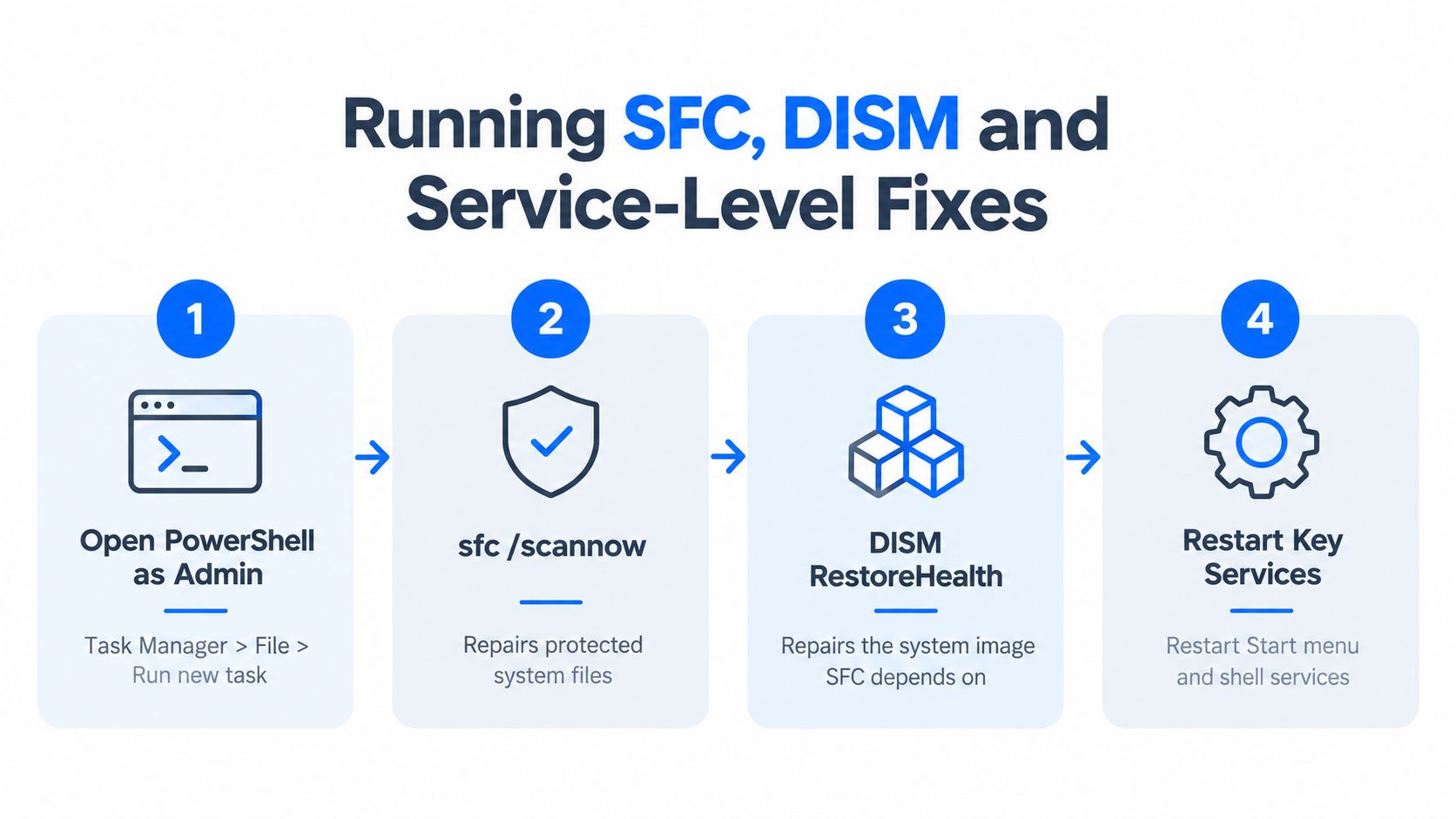
System file checks belong in the middle of the repair ladder, not at the very beginning. Launch PowerShell with admin rights through Task Manager using File, Run new task, and then select the administrator option.
Run:
SFC checks protected Windows files and replaces damaged copies when a suitable repair source is available. The scan can take a while, particularly on a mechanical hard drive, so leave the window open until it reports a result. A message saying no integrity violations were found points away from protected-file corruption, while a message saying damaged files were repaired gives you a reason to restart and test Start again.
Repair the Windows image when SFC can't finish the job
If SFC reports that it couldn't repair some files, run DISM:
Then:
DISM checks and repairs the Windows component store that SFC relies on. It normally needs a working internet connection because Windows Update supplies repair files. Let the process complete, restart the computer, and run again. If SFC still reports the same unresolved damage after DISM, further repetitions rarely change the outcome.
For a more detailed escalation path, see this Windows repair on startup guide. The practical value of that approach is knowing when to gather evidence rather than cycling through the same commands.
Check the service behind shell activity
Microsoft's deeper troubleshooting guidance highlights Background Tasks Infrastructure Service as a service that should be available with automatic startup. Open Task Manager, select File, Run new task, type , and locate the service. Check its startup configuration and current state before restarting it.
This service-level check matters when tiles don't refresh, Search remains unavailable, or Start fails during sign-in. The problem isn't always Explorer itself. Shell-host failures, service faults, event-log errors, and damaged package registrations can produce the same visible taskbar symptom.
Stop escalating on your own: Repeated SFC failures after DISM, missing useful repair-log information, or a Start menu that breaks again within hours indicate a wider fault.
If malware is suspected, disconnect unnecessary peripherals and boot into Safe Mode with Networking for a controlled test. A profile that behaves differently in Safe Mode can point towards a startup application or malicious process, rather than a simple Start menu registration problem.
Creating a New Account or Repair Installing Windows
A new account and an in-place repair install solve different classes of failure. The first isolates the user profile. The second replaces Windows system components while aiming to preserve the existing working environment.
Factor | New Local Account | In-Place Repair Install |
|---|---|---|
Best fit | Start fails only in one profile | Start fails across profiles |
Main action | Create an account in Settings and test it | Run Windows Setup from inside Windows |
Personal files | Remain in the original profile until copied | Kept when the correct option is selected |
Installed apps | Stay installed under the existing Windows installation | Preserved when Keep personal files and apps is chosen |
Main trade-off | Application preferences may need rebuilding | Takes longer and still leaves you on Windows 10 |
Next decision | Migrate to the working account | Consider Windows 11 or a clean reinstall if it fails |
A fresh local account is the least disruptive choice when the new profile opens Start normally. Go to Settings, Accounts, Family & other users, add the account, sign in once, and test it before moving data. Copy documents and other personal files across only after you've confirmed that the account behaves correctly.
An in-place repair install makes more sense when the same failure appears for multiple users, or when SFC and DISM identify damage that they can't resolve. Download the Windows 10 Media Creation Tool, create or mount suitable installation media, and run from inside Windows. Choose Keep personal files and apps. Starting from boot media instead can lead you towards a clean installation, which is a different operation and can remove applications and data if you haven't prepared properly.
The repair install may restore shell files, component registrations, and servicing elements, but it doesn't remove Windows 10's end-of-support position. If the new account works, migrate and remove the old profile only after checking your data. If the repair install also fails, treat the installation as unreliable and plan a clean reinstall or a move to Windows 11.
When to Migrate to Windows 11 Instead of Repairing
Windows 10 reached UK end of support on 14 October 2025, as Microsoft states in its official lifecycle information. That changes the repair decision. A crashed Start menu does not automatically justify replacing the computer, but hours spent restoring an ageing shell may leave you with a working interface on an unsupported system.
Which? reports that eligible users can extend security updates until 12 October 2027, giving some installations more time. This remains a limited arrangement, not full ongoing support for Windows 10, and eligibility and enrolment conditions apply. Which?’s Windows 10 security support coverage sets out the remaining support context.
Three signs the upgrade is the better repair
The crash follows a feature update: Servicing damage can often be repaired, but repeated update-related failures point to an installation that needs a wider review.
The hardware supports Windows 11: Run Microsoft's PC Health Check instead of guessing. The computer must meet the stated processor, memory, storage, and security requirements.
Your software expects newer Windows features: Warnings from applications or security tools about Windows 10 compatibility indicate a wider problem that a repaired Start menu will not solve.
A Sheffield repair bench usually makes the decision clear. If the computer is otherwise healthy, your files are backed up, and it passes the Windows 11 check, migration generally offers better long-term value than repeatedly repairing Windows 10 shell problems. Review this Windows 10 to Windows 11 upgrade before choosing how to protect data, applications, and user settings.
If the hardware fails the Windows 11 requirements, avoid forcing an unsupported upgrade without a recovery plan. Back up your files, test the drive, and choose between a controlled Windows 10 reinstall with the appropriate support arrangement and replacement hardware. A clean reinstall can restore reliability, but it does not remove Windows 10's support limitation, so migration remains the stronger option when the machine can handle it.
Your Decision Checklist and When to Call a Repair Shop
Use this as a stop-and-advance checklist. The point isn't to run every command repeatedly. Each checkpoint should produce a clear result before you move to the next level.
Apply pending updates: Use + , open , install available updates, and restart. If Start remains dead, continue.
Restart Explorer: End in Task Manager's Details tab, then run it again. If the menu returns only briefly, treat that as a temporary shell reload.
Re-register Start: Run the administrator PowerShell commands for and . Sign out and back in after completion.
Repair system files: Run , then DISM when SFC can't repair everything. Restart and test rather than looping indefinitely.
Test a new profile: Create a second local administrator account. If Start works there, migrate away from the damaged profile.
Check the hardware and future path: Back up your data, assess storage health, and use PC Health Check to decide whether Windows 11 is realistic.
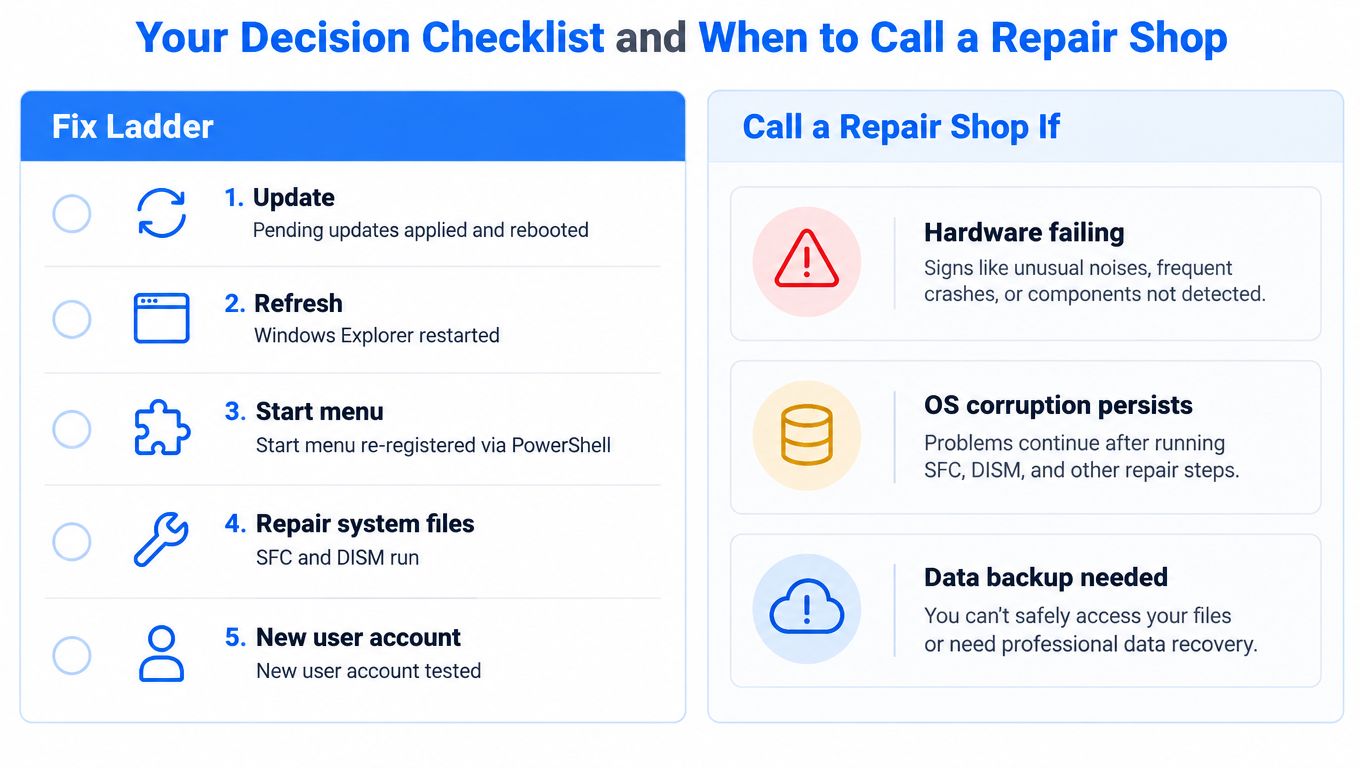
Call a repair shop when the computer shows a persistent black screen, Start fails in a new account, shell-host crashes return after DISM, or the menu dies within minutes of every boot. Those patterns can involve a failing SSD, broader profile corruption, damaged Windows servicing files, malware, or a combination of faults.
For someone in Sheffield, Rotherham, or Chesterfield, a proper bench diagnosis can image the drive, check storage health, protect the data, and then choose an in-place repair, clean reinstall, or Windows 11 migration based on evidence. Steel City IT offers Windows troubleshooting, clean Windows installations, data services, hardware diagnostics, and upgrades for computers and laptops, so visit Steel City IT to arrange a practical assessment if the Start menu keeps failing after the safe checks. Bring the machine and its charger, and make clear whether your priority is preserving the current installation, protecting files, or moving to a supported Windows setup.