
Slow Computer Repair: Causes and Fixes

“Delete a few files and buy a new computer” is common advice for a slow PC. It's also often wrong. Sluggish performance is a symptom, not a diagnosis. A failing hard drive, memory pressure, damaged Windows files, excessive startup software, malware, overheating or even a poor internet connection can produce similar complaints.
A proper slow computer repair starts by finding the bottleneck, protecting your data and then comparing the cost and risk of fixing it with replacement. For a Sheffield household or small business, that approach can turn an apparently obsolete laptop into a useful everyday machine without paying for hardware you don't need.
Table of Contents
Identifying Hardware and Software Bottlenecks - What the main readings tell you - Software can imitate failing hardware
The Professional Diagnostic Approach - A safe triage sequence
Effective Fixes and Hardware Upgrades - Storage first when latency is the problem - Add memory when Windows is paging - Reinstall only when the evidence supports it
Making the Repair Versus Replace Decision - A practical decision table
Why Your Computer is Slow
Slow computers are often blamed on age because age is easy to see. In the workshop, age is only the starting point. What matters more is where the delay comes from, because a machine with a decent processor and poor storage usually benefits far more from an SSD upgrade than from full replacement, while a system with failing hardware or limited upgrade paths may not be worth sinking money into.
Research in the Ofcom Technology Tracker data tables found that the average home computer was 3.4 years old. Owners of older machines spent about 23.5 hours each year waiting for them to boot, which was 65% longer than people who had bought a computer within the previous six months. The same study reported that users of older computers took three and a half times longer on average to resolve problems such as freezing and viruses. Those figures matter, but they do not prove that age itself is the fault. They show what happens when wear, outdated parts and neglected maintenance start stacking up.
That distinction saves money.
A long boot can come from a mechanical hard drive that has slowed down, too many startup programs, damaged Windows files, heat buildup, low memory, or a battery problem on a laptop that is no longer delivering stable power. Some of those faults are inexpensive to put right. Some are warnings that the machine is heading for failure. The job is to separate a worthwhile repair from a false economy.
Computers still carry a lot of the workload that phones do not handle well. The UK government's Digital Inclusion Action Plan says laptops were the second most commonly owned or used digital device among adults in England at 63%, and 4% of households in 2024 had no laptop, PC or tablet. A sluggish laptop is not just an annoyance if you rely on it for work documents, school portals, accounts, forms or stored files.
Practical rule: Treat “slow” as a symptom to measure, not a verdict on the computer.
A proper system cleanup for Windows can remove junk, reduce background load and tidy up software conflicts. It will not repair a worn hard drive, add physical RAM or solve thermal damage. That is why repair decisions should be based on the bottleneck and the upgrade path, not on generic advice to delete files or buy something new.
Identifying Hardware and Software Bottlenecks
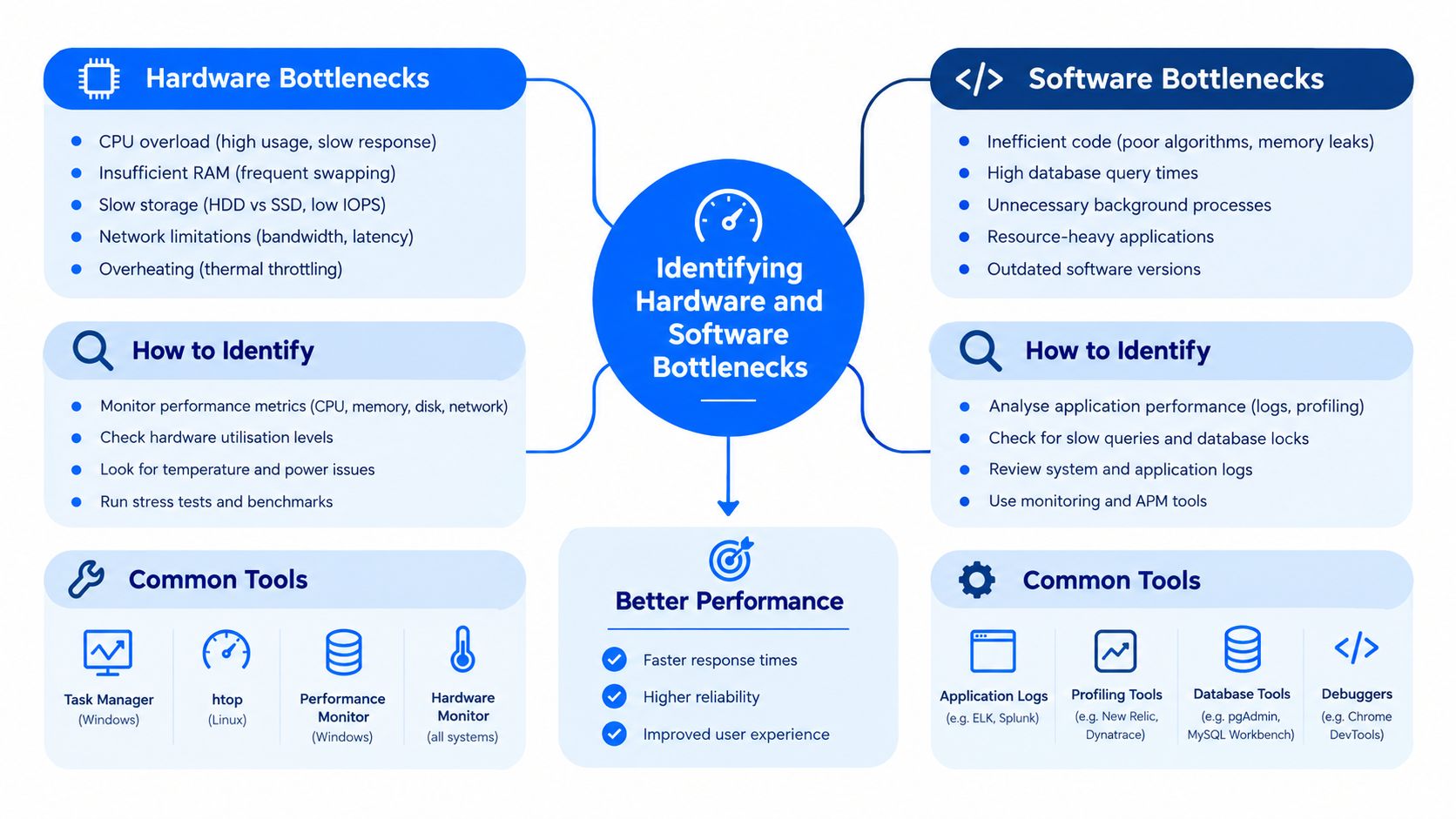
Windows Task Manager gives you a useful first view. Open the Performance tab while the computer is slow and watch CPU, Memory, Disk and Network rather than relying on a single overall impression. The highest percentage isn't automatically the fault, so observe what happens during boot, while opening an application and during the specific task that causes trouble.
What the main readings tell you
Disk activity near 100% with modest transfer speed points towards storage latency, indexing, paging, retries or a mechanical hard drive struggling to respond. Listen for unusual clicking or repeated spin-up sounds, and don't run aggressive optimisation before checking drive health.
Memory pressure appears when RAM remains heavily occupied and Windows continually moves data into the page file. The result is repeated disk activity, delayed application switching and pauses when several browser tabs or office programmes are open. Adding compatible RAM can help when the laptop supports it, but soldered memory or a low upgrade ceiling may change the value calculation.
CPU saturation can come from a legitimate task such as video processing, a browser tab, an update or antivirus scanning. It can also indicate an unwanted service. Look at the process name, its publisher and whether the load persists when the related application is closed.
Network activity matters when cloud storage, Microsoft Teams or web applications feel slow. Local performance and connectivity can look alike. Ofcom notes that the length, age and repair condition of a broadband line can affect line performance, so test the same service on a known-good connection before blaming the computer alone. The Ofcom broadband checker guidance provides relevant context for separating connection faults from device faults.
Software can imitate failing hardware
Startup utilities, browser extensions, synchronisation tools and security products can compete for resources. Malware deserves particular attention because malicious software, cryptocurrency miners, scheduled tasks and compromised remote-access tools may cause high idle use, fan activity, browser lag and freezes without an obvious warning.
A sensible assessment also checks available storage, Windows system-file integrity, temperatures, driver status and event logs. “Clean up everything” isn't a diagnosis. Removing a useful service may hide a symptom while leaving the actual fault untouched.
For business devices, malware screening should happen before assuming the computer is just old. The Cyber Security Breaches Survey 2025 reports that 43% of businesses experienced a cyber security breach or attack during the previous 12 months, with phishing affecting 37% overall and 42% of small businesses. Those figures don't prove that a particular slow PC is infected, but they justify treating unexpected background activity as a security question as well as a performance question.
The Professional Diagnostic Approach
A repair workshop shouldn't begin by reinstalling Windows. The first priority is to establish whether the customer's files are safe and whether the storage device can be trusted.
A safe triage sequence
Record the symptom. Note boot behaviour, freezing, application delays, fan noise, battery behaviour and whether the problem affects one programme or the whole system.
Protect the data. Check backups and identify important folders, business files, mail data and browser profiles. If the drive is noisy, error-prone or intermittently missing, avoid repeated boot attempts.
Check storage health. Read SMART or NVMe health information and perform a controlled, read-only assessment. A failing drive should be cloned or imaged with read-error-tolerant methods before optimisation, migration or a Windows reinstall.
Measure resources. Record CPU, memory, disk-active time and network behaviour during the reported fault. This distinguishes a saturated processor from paging, drive retries or a connection problem.
Inspect security. Run a controlled malware scan, review startup entries and scheduled tasks, verify administrator accounts and examine Windows Security events. If compromise is suspected, preserve user data without copying executable files, change credentials from a clean device and consider a clean reinstall.
Check heat and power. Blocked cooling paths, dried thermal material, a weak battery or charging fault can cause instability and throttling. Hardware testing should come before promising a software-only solution.
This sequence prevents a common disaster: treating slow storage as a Windows problem, wiping the operating system and discovering that valuable data was never safely copied. It also prevents a second mistake, charging for a new SSD when the actual cause is malware or severe board-level damage.
A clear explanation of the process is useful when you're comparing repair providers, so this guide to professional computer diagnostics offers a helpful reference point.
The result should be a written diagnosis that separates confirmed faults from likely causes, states whether data is at risk and gives you repair options before work begins.
Effective Fixes and Hardware Upgrades
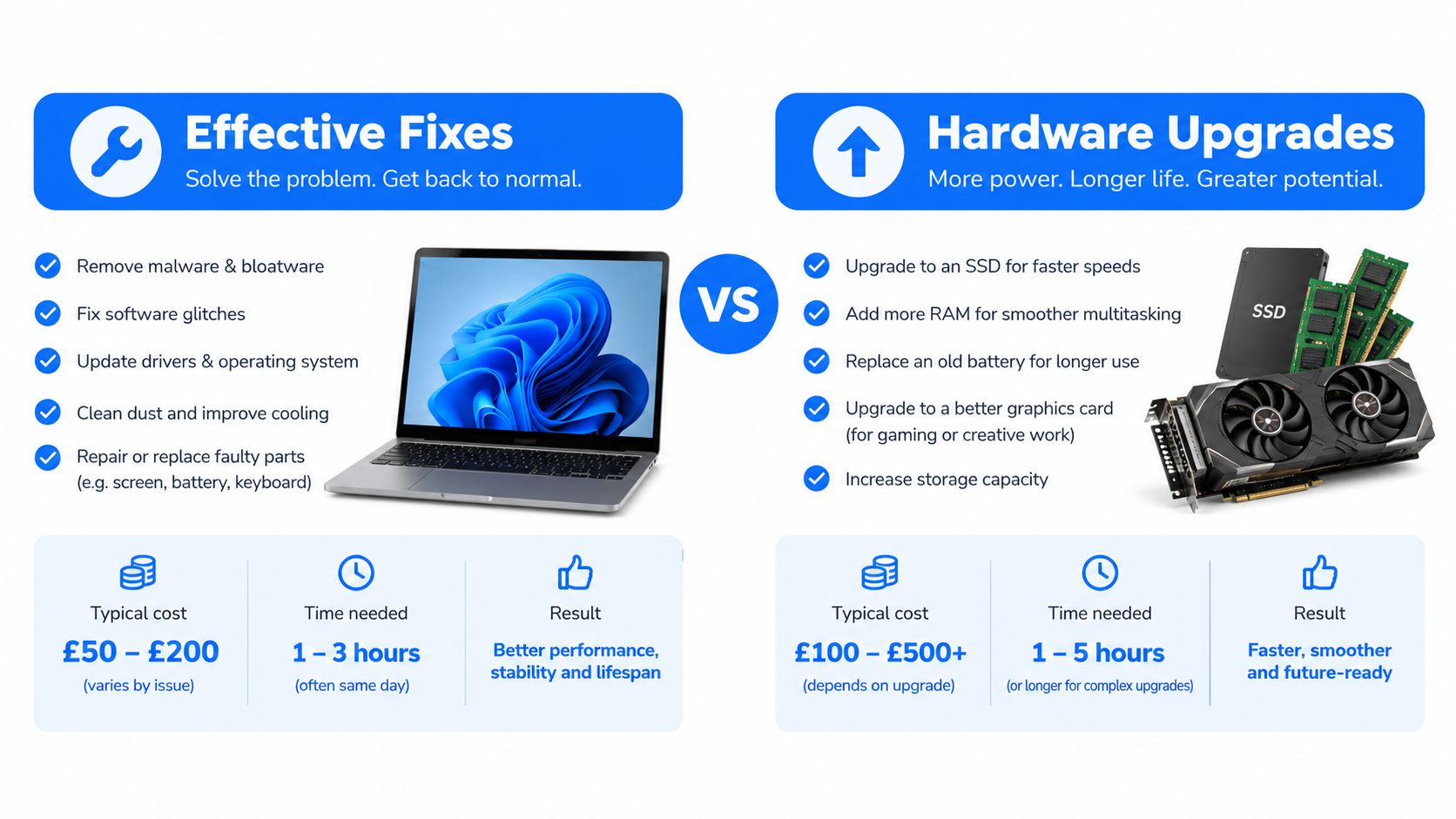
The right upgrade depends on the measured bottleneck. An SSD, RAM module, clean Windows installation and malware removal solve different problems, so they shouldn't be presented as interchangeable speed treatments.
Storage first when latency is the problem
Replacing a mechanical HDD with a compatible SSD is often the most noticeable change for general Windows use. It reduces storage latency during booting, application launches and ordinary file access. The job still needs care: choose the correct physical format and interface, check drive health first, clone or migrate data safely, and verify that Windows, recovery tools and user profiles work afterwards.
An SSD won't make an old processor behave like a modern gaming chip. It can, however, remove the long pauses caused by mechanical storage, especially when the existing drive is healthy enough to clone but remains the dominant delay. More detail on the practical process is available in this laptop SSD upgrade guide.
Add memory when Windows is paging
RAM is the better target when the computer slows as you open browsers, office applications and communication tools together. Confirm the installed capacity, available slots, module type and maximum supported configuration before ordering anything. A compatible upgrade reduces paging, but it won't cure a failing drive, infected system or processor that is permanently overloaded.
For a small business, the business owner slow computer fix is useful supplementary reading because it keeps performance decisions tied to reliability and day-to-day operations rather than cosmetic cleanup.
Reinstall only when the evidence supports it
A clean Windows reinstall is appropriate when system corruption, years of incompatible software or persistent unwanted changes make targeted repair unreliable. It should follow a verified backup and a licence check. Drivers, updates, printers, email, application activation and user data all need to be restored, so a reinstall isn't a shortcut if the storage itself is failing.
Other targeted fixes include:
Malware remediation: Remove the threat, investigate persistence and secure accounts. Deleting one detection without checking how it arrived may leave the system exposed.
Cooling maintenance: Clear restricted airflow and inspect fans when heat-related throttling or shutdowns is present.
Storage migration: Preserve the original drive when practical, particularly if it contains evidence or recovery information.
Graphics upgrades: Useful for gaming workloads only when the processor, power supply, cooling and motherboard can support the change.
The best result comes from matching the remedy to the measurement. Cleanup can improve a cluttered system, but it won't replace defective hardware, and an expensive upgrade won't compensate for a compromised operating system.
Making the Repair Versus Replace Decision
The computer's age is a factor, not the decision. Start with the condition of the motherboard, processor, display, keyboard, battery, charger and storage. Then ask whether the fault is isolated and whether the replacement part is available, compatible and worth fitting.
An older laptop with a sound board, usable screen and upgradeable storage may be a sensible SSD migration candidate. A system with adequate memory but corrupted Windows may need backup and reinstall work instead. A machine with a failing drive needs data protection before performance work. A board-level power fault, liquid damage or several unrelated failures can move the calculation towards replacement, particularly if parts and labour approach the value of a suitable alternative.
A practical decision table
Finding | Repair direction | When replacement deserves consideration |
|---|---|---|
Healthy computer with slow mechanical storage | SSD migration and data verification | Storage cannot be replaced or the platform lacks support |
Memory pressure with upgradeable RAM | Install compatible RAM and retest | Memory is soldered and the workload remains unsuitable |
Windows corruption or persistent software conflict | Backup, clean reinstall and driver setup | The underlying storage or board is also unreliable |
Malware or unauthorised background activity | Controlled remediation, credential protection and patching | Compromise cannot be trusted without a full rebuild |
Power, liquid or logic-board fault | Component-level diagnosis and repair quote | Multiple major faults make the risk and cost disproportionate |
UK evidence shows why customers need transparent choices. A survey cited in the Asurion e-waste report found that 31% of laptop owners would buy a new device if theirs stopped working. Among people who wouldn't repair, 53% cited cost and another 53% cited the device being old. The same source estimates that extending a laptop's life by one year can save an average consumer more than £400.
Those figures don't mean every old laptop deserves investment. They do show why a diagnosis should compare component health, repair cost, data value and expected use rather than push every customer towards a new purchase. Ask for the likely outcome, the parts being fitted, the backup plan and the point at which further spending stops making sense.
Local Computer Repair Services in Sheffield
A useful Sheffield repair service should give you more than a generic cleanup. It should identify the bottleneck, protect your files, explain the options and tell you when replacement is the more sensible route.
Steel City IT operates from Frecheville and handles PC and laptop diagnostics, Windows performance faults, malware removal, SSD migration, RAM and cooling upgrades, data recovery and board-level repairs. Its work also covers custom gaming PCs and component-level graphics card faults, so the assessment can include the wider system rather than focusing only on Windows.
For gamers, cooling, storage health, graphics stability and driver conflicts need to be considered together. This guide to gaming computer maintenance provides useful additional context on keeping performance systems reliable between repairs.
Expect a proper assessment to distinguish improved responsiveness from increased gaming performance. An SSD can make Windows feel much quicker, while a graphics limitation remains a graphics limitation. Likewise, malware removal may restore stability, but it won't repair a worn battery or damaged charging circuit.
Bring the charger and any relevant passwords or licence details, and identify which files matter before assessment. A good technician should confirm the backup position, explain whether cloning is required, provide a repair recommendation and communicate if the diagnosis changes. Turnaround depends on the fault, parts and data condition, so a realistic answer is more useful than an unsupported promise.
Steel City IT provides slow computer diagnostics, Windows troubleshooting, malware remediation, SSD and RAM upgrades, data services and board-level repair for Sheffield customers. Visit Steel City IT to arrange an assessment focused on the lowest-risk repair or replacement decision for your computer.