
What Is Data Migration? a Practical Guide

You've got the new SSD on the desk, the old machine is running slower than it used to, and the temptation is to drag a few folders across and call it done. That works sometimes. It also leaves people with missing files, broken shortcuts, lost permissions, or a laptop that boots but won't open the one application they need.
Data migration is the controlled move from one storage system, application, or environment to another, with the aim of keeping the data meaningful, complete, and usable. In practice, that means more than copying bits from one drive to the next. It means choosing what should move, transforming it into a destination the new system understands, and proving the result is safe before the old setup is retired.
For a homeowner, gamer, or small business in Sheffield, that distinction matters. A healthy drive upgrade and a failing disk recovery are not the same job, even if both end with the same goal, getting your files back into working order. One can be a straightforward transfer. The other can become a preservation exercise where every extra read attempt increases risk.
Practical rule: if the source drive is stable, migration is about efficiency. If it's clicking, dropping out, or freezing, migration becomes a recovery-first job.
Table of Contents
The Silent Bridge Between Hardware Upgrades
The new SSD may be sitting ready while the old computer still contains a Windows profile, game library, browser data, tax records, and unfinished project files. A successful upgrade depends on deciding what must move, how it should be transferred, and how the result will be checked. See our guide to SSD upgrades for laptops for capacity and compatibility checks before starting the migration.
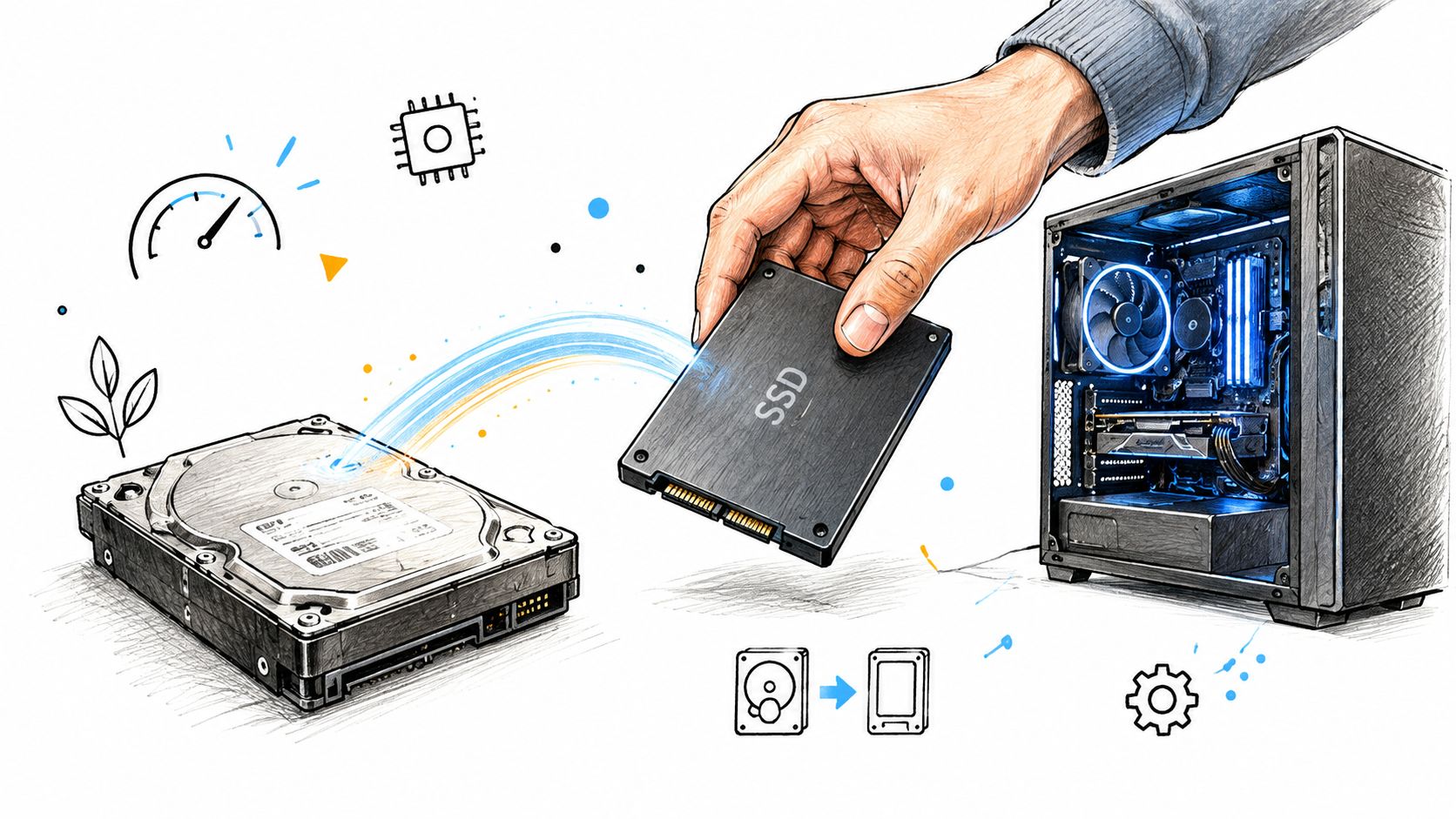
A clean transfer preserves more than filenames. Files should open from the expected locations, user data should remain assigned to the correct account, and applications should still find their supporting files. Migration therefore protects meaning, completeness, and usability while the storage platform changes.
The Office for National Statistics applies the same controlled principles to long-term migration data. Information is extracted, transformed, validated, and reconciled against authoritative records before the old source is retired. Its methodology also shows why definitions and relationships need control. ONS covers UK immigration, emigration, and net migration from the year ending June 2012 through the year ending December 2025, and defines a long-term migrant as someone moving to or from the UK for at least 12 months, following the United Nations definition. ONS migration methodology and definitions
For a home user, validation is concrete. A game library that launches without its saved progress is incomplete. A desktop shortcut pointing to nowhere is a failure. Permissions that no longer match the user account can block access even when every file appears on the destination drive.
Source condition changes the job. A stable drive allows a planned transfer with checks along the way. A clicking, freezing, or disconnecting drive needs recovery-first handling, because repeated reads can worsen the situation. The safest upgrade is a controlled handover, with selection and verification treated as part of the migration rather than afterthoughts.
Common Types of Data Migration Explained
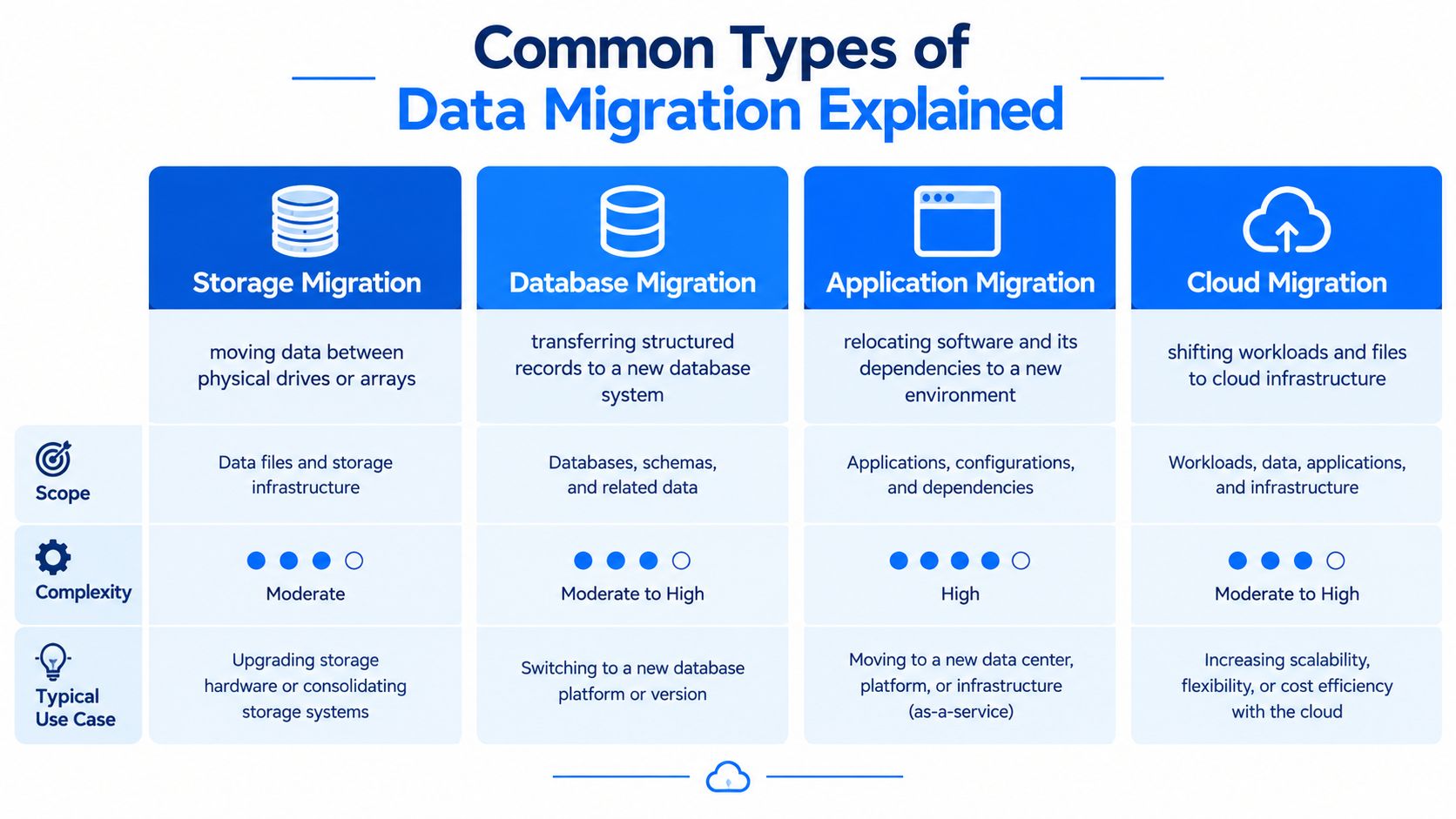
Different migrations break in different ways, so the type matters as much as the tool. Storage, database, server, cloud, and application moves all share the same core idea, but the scope and validation work change quite a bit.
Storage Migration
This is the one most users mean when they ask about moving from an HDD to an SSD. It's about relocating files between physical drives or arrays, often to improve speed, reliability, or capacity. In practice, this includes desktop upgrades, laptop replacement drives, and moving a working install to a newer machine.
Database Migration
Database work is more exacting because records live inside schemas, relationships, and constraints. If the structure changes and the mapping is sloppy, the data may import but still behave badly. Teams that handle business systems usually need to check field formats, table relationships, and application dependencies much more carefully than a folder copy would require.
Application Migration
This involves moving software and its settings to another environment. Sometimes that means a new Windows installation. Sometimes it means shifting the supporting data for an app to a new version or device. A clean result depends on whether the software expects the same paths, permissions, and companion files after the move.
Cloud Migration
Cloud moves shift workloads, files, or services away from local hardware and into hosted infrastructure. That changes who controls the storage, how access is managed, and how recovery is handled. A useful resource for planning this kind of work is tekRESCUE's Microsoft 365 deployment for Central Texas, especially where mailbox, user, and document movement need careful sequencing.
Different migration types fail for different reasons, so the first mistake is treating them all like a simple copy job.
For hands-on drive work, a clear comparison with a hard drive cloning approach helps, because cloning and migration overlap but don't always mean the same thing. Migration asks a bigger question than cloning does. It asks whether the destination can use the data correctly once it arrives.
The Standard Data Migration Lifecycle
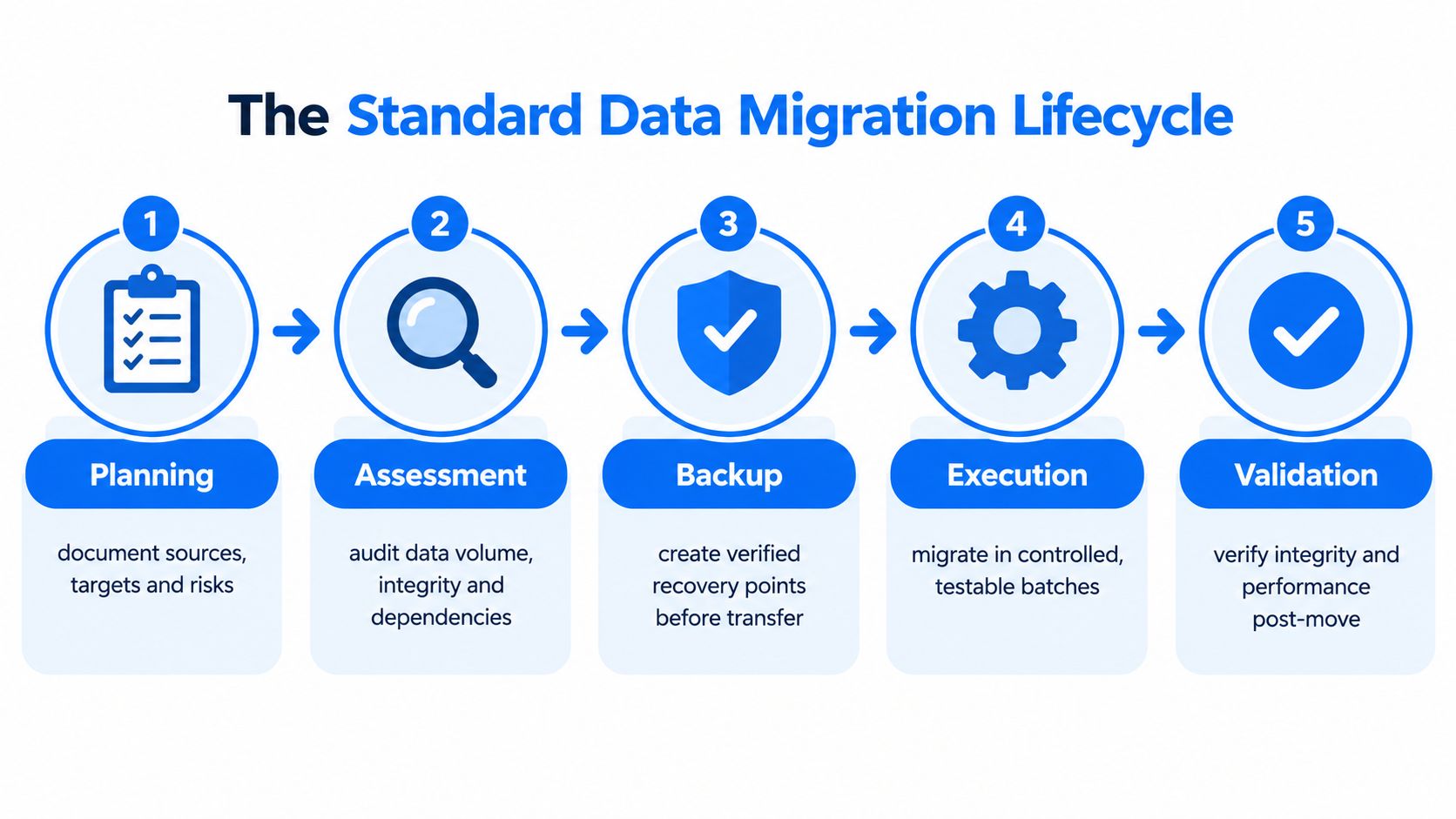
Good migration starts long before any file moves. Planning, backup, extraction, transfer, validation, and cutover all need to happen in order, because the weak point is usually not the copy process itself, it's the preparation.
Planning and Assessment
The National Archives guidance for UK organisations says migration planning should document the versions of both systems, information architectures, file formats, data volumes, licensing dependencies, and mandatory metadata mappings. That isn't bureaucracy for its own sake. If the schema or metadata expectations don't line up first, records can arrive incomplete, duplicated, or detached from context. National Archives digital records transfer guidance
A practical plan for a home user starts with the same mindset. Know what's on the source drive, what must move, and what the destination will support. One sentence from the old workshop rulebook still holds up, don't trust the copy until you know what the destination expects.
Backup and Execution
The UK National Cyber Security Centre recommends the 3-2-1 backup strategy, at least three copies of important data, stored on two devices, with one copy kept off-site, and it also recommends testing restoration regularly. That matters because migration can expose old disk faults, malware, or permission problems that a normal day's use never reveals. NCSC data security guidance
A practical migration plan from Kagool can help teams think about the sequence, especially where source systems, destination systems, and validation checkpoints need to be aligned before cutover. Kagool practical migration plan
In the transfer phase, speed is secondary. The safer approach is controlled copying in a way that can be checked as you go, then verifying file counts, sample hashes where feasible, and the ability to open key files and launch key applications. I've seen plenty of migrations fail without anyone noticing because nobody tested the result beyond “the folder is there”.
If you can't restore from backup, you don't have a migration plan yet. You have a copy operation.
Healthy Drives Versus Failing Hardware Risks
A healthy-drive migration and a failing-drive recovery need different instincts. On a stable machine, cloning or copying tools are often enough, because the source can be read repeatedly without much drama. The goal is simple, move the system cleanly and confirm it still behaves normally.
A failing disk changes the game. Repeated read attempts can make a weak drive worse, especially if the mechanism is already struggling or the filesystem is damaged. At that point, ordinary migration habits become risky habits, because every retry can be another chance to lose a sector that was still recoverable.
What Changes When the Drive Is Failing
A recovery-first approach starts by preserving the source where feasible, then working from that preserved copy instead of hammering the original. In practice, that means assessing whether the disk needs controlled imaging, checking for sector errors, and being careful about how much the source is asked to do. The source drive should stay recoverable until verification is done.
For healthy drives, the priority is convenience and consistency. For failing hardware, the priority is evidence preservation. That difference decides whether you use standard transfer tools or a slower, more controlled recovery workflow.
Steel City IT handles both sides of that divide, from healthy SSD upgrades to sector-level handling when the source drive is in trouble, which is why the first conversation should always be about drive condition, not just the files you want back. Steel City IT data migration service
Practical rule: if the drive is unstable, don't keep “trying one more time”. The safest path is usually to reduce reads, preserve what you can, and verify off the preserved copy.
The outcome should look boring after the work is done. Files open, programs launch, and the old drive is still available until the new setup proves itself.
Regulatory Obligations and Data Quality
A lot of people assume migration means taking everything and moving it all. That's not always responsible. UK GDPR requires organisations to keep personal data accurate and to avoid keeping information longer than necessary, and the ICO says stored information should be reviewed periodically so unneeded data can be erased or anonymised. ICO data protection principles guidance
That changes how a good migration is judged. Copying duplicate folders, stale exports, corrupted files, or old credentials can preserve clutter and risk along with the useful data. A better migration is selective. It keeps what's still needed, trustworthy, and appropriate to retain, and it leaves behind the junk that would just pollute the new system.
What to Leave Out
Duplicate user profiles, obsolete archives, broken install files, and data you no longer have a reason to keep can often be left behind. In a business setting, that also means being careful with personal data, because a migration can accidentally pull old records into a new environment where they're harder to govern. The same applies at home, just on a smaller scale.
The ICO also states that portable personal data should be supplied in a structured, commonly used, machine-readable format where appropriate, with open formats such as CSV, XML, and JSON used when they make sense. It also says that once a recipient accepts and retains personal data, that recipient becomes responsible for complying with UK GDPR. ICO right to data portability guidance
For a migration to be successful, the destination has to be cleaner, safer, and easier to manage than the source. A perfect copy of a messy drive is still a messy drive.
Practical Checklist for Sheffield Customers
If you're planning a drive upgrade, keep the process simple and disciplined. Start with the data you'd hate to lose, then work outward from there.
Make a verified backup first. Don't rely on the old drive staying healthy through the whole job. Backups should be restorable, not just present.
Separate essential files from noise. Put business records, family photos, save files, and key documents in one review list. Leave duplicates and temporary downloads for later decisions.
Check the destination drive. Make sure the new SSD has enough capacity and isn't showing errors before you trust it with the move.
Test the result immediately. Open important documents, launch critical applications, and confirm your user profile behaves normally.
Keep the source drive untouched for a while. If anything looks wrong after cutover, you want the original still available before you wipe it.
If the source drive is making noise, disconnecting, or slowing to a crawl, the job shifts from upgrade to recovery. That's the point where a local technician can assess whether the move should be handled as a normal migration or as a controlled data recovery first. For accountants and small firms, a cloud migration planning checklist can also help frame the broader sequence when files, users, and services are all changing at once.
A simple rule keeps people out of trouble, verify the important stuff before you celebrate. A drive can look fine and still hide a problem that only shows up when you open the exact file you need.
Next Steps for Secure and Successful Migration
The right way to think about migration is not “Can I copy this?” It's “Can I move it without losing meaning, access, or recovery options?” That mindset changes the work from a quick transfer into a controlled handover of digital life.
For a gaming PC, that might mean moving libraries, save data, and user settings without breaking launch paths. For a student laptop, it might mean protecting coursework while leaving corrupted clutter behind. For a small business, it means making sure records stay usable, compliant, and recoverable after the new system goes live.
When the source is healthy, the process is mostly about preparation and validation. When the source is failing, it becomes a preservation job first and a transfer job second. That distinction is the difference between an upgrade that flows smoothly and one that ends with avoidable loss.
Steel City IT handles SSD upgrades, Windows transfers, and data recovery from failing drives, with migration done as a checked process rather than a blind copy. If you want the old drive assessed before anything is moved, or you'd rather have the transfer handled from start to finish, visit Steel City IT and book a local diagnosis.